Info Security Memo
  • Blog
  • Sitemap
    • Categories
  • Contact
  • About
  • Resources
  • Tools
  • 51sec.org

Build Confidence

Focusing on Information Security 

Info Security Notes

DD Windows 11 En Into Oracle Free Tier VM (1vCPU 1GB RAM)

4/28/2022

0 Comments

 
Continuing my DD series to Oracle Free Tier VM (1oCPU, 1GB RAM), this video shows the process for Win11. It runs well although CPU and Memory is high all the time. We can add more virtual memories and adjust system services to reduce CPU usage. The image I am using is full Win11 version, not lite version. Command: wget -qO DebianNET.sh qiu.sh/dd && bash DebianNET.sh -dd 'https://dl.lamp.sh/vhd/en-us_win11_uefi.xz' Blog post: ✍Commands and Image Links : https://blog.51sec.org/2020/05/dd-windows-7-64b-to-oracle-cloud-ubuntu.html Related DD Videos: ⚡DD Install Windows System to Google Cloud Linux VM - https://youtu.be/rru1hRWp19E ⚡DD Win7 to Oracle Cloud Free Tier VM - https://youtu.be/JvaZJq8pvTY ⚡DD Win10 to Oracle Cloud Free Tier VM- https://youtu.be/OCbtxTAl5HM ⚡DD Win11 to Oracle Cloud Free Tier VM - ⚡DD Win2012 to Oracle Cloud Free Tier VM - https://youtu.be/qsTE62Ar9OY ⚡DD Windows 2016 into Oracle Cloud Free Tier Ubuntu VM - https://youtu.be/owe4CsbTG7E ⚡DD Win2019 to Oracle Cloud Free Tier VM- https://youtu.be/ekYxesAarMQ ⚡DD Win2022 EN to Oracle Cloud Free Tier VM in 30 Minutes - https://youtu.be/Y-WN258JrHQ ⚡DD Windows 11 En Into Oracle Free Tier VM (1vCPU, 1GB RAM) - https://youtu.be/F5RqyFPwqB4 Related Oracle Cloud Videos: ⚡Oracle Cloud Account Sign Up and Create a New Computing Instance - https://youtu.be/ZYvkJLoIhjY ⚡Benchmark Oracle Cloud Free Tier VM (1/8 OCPU and 1GB memory) - https://youtu.be/qHsedxUrvYE ⚡Get Two Free and Permanent VPS from Oracle Cloud Platform - https://youtu.be/E9dHA3NBbN8 ⚡Oracle Cloud Free ARM Compute Instance (4 oCPUs and 24GB RAM) - https://youtu.be/FbihlMBNuro ⚡Create VNC Console Connection for Oracle Cloud Instances - https://youtu.be/JZlp9Xfg980 ⚡Install and RDP Access Ubuntu Desktop in Oracle ARM Server with Troubleshooting - https://youtu.be/C0nxOZBo6Dw ====================================================================== If you found this video has some useful information✍, please give me a thumb up ✅ and subscribe this channel ?to get more updates?: ⚡https://www.youtube.com/c/Netsec?sub_confirmation=1 ⚡Resource Collection and Bookmarks: https://sites.51sec.org/ Learning and Sharing - 海内存知己,天涯若比邻 ⚡https://51sec.org ?https://itprosec.com

Watch video on YouTube here: https://youtu.be/F5RqyFPwqB4 by Johnny Netsec
0 Comments

Upgrade Your OneDrive Space from 5T to 25T For Free

4/24/2022

0 Comments

 
Upgrade Your OneDrive Space from 5T to 25T For Free

By default, your Microsoft Developer E5 will only give you 5TB for your OneDrive accounts. Actually, Microsoft has provide a easy way to upgrade your storage limit to 25TB. It is just hided from normal setting page. 


In this post, I am going to show you a free and easy way to upgrade your OneDrive from 5T to 25T, without making any manual request to Microsoft or writing some PowerShell script. 


Check Your Current OneDrive / Share Point Configuration

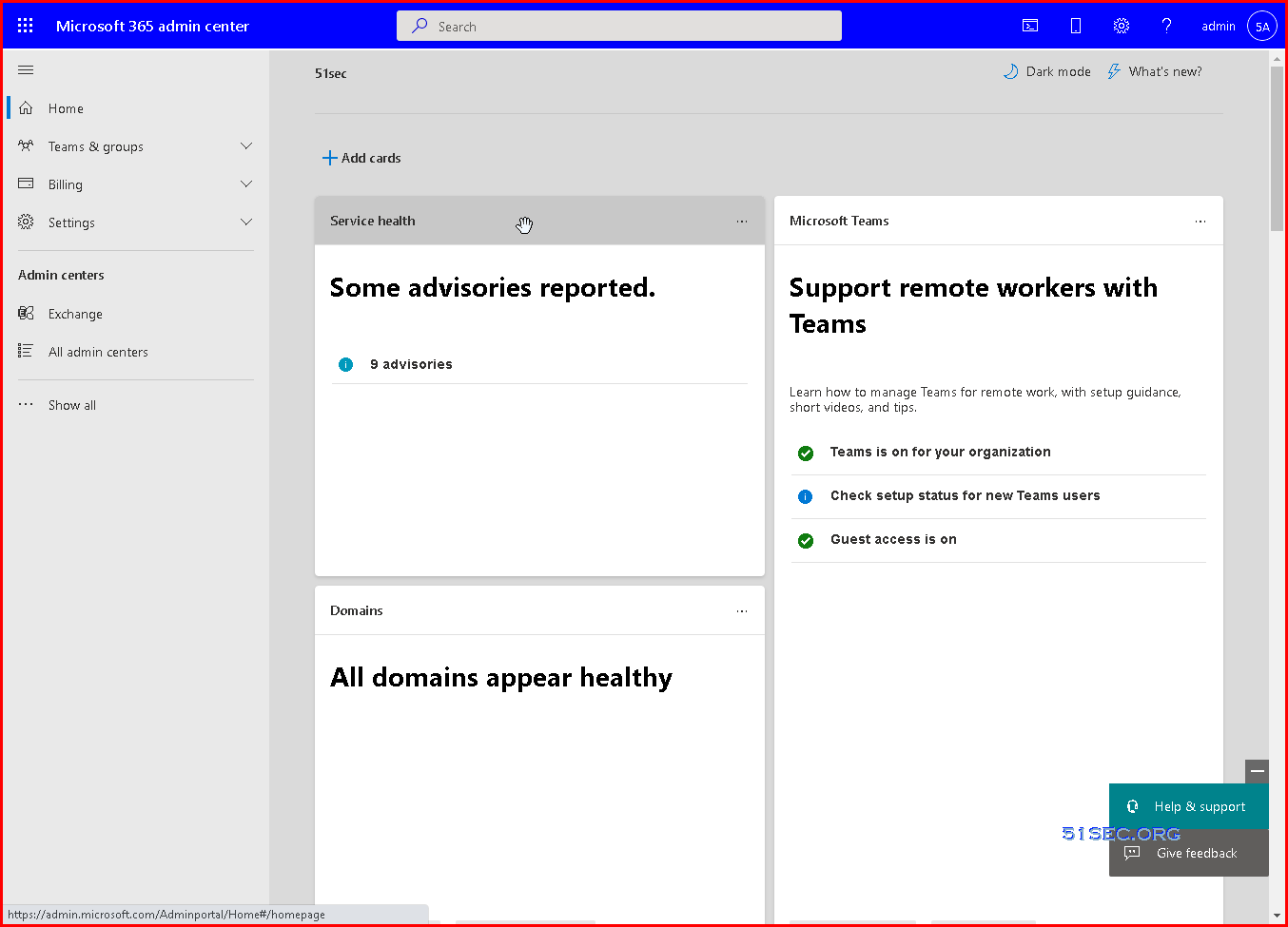
1 Log in Microsoft 365 admin center (https://admin.microsoft.com/) using a global admin account


2 Click All admin centers from left panel


3 Click SharePoint to go to SharePoint admin center


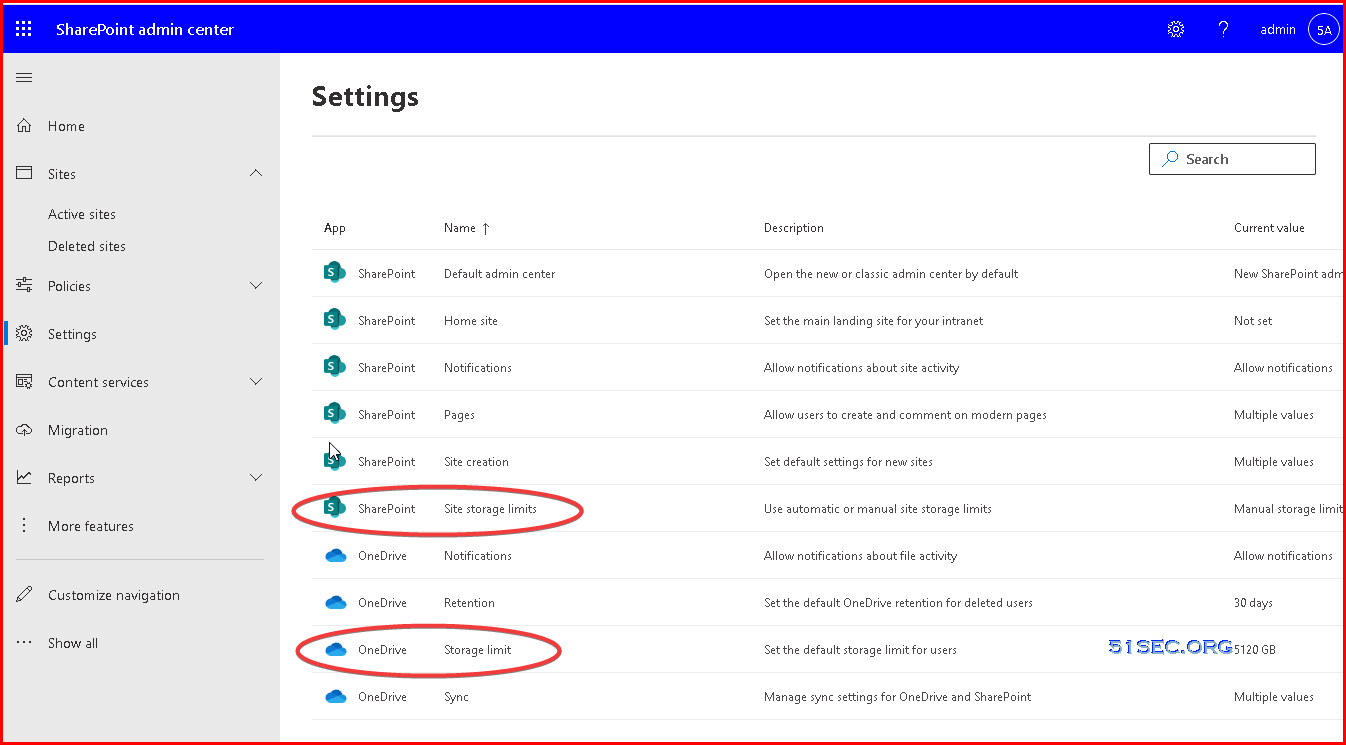
4 Click settings from left panel of SharePoint admin center


5 Check SharePoint Site Storage Limits and OneDrive StorageLimit

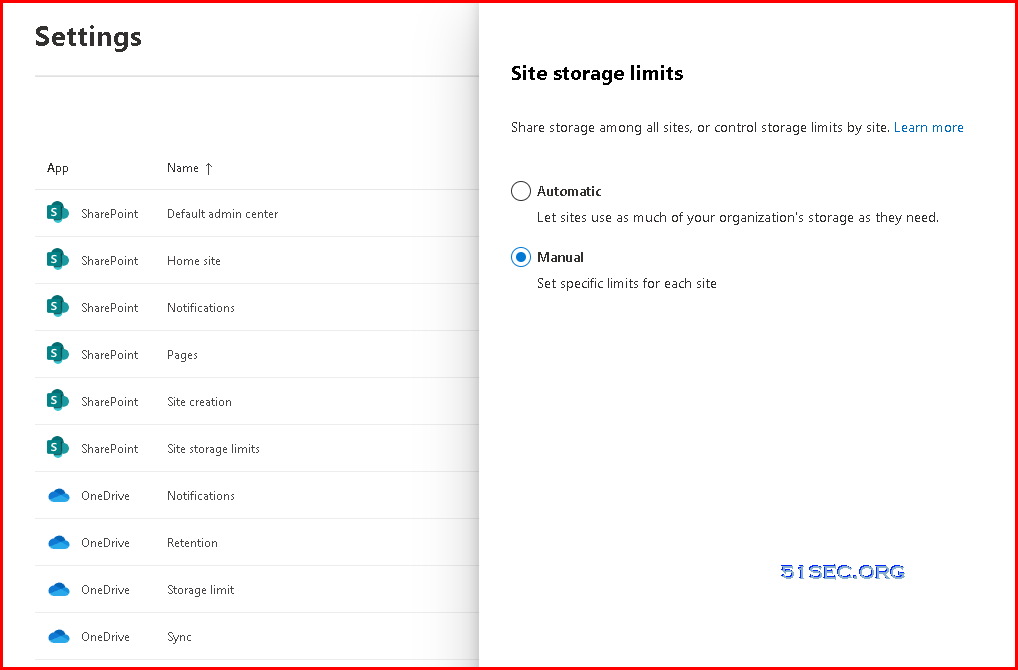
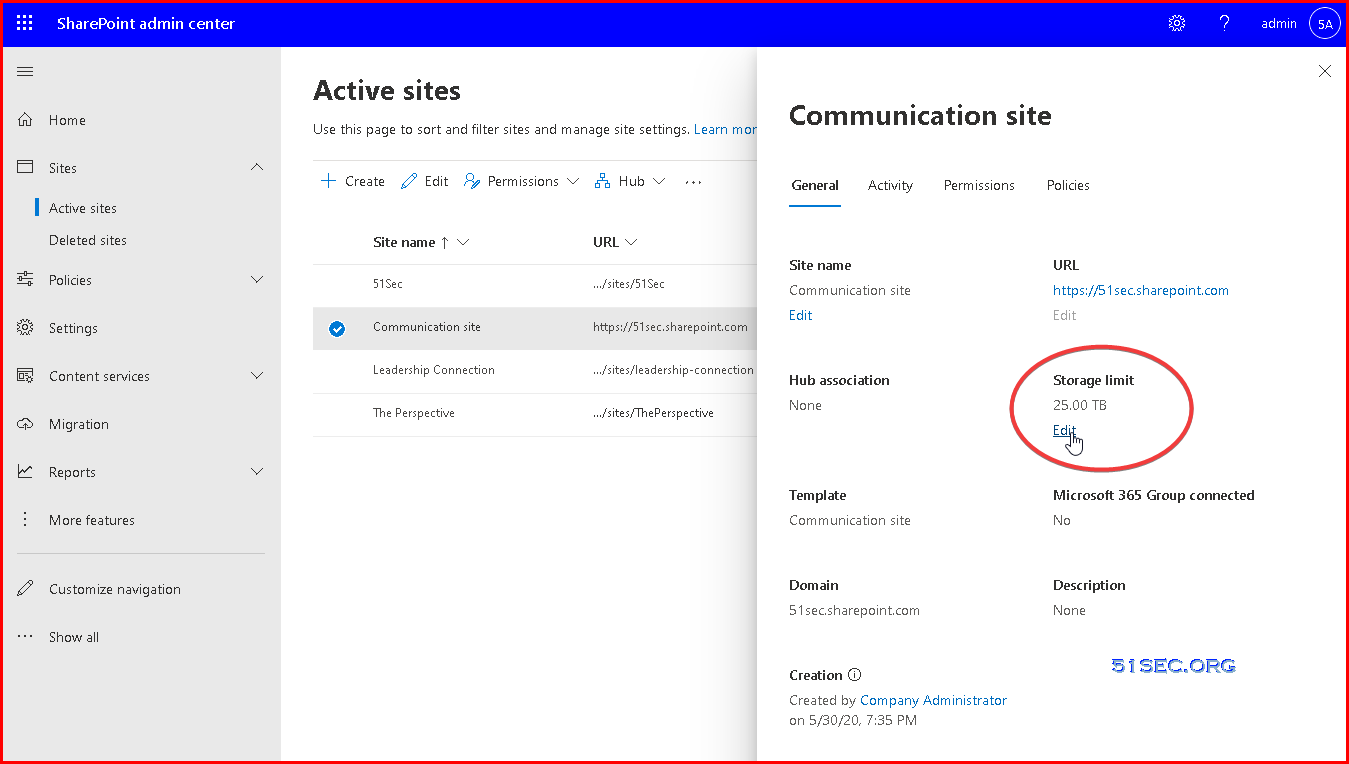
6 For SharePoint, we can set specific limits for each site manually. 


7 For OneDrive, maximum default storage limit you can set is only 5120GB (5T).


Pre-requirement to Upgrade OneDrive to 25T


Based on Microsoft Doc , Check OneDrive site eligibility for increased storage, If you need more Microsoft OneDrive storage than the default 5 TB, the Microsoft 365 administrator in your organization can check if you are eligible for an increased storage limit. You must already have filled 90% of the 5 TB storage before requesting an increase.


Process to Upgrade OneDrive from 5T to 25T


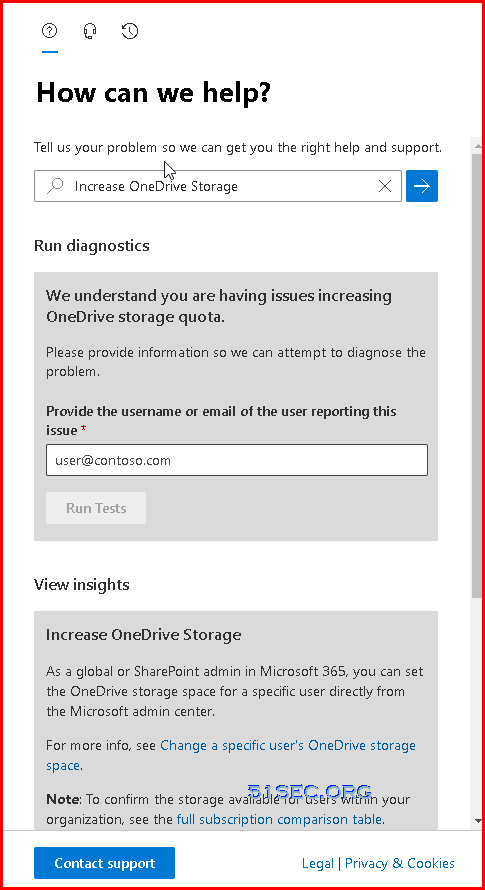
1 From Microsoft 365 admin center (https://admin.microsoft.com/) , find out the Help&Support menu at the left bottom corner of this page. 


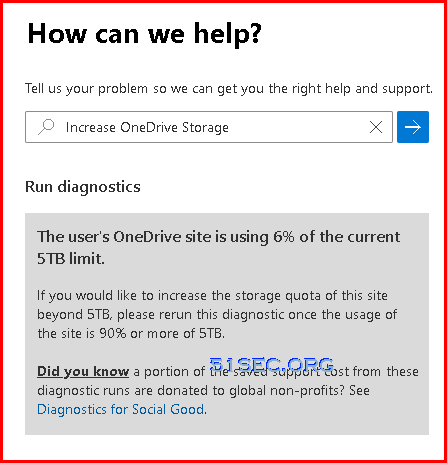
2 Enter "Increate OneDrive Storage", wait Run diagnostics section shows up


3 Enter the user or email you would like to upgrade to 25T, then click Run Tests button


4 If your user's OneDrive is not used over 90% of the current 5TB limit, you will not be able to upgrade to 25TB

5 Copy your OneDrive files to different folder to make it use more than 90% of 5TB storage. 


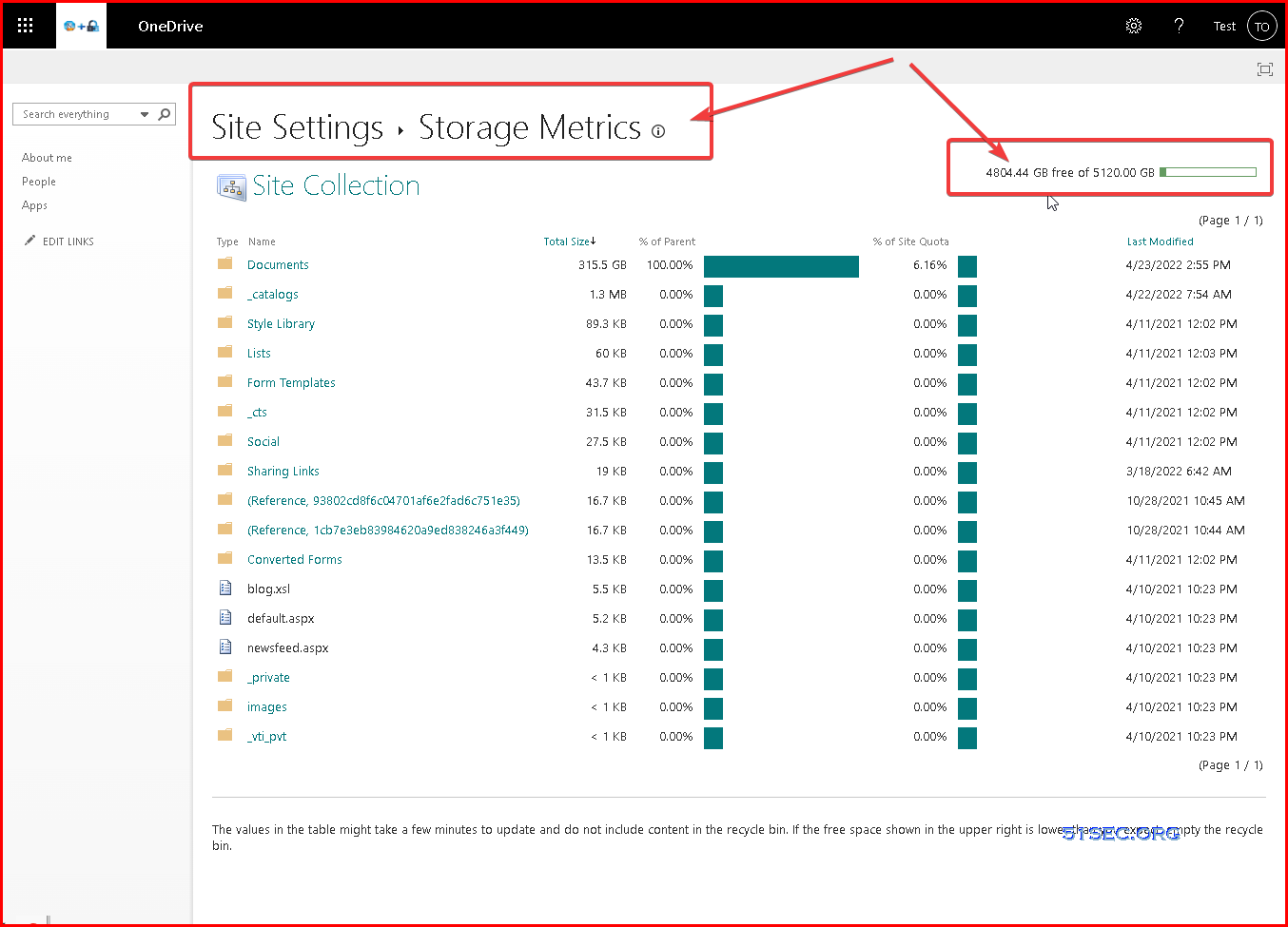
6 Check OneDrive's Storage metrics to verify your site usage


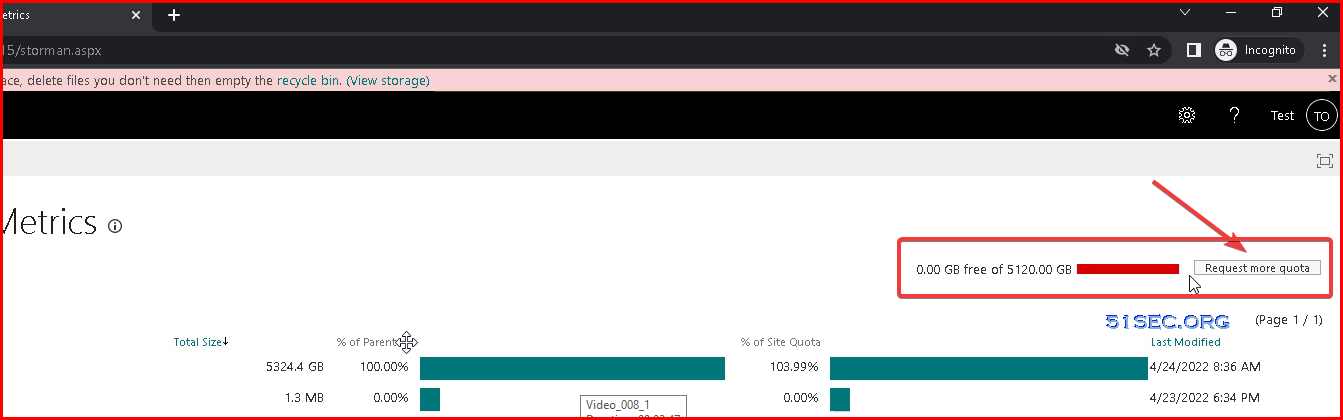
7 If you already used up 5T, you might have an optional button to request more quota for your account as show from following screenshot


8 If the tests detect that the user's OneDrive site can be upgraded to exceed the 5 TB quota, select Update Settings for the diagnostic to process the increase.
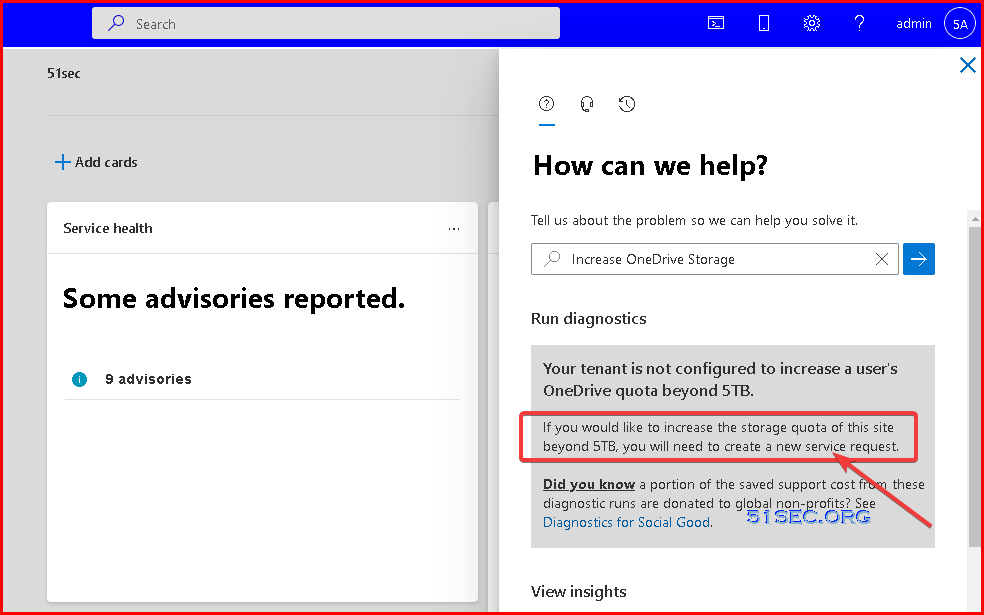
Screenshot of the Need Help window says your tenant is not configured to increase a user's OneDrive quota beyond 5 TB.


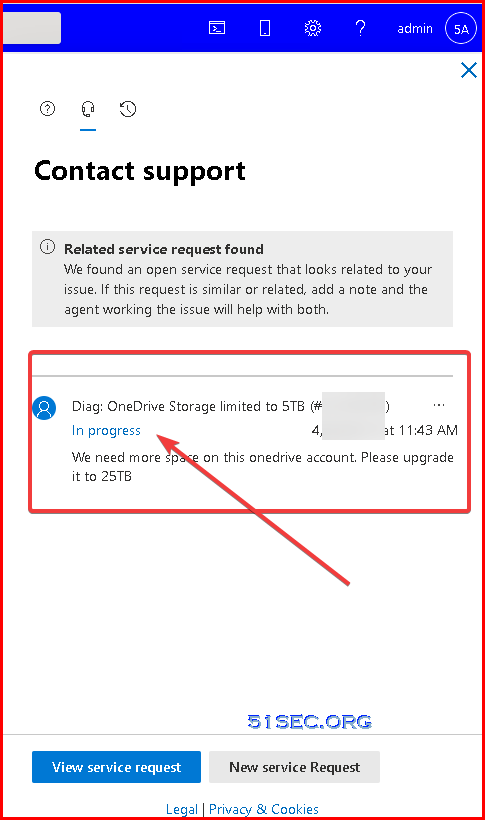
9 Sometimes, the Upgrade Settings button will not show up. You might need to open a service request to request upgrade. 


Run diagnostics
Your tenant is not configured to increase a user's OneDrive quota beyond 5TB.
If you would like to increase the storage quota of this site beyond 5TB, you will need to create a new service request.

Did you know a portion of the saved support cost from these diagnostic runs are donated to global non-profits? See Diagnostics for Social Good.

Here is a ticket I opened to request increasing quota for my OneDrive account:


Related YouTube Videos


Get Free M365 E5 Subscription with Your Own Domain Name


MS 365 Developer: OneDrive Upgrade to 5T and Create Catch All Exchange Rule


Renew Microsoft 365 Developer Subscription with Some Developing Activities in Your M365 Apps


References


via Blogger http://blog.51sec.org/2022/04/upgrade-your-onedrive-space-from-5t-to.html
April 24, 2022 at 03:22PM Cloud
0 Comments

Upgrade Free MS 365 E5 Developer Subscription OneDrive Space From 5T To 25T

4/24/2022

0 Comments

 
This video shows you the process to upgrade your Free MS 365 E5 Developer Subscription OneDrive from 5T to 25T. Simple and Easy! You will get 25TB for free. [Updates] TBD Related posts: ✍,Get Permanent Free Domain Name from EU.ORG & Integrate with Cloudflare - https://blog.51sec.org/2021/04/apply-permanent-free-domain-name-from.html ✍,Add Your Own Domain into Free Microsoft 365 E5 Subscription - https://blog.51sec.org/2021/04/add-your-own-domain-into-free-microsoft.html ✍Upgrade Your OneDrive Space from 5T to 25T for Free - https://blog.51sec.org/2022/04/upgrade-your-onedrive-space-from-5t-to.html Related videos: ⚡Get Free PP UA Domain and Integrated with CloudFlare - https://youtu.be/zrhxb8swVGM ⚡Get Free Subdomain from EU.ORG & Integrate with Cloudflare - https://youtu.be/V1xnhqqg4Rw ⚡Get Free O365 E5 Subscription with Your Own Domain Name - https://youtu.be/WtP5UCcwphw ⚡Microsoft 365 Developer: One Drive Upgrade to 2T and Create Catch All Exchange Rule - https://youtu.be/XRZLBw2Mub0 ⚡Upgrade Free MS 365 E5 Developer Subscription OneDrive Space From 5T To 25T - https://youtu.be/db6ubF_4wa8 ====================================================================== If you found this video has some useful information✍, please give me a thumb up ✅ and subscribe this channel ?to get more updates?: ⚡https://www.youtube.com/c/Netsec?sub_confirmation=1 ⚡Resource Collection and Bookmarks: https://sites.51sec.org/ Learning and Sharing - 海内存知己,天涯若比邻 ⚡https://51sec.org ?https://itprosec.com

Watch video on YouTube here: https://youtu.be/db6ubF_4wa8 by Johnny Netsec
0 Comments

Azure Windows VM to Join AAD DS

4/17/2022

0 Comments

 
Azure Windows VM to Join AAD DS

Azure Active Directory Domain Services (Azure AD DS) provides managed domain services such as domain join, group policy, LDAP, Kerberos/NTLM authentication that is fully compatible with Windows Server Active Directory. You consume these domain services without deploying, managing, and patching domain controllers yourself. Azure AD DS integrates with your existing Azure AD tenant. This integration lets users sign in using their corporate credentials, and you can use existing groups and user accounts to secure access to resources.

You can create a managed domain using default configuration options for networking and synchronization, or manually define these settings. This tutorial shows you how to use default options to create and configure an Azure AD DS managed domain using the Azure portal.


Azure Active Directory Domain Service

AADDS 

  • Microsoft Managed, support OUs and GPOs
  • not connecting to AD, different site/forest
  • You are not enterprise admin, not Schema Admin, not Domain Admin
  • Common Use Cases 
    • Traditional Authentication as a Service (Kerberos, NTLM)
    • Cloud solutions that need domain join (Microsoft Virtual Desktop, AD Auth for file shares)


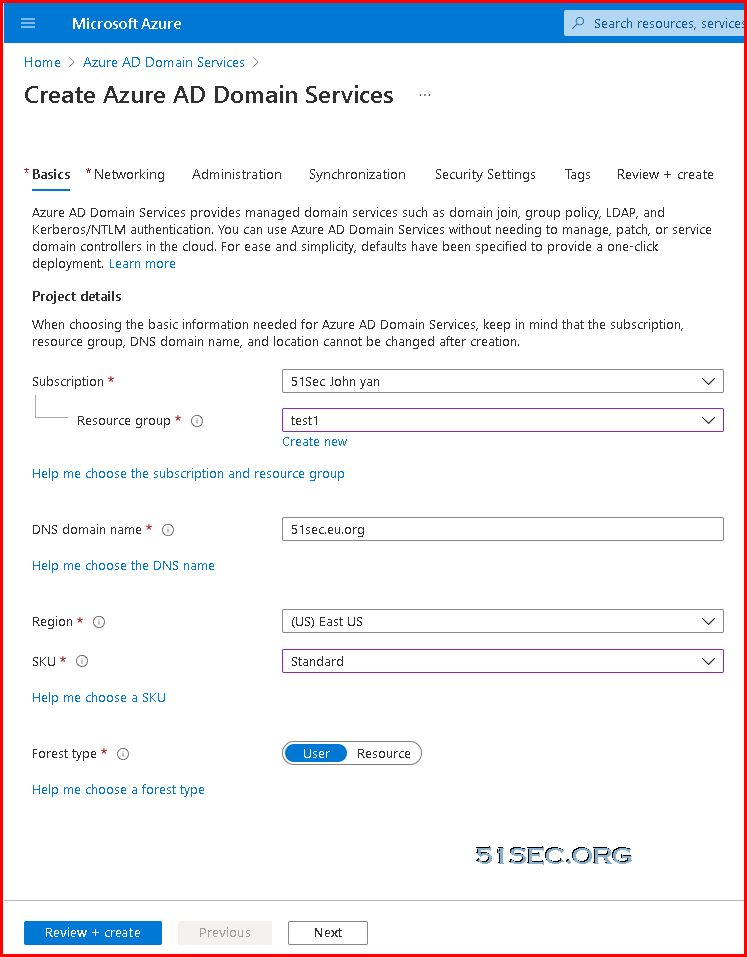
Create Azure AD Domain Services

Change SKU to standard from enterprise to save some cost. 


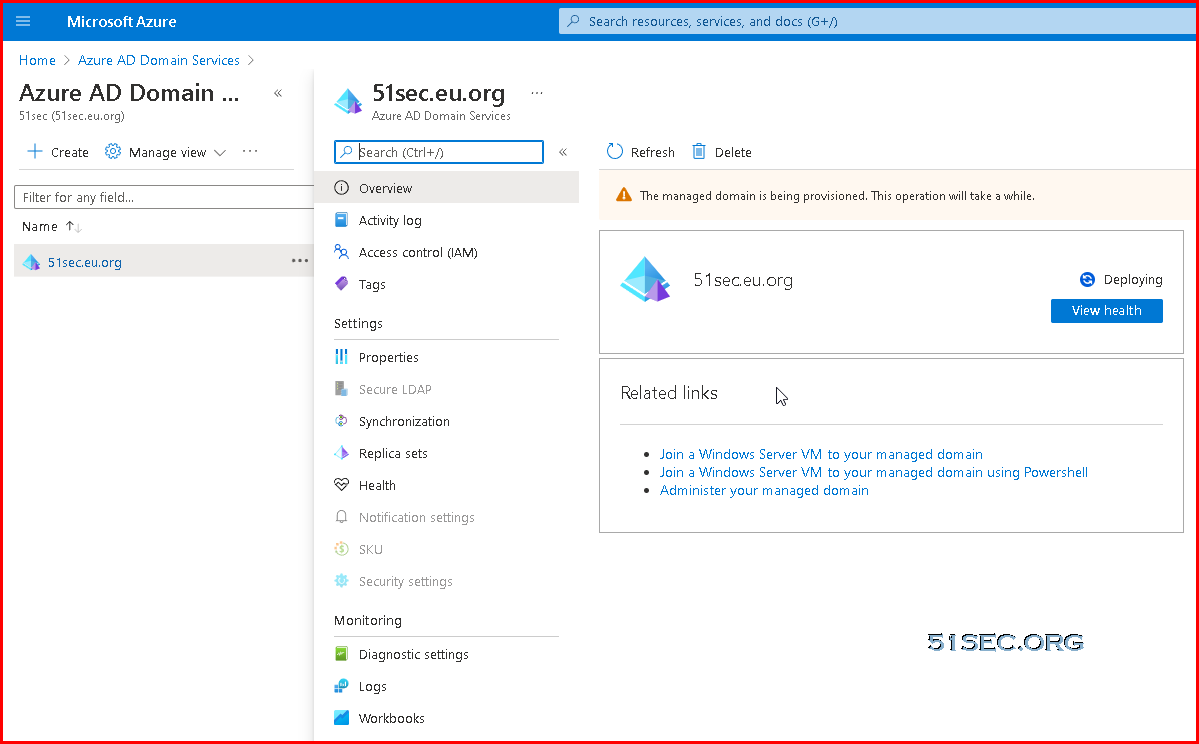
Succeed:


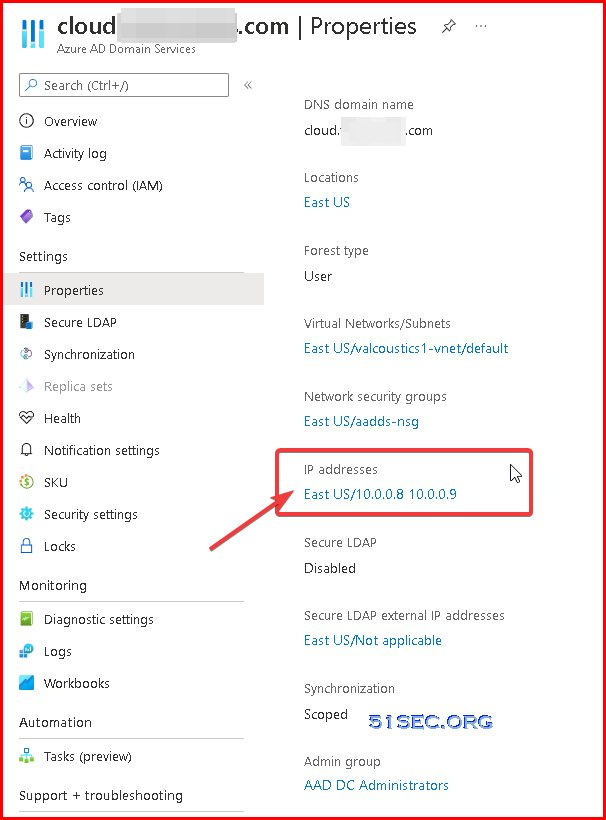
Check DNS server ip addresses after created Azure AD Domain Services:


Update DNS settings for the Azure virtual network

With Azure AD DS successfully deployed, now configure the virtual network to allow other connected VMs and applications to use the managed domain. To provide this connectivity, update the DNS server settings for your virtual network to point to the two IP addresses where the managed domain is deployed.

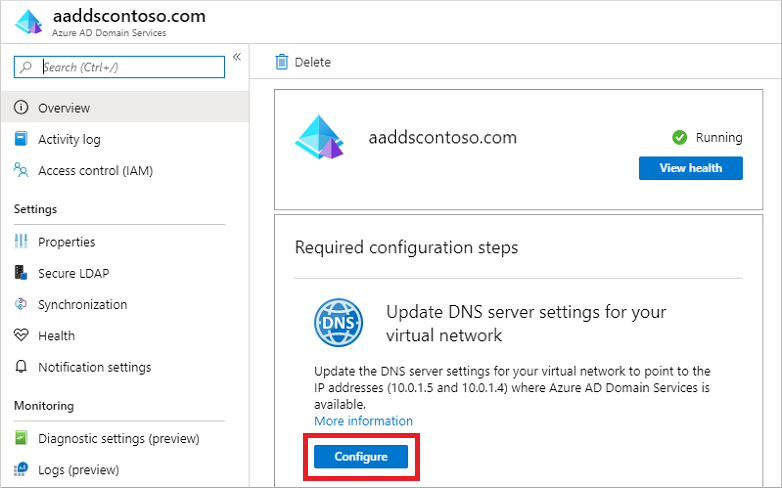
  1. The Overview tab for your managed domain shows some Required configuration steps. The first configuration step is to update DNS server settings for your virtual network. Once the DNS settings are correctly configured, this step is no longer shown.

    The addresses listed are the domain controllers for use in the virtual network. In this example, those addresses are 10.0.0.8 and 10.0.0.9. You can later find these IP addresses on the Properties tab.

    Configure DNS settings for your virtual network with the Azure AD Domain Services IP addresses

  2. To update the DNS server settings for the virtual network, select the Configure button. The DNS settings are automatically configured for your virtual network.


You will get two DNS server ip addresses, which will be automatically / manuallyconfigured to your VNET configuration. 


Steps to join an Azure cloud Windows server to AAD DS

1 Create a new VM, log into it using your local account

Check IP Address configuration:


C:\Users\netsec>ipconfig /all
Windows IP Configuration Host Name . . . . . . . . . . . . : rg-fileshare-te Primary Dns Suffix . . . . . . . : Node Type . . . . . . . . . . . . : Hybrid IP Routing Enabled. . . . . . . . : No WINS Proxy Enabled. . . . . . . . : No DNS Suffix Search List. . . . . . : reddog.microsoft.com Ethernet adapter Ethernet: Connection-specific DNS Suffix . : reddog.microsoft.com Description . . . . . . . . . . . : Microsoft Hyper-V Network Adapter Physical Address. . . . . . . . . : 00-0D-3A-12-8C-29 DHCP Enabled. . . . . . . . . . . : Yes Autoconfiguration Enabled . . . . : Yes Link-local IPv6 Address . . . . . : fe80::1cfc:928a:4e56:3b99%6(Preferred) IPv4 Address. . . . . . . . . . . : 10.0.0.11(Preferred) Subnet Mask . . . . . . . . . . . : 255.255.255.0 Lease Obtained. . . . . . . . . . : Sunday, April 17, 2022 4:20:39 PM Lease Expires . . . . . . . . . . : Thursday, May 25, 2158 12:39:44 AM Default Gateway . . . . . . . . . : 10.0.0.1 DHCP Server . . . . . . . . . . . : 168.63.129.16 DHCPv6 IAID . . . . . . . . . . . : 100666682 DHCPv6 Client DUID. . . . . . . . : 00-01-00-01-29-ED-8C-60-00-0D-3A-12-8C-29 DNS Servers . . . . . . . . . . . : 10.0.0.8 10.0.0.9 NetBIOS over Tcpip. . . . . . . . : Enabled C:\Users\netsec>


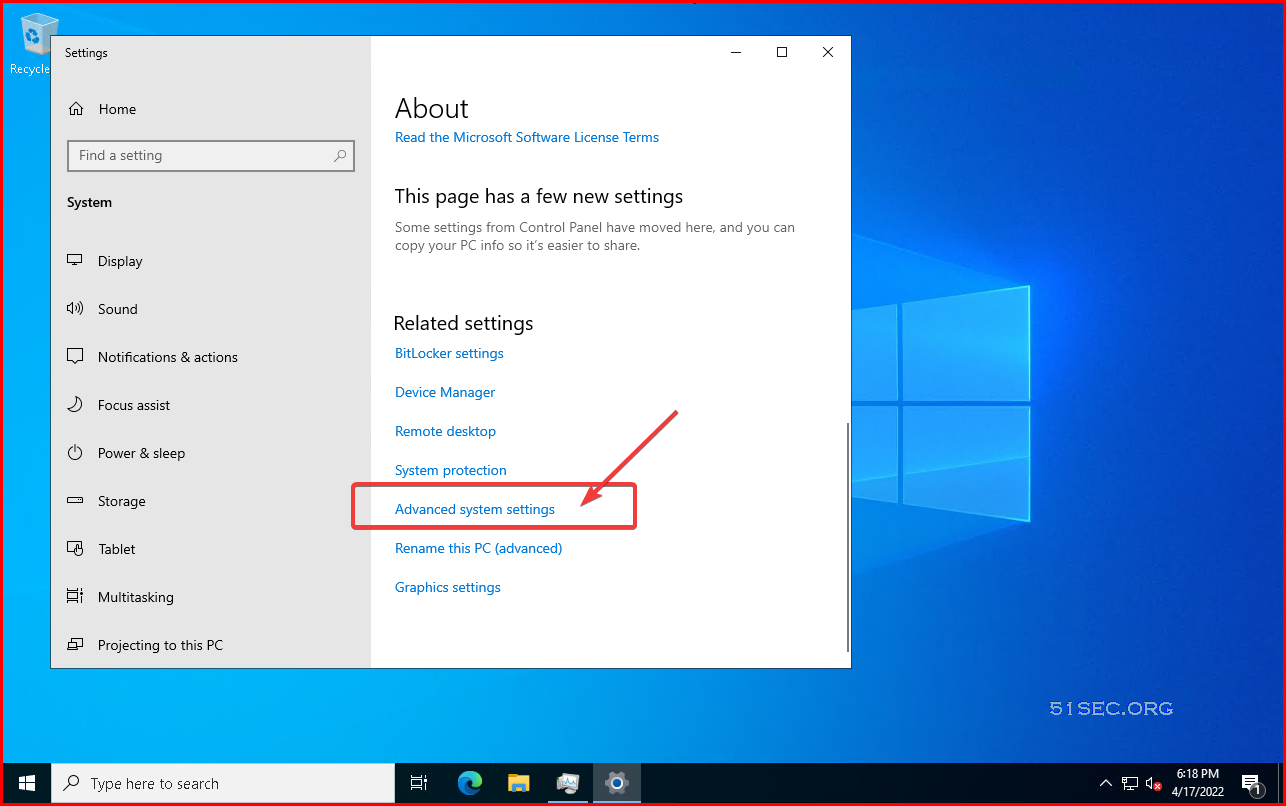
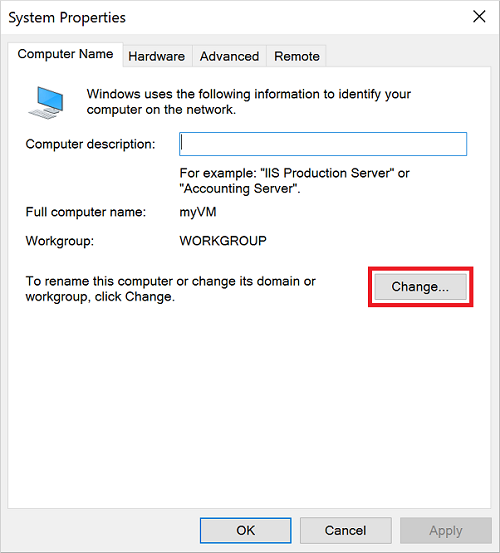
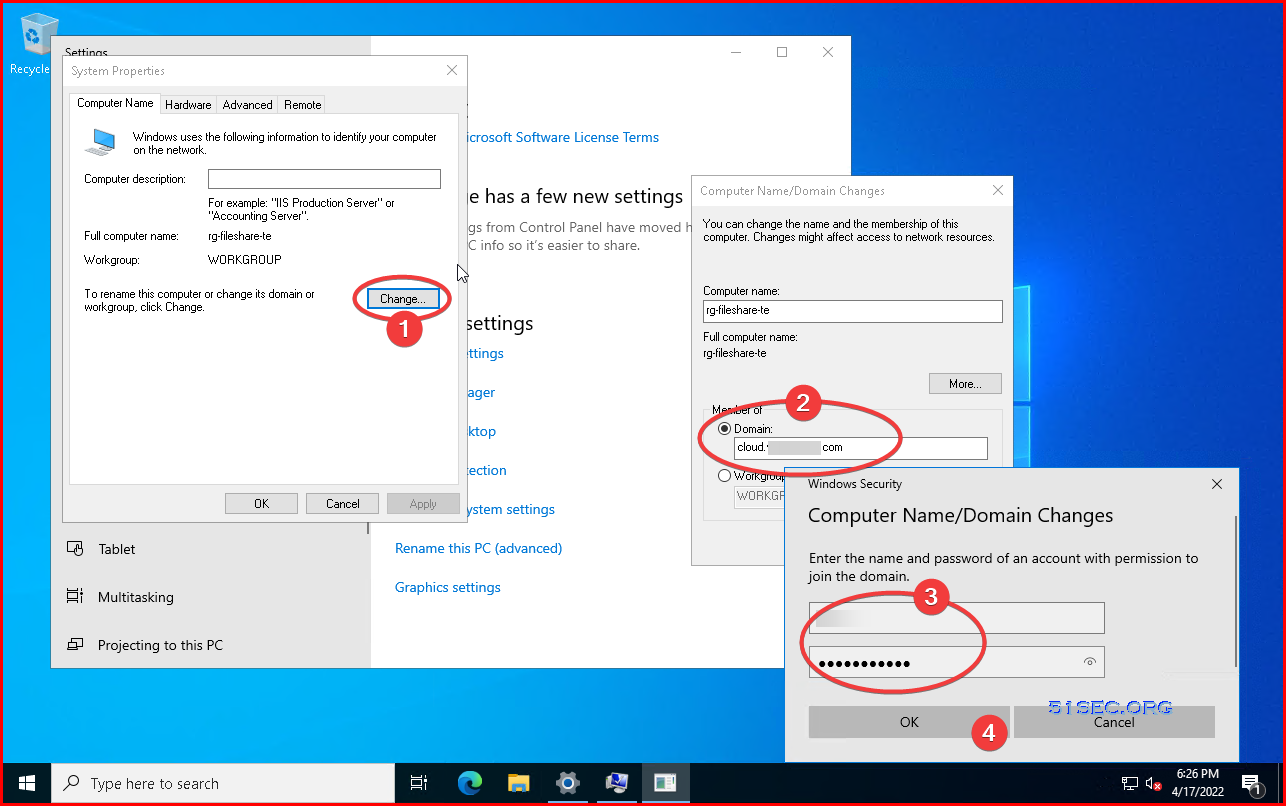
2 In the System Properties window, select Change to join the managed domain.

Choose to change the workgroup or domain properties


3 In the Domain box, specify the name of your managed domain, such as aaddscontoso.com, then select OK.

Specify the managed domain to join


4 Enter domain credentials to join the domain. Provide credentials for a user that's a part of the managed domain. The account must be part of the managed domain or Azure AD tenant - accounts from external directories associated with your Azure AD tenant can't correctly authenticate during the domain-join process. It takes a few seconds to join to the managed domain. When complete, the following message welcomes you to the domain:

Welcome to the domain


5 To complete the process to join to the managed domain, restart the VM.


Enable non - NLA

For remote desktop, once you joined Azure Active Directory Domain service, to allow local account log in, you will need to disable "Allow connections only from computers running Remote Desktop with Network Level Authentication (recommended)".

In this way, even when your machine could not connect to your Azure Active Directory Domain service, you will be still able to log in using local admin account.


Administrative tasks you can perform on a managed domain

Members of the AAD DC Administrators group are granted privileges on the managed domain that enables them to do tasks such as:

  • Configure the built-in group policy object (GPO) for the AADDC Computers and AADDC Users containers in the managed domain.
  • Administer DNS on the managed domain.
  • Create and administer custom organizational units (OUs) on the managed domain.
  • Gain administrative access to computers joined to the managed domain.

Install Active Directory administrative tools

You use the same administrative tools in a managed domain as on-premises AD DS environments, such as the Active Directory Administrative Center (ADAC) or AD PowerShell. These tools can be installed as part of the Remote Server Administration Tools (RSAT) feature on Windows Server and client computers. Members of the AAD DC Administrators group can then administer managed domains remotely using these AD administrative tools from a computer that is joined to the managed domain.

To install the Active Directory Administration tools on a domain-joined VM, complete the following steps:

  1. If Server Manager doesn't open by default when you sign in to the VM, select the Start menu, then choose Server Manager.

  2. In the Dashboard pane of the Server Manager window, select Add Roles and Features.

  3. On the Before You Begin page of the Add Roles and Features Wizard, select Next.

  4. For the Installation Type, leave the Role-based or feature-based installation option checked and select Next.

  5. On the Server Selection page, choose the current VM from the server pool, such as myvm.aaddscontoso.com, then select Next.

  6. On the Server Roles page, click Next.

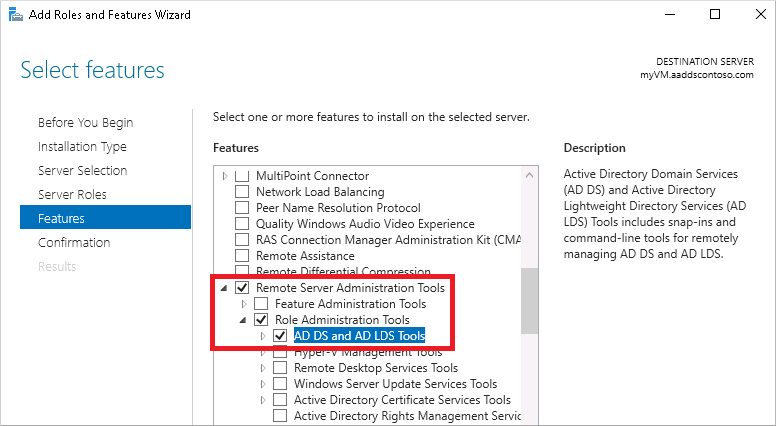
  7. On the Features page, expand the Remote Server Administration Tools node, then expand the Role Administration Tools node.

    Choose AD DS and AD LDS Tools feature from the list of role administration tools, then select Next.

    Install the 'AD DS and AD LDS Tools' from the Features page

  8. On the Confirmation page, select Install. It may take a minute or two to install the administrative tools.

  9. When feature installation is complete, select Close to exit the Add Roles and Features wizard.

Use Active Directory administrative tools

With the administrative tools installed, let's see how to use them to administer the managed domain. Make sure that you're signed in to the VM with a user account that's a member of the AAD DC Administrators group.

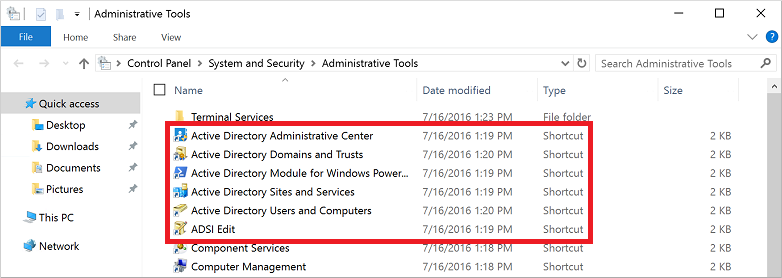
  1. From the Start menu, select Windows Administrative Tools. The AD administrative tools installed in the previous step are listed.

    List of Administrative Tools installed on the server

  2. Select Active Directory Administrative Center.

  3. To explore the managed domain, choose the domain name in the left pane, such as aaddscontoso. Two containers named AADDC Computers and AADDC Users are at the top of the list.

    List the available containers part of the managed domain

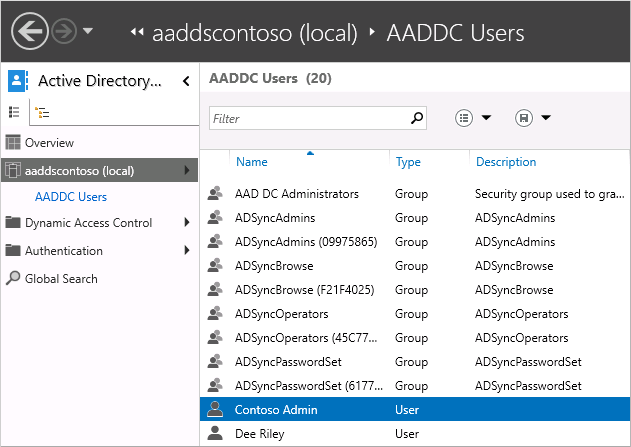
  4. To see the users and groups that belong to the managed domain, select the AADDC Users container. The user accounts and groups from your Azure AD tenant are listed in this container.

    In the following example output, a user account named Contoso Admin and a group for AAD DC Administrators are shown in this container.

    View the list of Azure AD DS domain users in the Active Directory Administrative Center

  5. To see the computers that are joined to the managed domain, select the AADDC Computers container. An entry for the current virtual machine, such as myVM, is listed. Computer accounts for all devices that are joined to the managed domain are stored in this AADDC Computers container.

Common Active Directory Administrative Center actions such as resetting a user account password or managing group membership are available. These actions only work for users and groups created directly in the managed domain. Identity information only synchronizes from Azure AD to Azure AD DS. There's no write back from Azure AD DS to Azure AD. You can't change passwords or managed group membership for users synchronized from Azure AD and have those changes synchronized back.

You can also use the Active Directory Module for Windows PowerShell, installed as part of the administrative tools, to manage common actions in your managed domain.


References

1. Tutorial: Join a Windows Server virtual machine to an Azure Active Directory Domain Services managed domain


via Blogger http://blog.51sec.org/2022/04/azure-active-directory-domain-services.html
April 17, 2022 at 02:24PM Cloud
0 Comments

Use Free Azure VMs After 12 Months Trial

4/17/2022

0 Comments

 
This video shows you a way to use Free Azure VMs longer than trial periods 12 months. You will need an academic email address to pass academic verification from Microsoft. Once you get your student subscription, you will be able to automatically get renewed year by year as long as you have access to your academic email. With your renew, $100 credit will be added into your subscription as well. This video also shows you how to create a proper Windows / Linux VM to meet free tier requirements. Related Videos: ⚡Create free tier Azure Windows / Linux virtual machines - https://youtu.be/rNRObnD-DkY ⚡DD Install Windows System to Google Cloud Linux VM - https://youtu.be/rru1hRWp19E ⚡DD Win7 to Oracle Cloud Free Tier VM - https://youtu.be/JvaZJq8pvTY ⚡DD Win10 to Oracle Cloud Free Tier VM- https://youtu.be/OCbtxTAl5HM ⚡DD Win11 to Oracle Cloud Free Tier VM - ⚡DD Win2012 to Oracle Cloud Free Tier VM - https://youtu.be/qsTE62Ar9OY ⚡DD Windows 2016 into Oracle Cloud Free Tier Ubuntu VM - https://youtu.be/owe4CsbTG7E ⚡DD Win2019 to Oracle Cloud Free Tier VM- https://youtu.be/ekYxesAarMQ ⚡DD Win2022 EN to Oracle Cloud Free Tier VM in 30 Minutes - https://youtu.be/Y-WN258JrHQ Related Post: ✍https://blog.51sec.org/2019/03/create-free-tier-windows-virtual.html ==================================================================== If you found this video has some useful information✍, please give me a thumb up ✅ and subscribe this channel ?to get more updates?: ⚡https://www.youtube.com/c/Netsec?sub_confirmation=1 ⚡Resource Collection and Bookmarks: https://sites.51sec.org/ Learning and Sharing - 海内存知己,天涯若比邻 - ⚡https://51sec.org ?https://itprosec.com

Watch video on YouTube here: https://youtu.be/QuqekbJJN3E by Johnny Netsec
0 Comments

DD Win10 LTSC to Oracle Free Tier VM

4/11/2022

0 Comments

 
Continuing my DD series to Oracle Free Tier VM (1oCPU, 1GB RAM), this video shows the process for Win10. I am using a Chinese version Win10 image but you can find out English image from my blog post: ✍Commands and Image Links : https://blog.51sec.org/2020/05/dd-windows-7-64b-to-oracle-cloud-ubuntu.html Related DD Videos: ⚡DD Install Windows System to Google Cloud Linux VM - https://youtu.be/rru1hRWp19E ⚡DD Win7 to Oracle Cloud Free Tier VM - https://youtu.be/JvaZJq8pvTY ⚡DD Win10 to Oracle Cloud Free Tier VM- https://youtu.be/OCbtxTAl5HM ⚡DD Win11 to Oracle Cloud Free Tier VM - ⚡DD Win2012 to Oracle Cloud Free Tier VM - https://youtu.be/qsTE62Ar9OY ⚡DD Windows 2016 into Oracle Cloud Free Tier Ubuntu VM - https://youtu.be/owe4CsbTG7E ⚡DD Win2019 to Oracle Cloud Free Tier VM- https://youtu.be/ekYxesAarMQ ⚡DD Win2022 EN to Oracle Cloud Free Tier VM in 30 Minutes - https://youtu.be/Y-WN258JrHQ Related Oracle Cloud Videos: ⚡Oracle Cloud Account Sign Up and Create a New Computing Instance - https://youtu.be/ZYvkJLoIhjY ⚡Benchmark Oracle Cloud Free Tier VM (1/8 OCPU and 1GB memory) - https://youtu.be/qHsedxUrvYE ⚡Get Two Free and Permanent VPS from Oracle Cloud Platform - https://youtu.be/E9dHA3NBbN8 ⚡Oracle Cloud Free ARM Compute Instance (4 oCPUs and 24GB RAM) - https://youtu.be/FbihlMBNuro ⚡Create VNC Console Connection for Oracle Cloud Instances - https://youtu.be/JZlp9Xfg980 ⚡Install and RDP Access Ubuntu Desktop in Oracle ARM Server with Troubleshooting - https://youtu.be/C0nxOZBo6Dw ==================================================================== If you found this video has some useful information✍, please give me a thumb up ✅ and subscribe this channel ?to get more updates?: ⚡https://www.youtube.com/c/Netsec?sub_confirmation=1 ⚡Resource Collection and Bookmarks: https://sites.51sec.org/ Learning and Sharing - 海内存知己,天涯若比邻 - ⚡https://51sec.org ?https://itprosec.com

Watch video on YouTube here: https://youtu.be/OCbtxTAl5HM by Johnny Netsec
0 Comments

Using Powershell with TSS

4/7/2022

0 Comments

 
Using Powershell with TSS


Searching Secret Server in PowerShell

Secret Server webservices can be called using scripts. To authenticate and search for a secret in PowerShell, use the procedure below.

  1. Save the script below to a file, such as searchsecret.ps1.
  2. Change the script as needed to match your Secret Server and username/password/domain.
  3. Change the $searchterm to match your search.
  4. Open a command window (cmd.exe).
  5. Navigate to the same directory as searchsecret.ps1.
  6. Run the script by using .\searchsecret.ps1 OR powershell .\searchsecret.ps1.


$url = 'http://mysecretserver/webservices/sswebservice.asmx';
$username = 'myusername'
$password = 'mypassword'
$domain = 'mydomain'   # leave blank for local users
$searchterm = 'VPN'
$proxy = New-WebServiceProxy -uri $url -UseDefaultCredential
# get a token for further use by authenticating using username/password
$result1 = $proxy.Authenticate($username, $password, '', $domain)
if ($result1.Errors.length -gt 0){
$result1.Errors[0]
exit
} 
else 
{
$token = $result1.Token
}
# search secrets with our searchterm (authenticate by passing in our token)
Write-Host 'Searching for: ' $searchterm
$result2 = $proxy.SearchSecrets($token, $searchterm,$null,$null)
if ($result2.Errors.length -gt 0){
$result2.Errors[0]
}
else
{
Write-Host 'Got search results: ' $result2.SecretSummaries.length
# If you want the data as XML
# $xml = convertto-xml $result2.SecretSummaries -As string -Depth 20
# $xml
$result2.SecretSummaries | ForEach-Object { Write-Host 'SecretId:' $_.SecretId '  Name:' $_.SecretName  ' FolderId:' $_.FolderId }
# if ($result2.SecretSummaries.length -gt 0) {
# $result2.SecretSummaries[0]
# }
}  


Using Secret Fields in Scripts

Secret Server supports using PowerShell, SSH, and SQL scripts as dependencies on a secret. These scripts can use information on the secret through the field name prepended with a $. For example, $DOMAIN, $PASSWORD, or $USERNAME. Linked secrets are accessible by $[1]$FIELDNAME for the first linked secret, $[2]$FIELDNAME for the second, and so on.

There are two contexts in which script dependencies run:

  • As part of the RPC process. See Password Changing Scripts.
  • When run manually from the Dependencies tab on the secret.

For a complete list of tokens that are available to script dependencies, see List of Dependency Tokens.


Create a New Dependency Changer

From Delinea Documentation: 

Create a New Dependency Changer for Synchronizing Passwords During RPC

Replace $url with the name of the machine hosting your Secret Server instance.


$url = 'http://MySecretServerURL/webservices/sswebservice.asmx';
$username = $Args[0]
$password = $Args[1]
$newpassword = $Args[2]
$secretIdArray = $Args[3]
$domain = $Args[4]
$proxy = New-WebServiceProxy -uri $url -UseDefaultCredential
$result1 = $proxy.Authenticate($username, $password, '', $domain)
if ($result1.Errors.length -gt 0){
    $errors = $result1.Errors[0]
    Write-Debug "Errors result1: $errors"
    exit
} else {
    $token = $result1.Token
}
$secretIds = $secretIdArray -split ","
foreach($secretId in $secretIds){
    $result2 = $proxy.GetSecret($token, $secretId, $false, $null)
    if ($result2.Errors.length -gt 0){
        $errors = $result2.Errors[0]
        Write-Debug "Errors result2: $errors" 
    } else {
        $secretName = $result2.Secret.Name
        Write-Debug "Updating Secret: $secretName"
        foreach ($item in $result2.Secret.Items) {
            if($item.IsPassword) {
                $item.Value = $newpassword
            }
        }
        $secret = $result2.Secret
        $result3 = $proxy.UpdateSecret($token, $secret)
        if ($result3.Errors.length -gt 0) {
        $errors = $result3.Errors[0]
            Write-Debug "Errors result3: $errors" 
        } else {
            Write-Debug "Updated Secret: $secretName"
        }
    }
}


References

  • Searching Secret Server in PowerShell
  • Create a New Dependency Changer for Synchronizing Passwords During RPC


via Blogger http://blog.51sec.org/2022/04/using-powershell-with-tss.html
April 07, 2022 at 12:18PM Thycotic
0 Comments

DD Win2019 EN to Oracle Cloud Free Tier VM

4/6/2022

0 Comments

 
I have published a couple videos (Win7, 2012, 2016, 2022) to show the process DD windows OS into Oracle Cloud free tier VM (1GB RAM, and 1oCPU). The whole process only needs one command. This video is to show the process for Win2019 OS. This 2019 image is full version, not lite version. Steps: 1. 3:56 - Login Oracle Cloud and Create a Ubuntu Instance 2. 5:13 - Login to your Ubuntu Instance using Putty 3. 5:31 - Get your Image url (win7, 2012, 2016, 2019, 2022). re-write following command to include the URL. Paste URL into Ubuntu wget --no-check-certificate -qO InstallNET.sh 'https://moeclub.org/attachment/LinuxShell/InstallNET.sh' && bash InstallNET.sh -dd 'https://vps0.net/natee/win/full/winsrv2019-data-x64-us/winsrv2019-data-x64-us-efi.vhd.gz' 4. 8:17 - Open RDP 3389 in Network Security Group. 5. 8:48 - RDP into Win2019 VM Command can be found from following posts: ✍Commands and Image Links : https://blog.51sec.org/2020/05/dd-windows-7-64b-to-oracle-cloud-ubuntu.html Related DD Videos: ⚡DD Install Windows System to Google Cloud Linux VM - https://youtu.be/rru1hRWp19E ⚡DD Win7 - https://youtu.be/JvaZJq8pvTY ⚡DD Win2012 - https://youtu.be/qsTE62Ar9OY ⚡DD Windows 2016 into Oracle Cloud Free Tier Ubuntu VM Instance - https://youtu.be/owe4CsbTG7E ⚡DD Win2019 - https://youtu.be/ekYxesAarMQ ⚡DD Win2022 EN to Oracle Cloud Free Tier VM in 30 Minutes - https://youtu.be/Y-WN258JrHQ Related Oracle Cloud Videos: ⚡Oracle Cloud Account Sign Up and Create a New Computing Instance - https://youtu.be/ZYvkJLoIhjY ⚡Benchmark Oracle Cloud Free Tier VM (1/8 OCPU and 1GB memory) - https://youtu.be/qHsedxUrvYE ⚡Get Two Free and Permanent VPS from Oracle Cloud Platform - https://youtu.be/E9dHA3NBbN8 ⚡Oracle Cloud Free ARM Compute Instance (4 oCPUs and 24GB RAM) - https://youtu.be/FbihlMBNuro ⚡Create VNC Console Connection for Oracle Cloud Instances - https://youtu.be/JZlp9Xfg980 ⚡Install and RDP Access Ubuntu Desktop in Oracle ARM Server with Troubleshooting - https://youtu.be/C0nxOZBo6Dw --------------------------------------------------------------------------------------------------------------------------------------------------- Music Credits: ► Ronnifess: Instagram : https://instagram.com/ronniefss17 Facebook : https://facebook.com/ronniefss/ SoundCloud : https://soundcloud.com/ronnie-fss ► Free Music Download Channel https://www.youtube.com/channel/UC_l59BueBNMqXCNZpte_jlA Alan Walker - You (By Ronnifess) [No Copyright ? Royalty Free House Music] - https://www.youtube.com/watch?v=eGGpN8A3Mfk&list=RDeGGpN8A3Mfk&index=1 ==================================================================== If you found this video has some useful information✍, please give me a thumb up ✅ and subscribe this channel ?to get more updates?: ⚡https://www.youtube.com/c/Netsec?sub_confirmation=1 ⚡Resource Collection and Bookmarks: https://sites.51sec.org/ Learning and Sharing - 海内存知己,天涯若比邻 - ⚡https://51sec.org ?https://itprosec.com

Watch video on YouTube here: https://youtu.be/ekYxesAarMQ by Johnny Netsec
0 Comments

Simple Steps to Enable Azure File Share with Local AD DS Authentication

4/1/2022

0 Comments

 
This video shows a couple of simple steps to enable local AD Domain service authentication for your Azure file shares. It also shows the pre-requisites such as how to create point to site vpn, how to create private end point for your storage account and how to add dns entry into your hosts file. Related videos: AAD Joined Machine Using P2S VPN to Access Storage File Shares ?1 Win10/11 Join AAD - https://youtu.be/pNVZs5aNMbY ?2 Create Azure VM with Cloud Tiering - https://youtu.be/5X4AfSt97pQ ?3 Create P2S VPN & Use AAD Account to Access Shares - https://youtu.be/EPbXlpWZVrg ?Mount Azure Blob Storage Container to Local Windows System - https://youtu.be/V9ny_SM27gk ?Mount Azure Storage File Share Folder Using File Sync Crossing Internet Without Port 445 - https://youtu.be/m1cuiO0Xyc0 ?Using Windows to Access Blob Storage (NFS v3) and File Share, Testing Access Speed, Part 1 - https://youtu.be/0aalNKWBHi8 ?Using Windows to Access Blob Container (NFS v3) & Testing Access Speed, Part 2 - https://youtu.be/ssxvWChvs0M ?Simple Steps to Enable Azure File Share with Local AD DS Authentication - https://youtu.be/pjNM5cihcTk Related Posts: ✍https://blog.51sec.org/2022/03/azure-file-shares-integrating-with.html ==================================================================== If you found this video has some useful information✍, please give me a thumb up ✅ and subscribe this channel ?to get more updates?: ⚡https://www.youtube.com/c/Netsec?sub_confirmation=1 ⚡Resource Collection and Bookmarks: https://sites.51sec.org/ Learning and Sharing - 海内存知己,天涯若比邻 - ⚡https://51sec.org ?https://itprosec.com =================================================================== Alan Walker - Faded [Copyright Free Music] https://www.youtube.com/watch?v=e0kl2MuFGWU Credits: ► Alan Walker https://soundcloud.com/alanwalker https://twitter.com/IAmAlanWalker ► FMD https://www.youtube.com/channel/UC_l59BueBNMqXCNZpte_jlA

Watch video on YouTube here: https://youtu.be/pjNM5cihcTk by Johnny Netsec
0 Comments

    Categories

    All
    Architecture
    Blog
    Checkpoint
    Cisco
    Cloud
    CyberArk
    F5
    Fortigate
    Guardium
    Juniper
    Linux
    Network
    Others
    Palo Alto
    Qualys
    Raspberry Pi
    Security
    SIEM
    Software
    Vmware
    VPN
    Wireless

    Archives

    March 2024
    February 2024
    January 2024
    December 2023
    November 2023
    October 2023
    September 2023
    August 2023
    July 2023
    June 2023
    May 2023
    April 2023
    March 2023
    February 2023
    January 2023
    December 2022
    November 2022
    October 2022
    September 2022
    August 2022
    July 2022
    June 2022
    May 2022
    April 2022
    March 2022
    February 2022
    January 2022
    December 2021
    November 2021
    October 2021
    September 2021
    August 2021
    July 2021
    June 2021
    May 2021
    April 2021
    March 2021
    February 2021
    January 2021
    December 2020
    November 2020
    October 2020
    September 2020
    August 2020
    July 2020
    October 2019
    September 2019
    June 2019
    July 2018
    May 2018
    December 2017
    August 2017
    April 2017
    March 2017
    January 2017
    December 2016
    November 2016
    October 2016
    September 2016
    August 2016
    July 2016
    June 2016
    May 2016
    April 2016
    March 2016
    February 2016
    January 2016
    December 2015
    November 2015
    October 2015
    September 2015
    August 2015
    July 2015
    June 2015
    May 2015
    April 2015
    March 2015

    Print Page:

    RSS Feed

    Email Subscribe
Powered by Create your own unique website with customizable templates.
  • Blog
  • Sitemap
    • Categories
  • Contact
  • About
  • Resources
  • Tools
  • 51sec.org