Info Security Memo
  • Blog
  • Sitemap
    • Categories
  • Contact
  • About
  • Resources
  • Tools
  • 51sec.org

Build Confidence

Focusing on Information Security 

Info Security Notes

Using Your Cloud VPS to Mine DogeCoin

4/30/2021

0 Comments

 
Using Your Cloud VPS to Mine DogeCoin

If you are having some VPS and you are not sure what you can use it for, here is one way you might think about it, using it to mine Dogecoin.

Since VPS usually is not having a graphic card, you will have to use your VPS's CPU to do mining. 

What is DogeCoin?

Dogecoin emerged in 2013 as a joke. It was created by Jackson Palmer and Billy Markus to satirize the growth of altcoins by making the doge internet meme into a cryptocurrency. While it was birthed as a joke, it actually led to some practicality as it’s large supply and low price facilitated efficient micro-tipping content on social media. It is a derivative of Luckycoin which forked from Litecoin and uses a Scrypt algorithm. Dogecoin has 1 minute block intervals making it faster than other blockchains. There is no cap to the supply of coins and thus the coin can inflate infinitely.

It is quite simple and straightforward step to get into mining digital coin market. Here are all steps.


Install DogeCoin Wallet
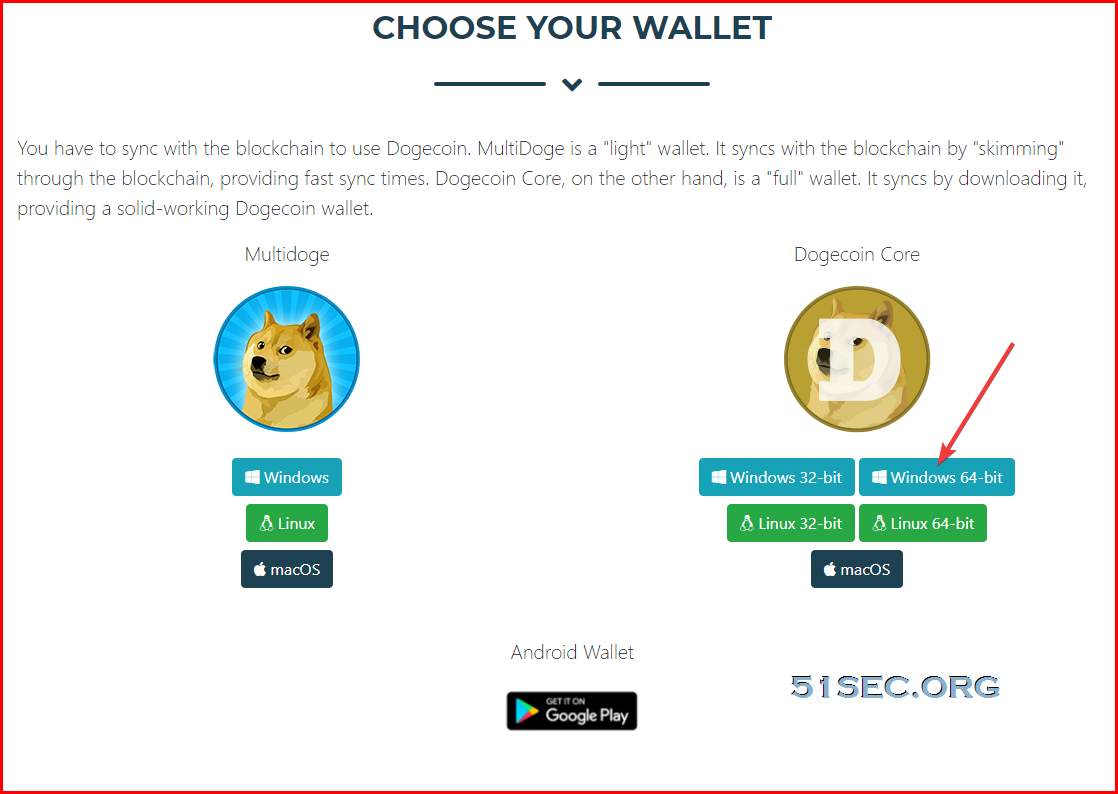
1. Download Wallet from https://ift.tt/3u9AIST
Choose Dogecoin Core Windows 64 bit to download your wallet installation program.


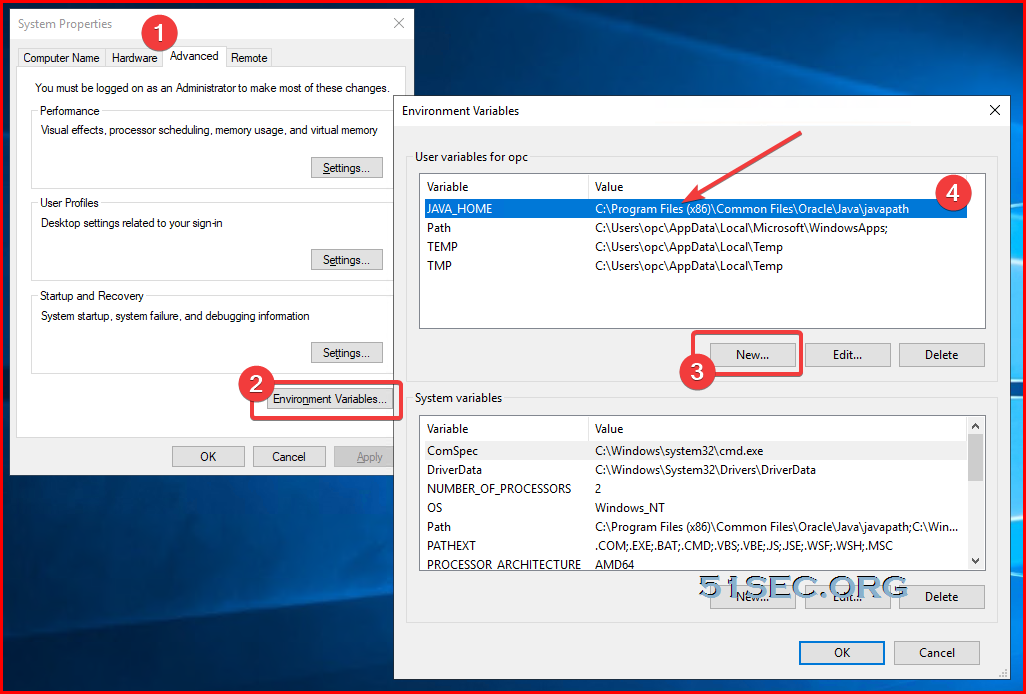
Note: If you got an error to say there is no java installed message even you have installed java program, there is the solution.

In Search, search for and then select: System (Control Panel) Click the Advanced system settings link. Click Environment Variables. In the section System Variables, find the JAVA_HOME environment variable and select it. Click Edit. If the JAVA_HOME environment variable does not exist, click New. In the Edit System Variable (or New System Variable) window, specify the value of the JAVA_HOME environment variable (i.e. C:\ProgramData\Oracle\Java\javapath). Click OK. Close all remaining windows by clicking OK.

Re-run dogicoin installation file.


On my Windows 2019 system, here is my javapath : 

C:\Program Files (x86)\Common Files\Oracle\Java\javapath


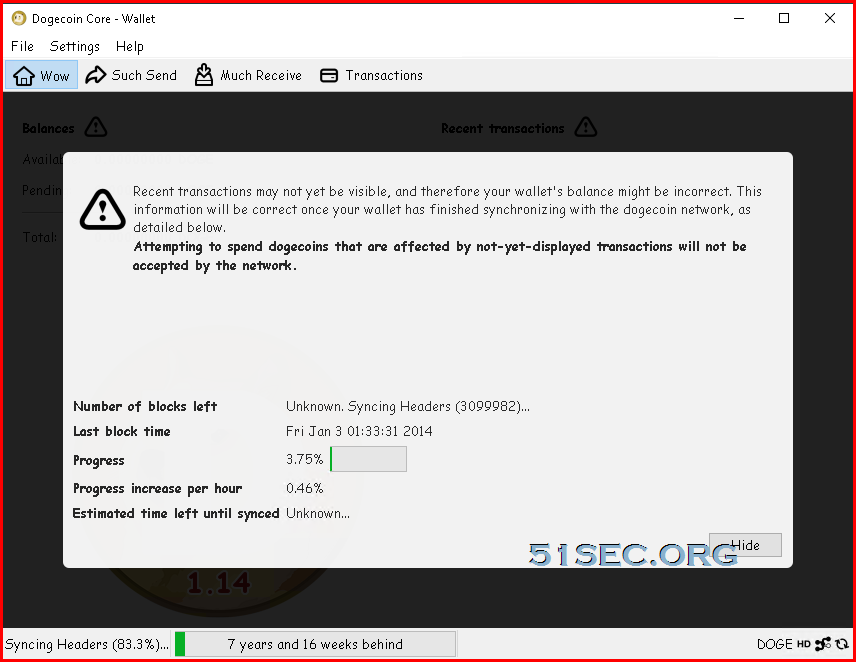
2. Running your Dogecoin Core Wallet program


3. Backup your wallet


Note: paper wallet.

All you'll need to have a paper wallet is a printer & photoshop (if you want a custom wallet design).

1. Start off by generating your new address. I used walletgenerator to generate my public and private address. You can generate your address directly on the website, or download the website and generate it locally on your computer (disconnect from internet for extra security).

2. Go to the "Paper Wallet" tab on the website and you should see a "Print" button. That's it, once it's printed you have yourself a paper wallet.

3. Time to send some dogecoins on it. I used poloniex to transfer BTC -> DOGE. Once you have dogecoins on your account, simply send them to your PUBLIC address on your paper wallet. Before sending huge amounts to your paper wallet, try it out with smaller amounts.

4. To check if your paper wallet has received some dogecoins go to dogechain and enter your PUBLIC address in the search bar. You should be able to have an overview of your paper wallet's activity.

5. To withdraw your dogecoins from your paper wallet, go to redeempaper, enter your PUBLIC address in the top box, and the recipient's address at the bottom. Choose the amount of dogecoins you want to send and press on the "Sign Transaction" button. It will then ask you to enter your PRIVATE address which is on your paper wallet.


Mining Program - unMineable


1. Download unMineable program

Miner program

https://ift.tt/3suuvPI
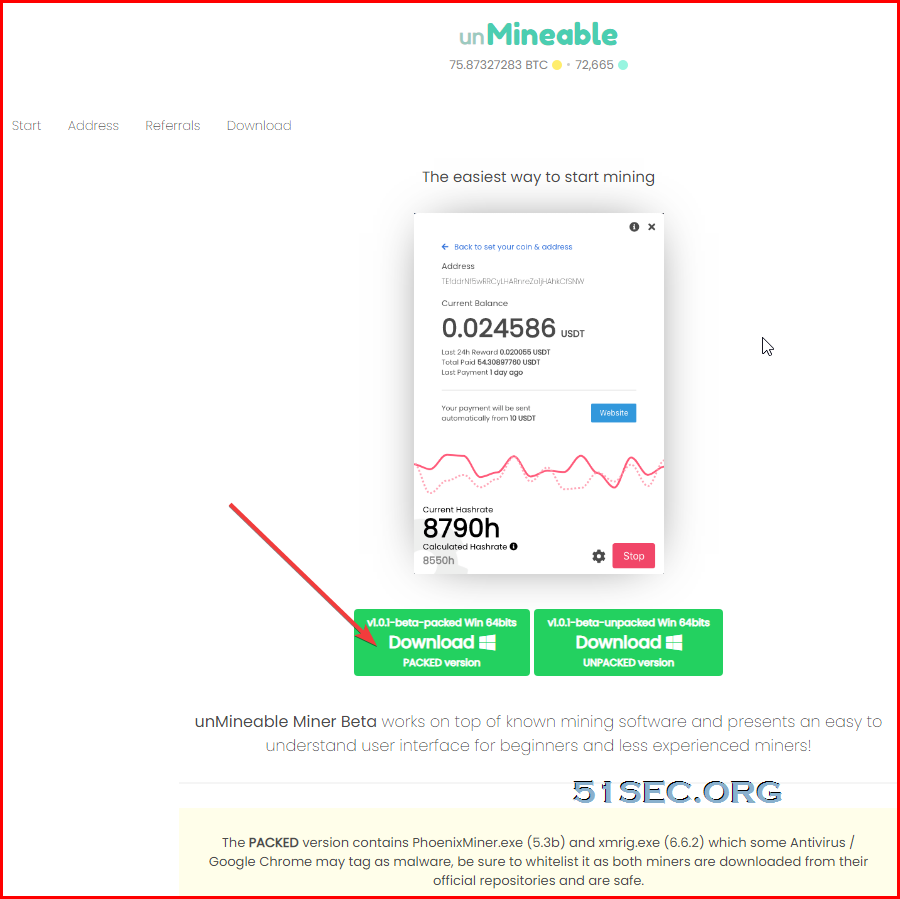

2. Get your Wallet receiving address


DHnx2JP7fDsTUk7N4NXKez3UyJbCiPyKrJ


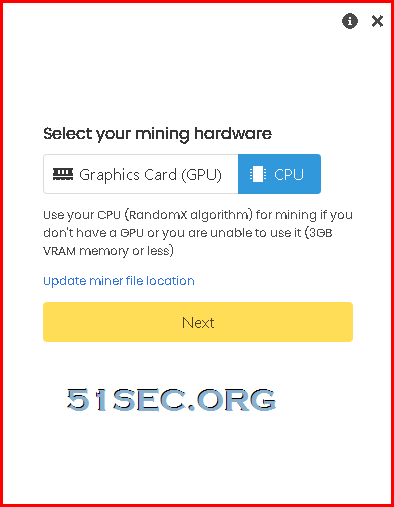
3.  Run your unMinable program start to mine DogeCoin

Choose CPU as mining hardware

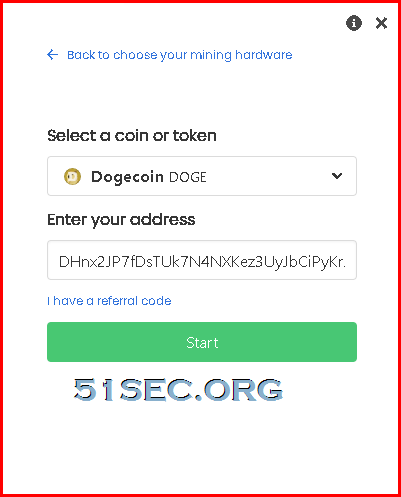
Choose Dogecoin DOGE as your coin

and enter your Dogecoin wallet's receiving address


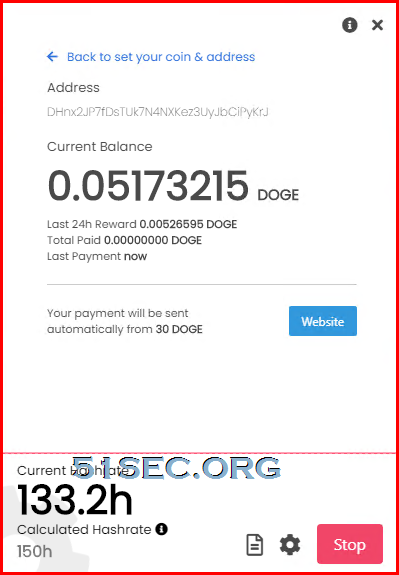
Click Start button to start your mining:


via Blogger https://ift.tt/3e8FzOR
April 30, 2021 at 12:25PM Cloud
0 Comments

Mine DogeCoin Free from Your VPS CPU

4/29/2021

0 Comments

 
Once you got your free VPS from my previous video (https://youtu.be/E9dHA3NBbN8), you might be thinking what you can do with those free VPS and $400 Credits. One thing you might be interesting to do is to mine DogeCoin. Here is the video to show you how easy you can mine DogeCoin with your VPS's CPU. You don't need fancy graphic card to do this job although that would be better. Three Steps: 1. Create your windows VPS instance 2. Download and Install DogeCoin Wallet 3. Download and Run Mining program - unMinable. ==================================================================== If you found this video has some useful information, please give me a thumb up and subscribe this channel to get more updates: https://www.youtube.com/c/Netsec?sub_confirmation=1 Learning and Sharing - 海内存知己,天涯若比邻 - http://51sec.org

Watch video on YouTube here: https://youtu.be/58pAnaZXO3I by Johnny Netsec
0 Comments

Get Two Free and Permanent VPS from Oracle Cloud Platform

4/27/2021

0 Comments

 
Free VPS in the cloud, and two permanent virtual private servers. That is from Oracle Cloud Platform. It used to be very hard to get OCP account, not it seems the restriction has been lift up a bit. This video is to show you the whole process to get an OCP account. You will need a valid credit card and phone number. So far, this process is still valid. Please try and let me know if there is any question. You also can find a related post in my blog : Oracle Cloud Platform (OCP) Tips and Tricks - https://ift.tt/3nm3aOY ==================================================================== If you found this video has some useful information, please give me a thumb up and subscribe this channel to get more updates: https://www.youtube.com/c/Netsec?sub_confirmation=1 Learning and Sharing - 海内存知己,天涯若比邻 - http://51sec.org

Watch video on YouTube here: https://youtu.be/E9dHA3NBbN8 by Johnny Netsec
0 Comments

Update Home Public IP to CloudFlare DNS A Record Using OpenWRT DDNS Package

4/26/2021

0 Comments

 
This video is to show you how to use OpenWRT DDNS packages to dynamically update CloudFlare DNS A record. Previously I had a video "Using Python Script to Call Cloudflare API to Update DDNS IP" (https://youtu.be/2s8Kkx1FmN0) to do same thing. But using OpenWRT is much simpler and easier without any program knowledge. What you need to do is just clicking around OpenWRT settings. You can find detail explanation in my blog post: https://ift.tt/39W1176 Please let me know if there is any question. ==================================================================== If you found this video has some useful information, please give me a thumb up and subscribe this channel to get more updates: https://www.youtube.com/c/Netsec?sub_confirmation=1 Learning and Sharing - 海内存知己,天涯若比邻 - http://51sec.org

Watch video on YouTube here: https://youtu.be/bZBYLyEPlJs by Johnny Netsec
0 Comments

Deploy OneManager to Heroku and Bypass Free Tier's Restrictions

4/22/2021

0 Comments

 
Deploy OneManager to Heroku and Bypass Free Tier's Restrictions

 I have been introduced a couple ways to display OneDrive's content, either using Cloudflare workers or using Heroku. You can find them from my previous posts:

  • OneManager - Deploy a free OneDrive List App using Heroku and Cloudflare
  • Fast OneDrive Index - A Serverless OneDrive Index Setup

Also I recorded videos to show the whole process:


Deploying OneManager to Heroku is simple and easy but there are two issues which will cause the OneManager will be down. 

  1. New accounts receive 550 free dyno hours and you can verify your identity with a credit card for an additional 450 hours.
  2. The app will be put into idle mode automatically, after 30 minutes of inactivity. It will take 1-2 minutes to wake it up when it receives access activity. 


To resolve those two issues, I developed following three steps to bypass them.

Demo site: https://myod.51sec.eu.org

Deploy Two OneManager into Two Different Heroku Accounts

Lets say, you created two Heroku accounts, and deployed two OneManager apps into them one by one with the process described in my previous post:

  • OneManager - Deploy a free OneDrive List App using Heroku and Cloudflare

You got following two OneManager apps:

  1. https://ift.tt/3sHs0tB
  2. https://ift.tt/2RSZJ6B

They are exactly same except the app name and app url is different. Both apps have added same OneDrive disk in it. 

The logic behind it to use two OneManager apps which not get us exceeding the 550 hours / month limits if we only activate one app every day and keep another one in idle. 


Create a Cloudflare Workers to Rotate Access to Those Two Apps

Now we need to tell CloudFlare Workers to only point to one app at one day and point to anther app at another day. 
Github project: https://github.com/51sec/CF-Herokus/
Basically, this workers code will get Cloudflare route the traffic to myod1 on odd number days and to myod2 on even number days. 

// odd days const SingleDay =
'myod1.herokuapp.com' // plural days const DoubleDay = 'myod2.herokuapp.com' // Using CF to do porxy? true/false const CFproxy = true // Heroku only has 550 hours/month for free plan by default. // This CloudFlare Workers code can let use different Heroku app based on odd or even number's day. // Please change above code for your Heroku's app in either SingleDay or Doubleday parameter. addEventListener('fetch', event => { let nd = new Date(); if (nd.getDate()%2) { host = SingleDay } else { host = DoubleDay } if (!CFproxy) { let url=new URL(event.request.url); if (url.protocol == 'http:') { url.protocol = 'https:' response = Response.redirect(url.href); event.respondWith( response ); } else { url.hostname=host; let request=new Request(url,event.request); event.respondWith( fetch(request) ) } } else { event.respondWith( fetchAndApply(event.request) ); } }) async function fetchAndApply(request) { let response = null; let url = new URL(request.url); if (url.protocol == 'http:') { url.protocol = 'https:' response = Response.redirect(url.href); return response; } url.host = host; let method = request.method; let body = request.body; let request_headers = request.headers; let new_request_headers = new Headers(request_headers); new_request_headers.set('Host', url.host); new_request_headers.set('Referer', request.url); let original_response = await fetch(url.href, { method: method, body: body, headers: new_request_headers }); response = new Response(original_response.body, { status: original_response.status, headers: original_response.headers }) return response; }

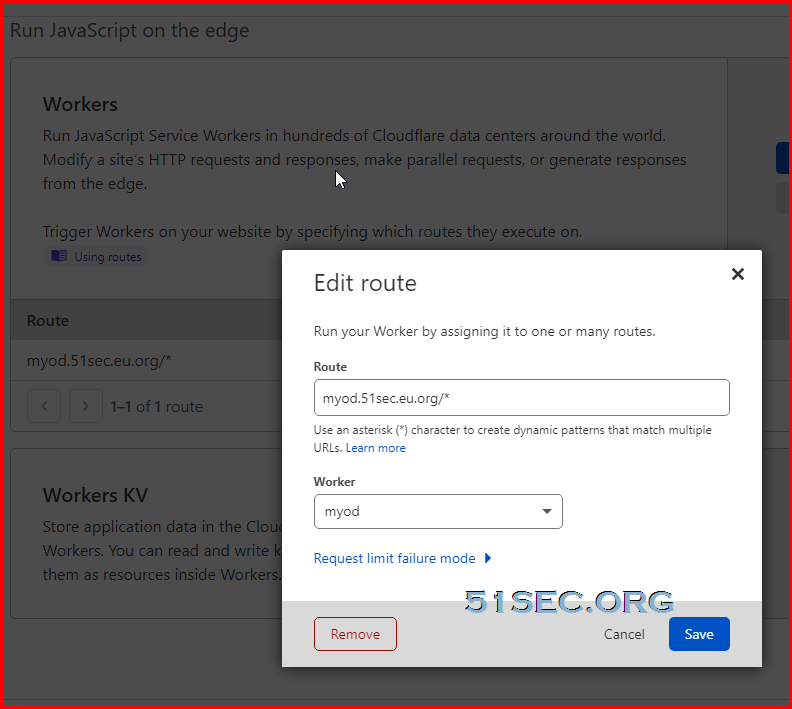
Of course, do not forget to set up a DNS A record (myod.51sec.eu.org) and workers route to it.


Create two CRON Job from www.easycron.com

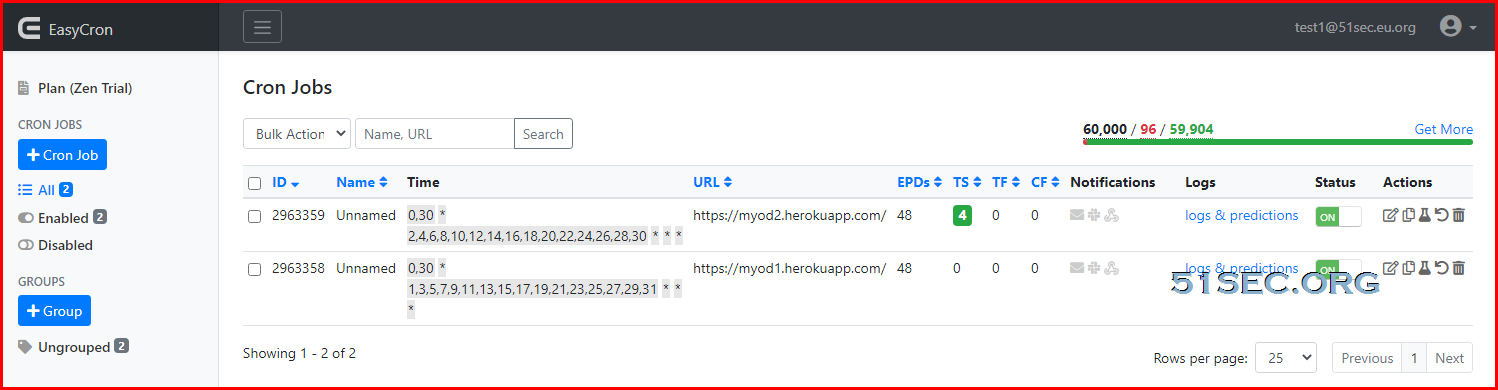
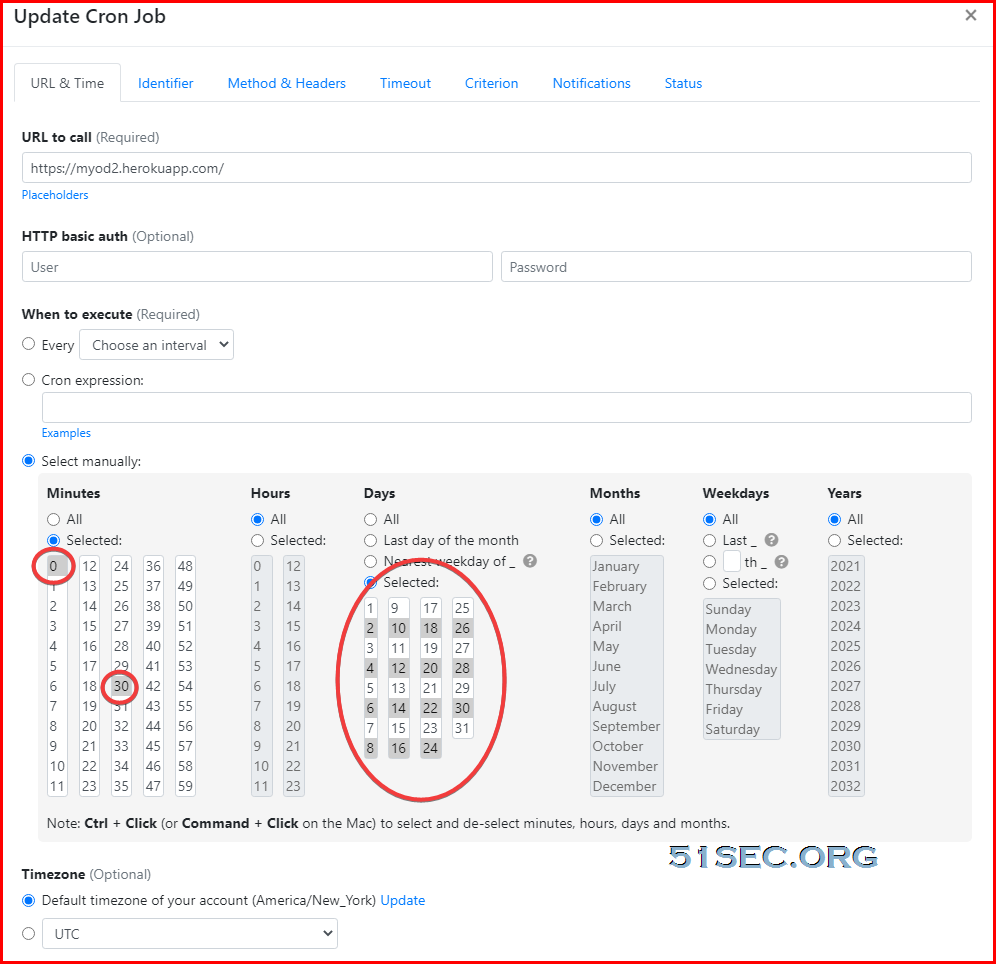
Since Heroku will put your APP in idle mode once there is no activity for 30 minutes, we will just need to create a CRON job to get the site every 30 minutes at www.easycron.com site.  We will need to create two CRON jobs, one for odd number days to get myod1.herokuapp.com, and second one for even number days to get my od2.herokuapp.com.


Done, that is all you will need to set up a OneManager at Heroku, which will make your site up all the time to end user when they using your Cloudflare dns to access your site. 


References

  • Onedrive+OneManager+Heroku+CFWorkers 羊毛衫新织法


via Blogger https://ift.tt/3eiq0mg
April 22, 2021 at 08:39PM Cloud
0 Comments

Methods to Renew Microsoft 365 Developer Subscription

4/22/2021

0 Comments

 
Methods to Renew Microsoft 365 Developer Subscription

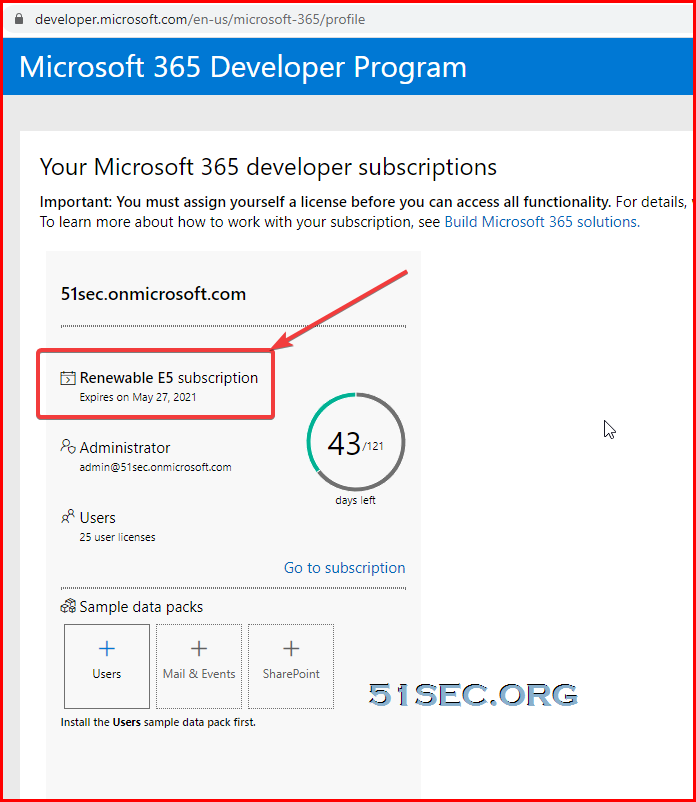
Microsoft 365 Developer subscription is good for 90 days and is renewable based on valid developer activity. If you're using your subscription for development, it will be renewed every 3 months and will last indefinitely. 


Check Expiration Date

You can find the expiration date, along with your subscription name, on your Microsoft 365 Developer Program dashboard.  Check your Microsoft 365 Developer Program subscription using your original account, not account with onmicrosoft.com domain, such as admin@<Your Site>.onmicrosoft.com. 


Create Apps Using Templates

One suggestions from Reddit:

  • Deploy LookBook templates on SharePoint
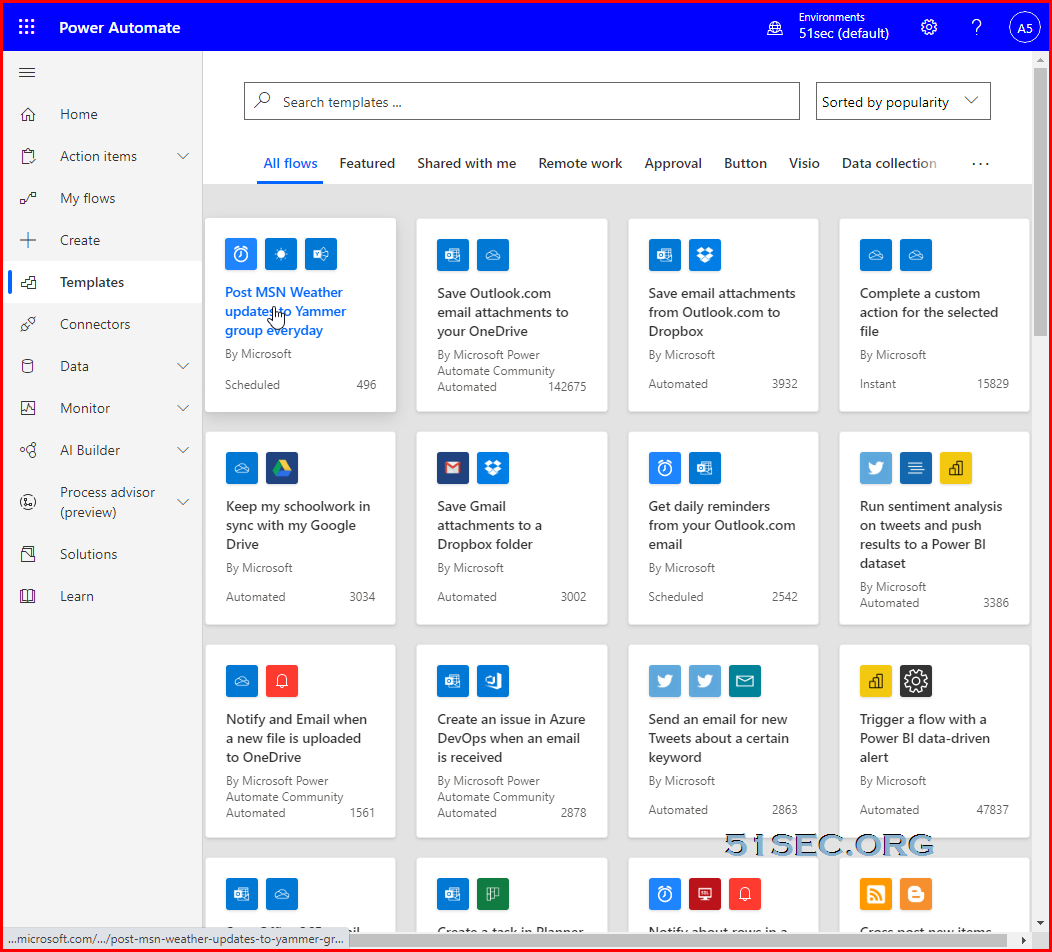
  • Setup Power Automate flow based on ready template
  • Setup Power Apps based on ready template
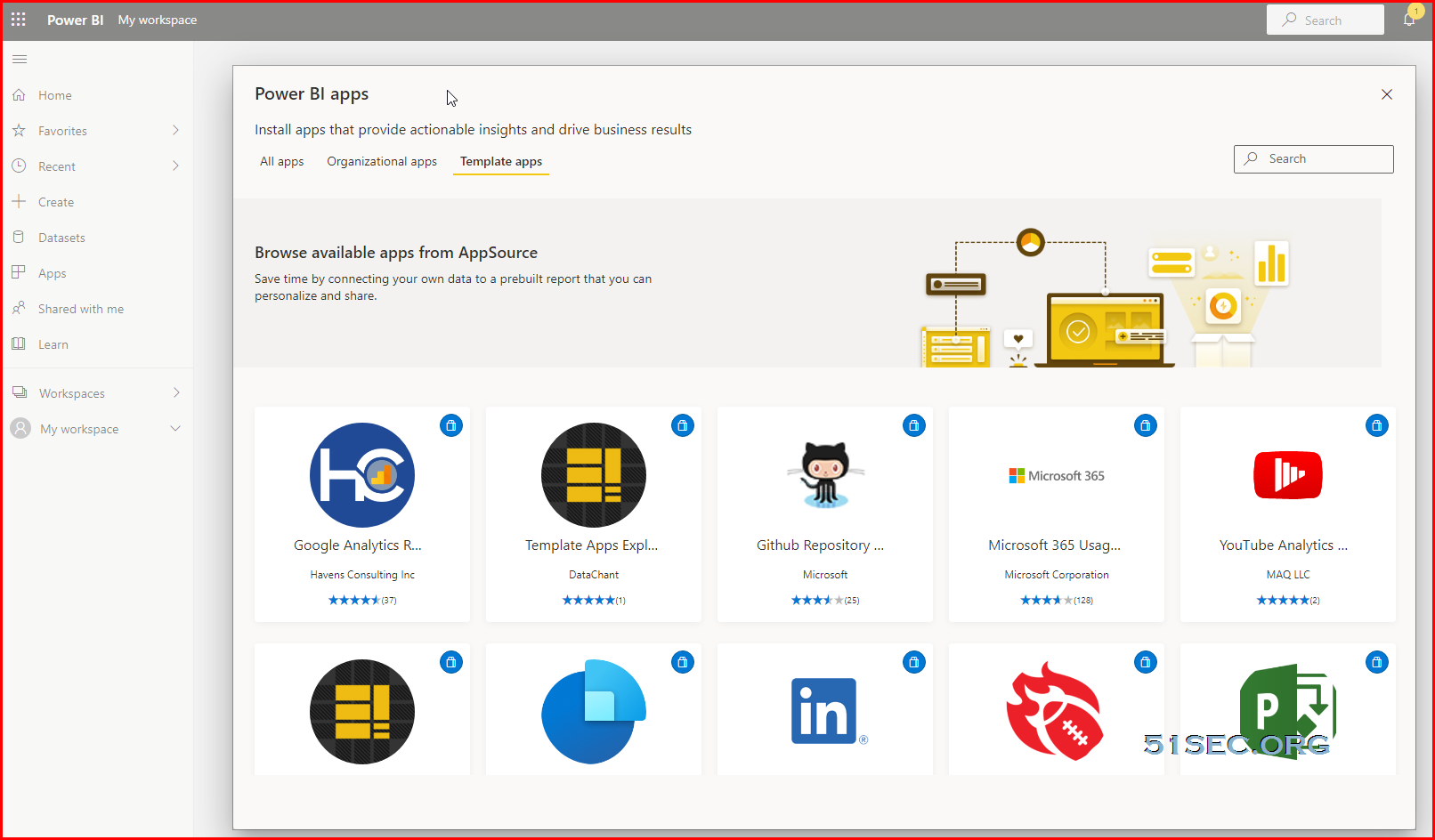
  • Deploy Power BI template from galler

https://ift.tt/3tKnDzn gives following steps to renew your subscription every quarter, which will gives you enough development activities on your subscription:

  • Deploy at least one SharePoint template using Microsoft Lookbook.
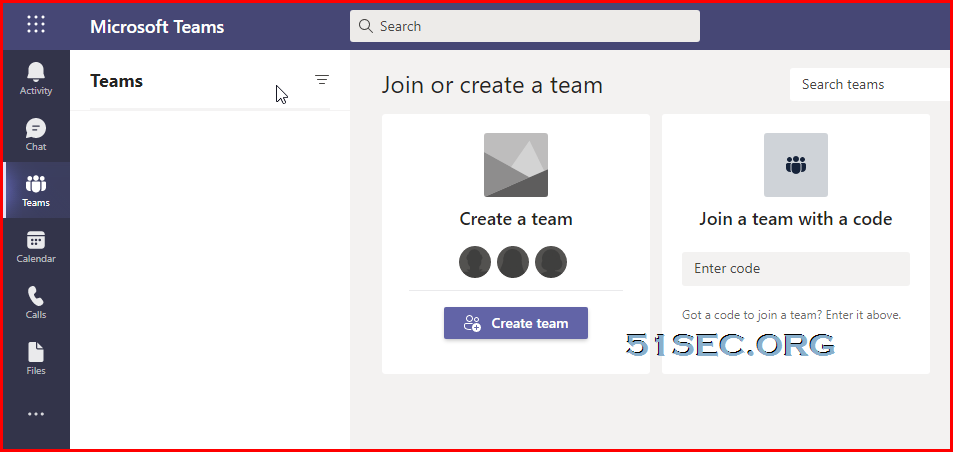
  • Create a team in Microsoft Teams.
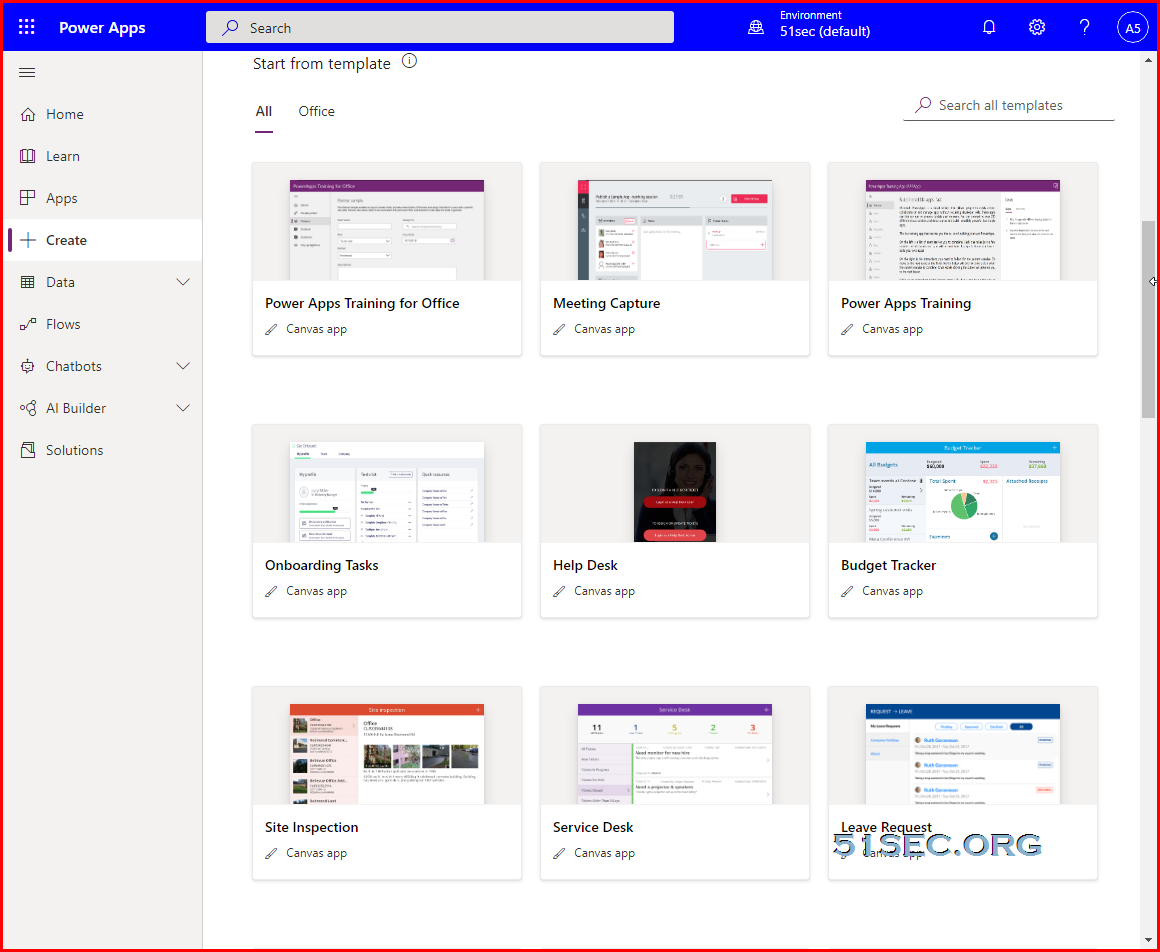
  • Publish 3 Power Apps applications using available templates.
  • Publish 3 Power Automate flows using available templates.


1. Lookbook Template

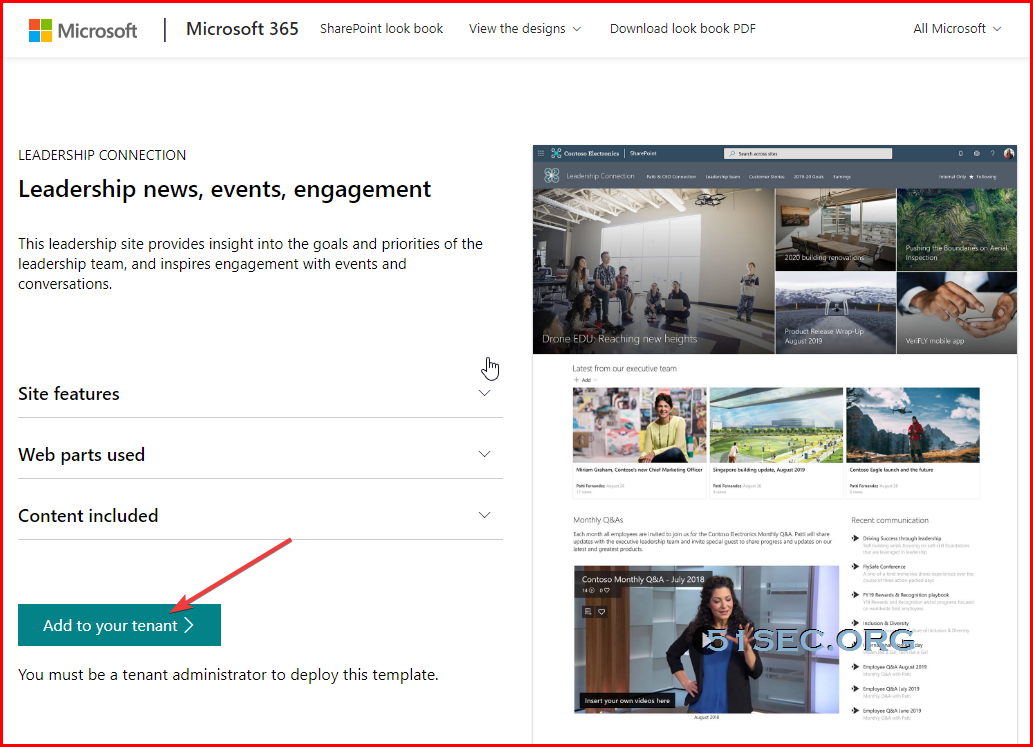
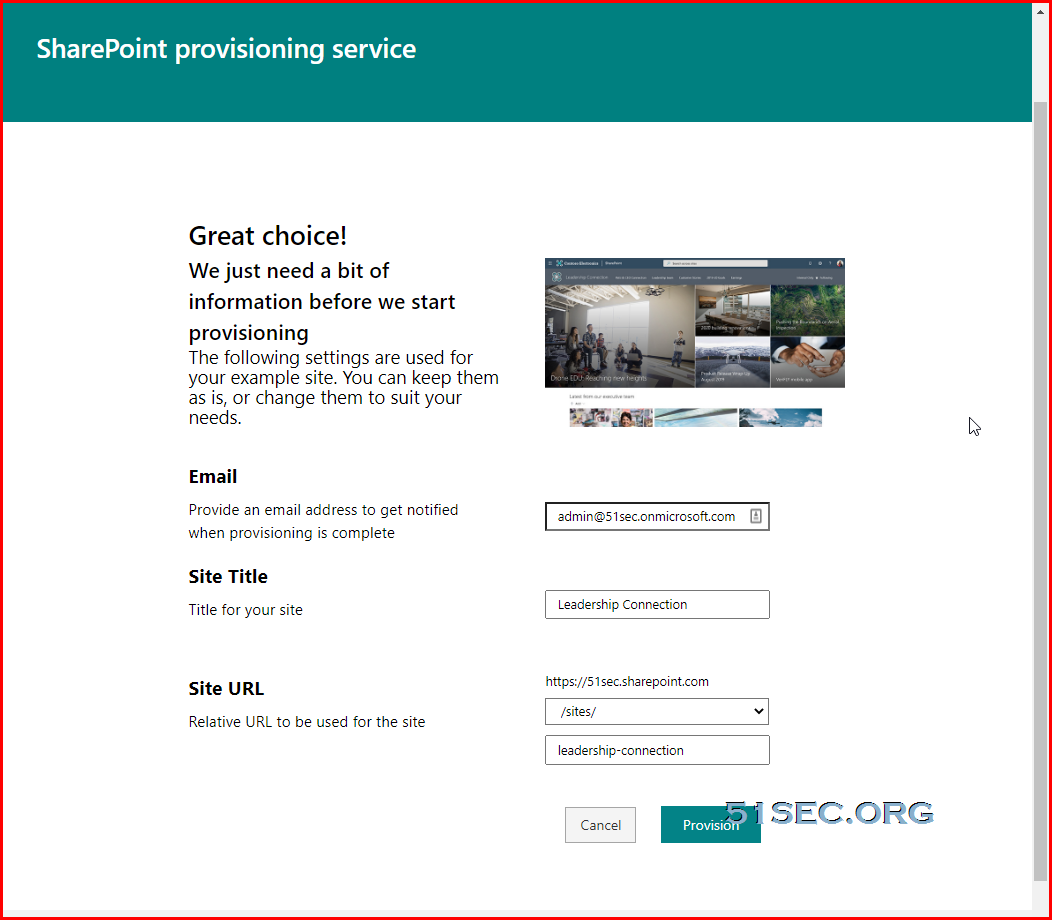
Step1: Visit Microsoft lookbook tempalte website, https://ift.tt/3gDwBLb, find the template suits your need, and add it to your tenant.

Step 2: Provide site title and you can keep others as default, click Provision button then wait a couple of minutes, your sharepoint website will be provisioned. 

2. Create a team in teams


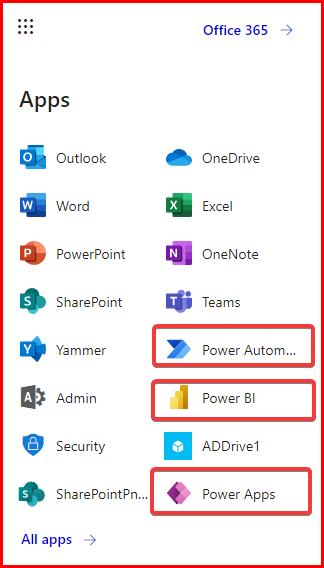
3. Publish Power Apps using available templates


4. Publish Power Automation Flows using available templates


5. Publish Power BI from available templates


Create OneDrive Index App

There are many ways to do this:
  • Using Heroku: OneManager - Deploy a free OneDrive List App using Heroku and Cloudflare
  • Using Cloudflare workers: Fast OneDrive Index - A Serverless OneDrive Index Setup
  • Using your own VPS (Php + Web Service)
  • Using Free Web+Php hosting service : 000webhost Profreehost


E5 Renew Program

Github project: https://ift.tt/2QtHdkR

Author's post: https://qyi.io/archives/687.html or Other person's post: https://ift.tt/32Dg95p

Auto Renew Site: https://e5.qyi.io/


Using Github Action to Renew


Github project: https://ift.tt/3faB0Rw

From Github page, you will find all steps you will need. One post about this: https://ift.tt/30tjfsA

I have not got a chance to verify this since I already used other methods mentioned above to renew my E5 subscription. 


References

  • Microsoft 365 Developer Program FAQ
  • Add Your Own Domain into Free Microsoft 365 E5 Subscription
  • MS 365 E5 Advanced Usage: Renew Subscription, One Drive Upgrade to 5T & Create Catch All Exchange Mail Rule


via Blogger https://ift.tt/3tKnFat
April 22, 2021 at 08:39PM Cloud
0 Comments

Renew Microsoft 365 Developer Subscription with Some Developing Activities in Your M365 Apps

4/22/2021

0 Comments

 
Every 90 days, Microsoft will review your developing activities to decide if automatically renew your M365 developer subscription. In this video, I am showing how to make some developing activities through some M365 apps. It was based on recommendation from Reddit post. It does help my renewal so far. Hopefully it can help yours as well: -Deploy LookBook templates on SharePoint -Setup Power Automate flow based on ready template -Setup Power Apps based on ready template -Deploy Power BI template from gallery Related videos: Get Free PP UA Domain and Integrated with CloudFlare - https://youtu.be/zrhxb8swVGM Get Free Subdomain from EU.ORG & Integrate with Cloudflare - https://youtu.be/V1xnhqqg4Rw Get Free O365 E5 Subscription with Your Own Domain Name - https://youtu.be/WtP5UCcwphw Microsoft 365 Developer: One Drive Upgrade to 2T and Create Catch All Exchange Rule - https://youtu.be/XRZLBw2Mub0 Related posts: Get Permanent Free Domain Name from EU.ORG & Integrate with Cloudflare - https://ift.tt/323wYWR Add Your Own Domain into Free Microsoft 365 E5 Subscription - https://ift.tt/3aeAmme MS 365 E5 Advanced Usage: Renew Subscription, One Drive Upgrade to 5T & Create Catch All Exchange Mail Rule - https://ift.tt/3gvb72M ==================================================================== If you found this video has some useful information, please give me a thumb up and subscribe this channel to get more updates: https://www.youtube.com/c/Netsec?sub_confirmation=1 Learning and Sharing - 海内存知己,天涯若比邻 - http://51sec.org

Watch video on YouTube here: https://youtu.be/Pu1M5qWjk80 by Johnny Netsec
0 Comments

End Point Threat Hunting Tools & Steps

4/19/2021

0 Comments

 
End Point Threat Hunting Tools & Steps
Here are some of my collections from Internet about Threat Hunting tools, information and resources.


Steps to Scan and Fix your System

4.1 Download Malwarebytes

Double click on the installer and follow the prompts. If necessary select the Blue Help tab for video instructions....

When the install completes or Malwarebytes is already installed do the following:

Open Malwarebytes, select > "settings" > "protection tab"

Scroll down to "Scan Options" ensure Scan for Rootkits and Scan within Archives are both on....

Go back to "DashBoard" select the Blue "Scan Now" tab......

When the scan completes deal with any found entries...

To get the log from Malwarebytes do the following:

  • Click on the Report tab > from main interface.
  • Double click on the Scan log which shows the Date and time of the scan just performed.
  • Click Export > From export you have two options:

    Copy to Clipboard - if seleted right click to your reply and select "Paste" log will be pasted to your reply
    Text file (*.txt) - if selected you will have to name the file and save to a place of choice, recommend "Desktop" then attach to reply
     
  • Please use "Copy to Clipboard, then Right click to your reply > select "Paste" that will copy the log to your reply…

Alternative: Dr. Web CureIt! : The Dr.Web CureIt! utility will cure an infected system once, but it is not designed to provide your PC with real-time protection from viruses.

4.2 Download Farbar Recovery Scan Tool 

Alternative download option: http://www.techspot.com/downloads/6731-farbar-recovery-scan-tool.html

Note: You need to run the version compatible with your system (32 bit or 64 bit). If you are not sure which version applies to your system download both of them and try to run them. Only one of them will run on your system, that will be the right version.

If your security alerts to FRST either, accept the alert or turn your security off to allow FRST to run. It is not malicious or infected in any way...

Be aware FRST must be run from an account with Administrator status...
 Double-click to run it. When the tool opens click Yes to disclaimer.(Windows 8/10 users will be prompted about Windows SmartScreen protection - click More information and Run.)
  • Make sure Addition.txt is checkmarked under "Optional scans"
  • Press Scan button to run the tool....
  • It will make a log (FRST.txt) in the same directory the tool is run. Please copy and paste it to your reply.
  • The tool will also make a log named (Addition.txt) Please attach that log to your reply.

Edit fixlist.txt file and put it into the folder you saved FRST into. "Do not open that file when running FRST fix"
NOTE. It's important that both FRST and fixlist.txt are in the same location or the fix will not work.

fixlist.txt example:
Start
CloseProcesses:
CreateRestorePoint:
HKU\S-1-5-21-329538839-709975324-1257610972-1000\...\Run: [*hinzifmx<*>] => "C:\Users\New User\AppData\Local\f8acb\9ce63.lnk" <==== ATTENTION (Value Name with invalid characters)
C:\Users\New User\AppData\Local\f8acb
S3 gdrv; \??\C:\Windows\gdrv.sys [X]
FirewallRules: [{17277AF5-A816-4BBB-A57C-C21541B4875B}] => (Allow) LPort=2869
FirewallRules: [{8F312734-7E85-4F3A-B918-A3AE66575823}] => (Allow) LPort=1900
EmptyTemp:
Hosts:
CMD: ipconfig /flushDNS
end


Open FRST and press the Fix button just once and wait.
The tool will make a log on the Desktop (Fixlog.txt) or the folder it was ran from. Please post it to your reply.

4.3 Download AdwCleaner by Malwarebytes Or from this Mirror
  • Right-click on AdwCleaner.exe and select Run as Administrator (for Windows Vista, 7, 8, 8.1 and 10 users)
  • Accept the EULA (I accept), then click on Scan
  • Let the scan complete. Once it's done, make sure that every item listed in the different tabs is checked and click on the Clean button. This will kill all the active processes
  • Once the cleaning process is complete, AdwCleaner will ask to restart your computer, do it
  • After the restart, a log will open when logging in. Please copy/paste the content of that log in your next reply


4.4 Download Microsoft's "Malicious Software Removal Tool"

Notes: Ensure to get thecorrect version for your system.

Right click on the Tool, select “Run as Administrator” the tool will expand to the options Window
In the "Scan Type" window, select Quick Scan
Perform a scan and Click Finish when the scan is done.

Retrieve the MSRT (Malicious Software Removal Tool) log as follows
1) Select the Windows key and R key together to open the "Run" function
2) Type or Copy/Paste the following command to the "Run Line" and Press Enter:

notepad c:\windows\debug\mrt.log

The log will include log details for each time MSRT has run,  the most recent log by date and time will be needed ....

4.5 Download "Delfix by Xplode" and save it to your desktop.

Or use the following if first link is down: "Delfix link mirror"

If your security program alerts to Delfix either, accept the alert or turn your security off.

Double Click to start the program. If you are using Vista or higher, please right-click and choose run as administrator

Make Sure the following items are checked:
  • Remove disinfection tools <----- this will remove tools we may have used.
  • Purge System Restore <--- this will remove all previous and possibly exploited restore points, a new point relative to system status at present will be created.
  • Reset system settings <--- this will reset any system settings back to default that were changed either by us during cleansing or malware/infection

Now click on "Run" and wait patiently until the tool has completed.

The tool will create a log when it has completed. We don't need you to post this.

Any remnant files/logs from tools we have used can be deleted…


4.6 Read the following links to fully understand PC Security and Best Practices

Answers to Common Security Questions and best Practices

Do I need a Registry Cleaner?

Take care and surf safe


4.7 Download Microsoft Safety Scanner

Microsoft Safety Scanner is a scan tool designed to find and remove malware from Windows computers. Simply download it and run a scan to find malware and try to reverse changes made by identified threats.
  • Download Microsoft Safety Scanner (32-bit)
  • Download Microsoft Safety Scanner (64-bit)
Safety Scanner only scans when manually triggered and is available for use 10 days after being downloaded. 

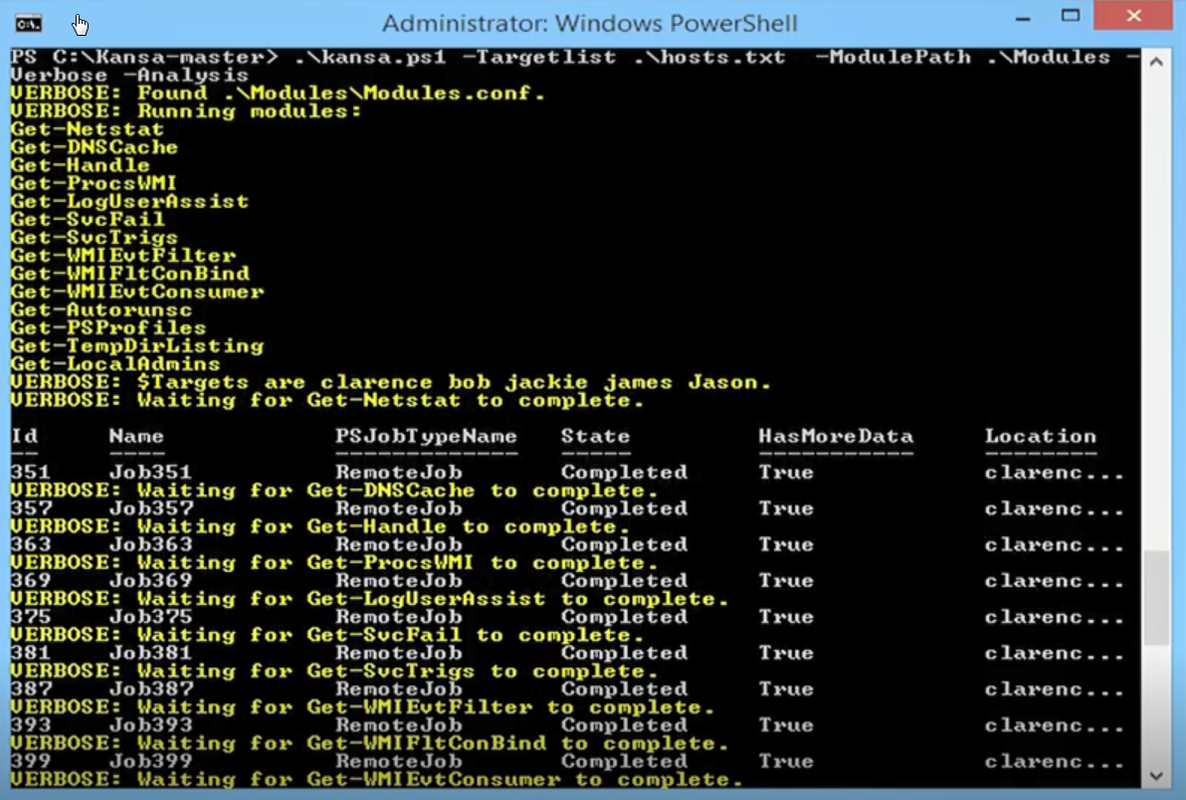
Kansa

  • GitHub - Davehull/Kansa
  • https://ift.tt/3sz6wPq
  • https://ift.tt/1wEwKfB
  • Kansa: A PowerShell-based incident response framework


Usage:


PS C:\ISOScripting\Kansa-master\Kansa-master> .\kansa.ps1 -target testmachine1
VERBOSE: Found Modules\\Modules.conf.
VERBOSE: Running modules:
Get-PrefetchListing
Get-WMIRecentApps
Get-Netstat
Get-DNSCache
Get-ProcsWMI
Get-LogUserAssist
Get-SvcFail
Get-SvcTrigs
Get-WMIEvtFilter
Get-WMIFltConBind
Get-WMIEvtConsumer
Get-PSProfiles
Get-SchedTasks
Get-File
Get-LocalAdmins
VERBOSE: Waiting for Get-PrefetchListing to complete.

Id     Name            PSJobTypeName   State         HasMoreData     Location             Command
--     ----            -------------   -----         -----------     --------             -------
1      Job1            RemoteJob       Completed     True            testmachine1            <#...
VERBOSE: Waiting for Get-WMIRecentApps to complete.
3      Job3            RemoteJob       Failed        False           testmachine1            <#...
VERBOSE: Waiting for Get-Netstat to complete.
5      Job5            RemoteJob       Completed     True            testmachine1            <#...
VERBOSE: Waiting for Get-DNSCache to complete.
7      Job7            RemoteJob       Completed     True            testmachine1            <#...
VERBOSE: Waiting for Get-ProcsWMI to complete.
9      Job9            RemoteJob       Completed     True            testmachine1            <#...
VERBOSE: Waiting for Get-LogUserAssist to complete.
11     Job11           RemoteJob       Failed        True            testmachine1            <#...
VERBOSE: Waiting for Get-SvcFail to complete.
13     Job13           RemoteJob       Failed        False           testmachine1            <#...
VERBOSE: Waiting for Get-SvcTrigs to complete.
15     Job15           RemoteJob       Failed        False           testmachine1            <#...
VERBOSE: Waiting for Get-WMIEvtFilter to complete.
17     Job17           RemoteJob       Failed        False           testmachine1            <#...
VERBOSE: Waiting for Get-WMIFltConBind to complete.
19     Job19           RemoteJob       Failed        False           testmachine1            <#...
VERBOSE: Waiting for Get-WMIEvtConsumer to complete.
21     Job21           RemoteJob       Failed        False           testmachine1            <#...
VERBOSE: Waiting for Get-PSProfiles to complete.
23     Job23           RemoteJob       Failed        False           testmachine1            <#...
VERBOSE: Waiting for Get-SchedTasks to complete.
25     Job25           RemoteJob       Failed        False           testmachine1            <#...
VERBOSE: Waiting for Get-File C:\Windows\WindowsUpdate.log to complete.
27     Job27           RemoteJob       Failed        False           testmachine1            <# ...
VERBOSE: Waiting for Get-LocalAdmins to complete.
29     Job29           RemoteJob       Failed        False           testmachine1            <#...
Script completed with warnings or errors. See C:\ISOScripting\Kansa-master\Kansa-master\Output_20181029102057\Error.Log
for details.


PS C:\ISOScripting\Kansa-master\Kansa-master> ls


    Directory: C:\ISOScripting\Kansa-master\Kansa-master


Mode                LastWriteTime         Length Name
----                -------------         ------ ----
d-----       29/10/2018   8:54 AM                Analysis
d-----       29/10/2018   8:54 AM                Modules
d-----       29/10/2018  10:18 AM                Output_20181029101813
d-----       29/10/2018  10:18 AM                Output_20181029101855
d-----       29/10/2018  10:19 AM                Output_20181029101903
d-----       29/10/2018  10:20 AM                Output_20181029102044
d-----       29/10/2018  10:27 AM                Output_20181029102057
-a----       29/10/2018   8:54 AM             89 .gitignore
-a----       29/10/2018   8:54 AM           3217 CODE_OF_CONDUCT.md
-a----       29/10/2018   8:54 AM           3540 contributing.md
-a----       29/10/2018   8:54 AM          50110 kansa.ps1
-a----       29/10/2018   8:54 AM          11323 LICENSE
-a----       29/10/2018   8:54 AM           3212 MSLimitedPublicLicense.txt
-a----       29/10/2018   8:54 AM           3770 README.md


PS C:\ISOScripting\Kansa-master\Kansa-master>


Awesome Incident Response

https://github.com/meirwah/awesome-incident-response

It is a curated list of tools and resources for security incident response, aimed to help security analysts and DFIR teams.

Tools can scan remote network drives

  • SuperAntiSpyware - it can scan remote share network drives, which MalwareBytes can't do since 2015 , although it used to be
  • EMCO Network Malware Cleaner -
  • Emsisoft - Emsisoft Anit-Malware


Mimikatz

A little tool to play with Windows security https://ift.tt/RwBFNC

  • https://ift.tt/32uejDI - mostly this will be flagged as a threat
  • https://ift.tt/1TjdaSl - You can use this powershell script version to avoid that.

Other Related Tools

  • Wireshark(http://www.esecurityplanet.com/open-source-security/5-big-improvements-in-wireshark.html)
  • OpenVAS(http://www.openvas.org)
  • Nessus专业版
  • Rapid7 Nexpose
  • Qualys FreeScan
  • Metasploit(https://ift.tt/1zMasue)
  • John the Ripper(https://ift.tt/yp4QcY)
  • Kali Linux(https://ift.tt/1xv2Ev9)
  • Pentoo (https://ift.tt/1EZ1dzu)
  • Parrot Security OS(https://ift.tt/1EZ1dzu)
  • BackBox (https://ift.tt/1YcUzKp)
  • Samurai Web Testing Framework (https://ift.tt/2kHsQZg)
  • Immunity Canvas(https://ift.tt/3ek4q0G)
  • Core Impact Pro(https://ift.tt/XovDFA)


  • 破解专用版Ollydbg:http://www.52pojie.cn/thread-350397-1-1.html
  • 专用破解虚拟机:http://www.52pojie.cn/thread-341238-1-1.html
  • 爱盘工具:http://down.52pojie.cn/Tools/


Threat Analysis Companies

  • Anomali
  • Cisco Umbrella
  • Maltego
  • Recorded Future
  • Soltra
  • VirusTotal
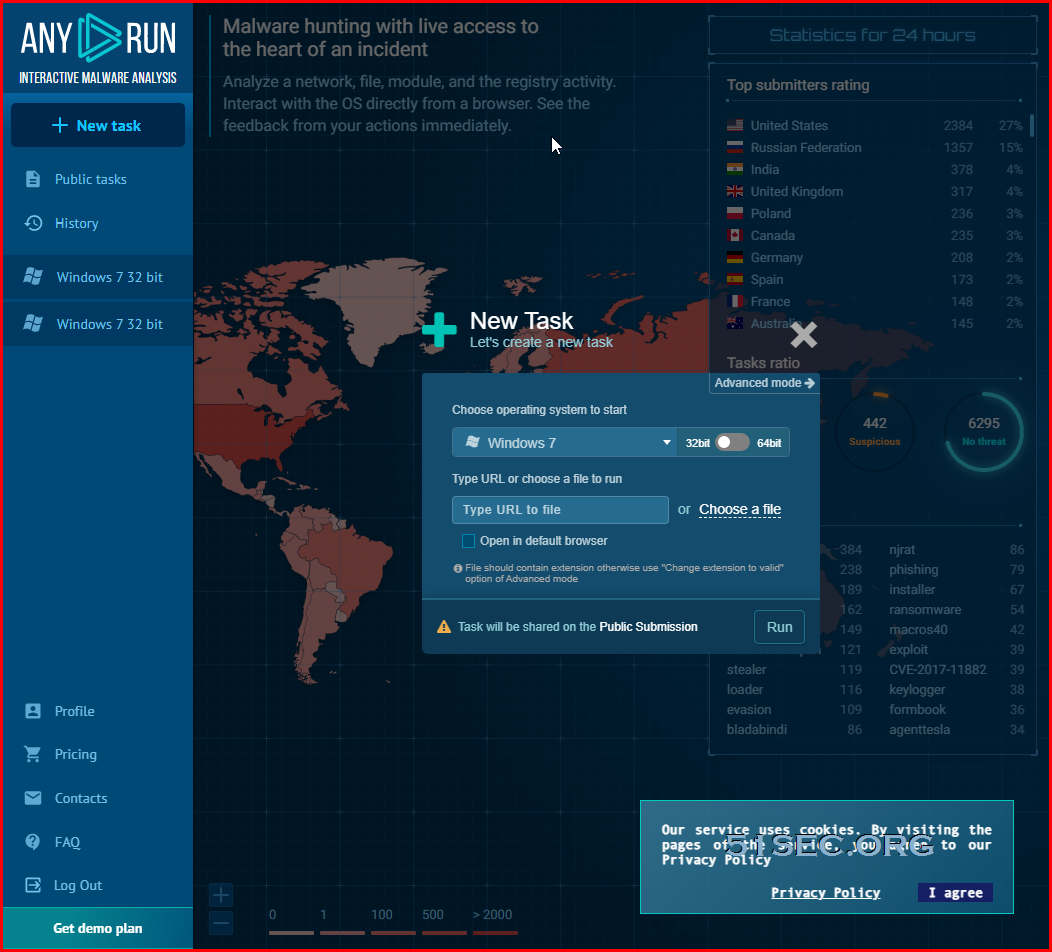
  • Any.Run - Interactive Online Malware Sandbox


References

  • Malwarebytes Post: Please help, I'm infected. Trojan:Script/Cloxer.A!cl (Kevin's answer)


via Blogger https://ift.tt/3syaUyi
April 19, 2021 at 09:02PM Threat Hunting
0 Comments

MS 365 Developer: OneDrive Upgrade to 5T and Create Catch All Exchange Rule

4/19/2021

0 Comments

 
Once you got your Microsoft 365 Developer subscription, you might want to upgrade your user's OneDrive space from 1T to 5T. Since there are 25 user limitation for developer subscription, a catch-all exchange rule will help you to use more email accounts. Related videos: Get Free PP UA Domain and Integrated with CloudFlare - https://youtu.be/zrhxb8swVGM Get Free Subdomain from EU.ORG & Integrate with Cloudflare - https://youtu.be/V1xnhqqg4Rw Get Free O365 E5 Subscription with Your Own Domain Name - https://youtu.be/WtP5UCcwphw Microsoft 365 Developer: One Drive Upgrade to 2T and Create Catch All Exchange Rule - https://youtu.be/XRZLBw2Mub0 Related posts: Get Permanent Free Domain Name from EU.ORG & Integrate with Cloudflare - https://ift.tt/323wYWR Add Your Own Domain into Free Microsoft 365 E5 Subscription - https://ift.tt/3aeAmme ==================================================================== If you found this video has some useful information, please give me a thumb up and subscribe this channel to get more updates: https://www.youtube.com/c/Netsec?sub_confirmation=1 Learning and Sharing - 海内存知己,天涯若比邻 - http://51sec.org

Watch video on YouTube here: https://youtu.be/XRZLBw2Mub0 by Johnny Netsec
0 Comments

Get Free O365 E5 Subscription with Your Own Domain Name

4/14/2021

0 Comments

 
Microsoft has free O365 Developer E5 subscription. You can easily get it for free and as long as you use it wisely it will be permanent. In this video, I am showing how you can integrate it with your own domain name which we applied from EU.ORG, and recorded it in previous video. During configuring O365 with your own domain, there are some mis-leading configuration from integration wizard. You will find the right configuration from this video. Related videos: Get Free PP UA Domain and Integrated with CloudFlare - https://youtu.be/zrhxb8swVGM Get Free Subdomain from EU.ORG & Integrate with Cloudflare - https://youtu.be/V1xnhqqg4Rw Get Free O365 E5 Subscription with Your Own Domain Name - https://youtu.be/WtP5UCcwphw Related posts: Get Permanent Free Domain Name from EU.ORG & Integrate with Cloudflare - https://ift.tt/323wYWR Add Your Own Domain into Free Microsoft 365 E5 Subscription - https://ift.tt/3aeAmme ==================================================================== If you found this video has some useful information, please give me a thumb up and subscribe this channel to get more updates: https://www.youtube.com/c/Netsec?sub_confirmation=1 Learning and Sharing - 海内存知己,天涯若比邻 - http://51sec.org

Watch video on YouTube here: https://youtu.be/WtP5UCcwphw by Johnny Netsec
0 Comments
<<Previous

    Categories

    All
    Architecture
    Blog
    Checkpoint
    Cisco
    Cloud
    CyberArk
    F5
    Fortigate
    Guardium
    Juniper
    Linux
    Network
    Others
    Palo Alto
    Qualys
    Raspberry Pi
    Security
    SIEM
    Software
    Vmware
    VPN
    Wireless

    Archives

    March 2024
    February 2024
    January 2024
    December 2023
    November 2023
    October 2023
    September 2023
    August 2023
    July 2023
    June 2023
    May 2023
    April 2023
    March 2023
    February 2023
    January 2023
    December 2022
    November 2022
    October 2022
    September 2022
    August 2022
    July 2022
    June 2022
    May 2022
    April 2022
    March 2022
    February 2022
    January 2022
    December 2021
    November 2021
    October 2021
    September 2021
    August 2021
    July 2021
    June 2021
    May 2021
    April 2021
    March 2021
    February 2021
    January 2021
    December 2020
    November 2020
    October 2020
    September 2020
    August 2020
    July 2020
    October 2019
    September 2019
    June 2019
    July 2018
    May 2018
    December 2017
    August 2017
    April 2017
    March 2017
    January 2017
    December 2016
    November 2016
    October 2016
    September 2016
    August 2016
    July 2016
    June 2016
    May 2016
    April 2016
    March 2016
    February 2016
    January 2016
    December 2015
    November 2015
    October 2015
    September 2015
    August 2015
    July 2015
    June 2015
    May 2015
    April 2015
    March 2015

    Print Page:

    RSS Feed

    Email Subscribe
Powered by Create your own unique website with customizable templates.
  • Blog
  • Sitemap
    • Categories
  • Contact
  • About
  • Resources
  • Tools
  • 51sec.org