
If you are having some VPS and you are not sure what you can use it for, here is one way you might think about it, using it to mine Dogecoin.
Since VPS usually is not having a graphic card, you will have to use your VPS's CPU to do mining.
What is DogeCoin?
Dogecoin emerged in 2013 as a joke. It was created by Jackson Palmer and Billy Markus to satirize the growth of altcoins by making the doge internet meme into a cryptocurrency. While it was birthed as a joke, it actually led to some practicality as it’s large supply and low price facilitated efficient micro-tipping content on social media. It is a derivative of Luckycoin which forked from Litecoin and uses a Scrypt algorithm. Dogecoin has 1 minute block intervals making it faster than other blockchains. There is no cap to the supply of coins and thus the coin can inflate infinitely.
It is quite simple and straightforward step to get into mining digital coin market. Here are all steps.
Install DogeCoin Wallet
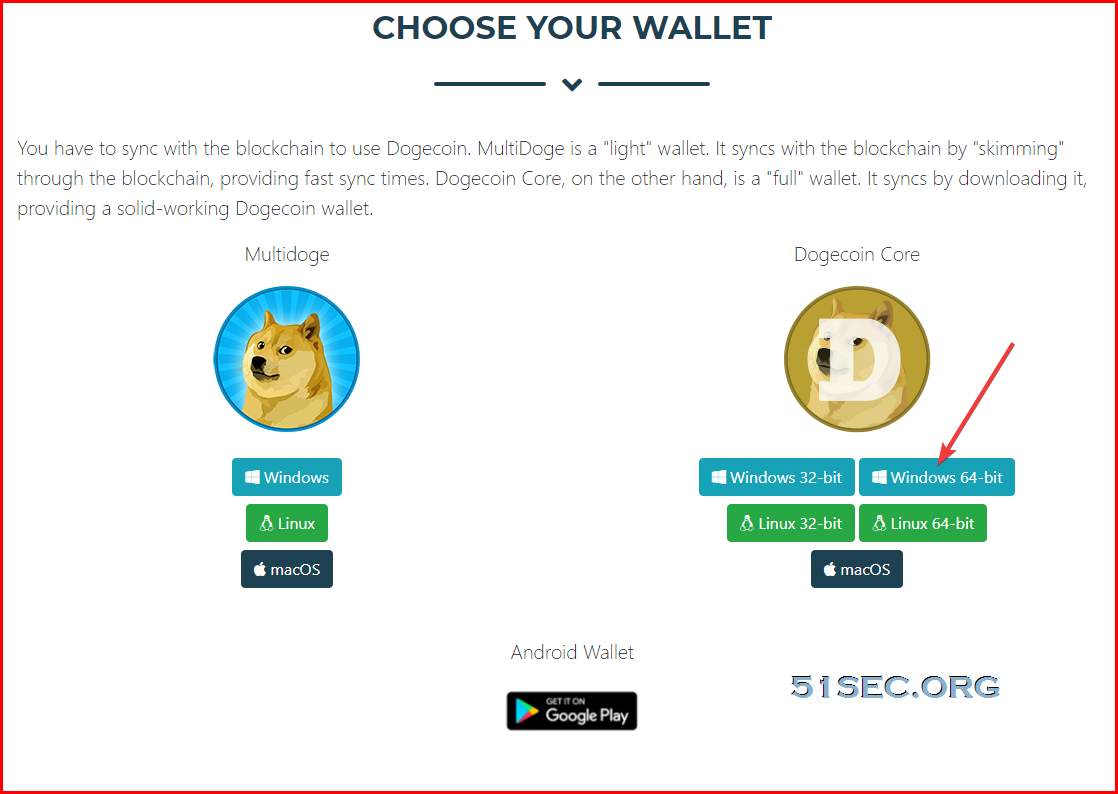
Note: If you got an error to say there is no java installed message even you have installed java program, there is the solution.
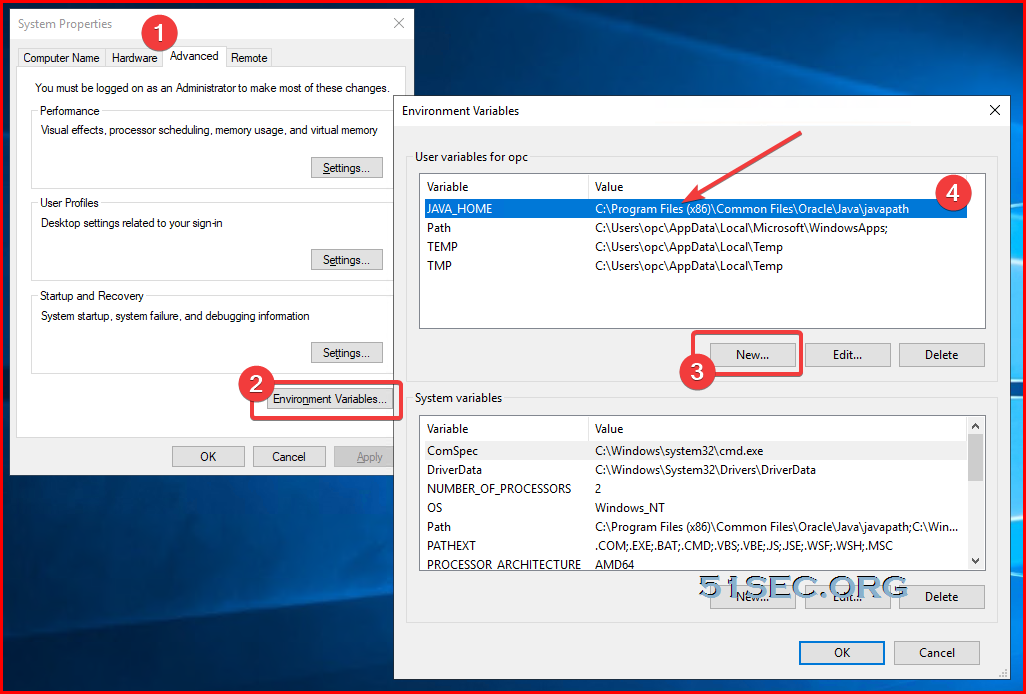
In Search, search for and then select: System (Control Panel) Click the Advanced system settings link. Click Environment Variables. In the section System Variables, find the JAVA_HOME environment variable and select it. Click Edit. If the JAVA_HOME environment variable does not exist, click New. In the Edit System Variable (or New System Variable) window, specify the value of the JAVA_HOME environment variable (i.e. C:\ProgramData\Oracle\Java\javapath). Click OK. Close all remaining windows by clicking OK.
Re-run dogicoin installation file.
On my Windows 2019 system, here is my javapath :
C:\Program Files (x86)\Common Files\Oracle\Java\javapath
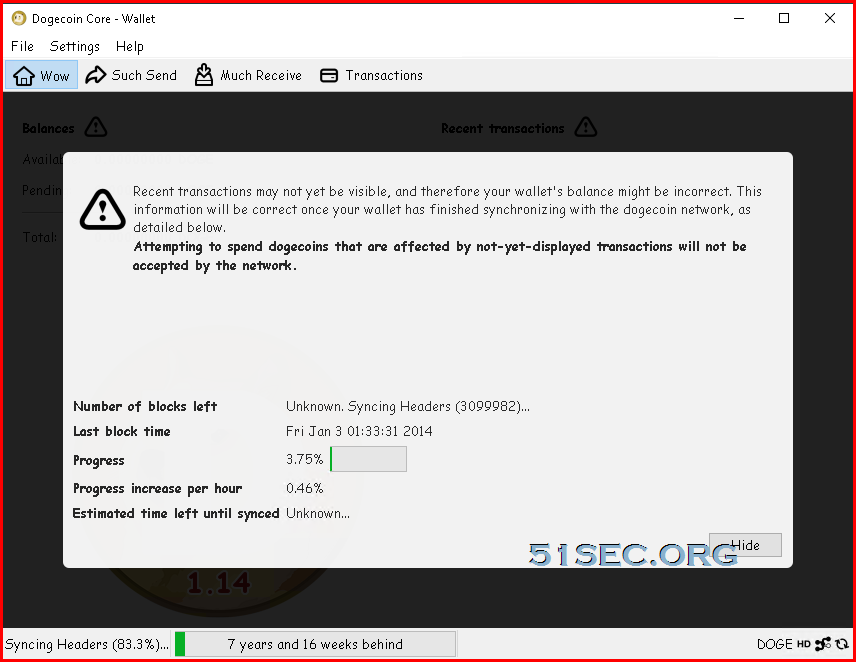
2. Running your Dogecoin Core Wallet program
3. Backup your wallet

Note: paper wallet.
All you'll need to have a paper wallet is a printer & photoshop (if you want a custom wallet design).
1. Start off by generating your new address. I used walletgenerator to generate my public and private address. You can generate your address directly on the website, or download the website and generate it locally on your computer (disconnect from internet for extra security).
2. Go to the "Paper Wallet" tab on the website and you should see a "Print" button. That's it, once it's printed you have yourself a paper wallet.
3. Time to send some dogecoins on it. I used poloniex to transfer BTC -> DOGE. Once you have dogecoins on your account, simply send them to your PUBLIC address on your paper wallet. Before sending huge amounts to your paper wallet, try it out with smaller amounts.
4. To check if your paper wallet has received some dogecoins go to dogechain and enter your PUBLIC address in the search bar. You should be able to have an overview of your paper wallet's activity.
5. To withdraw your dogecoins from your paper wallet, go to redeempaper, enter your PUBLIC address in the top box, and the recipient's address at the bottom. Choose the amount of dogecoins you want to send and press on the "Sign Transaction" button. It will then ask you to enter your PRIVATE address which is on your paper wallet.
Mining Program - unMineable
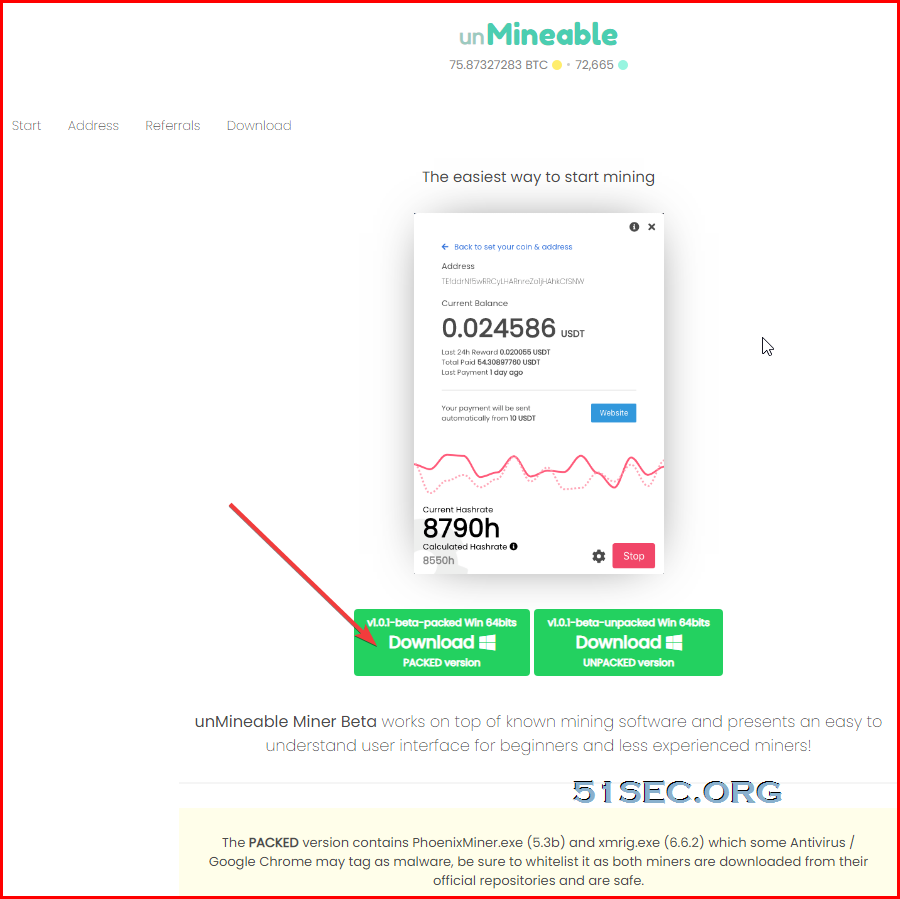
1. Download unMineable program
Miner program
https://ift.tt/3suuvPI
2. Get your Wallet receiving address

DHnx2JP7fDsTUk7N4NXKez3UyJbCiPyKrJ
3. Run your unMinable program start to mine DogeCoin
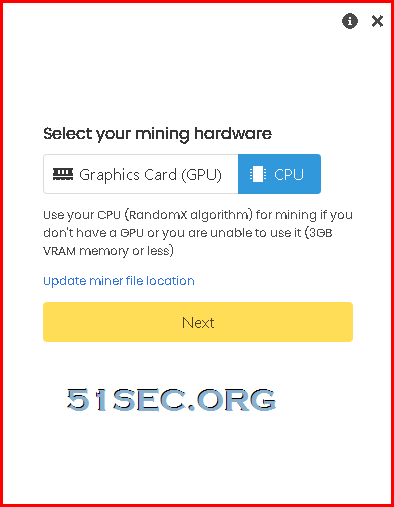
Choose CPU as mining hardware
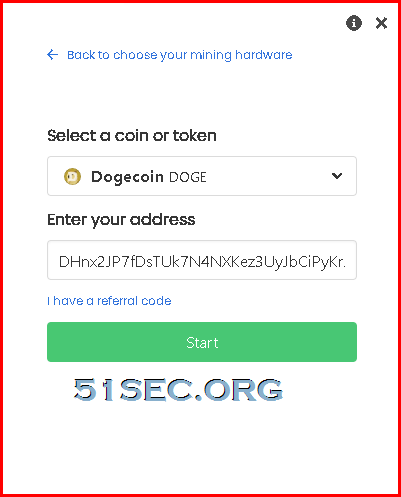
Choose Dogecoin DOGE as your coin
and enter your Dogecoin wallet's receiving address
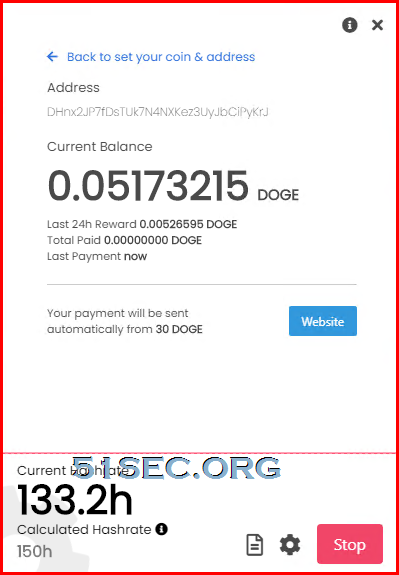
Click Start button to start your mining:
via Blogger https://ift.tt/3e8FzOR
April 30, 2021 at 12:25PM Cloud

 RSS Feed
