Info Security Memo
  • Blog
  • Sitemap
    • Categories
  • Contact
  • About
  • Resources
  • Tools
  • 51sec.org

Build Confidence

Focusing on Information Security 

Info Security Notes

FortiOS 5.4.1 IPSec Phase 2 for AutoConf-enabled Phase1 Issue

11/9/2016

0 Comments

 
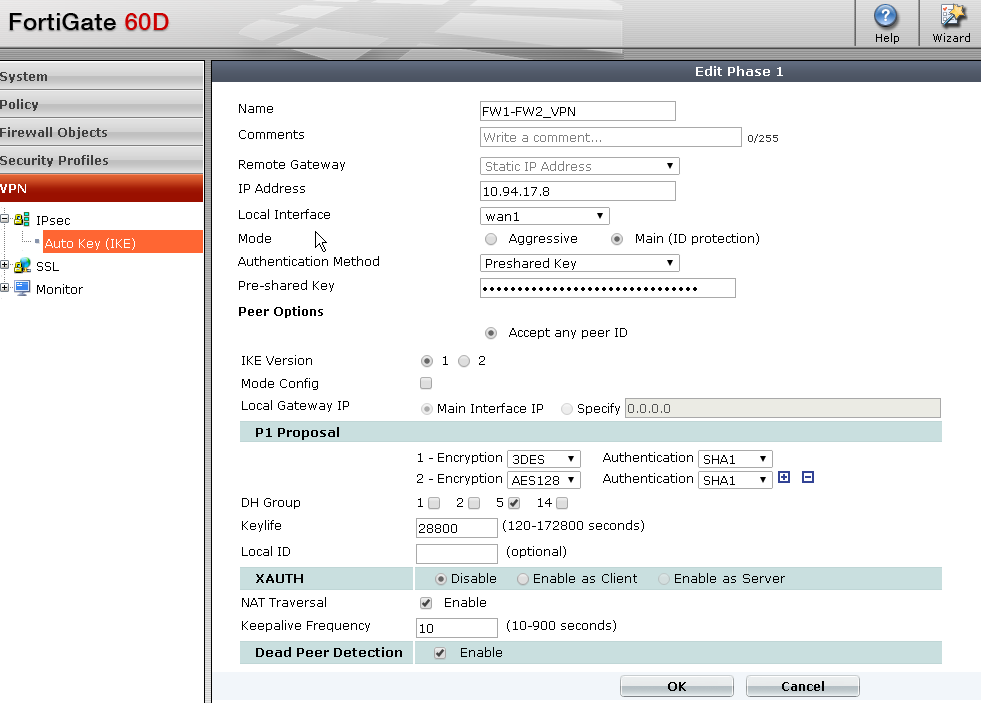
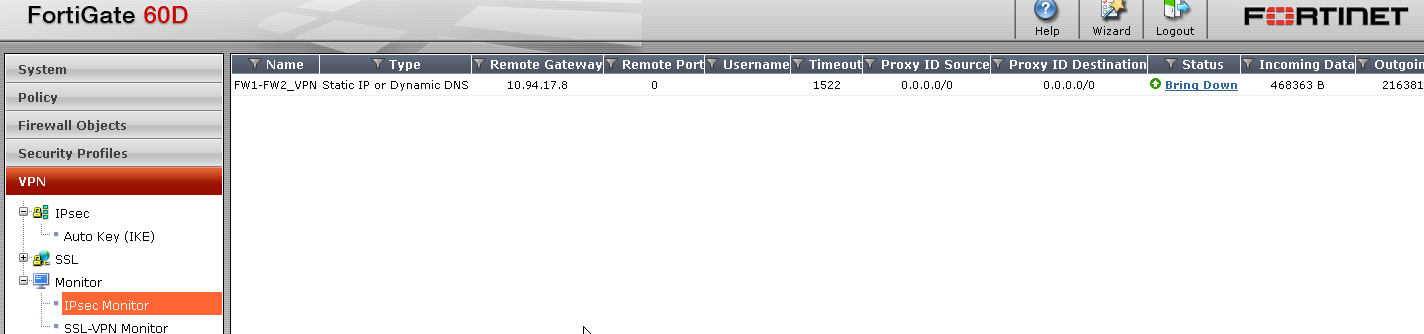
The Fortigate 60D and 100D were used to build IPSec tunnel between two sites since last year. The Firmware version is 5.2.4 build 668. I were planning to upgrade Fortigate 100D to 5.4.1. The upgrade process were smooth but IPsec tunnel got broken after upgrade.

Fortigate60D IPSec Tunnel Configuration:
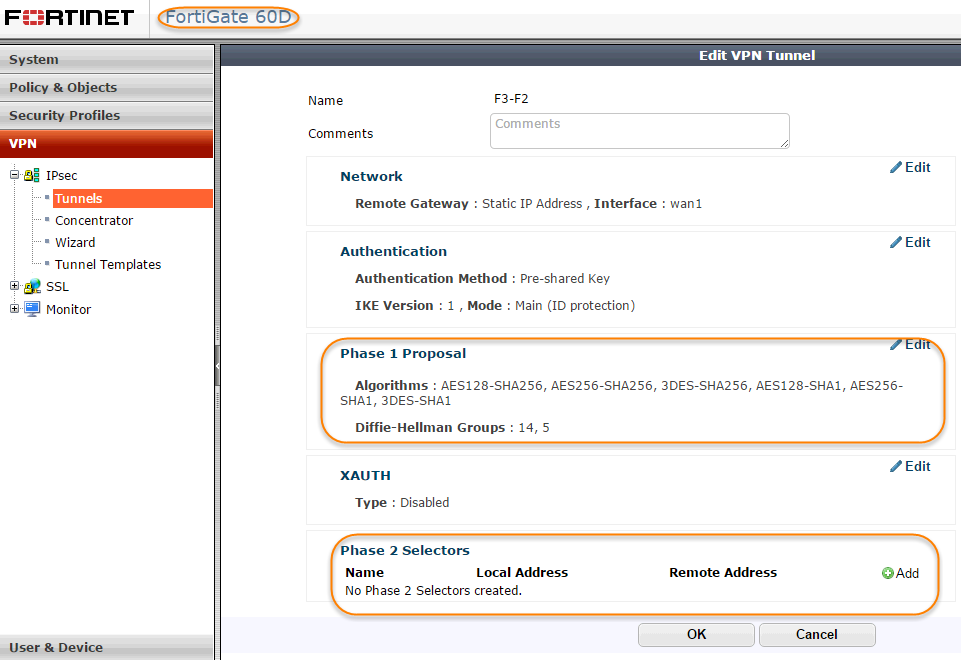
Fortigate100D I{Sec Tunnel Configuration:
Read More
0 Comments

Fortigate Firewall Configuration Migrate to Different Device

9/20/2016

0 Comments


Read More
0 Comments

Fortigate Firewall Console TFTP Image Recovery

2/27/2016

0 Comments

 
Recently I had a experience to install firmware from a local TFTP server under console control to reset a FortiGate unit to factory default settings.

It was caused by a failed firmware upgrade. System died after reboot. Power light was green, but not other interfaces.

I recorded the all steps in this post.

1. Physical Connections
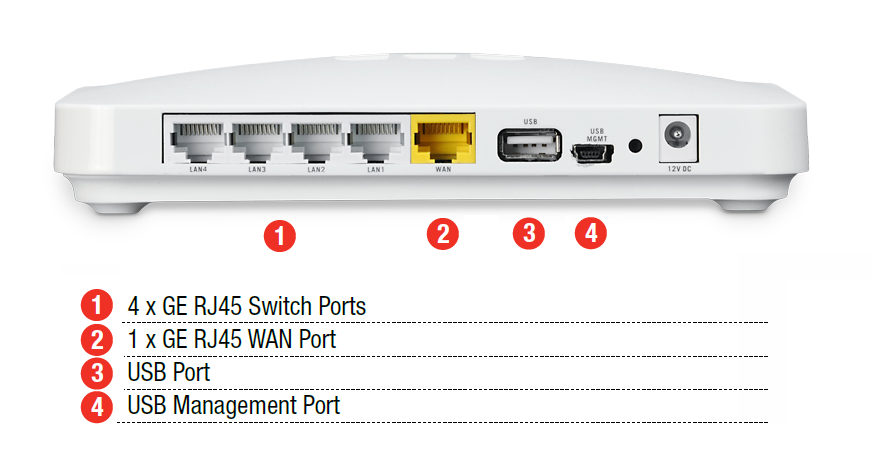
I were using Fortigate 30D to do this firmware TFTP installation. There are four different types of interfaces on the back of Fortigate 30D.
Here is the photo how Fortigate connected to my laptop with console connection and WAN interface Ethernet connection.
Fortigate 30D Connecting Console and WAN to Laptop
2. Software
2.1 TFTP Software
For TFTP software, I am using TFTPD32. 3CDaemon is also a good option.

TFTPD32 - Open Source tftp server for windows  
3CDaemon V2 - 3com's TFTP server for windows  

2.2 Terminal Client Software
Putty Terminal client communication parameters

  • 8 bits 
  • no parity 
  • 1 stop bit 
  • 9600 baud (the FortiGate-300 uses 115,000 baud) 
  • Flow Control = None  


3. Procedures

3.1 Power Cycle Fortigate 30D

The system told me boot failed. Please check boot device or OS image.

Before that, there were about 6 seconds to wait to interrupt booting process.

3.2 Enter into Configuration mode
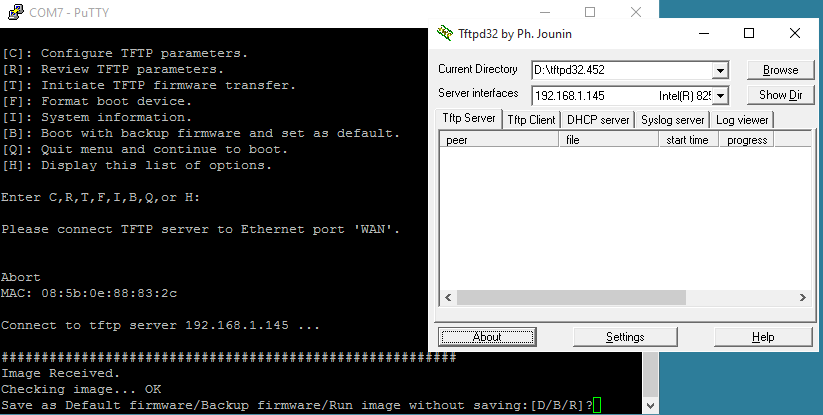
Press any key to interrupt booting process after you power cycle the device, following menu will show on the screen.

[C]: Configure TFTP parameters.
[R]: Review TFTP parameters.
[T]: Initiate TFTP firmware transfer.
[F]: Format boot device.
[I]: System information.
[B]: Boot with backup firmware and set as default.
[Q]: Quit menu and continue to boot.
[H]: Display this list of options.

3.3 Press C to Configure TFTP parameters


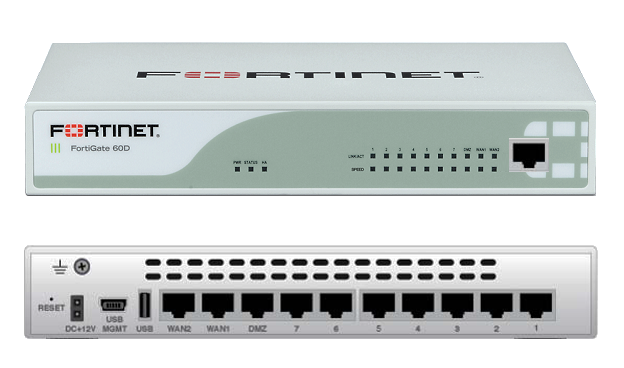
After you have configured all TFTP parameters, such as Fortigate local ip, network mask, gateway, image name, remote server ip etc, you can review those parameters. But for Fortigate local IP and network mask, it will show N/A. Actually you do not need to worry about it, just select T to initiate TFTP firmware transfer. Fortigate 30D will notify you to connect your TFTP server to WAN port, which is completely different from other Fortigate models, such as 60D. Please check following list to see which port your Fortigate should use to do firmware transfer.

 FortiGate Model                                Interface
=============================================================
50, 50A, 100, 200, 300, 500, 800, 800F          Internal
50B, all 60 models, 100A, 200A                  Internal port 1
100A, 200A (If Internal Port1 does not work)    Internal port 4
300A, 310A, 400, 400A, 500A, 1000 and higher    LAN port 1
1240B                                           port40
Fortigate with a dedicated management port      mgmt1


3.4 Initiate TFTP firmware transfer
After you initiate TFTP firmware transfer, the Fortigate WAN will be turned on.

You will see Firmware is transferring from TFTP server to Fortigate 30D. Once transferring done, you will be notified how you want to save this image for.


Reference:

Technical Note : Loading FortiGate firmware image using TFTP

0 Comments

Fortigate File Syste Check Recommendation After Logged in Web UI

12/4/2015

0 Comments

 
Fortigate firewall 60D has been used in our environment because of performance and cost. It is small, powerful, rich feature also cost effective. Usually 60D is reliable and sitting quietly in the corner of server room.

Today during a regular check, File System Check Recommended message pop-ed up when I logged into Web Interface. It prompted a file system check recommended window as show below:

It seems Power Failure Detected during last power outage. Obviously Firewall itself is still running well. It is not down and nothing scary happened yet. Should I directly go ahead to click "Check file system" button?

There is one thing you will have to remember is this option to check file system will reboot your devices. If your device is in the production, you will have to let it remind you later. If you hit the Check file system button, you will have to wait 5-8 minutes for this job done, which also means your production will be down for 5-8 minutes. I would suggest the button name should change from "Check file system" to "Check file system and Reboot", just for those impatient person not to read all messages on the screen.

Based on FortiOS knowledge article,

"In FortiOS 5.2 patch3, the file system check dialogue was introduced in the GUI and it offers the options to restart the unit and perform a file system check or, if desired, to be reminded later for performing the action in a maintenance window.
File System check is a feature that is checking if the device was not shutdown properly. It will do a disk scan when the system boots up to avoid any potential file system errors.  In fact,  if the unit was shutdown without using the proper command (#execute shutdown), during the booting sequence, the FortiGate will check internal files for this log event and, if it cannot find it, the message will be shown.
This behavior is by design and there is no option to disable this message.
The message should no longer be seen once the following actions have been completed:
- Check of the file system.- Reboot of the device."

I have connected the console to this Fortigate 60D device to see the console outputs during system check. After that, I did a firmware upgrade and here are what I got from console.


FORTIGATE60D login:

The system
Please stand by while rebooting the system.
Restarting system.


FORTIGATE60D-60D (17:26-02.19.2014)
Ver:04000023
Serial number: FGT60D4614011953
CPU(00): 800MHz
Total RAM:  2GB
Initializing boot device...
Initializing MAC... nplite#0
Please wait for OS to boot, or press any key to display configuration menu......

Booting OS...
Reading boot image... 1278219 bytes.
Initializing firewall...

System is starting...
Scanning /dev/sdb1... (100%)


FORTIGATE60D login:

I did firmware upgrade to v5.2.4, build688 from the web UI system information section. It took about five minutes to finish upgrading.


The following console output is recorded during firmware upgrading process:


FORTIGATE60D login:

Firmware upgrade in progress ...
Done.


The system is going down NOW !!

Please stand by while rebooting the system.
Restarting system.


FORTIGATE60D-60D (17:26-02.19.2014)
Ver:04000023
Serial number: FGT60D4614011953
CPU(00): 800MHz
Total RAM:  2GB
Initializing boot device...
Initializing MAC... nplite#0
Please wait for OS to boot, or press any key to display configuration menu......

Booting OS...
Reading boot image... 1278067 bytes.
Initializing firewall...

System is starting...


FORTIGATE60D login: admin
Password: ***********
Welcome !


FORTIGATE60D # execute ping 10.4.1.1
PING 10.4.1.1 (10.4.1.1): 56 data bytes
64 bytes from 10.4.1.1: icmp_seq=1 ttl=255 time=18.9 ms
64 bytes from 10.4.1.1: icmp_seq=2 ttl=255 time=1.5 ms

--- 10.4.1.1 ping statistics ---
3 packets transmitted, 2 packets received, 33% packet loss
round-trip min/avg/max = 1.5/10.2/18.9 ms

FORTIGATE60D #


Reference:

1. Technical Note: File System Check Recommended message
0 Comments

How Firewalls (Security Gateways) Handle the Packets?

6/24/2015

0 Comments

 
Different firewall (security gateway) vendor has different solution to handle the passing traffic. This post compiles some useful Internet posts that interpret major vendors' solutions including:
1. Checkpoint
2. Palo Alto
3. Fortigate
4. Cisco
5. Juniper
6. F5


1. Checkpoint Firewall Packets Flow:

More details at Sinso's Blog
Note: Checkpoint can define NAT happened at client side (default) or server side. More details are on SK85460

Also you could check the packet inspection order/chain through gateway command line:

1.1 FW-CP1> fw ctl chain

in chain (18):
        0: -7f800000 (f28854f0) (ffffffff) IP Options Strip (in) (ipopt_strip)
        1: -7d000000 (f1796f10) (00000003) vpn multik forward in
        2: - 2000000 (f177cb70) (00000003) vpn decrypt (vpn)
        3: - 1fffff8 (f1787c00) (00000001) l2tp inbound (l2tp)
        4: - 1fffff6 (f2886ca0) (00000001) Stateless verifications (in) (asm)
        5: - 1fffff5 (f28bce30) (00000001) fw multik misc proto forwarding
        6: - 1fffff2 (f17a4df0) (00000003) vpn tagging inbound (tagging)
        7: - 1fffff0 (f177a150) (00000003) vpn decrypt verify (vpn_ver)
        8: - 1000000 (f29049c0) (00000003) SecureXL conn sync (secxl_sync)
        9:         0 (f282f810) (00000001) fw VM inbound  (fw)
        10:         1 (f28a6b30) (00000002) wire VM inbound  (wire_vm)
        11:   2000000 (f177b5e0) (00000003) vpn policy inbound (vpn_pol)
        12:  10000000 (f2902cb0) (00000003) SecureXL inbound (secxl)
        13:  7f600000 (f287ab70) (00000001) fw SCV inbound (scv)
        14:  7f730000 (f2a13500) (00000001) passive streaming (in) (pass_str)
        15:  7f750000 (f2c0bef0) (00000001) TCP streaming (in) (cpas)
        16:  7f800000 (f2885890) (ffffffff) IP Options Restore (in) (ipopt_res)
        17:  7fb00000 (f2fac050) (00000001) HA Forwarding (ha_for)
out chain (15):
        0: -7f800000 (f28854f0) (ffffffff) IP Options Strip (out) (ipopt_strip)
        1: -78000000 (f1796ef0) (00000003) vpn multik forward out
        2: - 1ffffff (f1779a10) (00000003) vpn nat outbound (vpn_nat)
        3: - 1fffff0 (f2c0bd70) (00000001) TCP streaming (out) (cpas)
        4: - 1ffff50 (f2a13500) (00000001) passive streaming (out) (pass_str)
        5: - 1ff0000 (f17a4df0) (00000003) vpn tagging outbound (tagging)
        6: - 1f00000 (f2886ca0) (00000001) Stateless verifications (out) (asm)
        7:         0 (f282f810) (00000001) fw VM outbound (fw)
        8:         1 (f28a6b30) (00000002) wire VM outbound  (wire_vm)
        9:   2000000 (f1779c30) (00000003) vpn policy outbound (vpn_pol)
        10:  10000000 (f2902cb0) (00000003) SecureXL outbound (secxl)
        11:  1ffffff0 (f17887b0) (00000001) l2tp outbound (l2tp)
        12:  20000000 (f177d5b0) (00000003) vpn encrypt (vpn)
        13:  7f700000 (f2c0e340) (00000001) TCP streaming post VM (cpas)
        14:  7f800000 (f2885890) (ffffffff) IP Options Restore (out) (ipopt_res)

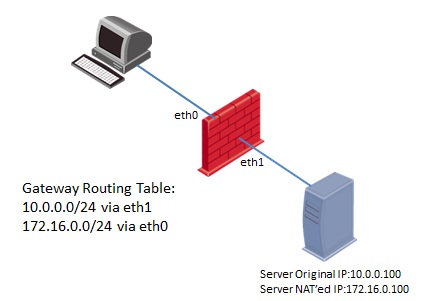
1.2 Checkpoint Example for Client Side NAT flow:

  1. The packet that was sent to Server's NATed IP 172.16.0.100, arrives on the "Source/Client" side at the inbound interface eth0 of the Security Gateway (Pre-Inbound chains).
  2. The packet passes the Security Policy rules (inside Virtual Machine).
  3. If accepted, the connection is recorded in the Connections Table (Table ID 8158).
  4. The packet is matched against NAT rules for the Destination. The packet is translated if a match is found - in this case, from IP 172.16.0.100 to IP 10.0.0.100.
  5. The packet passes additional inspection (Post-Inbound chains).
  6. The packet arrives at the TCP/IP stack of the underlying operating system, and is routed to the outbound interface eth1.
  7. The packet goes through the outbound interface eth1 (Pre-Outbound chains).
  8. The packet passes the Security Policy rules (inside Virtual Machine).
  9. The packet is matched against NAT rules for the Source (if such rules exist). The packet is translated if a match is found - in this case, no translation occurs.
  10. The packet passes additional inspection (Post-Outbound chains).
  11. The packet leaves the Security Gateway machine.

1.3 Checkpoint Policy Installation Flow from FW Knowledge Blog:


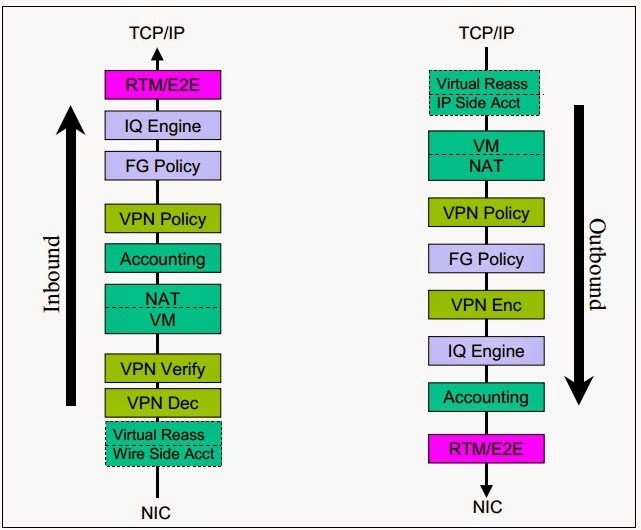
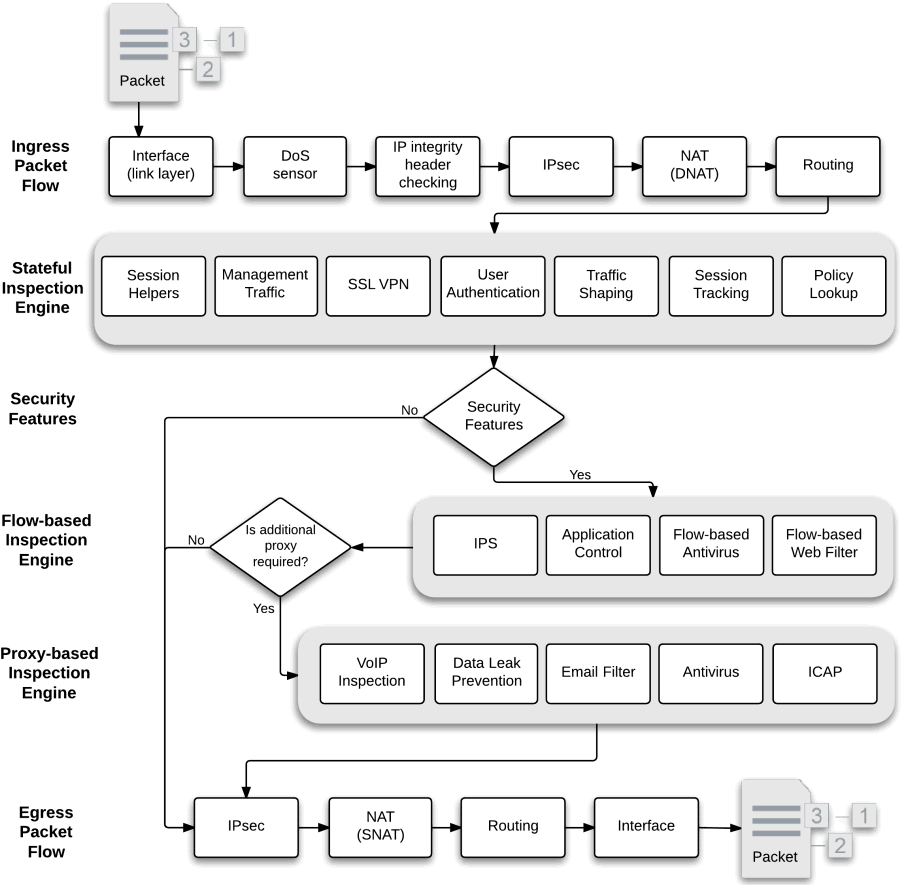
2. Fortigate FortiOS:

2.1 Packet flow Process:


2.2 Example for Client/server connection:

More packet flow examples can be get from FortiOS Handbook - Troubleshooting PDF file.

3. Palo Alto Traffic Flow:


4. Cisco IOS/ASA Traffic Flow:


There are more details regarding NAT order,  ACL order etc from my previous post: Cisco IOS/ASA Packet Passing Order of Operation


5. JunOS Traffic Flow:


Junos SRX packet flow
This diagram with more details:


F5 Traffic Flow from Sinso's Post: 


Reference:

a. How does the Security Gateway handle Established TCP Connections?
b. JunOS Packets Flow
c. Check Point Policy Installation Process
d. CNSE -Palo Alto - Firewall configuration essentials
e. Packet Flow Through Checkpoint
f. FortiOS™ Handbook - Troubleshooting v5.2.2
0 Comments

Gartner Magic Quadrant for Enterprise Network Firewall (2015, 2014, 2013, 2011, 2010)

5/1/2015

0 Comments

 
Gartner, Inc. has released the latest Magic Quadrant for Enterprise Network Firewalls on April 22, 2015:

2015

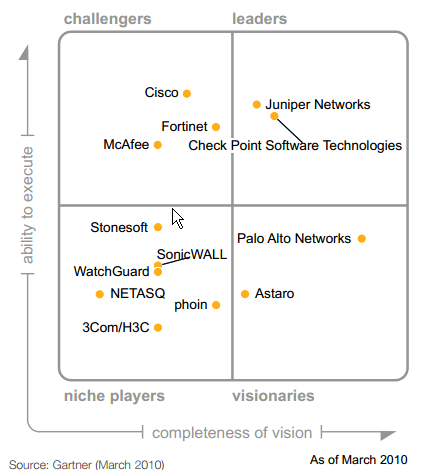
The big change in this year is Juniper lost their challengers position in the magic quadrant based on following reasons. In 2010 Juniper was in leaders quadrant:

"Juniper is assessed as a Niche Player for enterprises, mostly because we see it selected in concert with other Juniper offerings, rather than displacing competitors based on its vision or features, and we see it being replaced in enterprise environments more often than we see it selected. Juniper is, however, shortlisted and/or selected in mobile service provider deployments and large-enterprise data center deployments, primarily because of price and high throughput on its largest appliances." - From Gartner report.

Other small changes from 2014 to 2015:
  • Fortinet is doing pretty good and geting closer to Leaders Quadrant. 
  • In the leader Quadrant, the position between Palo Alto and Check Point is getting closer and closer for last four years.


2014 

Gartner Magic Quadrant for Enterprise Network Firewall:


Palo Alto and Checkpoint position into leader quadrant again.

This is the third year for Palo Alto and seventeenth year for Checkpoint to list in the leader quadrant.

2013 

Gartner Magic Quadrant for Enterprise Network Firewall:

Note: There is no 2012 Gartner Magic Quadrant for Enterprise Network Firewall

2011 

Gartner Magic Quadrant for Enterprise Network Firewall:


2010 

Gartner Magic Quadrant for Enterprise Network Firewall:


Reference:

1.Gartner 2015 Magic Quadrant for Enterprise Network Firewalls
0 Comments

Set Up IPSec Site to Site VPN Between Fortigate 60D (4) - SSL VPN

4/22/2015

1 Comment

 
IPSec Site to Site VPN Configuration Series:
  1. Set Up IPSec Site to Site VPN Between Fortigate 60D (1) - Route-Based VPNs
  2. Set Up IPSec Site to Site VPN Between Fortigate 60D (2) - Policy-Based VPNs
  3. Set Up IPSec Site to Site VPN Between Fortigate 60D (3) - Concentrator and Troubleshooting
  4. Set Up IPSec Site to Site VPN Between Fortigate 60D (4) - SSL VPN
SSL VPNs establish connectivity using SSL, which functions at Levels 4 - 5 (Transport and Session layers). Information is encapsulated at Levels 6 - 7 (Presentation and Application layers), and SSL VPNs communicate at the highest levels in the OSI model. SSL is not strictly a Virtual Private Network (VPN) technology that allows clients to connect to remote networks in a secure way.

FortiOS supports the SSL (not SSL1.0) and TLS (TLS1.3) versions defined below:

Defined
Protocol Year
SSL 1.0 n/a
SSL 2.0 1995 - RFC 6176
SSL 3.0 1996 - RFC 6101
TLS 1.0 1999 - RFC 2246
TLS 1.1 2006 - RFC 4346
TLS 1.2 2008 - RFC 5246
TLS 1.3 TBD


When a remote client connects to the FortiGate unit, the FortiGate unit authenticates the user based on username, password, and authentication domain. A successful login determines the access rights of remote users according to user group. The user group settings specify whether the connection will operate in web-only mode or tunnel mode. There are three types of mode:

  1. Web-only Mode
  2. Tunnel Mode
  3. Port Forwarding Mode (Proxy Mode)


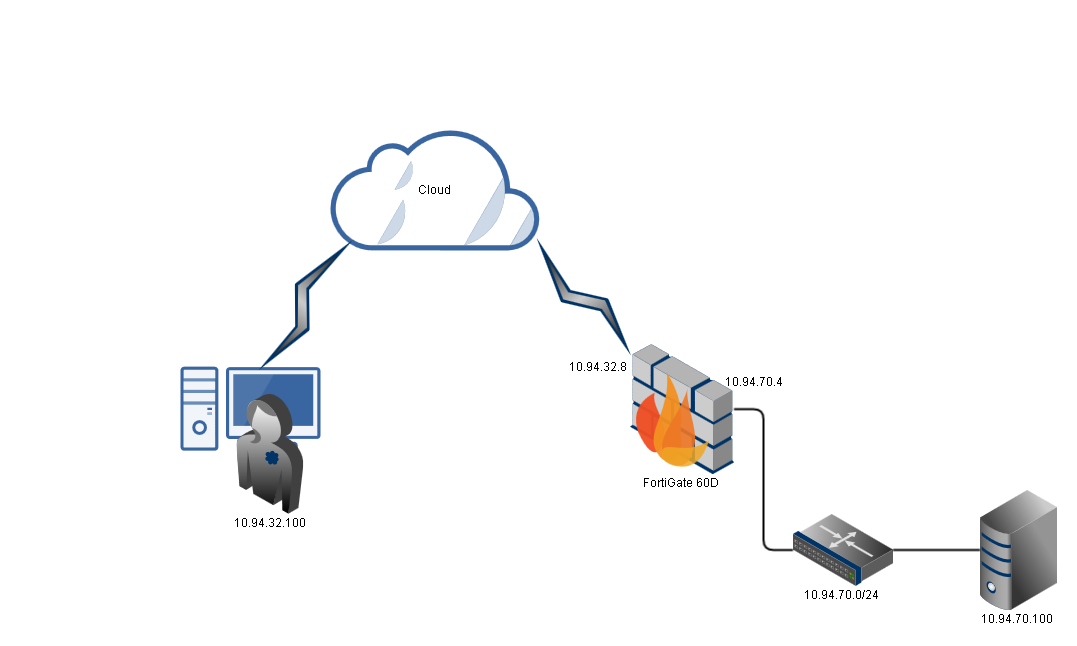
 Lab Topology:


Configuration Steps:

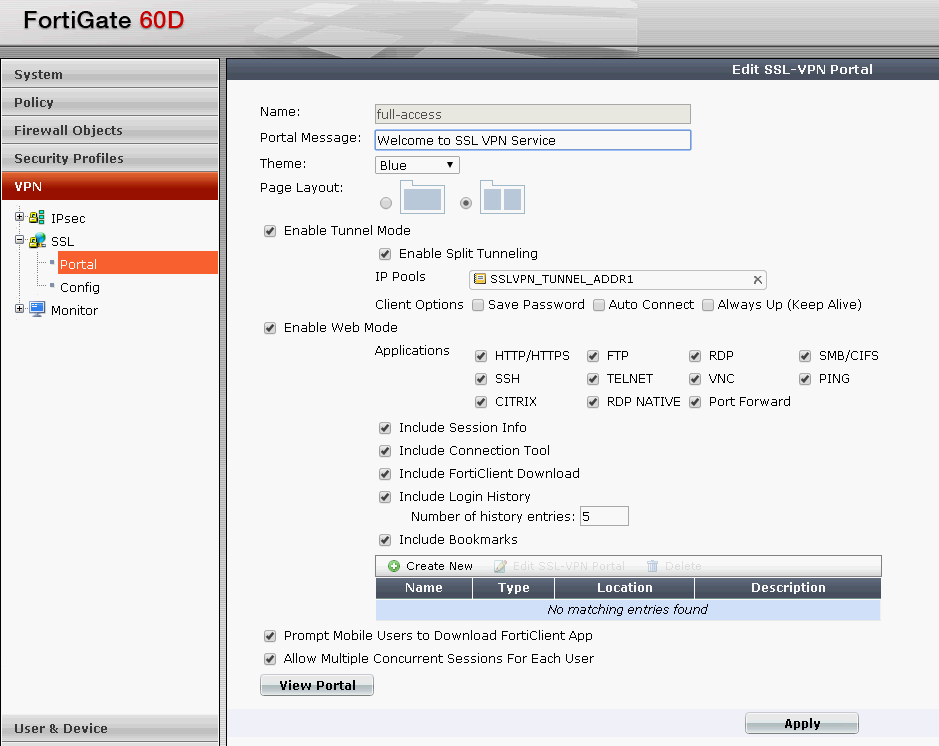
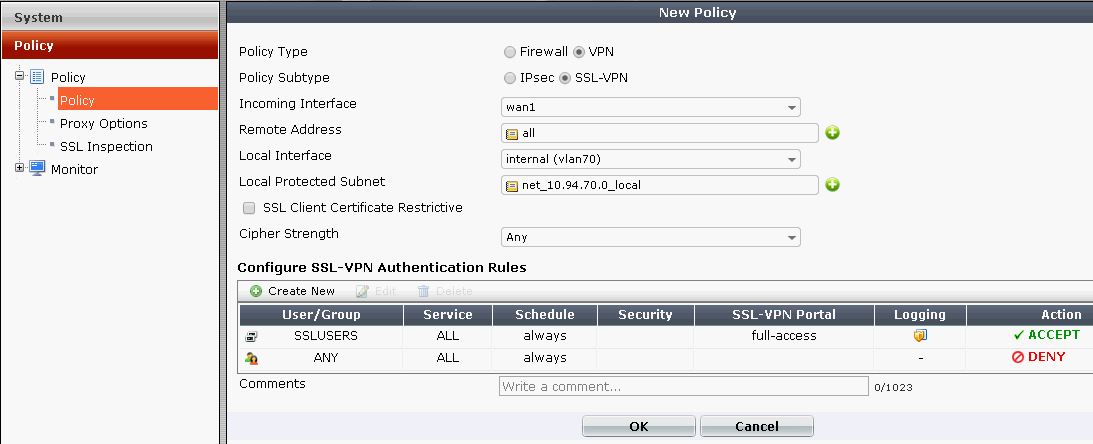
1. Create SSL VPN Portal


 2. Create Remote Users and Groups


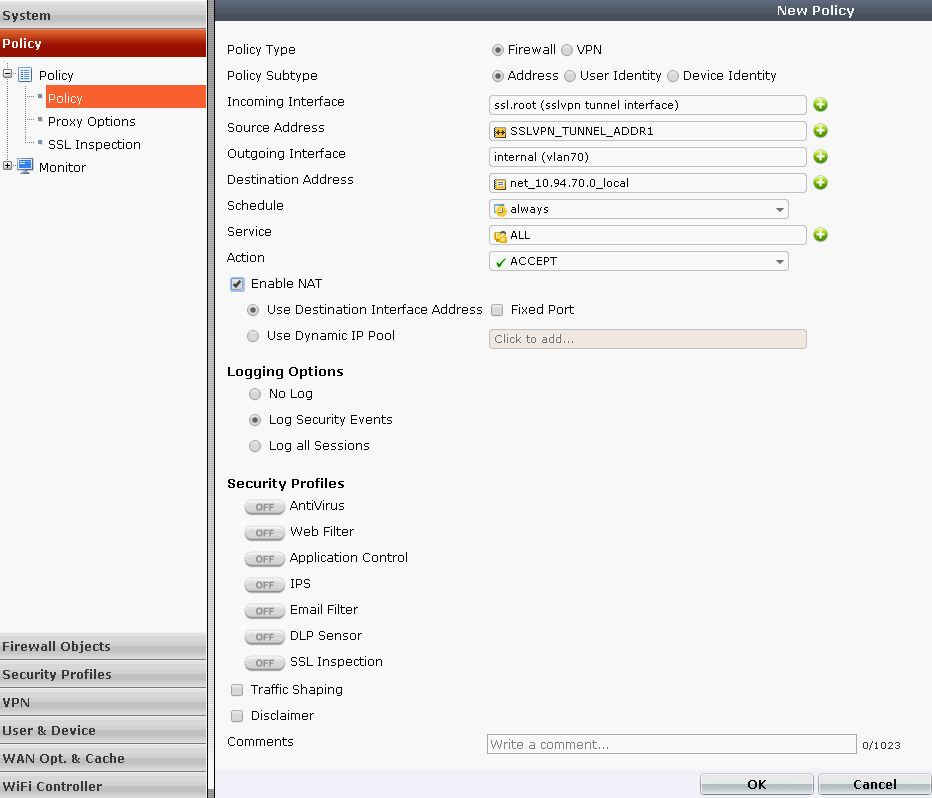
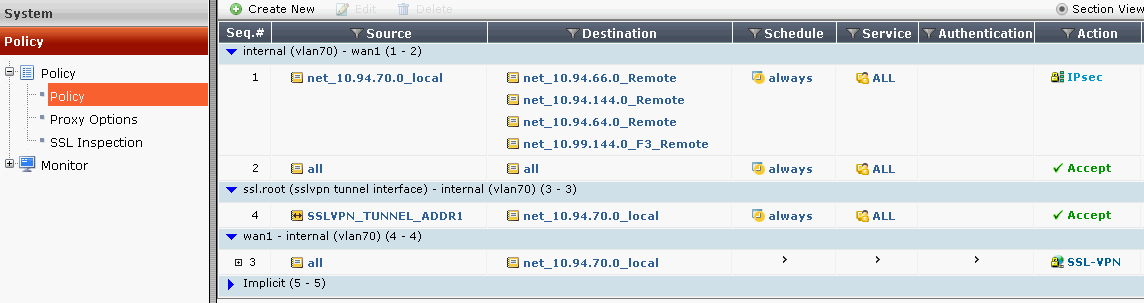
3. Create Security Policies

 3.1 SSL-VPN Rule from WAN1 to Internal

 3.2 Firewall Address Policy from SSL Tunnel Address to Internal


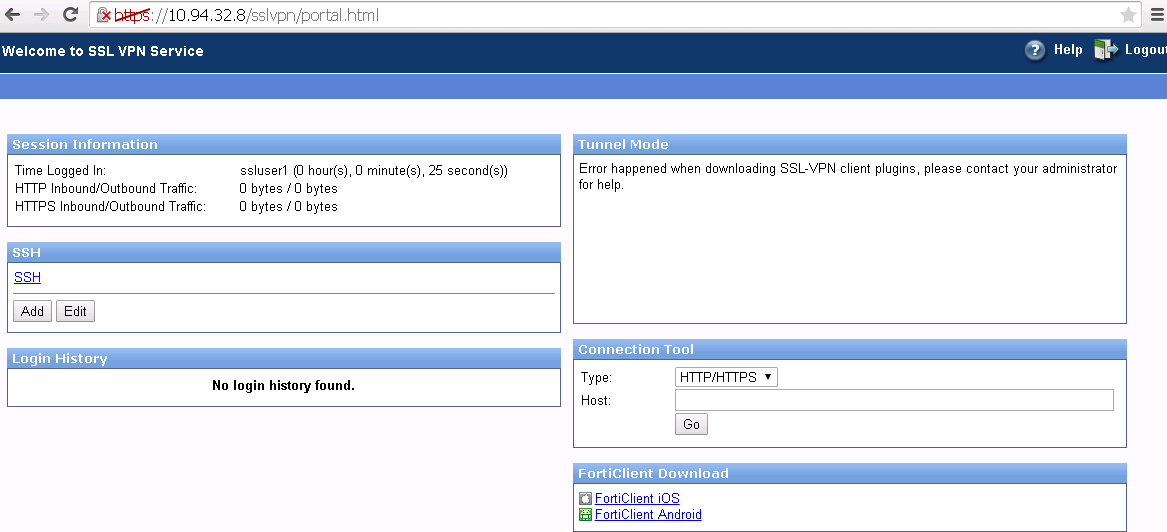
 4. Test


Reference:

  1. FortiOS™ Handbook - SSL VPN (VERSION 5.2.2)
  2. How to setup SSL VPN (Web & Tunnel mode) for remote access
  3. Chapter 16 SSL VPN for FortiOS 5.0
  4. Setup examples : Remote Access with SSLVPN


1 Comment

Set Up IPSec Site to Site VPN Between Fortigate 60D (3) - Concentrator and Troubleshooting

4/15/2015

0 Comments

 
Set Up IPSec Site to Site VPN Between Fortigate 60D (1) - Route-Based VPNs
Set Up IPSec Site to Site VPN Between Fortigate 60D (2) - Policy-Based VPNs
Set Up IPSec Site to Site VPN Between Fortigate 60D (3) - Concentrator and Troubleshooting

After tested policy based and route based IPSec vpn, this post will do a quick test FortiGate concentrator feature.

The VPN concentrator collects hub-and-spoke tunnels into a group.The concentrator allows VPN traffic to pass from one tunnel to the other through the FortiGate unit. The FortiGate unit functions as a concentrator, or hub, in a hub-and-spoke network.

If the VPN peer is a FortiGate unit functioning as the hub, or concentrator, it requires aVPN configuration connecting it to each spoke (AutoIKE phase 1 and 2 settings ormanual key settings, plus encrypt policies). It also requires a concentratorconfiguration that groups the hub-and-spoke tunnels together. The concentratorconfiguration defines the FortiGate unit as the hub in a hub-and-spoke network.If the VPN peer is one of the spokes, it requires a tunnel connecting it to the hub (butnot to the other spokes). It also requires policies that control its encrypted connectionsto the other spokes and its non-encrypted connections to other networks, such as theInternet.

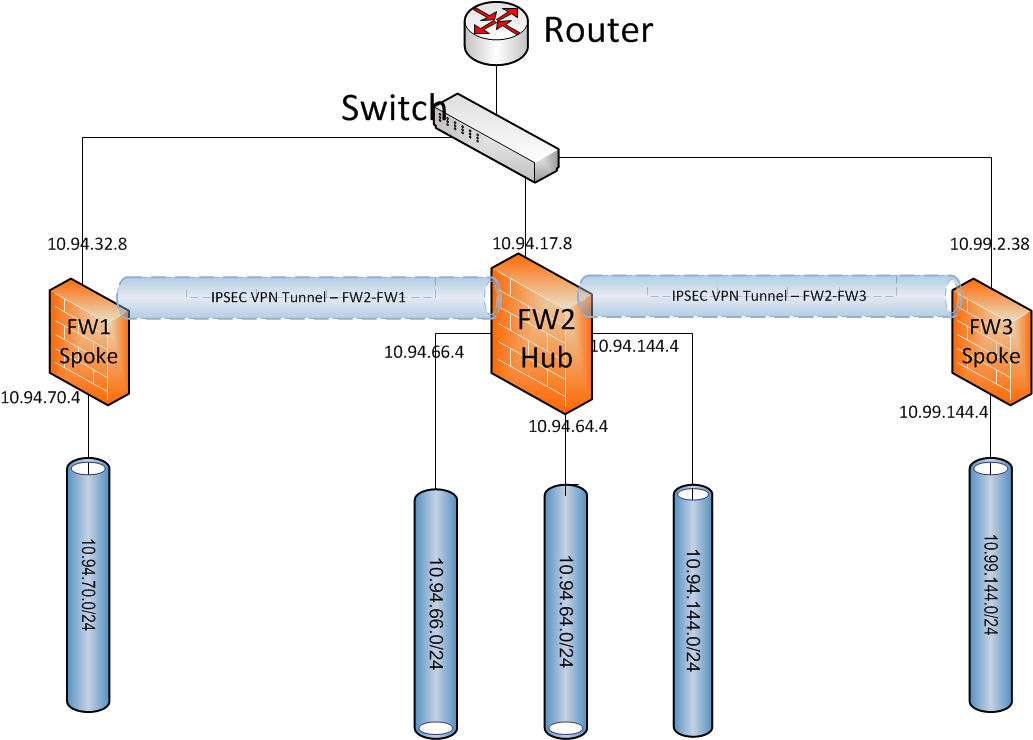
Topology:

FW3 adds into the our previous topology used in route based and policy based vpn labs. FW3 will act as another spoke , same as FW1. FW2 will be the hub , or concentrator.

Photos:


Configuration:

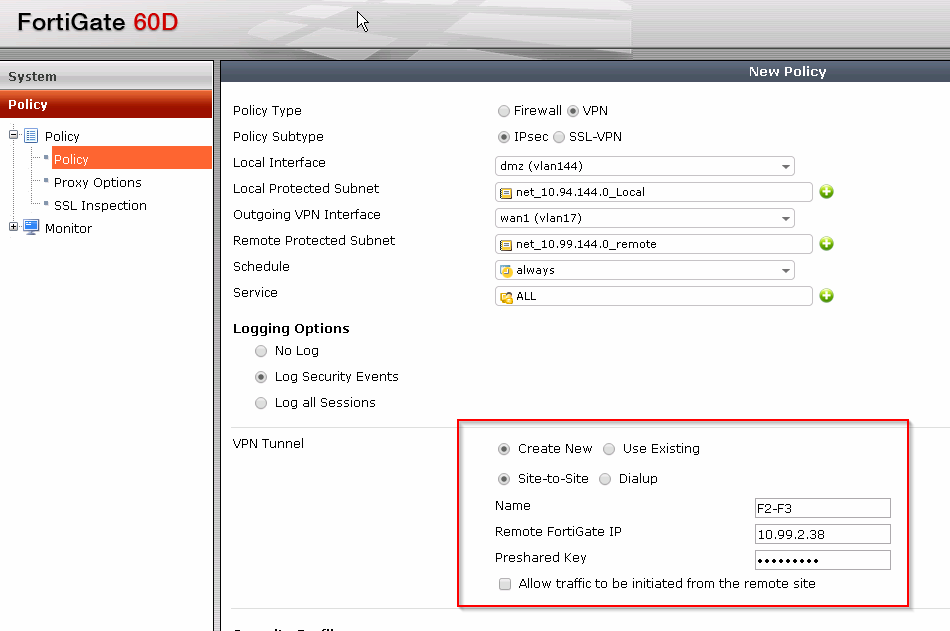
1. @F3:  Since there is a vpn tunnel built between F1 and F2 from previous lab, the first step is going to build another vpn tunnel between F2 and F3.

Create all local address object and remote address objects. Remote objects will include the protected network by F1 and F2.

Create a new rule to allow local network to remote networks with a new ipsec vpn tunnel. 
Promote the new rule to the top of the list:

2. @F2. Create new policy rules with a new vpn tunnel betwee F2 and F3.

Create new remote network for F3.
Create a couple of new rules to allow local network to access remote F3's network using a new VPN tunnel F2-F3.
Since there are three local networks behind F2, three new rules will be created. 
Note: There is no need to create rule to allow spoke traffic passing among them. 

In the VPN - IPSec - Auto Key (IKE), F2-F3 vpn tunnle profile will be there. 

At this moment, the tunnel between F2 and F3 is configured and should be up from IPSec monitoring tab.

3. Configure F1 for the traffic between two spokes , F1 and F3.

Add F3's protected network into Firewall Objects - Address - Addresses:


Add the new address object into firewall policy rule:


4. Configure concentrator on F2 hub

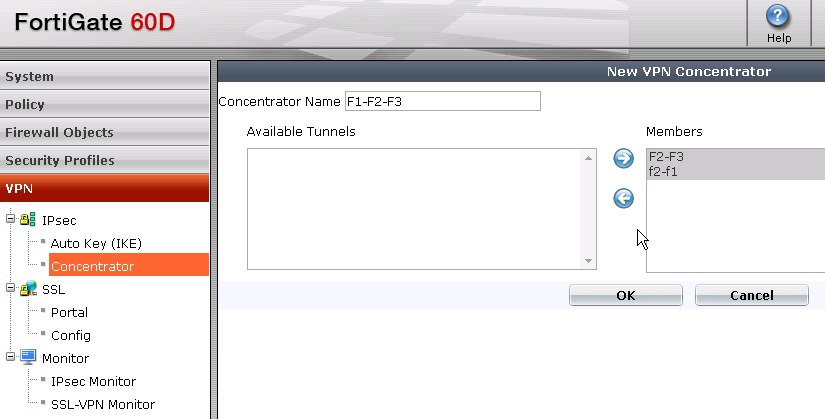
Create a new Conentrator from VPN- IPSec - Concentrator.
Give F1-F2-F3 as the name, and select both hub-spoke vpn tunnel as the members:


5. Ping Test:

This is the test from F1's local network host 10.94.70.20. Before concentrator configured at F2, ping to 10.99.144.4 timed out.

As soon as Step 4's concentrator configuration done, ping immediately replied.


Troubleshooting Commands:


FGT60D # diagnose vpn tunnel stat
dev=0 tunnel=1 proxyid=1 sa=1 conc=0 up=1

FGT60D # diagnose vpn tunnel list
list all ipsec tunnel in vd 0
------------------------------------------------------
name=f1-f2 ver=1 serial=3 10.94.32.8:0->10.94.17.8:0 lgwy=static tun=tunnel mode                                                                                           =auto bound_if=5
proxyid_num=1 child_num=0 refcnt=8 ilast=3 olast=3
stat: rxp=8 txp=12 rxb=600 txb=720
dpd: mode=active on=1 idle=5000ms retry=3 count=0 seqno=16517
natt: mode=none draft=0 interval=0 remote_port=0
proxyid=_f1-f2_tun_ proto=0 sa=1 ref=2 auto_negotiate=1 serial=1
  src: 0:0.0.0.0/0.0.0.0:0
  dst: 0:0.0.0.0/0.0.0.0:0
  SA: ref=6 options=0000002f type=00 soft=0 mtu=1412 expire=399 replaywin=1024 s                                                                                           eqno=3
  life: type=01 bytes=0/0 timeout=1777/1800
  dec: spi=1935da05 esp=aes key=32 aa7f520b5457bc16f97c5cfc43483eb1c9b54f853def0                                                                                           8213ca068506f9cb103
       ah=sha1 key=20 b69c401862a7b6320d92e36b0d400f95320852a9
  enc: spi=7b5dfde9 esp=aes key=32 0dbcde0df85b6d31dfdceded16314ff1a4ef9977e8fdb                                                                                           bed655ee9ddd0ccc80c
       ah=sha1 key=20 f6543bd37cfcbd5ccf881340f4b651940b34684d
  dec:pkts/bytes=1/60, enc:pkts/bytes=2/240
  npu_flag=03 npu_rgwy=10.94.17.8 npu_lgwy=10.94.32.8 npu_selid=3


FGT60D # diag debug application ike 255

FGT60D # diag debug enable

FGT60D # diaike 0: comes 10.94.32.8:500->10.94.17.8:500,ifindex=5....
ike 0: IKEv1 exchange=Informational id=da8b0eb3b674cd8e/c0b55e04f98318f5:ca3cf88                                                                                           1 len=92
ike 0: in DA8B0EB3B674CD8EC0B55E04F98318F508100501CA3CF8810000005C85114C19CFD9A0                                                                                           E3ECE0331A8A6134E1424AD7F8D516523A8D3421F260A17EFFAC75CD4FE3A283CD02832C07B5636B                                                                                           832E8E976E26A2376FA50F77D94B3D7620
ike 0:f2-f1:104: dec DA8B0EB3B674CD8EC0B55E04F98318F508100501CA3CF8810000005C0B0                                                                                           00018A23349616A88AF99FFEB71BDB181733E48597075000000200000000101108D28DA8B0EB3B67                                                                                           4CD8EC0B55E04F98318F5000040B28799820191C3D307
ike 0:f2-f1:104: notify msg received: R-U-THERE
ike 0:f2-f1:104: enc DA8B0EB3B674CD8EC0B55E04F98318F5081005013FB65E04000000540B0                                                                                           00018A3902503765FF73A4AEB0F8D8DBCCC04A0E1BD63000000200000000101108D29DA8B0EB3B67                                                                                           4CD8EC0B55E04F98318F5000040B2
ike 0:f2-f1:104: out DA8B0EB3B674CD8EC0B55E04F98318F5081005013FB65E040000005C7E1                                                                                           54F5BEE4DEB627A700A84B0CB3C0098B5962BFA6CED080EAC0B5BF0E406D2ED7C4EC054B05F97A20                                                                                           4A1B812D946597958233BBBA2D5CB7A2ABA6EFB70B6CE
ike 0:f2-f1:104: sent IKE msg (R-U-THERE-ACK): 10.94.17.8:500->10.94.32.8:500, l                                                                                           en=92, id=da8b0eb3b674cd8e/c0b55e04f98318f5:3fb65e04
ike 0:f2-f1: link is idle 5 10.94.17.8->10.94.32.8:0 dpd=1 seqno=40ac
ike 0: comes 10.94.32.8:500->10.94.17.8:500,ifindex=5....
ike 0: IKEv1 exchange=Informational id=da8b0eb3b674cd8e/c0b55e04f98318f5:60b967f2 len=92
ike 0: in DA8B0EB3B674CD8EC0B55E04F98318F50810050160B967F20000005CB93CFF645F24AAD1702B89F758E4691C3A67210427BB251023BD3137C605D21D55585C435F25627A09A6242A5C4280EFA4B40E37AEF95224E33308D50465F0F9
ike 0:f2-f1:104: dec DA8B0EB3B674CD8EC0B55E04F98318F50810050160B967F20000005C0B000018F7DB4421DE4D8FE837A092498CC9FC19144E120D000000200000000101108D28DA8B0EB3B674CD8EC0B55E04F98318F5000040B30821732F98702307
ike 0:f2-f1:104: notify msg received: R-U-THERE
ike 0:f2-f1:104: enc DA8B0EB3B674CD8EC0B55E04F98318F508100501C910E3AF000000540B0000189A4BC0E8ACAAD4C3336B442280051149189B1574000000200000000101108D29DA8B0EB3B674CD8EC0B55E04F98318F5000040B3
ike 0:f2-f1:104: out DA8B0EB3B674CD8EC0B55E04F98318F508100501C910E3AF0000005CEC41A52E04D7316299F3DBCE4005D26AE26AFE40F3ADA9ADBF24652041B6836EB942D004846F1B61F528980E9E3B9811CB6AC66B6C6DE439DF98CBC247BA4206
ike 0:f2-f1:104: sent IKE msg (R-U-THERE-ACK): 10.94.17.8:500->10.94.32.8:500, len=92, id=da8b0eb3b674cd8e/c0b55e04f98318f5:c910e3af
ike 0:f2-f1: link is idle 5 10.94.17.8->10.94.32.8:0 dpd=1 seqno=40ad
ike shrank heap by 122880 bytes
ike 0: comes 10.94.32.8:500->10.94.17.8:500,ifindex=5....
ike 0: IKEv1 exchange=Informational id=da8b0eb3b674cd8e/c0b55e04f98318f5:60199215 len=92
ike 0: in DA8B0EB3B674CD8EC0B55E04F98318F508100501601992150000005C202E2B7EC4FD78A9A47A7BAADC85BBBA1240E38168A3E1FF37450B96DA085B38096EFC3352AF7D457DF3D66674BA6848093BFD670234A7E9AC32297AF7A35F73
ike 0:f2-f1:104: dec DA8B0EB3B674CD8EC0B55E04F98318F508100501601992150000005C0B0000188389BC2895680F8618F031B82FB9DA3FEB9C6769000000200000000101108D28DA8B0EB3B674CD8EC0B55E04F98318F5000040B4B478A703A2351A07
ike 0:f2-f1:104: notify msg received: R-U-THERE
ike 0:f2-f1:104: enc DA8B0EB3B674CD8EC0B55E04F98318F5081005013AB0F2D6000000540B0000182AAE9F0D1D6178FF2826ABD38FCE35A17107CD42000000200000000101108D29DA8B0EB3B674CD8EC0B55E04F98318F5000040B4
ike 0:f2-f1:104: out DA8B0EB3B674CD8EC0B55E04F98318F5081005013AB0F2D60000005C84CD92EF75CD2D72941E654D9C1F27D43038A5D56287736BABF6232A5744E413A2A4AC5FFEEA28AA1A51FAD159536748874E6D7F692750CC060C9619E727DD25
ike 0:f2-f1:104: sent IKE msg (R-U-THERE-ACK): 10.94.17.8:500->10.94.32.8:500, len=92, id=da8b0eb3b674cd8e/c0b55e04f98318f5:3ab0f2d6
ike 0:f2-f1: link is idle 5 10.94.17.8->10.94.32.8:0 dpd=1 seqno=40ae

FGT60D # diag debug reset

FGT60D # diag debug disable


Reference:

  • Fortinet FortiGate 50A Configuration Manual: Vpn Concentrator (hub) General Configuration Steps
0 Comments

Set Up IPSec Site to Site VPN Between Fortigate 60D (2) - Policy-Based VPNs

4/14/2015

0 Comments

 
This is the second post for Fortigate IPSec VPN configuration. It will use same topology as previous one.

The implementation will be set up policy based IPSec VPN between two sites.

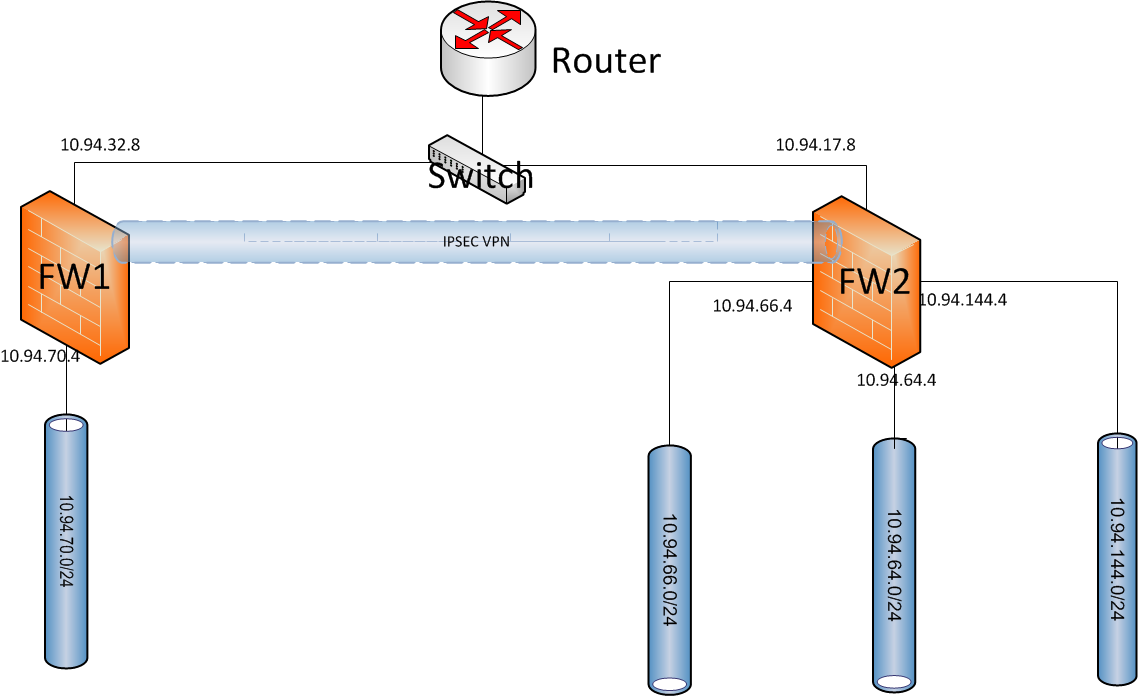
Topology:


Configuration Steps:

1. Enable Policy Based VPN feature:

By default, Policy-Based IPSec VPN feature is not enabled.  We will have to go to System-Config-Feature-Show More to enable it.

2. Go to: Firewall Objects > Address > Address


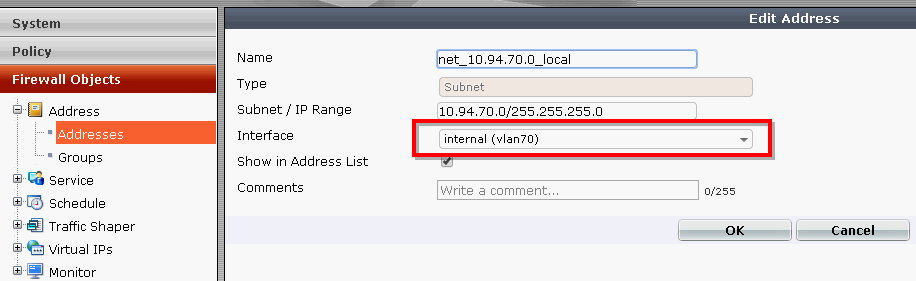
  • Create New Address – Internal Subnet - Name it as net_10.94.70.0_local
  • Enter local subnet: 10.94.70.0/24
  • Select internal interface

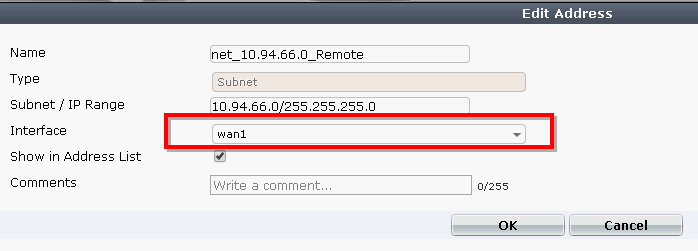
3. Create New Address – Remote Subnet - Name it as net_10.94.66.0_Remote


  • Enter Remote Subnet: 10.94.66.0/24
  • Enter wan1 Interface


4.  Go to Policy > Policy > Policy

  • Create New
  • Select VPN Policy Type
  • Select IPsec Subtype
  • Select the local interface - internal, and Local Protected Subnet net_10.94.70.0_local
  • Select the wan interface - wan1, and remote protected Subnet net_10.94.66.0_remote
  • Set service to all
  • Select create new VPN Tunnel.
  • Choose Site-to-Site and Name it as f1-f2
  • Put FW2's wan1 ip 10.94.17.8 as Remote FortiGate IP.
  • Enter Preshared Key
  • Check the box to allow traffic to be initiated from the remote site
Note: If you choose use Existing directly, sometimes, you will not see your pre-configured VPN tunnel in the list. Create a new vpn tunnel from here always works.

5. Move the policy to the top of the list

6. FW2's Configuration

a. FW2's Firewall Objects - Address-Addresses
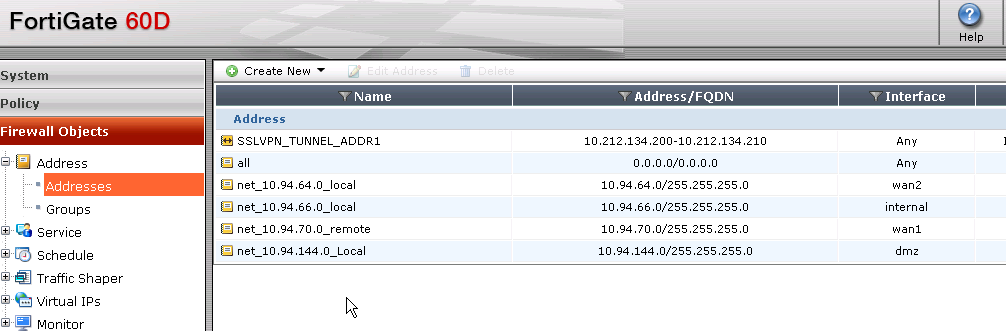
There are three local networks defined in here, including all local subnets 10.94.64.0/24, 10.94.66.0/24 and 10.94.144.0/24
 b. Three policy rules defined for three different local networks. Remote destination network are same, which is 10.94.70.0/24. All those three rules are using same IPSec vpn tunnle f2-f1, which is defined in step 4.

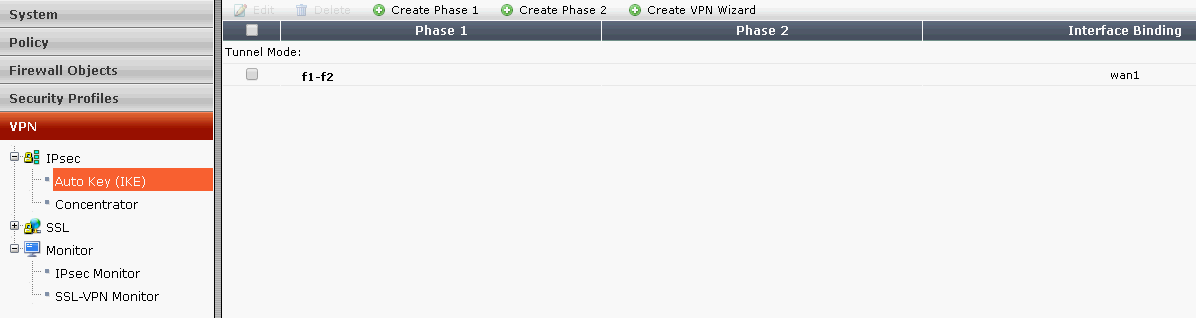
7. Verify VPN Configuration and Monitoring VPN Tunnel

 Note: There is no phase 2 in the Auto Key (IKE) configuration.
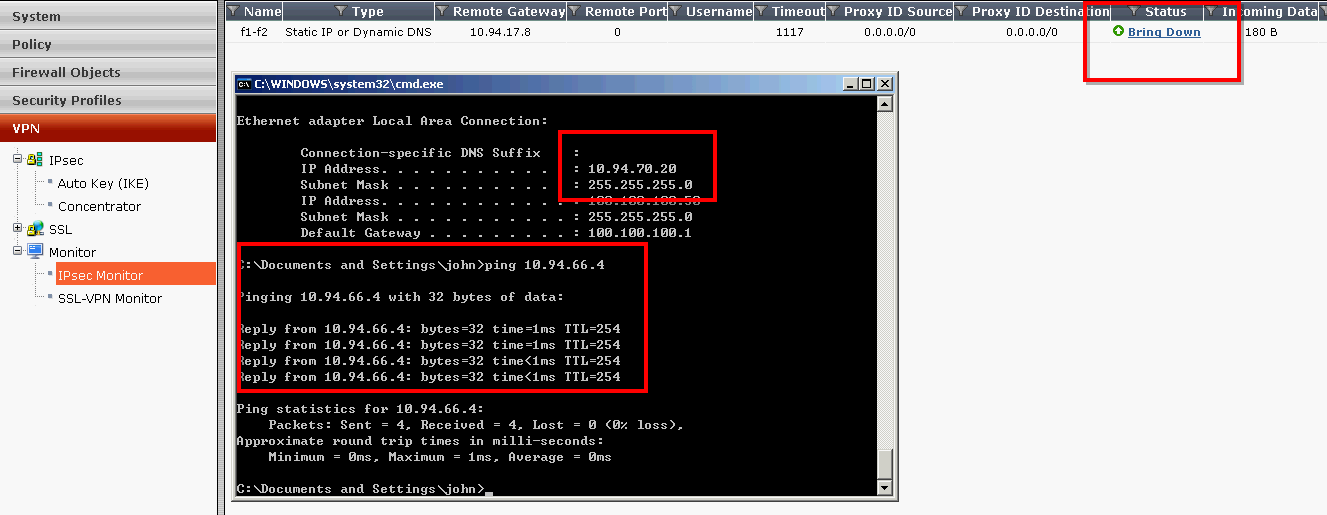
Verified ping from 10.94.70.20 to 10.94.66.4

Reference:

  • Using policy-based IPsec VPN for communication between offices


0 Comments

Set Up IPSec Site to Site VPN Between Fortigate 60D (1) - Route-Based VPNs

4/13/2015

0 Comments

 
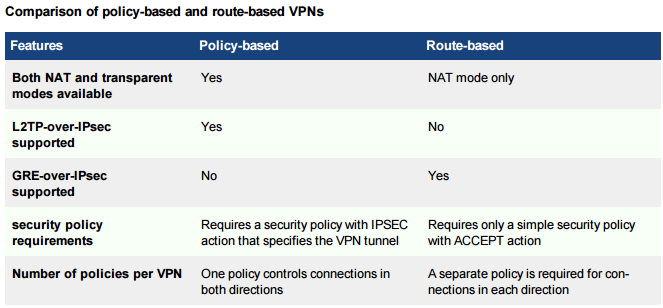
Fortigate firewall supports two types of site-to-site IPSec vpn based on FortiOS Handbook 5.2,  policy-based or route-based. There is little difference between the two types. However there is a difference in implementation. A route-based VPN creates a virtual IPsec network interface that applies encryption or decryption as needed to any traffic that it carries.That is why route-based VPNs are also known as interface-based VPNs. A policy-based VPN is implemented through a special security policy that applies the encryption you specified in the Phase 1 and Phase 2 settings.

Route-based VPNs:
For a route-based VPN, you create two security policies between the virtual IPsec interface and the interface that connects to the private network. In one policy the virtual interface is the source. In the other policy the virtual interface is the destination. The Action for both policies is Accept. This creates bidirectional policies that ensure traffic will flow in both directions over the VPN.

Policy-based VPNs:
For a policy-based VPN, one security policy enables communication in both directions. You must select IPSEC as the Action and then select the VPN tunnel you defined in the Phase 1 settings. You can then enable inbound and outbound traffic as needed within that policy, or create multiple policies of this type to handle different types of traffic differently. For example HTTPS traffic may not require the same level of scanning as FTP traffic.


In this lab part 1, Route-Based VPNs will be configured between FW1 and FW2.

Topology:

1. Two Fortigate 60Ds - FW1 and FW2
2. Switch and Router for routing and connections
3. FW1 has WAN1 IP 10.94.32.8/24, Internal IP 10.94.70.4/24
4. FW2 has WAN1 IP 10.94.17.8/24, Internal IP 10.94.66.4/24, WAN2 IP 10.94.64.4/24, DMZ IP 10.94.144.4/24


Object:

Build IPSec Tunnel between FW1 and FW2 for traffic between FW1's Internal network 10.94.70.0/24 and FW2's three internal networks (10.94.66.0/24, 10.94.64.0/24, 10.94.144.0)

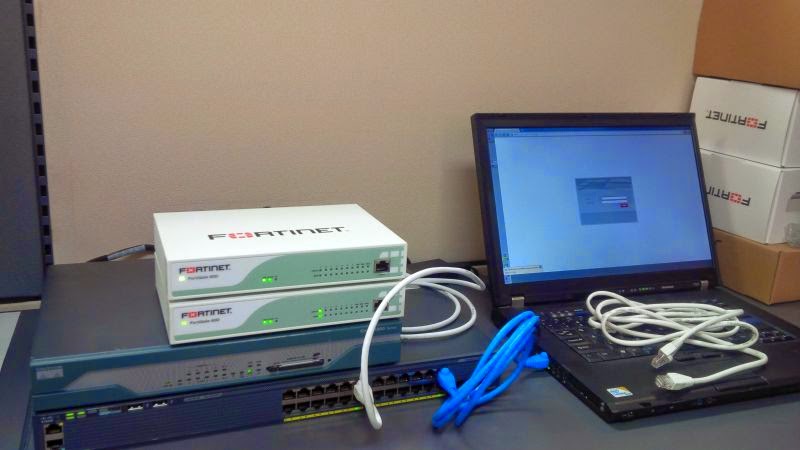
Devices:


Basic Configuration:


@FW1:
FW2's configuration steps are exactly same as FW1.

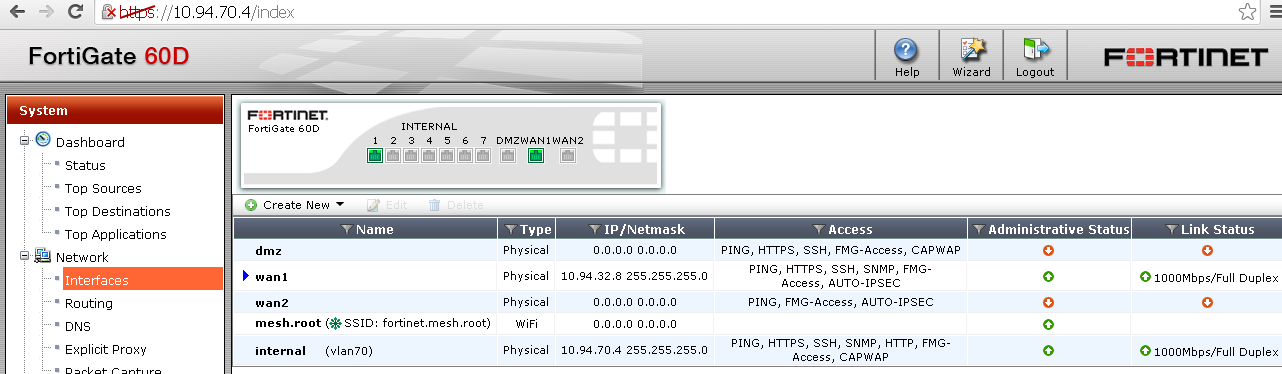
a. Interface Configuration:

wan1: 10.94.32.4/24
internal: 10.94.70.4/24

b. VPN-IPsec-Auto Key (IKE) 

Create new Phase 1:

Note: Local Interface is wan1, not internal. Most configuration is by default. Phase1 policy name is FW1-FW2_VPN, which will be used as Interface name for IPSec Traffic later.
Create new Phase 2:
Note: You do not have to specify source / destination address.

c. Creating local and remote network address (interesting traffic to be protected by IPSec VPN)


Note: Remote network segment is on IPSec Interface. This step has to be done before creating firewall policy. Else you will get the entry is being used error when you put FW1-FW2_VPN on the Interface.

d. create two firewall rules in the policy:

One is from Internal network segment to Remote network. Another one is from Remote network to Internal network. Please keep priority of the rule order in mind. You may need to manual adjust your rule order. Usually IPSec Traffic will be put on top of other rules, except management rule.


e. Create Route for Interesting traffic:

The remote network segment will be routed to IPSec Interface FW1-FW2_VPN

f. Monitor IPSec Tunnel:


Reference:


  • FortiOS Handbook - IPsec VPN for FortiOS 5.2
  • Setup Site-to-Site IPSec VPN (Basic) (Youtube)


0 Comments
<<Previous

    Categories

    All
    Architecture
    Blog
    Checkpoint
    Cisco
    Cloud
    CyberArk
    F5
    Fortigate
    Guardium
    Juniper
    Linux
    Network
    Others
    Palo Alto
    Qualys
    Raspberry Pi
    Security
    SIEM
    Software
    Vmware
    VPN
    Wireless

    Archives

    March 2024
    February 2024
    January 2024
    December 2023
    November 2023
    October 2023
    September 2023
    August 2023
    July 2023
    June 2023
    May 2023
    April 2023
    March 2023
    February 2023
    January 2023
    December 2022
    November 2022
    October 2022
    September 2022
    August 2022
    July 2022
    June 2022
    May 2022
    April 2022
    March 2022
    February 2022
    January 2022
    December 2021
    November 2021
    October 2021
    September 2021
    August 2021
    July 2021
    June 2021
    May 2021
    April 2021
    March 2021
    February 2021
    January 2021
    December 2020
    November 2020
    October 2020
    September 2020
    August 2020
    July 2020
    October 2019
    September 2019
    June 2019
    July 2018
    May 2018
    December 2017
    August 2017
    April 2017
    March 2017
    January 2017
    December 2016
    November 2016
    October 2016
    September 2016
    August 2016
    July 2016
    June 2016
    May 2016
    April 2016
    March 2016
    February 2016
    January 2016
    December 2015
    November 2015
    October 2015
    September 2015
    August 2015
    July 2015
    June 2015
    May 2015
    April 2015
    March 2015

    Print Page:

    RSS Feed

    Email Subscribe
Powered by Create your own unique website with customizable templates.
  • Blog
  • Sitemap
    • Categories
  • Contact
  • About
  • Resources
  • Tools
  • 51sec.org