Info Security Memo
  • Blog
  • Sitemap
    • Categories
  • Contact
  • About
  • Resources
  • Tools
  • 51sec.org

Build Confidence

Focusing on Information Security 

Info Security Notes

Remote Access Raspberry Pi from Anywhere

10/29/2015

0 Comments

 
After installed Raspberry Pi in your environment with Internet connection with my previous post, next step for Pi lover is how to configure your Pi so you can control it from anywhere you go. 
  • Raspberry Pi 2 Model B Basic Configuration 1
  • Raspberry Pi 2 Model B Basic Configuration 2
From the research by Google, I found there are two websites providing free service to remote access your Pi from anywhere through Internet.

1. Weaved, Inc.

Weaved provides your Raspberry any TCP based service you want to make available remotely – securely and without port forwarding!• SSH on port 22• Web (http) on port 80• WebIOPI on port 8000 (Raspberry Pi only)• VNC on port 5901• Custom TCP service on any port you like

Multiple services can be installed on same box, also there is free iOS app which can set up your Pi to send you push notifications.

The homepage says it adds the power of remote connections & mobile to your Raspberry Pi in as little as 15 minutes. 

1.1 Manually Installation Procedure


pi@raspberrypi ~ $ wget https://github.com/weaved/installer/raw/master/binaries/weaved-nixinstaller_1.2.13.bin
--2015-10-06 12:45:16--  https://github.com/weaved/installer/raw/master/binaries/weaved-nixinstaller_1.2.13.bin
Resolving github.com (github.com)... 192.30.252.129
Connecting to github.com (github.com)|192.30.252.129|:443... connected.
HTTP request sent, awaiting response... 302 Found
Location: https://raw.githubusercontent.com/weaved/installer/master/binaries/weaved-nixinstaller_1.2.13.bin [following]
--2015-10-06 12:45:19--  https://raw.githubusercontent.com/weaved/installer/master/binaries/weaved-nixinstaller_1.2.13.bin
Resolving raw.githubusercontent.com (raw.githubusercontent.com)... 199.27.76.133
Connecting to raw.githubusercontent.com (raw.githubusercontent.com)|199.27.76.133|:443... connected.
HTTP request sent, awaiting response... 200 OK
Length: 303036 (296K) [application/octet-stream]
Saving to: `weaved-nixinstaller_1.2.13.bin'

100%[=============================>] 303,036      665K/s   in 0.4s  

2015-10-06 12:45:23 (665 KB/s) - `weaved-nixinstaller_1.2.13.bin' saved [303036/303036]

pi@raspberrypi ~ $ chmod +x weaved-nixinstaller_1.2.13.bin
pi@raspberrypi ~ $ ./weaved-nixinstaller_1.2.13.bin
Extracting Weaved Software into /home/pi
Finished extracting

You are running installer script Version: v1.2.13
Last modified on February 26, 2015, by Mike Young.

Now launching the Weaved connectd daemon installer...
.
We have detected an arm7l processor.
Is this a Raspberry Pi 2? [y/n] y
Detected platform type: pi
Using /var/log/syslog for your log file

Checking for compatibility with Weaved's network...

Checking if DNS works ... .[OK]

Checking TCP connectivity to weaved.com...<oip=192.168.2.250> [OK]

Send to 174.36.235.146:5960 [] [mip=216.165.201.211] [oport=59612 mport=59612] [no remap] [preserve port] [OK]

Congratulations! Your network is compatible with Weaved services.


*********** Protocol Selection Menu ***********
*                                             *
*    1) SSH on default port 22                *
*    2) Web (HTTP) on default port 80         *
*    3) WebIOPi on default port 8000          *
*    4) VNC on default port 5901              *
*    5) Custom (TCP)                          *
*                                             *
***********************************************

Please select from the above options (1-5):
1
You have selected: 1.

The default port for SSH is 22.
Would you like to continue with the default port assignment? [y/n] y
We will install Weaved services for the following:

Protocol: ssh
Port #: 22
Service name: Weavedssh22


Please enter your Weaved Username (email address):
[email protected]

Now, please enter your password:
Copied notify.sh to /usr/bin
Copied notify_Weavedssh22.sh to /usr/bin
Copied weavedConnectd to /usr/bin
startweaved.sh copied to /usr/bin
no crontab for root
no crontab for root


Your device UID has been successfully provisioned as: 80:00:00:05:46:00:52:0F.

Pre-registration of UID: 80:00:00:05:46:00:52:0F successful.


We will now register your device with the Weaved backend services.
Please provide an alias for your device:
jrasp
Your device will be called jrasp.

Registering Weaved services for Weavedssh22 ................


Starting Weavedssh22...
WeavedConnectd built Feb 26 2015 at 10:53:39 Now Starting Up
   Version 2.11 - (c)2015 Weaved, Inc. All Rights Reserved
   Built with UPNP NATPMP ALIGN BCASTER MALLOC_POOL LINUX RESOLVE BIGBUF pool=262144
   Weaved Development Kit Version based on    Rasberry Pi Version
config file /etc/weaved/services/Weavedssh22.conf
Starting up as daemon
PID file specifed as /var/run/Weavedssh22.pid
setting web config port to dest_server_port 80


**************************************************************************
CONGRATULATIONS! You are now registered with Weaved.
Your registration information is as follows:

Device alias:
jrasp

Device UID:
80:00:00:05:46:00:52:0F

Device secret:


The alias, Device UID and Device secret are kept in the License File:
/etc/weaved/services/Weavedssh22.conf

If you delete this License File, you will have to re-run the installer.

**************************************************************************


Starting and stopping your service can be done by typing:
"sudo /usr/bin/Weavedssh22.sh start|stop|restart"
pi@raspberrypi ~ $


By click your device name, Weaved website will give you a new host name and ports for you to do remote connection from anywhere on Internet.


1.2 use apt-get to do auto installation

sudo apt-get update
sudo apt-get install weavedconnectd
sudo weavedinstaller
.
//after entered required information, it will list all registed services
// You will be prompted a menu to choose what you intend to do
=========================================================
Protocol        Port    Service         Weaved Name
=========================================================
TCP             3389    xrdp            xrdp-pi
SSH             22      sshd            jrasp-ssh


********************** Main Menu ************************
*                                                       *
*       1) Attach/reinstall Weaved to a Service         *
*       2) Remove Weaved attachment from a Service      *
*       3) Exit                                         *
*                                                       *
*********************************************************

Please select from the above options (1-3):


2. Dataplicity

If your Raspberry Pi is connected to the internet, you can access it via Dataplicity from anywhere through Internet. You can even connect to devices behind firewalls without needing complex network configurations. Dataplicity connects using client-initiated HTTPS, so it's safe, encrypted and you don't need to make specific firewall exceptions. Dataplicity's homepage says only 60 seconds you can have your Pi to be ready for controlling from anywhere. Of course, it will take longer than 60 seconds but you will not wait more than 5 minutes. Here are all outputs with my test:


login as: pi
[email protected]'s password:
Linux raspberrypi 3.18.7-v7+ #755 SMP PREEMPT Thu Feb 12 17:20:48 GMT 2015 armv7                                                                                                                       l

The programs included with the Debian GNU/Linux system are free software;
the exact distribution terms for each program are described in the
individual files in /usr/share/doc/*/copyright.

Debian GNU/Linux comes with ABSOLUTELY NO WARRANTY, to the extent
permitted by applicable law.
Last login: Sat Oct 10 10:18:58 2015 from 192.168.2.120
pi@raspberrypi ~ $ curl -s https://dataplicity.com/1c7196e9.sh | sudo sh
Welcome to the Dataplicity Shell Quick Install
This may take up to 15 minutes on some systems, but often < 30 seconds

 [step 1 of 5] updating system...
Selecting previously unselected package python-medusa.
(Reading database ... 77461 files and directories currently installed.)
Unpacking python-medusa (from .../python-medusa_1%3a0.5.4-7_all.deb) ...
Selecting previously unselected package python-pkg-resources.
Unpacking python-pkg-resources (from .../python-pkg-resources_0.6.24-1_all.deb)                                                                                                                        ...
Selecting previously unselected package python-meld3.
Unpacking python-meld3 (from .../python-meld3_0.6.5-3.1_armhf.deb) ...
Selecting previously unselected package supervisor.
Unpacking supervisor (from .../supervisor_3.0a8-1.1+deb7u1_all.deb) ...
Setting up python-medusa (1:0.5.4-7) ...
Setting up python-pkg-resources (0.6.24-1) ...
Setting up python-meld3 (0.6.5-3.1) ...
Setting up supervisor (3.0a8-1.1+deb7u1) ...
Starting supervisor: supervisord.
Processing triggers for python-support ...
Selecting previously unselected package libossp-uuid16.
(Reading database ... 77687 files and directories currently installed.)
Unpacking libossp-uuid16 (from .../libossp-uuid16_1.6.2-1.3_armhf.deb) ...
Selecting previously unselected package uuid.
Unpacking uuid (from .../uuid_1.6.2-1.3_armhf.deb) ...
Processing triggers for man-db ...
Setting up libossp-uuid16 (1.6.2-1.3) ...
Setting up uuid (1.6.2-1.3) ...
Preconfiguring packages ...
(Reading database ... 77701 files and directories currently installed.)
Preparing to replace libssl1.0.0:armhf 1.0.1e-2+rvt+deb7u14 (using .../libssl1.0                                                                                                                       .0_1.0.1e-2+rvt+deb7u17_armhf.deb) ...
Unpacking replacement libssl1.0.0:armhf ...
Preparing to replace libexpat1:armhf 2.1.0-1+deb7u1 (using .../libexpat1_2.1.0-1                                                                                                                       +deb7u2_armhf.deb) ...
Unpacking replacement libexpat1:armhf ...
Selecting previously unselected package libexpat1-dev.
Unpacking libexpat1-dev (from .../libexpat1-dev_2.1.0-1+deb7u2_armhf.deb) ...
Selecting previously unselected package libssl-dev.
Unpacking libssl-dev (from .../libssl-dev_1.0.1e-2+rvt+deb7u17_armhf.deb) ...
Selecting previously unselected package libssl-doc.
Unpacking libssl-doc (from .../libssl-doc_1.0.1e-2+rvt+deb7u17_all.deb) ...
Selecting previously unselected package python2.7-dev.
Unpacking python2.7-dev (from .../python2.7-dev_2.7.3-6+deb7u2_armhf.deb) ...
Selecting previously unselected package python-dev.
Unpacking python-dev (from .../python-dev_2.7.3-4+deb7u1_all.deb) ...
Processing triggers for man-db ...
Setting up libssl1.0.0:armhf (1.0.1e-2+rvt+deb7u17) ...
Setting up libexpat1:armhf (2.1.0-1+deb7u2) ...
Setting up libexpat1-dev (2.1.0-1+deb7u2) ...
Setting up libssl-dev (1.0.1e-2+rvt+deb7u17) ...
Setting up libssl-doc (1.0.1e-2+rvt+deb7u17) ...
Setting up python2.7-dev (2.7.3-6+deb7u2) ...
Setting up python-dev (2.7.3-4+deb7u1) ...
 [step 2 of 5] installing Dataplicity Core...
id: dataplicity: No such user
/tmp/tmpYpFshT/pip.zip/pip/_vendor/requests/packages/urllib3/util/ssl_.py:90: InsecurePlatformWarning: A true SSLContext object is not available. This prevents urllib3 from configuring SSL appropriatly and may cause certain SSL connections to fail. For more information, see https://urllib3.readthedocs.org/en/latest/security.html#insecureplatformwarning.
Reading package lists... Done
Building dependency tree
Reading state information... Done
The following NEW packages will be installed:
  python-psutil
0 upgraded, 1 newly installed, 0 to remove and 93 not upgraded.
Need to get 54.4 kB of archives.
After this operation, 264 kB of additional disk space will be used.
Get:1 http://mirrordirector.raspbian.org/raspbian/ wheezy/main python-psutil armhf 0.5.1-1 [54.4 kB]
Fetched 54.4 kB in 10s (5,203 B/s)
Selecting previously unselected package python-psutil.
(Reading database ... 79253 files and directories currently installed.)
Unpacking python-psutil (from .../python-psutil_0.5.1-1_armhf.deb) ...
Setting up python-psutil (0.5.1-1) ...
Processing triggers for python-support ...
 [step 3 of 5] installing Dataplicity...
 [step 4 of 5] registering device 'raspberrypi'...
 [step 5 of 5] starting service...

Dataplicity Shell is now installed!
Your device will be online in a few seconds
Visit https://dataplicity.com/devices/ to manage your device

pi@raspberrypi ~ $ Restarting supervisor: supervisord.


After installed the Dataplicity package, you can log in to Dataplicity, select the device you want and access your remote shell. It's that simple! 

Your devices page at Dataplicity Site before installed package


Your Raspberry device shows in the Your devices page


Just click your device name, your browser will show you your Raspberry session. 


Reference:


  • Weaved Inc
  • Dataplicity
  • Element 14 Community


0 Comments

Checkpoint Gaia Clish Command Line Slow Responding Issue - CONFD CPU High

10/21/2015

0 Comments

 
When Gaia released at R75.40 on 2012, our Checkpoint firewalls have been adopted it right away with an upgrade. Since then we have upgraded to R77.10, R77.20 and recently planing to R77.30. The new version's experience was quite good, but just recently we are starting to feel the Gaia CLI and Porttal is getting slower and slower. 

Symptoms:
For example, the ssh login process is taking a couple of minutes to show the prompt. WebUi is consistently showing lost database connection when saving any changes. You will have to re-login again to WebUI. SNMP Monitoring shows your device is up and reachable by ping but could not poll any SNMP information. After a couple of minutes, sometimes, it may take more than 10 minutes or longer, everything goes back normal. It did not happen all the time, just a couple of times per day. Most of times, log in, snmp access are fine.

In some scenarios, each command you entered at command line will take 3-5 minutes for device get responding. CONFD process will use 99% your CPU time. After a couple of hours, this slow responding symptoms can go away by itself. Once you rebooted device, slow responding comes back right away.

Also some times, you will find out save config command will cause database timeout issue too.

FW-CP2> save config
NMSCFD0026  Timeout waiting for response from database server.


Solutions:
Actually Checkpoint has a couple of sk relating to this type of issues, such as sk104761. Based on sk104761 : Each change made in Gaia Clish or in Gaia Portal is saved under a revision in the Gaia Database - /config/db/initial_db file. Once this file becomes large, confd process consumes more CPU to read from this file, or to save new data to this file.


[Expert@CP-DMZ-1:0]# cd /config/db
[Expert@CP-DMZ-1:0]# ls -l
total 218836
-rw-r--r-- 1 admin root    133250 Sep 20 13:28 initial
-rw-r--r-- 1 admin root 223720448 Sep 20 13:28 initial_db


The Initial_db file has been increased to size 220M. So what is Initial_db, and can we delete it? Answer of course is no.

From sk101273, "The /config/db/initial file must be present and valid (in other words, not corrupted) at boot time for IP Series Appliance to get configured. Otherwise, the IP Series Appliance will go into first-time boot mode and attempt to configure itself using DHCP, or wait for the user to configure it through the serial console port."

Lets take a look what is inside:
[Expert@CP-1:0]# cat initial
# This file was AUTOMATICALLY GENERATED
# Generated by /bin/confd on Sun Sep 20 13:28:32 2015
#
# DO NOT EDIT
#
configurationChange t
centrallyManaged t
inactto:default 720
# DO\ NOT\ EDIT
file was
AUTOMATICALLY GENERATED
by /bin/confd
on Tue
6 16\:16\:12
NOT EDIT
resolv:resolver:1 8.8.8.8
ntp:server:10.94.16.5 t
ntp:server:10.94.16.5:version 1
ntp:server:10.94.16.5:iburst t
ntp:server:10.94.16.5:prefer t
ntp:server:10.4.4.27 t
ntp:server:10.4.4.27:version 1
ntp:server:10.4.4.27:iburst t
ntp:servers:primary 10.94.16.5
ntp:servers:secondary 10.4.4.27
dhcp:dhcpc:interface:eth3 t
dhcp:dhcpc:interface:eth3:timeout 60
dhcp:dhcpc:interface:eth3:retry 300
dhcp:dhcpc:interface:eth3:reboot 10
machine:hostname FW-GRU1-CP1
update_upgrade_info:set_counter f
5 17\:23\:44
installer:available_install_packages_number 4
installer:available_download_packages_number 7
installer:category_is_aligned:3 1
installer:category_is_aligned:5 1
installer:category_is_aligned:1 1
installer:category_is_aligned:4 0
installer:ftw_random_res 1
installer:d_weekday Saturday
installer:d_hours 17
installer:d_minutes 30
...

To verify that this is indeed the issue:
  1. Log in to Expert mode.
  2. Backup the current Gaia configuarion database:
    [Expert@HostName]# cp  /config/db/initial_db  /config/db/initial_db_backup
  3. Connect to the Gaia configuration database:
    [Expert@HostName]# sqlite3 /config/db/initial_db
  4. Query the database using the SQLite to identify the issue:
    sqlite> select * from revisions where time like "%1969%";
    If any entries are returned, the system is likely experiencing this issue.
  5. Exit from SQLite:
    sqlite> .exit

[Expert@FW-GRU1-CP1:0]# sqlite3 /config/db/initial_db 
SQLite version 3.6.20
Enter ".help" for instructions
Enter SQL statements terminated with a ";"
sqlite> sqlite> select * from revisions where time like "%1969%";
Error: near "sqlite": syntax error
sqlite> select * from revisions where time like "%1969%";
cluster:shared_feature_lock:admin|0|||||1969-12-31 19:00:00|1
cluster:shared_feature_lock:cadmin|0|||||1969-12-31 19:00:00|1
cdm:per_exec|0|||||1969-12-31 19:00:00|1
cdm:total|0|||||1969-12-31 19:00:00|1
cdm:enable|0|||||1969-12-31 19:00:00|1
lcd:screensaver:mode|0|||||1969-12-31 19:00:00|1
lcd:screensaver:timeout|0|||||1969-12-31 19:00:00|1
lcd:backlight:support|0|||||1969-12-31 19:00:00|1
zoneinfo:Atlantic:Faroe|0|||||1969-12-31 19:00:00|1
zoneinfo:Atlantic:Stanley|0|||||1969-12-31 19:00:00|1
zoneinfo:Atlantic:Canary|0|||||1969-12-31 19:00:00|1
zoneinfo:Atlantic:St_Helena|0|||||1969-12-31 19:00:00|1
zoneinfo:Atlantic:South_Georgia|0|||||1969-12-31 19:00:00|1
......

Once cause confirmed, contact Checkpoint Support to get a fix patch and apply it.

Some other SKs, sk95238, sk102988  are having similar solution on this issue. Basically, a Jumbo Hotfix will have this to be fixed.


Reference:


sk104761:'confd' process consumes CPU at high level on Gaia OS due to large size of Gaia Database (/config/db/initial_db)
sk98285:Jumbo Hotfix Accumulator for R77.10 (gypsy_hf_base_021)
sk95238 ('confd' daemon consumes the CPU up to 100% when using Gaia Portal)
sk102988 ('monitord' and 'confd' processes consume 100% CPU)
sk102994 (Clish in Gaia OS is very slow when making any changes in Gaia OS configuration)


0 Comments

Use Network Automation Tool Infoblox NetMRI Push Configuration to Multiple Network Devices

10/16/2015

0 Comments

 
Infoblox NetMRI Appliance
For those still do not know what is Infoblox NetMRI product, here is some simple introduction. Actually it can do more than what normal network administrators think.

NetMRI is one of the most important products owned by Infoblox. This product came with the acquisition of Netcordia in 2010. NetMRI provides automatic network discovery, switch port management, network change automation and continuous configuration compliance management for multi-vendor routers, switches and other layer 2 and 3 network devices. NetMRI helps customers move from out-of-date spreadsheets, error-prone manual processes like scripts and CLI access and ad hoc audit teams.

NetMRI Dashboard
The NetMRI also has virtual appliance version which runs on VMware ESXi 5.x/6.0 host(s) helping organizations automate, discover and control network devices.

NetMRI's central console, Operations Center, greatly enhances NetMRI's scalability by coordinating, controlling and collecting data from multiple NetMRI devices. The vendor says one NetMRI Operations Center can monitor a network of 20,000 or more routers, switches and firewalls -- roughly 10 NetMRI appliances worth.

This post is the guide to use NetMRI to push configuration to multiple network devices automatically, which is really helpful to lock down and take control of your environment.

1. Go to Config Management - Job Managment - Scripts Page

You will find out lots of prepared scripts with many examples. In this guide, we will use 'AD Hoc Command Batch' scripts to push configuration to multiple Cisco switches and routers.


2. Move your mouse to the gear icon in front of  'AD Hoc Command Batch'

A dark menu with 'Run now' option will show up. You will just click 'Run now' option.


3. Put your configuration into text box. Then click Next.

For example:
conf t
line con 0
login authentication CONAUTH
end
wr mem


You can ignore Custom Fields error and directly click Next again.

4. Choose proper device group(s) you want to change. Then click Next.

In this example, Routers and Switches have been chosen.

5. Review your configuration and select Run Now.

6. You will be brought to Job History page:


7. Click Job name 'Ad Hoc Job 10/15 21:58' to see the Job Details.

There are some errors because of commands incompatible issue. You may need to change your commands to run it again. Click Error will give you which command caused this error issue.


To sum up, NetMRI is a good product. Infoblox NetMRI identifies, tracks and shows the impact of changes to multi-vendor networks, and automatically compares configurations to gold-standard settings. NetMRI provides critical network visibility even in the most complex, virtualized environments. But it is really expensive to purchase and maintain. It is licensed by network devices numbers. When you purchased the appliance, by default, you will only have 50 network devices licensed. If you want to add another 50 license, it will cost you more than $15k .

Reference:

Infoblox Data Center Automation with NetMRI
Infoblox / Forums / Network Change & Configuration Management Network Change & Configuration Management


0 Comments

Raspberry Pi 2 Model B Basic Configuration  Part 2

10/8/2015

0 Comments

 
This is the second post regarding basic configuration of Raspberry Pi 2.

  • Raspberry Pi 2 Model B Basic Configuration 1
  • Raspberry Pi 2 Model B Basic Configuration 2

1. Timezone change

By default, Raspberry Pi 2 will use UTC time. Command tzselect will give you continent and country selection to pick.
pi@raspberrypi ~ $ date
Tue Oct  6 13:48:38 UTC 2015
pi@raspberrypi ~ $ tzselect
Please identify a location so that time zone rules can be set correctly.
Please select a continent or ocean.
 1) Africa
 2) Americas
 3) Antarctica
 4) Arctic Ocean
 5) Asia
 6) Atlantic Ocean
 7) Australia
 8) Europe
 9) Indian Ocean
10) Pacific Ocean
11) none - I want to specify the time zone using the Posix TZ format


pi@raspberrypi ~ $ tzconfig
WARNING: the tzconfig command is deprecated, please use:
 dpkg-reconfigure tzdata
pi@raspberrypi ~ $ dpkg-reconfigure tzdata
/usr/sbin/dpkg-reconfigure must be run as root
pi@raspberrypi ~ $ sudo dpkg-reconfigure tzdata


Current default time zone: 'America/Toronto'
Local time is now:      Tue Oct  6 10:55:18 EDT 2015.
Universal Time is now:  Tue Oct  6 14:55:18 UTC 2015.

pi@raspberrypi ~ $ date
Tue Oct  6 10:55:28 EDT 2015


2. Access the Raspberry Pi Desktop


XRDP service will allow you to use remote desktop to access Raspberry Pi GUI through VNC service.


pi@raspberrypi ~ $ sudo apt-get install xrdp
Reading package lists... Done
Building dependency tree    
Reading state information... Done
The following extra packages will be installed:
  tightvncserver xfonts-base
Suggested packages:
  tightvnc-java
The following NEW packages will be installed:
  tightvncserver xfonts-base xrdp
0 upgraded, 3 newly installed, 0 to remove and 0 not upgraded.
Need to get 7,219 kB of archives.
After this operation, 11.5 MB of additional disk space will be used.
Do you want to continue [Y/n]? y
Get:1 http://mirrordirector.raspbian.org/raspbian/ wheezy/main tightvncserver armhf 1.3.9-6.4 [786 kB]
Get:2 http://mirrordirector.raspbian.org/raspbian/ wheezy/main xfonts-base all 1:1.0.3 [6,181 kB]
Get:3 http://mirrordirector.raspbian.org/raspbian/ wheezy/main xrdp armhf 0.5.0-2 [252 kB]
Fetched 7,219 kB in 14s (493 kB/s)                                                    
Selecting previously unselected package tightvncserver.
(Reading database ... 76938 files and directories currently installed.)
Unpacking tightvncserver (from .../tightvncserver_1.3.9-6.4_armhf.deb) ...
Selecting previously unselected package xfonts-base.
Unpacking xfonts-base (from .../xfonts-base_1%3a1.0.3_all.deb) ...
Selecting previously unselected package xrdp.
Unpacking xrdp (from .../xrdp_0.5.0-2_armhf.deb) ...
Processing triggers for man-db ...
Processing triggers for fontconfig ...
Setting up tightvncserver (1.3.9-6.4) ...
update-alternatives: using /usr/bin/tightvncserver to provide /usr/bin/vncserver (vncserver) in auto mode
update-alternatives: using /usr/bin/Xtightvnc to provide /usr/bin/Xvnc (Xvnc) in auto mode
update-alternatives: using /usr/bin/tightvncpasswd to provide /usr/bin/vncpasswd (vncpasswd) in auto mode
Setting up xfonts-base (1:1.0.3) ...
Setting up xrdp (0.5.0-2) ...
[....] Generating xrdp RSA keys......
Generating 512 bit rsa key...

ssl_gen_key_xrdp1 ok

saving to /etc/xrdp/rsakeys.ini

done (done).
[....] Starting Remote Desktop Protocol server : xrdp sesman.
pi@raspberrypi ~ $


3. List System Information


pi@raspberrypi ~ $ uname -a
Linux raspberrypi 3.18.7-v7+ #755 SMP PREEMPT Thu Feb 12 17:20:48 GMT 2015 armv7l GNU/Linux

4. Add Cron Job

Add a cron job to halt Raspberry Pi at 23:00 everyday.
pi@raspberrypi ~ $ crontab -e

  GNU nano 2.2.6           File: /tmp/crontab.obWc51/crontab                          

# Edit this file to introduce tasks to be run by cron.
#
# Each task to run has to be defined through a single line
# indicating with different fields when the task will be run
# and what command to run for the task
#
# To define the time you can provide concrete values for
# minute (m), hour (h), day of month (dom), month (mon),
# and day of week (dow) or use '*' in these fields (for 'any').#
# Notice that tasks will be started based on the cron's system
# daemon's notion of time and timezones.
#
# Output of the crontab jobs (including errors) is sent through
# email to the user the crontab file belongs to (unless redirected).
#
# For example, you can run a backup of all your user accounts
# at 5 a.m every week with:
# 0 5 * * 1 tar -zcf /var/backups/home.tgz /home/
#
# For more information see the manual pages of crontab(5) and cron(8)
#
# m h  dom mon dow   command
0 23 * * * sudo halt


                                   [ Wrote 24 lines ]

crontab: installing new crontab


0 Comments

Raspberry Pi 2 Model B Basic Configuration Part 1

10/6/2015

0 Comments

 
The Raspberry Pi is a credit-card sized general purpose Linux computer designed and manufactured by the Raspberry Pi Foundation, a non-profit organization dedicated to making computers and programming instruction as accessible as possible to the widest number of people. Just recently I installed at home to play with it. There are already lots of resources available from Internet. This post and others are used to record all steps I did for making it useful to my daily work.
  • Raspberry Pi 2 Model B Basic Configuration 1
  • Raspberry Pi 2 Model B Basic Configuration 2

1. Install Raspberry Pi Software

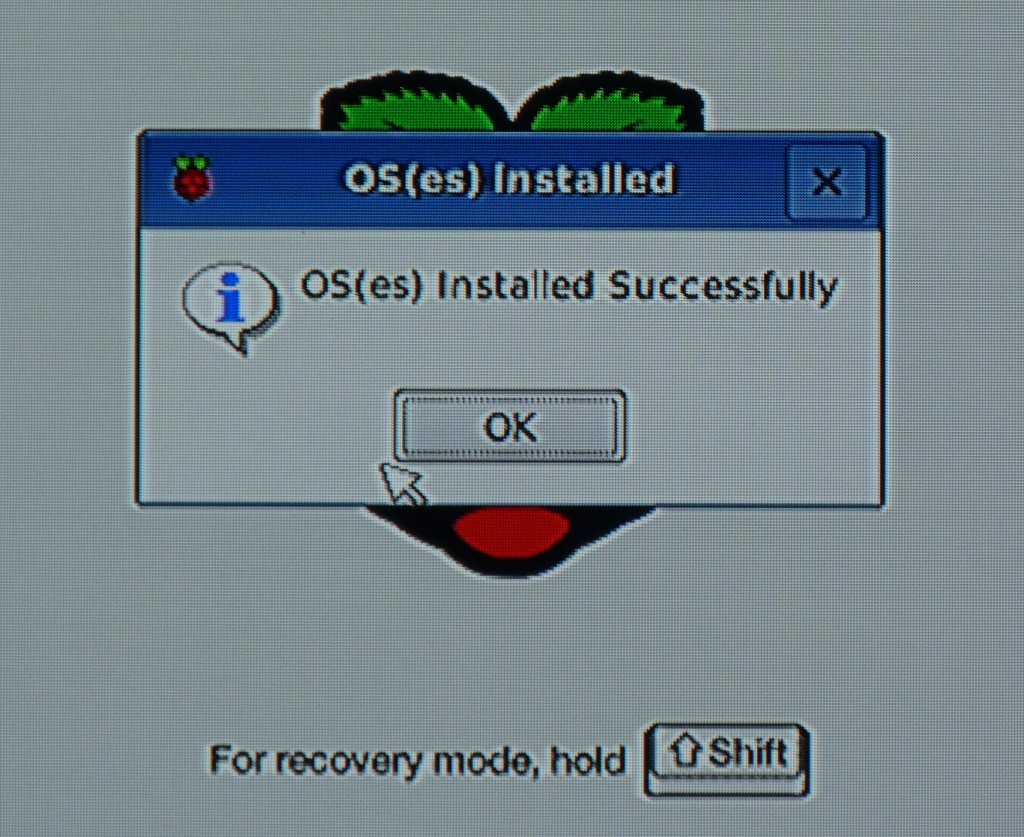
After you hooked up power cable, HDMI cable, mouse and keyboard, you will see the following screen:
Choose Raspbian [RECOMMENDED] then click Install  on the right top corner. After around 25 minutes, OS will be installed successfully.


2. Run Raspberry Pi Software Configuration Tool

After you installed OS, the first time system will show you Raspberry Pi Software Configuration Tool to do some basic configuration such as change password, enable camera, etc.
The Raspberry Pi Software Configuration Tool
Also you can run the Raspberry Pi Software Configuration Tool whenever you want by running the following command after you logged into device:

sudo raspi-config


During installation, the screen will notify you, by default, the user name is pi and password is raspberry.


2. Enable SSH

From Raspberry Pi Software Configuration Tools Setup Option 8 Advanced Options:


After enabled SSH, you should be able to use SecreCRT or Putty this kind of tool to access it remotely. 

3. Enable Wireless

My package has a usb wireless card. Followed instruction below, I was able to enable it.

From SSH session, you can check your network configuration:

Linux raspberrypi 3.18.7-v7+ #755 SMP PREEMPT Thu Feb 12 17:20:48 GMT 2015 armv7l

The programs included with the Debian GNU/Linux system are free software;
the exact distribution terms for each program are described in the
individual files in /usr/share/doc/*/copyright.

Debian GNU/Linux comes with ABSOLUTELY NO WARRANTY, to the extent
permitted by applicable law.
Last login: Mon Oct  5 00:54:54 2015 from 192.168.2.216
pi@raspberrypi ~ $ ifconfig


To scan for WiFi networks, use the command

pi@raspberrypi ~ $ sudo iwlist wlan0 scan
wlan0     Scan completed :
          Cell 01 - Address: C4:09:38:70:BB:DE
                    ESSID:"Bobby"
                    Protocol:IEEE 802.11bgn
                    Mode:Master
                    Frequency:2.437 GHz (Channel 6)
                    Encryption key:on
                    Bit Rates:144 Mb/s
                    Extra:wpa_ie=dd1c0050f20101000050f20202000050f2040050f20201000050f2020c00
                    IE: WPA Version 1
                        Group Cipher : TKIP
                        Pairwise Ciphers (2) : CCMP TKIP
                        Authentication Suites (1) : PSK
                    Extra:rsn_ie=30180100000fac020200000fac04000fac020100000fac020c00
                    IE: IEEE 802.11i/WPA2 Version 1
                        Group Cipher : TKIP
                        Pairwise Ciphers (2) : CCMP TKIP
                        Authentication Suites (1) : PSK
                    Quality=100/100  Signal level=100/100
          Cell 02 - Address: 84:94:8C:91:1D:28
                    ESSID:"Rogers02520"
                    Protocol:IEEE 802.11bgn
                    Mode:Master
                    Frequency:2.422 GHz (Channel 3)
                    Encryption key:on
                    Bit Rates:300 Mb/s
                    Extra:wpa_ie=dd1a0050f20101000050f20202000050f2020050f20401000050f202
                    IE: WPA Version 1
                        Group Cipher : TKIP
                        Pairwise Ciphers (2) : TKIP CCMP
                        Authentication Suites (1) : PSK
                    Extra:rsn_ie=30180100000fac020200000fac02000fac040100000fac020000
                    IE: IEEE 802.11i/WPA2 Version 1
                        Group Cipher : TKIP
                        Pairwise Ciphers (2) : TKIP CCMP
                        Authentication Suites (1) : PSK
                    IE: Unknown: DD270050F204104A000110104400010210470010BC329E00F1DD7F11B2F8600F84948C91103C000101
                    Quality=0/100  Signal level=42/100
          Cell 03 - Address: 84:94:8C:C3:73:E8
                    ESSID:"SnowWhite"
                    Protocol:IEEE 802.11bgn
                    Mode:Master
                    Frequency:2.412 GHz (Channel 1)
                    Encryption key:on
                    Bit Rates:300 Mb/s
                    Extra:rsn_ie=30180100000fac020200000fac02000fac040100000fac020000
                    IE: IEEE 802.11i/WPA2 Version 1
                        Group Cipher : TKIP
                        Pairwise Ciphers (2) : TKIP CCMP
                        Authentication Suites (1) : PSK
                    IE: Unknown: DD270050F204104A000110104400010210470010BC329E00F1DD7F11B2F8600F84948CC3103C000101
                    Quality=81/100  Signal level=44/100  

Adding your scanned wireless information to Raspberry Pi

Open the wpa-supplicant configuration file in nano:

sudo nano /etc/wpa_supplicant/wpa_supplicant.conf

Go to the bottom of the file and add the following:

network={
    ssid="Bobby"
    psk="password12345"
}

In a couple of seconds, your Pi will join into SSID you entered and got the ip address


pi@raspberrypi ~ $ ifconfig
eth0      Link encap:Ethernet  HWaddr b8:27:eb:1c:f4:ae
          UP BROADCAST MULTICAST  MTU:1500  Metric:1
          RX packets:0 errors:0 dropped:0 overruns:0 frame:0
          TX packets:0 errors:0 dropped:0 overruns:0 carrier:0
          collisions:0 txqueuelen:1000
          RX bytes:0 (0.0 B)  TX bytes:0 (0.0 B)

lo        Link encap:Local Loopback
          inet addr:127.0.0.1  Mask:255.0.0.0
          UP LOOPBACK RUNNING  MTU:65536  Metric:1
          RX packets:8 errors:0 dropped:0 overruns:0 frame:0
          TX packets:8 errors:0 dropped:0 overruns:0 carrier:0
          collisions:0 txqueuelen:0
          RX bytes:1104 (1.0 KiB)  TX bytes:1104 (1.0 KiB)

wlan0     Link encap:Ethernet  HWaddr 74:da:38:41:33:35
          inet addr:192.168.2.218  Bcast:192.168.2.255  Mask:255.255.255.0
          UP BROADCAST RUNNING MULTICAST  MTU:1500  Metric:1
          RX packets:3767 errors:0 dropped:10 overruns:0 frame:0
          TX packets:816 errors:0 dropped:0 overruns:0 carrier:0
          collisions:0 txqueuelen:1000
          RX bytes:553750 (540.7 KiB)  TX bytes:222808 (217.5 KiB)


4. Assign Static IP Address:


pi@raspberrypi ~ $sudo nano /etc/network/interfaces


auto lo

iface lo inet loopback
iface eth0 inet dhcp

allow-hotplug wlan0
iface wlan0 inet manual
wpa-roam /etc/wpa_supplicant/wpa_supplicant.conf
iface default inet static
address 192.168.2.250
netmask 255.255.255.0
network 192.168.2.0
broadcast 192.168.2.255
gateway 192.168.2.1


5. Internet Remote Access Service - Weaved


pi@raspberrypi ~ $ wget https://github.com/weaved/installer/raw/master/binaries/weaved-nixinstaller_1.2.13.bin
--2015-10-06 12:45:16--  https://github.com/weaved/installer/raw/master/binaries/weaved-nixinstaller_1.2.13.bin
Resolving github.com (github.com)... 192.30.252.129
Connecting to github.com (github.com)|192.30.252.129|:443... connected.
HTTP request sent, awaiting response... 302 Found
Location: https://raw.githubusercontent.com/weaved/installer/master/binaries/weaved-nixinstaller_1.2.13.bin [following]
--2015-10-06 12:45:19--  https://raw.githubusercontent.com/weaved/installer/master/binaries/weaved-nixinstaller_1.2.13.bin
Resolving raw.githubusercontent.com (raw.githubusercontent.com)... 199.27.76.133
Connecting to raw.githubusercontent.com (raw.githubusercontent.com)|199.27.76.133|:443... connected.
HTTP request sent, awaiting response... 200 OK
Length: 303036 (296K) [application/octet-stream]
Saving to: `weaved-nixinstaller_1.2.13.bin'

100%[=============================>] 303,036      665K/s   in 0.4s  

2015-10-06 12:45:23 (665 KB/s) - `weaved-nixinstaller_1.2.13.bin' saved [303036/303036]

pi@raspberrypi ~ $ chmod +x weaved-nixinstaller_1.2.13.bin
pi@raspberrypi ~ $ ./weaved-nixinstaller_1.2.13.bin
Extracting Weaved Software into /home/pi
Finished extracting

You are running installer script Version: v1.2.13
Last modified on February 26, 2015, by Mike Young.

Now launching the Weaved connectd daemon installer...
.
We have detected an arm7l processor.
Is this a Raspberry Pi 2? [y/n] y
Detected platform type: pi
Using /var/log/syslog for your log file

Checking for compatibility with Weaved's network...

Checking if DNS works ... .[OK]

Checking TCP connectivity to weaved.com...<oip=192.168.2.250> [OK]

Send to 174.36.235.146:5960 [] [mip=216.165.201.211] [oport=59612 mport=59612] [no remap] [preserve port] [OK]

Congratulations! Your network is compatible with Weaved services.


*********** Protocol Selection Menu ***********
*                                             *
*    1) SSH on default port 22                *
*    2) Web (HTTP) on default port 80         *
*    3) WebIOPi on default port 8000          *
*    4) VNC on default port 5901              *
*    5) Custom (TCP)                          *
*                                             *
***********************************************

Please select from the above options (1-5):
1
You have selected: 1.

The default port for SSH is 22.
Would you like to continue with the default port assignment? [y/n] y
We will install Weaved services for the following:

Protocol: ssh
Port #: 22
Service name: Weavedssh22


Please enter your Weaved Username (email address):
[email protected]

Now, please enter your password:
Copied notify.sh to /usr/bin
Copied notify_Weavedssh22.sh to /usr/bin
Copied weavedConnectd to /usr/bin
startweaved.sh copied to /usr/bin
no crontab for root
no crontab for root


Your device UID has been successfully provisioned as: 80:00:00:05:46:00:52:0F.

Pre-registration of UID: 80:00:00:05:46:00:52:0F successful.


We will now register your device with the Weaved backend services.
Please provide an alias for your device:
jrasp
Your device will be called jrasp.

Registering Weaved services for Weavedssh22 ................


Starting Weavedssh22...
WeavedConnectd built Feb 26 2015 at 10:53:39 Now Starting Up
   Version 2.11 - (c)2015 Weaved, Inc. All Rights Reserved
   Built with UPNP NATPMP ALIGN BCASTER MALLOC_POOL LINUX RESOLVE BIGBUF pool=262144
   Weaved Development Kit Version based on    Rasberry Pi Version
config file /etc/weaved/services/Weavedssh22.conf
Starting up as daemon
PID file specifed as /var/run/Weavedssh22.pid
setting web config port to dest_server_port 80


**************************************************************************
CONGRATULATIONS! You are now registered with Weaved.
Your registration information is as follows:

Device alias:
jrasp

Device UID:
80:00:00:05:46:00:52:0F

Device secret:


The alias, Device UID and Device secret are kept in the License File:
/etc/weaved/services/Weavedssh22.conf

If you delete this License File, you will have to re-run the installer.

**************************************************************************


Starting and stopping your service can be done by typing:
"sudo /usr/bin/Weavedssh22.sh start|stop|restart"
pi@raspberrypi ~ $


By click your device name, Weaved website will give you a new host name and ports for you to do remote connection from anywhere on Internet.


Reference:

Installation Instructions for Raspberry Pi
How to Configure Your Raspberry Pi for Remote Shell, Desktop, and File Transfer
VNC (VIRTUAL NETWORK COMPUTING)


0 Comments

Juniper SRX Logging Configuration

10/2/2015

1 Comment


1.Understand Juniper SRX logging Type:

1.1 System Logging

SRX Series devices can send system log messages from the control plane (Routing Engine) to one or more destinations. Destinations can include local files on the SRX Series device (because the SRX Series device is a syslog server), remote syslog servers, user terminals, and the system console.

admin@fw-1> show configuration system syslog
archive size 750k files 2;
user * {
    any emergency;
}
host 10.9.0.33 {
    any any;
    change-log none;
    interactive-commands none;
    explicit-priority;
}
host 10.9.8.52 {
    any any;
    source-address 10.9.8.20;
}
file messages {
    any critical;
    authorization info;
    explicit-priority;
}
file interactive-commands {
    interactive-commands error;
}
}


1.2 Traffic Logging (Event Mode)

You can use traffic logs to track usage patterns or troubleshoot issues for a specific policy. You can configure a policy so that traffic information is logged when a session begins (session-init) and/or closes (session-close). To generate traffic logs for multiple policies, you must configure each policy to log traffic information. You also must configure syslog messages with a severity level of info or any. In the default configuration, these messages and all other logging messages are sent to a local log file named messages.


admin@fw-1> show configuration system syslog
archive size 750k files 2;
user * {
    any emergency;
}
host 10.9.0.33 {
    any any;
    change-log none;
    interactive-commands none;
    explicit-priority;
}
host 10.9.8.52 {
    any any;
    source-address 10.9.8.20;
}
file messages {
    any critical;
    authorization info;
    explicit-priority;
}
file interactive-commands {
    interactive-commands error;
}
file traffic-create {
    any any;
    match RT_FLOW_SESSION_CREATE;
    structured-data;
}
file traffic-deny {
    any any;
    match RT_FLOW_SESSION_DENY;
}
file traffic-flow {
    user info;
    match RT_FLOW;
    archive size 1000k files 5 world-readable;
    structured-data;
}


admin@fw-1> show log ?
Possible completions:
  <[Enter]>            Execute this command
  <filename>           Name of log file
  IKELOG               Size: 270913, Last changed: Feb 15 2015
  PKITRACE             Size: 138153, Last changed: Oct 02 02:22:41
  PKITRACE.0.gz        Size: 98723, Last changed: Sep 27 05:12:14
  __jsrpd_commit_check__  Size: 6456, Last changed: Dec 21 2014
  appidd               Size: 0, Last changed: May 13 2014
  authd_libstats       Size: 0, Last changed: May 13 2014
  authd_profilelib     Size: 0, Last changed: May 13 2014
  authd_sdb.log        Size: 0, Last changed: May 13 2014
  authlib_jdhcpd_trace.log  Size: 0, Last changed: Jan 18 2015
  bin_messages         Size: 7, Last changed: May 13 2014
  chassisd             Size: 1173869, Last changed: Oct 01 22:54:45
  cosd                 Size: 98079, Last changed: Sep 20 11:36:47
  dcd                  Size: 251523, Last changed: Sep 21 14:25:57
  default-log-messages  Size: 612840, Last changed: Oct 02 02:19:39
  default-log-messages.0.gz  Size: 1027366, Last changed: Sep 20 18:45:01
  default-log-messages.1.gz  Size: 1323072, Last changed: Sep 20 18:30:00
  dfwc                 Size: 0, Last changed: May 13 2014
  e2e_events           Size: 239, Last changed: Sep 20 11:45:31
  eccd                 Size: 0, Last changed: May 13 2014
  ext/                 Last changed: May 13 2014
  flowc/               Last changed: May 13 2014
  fwauthd_chk_only     Size: 298, Last changed: Dec 21 2014
  ggsn/                Last changed: May 13 2014
  gprsd_chk_only       Size: 1335, Last changed: Dec 21 2014
  gres-tp              Size: 23569, Last changed: Sep 20 11:36:47
  group_db.log         Size: 0, Last changed: May 13 2014
  helplog              Size: 64, Last changed: Nov 17 2014
  hostname-cached      Size: 408, Last changed: Dec 21 2014
  httpd.log            Size: 1533, Last changed: Sep 20 18:36:17
  idpd                 Size: 0, Last changed: May 13 2014
  idpd.addver          Size: 185, Last changed: Sep 20 19:15:01
  idpd_err             Size: 208962, Last changed: Sep 20 19:15:11
  idpd_err.1           Size: 1048851, Last changed: Sep 20 18:55:14
  ifstraced            Size: 120, Last changed: Dec 21 2014
  indb                 Size: 967833, Last changed: Dec 21 2014
  install              Size: 3927, Last changed: Dec 21 2014
  interactive-commands  Size: 82, Last changed: Sep 21 14:25:52
  inventory            Size: 17170, Last changed: Sep 20 11:45:34
  ipfd                 Size: 97046, Last changed: Sep 28 10:01:08
  ipfd_chk_only        Size: 32, Last changed: Dec 21 2014
  jdhcpd_era_discover.log  Size: 8892, Last changed: Oct 01 20:07:42
  jdhcpd_era_discover.log.0  Size: 43387, Last changed: Aug 13 23:11:34
  jdhcpd_era_discover.log.1  Size: 25529, Last changed: Jun 19 14:49:47
  jdhcpd_era_discover.log.2  Size: 422808, Last changed: Apr 17 16:00:00
  jdhcpd_era_discover.log.3  Size: 0, Last changed: Jan 18 2015
  jdhcpd_era_solicit.log  Size: 595, Last changed: Sep 20 11:36:47
  jdhcpd_era_solicit.log.0  Size: 595, Last changed: Jul 19 13:01:48
  jdhcpd_era_solicit.log.1  Size: 595, Last changed: May 17 12:26:15
  jdhcpd_era_solicit.log.2  Size: 595, Last changed: Jan 18 2015
  jdhcpd_era_solicit.log.3  Size: 0, Last changed: Jan 18 2015
  jdhcpd_sdb.log       Size: 0, Last changed: Jan 18 2015
  jsrpd                Size: 841811, Last changed: Sep 28 10:01:17
  kmd                  Size: 369441, Last changed: Sep 20 18:36:26
  license              Size: 0, Last changed: May 13 2014
  license_subs_trace.log  Size: 16976, Last changed: Sep 20 11:36:47
  lsys-cpu-utilization-log  Size: 0, Last changed: May 13 2014
  mastership           Size: 13036, Last changed: Sep 20 11:36:47
  messages             Size: 687915, Last changed: Oct 02 02:26:11
  messages.0.gz        Size: 38283, Last changed: Sep 26 05:45:00
  messages.1.gz        Size: 38105, Last changed: Sep 24 22:15:00
  nsd_chk_only         Size: 1021282, Last changed: Sep 29 18:26:35
  nstraced             Size: 58027, Last changed: Sep 20 11:43:30
  nstraced_chk_only    Size: 370, Last changed: Mar 18 2015
  pcre_db.log          Size: 0, Last changed: May 13 2014
  pf                   Size: 1152, Last changed: Dec 21 2014
  pfed                 Size: 0, Last changed: May 13 2014
  pfed_jdhcpd_trace.log  Size: 0, Last changed: Jan 18 2015
  pgmd                 Size: 385, Last changed: Dec 21 2014
  pkid                 Size: 828994, Last changed: Dec 21 2014
  rexp_db.log          Size: 0, Last changed: May 13 2014
  rsi.1400.0118        Size: 4620227, Last changed: Jan 18 2015
  rsi_2015_02_04       Size: 4762354, Last changed: Feb 04 2015
  rtlogd               Size: 3952, Last changed: Sep 29 18:26:56
  smartd.trace         Size: 133439, Last changed: Oct 01 23:51:05
  traffic-create       Size: 9307887, Last changed: Oct 02 02:26:11
  traffic-create.0.gz  Size: 593738, Last changed: Oct 02 02:15:00
  traffic-create.1.gz  Size: 679624, Last changed: Oct 02 02:00:00
  traffic-deny         Size: 733722, Last changed: Oct 02 02:26:11
  traffic-deny.0.gz    Size: 30893, Last changed: Oct 02 02:00:00
  traffic-deny.1.gz    Size: 29997, Last changed: Oct 02 01:30:00
  traffic-flow         Size: 14043535, Last changed: Oct 02 02:26:11
  traffic-flow.0.gz    Size: 1110300, Last changed: Oct 02 02:15:00
  traffic-flow.1.gz    Size: 1194867, Last changed: Oct 02 02:00:00
  traffic-flow.2.gz    Size: 1223703, Last changed: Oct 02 01:45:00
  traffic-flow.3.gz    Size: 1205868, Last changed: Oct 02 01:30:00
  traffic-flow.4.gz    Size: 1196097, Last changed: Oct 02 01:15:01
  user                 Show recent user logins
  utmd-av              Size: 960, Last changed: Sep 20 11:36:47
  utmp                 Size: 0, Last changed: May 13 2014
  |                    Pipe through a command

1.3 Notes:

System Logging Traffic Logging
SRX Branch Devices
SRX100
SRX110
SRX210
SRX220
SRX240
SRX550
SRX650
 KB16502  KB16509
SRX High-End Devices
SRX1400
SRX3400
SRX3600
SRX5600
SRX5800
 KB16502  KB16506


2. Understand Juniper SRX Logging Methods:

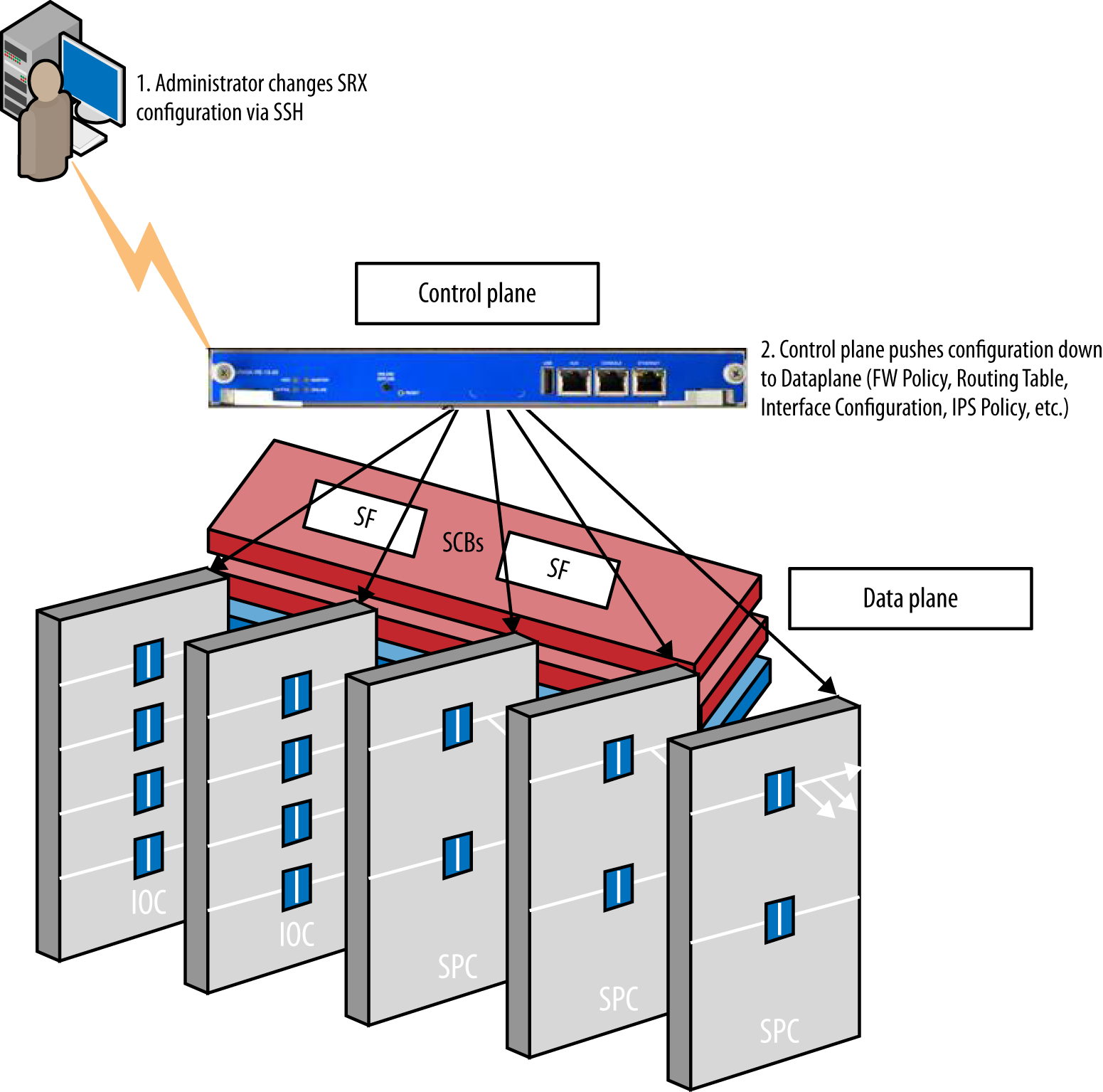
Control Plane and Data Plane

2.1 Control Plane Logging

 the control plane logs have to do with events triggered by daemons on the control plane. This includes messages about the underlying hardware (chassisd), general-purpose messages (messages), and various protocol daemons like IDPD, appidd, and so on. Control plane logging is on by default to log locally, but you can override this with your own logfiles, syslog hosts, and criteria for different log messages. All logs are stored in the /var/log directory on the control plane. It has been described at section 1.1

Services on the control plane:
  • Management Daemon (MGD):  Provides the interface between the UI components and the backend configuration and is responsible for acting on the Junos configuration to the system itself.
  • Routing Protocol Daemon (RPD) : All routing protocols including RIP, OSPF, IS-IS, BGP, PIM, IPv6 counterparts, and so on.
  • User interfaces: Console, Telnet, SSH, J-Web, NetConf.
  • Filesystem interfaces: FTP/SCP.
  • Syslogd: Logging subsystem on the control plane, different than what is on the data plane. This generates the OS and application logs on the control plane.
  • Networking services: DNS, DHCP, NTP, ICMP, ARP/ND, SNMP.
  • Chassisd: Controls the hardware operations of the data plane and interfaces with the components to ensure they are active and operating properly.
  • JSRPD: This is the high availability daemon that runs the HA functionality between two SRX chassis in an HA cluster.

2.2 Data Plane Logging

Data plane logs are primarily those generated by components that process traffic on the data plane. These include the firewall logs (RT_LOG, which stands for Real-Time Log because it is not stored on the data plane) from the flowd process, IPS logs, UTM logs, and logs from other security components like Screens. Data plane logging is off by default and must be configured. Typically, it is recommended that you send logs off the SRX to a syslog host due to the large volume of logs that can be generated from the data plane, particularly on high-end SRX platforms like the 5800. In fact, it can take an entire infrastructure of syslog servers to handle the large volume of syslog messages that the high-end SRX can generate per second. For this reason, there are two different mechanisms that we can use to log messages to the control plane, as discussed in the next section.

Services on the data plane:
  • Intrusion Detection and Prevention Daemon (IDPD)
  • IKED
  • PKID

2.2.1 Event Mode 

Event mode  - control plane log processing - used on low end devices. Optionally even rate can be specified. Once event mode is enabled under "security" then the logging to local file can configure under "system syslog" as above at section 1.2.  You also can configure that security traffic logs are handled through the eventd process and sent with system logs though control panel Routing Engine.

admin@fw-1> show configuration security
log {
    mode event;
    event-rate 1000;
    format sd-syslog;
    source-address 10.9.8.20;
    stream securitylog {
        format sd-syslog;
        category all;
        host {
            10.9.8.52;
        }
    }
    stream LogCollector {
        host {
            10.9.20.17;
        }
    }
    stream TO-10.9.20.33 {
        format sd-syslog;
        category all;
        host {
            10.9.20.33;
        }
    }
}


2.2.2 Stream Mode

Stream mode - data plane logging - Normally used on high end SRX devcies but can be configured on any SRX devices. Under security the syslog parameters can be specified, e.g. syslog server, syslog format, facility.

Note: SRX can only log to the control plane (Event mode) or log out the data plane (Stream mode) at one time

Security logs such as traffic and IDP logs are able to be streamed through the traffic interface ports to a remote syslog server. SRX devices do not send streamed session logs to the Routing Engine (RE). Because system logging is performed on the RE, session or traffic logs cannot be written to the RE file system. Therefore, all traffic logging must be sent to a remote syslog server. Because fxp0 belongs to the RE, the remote syslog server must be reachable by an interface on an IOC. Traffic logging cannot be sent out through fxp0.

When the logging mode is set to stream, security traffic logs generated in the data plane are streamed out a revenue traffic port directly to a remote server. That also means your local log file will stop logging. Match condition configuration in System -> Syslog part does not work in Stream mode.  Its as per design, the Routing engine is the one which puts the match condition and filters the log,
since when we use stream mode the traffic is streamed out of the data plane itself and doesn't reach the RE the match condition dose not work when using stream mode and only works in event mode.

Basically, only thing works at System - Syslog section are those generated from control plane.

admin@fw-twn1-1> show configuration security
log {
    cache;
    mode stream;
    format sd-syslog;
    source-address 10.2.2.13;
    stream TO-10-0-0-4 {
        format sd-syslog;
        category all;
        host {
            10.0.00.4;
        }
    }
    stream TO-10.4.20.33 {
        format sd-syslog;
        category all;
        host {
            10.4.20.33;
        }
    }
    inactive: traceoptions {
        file jtac;
        flag all;
    }
}


Control plane pushing configuration to data plane


admin@fw-srx1> show security log
Security logging is disabled

“show security log” will show you something about audit log but not policy logging after enabled cache in the security log section, else SRX will show you Security Log disabled.


After you enabled cache under security -> log configuration, as shown at the configuration of section 2.2.2, you will get output like below once you use command show security log:


admin@fw-1> show security log
Event time               Message
2015-10-02 09:15:04 UTC  UI_CMDLINE_READ_LINE: User 'root', command 'xml-mode netconf need-trailer '
2015-10-02 09:15:04 UTC  UI_LOGOUT_EVENT: User 'root' logout
2015-10-02 09:15:04 UTC  UI_LOGIN_EVENT: User 'root' login, class 'super-user' [55330], ssh-connection '10.4.20.21 7804 10.2.1.14 59097', client-mode 'cli'
2015-10-02 09:15:04 UTC  UI_CMDLINE_READ_LINE: User 'root', command 'xml-mode netconf need-trailer '


Reference:


  • Security logging is disabled
  • System Services
  • [SRX] Match condition for logging in system syslog does not work when mode in stream and works with event mode
  • Stream logging problems in SRX


1 Comment

    Categories

    All
    Architecture
    Blog
    Checkpoint
    Cisco
    Cloud
    CyberArk
    F5
    Fortigate
    Guardium
    Juniper
    Linux
    Network
    Others
    Palo Alto
    Qualys
    Raspberry Pi
    Security
    SIEM
    Software
    Vmware
    VPN
    Wireless

    Archives

    March 2024
    February 2024
    January 2024
    December 2023
    November 2023
    October 2023
    September 2023
    August 2023
    July 2023
    June 2023
    May 2023
    April 2023
    March 2023
    February 2023
    January 2023
    December 2022
    November 2022
    October 2022
    September 2022
    August 2022
    July 2022
    June 2022
    May 2022
    April 2022
    March 2022
    February 2022
    January 2022
    December 2021
    November 2021
    October 2021
    September 2021
    August 2021
    July 2021
    June 2021
    May 2021
    April 2021
    March 2021
    February 2021
    January 2021
    December 2020
    November 2020
    October 2020
    September 2020
    August 2020
    July 2020
    October 2019
    September 2019
    June 2019
    July 2018
    May 2018
    December 2017
    August 2017
    April 2017
    March 2017
    January 2017
    December 2016
    November 2016
    October 2016
    September 2016
    August 2016
    July 2016
    June 2016
    May 2016
    April 2016
    March 2016
    February 2016
    January 2016
    December 2015
    November 2015
    October 2015
    September 2015
    August 2015
    July 2015
    June 2015
    May 2015
    April 2015
    March 2015

    Print Page:

    RSS Feed

    Email Subscribe
Powered by Create your own unique website with customizable templates.
  • Blog
  • Sitemap
    • Categories
  • Contact
  • About
  • Resources
  • Tools
  • 51sec.org