
 The Raspberry Pi is a credit-card sized general purpose Linux computer designed and manufactured by the Raspberry Pi Foundation, a non-profit organization dedicated to making computers and programming instruction as accessible as possible to the widest number of people. Just recently I installed at home to play with it. There are already lots of resources available from Internet. This post and others are used to record all steps I did for making it useful to my daily work.
1. Install Raspberry Pi Software
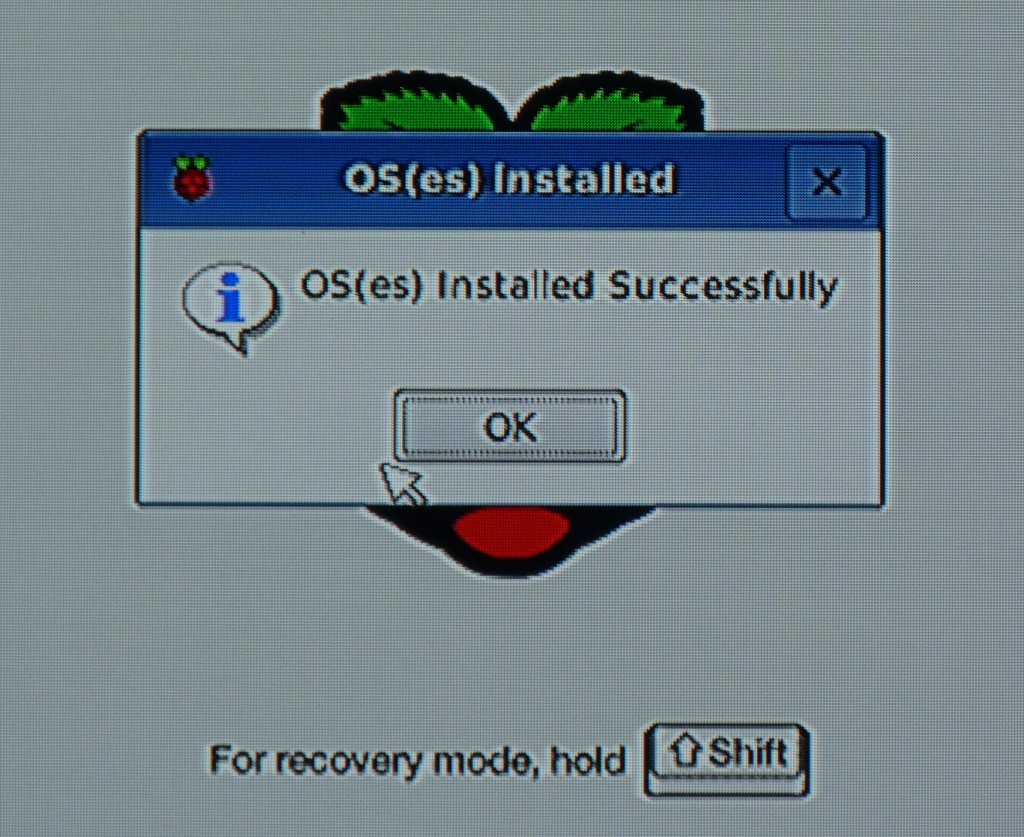
After you hooked up power cable, HDMI cable, mouse and keyboard, you will see the following screen:
2. Run Raspberry Pi Software Configuration Tool
After you installed OS, the first time system will show you Raspberry Pi Software Configuration Tool to do some basic configuration such as change password, enable camera, etc.
|
sudo raspi-config
|
During installation, the screen will notify you, by default, the user name is pi and password is raspberry.
2. Enable SSH
From Raspberry Pi Software Configuration Tools Setup Option 8 Advanced Options:

After enabled SSH, you should be able to use SecreCRT or Putty this kind of tool to access it remotely.
3. Enable Wireless
My package has a usb wireless card. Followed instruction below, I was able to enable it.From SSH session, you can check your network configuration:
|
Linux raspberrypi 3.18.7-v7+ #755 SMP PREEMPT Thu Feb 12 17:20:48 GMT 2015 armv7l
The programs included with the Debian GNU/Linux system are free software; the exact distribution terms for each program are described in the individual files in /usr/share/doc/*/copyright. Debian GNU/Linux comes with ABSOLUTELY NO WARRANTY, to the extent permitted by applicable law. Last login: Mon Oct 5 00:54:54 2015 from 192.168.2.216 pi@raspberrypi ~ $ ifconfig |

To scan for WiFi networks, use the command
|
pi@raspberrypi ~ $ sudo iwlist wlan0 scan
wlan0 Scan completed : Cell 01 - Address: C4:09:38:70:BB:DE ESSID:"Bobby" Protocol:IEEE 802.11bgn Mode:Master Frequency:2.437 GHz (Channel 6) Encryption key:on Bit Rates:144 Mb/s Extra:wpa_ie=dd1c0050f20101000050f20202000050f2040050f20201000050f2020c00 IE: WPA Version 1 Group Cipher : TKIP Pairwise Ciphers (2) : CCMP TKIP Authentication Suites (1) : PSK Extra:rsn_ie=30180100000fac020200000fac04000fac020100000fac020c00 IE: IEEE 802.11i/WPA2 Version 1 Group Cipher : TKIP Pairwise Ciphers (2) : CCMP TKIP Authentication Suites (1) : PSK Quality=100/100 Signal level=100/100 Cell 02 - Address: 84:94:8C:91:1D:28 ESSID:"Rogers02520" Protocol:IEEE 802.11bgn Mode:Master Frequency:2.422 GHz (Channel 3) Encryption key:on Bit Rates:300 Mb/s Extra:wpa_ie=dd1a0050f20101000050f20202000050f2020050f20401000050f202 IE: WPA Version 1 Group Cipher : TKIP Pairwise Ciphers (2) : TKIP CCMP Authentication Suites (1) : PSK Extra:rsn_ie=30180100000fac020200000fac02000fac040100000fac020000 IE: IEEE 802.11i/WPA2 Version 1 Group Cipher : TKIP Pairwise Ciphers (2) : TKIP CCMP Authentication Suites (1) : PSK IE: Unknown: DD270050F204104A000110104400010210470010BC329E00F1DD7F11B2F8600F84948C91103C000101 Quality=0/100 Signal level=42/100 Cell 03 - Address: 84:94:8C:C3:73:E8 ESSID:"SnowWhite" Protocol:IEEE 802.11bgn Mode:Master Frequency:2.412 GHz (Channel 1) Encryption key:on Bit Rates:300 Mb/s Extra:rsn_ie=30180100000fac020200000fac02000fac040100000fac020000 IE: IEEE 802.11i/WPA2 Version 1 Group Cipher : TKIP Pairwise Ciphers (2) : TKIP CCMP Authentication Suites (1) : PSK IE: Unknown: DD270050F204104A000110104400010210470010BC329E00F1DD7F11B2F8600F84948CC3103C000101 Quality=81/100 Signal level=44/100 |
Adding your scanned wireless information to Raspberry Pi
Open the wpa-supplicant configuration file in nano:
|
sudo nano /etc/wpa_supplicant/wpa_supplicant.conf
|
Go to the bottom of the file and add the following:
|
network={
ssid="Bobby" psk="password12345" } |
In a couple of seconds, your Pi will join into SSID you entered and got the ip address
|
pi@raspberrypi ~ $ ifconfig
eth0 Link encap:Ethernet HWaddr b8:27:eb:1c:f4:ae UP BROADCAST MULTICAST MTU:1500 Metric:1 RX packets:0 errors:0 dropped:0 overruns:0 frame:0 TX packets:0 errors:0 dropped:0 overruns:0 carrier:0 collisions:0 txqueuelen:1000 RX bytes:0 (0.0 B) TX bytes:0 (0.0 B) lo Link encap:Local Loopback inet addr:127.0.0.1 Mask:255.0.0.0 UP LOOPBACK RUNNING MTU:65536 Metric:1 RX packets:8 errors:0 dropped:0 overruns:0 frame:0 TX packets:8 errors:0 dropped:0 overruns:0 carrier:0 collisions:0 txqueuelen:0 RX bytes:1104 (1.0 KiB) TX bytes:1104 (1.0 KiB) wlan0 Link encap:Ethernet HWaddr 74:da:38:41:33:35 inet addr:192.168.2.218 Bcast:192.168.2.255 Mask:255.255.255.0 UP BROADCAST RUNNING MULTICAST MTU:1500 Metric:1 RX packets:3767 errors:0 dropped:10 overruns:0 frame:0 TX packets:816 errors:0 dropped:0 overruns:0 carrier:0 collisions:0 txqueuelen:1000 RX bytes:553750 (540.7 KiB) TX bytes:222808 (217.5 KiB) |
4. Assign Static IP Address:
|
pi@raspberrypi ~ $sudo nano /etc/network/interfaces
auto lo iface lo inet loopback iface eth0 inet dhcp allow-hotplug wlan0 iface wlan0 inet manual wpa-roam /etc/wpa_supplicant/wpa_supplicant.conf iface default inet static address 192.168.2.250 netmask 255.255.255.0 network 192.168.2.0 broadcast 192.168.2.255 gateway 192.168.2.1 |
5. Internet Remote Access Service - Weaved
|
pi@raspberrypi ~ $ wget https://github.com/weaved/installer/raw/master/binaries/weaved-nixinstaller_1.2.13.bin
--2015-10-06 12:45:16-- https://github.com/weaved/installer/raw/master/binaries/weaved-nixinstaller_1.2.13.bin Resolving github.com (github.com)... 192.30.252.129 Connecting to github.com (github.com)|192.30.252.129|:443... connected. HTTP request sent, awaiting response... 302 Found Location: https://raw.githubusercontent.com/weaved/installer/master/binaries/weaved-nixinstaller_1.2.13.bin [following] --2015-10-06 12:45:19-- https://raw.githubusercontent.com/weaved/installer/master/binaries/weaved-nixinstaller_1.2.13.bin Resolving raw.githubusercontent.com (raw.githubusercontent.com)... 199.27.76.133 Connecting to raw.githubusercontent.com (raw.githubusercontent.com)|199.27.76.133|:443... connected. HTTP request sent, awaiting response... 200 OK Length: 303036 (296K) [application/octet-stream] Saving to: `weaved-nixinstaller_1.2.13.bin' 100%[=============================>] 303,036 665K/s in 0.4s 2015-10-06 12:45:23 (665 KB/s) - `weaved-nixinstaller_1.2.13.bin' saved [303036/303036] pi@raspberrypi ~ $ chmod +x weaved-nixinstaller_1.2.13.bin pi@raspberrypi ~ $ ./weaved-nixinstaller_1.2.13.bin Extracting Weaved Software into /home/pi Finished extracting You are running installer script Version: v1.2.13 Last modified on February 26, 2015, by Mike Young. Now launching the Weaved connectd daemon installer... . We have detected an arm7l processor. Is this a Raspberry Pi 2? [y/n] y Detected platform type: pi Using /var/log/syslog for your log file Checking for compatibility with Weaved's network... Checking if DNS works ... .[OK] Checking TCP connectivity to weaved.com...<oip=192.168.2.250> [OK] Send to 174.36.235.146:5960 [] [mip=216.165.201.211] [oport=59612 mport=59612] [no remap] [preserve port] [OK] Congratulations! Your network is compatible with Weaved services. *********** Protocol Selection Menu *********** * * * 1) SSH on default port 22 * * 2) Web (HTTP) on default port 80 * * 3) WebIOPi on default port 8000 * * 4) VNC on default port 5901 * * 5) Custom (TCP) * * * *********************************************** Please select from the above options (1-5): 1 You have selected: 1. The default port for SSH is 22. Would you like to continue with the default port assignment? [y/n] y We will install Weaved services for the following: Protocol: ssh Port #: 22 Service name: Weavedssh22 Please enter your Weaved Username (email address): [email protected] Now, please enter your password: Copied notify.sh to /usr/bin Copied notify_Weavedssh22.sh to /usr/bin Copied weavedConnectd to /usr/bin startweaved.sh copied to /usr/bin no crontab for root no crontab for root Your device UID has been successfully provisioned as: 80:00:00:05:46:00:52:0F. Pre-registration of UID: 80:00:00:05:46:00:52:0F successful. We will now register your device with the Weaved backend services. Please provide an alias for your device: jrasp Your device will be called jrasp. Registering Weaved services for Weavedssh22 ................ Starting Weavedssh22... WeavedConnectd built Feb 26 2015 at 10:53:39 Now Starting Up Version 2.11 - (c)2015 Weaved, Inc. All Rights Reserved Built with UPNP NATPMP ALIGN BCASTER MALLOC_POOL LINUX RESOLVE BIGBUF pool=262144 Weaved Development Kit Version based on Rasberry Pi Version config file /etc/weaved/services/Weavedssh22.conf Starting up as daemon PID file specifed as /var/run/Weavedssh22.pid setting web config port to dest_server_port 80 ************************************************************************** CONGRATULATIONS! You are now registered with Weaved. Your registration information is as follows: Device alias: jrasp Device UID: 80:00:00:05:46:00:52:0F Device secret: The alias, Device UID and Device secret are kept in the License File: /etc/weaved/services/Weavedssh22.conf If you delete this License File, you will have to re-run the installer. ************************************************************************** Starting and stopping your service can be done by typing: "sudo /usr/bin/Weavedssh22.sh start|stop|restart" pi@raspberrypi ~ $ |

By click your device name, Weaved website will give you a new host name and ports for you to do remote connection from anywhere on Internet.


Reference:
Installation Instructions for Raspberry PiHow to Configure Your Raspberry Pi for Remote Shell, Desktop, and File Transfer
VNC (VIRTUAL NETWORK COMPUTING)

 RSS Feed
