Info Security Memo
  • Blog
  • Sitemap
    • Categories
  • Contact
  • About
  • Resources
  • Tools
  • 51sec.org

Build Confidence

Focusing on Information Security 

Info Security Notes

Troubleshooting Cisco IPSec Site to Site VPN - "QM Rejected"

12/2/2017

1 Comment

 
There was a VPN issue to troubleshoot recently. It was between Juniper SRX and Cisco Router. It seems straightforward but it took quite a long time to troubleshoot because of communication. All steps listed here for my future reference.

Some other related posts:
  • Troubleshooting Cisco IPSec Site to Site VPN - "reason: Unknown delete reason!" after Phase 1 Completed
  • Troubleshooting Cisco IPSec Site to Site VPN - "IPSec policy invalidated proposal with error 32"
  • Troubleshooting Cisco IPSec Site to Site VPN - "QM Rejected"

Diagram

1. Enabled Debugging on Cisco IOS Router

vpn-R1#debug crypto ipsec
Crypto IPSEC debugging is on

vpn-R1#debug crypto isakmp
Crypto ISAKMP debugging is on

vpn-R1#debug crypto engine
Crypto Engine debugging is on

vpn-R1#terminal monitor




Read More
1 Comment

Cisco Wireless LAN Controller Redundancy Solutions: High Availability

8/14/2017

0 Comments

 
There are two options for Cisco Wireless Controller redundancy solutions, either Backup Controllers or High Availability, depending on the firmware version of WLC's, failover time requirement, and budget.


Using Backup Controller method, a single controller at another location can act as a backup for access points when they lose connectivity with the primary controller in the local region. Centralized and regional controllers do not need to be in the same mobility group. You can specify a primary, secondary, and tertiary controller for specific access points in your network. Using the controller GUI or CLI, you can specify the IP addresses of the backup controllers, which allows the access points to fail over to controllers outside of the mobility group. You can set the Primary and Secondary controllers for the AP on the controller via the GUI, the CLI, or even SNMP. With Backup Controllers, in the case of a WLC failure, APs would begin to search for their Secondary Controller and re-establish their CAPWAP tunnel. The obvious downside is the outage that occurs from the client prospective while the AP drops it's tunnel and begins to build it again to the Secondary Controller.

The new High Availability (HA) feature (that is, AP SSO) set within the Cisco Unified Wireless Network software release version 7.3 and 7.4 allows the access point (AP) to establish a CAPWAP tunnel with the Active WLC and share a mirror copy of the AP database with the Standby WLC. The APs do not go into the Discovery state when the Active WLC fails and the Standby WLC takes over the network as the Active WLC. There is only one CAPWAP tunnel maintained at a time between the APs and the WLC that is in an Active state. The overall goal for the addition of AP SSO support to the Cisco Unified Wireless LAN is to reduce major downtime in wireless networks due to failure conditions that may occur due to box failover or network failover. Once you purchase a second WLC and license it specifically to serve as a standby,  it shares an IP address and session/Config/AP information with the main controller.


Read More
0 Comments

Cisco Wireless Controller 5508 Configuration - Tips and Tricks

8/14/2017

0 Comments

 
ll basic configuration has been created from following related posts. This post will focus on some other configuration or troubleshooting happened in real environment.

Relate Posts:
  • Cisco Wireless Controller 5508 Configuration Step by Step - Part 1 (CLI and GUI) - 
  • Cisco Wireless Controller 5508 Configuration Step by Step - Part 2 (User/Machine Auth) - 
  • Cisco Wireless Controller 5508 Configuration Step by Step - Part 3 (Certs Auth and Other Settings) 

1. Create Different SSID for Different AP
1.1 Create a new WLAN with new SSID 
in this example, we are having two SSID : myoffice-t and myoffice-m


Read More
0 Comments

Cisco Wireless Controller 5508 Configuration Step by Step - Part 3 (Certs Auth and Other Settings)

7/16/2016

0 Comments


This post will use a typical WiFi in office environment as an example to present related configuration on WLC, Radius (NPS), DHCP Servers.

1. Topology:

1.1 Network Topology


Relate Posts:
  • Cisco Wireless Controller 5508 Configuration Step by Step - Part 1 (CLI and GUI) - 
  • Cisco Wireless Controller 5508 Configuration Step by Step - Part 2 (User/Machine Auth) - 
  • Cisco Wireless Controller 5508 Configuration Step by Step - Part 3 (Certs Auth and Other Settings) 

1.2 Device List:

  • Cisco AP 1702i
  • Switches
  • Radius Server - Microsoft NPS
  • DHCP Server
  • Cisco WLC5508


1.3 Topology for Wireless Access with Digital Certificate Client Authentication


2. WiFi Access Requirements
This WiFi  access is primarily intended for company laptops which already has client certificate installed on the machine through domain group policy. This WiFi network will be on a separate office VLAN from other office VLAN.

Other WiFi connected devices must not be allowed connecting to this office WiFi. They will connect through Company Guest WiFi. Mobile devices such as BYOD, Blackberry or other PDA and smart phones should not be allowed to connect to Office WiFi.


3. NPS Configuration

When using WPA2-Enterprise with 802.1x authentication EAP-TLS can be specified as an authentication method. When EAP-TLS is the chosen authentication method both the wireless client and the RADIUS server use certificates to verify their identities to each other and perform mutual authentication. Below are the steps for configuring policy in Windows Network Policy Server to support EAP-TLS. 
Creating a Connection Request Policy to support IEEE 802.11 wireless connections.
  1. Open the Network Policy Server console.
  2. Navigate to NPS(Local)>Policies>Connection Request Policies.
  3. Right click Connection Request Policies and select New.
  4. On Specify Connection Policy Name and Connection Type enter a Policy name: and click Next.
  5. On Specify Conditions click Add.
  6. Select NAS Port Type as a condition.
  7. For NAS Port Type check Wireless - IEEE 802.11 and Wireless - Other click OK.
  8. Click Next.
  9. On Specify Connection Request Forwarding leave the defaults and click Next.
  10. On Specify Authentication Methods leave the defaults and click Next.
  11. On Configure Settings click Next.
  12. Review the settings On Completing Connection Request Policy Wizard and click Finish. 
  13. Right click the Connection Policy created and select Move up so its processing order is before any other policies. 
Creating a Network Policy to support EAP-TLS as the authentication method for IEEE 802.11 wireless connections.

  1. Right click Network Policies and select New.
  2. On Specify Network Policy Name and Connection Type enter a Policy name: and click Next.
  3. On Specify Conditions click Add.
  4. Select NAS Port Type as a condition.
  5. For NAS Port Type check Wireless - IEEE 802.11 and Wireless - Other click OK.
  6. Click Next.
  7. On Specify Access Permissions make sure Access granted is selected and click Next.
  8. On Configure Authentication Methods click Add and choose Microsoft: Smart Card or other certificate for Add EAP and click OK.
  9. Uncheck any boxes under Less secure authentication methods.
  10. Select Microsoft: Smart Card or other certificate for EAP types and click Edit. 
  11. Verify the Certificate issued to: drop down shows the correct certificate and issuer which is the Active Directory CA server. Then click OK.
  12. Click Next.
  13. On Configure Constraints click Next.
  14. On Configure Settings choose NAP Enforcement.
  15. Under Auto-Remediation, uncheck the box Auto-remediation of client computers and click Next.
  16. Review the settings on Completing New Network Policy and Click Finish.
  17. Right click the Network Policy created and select Move up so its processing order is before any other policies. 

Here are screenshots for NPS Policy:

 photo 001_zpswmeukrry.png
 photo 002_zpsevejihed.png 
 photo 003_zpscalrbdjn.png
 photo 004_zpsllkzxcus.png


4. WLC Configuration


 photo 01_zpsp9g20uqb.png
 photo 02_zpsivl4ns9s.png
 photo 03_zpsw6hgyxpi.png
 photo 04_zpsnonjkrus.png
 photo 05_zpsmdxlbmw2.png


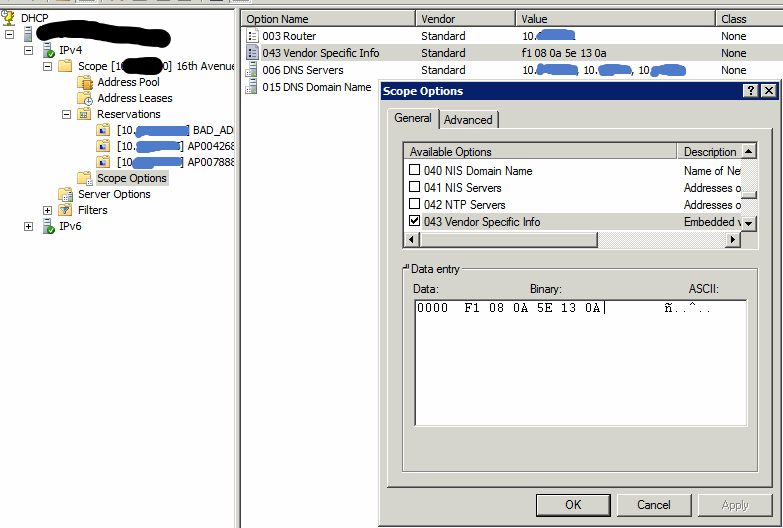
5. DHCP Option 43 configuration

When you are installing a Layer 3 access point on a different subnet than the Cisco wireless LAN controller, be sure that a DHCP server is reachable from the subnet on which you will be installing the access point, and that the subnet has a route back to the Cisco wireless LAN controller. Also be sure that the route back to the Cisco wireless LAN controller has destination UDP ports 5246 and 5247 open for CAPWAP communications. Ensure that the route back to the primary, secondary, and tertiary wireless LAN controller allows IP packet fragments. Finally, be sure that if address translation is used, that the access point and the Cisco wireless LAN controller have a static 1-to-1 NAT to an outside address. (Port Address Translation is not supported.)

You can use DHCP Option 43 to provide a list of controller IP addresses to the access points, enabling them to find and join a controller.

The access point must be able to find the IP address of the controller. This can be resolved by DHCP Option 43's configuration. 


option 43 hex <hex string>
The hex string is assembled by concatenating the TLV values shown below:
Type + Length + Value
Type is always f1(hex). Length is the number of controller management IP addresses times 4 in hex. Value is the IP address of the controller listed sequentially in hex.
For example, suppose that there are two controllers with management interface IP addresses, 10.126.126.2 and 10.127.127.2. The type is f1(hex). The length is 2 * 4 = 8 = 08 (hex). The IP addresses translate to 0a7e7e02 and 0a7f7f02. Assembling the string then yields f1080a7e7e020a7f7f02. The resulting Cisco IOS command added to the DHCP scope is option 43 hex f1080a7e7e020a7f7f0
IP Address to Hex Converter has a online converter to help you to convert IP address to Hex.


Reference:
1. Cisco WLC DHCP Option 43
2. WiFi Certificate Based Authentication
3. EAP-TLS-based Authenticated Wireless Access Design
4. RADIUS: Creating a Policy in NPS to support EAP-TLS authentication
5. Microsoft NPS as a RADIUS Server for WiFi Networks: Dynamic VLAN Assignment
6. Inexpensive 802.1x Solutions
7. Configuring NPS on Server 2012 with Cisco WLC: Part 1
8. IP Address to Hex Converter

0 Comments

Cisco Wireless Controller 5508 Configuration Step by Step - Part 2 (User/Machine Auth)

7/1/2016

2 Comments

 
RADIUS server has been used on a Cisco® Catalyst switch, router or IOS based wireless controllers in the context of enterprise network access security.


1. 802.1x and EAP
While IEEE 802.1X enables authenticated access to IEEE 802 media, including Ethernet and 802.11 wireless LANs, the RADIUS infrastructure facilitates centralized Authentication, Authorization, and Accounting (AAA) management for users and devices that connect and use network service(s).


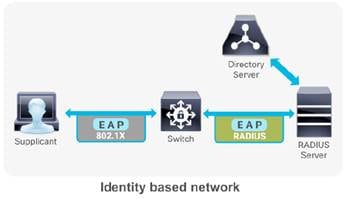
In an identity based network an endpoint (supplicant) initiates its network access session with a 802.1X authentication. The IEEE 802.1X access control protocol is fundamentally a layer 2 transport protocol that carries the Extensible Authentication Protocol (EAP) payload in it. EAP is an authentication framework that defines the transport and usage of identity credentials. EAP encapsulates the usernames, passwords, certificates, tokens, OTPs, etc. that a client sends for the purpose of authentication. The first hop Network Access Server (NAS) (switch/router/wireless controller), hands off the EAP payload to the authentication server via the RADIUS messaging. The RADIUS server either performs lookups with its internal user database or queries an external identiity store, and responds to the client accordingly with the appropriate authorization permissions.  The avaiability and servicability of a RADIUS server is fundamental for an enterprise grade secure access solution to operate.

To make wireless networks really secure you should use a RADIUS server to authenticate your users instead of using a pre-shared key. The RADIUS server will handle the authentication requests and uses EAP (Extensible Authentication Protocol) to communicate with users. There are many EAP types:

  • EAP (Extensible Authentication Protocol) uses an arbitrary authentication method, such as certificates, smart cards, or credentials.
  • EAP-TLS (EAP-Transport Layer Security) is an EAP type that is used in certificate-based security environments, and it provides the strongest authentication and key determination method.
  • EAP-MS-CHAP v2 (EAP-Microsoft Challenge Handshake Authentication Protocol version 2) is a mutual authentication method that supports password-based user or computer authentication.
  • PEAP (Protected EAP) is an authentication method that uses TLS to enhance the security of other EAP authentication protocols.


and the most popular ones are:

  • PEAP (Protected EAP)
  • EAP-TLS

PEAP is normally used to authenticate users by using a username and password. The RADIUS server will show a certificate to the users so that they can verify that they are talking to the correct RADIUS server. EAP-TLS is the most secure form of wireless authentication because it replaces the client username/password with a client certificate.

RADIUS is a distributed client/server system that secures networks against unauthorized access. It’s an open standard protocol that can be customized with vendor specific attributes.  In the Cisco implementation, RADIUS clients run on Cisco switches/routers/wireless controllers and send authentication requests to a central RADIUS server that contains all user authentication and network service access information. Cisco supports RADIUS under its AAA security paradigm. RADIUS can be used with other AAA security protocols, such as TACACS+, Kerberos, and local username lookup. RADIUS is supported on all Cisco platforms, but some RADIUS-supported features run only on specified platforms.


2. Configure Local EAP Authentication
Local EAP is an authentication method that allows users and wireless clients to be authenticated locally to WLC. This is useful for a remote branch where it does not have a external RADIUS on-site or do not want to rely on the WAN to connect back to main office RADIUS  or even that RADIUS server is gone down. Local EAP supports LEAP, EAP-FAST, EAP-TLS, PEAPv0/MSCHAPv2 and PEAPv1/GTC authentication between the WLC & wireless clients.

If any RADIUS servers are configured on the controller, the controller tries to authenticate the wireless client using the RADIUS servers  first. Local EAP is attempted only if no RADIUS servers found (timed out or no RADIUS configured).

2.1 Create local Net Users

 photo 1_zpsa9j0txwu.png


2.2 Create a Local EAP Profie - 'localEAP-test'


 photo 2_zpsvh2gtxor.png


 photo 3_zpskyqwxewa.png 

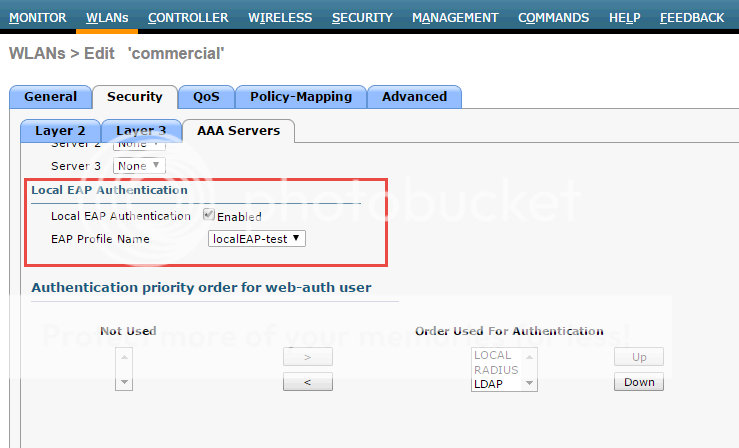
2.3  Configure a WLAN in the controllers and specify Local EAP as authentication mechanism. 

Note that Radius authentication is disabled & only Local EAP selected.
 photo 4_zpsp3cwf8pw.png 
 photo 5_zpss4tef7vx.png 
 
After above steps, your wireless AP should be able to connect through local Net user authentication. You will make sure your this WLAN is in right vlan and on the switch vlan port, proper dhcp server / dhcp relay has been configued. Your connected wireless device will get ip address from your dhcp server.


3. Configure Authentication with AD

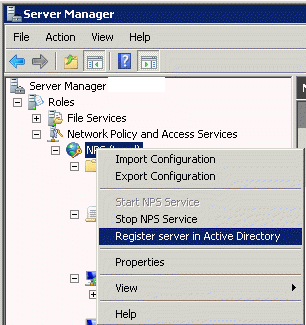
3.1 Register NPS server in AD

To enable Network Policy Server (NPS) to read user account information in Active Directory Domain Services (AD DS) during the authentication and authorization processes, you must register the server running NPS in AD.


3.2 Create a new Network Policy


 photo 2016-06-24_22-33-20_zps3sdehx1q.png 

3.3 Add a new condition

 photo 2016-06-24_22-34-16_zps1gjpansp.png

3.4 Select Windows Groups Condition

 photo 2016-06-24_22-34-39_zps3dvdeo3i.png

3.5 Choose a pre-defined domain user group

 photo 2016-06-24_22-35-35_zpsdkfcush5.png  

3.6 Choose Authentication methods

 photo 2016-06-24_22-35-54_zpsbtgixcf3.png 

3.7 Choose some RADIUS attributes 

 photo 2016-06-24_22-36-16_zpsr2kqsto6.png 
Notes:
Rather than using user group in step 3.4, you also can choose machine groups. It will require some change at client end.  You will have to change it from user or computer authentication to only computer authentication. The issue was caused by the Authentication Mode in the Security Settings for the Wireless Network Connection that we had setup in Group Policy (Computer Configuration > Windows Settings > Security Settings > Wireless Network (802.11) Policies > "Your Network Policy"). Originally the Authentication Mode was set to "User or Computer authentication", when this was changed to "Computer authentication" the Computer Account condition in the Network Policy in NPS was processed correctly and clients could connect. I can only assume that this is a bug as on further testing I found that when the Authentication Mode was set to "User or Computer authentication" NPS would process a User Account condition in the Network Policy correctly, but still refused to process the Computer Account condition properly.


Reference:
1. Configuring Local EAP on WLC
2. Tutorial: 802.1X Authentication via WiFi – Active Directory + Network Policy Server + Cisco WLAN + Group Policy
3. PEAP and EAP-TLS on Server 2008 and Cisco WLC
4. WiFi Certificate Based Authentication
5. Restrict Non Domain devices (BYOD) from authen
6. Implementation of IEEE 802.1X in wirednetworks
7. How to set up a WPA2-EAP Wireless Network Using Network Policy Server (NPS), AD and Group Policies


2 Comments

Cisco Wireless Controller 5508 Configuration Step by Step - Part 1 (CLI and GUI)

6/25/2016

4 Comments

 
As the industry’s most deployed controller, the Cisco 5500 Series Wireless Controller provides the highest performance, security, and scalability to support business communications today and in the future.
Cisco 5500 Series Wireless Controller
• Support for up to 500 access points and 7000 clients
• 8-Gbps throughput, eight 1 Gigabit Ethernet ports, with Link Aggregation Group (LAG)
support
• Standalone, rack-mountable appliance


Benefits include:
• Seamless, high-quality mobile experience: Efficient roaming capabilities help ensure consistent experience on any smart mobile device with voice and video applications.
• Reliability: Cisco 5500 Series Wireless Controllers provide industry-leading IPv6 roaming with secure access.
• Flexibility to pay as you grow: The Cisco 5500 Series offers software license flexibility to add additional access points as business requirements change.
• Versatility: Supports advanced services for any network use case, campus or branch, including Cisco OfficeExtend solutions for secure mobile teleworking and Cisco Enterprise Wireless Mesh solutions, which allow access points to dynamically establish wireless connections in hard-to-connect locations.


1. Booting Terminal Outputs:


WLCNG Boot Loader Version 1.0.20 (Built on Jan  9 2014 at 19:02:44 by cisco)
Board Revision 1.3 (SN: FCW2016B091, Type: AIR-CT5508-K9) (G)

Verifying boot loader integrity... OK.

OCTEON CN5645-NSP pass 2.1, Core clock: 600 MHz, DDR clock: 330 MHz (660 Mhz data rate)
FPGA Revision 1.7
Env FW Revision 1.8
USB Console Revision 2.2
CPU Cores:  10
DRAM:  1024 MB
Flash: 32 MB
Clearing DRAM........ done
Network: octeth0', octeth1
  ' - Active interface
  E - Environment MAC address override
CF Bus 0 (IDE): OK 
IDE device 0:
 - Model: SGEFD1GHB9P1D221 Firm: FW981 Ser#: STP194512FP
 - Type: Hard Disk
 - Capacity: 977.4 MB = 0.9 GB (2001888 x 512)


Press <ESC> now to access the Boot Menu...

Loading primary image (7.4.121.0)
100% 

34583665 bytes read
Launching...
init started: BusyBox v1.6.0 (2010-05-13 17:50:10 EDT) multi-call binary
starting pid 840, tty '': '/etc/init.d/rcS'
Set PLX switch MPS settings .............!!!!!!!
Detecting Hardware ...
set smp_affinity for irq 48
003f
DP from CGE5.0 ...
starting pid 1086, tty '/dev/ttyS0': '/usr/bin/gettyOrMwar'
Setting up ZVM
Exporting LD_LIBRARY_PATH

Cryptographic library self-test....passed!
XML config selected
Validating XML configuration
octeon_device_init: found 1 DPs
readCPUConfigData: cardid 0x6070001
Cisco is a trademark of Cisco Systems, Inc.
Software Copyright Cisco Systems, Inc. All rights reserved.

Cisco AireOS Version 7.4.121.0
Firmware Version FPGA 1.7, Env 1.8, USB console 2.2
Initializing OS Services: ok
Initializing Serial Services: ok
Initializing Network Services: ok
Initializing Licensing Services: ok

License daemon start initialization.....

License daemon running.....
Starting Statistics Service: ok
Starting ARP Services: ok
Starting Trap Manager: ok
Starting Network Interface Management Services: ok
Starting System Services: ok
Starting FIPS Features: ok : Not enabled
Starting Fastpath Hardware Acceleration: ok
Starting Fastpath Console redirect : ok
Starting Fastpath DP Heartbeat : ok
Fastpath CPU0.00: Starting Fastpath Application. SDK-1.8.0, build 269. Flags-[DUTY CYCLE] : ok
Fastpath CPU0.00: Initializing last packet received queue. Num of cores(10)
Fastpath CPU0.00: Init MBUF size: 1856, Subsequent MBUF size: 2040
Fastpath CPU0.00: Core 0 Initialization and FIPS self-test: ok
Fastpath CPU0.00: Initializing Timer...
Fastpath CPU0.00: Initializing Timer...done.
Fastpath CPU0.00: Initializing Timer...
Fastpath CPU0.00: Initializing NBAR AGING Timer...done.
Fastpath CPU0.01: Core 1 Initialization and FIPS self-test: ok
Fastpath CPU0.02: Core 2 Initialization and FIPS self-test: ok
Fastpath CPU0.03: Core 3 Initialization and FIPS self-test: ok
Fastpath CPU0.03: Received instruction to get link status
Fastpath CPU0.04: Core 4 Initialization and FIPS self-test: ok
Fastpath CPU0.05: Core 5 Initialization and FIPS self-test: ok
Fastpath CPU0.06: Core 6 Initialization and FIPS self-test: ok
Fastpath CPU0.07: Core 7 Initialization and FIPS self-test: ok
Fastpath CPU0.08: Core 8 Initialization and FIPS self-test: ok
Fastpath CPU0.09: Core 9 Initialization and FIPS self-test: ok
Starting Switching Services: ok
Starting QoS Services: ok
Starting Policy Manager: ok
Starting Data Transport Link Layer: ok
Starting Access Control List Services: ok
Starting System Interfaces: ok
Starting Client Troubleshooting Service: ok
Starting Management Frame Protection: ok
Starting Certificate Database: ok
Starting VPN Services: ok
Starting Licensing Services: ok
Starting Redundancy: ok 
Starting LWAPP: ok
Starting CAPWAP: ok
Starting LOCP: ok 
Starting Security Services: ok
Starting Policy Manager: ok
Starting Authentication Engine: ok
Starting Mobility Management: ok
Starting AVC Services: ok
Starting Virtual AP Services: ok
Starting AireWave Director: ok
Starting Network Time Services: ok
Starting Cisco Discovery Protocol: ok
Starting Broadcast Services: ok
Starting Logging Services: ok
Starting DHCP Server: ok
Starting IDS Signature Manager: ok
Starting RFID Tag Tracking: ok
Starting RF Profiles: ok
Starting Power Supply and Fan Status Monitoring Service: ok
Starting Mesh Services:  ok
Starting TSM: ok
Starting CIDS Services: ok
Starting Ethernet-over-IP: ok
Starting DTLS server:  enabled in CAPWAP
Starting CleanAir: ok
Starting WIPS: ok 
Starting SSHPM LSC PROV LIST: ok 
Starting RRC Services: ok
Starting SXP Services: ok
Starting Alarm Services: ok
Starting FMC HS: ok 
Starting IPv6 Services: ok
Starting Config Sync Manager : ok
Starting Hotspot Services: ok
Starting PMIP Services: ok
Starting Portal Server Services: ok
Starting mDNS Services: ok
Starting Management Services: 
   Web Server:    CLI: ok
   Secure Web: ok
   License Agent: ok

(Cisco Controller) 

Enter User Name (or 'Recover-Config' this one-time only to reset configuration to factory defaults)


User:  admin
Password:**********
(Cisco Controller) >


2. Basic CLI Commands:


(Cisco Controller) >show ?
               
802.11a        Display 802.11a configuration.
802.11b        Display 802.11b configuration.
802.11h        Display 802.11h configuration.
aaa            Displays AAA related information
acl            Display system Access Control Lists.
advanced       Display Advanced configuration and statistics.
ap             Display AP Configuration.
arp            Display ARP cache.
assisted-roaming Display Assisted Roaming and 802.11k configuration.
auth-list      Display AP authorization list.
avc            Display AVC Configuration/Statistics.
band-select    Display Aggressive Load Balancing configuration.
boot           Displays the default boot image.
buffers        Display pmalloc buffer utilization.
cac            Show Call-Admission-Control details
call-control   Display Call-control information
cdp            Display CDP information
certificate    Display SSL Certificate Configuration.
client         Displays active clients.
coredump       Displays Core Dump Summary
country        Display the configured countries.

--More-- or (q)uit
cpu            Display current CPU usage information.
cts            Displays CTS Information 
custom-web     Display Web Authentication customization information.
database       Show local database configuration.
debug          Display enabled debugs.
dhcp           Display the dhcp server configuration.
dtls           Display the DTLS server status.
eventlog       Display event log entries.
exclusionlist  Display exclusion-list.
flexconnect    Display controller flexconnect information.
flow           Display flow Configuration.
guest-lan      Display Guest LAN Configuration.
ike            Display active IKE SAs.
interface      Display system interfaces.
invalid-config Display Invalid Config.
inventory      Display vital product data.
ipsec          Display active IPSEC SAs.
ipv6           Display IPv6 information.
lag            Display Link Aggregation Group (LAG) information.
ldap           Displays LDAP information.
license        Displays License related information.
linktest       Shows the configured frame size and number of frames for linktest.
load-balancing Display Aggressive Load Balancing configuration.

--More-- or (q)uit
local-auth     Display Local EAP Authentication information.
location       Display Location based System information
logging        Display logger parameters and buffer contents.
loginsession   Display login session info.
macfilter      Display MAC filtering configuration.
mdns           Displays mDNS information
media-stream   Display Multicast-direct Configuration State
memory         Display system memory usage statistics.
mesh           Show mesh configuration.
mgmtuser       Display local management user accounts.
mobility       Display Mobility Management Configuration.
msglog         Display message log entries.
netuser        Display local network user accounts.
network        Display configuration for inband connectivity.
nmheartbeat    Displays Network Manager Heart Beat Summary
nmsp           Displays data for NMSP protocol between controller and Location Server.
ntp-keys       Display the system time.
pmipv6         Proxy mobility
pmk-cache      Display information about the PMK cache.
port           Display port mode and settings; display port status.
process        Display CPU and memory usage per process.
qos            Display qos information (queue length)
queue-info     Display system Message Queue Information.

--More-- or (q)uit
radius         Displays RADIUS information.
redundancy     Display redundancy information.
remote-lan     Display remote LAN Configuration.
reset          Display scheduled system reset parameters.
rf-profile     Configures RF Profile parameters.
rfid           Shows the RFID tag tracking information
rogue          Displays Rogue AP and Client information.
route          Display configured route
rules          Display active internal firewall rules.
run-config     Display running configuration.
running-config Display running configuration.
serial         Display EIA-232 parameters and serial port inactivity timeout.
service        Display service information.
sessions       Display cli session configuration information.
snmpcommunity  Display SNMP community entries.
snmpengineID   Display SNMP v3 EngineId.
snmptrap       Display SNMP trap port number and trap receiver entries.
snmpv3user     Display SNMP v3 user entries.
snmpversion    Display SNMP v1/v2/v3c status(enabled or disabled).
stats          Display port and switch statistics.
switchconfig   Display parameters that apply to the switch.
sysinfo        Display system information including system up time.
syslog         Displays the state of system syslog.

--More-- or (q)uit
tacacs         Displays TACACS+ information.
tech-support   Display system resource information.
time           Display the system time.
trapflags      Display the value of trap flags that apply to the switch.
traplog        Display trap records.
udi            Display UDI for the controller
wgb            Displays active work-group bridges (WGB).
wlan           Display WLAN Configuration.
wps            Displays WPS Configuration.
               
(Cisco Controller) >?    
               
clear          Clear selected configuration elements.
config         Configure switch options and settings.
debug          Manages system debug options.
eping          Send Ethernet-over-IP echo packets to a specified mobility peer IP address.
help           Help
license        Manage Software License
linktest       Perform a link test to a specified MAC address.
logout         Exit this session. Any unsaved changes are lost.
mping          Send Mobility echo packets to a specified mobility peer IP address.
ping           Send ICMP echo packets to a specified IP address.
reset          Reset options.
save           Save switch configurations.
show           Display switch options and settings.
test           Test trigger commands
transfer       Transfer a file to or from the switch.
               

(Cisco Controller) >


(Cisco Controller) show> inventory 

Burned-in MAC Address............................ 04:62:70:7B:73:E0
Power Supply 1................................... Present, OK
Power Supply 2................................... Absent
Maximum number of APs supported.................. 12
NAME: "Chassis"    , DESCR: "Cisco 5500 Series Wireless LAN Controller"

PID: AIR-CT5508-K9,  VID: V04,  SN: FCW2016B091


WLC 5508  will use a startup wizard to guide you for basic configuration. Cisco 5508 Wireless Controller Installation Guide gives more details on each step.


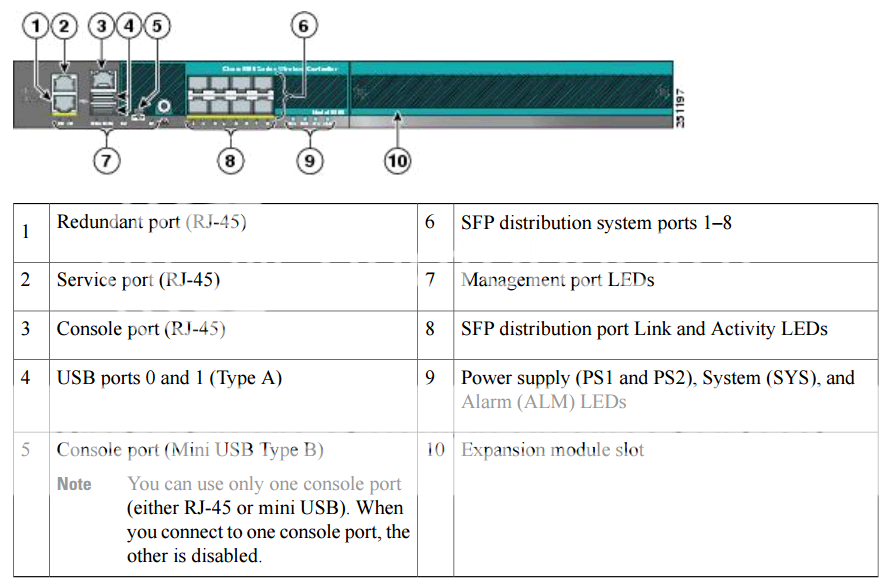
3. Configure SP (Service Port)


Service Port is used exclusively for Out-of-Band management. It is the only port that is active when the controller is in boot mode (useful for troubleshooting). The service port does not support 802.1Q tagging so you must configure the switch port on the other side in access mode. It does not support a backup port and a default gateway in its configuration. This last fact means that you can reach it only if you are on the same subnet (as it will not have a route back) unless you configure static routes in the menu Controller -> Network Routes.

***The service port and the management interface must be on a different subnet.The service port is also not auto-sensing so you must use the correct straight-through or crossover Ethernet cable to communicate with the service port


(Cisco Controller) >show interface summary 


 Number of Interfaces.......................... 5

Interface Name                   Port Vlan Id  IP Address      Type    Ap Mgr Guest
-------------------------------- ---- -------- --------------- ------- ------ -----
management                       1    untagged 10.9.0.30    Static  Yes    No   
redundancy-management           1    untagged 0.0.0.0         Static  No     No   
redundancy-port                  -    untagged 0.0.0.0         Static  No     No   
service-port                     N/A  N/A      0.0.0.0         DHCP    No     No   
virtual                          N/A  N/A      10.4.1.1      Static  No     No   

(Cisco Controller) config>interface ?
               
acl            Configures an interface's Access Control List.
address        Configures an interface's address information.
ap-manager     Disables AP Manager features on a dynamic interface.
create         Adds a new dynamic interface.
delete         Deletes a dynamic interface.
dhcp           Configures DHCP options on an interface.
group          Configures an interface group's information
guest-lan      Configure Guest LAN vlan
hostname       Configures the virtual interface's virtual DNS host name.
mdns-profile   Configures mDNS profile for the interface
nasid          Configures NAS-identifier for the interface.
nat-address    Configures an interface's NAT address information.
port           Assign interface to physical port.
quarantine     Configure quarantine vlan
vlan           Configures an interface's VLAN Identifier.
               
(Cisco Controller) config>interface address ?
               
dynamic-interface Enter interface name.
management     Configures the management interface.
redundancy-management Configures redundancy management interface (required for redundancy).
service-port   Configures the out-of-band service Port.
virtual        Configures the virtual gateway interface.
               
(Cisco Controller) config>interface address service-port ?
               
<IP address>   Enter the interface's IP Address.
               
(Cisco Controller) config>interface address management 10.9.9.99 ?
               
<netmask>      Enter the interface's netmask.
               
(Cisco Controller) config>interface address management 10.9.9.99 255.255.255.0

Incorrect input! Use 'config interface address management <addr> <netmask> <gateway>'

(Cisco Controller) config>interface address management 10.9.9.99 255.255.255.0 10.9.9.1

Request failed - Active WLAN using interface. Disable WLAN first.
(Cisco Controller) config>exit            
(Cisco Controller) >config wlan disable

Incorrect input! Use 'config wlan [enable/disable] [<WLAN id> | all]'

(Cisco Controller) >config wlan disable all


(Cisco Controller) >config
(Cisco Controller) config>interface address management 10.9.9.99 255.255.255.0 10.9.9.1

(Cisco Controller) config>
(Cisco Controller) config>interface address service-port 10.9.20.30 255.255.255.0
The DHCP protocol for the service port must be disabled before configuring the IP addr

(Cisco Controller) config>interface dhcp service-port disable 


(Cisco Controller) config>interface address service-port 10.9.20.30 255.255.255.0

(Cisco Controller) config>save config

Incorrect usage.  Use the '?' or <TAB> key to list commands.

(Cisco Controller) config>exit
(Cisco Controller) >save config

Are you sure you want to save? (y/n) y


Configuration Saved!

(Cisco Controller) >
(Cisco Controller) >show interface detailed service-port 

Interface Name................................... service-port
MAC Address...................................... 04:62:73:7b:73:e1
IP Address....................................... 10.9.20.30
IP Netmask....................................... 255.255.255.0
DHCP Protocol.................................... Disabled
AP Manager....................................... No
Guest Interface.................................. No

(Cisco Controller) >


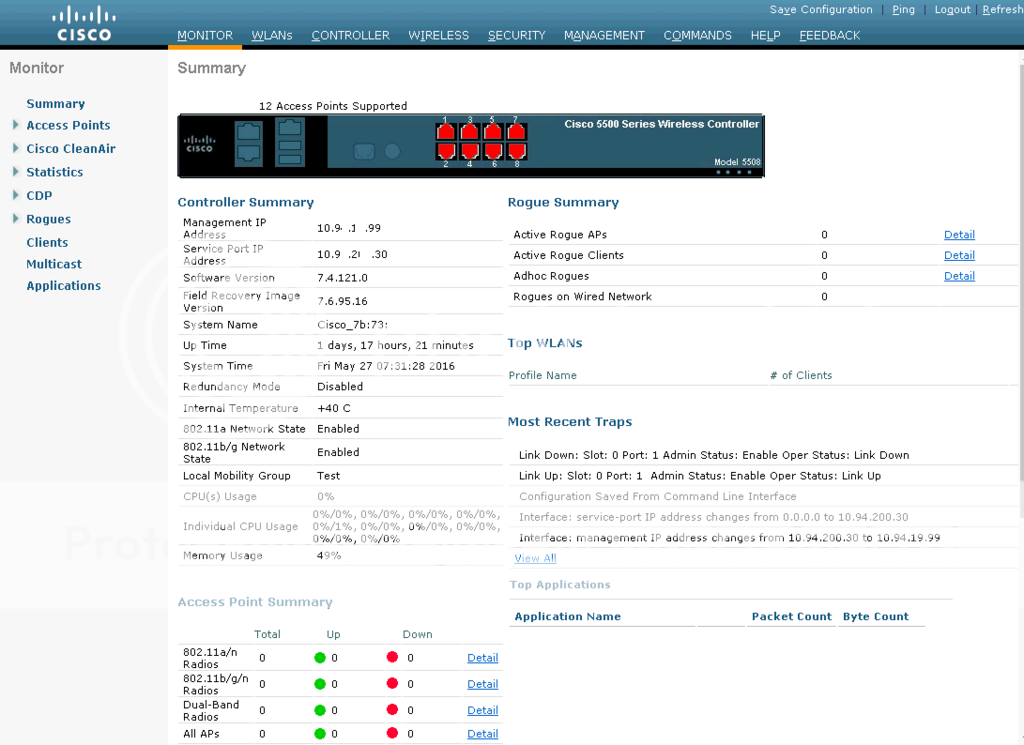
After connecting SP (Service Port) within your laptop network, you will be able to browse the web page of your WLC.


RP port is Redundancy Port. After the WLCs are configured with Redundancy Management and Peer Redundancy Management IP Addresses and Redundant Units are configured, it is time to enable SSO. It is important to make sure that physical connections are up between both the controllers (that is, both the WLCs are connected back to back via the Redundant Port using an Ethernet cable) and the uplink is also connected to the infrastructure switch and the gateway is reachable from both the WLCs before SSO is enabled. Once SSO is enabled, it will reboot the WLCs. While it boots, the WLCs negotiate the HA role as per the configuration via Redundant Port. If the WLCs cannot reach each other via Redundant Port or via the Redundant Management Interface, the WLC configured as Secondary may go in to Maintenance Mode.

4. Upgrade 5508 IOS

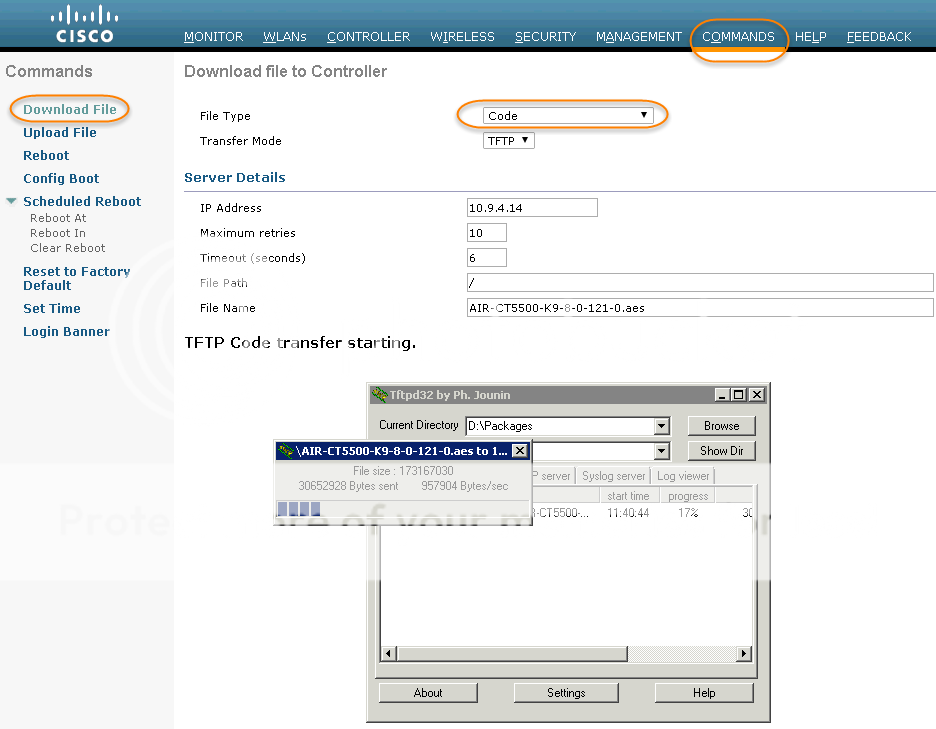
Cisco WLC 5508 has latest recommended version 8.0.133.0 from this url. I was able to get AIR-CT5500-K9-8-0-121-0.aes from Baidu Cloud. The size is about 165Mb. 

There are more details regarding upgrading 5508 IOS to latest one from CCIEROO.COM's post.


It will only take a couple of minutes to download 8.0.121.0 package from TFTP server to WLC controller based on your connection speed, but for WLC5508 to process new IOS package it took almost 40 minutes.

Until 5508 completed processing new 8.0.121 IOS, you will see the Primary Image will change to 8.0.121.0 from Config Boot page.


Reference:
1. Cisco 5508 Wireless Controller Installation Guide
2. Cisco 5508 WLC Setup and Initial Configuration
3. Step by Step guide to build a Cisco wireless infrastructure using Cisco WLC 5500, Cisco 1142 AP and Microsoft Radius server


4 Comments

Gartner Magic Quadrant for the Wired and Wireless LAN Access Infrastructure (2014, 2013, 2012, 2011, 2010)

7/5/2015

0 Comments

 
Gartner’s Magic Quadrant for Wireless LAN Infrastructure has been released for a couple of years. This post listed all reports found from Internet since 2010. If you are not familiar with this research publication or Gartner, please see graphic below. Gartner places vendors in one of four quadrants – Leaders, Visionaries, Niche Players and Challengers based on their score system.

Understanding Gartner Magic Quadrant Report
Source: Gartner (July 2013)

2014

In Gartner 2014 June's Magic Quadrant for Wired and Wireless LAN Infrastructure report, for the 3rd year in a row, Cisco, Aruba and HP Networking are positioning at Leaders quadrant, which are same as last two years. On May 19, 2015, HP completed the acquisition of Aruba Networks for a transaction value of $3 billion. In Gartner's 2015's report, there will be only two vendors showing in the Leaders quadrant.

Huawei, Dell and D-link lost their challengers position and become niche players. Aerohive, Acatel-Lucent Enterprise, Ximus and Avaya are in visionaries quadrant, which means they have innovated in one or more of the key areas of access layer technologies within the enterprise (e.g., convergence, security, management or operational efficiency).

2014 Magic Quadrant for the Wired and Wireless LAN Access Infrastructure

2013 

2013 Magic Quadrant for the Wired and Wireless LAN Access Infrastructure

2012


2012 Magic Quadrant for the Wired and Wireless LAN Access Infrastructure

2011


2011 Magic Quadrant for the Wired and Wireless LAN Access Infrastructure

2010

2010 Magic Quadrant for the Wired and Wireless LAN Access Infrastructure


Reference:

1. 2014 Magic Quadrant for the Wired and Wireless LAN Access Infrastructure
2. Magic Quadrants and MarketScopes: How Gartner Evaluates Vendors Within a Market
0 Comments

    Categories

    All
    Architecture
    Blog
    Checkpoint
    Cisco
    Cloud
    CyberArk
    F5
    Fortigate
    Guardium
    Juniper
    Linux
    Network
    Others
    Palo Alto
    Qualys
    Raspberry Pi
    Security
    SIEM
    Software
    Vmware
    VPN
    Wireless

    Archives

    March 2024
    February 2024
    January 2024
    December 2023
    November 2023
    October 2023
    September 2023
    August 2023
    July 2023
    June 2023
    May 2023
    April 2023
    March 2023
    February 2023
    January 2023
    December 2022
    November 2022
    October 2022
    September 2022
    August 2022
    July 2022
    June 2022
    May 2022
    April 2022
    March 2022
    February 2022
    January 2022
    December 2021
    November 2021
    October 2021
    September 2021
    August 2021
    July 2021
    June 2021
    May 2021
    April 2021
    March 2021
    February 2021
    January 2021
    December 2020
    November 2020
    October 2020
    September 2020
    August 2020
    July 2020
    October 2019
    September 2019
    June 2019
    July 2018
    May 2018
    December 2017
    August 2017
    April 2017
    March 2017
    January 2017
    December 2016
    November 2016
    October 2016
    September 2016
    August 2016
    July 2016
    June 2016
    May 2016
    April 2016
    March 2016
    February 2016
    January 2016
    December 2015
    November 2015
    October 2015
    September 2015
    August 2015
    July 2015
    June 2015
    May 2015
    April 2015
    March 2015

    Print Page:

    RSS Feed

    Email Subscribe
Powered by Create your own unique website with customizable templates.
  • Blog
  • Sitemap
    • Categories
  • Contact
  • About
  • Resources
  • Tools
  • 51sec.org