Info Security Memo
  • Blog
  • Sitemap
    • Categories
  • Contact
  • About
  • Resources
  • Tools
  • 51sec.org

Build Confidence

Focusing on Information Security 

Info Security Notes

Upgrade Your OneDrive Space from 5T to 25T For Free

4/24/2022

0 Comments

 
Upgrade Your OneDrive Space from 5T to 25T For Free

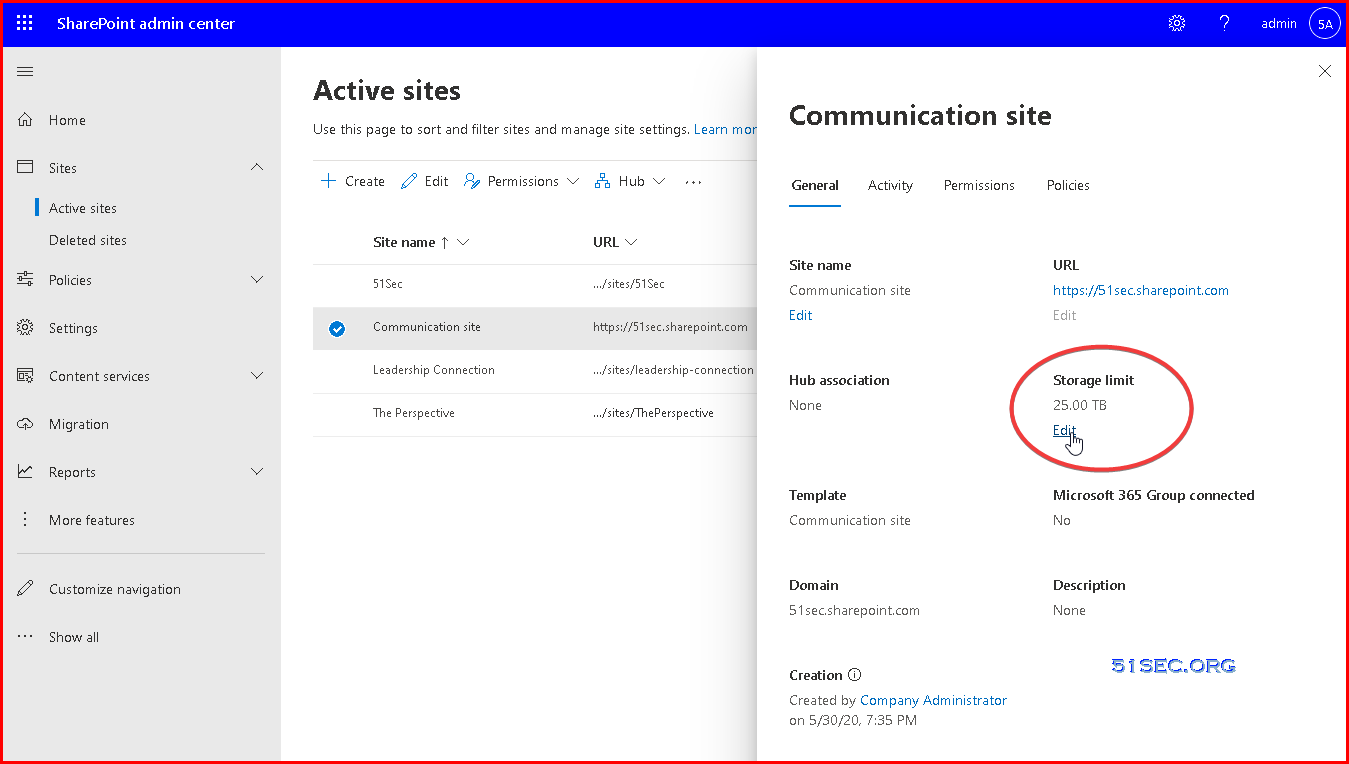
By default, your Microsoft Developer E5 will only give you 5TB for your OneDrive accounts. Actually, Microsoft has provide a easy way to upgrade your storage limit to 25TB. It is just hided from normal setting page. 


In this post, I am going to show you a free and easy way to upgrade your OneDrive from 5T to 25T, without making any manual request to Microsoft or writing some PowerShell script. 


Check Your Current OneDrive / Share Point Configuration

1 Log in Microsoft 365 admin center (https://admin.microsoft.com/) using a global admin account
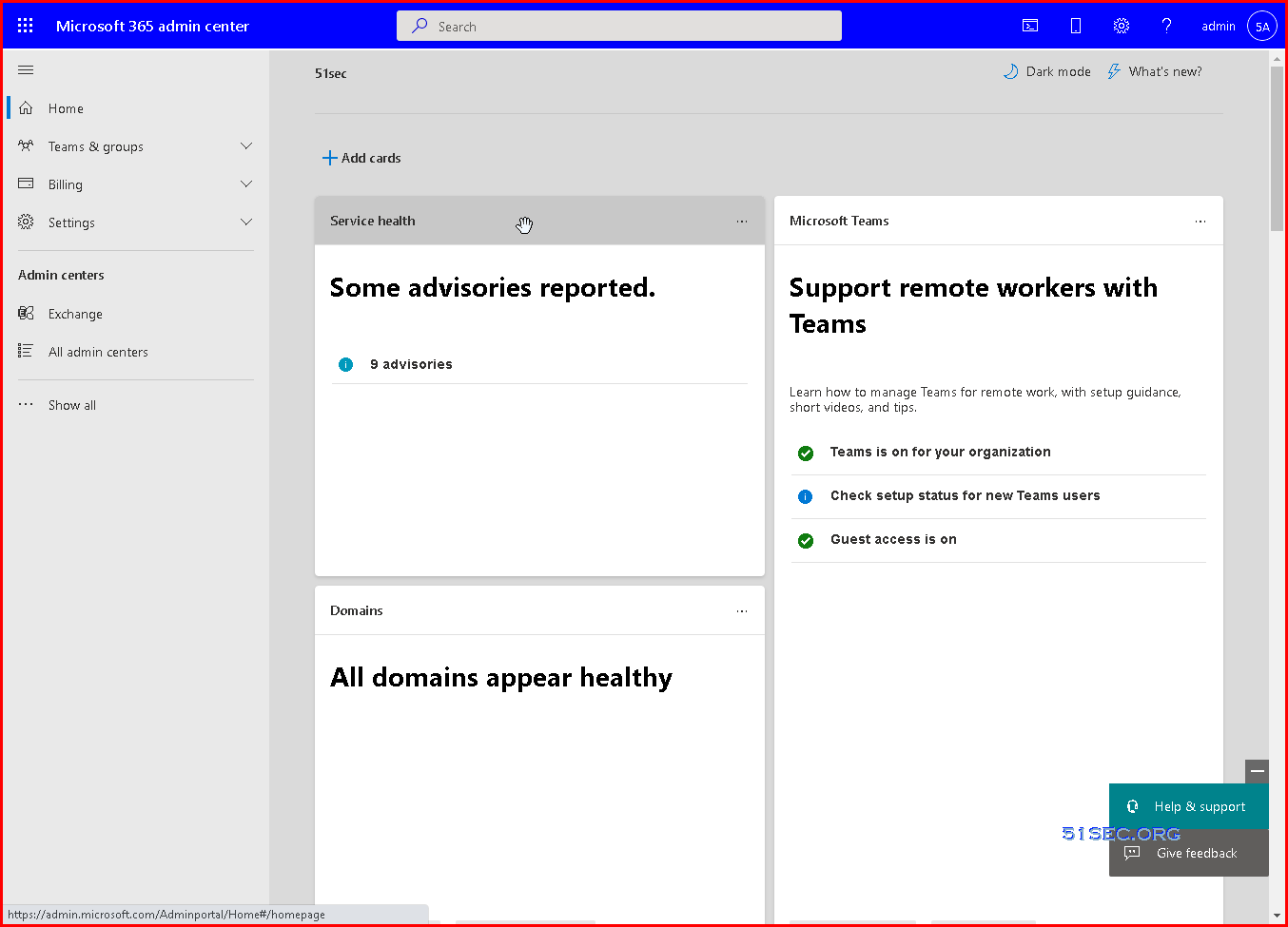


2 Click All admin centers from left panel


3 Click SharePoint to go to SharePoint admin center


4 Click settings from left panel of SharePoint admin center
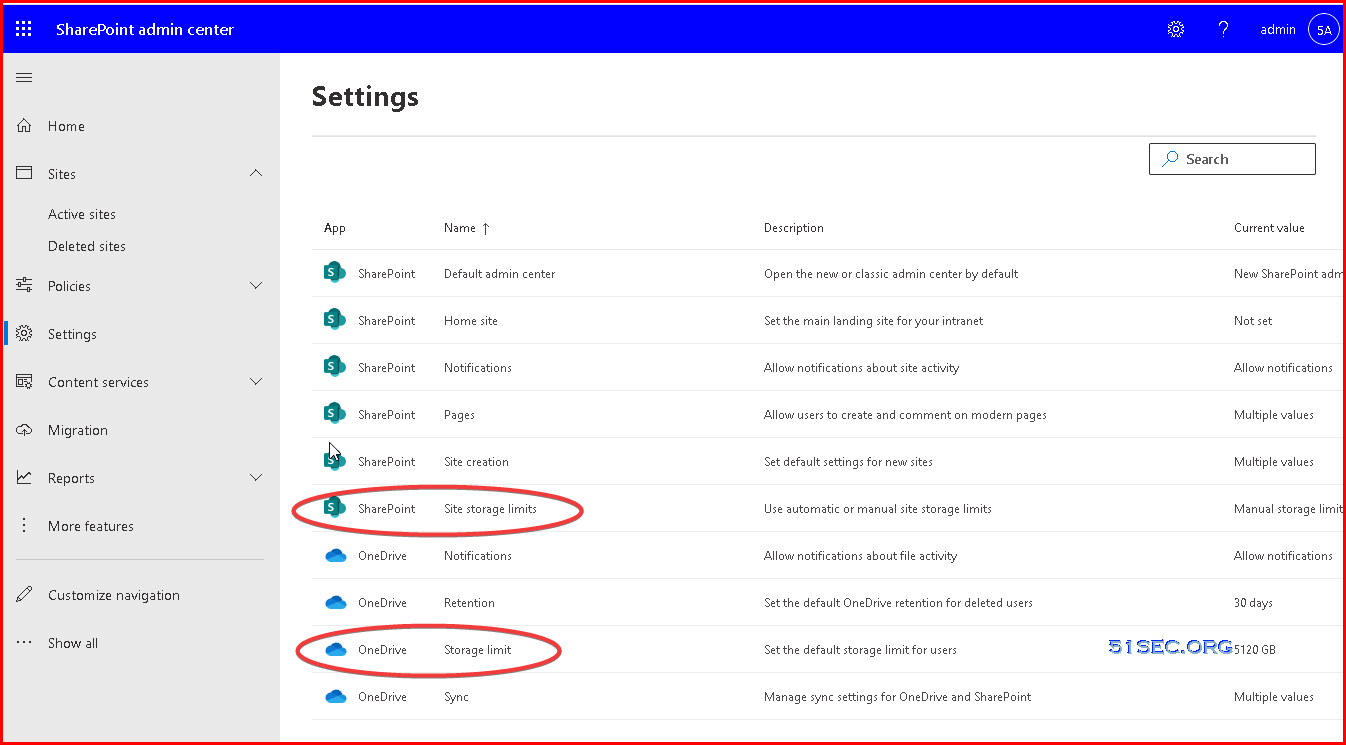

5 Check SharePoint Site Storage Limits and OneDrive StorageLimit

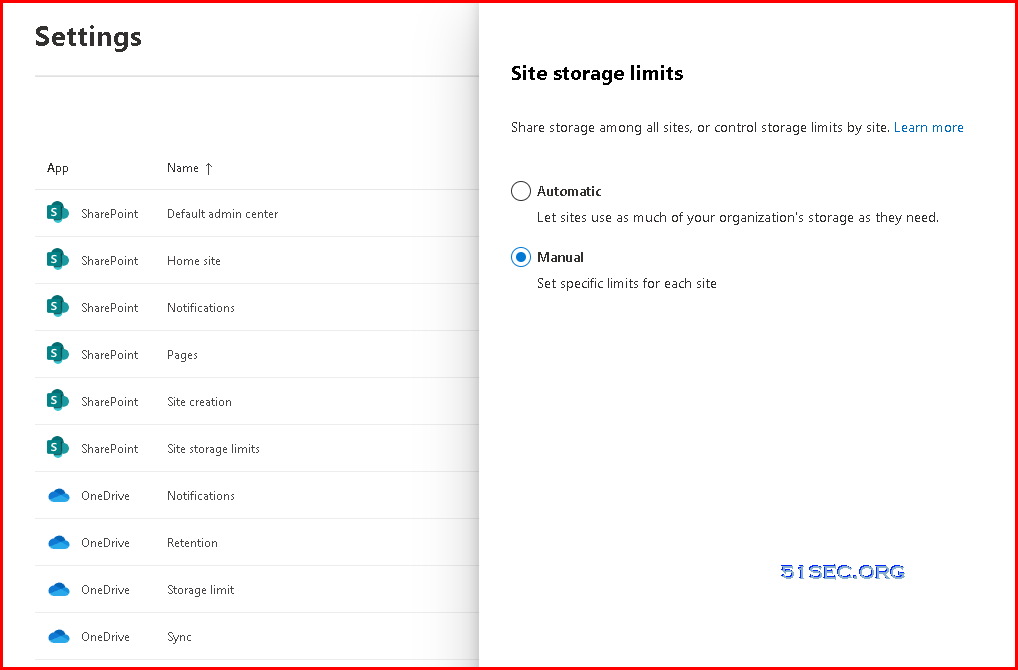
6 For SharePoint, we can set specific limits for each site manually. 


7 For OneDrive, maximum default storage limit you can set is only 5120GB (5T).


Pre-requirement to Upgrade OneDrive to 25T


Based on Microsoft Doc , Check OneDrive site eligibility for increased storage, If you need more Microsoft OneDrive storage than the default 5 TB, the Microsoft 365 administrator in your organization can check if you are eligible for an increased storage limit. You must already have filled 90% of the 5 TB storage before requesting an increase.


Process to Upgrade OneDrive from 5T to 25T


1 From Microsoft 365 admin center (https://admin.microsoft.com/) , find out the Help&Support menu at the left bottom corner of this page. 


2 Enter "Increate OneDrive Storage", wait Run diagnostics section shows up
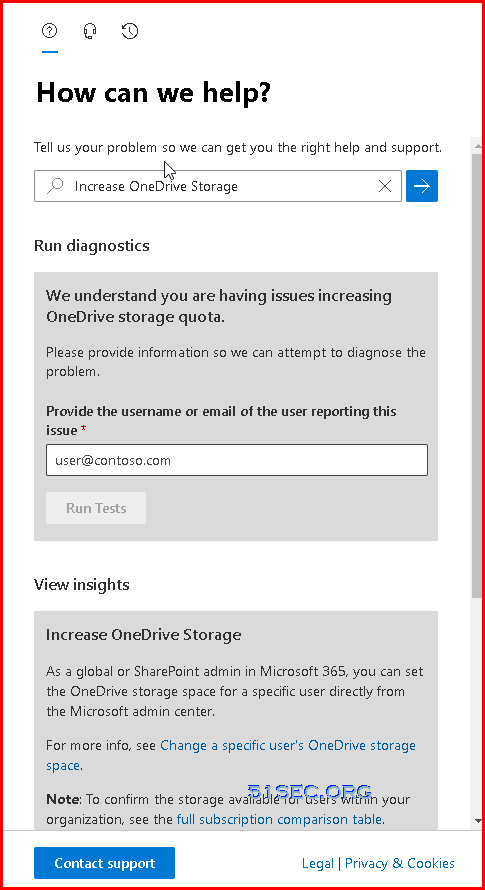


3 Enter the user or email you would like to upgrade to 25T, then click Run Tests button


4 If your user's OneDrive is not used over 90% of the current 5TB limit, you will not be able to upgrade to 25TB
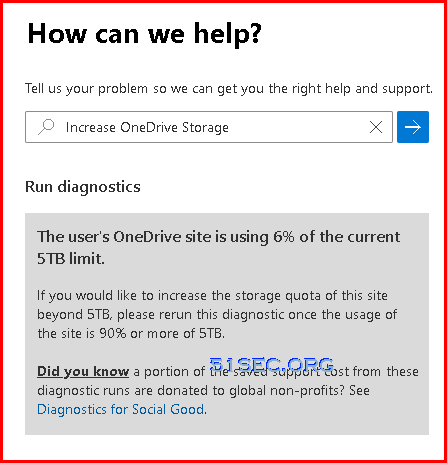
5 Copy your OneDrive files to different folder to make it use more than 90% of 5TB storage. 


6 Check OneDrive's Storage metrics to verify your site usage
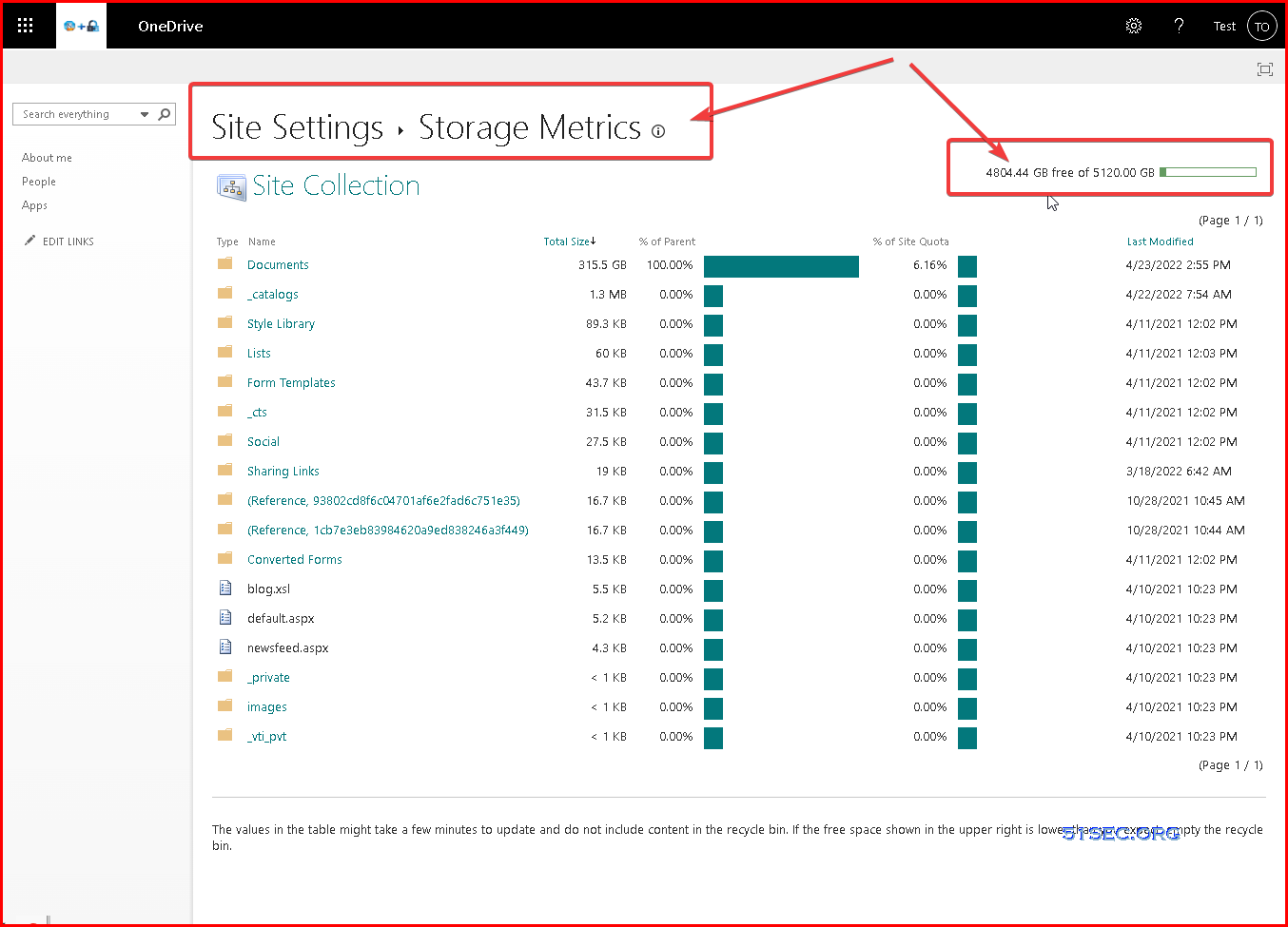


7 If you already used up 5T, you might have an optional button to request more quota for your account as show from following screenshot
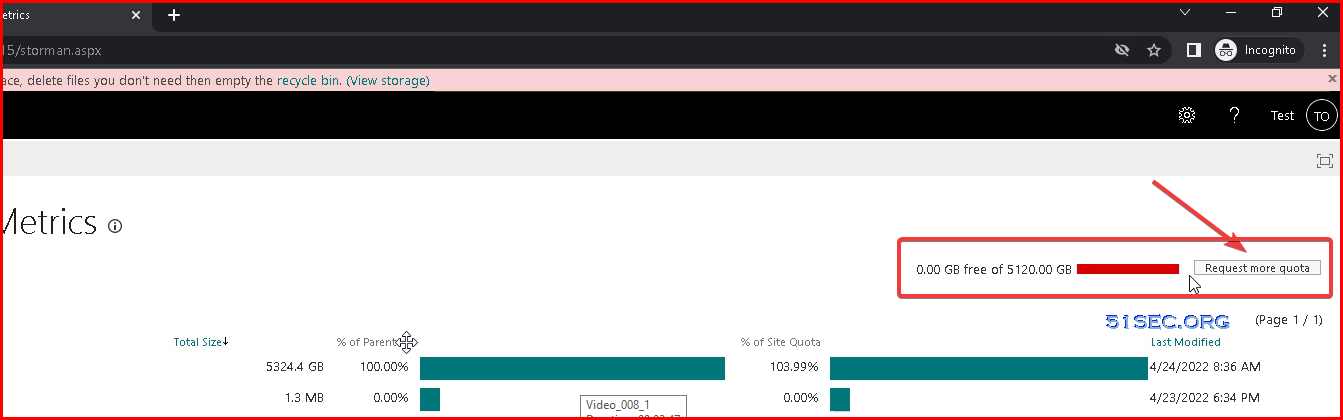


8 If the tests detect that the user's OneDrive site can be upgraded to exceed the 5 TB quota, select Update Settings for the diagnostic to process the increase.
Screenshot of the Need Help window says your tenant is not configured to increase a user's OneDrive quota beyond 5 TB.


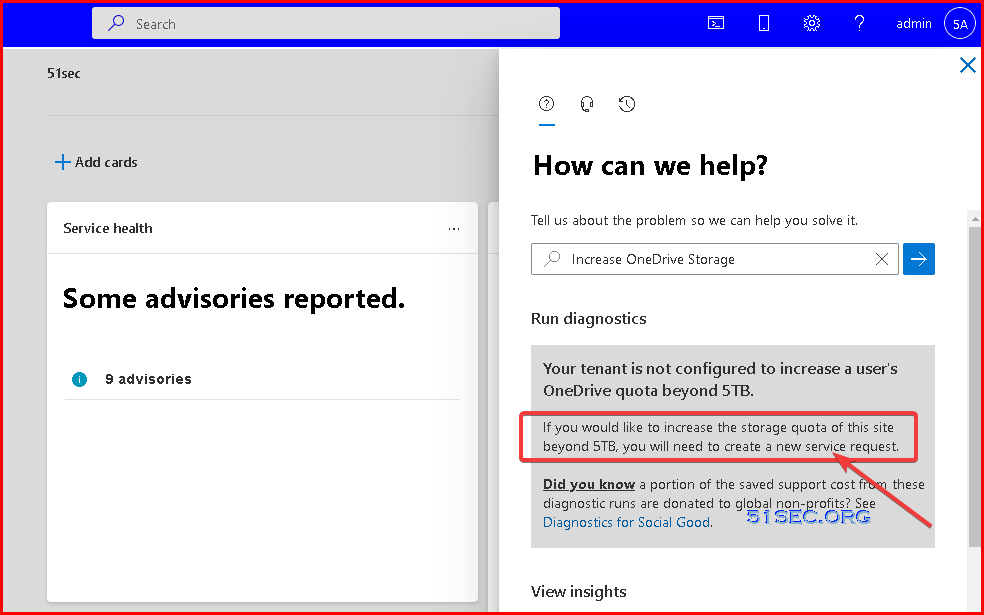
9 Sometimes, the Upgrade Settings button will not show up. You might need to open a service request to request upgrade. 


Run diagnostics
Your tenant is not configured to increase a user's OneDrive quota beyond 5TB.
If you would like to increase the storage quota of this site beyond 5TB, you will need to create a new service request.

Did you know a portion of the saved support cost from these diagnostic runs are donated to global non-profits? See Diagnostics for Social Good.
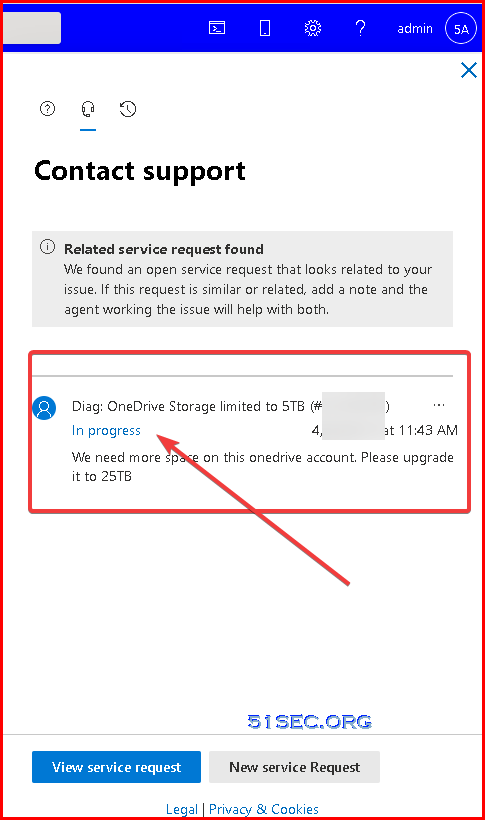
Here is a ticket I opened to request increasing quota for my OneDrive account:


Related YouTube Videos


Get Free M365 E5 Subscription with Your Own Domain Name


MS 365 Developer: OneDrive Upgrade to 5T and Create Catch All Exchange Rule


Renew Microsoft 365 Developer Subscription with Some Developing Activities in Your M365 Apps


References


via Blogger http://blog.51sec.org/2022/04/upgrade-your-onedrive-space-from-5t-to.html
April 24, 2022 at 03:22PM Cloud
0 Comments


Leave a Reply.

    Categories

    All
    Architecture
    Blog
    Checkpoint
    Cisco
    Cloud
    CyberArk
    F5
    Fortigate
    Guardium
    Juniper
    Linux
    Network
    Others
    Palo Alto
    Qualys
    Raspberry Pi
    Security
    SIEM
    Software
    Vmware
    VPN
    Wireless

    Archives

    March 2024
    February 2024
    January 2024
    December 2023
    November 2023
    October 2023
    September 2023
    August 2023
    July 2023
    June 2023
    May 2023
    April 2023
    March 2023
    February 2023
    January 2023
    December 2022
    November 2022
    October 2022
    September 2022
    August 2022
    July 2022
    June 2022
    May 2022
    April 2022
    March 2022
    February 2022
    January 2022
    December 2021
    November 2021
    October 2021
    September 2021
    August 2021
    July 2021
    June 2021
    May 2021
    April 2021
    March 2021
    February 2021
    January 2021
    December 2020
    November 2020
    October 2020
    September 2020
    August 2020
    July 2020
    October 2019
    September 2019
    June 2019
    July 2018
    May 2018
    December 2017
    August 2017
    April 2017
    March 2017
    January 2017
    December 2016
    November 2016
    October 2016
    September 2016
    August 2016
    July 2016
    June 2016
    May 2016
    April 2016
    March 2016
    February 2016
    January 2016
    December 2015
    November 2015
    October 2015
    September 2015
    August 2015
    July 2015
    June 2015
    May 2015
    April 2015
    March 2015

    Print Page:

    RSS Feed

    Email Subscribe
Powered by Create your own unique website with customizable templates.
  • Blog
  • Sitemap
    • Categories
  • Contact
  • About
  • Resources
  • Tools
  • 51sec.org