
Bitwarden is a free and open-source password management service that can store sensitive information such as website credentials in an encrypted vault. The Bitwarden platform offers a variety of client applications including a web interface, desktop applications, browser extensions, mobile apps, and a CLI.
In this post, I am going to show all steps that using Docker and Portainer to install BitWarden on your self hosted server.
Pre-requisites
There are a couple of requirements you will need to meet:
- DNS A record: Create a DNS A record to point it to your self hosted server public ip.
- Install Docker on your self hosted linux server.
- Both Nginx and Portainer dockers have been installed. Certbot has been installed in Nginx docker. The detail steps is listed in this post: https://blog.51sec.org/2021/03/install-certbot-on-debian-docker-to.html
- Certbot has been used to apply certificate for portainer. Portainer is running on https with sub domain.
- Make sure Firewall / Cloud Instance Access-list to open port 8000
Launch BitWarden Docker
- Pull bitwardenrs
- Docker run latest bitwardenrs docker version in self hosted server.
Docker Hub url: https://ift.tt/35G7Ok6
Commands to run in self hosted server:
[root@centos7-docker-portainer /]# docker pull bitwardenrs/server:latest
latest: Pulling from bitwardenrs/server
a076a628af6f: Pull complete
59dc56021c8b: Pull complete
3ff63ec7cf6a: Pull complete
e3df552e5bc3: Pull complete
b1cb9364e73d: Pull complete
b46d9f70e046: Pull complete
8c3e54e3c958: Pull complete
62f84183e518: Pull complete
Digest: sha256:1cc26a5754dff74dd9df95bbbb79af168cd21dfbd83f627ea72c85fa5852ef15
Status: Downloaded newer image for bitwardenrs/server:latest
docker.io/bitwardenrs/server:latest
[root@centos7-docker-portainer /]#  mkdir /bw-data
mkdir: cannot create directory ‘/bw-data’: File exists
[root@centos7-docker-portainer /]# docker run -d --name bitwarden -v /bw-data/:/data/ -p 8000:80 bitwardenrs/server:latest
5e2d4b2085905db66cf663ec32604785a6718e6b917f09382f7984ea962d8f08
[root@centos7-docker-portainer /]# docker ps
CONTAINER ID        IMAGE                          COMMAND                  CREATED             STATUS                             PORTS                                      NAMES
5e2d4b208590        bitwardenrs/server:latest      "/usr/bin/dumb-init …"   54 seconds ago      Up 52 seconds (health: starting)   3012/tcp, 0.0.0.0:8000->80/tcp             bitwarden
3a4767f0c009        johnyan2/nginx1netsec:latest   "nginx -g 'daemon of…"   7 days ago          Up 7 days                          0.0.0.0:80->80/tcp, 0.0.0.0:443->443/tcp   nginx
90212707d5a6        portainer/portainer-ce         "/portainer"             7 days ago          Up 7 days                          8000/tcp, 0.0.0.0:9000->9000/tcp           portainer
[root@centos7-docker-portainer /]#
Verify BitWarden Docker Service
Checking Docker Status from Portainer Web Gui:
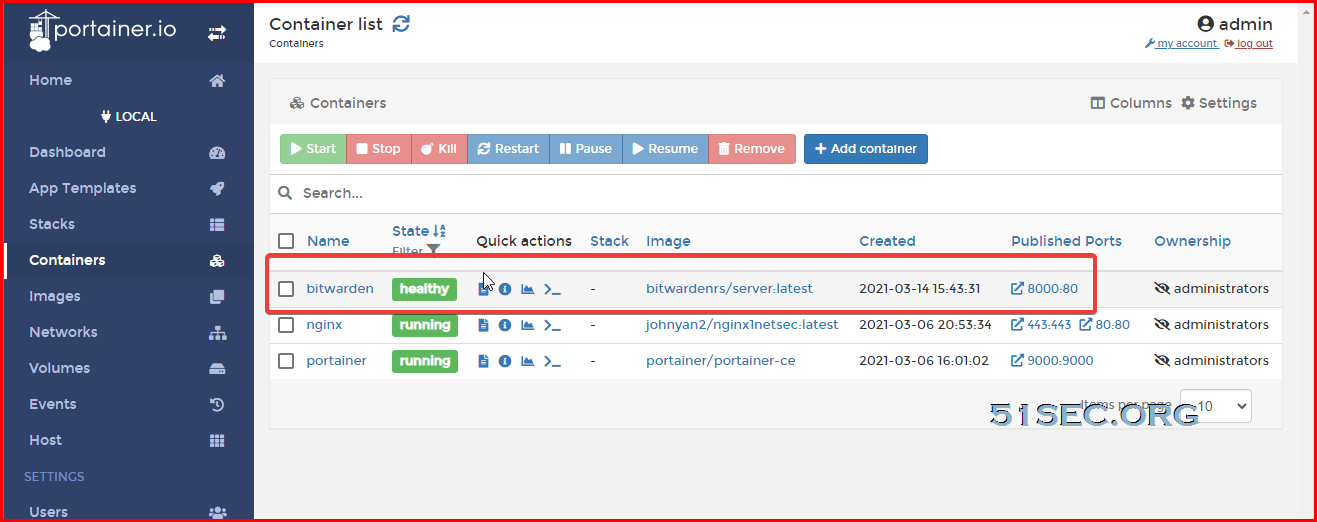
Accessing http port 8000 to confirm connectivity and service status.
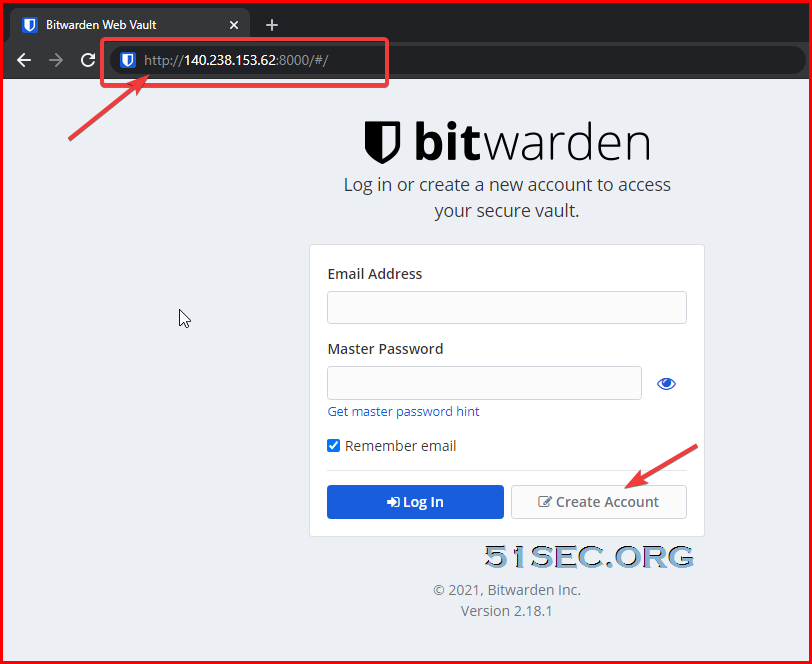
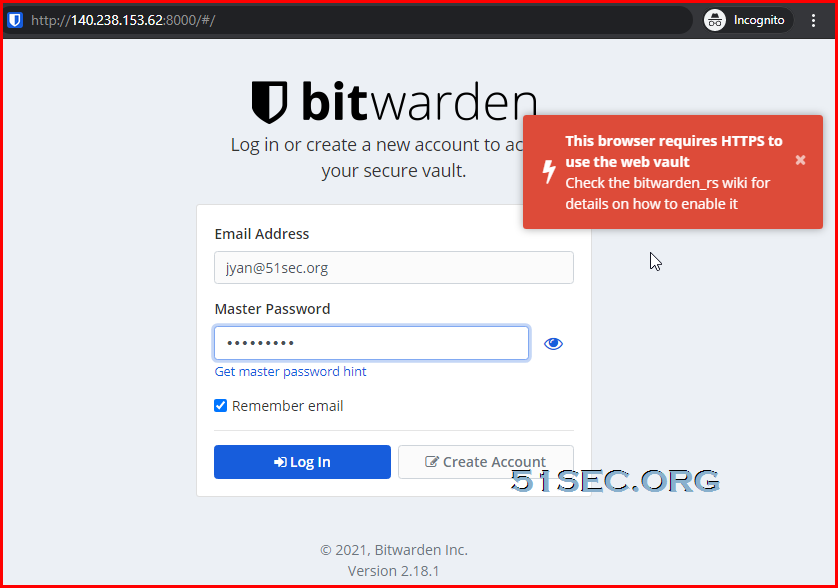
Using CertBox to Configure Nginx to Get BitWarden Using HTTPS
BitWarden URL has to be https, else you will get the following error message.
Create bw.conf file under /etc/nginx/conf.d folder. It can be copied from portainer.conf.
root@3a4767f0c009:/# cd /etc/nginx/conf.d/
root@3a4767f0c009:/etc/nginx/conf.d# cp portainer.conf bw.conf
root@3a4767f0c009:/etc/nginx/conf.d# ls
bw.conf  default.conf  portainer.conf
root@3a4767f0c009:/etc/nginx/conf.d# cat bw.conf
server {
    listen       80;
    server_name  bw.51sec.org;

location / {
    proxy_pass       http://140.238.153.62:8000;
    proxy_redirect             off;
    proxy_http_version         1.1;
    proxy_set_header Upgrade   $http_upgrade;
    proxy_set_header Connection "upgrade";
    proxy_set_header Host      $host;
    proxy_set_header X-Real-IP $remote_addr;
    proxy_set_header X-Forwarded-For $proxy_add_x_forwarded_for;
    }
}
root@3a4767f0c009:/etc/nginx/conf.d#
Run certbot to get certificate for bw.51sec.org and modify bw.conf configuration to use certificate.
The output from command "certbot --nginx" can be found from post: https://ift.tt/3ctumGx
root@3a4767f0c009:/# cd /etc/nginx/conf.d
root@3a4767f0c009:/etc/nginx/conf.d#
root@3a4767f0c009:/etc/nginx/conf.d# certbot --nginx
root@3a4767f0c009:/etc/nginx/conf.d#
root@3a4767f0c009:/etc/nginx/conf.d# cat bw.conf
server {
    listen       80;
    server_name  bw.51sec.org;

location / {
    proxy_pass       http://140.238.153.62:8000;
    proxy_redirect             off;
    proxy_http_version         1.1;
    proxy_set_header Upgrade   $http_upgrade;
    proxy_set_header Connection "upgrade";
    proxy_set_header Host      $host;
    proxy_set_header X-Real-IP $remote_addr;
    proxy_set_header X-Forwarded-For $proxy_add_x_forwarded_for;
    }


    listen 443 ssl; # managed by Certbot
    ssl_certificate /etc/letsencrypt/live/bw.51sec.org/fullchain.pem; # managed by Certbot
    ssl_certificate_key /etc/letsencrypt/live/bw.51sec.org/privkey.pem; # managed by Certbot
    include /etc/letsencrypt/options-ssl-nginx.conf; # managed by Certbot
    ssl_dhparam /etc/letsencrypt/ssl-dhparams.pem; # managed by Certbot

}
root@3a4767f0c009:/etc/nginx/conf.d# service nginx restart
Verify https://bw.51sec.org is working.

Now we can create account and mast password for this account:
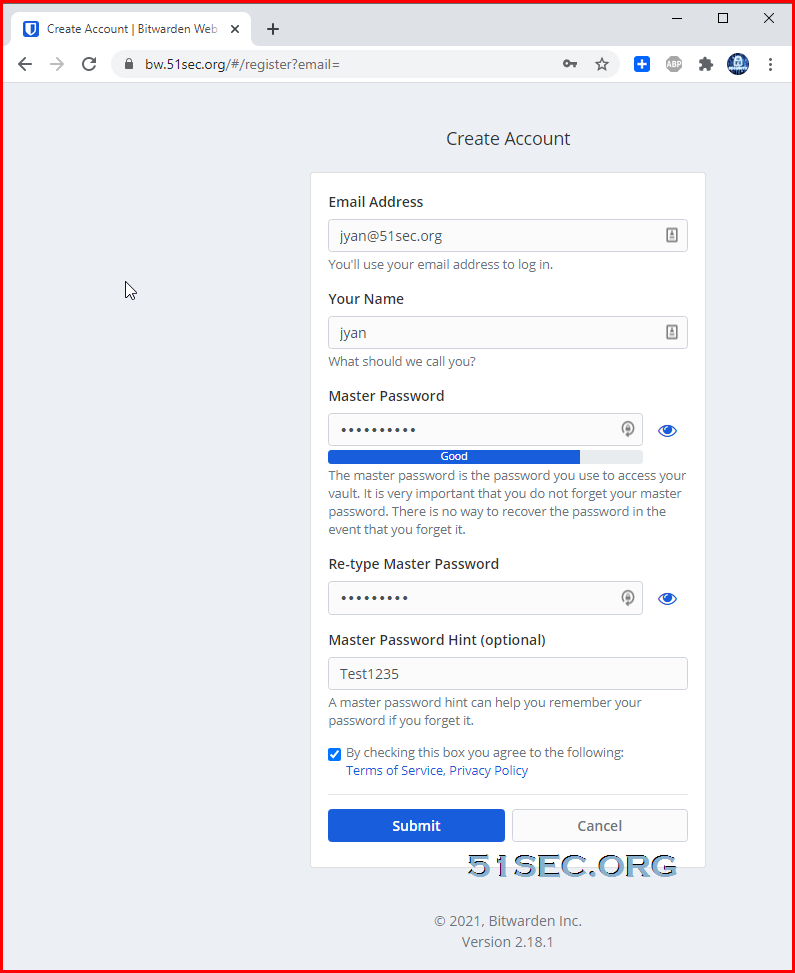
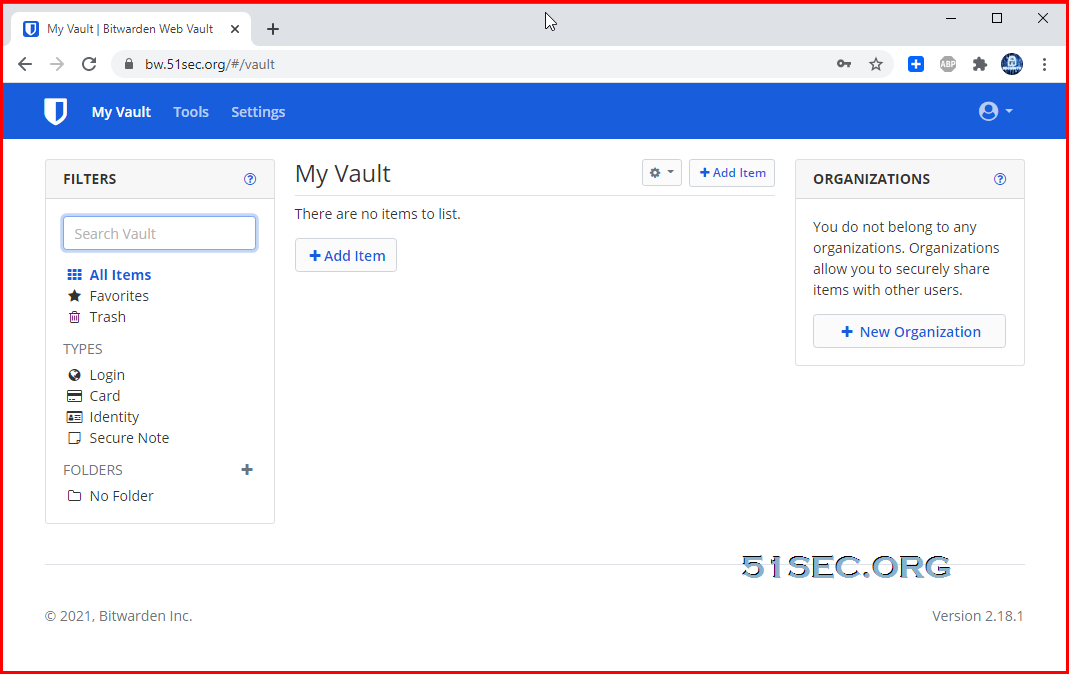
Log into BitWarden Web Gui:
Disable Create Account
After you created the accounts you needed, you might want to disable Create Account function to reduce the usage from other unknown persons. We can use Portainer's Duplicate/Edit button to add one environment variable into the settings.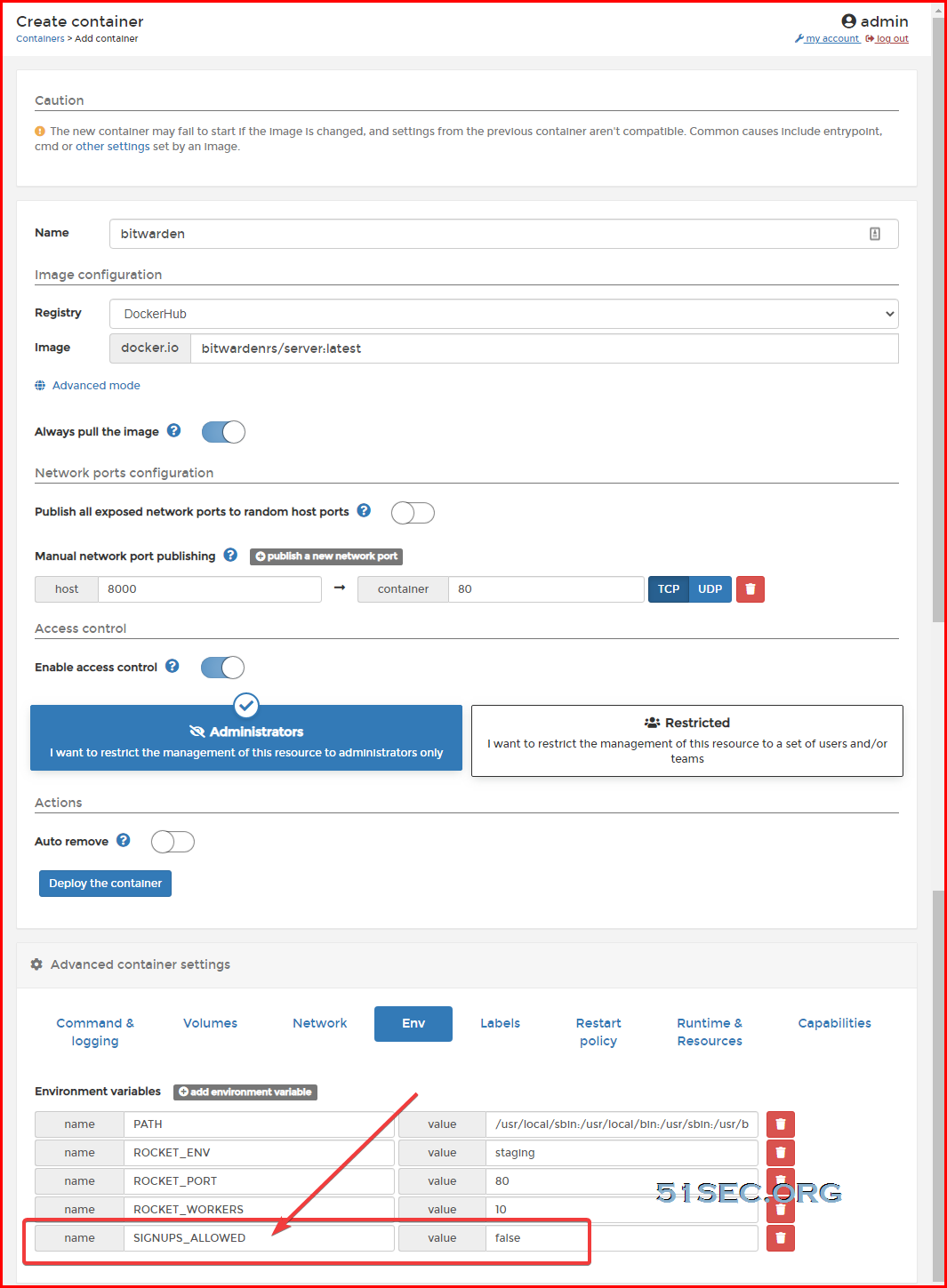
command line to add this environment variable into docker run :
root@3a4767f0c009:/# docker run -d --name Bitwarden \
-e SIGNUPS_ALLOWED=false \
-v /bw-data/:/data/ \
-p 8000:80 \
bitwardenrs/server:latest
via Blogger https://ift.tt/3cuiCU1
March 14, 2021 at 09:47PM Docker

 RSS Feed
