
AzCopy is a command-line utility that you can use to copy blobs or files to or from a storage account. This article helps you download AzCopy, connect to your storage account, and then transfer data.
Download
First, download the AzCopy V10 executable file to any directory on your computer. AzCopy V10 is just an executable file, so there's nothing to install.
- Windows 64-bit (zip)
- Windows 32-bit (zip)
- Linux x86-64 (tar)
- Linux ARM64 Preview (tar)
- macOS (zip)
Run AzCopy
For convenience, consider adding the directory location of the AzCopy executable to your system path for ease of use. That way you can type azcopy from any directory on your system.
If you choose not to add the AzCopy directory to your path, you'll have to change directories to the location of your AzCopy executable and type azcopy or .\azcopy in Windows PowerShell command prompts.
You can provide authorization credentials by using Azure Active Directory (AD), or by using a Shared Access Signature (SAS) token.
Use this table as a guide:
| Storage type | Currently supported method of authorization |
|---|---|
| Blob storage | Azure AD & SAS |
| Blob storage (hierarchical namespace) | Azure AD & SAS |
| File storage | SAS only |
Option 1: Use Azure Active Directory
This option is available for blob Storage only. By using Azure Active Directory, you can provide credentials once instead of having to append a SAS token to each command.
Option 2: Use a SAS token
You can append a SAS token to each source or destination URL that use in your AzCopy commands.
This example command recursively copies data from a local directory to a blob container. A fictitious SAS token is appended to the end of the container URL.
azcopy copy "C:\local\path" "https://account.blob.core.windows.net/mycontainer1/?sv=2018-03-28&ss=bjqt&srt=sco&sp=rwddgcup&se=2019-05-01T05:01:17Z&st=2019-04-30T21:01:17Z&spr=https&sig=MGCXiyEzbtttkr3ewJIh2AR8KrghSy1DGM9ovN734bQF4%3D" --recursive=true
To learn more about SAS tokens and how to obtain one, see Using shared access signatures (SAS).
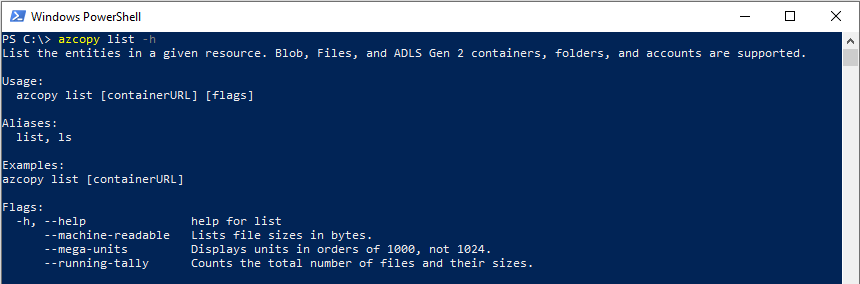
To see a list of commands, type azcopy -h and then press the ENTER key.
To learn about a specific command, just include the name of the command (For example: azcopy list -h).
Use in Azure Storage Explorer
Storage Explorer uses AzCopy to perform all of its data transfer operations. You can use Storage Explorer if you want to leverage the performance advantages of AzCopy, but you prefer to use a graphical user interface rather than the command line to interact with your files.
Storage Explorer uses your account key to perform operations, so after you sign into Storage Explorer, you won't need to provide additional authorization credentials.
Create a user delegation SAS with PowerShell
About the user delegation SAS
A SAS token for access to a container or blob may be secured by using either Azure AD credentials or an account key. A SAS secured with Azure AD credentials is called a user delegation SAS, because the OAuth 2.0 token used to sign the SAS is requested on behalf of the user.
Microsoft recommends that you use Azure AD credentials when possible as a security best practice, rather than using the account key, which can be more easily compromised. When your application design requires shared access signatures, use Azure AD credentials to create a user delegation SAS for superior security. For more information about the user delegation SAS, see Create a user delegation SAS.
Install the PowerShell module
1 Uninstall any previous installations of Azure PowerShell:
- Remove any previous installations of Azure PowerShell from Windows using the Apps & features setting under Settings.
- Remove all Azure modules from
%Program Files%\WindowsPowerShell\Modules.
2 Make sure that you have the latest version of PowerShellGet installed. Open a Windows PowerShell window, and run the following command to install the latest version:
3 Create Own Secret folder
Install-Module PowerShellGet -Repository PSGallery -Force
4 Close and reopen the PowerShell window after installing PowerShellGet. Install the latest version of Azure PowerShell:
Install-Module Az -Repository PSGallery -AllowClobber
Sign in to Azure PowerShell with Azure AD
PS C:\WINDOWS\system32> Set-ExecutionPolicy Bypass CurrentUser

Execution Policy Change
The execution policy helps protect you from scripts that you do not trust. Changing the execution policy might expose
you to the security risks described in the about_Execution_Policies help topic at
https:/go.microsoft.com/fwlink/?LinkID=135170. Do you want to change the execution policy?
[Y] Yes  [A] Yes to All  [N] No  [L] No to All  [S] Suspend  [?] Help (default is "N"): A
PS C:\WINDOWS\system32> Import-Module Az.Accounts
Connect-AzAccount

When you create a user delegation SAS with Azure PowerShell, the user delegation key that is used to sign the SAS is created for you implicitly. The start time and expiry time that you specify for the SAS are also used as the start time and expiry time for the user delegation key.
Because the maximum interval over which the user delegation key is valid is 7 days from the start date, you should specify an expiry time for the SAS that is within 7 days of the start time. The SAS is invalid after the user delegation key expires, so a SAS with an expiry time of greater than 7 days will still only be valid for 7 days.
To create a user delegation SAS for a container or blob with Azure PowerShell, first create a new Azure Storage context object, specifying the -UseConnectedAccount parameter. The -UseConnectedAccount parameter specifies that the command creates the context object under the Azure AD account with which you signed in.
Remember to replace placeholder values in angle brackets with your own values:
Create a user delegation SAS for a blob
To return a user delegation SAS token for a blob, call the New-AzStorageBlobSASToken command, passing in the Azure Storage context object that you created previously.
The following syntax returns a user delegation SAS for a blob. The example specifies the -FullUri parameter, which returns the blob URI with the SAS token appended. Remember to replace the placeholder values in brackets with your own values:
New-AzStorageBlobSASToken -Context $ctx `
    -Container <container> `
    -Blob <blob> `
    -Permission racwd `
    -ExpiryTime <date-time>
    -FullUri
The user delegation SAS URI returned will be similar to:
https://storagesamples.blob.core.windows.net/sample-container/blob1.txt?sv=2018-11-09&sr=b&sig=<sig>&skoid=<skoid>&sktid=<sktid>&skt=2019-08-06T21%3A16%3A54Z&ske=2019-08-07T07%3A00%3A00Z&sks=b&skv=2018-11-09&se=2019-08-07T07%3A00%3A00Z&sp=racwd

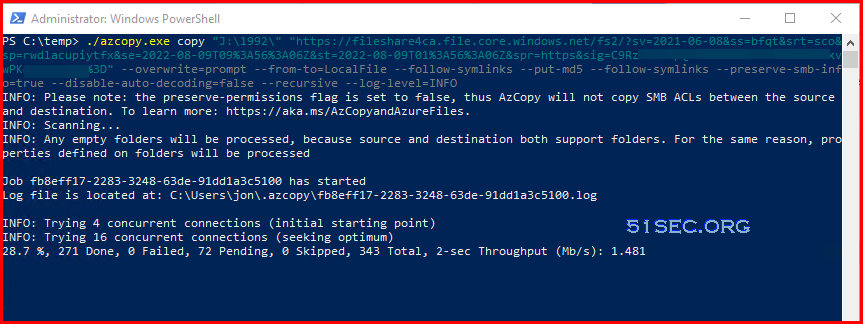
PS C:\temp> ./azcopy.exe copy "J:\1992\" "https://fileshare4ca.file.core.windows.net/fs2/?sv=2021-06-08&ss=bfqt&srt=sco&sp=rwdlacupiytfx&se=2022-08-09T09%3A56%3A06Z&st=2022-08-09T01%3A56%3A06Z&spr=https&sig=C9kasdjfiekdkiIFKJFi0389KFKLKJjidfudf3D" --overwrite=prompt --from-to=LocalFile --follow-symlinks --put-md5 --follow-symlinks --preserve-smb-info=true --disable-auto-decoding=false --recursive --log-level=INFO
INFO: Please note: the preserve-permissions flag is set to false, thus AzCopy will not copy SMB ACLs between the source and destination. To learn more: https://aka.ms/AzCopyandAzureFiles.
INFO: Scanning...
INFO: Any empty folders will be processed, because source and destination both support folders. For the same reason, properties defined on folders will be processed

Job fb8eff17-2283-3248-63de-91dd1a3c5100 has started
Log file is located at: C:\Users\jon\.azcopy\fb8eff17-2283-3248-63de-91dd1a3c5100.log

INFO: Trying 4 concurrent connections (initial starting point)
INFO: Trying 16 concurrent connections (seeking optimum)
INFO: Trying 4 concurrent connections (backing off)
INFO: Trying 8 concurrent connections (seeking optimum)
76.4 %, 341 Done, 0 Failed, 2 Pending, 0 Skipped, 343 Total, 2-sec Throughput (Mb/s): 12.0535 (Disk may be limiting spee80.3 %, 341 Done, 0 Failed, 2 Pending, 0 Skipped, 343 Total, 2-sec Throughput (Mb/s): 13.1873 (Disk may be limiting speeINFO: Trying 4 concurrent connections (backing off)
80.3 %, 341 Done, 0 Failed, 2 Pending, 0 Skipped, 343 Total, 2-sec Throughput (Mb/s): 13.1873 (Disk may be limiting spee94.4 %, 342 Done, 0 Failed, 1 Pending, 0 Skipped, 343 Total, 2-sec Throughput (Mb/s): 6.6049                            100.0 %, 343 Done, 0 Failed, 0 Pending, 0 Skipped, 343 Total,


Job fb8eff17-2283-3248-63de-91dd1a3c5100 summary
Elapsed Time (Minutes): 0.6026
Number of File Transfers: 180
Number of Folder Property Transfers: 163
Total Number of Transfers: 343
Number of Transfers Completed: 343
Number of Transfers Failed: 0
Number of Transfers Skipped: 0
TotalBytesTransferred: 29703435
Final Job Status: Completed

PS C:\temp>
PS C:\temp> ./azcopy.exe copy "J:\1992\" "https://fileshare4ca.file.core.windows.net/fs2/?sv=2021-06-08&ss=bfqt&srt=sco&sp=rwdlacupiytfx&se=2022-08-09T09%3A56%3A06Z&st=2022-08-09T01%3A56%3A06Z&spr=https&sig=C9Rikjasdfiowuerjkafi289389if89kj293%3D" --overwrite=prompt --from-to=LocalFile --follow-symlinks --put-md5 --follow-symlinks --preserve-smb-info=true --disable-auto-decoding=false --recursive --log-level=INFO
INFO: Please note: the preserve-permissions flag is set to false, thus AzCopy will not copy SMB ACLs between the source and destination. To learn more: https://aka.ms/AzCopyandAzureFiles.
INFO: Scanning...
INFO: Any empty folders will be processed, because source and destination both support folders. For the same reason, properties defined on folders will be processed
Job fb8eff17-2283-3248-63de-91dd1a3c5100 has started
Log file is located at: C:\Users\jon\.azcopy\fb8eff17-2283-3248-63de-91dd1a3c5100.log
INFO: Trying 4 concurrent connections (initial starting point)
INFO: Trying 16 concurrent connections (seeking optimum)
INFO: Trying 4 concurrent connections (backing off)
INFO: Trying 8 concurrent connections (seeking optimum)
76.4 %, 341 Done, 0 Failed, 2 Pending, 0 Skipped, 343 Total, 2-sec Throughput (Mb/s): 12.0535 (Disk may be limiting spee80.3 %, 341 Done, 0 Failed, 2 Pending, 0 Skipped, 343 Total, 2-sec Throughput (Mb/s): 13.1873 (Disk may be limiting speeINFO: Trying 4 concurrent connections (backing off)
80.3 %, 341 Done, 0 Failed, 2 Pending, 0 Skipped, 343 Total, 2-sec Throughput (Mb/s): 13.1873 (Disk may be limiting spee94.4 %, 342 Done, 0 Failed, 1 Pending, 0 Skipped, 343 Total, 2-sec Throughput (Mb/s): 6.6049 100.0 %, 343 Done, 0 Failed, 0 Pending, 0 Skipped, 343 Total,
Job fb8eff17-2283-3248-63de-91dd1a3c5100 summary
Elapsed Time (Minutes): 0.6026
Number of File Transfers: 180
Number of Folder Property Transfers: 163
Total Number of Transfers: 343
Number of Transfers Completed: 343
Number of Transfers Failed: 0
Number of Transfers Skipped: 0
TotalBytesTransferred: 29703435
Final Job Status: Completed
PS C:\temp>
PS C:\temp>
PS C:\temp>
PS C:\temp>
PS C:\temp> ./azcopy.exe copy "J:\1992\" "https://fileshare4ca.file.core.windows.net/fs2/Test/?sv=2021-06-08&ss=bfqt&srt=sco&sp=rwdlacupiytfx&se=2022-08-09T09:56:06Z&st=2022-08-09T01:56:06Z&spr=https&sig=C9Rz2jhdfkljasuweriqlkIUIUJHJIHIUUO*(^Y&&UUUUO78Q4%3D" --overwrite=prompt --from-to=LocalFile --follow-symlinks --put-md5 --follow-symlinks --preserve-smb-info=true --preserve-smb-permissions=true --disable-auto-decoding=false --recursive --log-level=INFO
failed to parse user input due to error: cannot follow symlinks when preserving permissions (since the correct permission inheritance behaviour for symlink targets is undefined)
PS C:\temp> ./azcopy.exe copy "J:\1992\" "https://fileshare4ca.file.core.windows.net/fs2/Test/?sv=2021-06-08&ss=bfqt&srt=sco&sp=rwdlacupiytfx&se=2022-08-09T09:56:06Z&st=2022-08-09T01:56:06Z&spr=https&sig=C9jksdjkfioweuqjkhsdfiuqweiorjkasdhfiowui%3D" --overwrite=prompt --from-to=LocalFile --put-md5 --preserve-smb-info=true --preserve-smb-permissions=true --disable-auto-decoding=false --recursive --log-level=INFO
INFO: Scanning...
INFO: Any empty folders will be processed, because source and destination both support folders. For the same reason, properties and permissions defined on folders will be processed
INFO: Trying 4 concurrent connections (initial starting point)
Job 6318924a-e42c-8a49-67dd-b63adc7e3d37 has started
Log file is located at: C:\Users\jon\.azcopy\6318924a-e42c-8a49-67dd-b63adc7e3d37.log
panic: runtime error: index out of range [0] with length 0
goroutine 94 [running]:
github.com/Azure/azure-storage-azcopy/v10/ste.localFileSourceInfoProvider.GetSDDL({{0x1939bd0, 0xc0001729a0}, {{0x6318924a, 0xe42c, 0x8a49, {0x67, 0xdd, 0xb6, 0x3a, 0xdc, ...}}, ...}})
/home/vsts/work/1/s/ste/sourceInfoProvider-Local_windows.go:78 +0x46c
github.com/Azure/azure-storage-azcopy/v10/ste.(*azureFileSenderBase).addPermissionsToHeaders(_, {{0x6318924a, 0xe42c, 0x8a49, {0x67, 0xdd, 0xb6, 0x3a, 0xdc, 0x7e, ...}}, ...}, ...)
/home/vsts/work/1/s/ste/sender-azureFile.go:274 +0x27a
github.com/Azure/azure-storage-azcopy/v10/ste.(*azureFileSenderBase).Prologue(0xc00055ad80, {{0xc001fdc200, 0xc001fdc200, 0xc000516680}})
/home/vsts/work/1/s/ste/sender-azureFile.go:154 +0x358
github.com/Azure/azure-storage-azcopy/v10/ste.scheduleSendChunks({0x1939bd0, 0xc0001729a0}, {0xc0005ee000, 0x1b}, {0x19110f0, 0xc00000a8e8}, 0x4000, {0x1923940, 0xc00055ad80}, 0xc001520990, ...)
/home/vsts/work/1/s/ste/xfer-anyToRemote-file.go:430 +0x6d2
github.com/Azure/azure-storage-azcopy/v10/ste.anyToRemote_file({_, _}, {{0x6318924a, 0xe42c, 0x8a49, {0x67, 0xdd, 0xb6, 0x3a, 0xdc, ...}}, ...}, ...)
/home/vsts/work/1/s/ste/xfer-anyToRemote-file.go:347 +0xe27
github.com/Azure/azure-storage-azcopy/v10/ste.anyToRemote({0x1939bd0, 0xc0001729a0}, {0x18ff740, 0xc000510000}, {0x1e0ff01fe28, 0xc000510240}, 0xc0005f2ac0, 0x2d)
/home/vsts/work/1/s/ste/xfer-anyToRemote-file.go:184 +0x37d
github.com/Azure/azure-storage-azcopy/v10/ste.parameterizeSend.func1({0x1939bd0, 0xc0001729a0}, {0x18ff740, 0xc000510000}, {0x1e0ff01fe28, 0xc000510240})
/home/vsts/work/1/s/ste/xfer.go:77 +0x44
github.com/Azure/azure-storage-azcopy/v10/ste.(*jobPartMgr).StartJobXfer(0x1f9b6a0, {0x1939bd0, 0xc0001729a0})
/home/vsts/work/1/s/ste/mgr-JobPartMgr.go:712 +0x50
github.com/Azure/azure-storage-azcopy/v10/ste.(*jobPartTransferMgr).StartJobXfer(0xc0001729a0)
/home/vsts/work/1/s/ste/mgr-JobPartTransferMgr.go:239 +0x32
github.com/Azure/azure-storage-azcopy/v10/ste.(*jobMgr).transferProcessor.func1({0x1939bd0, 0xc0001729a0})
/home/vsts/work/1/s/ste/mgr-JobMgr.go:1015 +0x1b9
github.com/Azure/azure-storage-azcopy/v10/ste.(*jobMgr).transferProcessor(0xc000395880, 0x0)
/home/vsts/work/1/s/ste/mgr-JobMgr.go:1027 +0xc2
created by github.com/Azure/azure-storage-azcopy/v10/ste.NewJobMgr
/home/vsts/work/1/s/ste/mgr-JobMgr.go:200 +0xbf4
PS C:\temp>
Generate AzCopy Command from Azure Storage Explorer
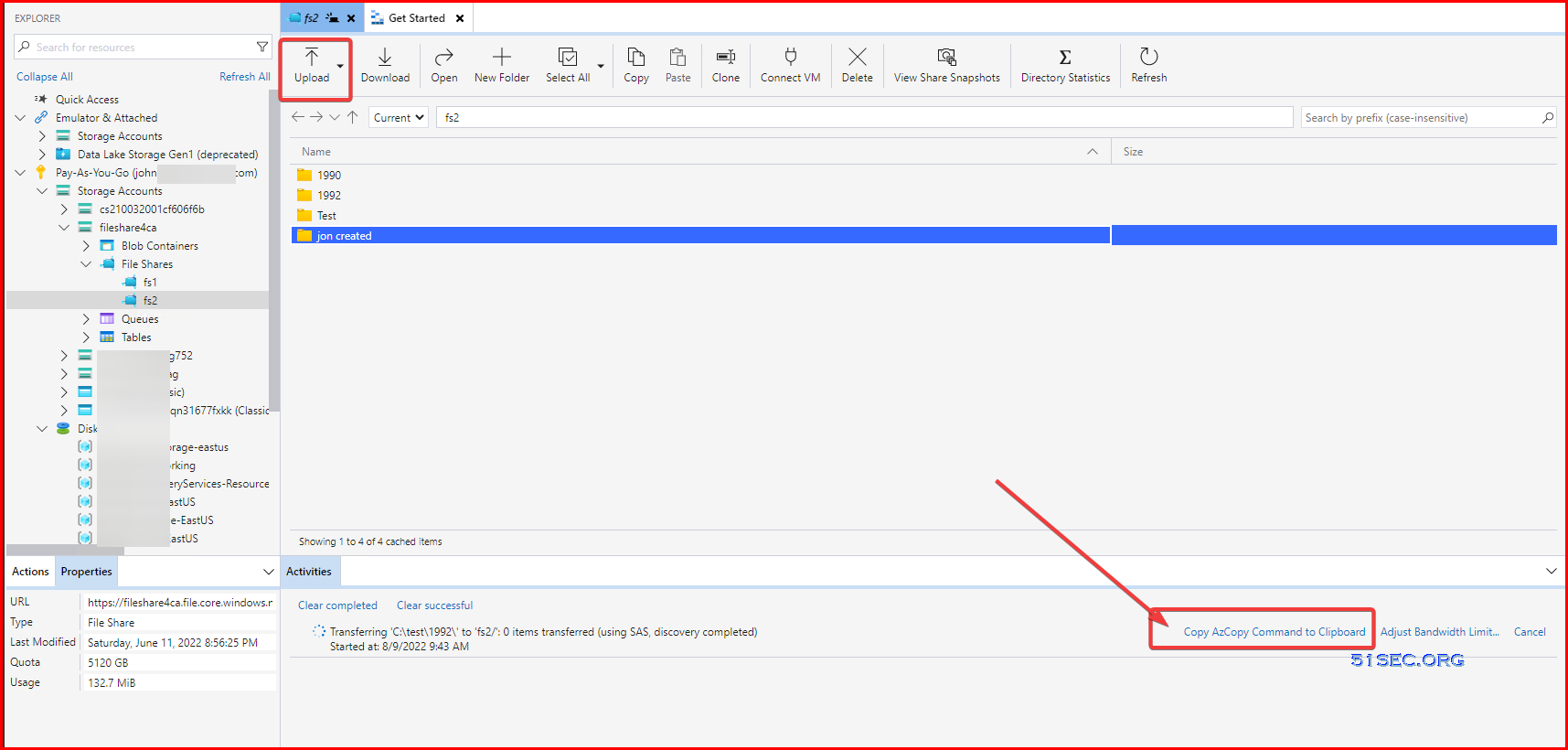
$env:AZCOPY_CRED_TYPE = "Anonymous";
./azcopy.exe copy "C:\test\1992\" "https://fileshare4ca.file.core.windows.net/fs2/?sv=2021-04-10&se=2022-09-08T13%3A43%3A24Z&sr=s&sp=rwl&sig=G16mpJRMeajshfjJHJHGH78384sjhfjYIUI%3D" --overwrite=prompt --from-to=LocalFile --follow-symlinks --put-md5 --follow-symlinks --preserve-smb-info=true --disable-auto-decoding=false --recursive --log-level=INFO;
$env:AZCOPY_CRED_TYPE = "";
References
- Transfer data with AzCopy and file storage
- Get started with AzCopy
- Upload files to Azure Blob storage by using AzCopy
- Tutorial: Migrate on-premises data to cloud storage with AzCopy
- Grant limited access to Azure Storage resources using shared access signatures (SAS)
- Create a user delegation SAS for a container or blob with PowerShell
via Blogger http://blog.51sec.org/2022/08/using-azcopy-to-migrate-local-files-to.html
August 09, 2022 at 09:47AM Cloud

 RSS Feed
