
Ezoic DNS and Hosting screwed up my site this morning. All of my root doman's A records are gone and even I added them back in, they are still not working. I am believing some of DNS configuration must be wrong in their backend. Support is not that much helping since it is out of their technical ability.
Fortunately I have a back up site created on my Oracle Cloud Arm64 machine. This post is to record all steps I did to switch from Ezoic hosting to my own hosting.
Make sure my backup wordpress site is up on one of my subdomain
Nginx configuration changed to add two websites in:
oot@4ccb3643b7e4:/# cat /etc/nginx/conf.d/wp.conf
server {
    listen       80;
    server_name  opc2armwp.51sec.eu.org 51sec.org www.51sec.org;

location / {
    proxy_pass       http://mywp_wordpress_1;
    proxy_http_version         1.1;
    proxy_read_timeout 300;
    proxy_set_header Upgrade $http_upgrade;
    proxy_set_header Connection "upgrade";
    proxy_set_header Host $http_host;
    proxy_set_header X-Real-IP $remote_addr;
    proxy_set_header X-Real-PORT $remote_port;
           }

}
Install All-in-One WP Migration Plug-ins
Since I have backup file from All-In-One WP Migration plug-in, I will have to install following two plug-ins to restore my backup:- All-in-one wp migration
- All-in-one wp migration unlimited extension or All-in-one wp migration file extension (512M limitation)
Import the backup file into your wordpress site.

Wordpress configuration file change - wp-config.php
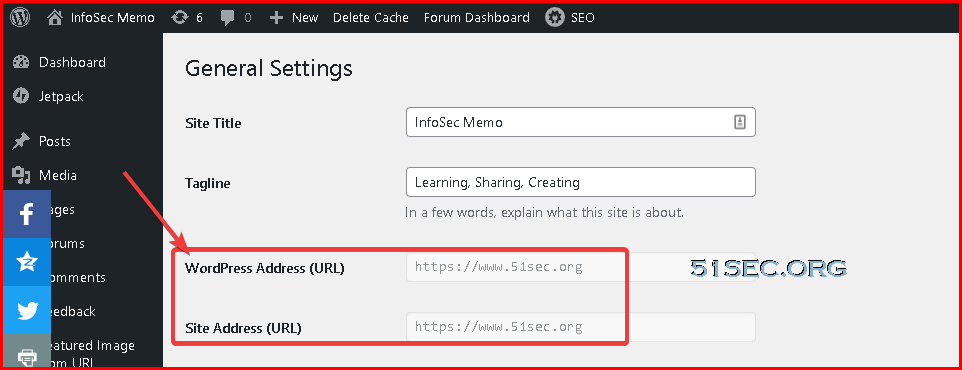
- define('WP_HOME','https://www.51sec.org');
- define('WP_SITEURL','https://www.51sec.org');
root@ddcb07417c01:/var/www/html# more wp-config.php
<?php
/**
 * The base configuration for WordPress
 *
 * The wp-config.php creation script uses this file during the installation.
 * You don't have to use the web site, you can copy this file to "wp-config.php"
 * and fill in the values.
 *
 * This file contains the following configurations:
 *
 * * MySQL settings
 * * Secret keys
 * * Database table prefix
 * * ABSPATH
 *
 * This has been slightly modified (to read environment variables) for use in Docker.
 *
 * @link https://wordpress.org/support/article/editing-wp-config-php/
 *
 * @package WordPress
 */

// IMPORTANT: this file needs to stay in-sync with https://github.com/WordPress/WordPress/blob/master/wp-config-sample.php
// (it gets parsed by the upstream wizard in https://github.com/WordPress/WordPress/blob/f27cb65e1ef25d11b535695a660e7282b98eb742/wp-admin/setup-config.php#L356-L392)

// a helper function to lookup "env_FILE", "env", then fallback
if (!function_exists('getenv_docker')) {
        // https://github.com/docker-library/wordpress/issues/588 (WP-CLI will load this file 2x)
        function getenv_docker($env, $default) {
                if ($fileEnv = getenv($env . '_FILE')) {
                        return rtrim(file_get_contents($fileEnv), "\r\n");
                }
                else if (($val = getenv($env)) !== false) {
                        return $val;
                }
                else {
                        return $default;
                }
        }
}


define('WP_HOME','https://www.51sec.org');
define('WP_SITEURL','https://www.51sec.org');
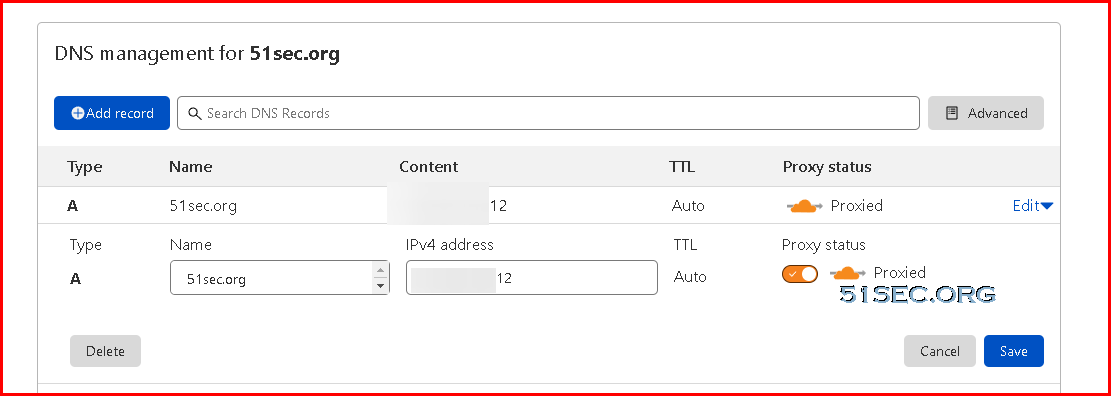
Cloudflare configuration
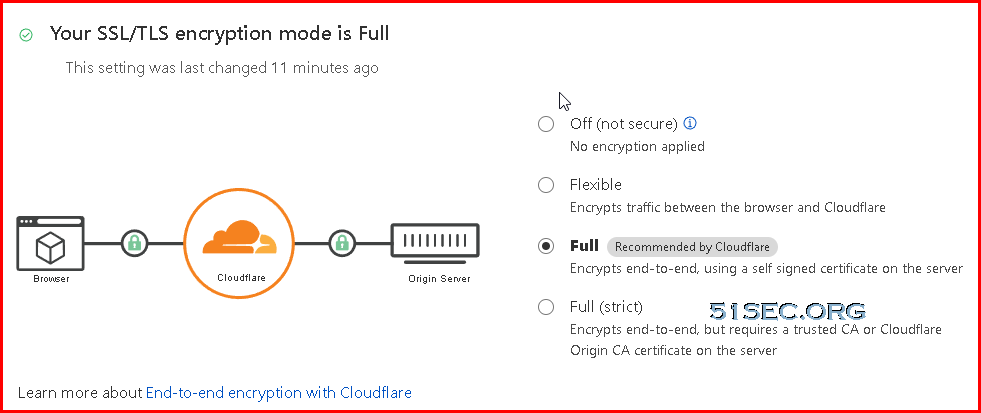
Make sure SSL/TLS encryption mode is full. Else, my photos URL which is using photo.51sec.org subdomain will fail to load. It will show an error to say there are too many redirections.
Install Certbot
- apt install certbot
- apt install python3-certbot-nginx
You will need both. Second command is to install Nginx plugin for Certbot.
Using following command to apply ssl cert for website www.51sec.org:
- certbot --nginx
After the step done, here is your wp.conf Nginx configuration looks like:
root@4ccb3643b7e4:/# cat /etc/nginx/conf.d/wp.conf
server {
    listen       80;
    server_name  opc2armwp.51sec.eu.org 51sec.org www.51sec.org;

location / {
    proxy_pass       http://mywp_wordpress_1;
    proxy_http_version         1.1;
    proxy_read_timeout 300;
    proxy_set_header Upgrade $http_upgrade;
    proxy_set_header Connection "upgrade";
    proxy_set_header Host $http_host;
    proxy_set_header X-Real-IP $remote_addr;
    proxy_set_header X-Real-PORT $remote_port;
           }

    listen 443 ssl; # managed by Certbot
    ssl_certificate /etc/letsencrypt/live/www.51sec.org/fullchain.pem; # managed by Certbot
    ssl_certificate_key /etc/letsencrypt/live/www.51sec.org/privkey.pem; # managed by Certbot
    include /etc/letsencrypt/options-ssl-nginx.conf; # managed by Certbot
    ssl_dhparam /etc/letsencrypt/ssl-dhparams.pem; # managed by Certbot

}
root@4ccb3643b7e4:/#
References
via Blogger http://blog.51sec.org/2021/10/switching-from-ezoic-hosting-to-my-own.html
October 02, 2021 at 05:35PM Blog

 RSS Feed
