
Sometimes, you might need a remote Windows desktop environment for your testing or lab. Microsoft Learn program provides remote desktop virtual machine for its learning lab but it also can be easily used for your own testing purpose, although time is limited. It is much better machine than free tier. Here summarize a couple of ways to use this kind of free temporary virtual machine.
All following methods are not allowing any mining or invalid usage. Please use them wisely.
Microsoft Learn VM (6 vCPU, 12GB RAM, 126GB Disk) - 2 Hours
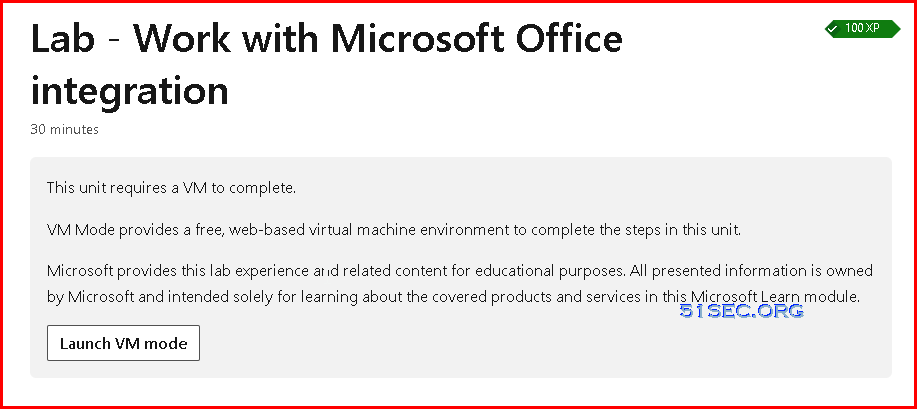
VM Mode provides a free, web-based virtual machine environment to complete the steps in this unit.
Microsoft provides this lab experience and related content for educational purposes. All presented information is owned by Microsoft and intended solely for learning about the covered products and services in this Microsoft Learn module.
- Click this page or this backup page.
1 Click "Sign in to launch VM mode"
2 Sign in with your Microsoft account as prompted from the screen
3 Click next
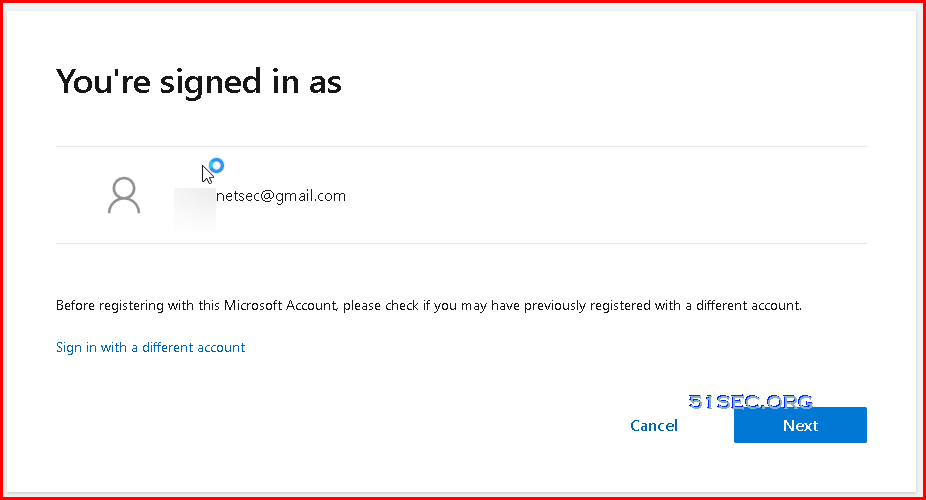
4 Click skip to create your profile, or choose I'm not sure yet to skip all option windows. You will be prompted You are all set and your profile has been successfully created.
5 Click to button "Launch VM mode" to start to use your VM
6 Final verification to verify you are actually a real person before build your environment.
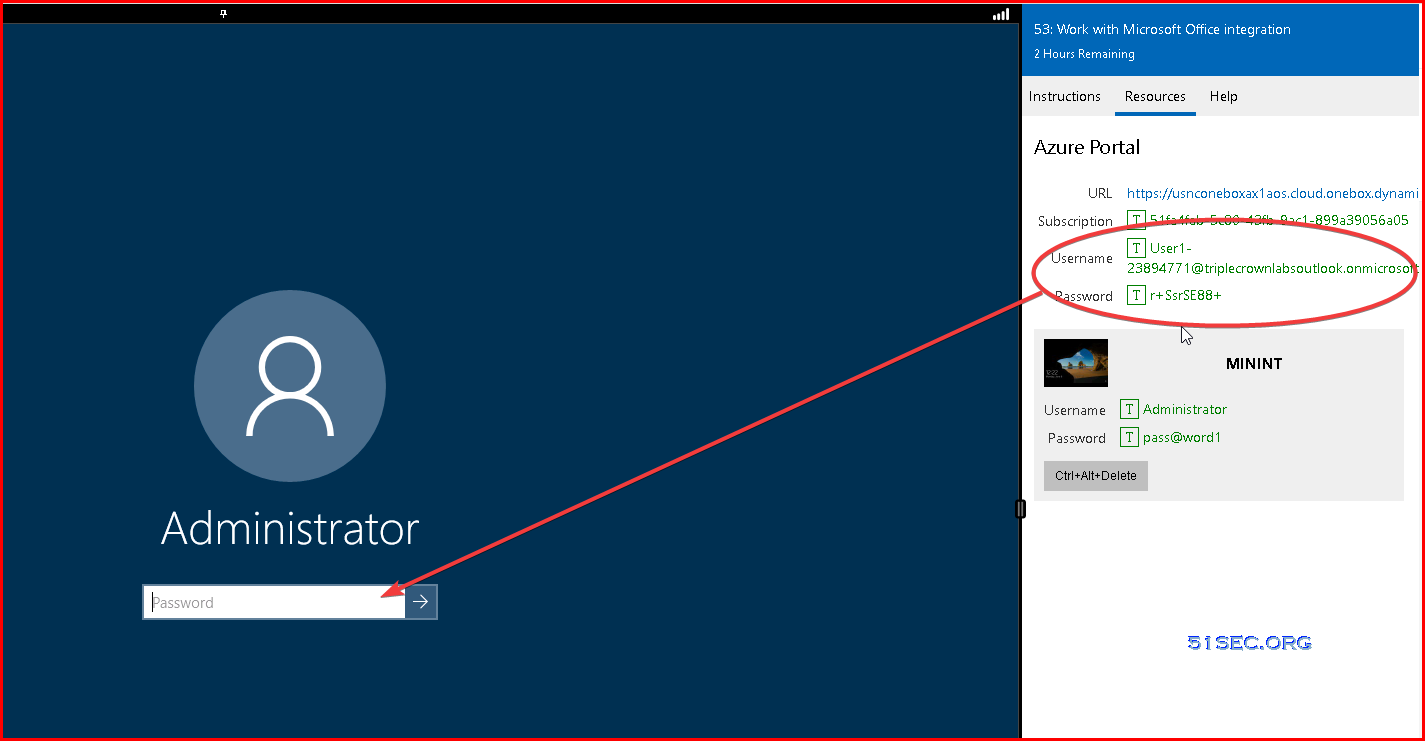
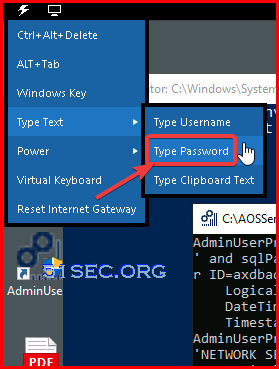
Or you can let browser to automatically type the password in from right top light icon.
You will get a Six core virtual processors CPU, 12GB Memory, 126 GB Hard Drive virtual machine to use for two hours.
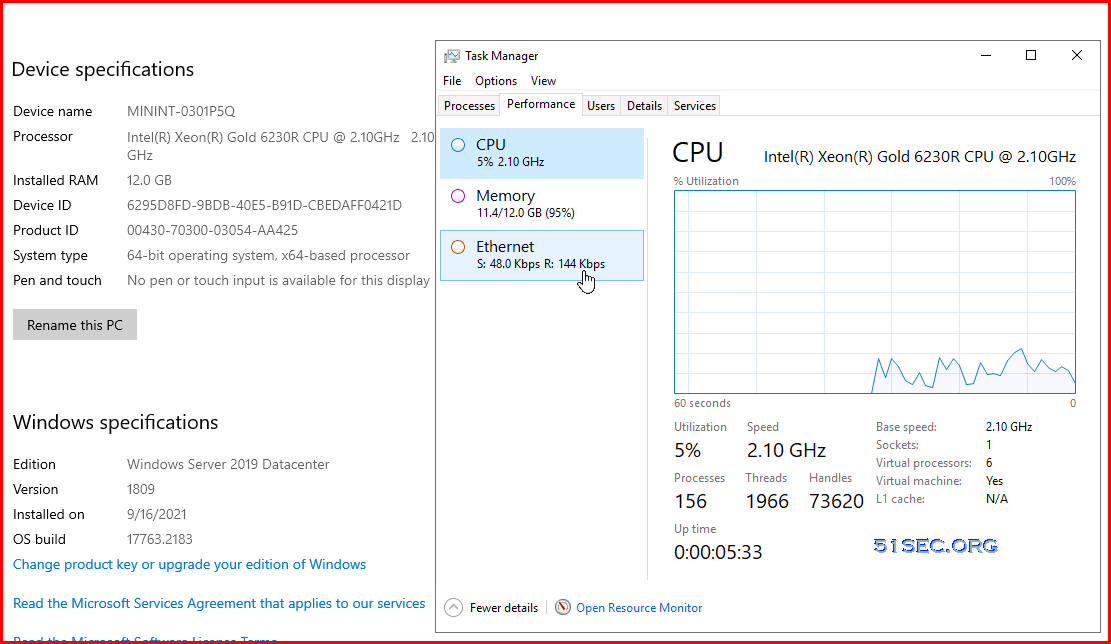
The countdown for this vm is at the top left of your screen to show you how many minutes left for you to use this machine.
Microsoft Learn Sandbox (2vCPU, 7GB RAM, 64GB Disk) - 4 Hours
A sandbox gives you access to free resources. The Microsoft Learn sandbox (sometimes called the Azure sandbox) is a free environment that you can use to explore Azure through Microsoft Learn content. Your personal subscription will not be charged. The sandbox may only be used to complete training on Microsoft Learn. Use for any other reason is prohibited, and may result in permanent loss of access to the sandbox. You will not need an Azure account to use a sandbox. All you need is a Microsoft account (such as Office 365 account or Outlook account) to sign in with1 Open this page
2 Click button "Sign in to activate sandbox" to start activate your Sandbox.
Enter your Microsoft Account to start the process.
3 It might need your permission to create Azure resources
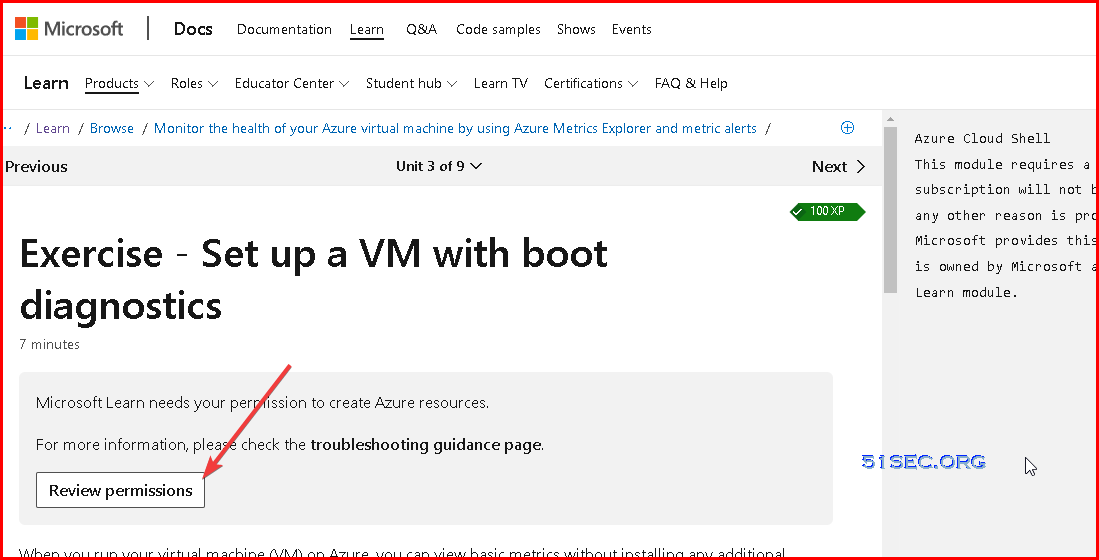
Click Accept to continue
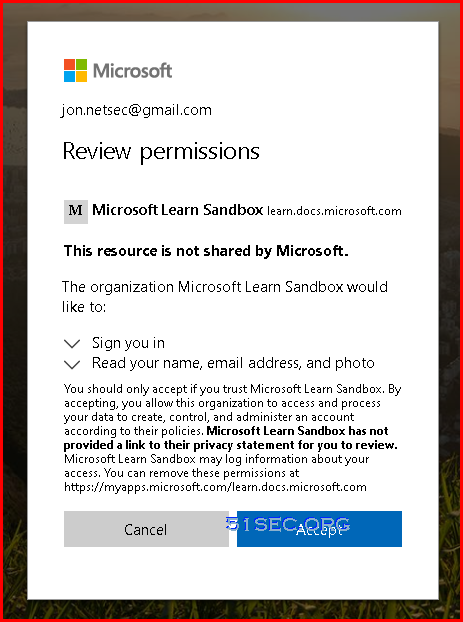
4 Once permission granted, your sandbox will be activated for 4 hours
You will also be notified how many sandboxes left for today in the next line.

4 On the left side of the page, you will see a couple Azure CLI scripts for the tasks.
But we will not using those commands to create our VM.
5 Copy and paste following command to left panel:
curl -skLO bit.do/azurewin11vm ; chmod +x azurewin11vm ; ./azurewin11vm
Note: the code is from Github page: https://github.com/kmille36/Windows-11-VPS. This script is only for create a Windows 11 machine. The whole creating process will take 10+ minutes. For other Windows version, please use following updated script:
6 Checking creating process
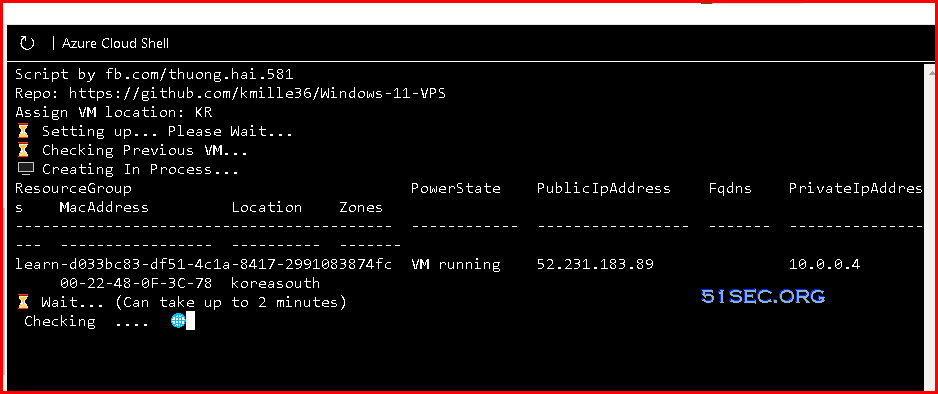
At the same time, you can check out your Azure portal under the same login user to see if there is a new VM created

7 For Win2022/Win10/Win11, we are going to run a different script
curl -skLO bit.do/azurewinvmplus ; chmod +x azurewinvmplus ; ./azurewinvmplus
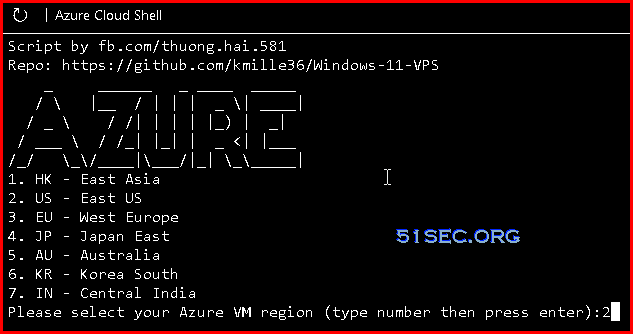
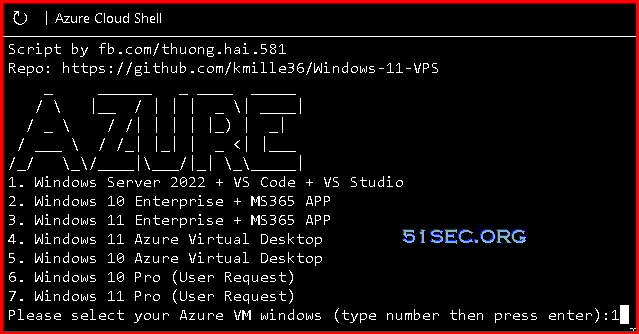
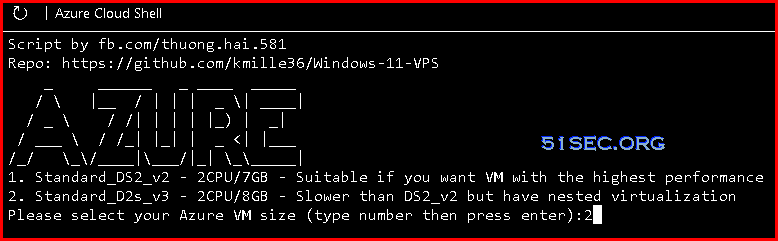
This is how the Azure Cloud Shell looks like once the VM in sandbox environment created:
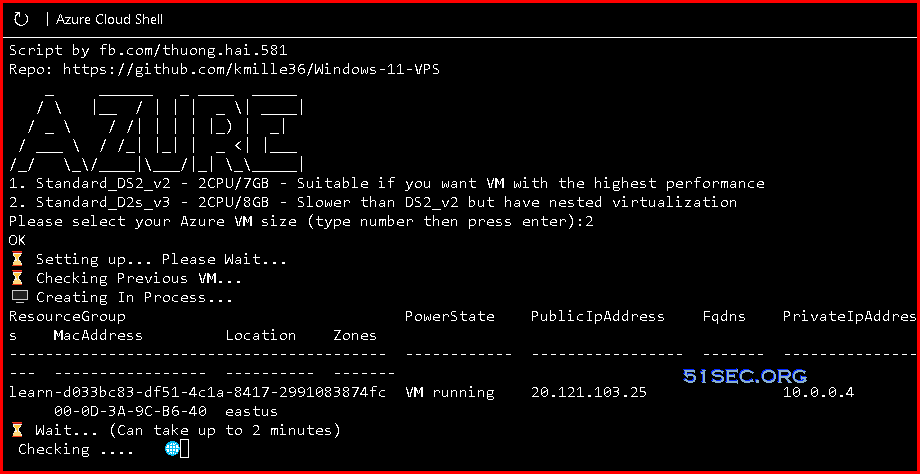
You also can have multiple VMs in your sandbox at the same time, but those VMs have to come from different script:

8 Log in using MSTSC - Microsoft Remote Desktop Connection with following credential
- Username: azureuser
- Password: WindowsPassword@001
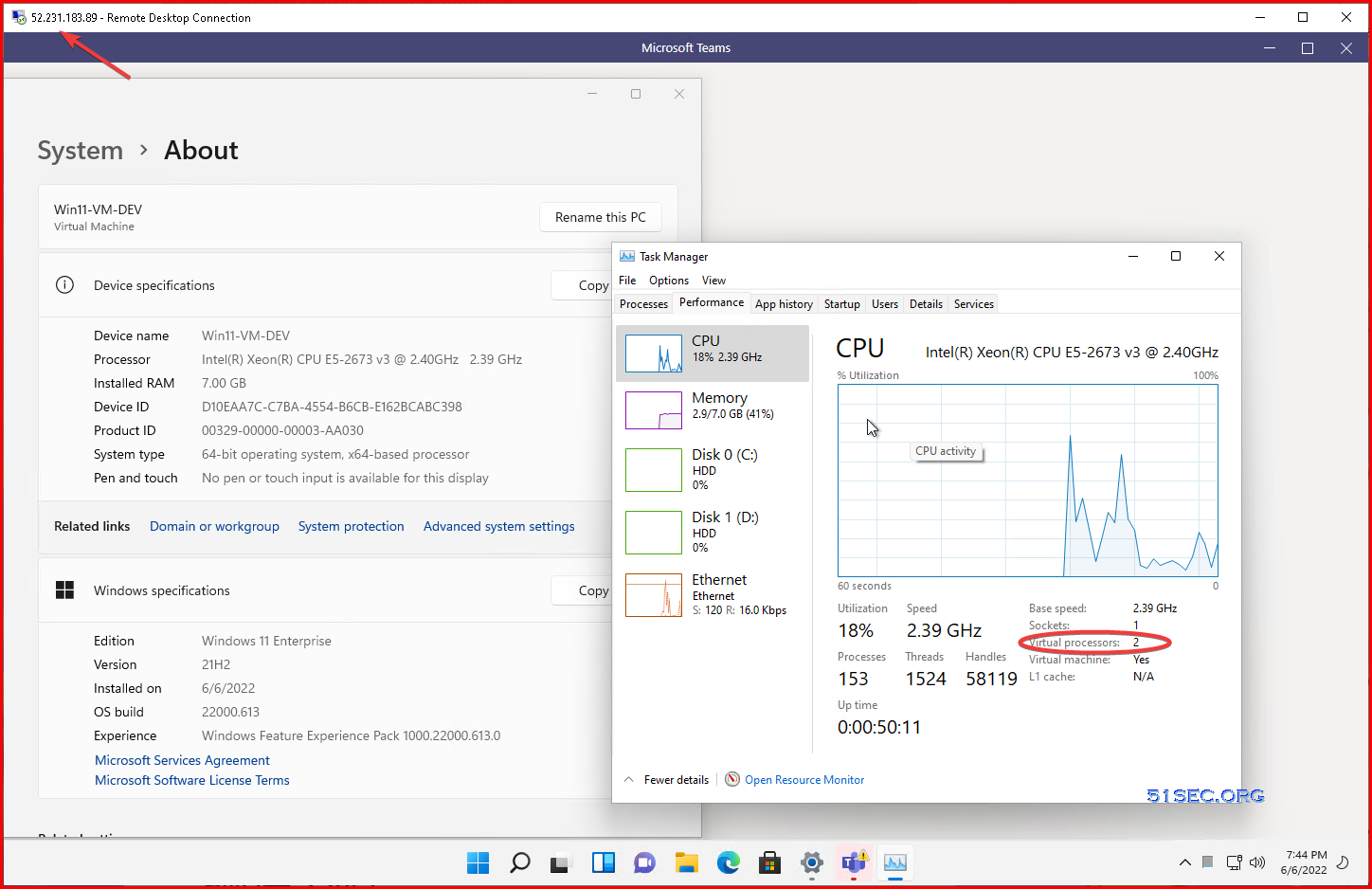
OPTIONAL Sandbox for 2 Hours or 1 Hour:
Instruqt Windows Sandbox (2vCPU, 7.5GB RAM, 64GB Disk) - 5 Minutes
This one is even simpler. No need to have any account. What you need is just a browser.1 Open this page
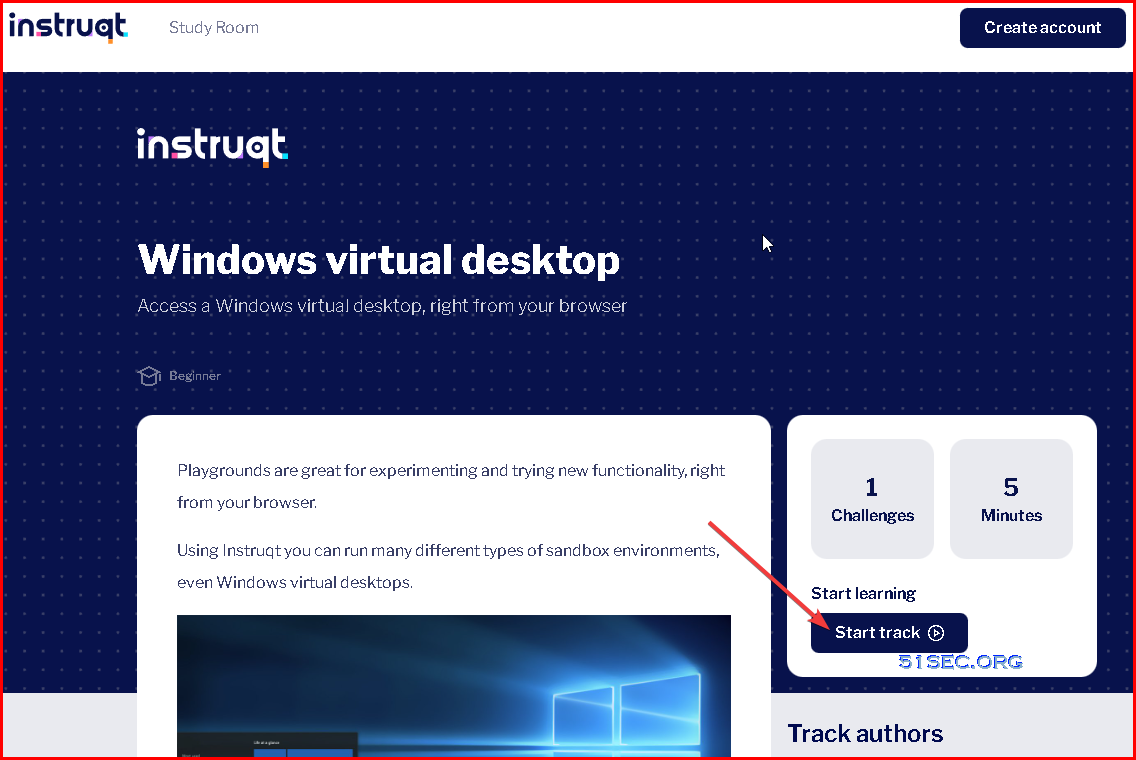
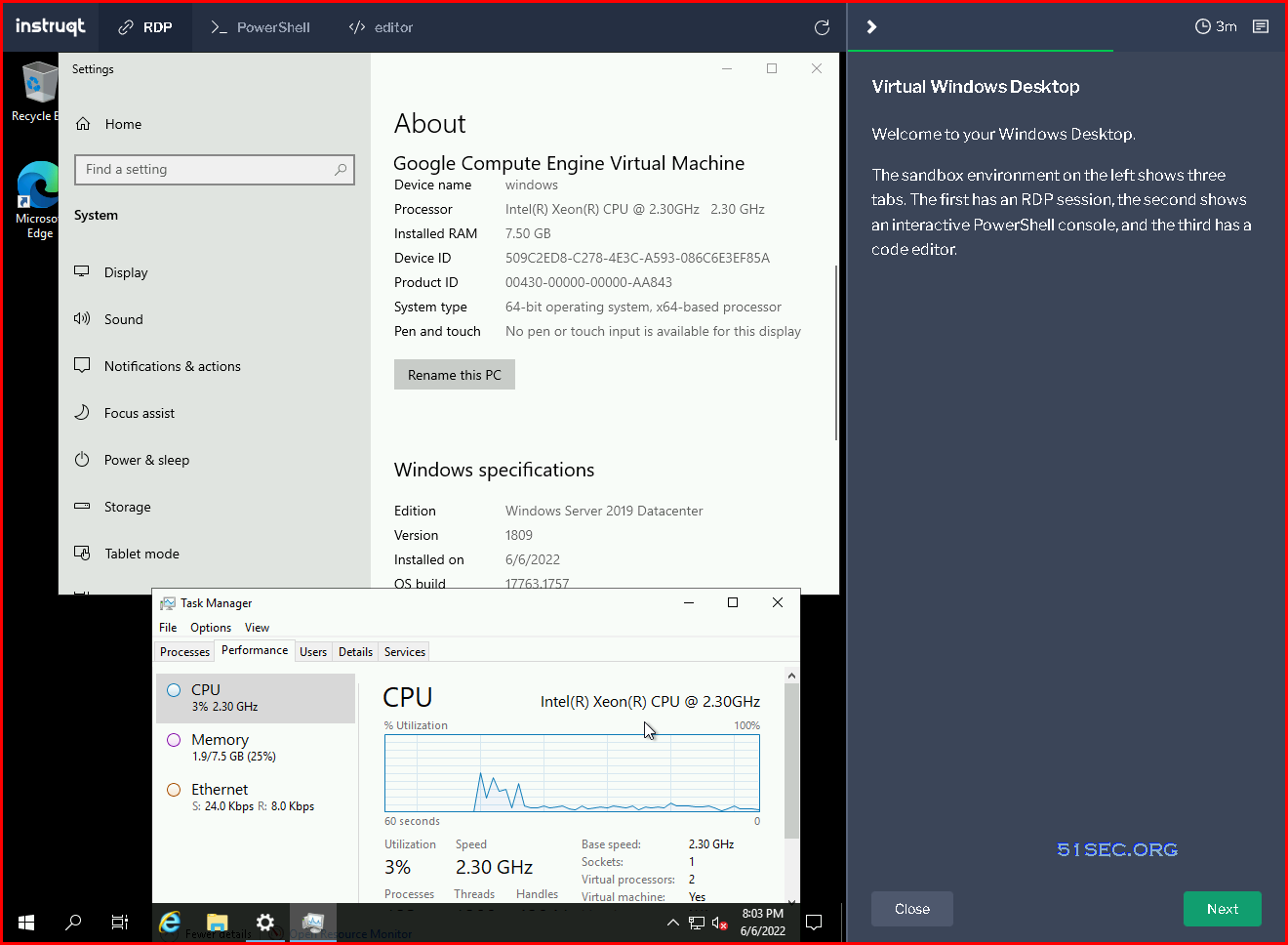
Based on the system properties, it seems from Google Compute Engine .
Unfortunately, it only gives you to use for about 5 minutes.

Once 5 minutes limitation reached, your session will be dropped and all changes will be lost. You can restart track to play with this 5 minutes Windows 2019 server again.
Clean Up Remote VM Environment
taskkill /f /im sqlservr.exe
taskkill /f /im Batch.exe
taskkill /f /im w3wp.exe
cd C:\
rmdir /s /q AOSService
rmdir /s /q DumpPath
rmdir /s /q DynamicsDiagnostics
rmdir /s /q DynamicsSDK
rmdir /s /q DynamicsTools
rmdir /s /q EmptyDataset
rmdir /s /q FinancialReporting
rmdir /s /q Labs
rmdir /s /q PerfSDK
rmdir /s /q RetailSDK
rmdir /s /q RetailSelfService
rmdir /s /q RetailServer
rmdir /s /q RetailStorefront
via Blogger http://blog.51sec.org/2022/06/some-ways-to-get-free-temporary-windows.html
June 06, 2022 at 04:14PM Cloud, Windows

 RSS Feed
