
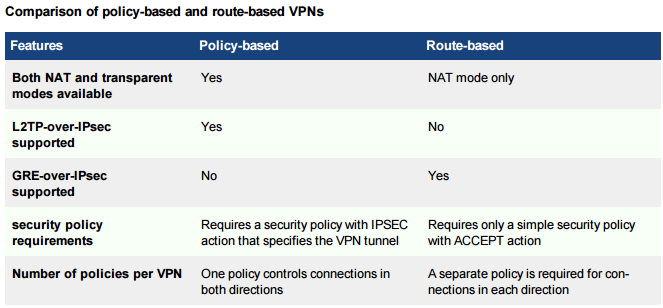
Fortigate firewall supports two types of site-to-site IPSec vpn based on FortiOS Handbook 5.2, policy-based or route-based. There is little difference between the two types. However there is a difference in implementation. A route-based VPN creates a virtual IPsec network interface that applies encryption or decryption as needed to any traffic that it carries.That is why route-based VPNs are also known as interface-based VPNs. A policy-based VPN is implemented through a special security policy that applies the encryption you specified in the Phase 1 and Phase 2 settings.
Route-based VPNs:
For a route-based VPN, you create two security policies between the virtual IPsec interface and the interface that connects to the private network. In one policy the virtual interface is the source. In the other policy the virtual interface is the destination. The Action for both policies is Accept. This creates bidirectional policies that ensure traffic will flow in both directions over the VPN.
Policy-based VPNs:
For a policy-based VPN, one security policy enables communication in both directions. You must select IPSEC as the Action and then select the VPN tunnel you defined in the Phase 1 settings. You can then enable inbound and outbound traffic as needed within that policy, or create multiple policies of this type to handle different types of traffic differently. For example HTTPS traffic may not require the same level of scanning as FTP traffic.
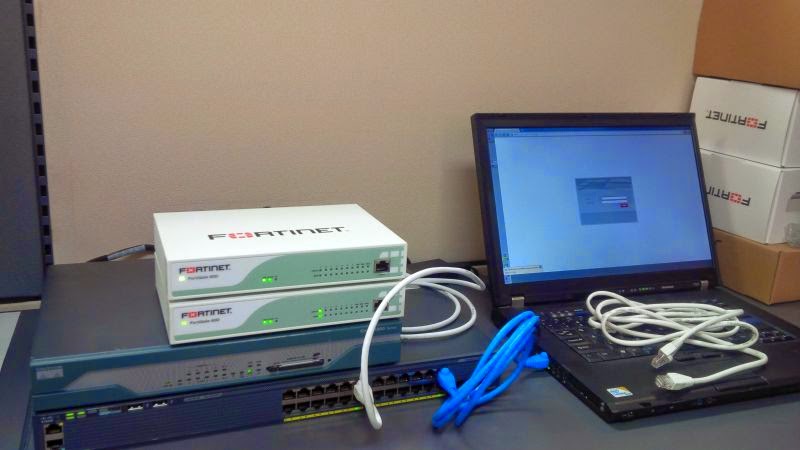
In this lab part 1, Route-Based VPNs will be configured between FW1 and FW2.
2. Switch and Router for routing and connections
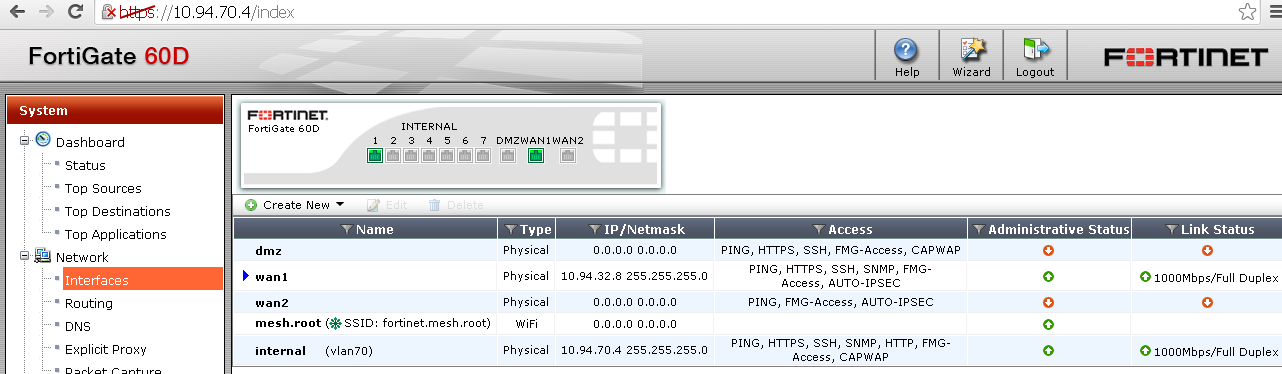
3. FW1 has WAN1 IP 10.94.32.8/24, Internal IP 10.94.70.4/24
4. FW2 has WAN1 IP 10.94.17.8/24, Internal IP 10.94.66.4/24, WAN2 IP 10.94.64.4/24, DMZ IP 10.94.144.4/24

@FW1:
FW2's configuration steps are exactly same as FW1.
internal: 10.94.70.4/24






Route-based VPNs:
For a route-based VPN, you create two security policies between the virtual IPsec interface and the interface that connects to the private network. In one policy the virtual interface is the source. In the other policy the virtual interface is the destination. The Action for both policies is Accept. This creates bidirectional policies that ensure traffic will flow in both directions over the VPN.
Policy-based VPNs:
For a policy-based VPN, one security policy enables communication in both directions. You must select IPSEC as the Action and then select the VPN tunnel you defined in the Phase 1 settings. You can then enable inbound and outbound traffic as needed within that policy, or create multiple policies of this type to handle different types of traffic differently. For example HTTPS traffic may not require the same level of scanning as FTP traffic.
In this lab part 1, Route-Based VPNs will be configured between FW1 and FW2.
Topology:
1. Two Fortigate 60Ds - FW1 and FW22. Switch and Router for routing and connections
3. FW1 has WAN1 IP 10.94.32.8/24, Internal IP 10.94.70.4/24
4. FW2 has WAN1 IP 10.94.17.8/24, Internal IP 10.94.66.4/24, WAN2 IP 10.94.64.4/24, DMZ IP 10.94.144.4/24
Object:
Build IPSec Tunnel between FW1 and FW2 for traffic between FW1's Internal network 10.94.70.0/24 and FW2's three internal networks (10.94.66.0/24, 10.94.64.0/24, 10.94.144.0)Devices:
Basic Configuration:
@FW1:
FW2's configuration steps are exactly same as FW1.
a. Interface Configuration:
wan1: 10.94.32.4/24internal: 10.94.70.4/24
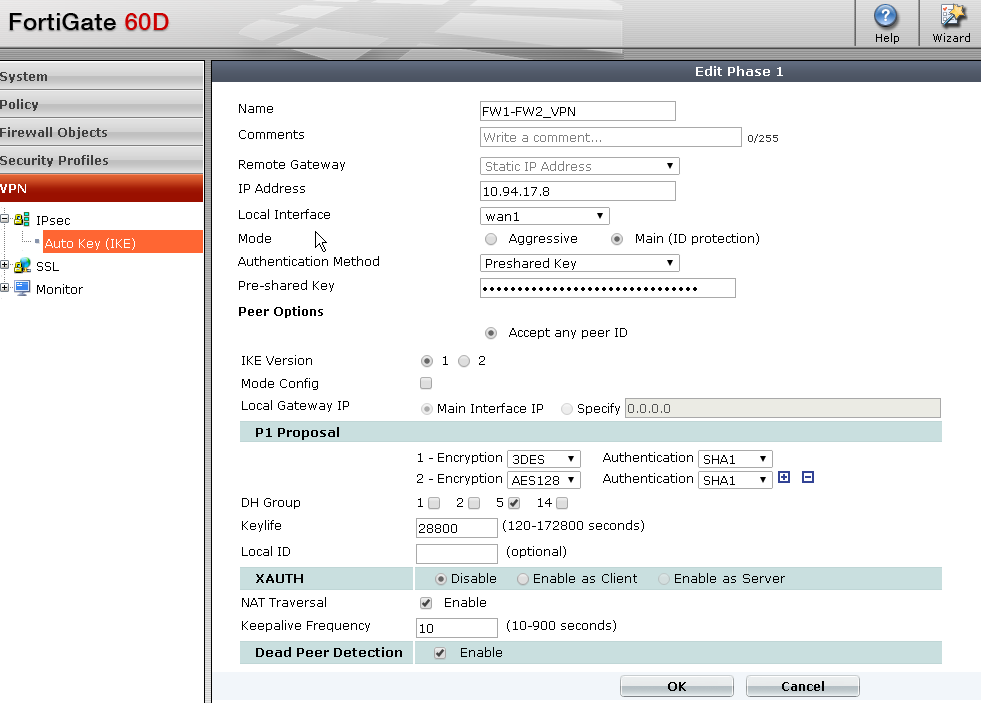
b. VPN-IPsec-Auto Key (IKE)
Create new Phase 1:
Note: Local Interface is wan1, not internal. Most configuration is by default. Phase1 policy name is FW1-FW2_VPN, which will be used as Interface name for IPSec Traffic later.
Create new Phase 2:
Note: You do not have to specify source / destination address.
c. Creating local and remote network address (interesting traffic to be protected by IPSec VPN)
Note: Remote network segment is on IPSec Interface. This step has to be done before creating firewall policy. Else you will get the entry is being used error when you put FW1-FW2_VPN on the Interface.
d. create two firewall rules in the policy:
One is from Internal network segment to Remote network. Another one is from Remote network to Internal network. Please keep priority of the rule order in mind. You may need to manual adjust your rule order. Usually IPSec Traffic will be put on top of other rules, except management rule.
e. Create Route for Interesting traffic:
The remote network segment will be routed to IPSec Interface FW1-FW2_VPN
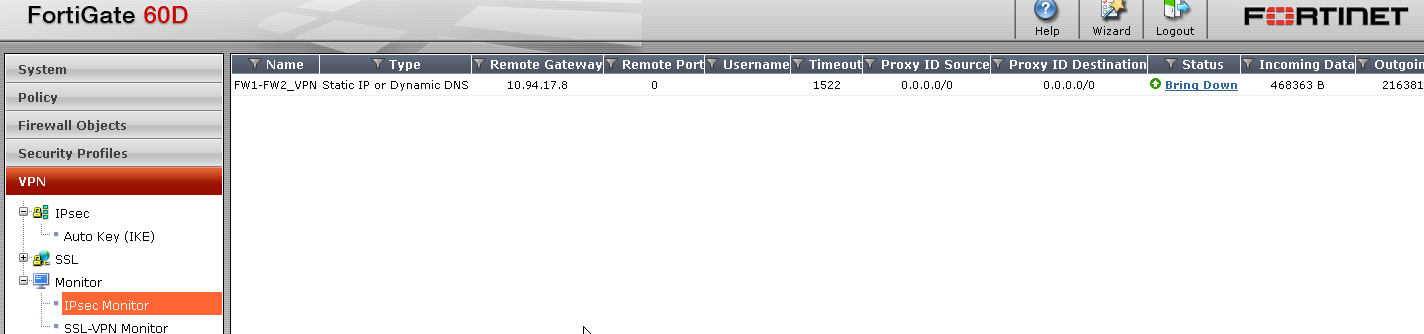
f. Monitor IPSec Tunnel:

 RSS Feed
