
Raspberry Pi 2 Model B Basic Configuration Part 2 - Install Hypriot OS, Pi-hole etc
This is the second post regarding basic configuration of Raspberry Pi 2.
XRDP service will allow you to use remote desktop to access Raspberry Pi GUI through VNC service.

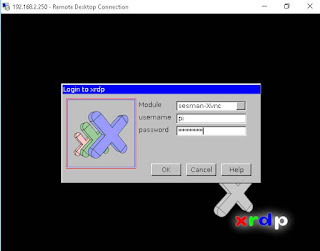

Assume you have installed HypriotOS from https://ift.tt/36gAWgF
Docker and Docker-Compose has been installed. The default credentials for the image are user pirate with password hypriot.

via Blogger https://ift.tt/3xiXCc1
July 05, 2021 at 10:05AM Raspberry Pi
This is the second post regarding basic configuration of Raspberry Pi 2.
Timezone change
By default, Raspberry Pi 2 will use UTC time. Command tzselect will give you continent and country selection to pick.|
pi@raspberrypi ~ $ date
Tue Oct 6 13:48:38 UTC 2015 pi@raspberrypi ~ $ tzselect Please identify a location so that time zone rules can be set correctly. Please select a continent or ocean. 1) Africa 2) Americas 3) Antarctica 4) Arctic Ocean 5) Asia 6) Atlantic Ocean 7) Australia 8) Europe 9) Indian Ocean 10) Pacific Ocean 11) none - I want to specify the time zone using the Posix TZ format pi@raspberrypi ~ $ tzconfig WARNING: the tzconfig command is deprecated, please use: dpkg-reconfigure tzdata pi@raspberrypi ~ $ dpkg-reconfigure tzdata /usr/sbin/dpkg-reconfigure must be run as root pi@raspberrypi ~ $ sudo dpkg-reconfigure tzdata Current default time zone: 'America/Toronto' Local time is now: Tue Oct 6 10:55:18 EDT 2015. Universal Time is now: Tue Oct 6 14:55:18 UTC 2015. pi@raspberrypi ~ $ date Tue Oct 6 10:55:28 EDT 2015 |
Access the Raspberry Pi Desktop
XRDP service will allow you to use remote desktop to access Raspberry Pi GUI through VNC service.
|
pi@raspberrypi ~ $ sudo apt-get install xrdp
Reading package lists... Done Building dependency tree Reading state information... Done The following extra packages will be installed: tightvncserver xfonts-base Suggested packages: tightvnc-java The following NEW packages will be installed: tightvncserver xfonts-base xrdp 0 upgraded, 3 newly installed, 0 to remove and 0 not upgraded. Need to get 7,219 kB of archives. After this operation, 11.5 MB of additional disk space will be used. Do you want to continue [Y/n]? y Get:1 https://ift.tt/3xl4ZzV wheezy/main tightvncserver armhf 1.3.9-6.4 [786 kB] Get:2 https://ift.tt/3xl4ZzV wheezy/main xfonts-base all 1:1.0.3 [6,181 kB] Get:3 https://ift.tt/3xl4ZzV wheezy/main xrdp armhf 0.5.0-2 [252 kB] Fetched 7,219 kB in 14s (493 kB/s) Selecting previously unselected package tightvncserver. (Reading database ... 76938 files and directories currently installed.) Unpacking tightvncserver (from .../tightvncserver_1.3.9-6.4_armhf.deb) ... Selecting previously unselected package xfonts-base. Unpacking xfonts-base (from .../xfonts-base_1%3a1.0.3_all.deb) ... Selecting previously unselected package xrdp. Unpacking xrdp (from .../xrdp_0.5.0-2_armhf.deb) ... Processing triggers for man-db ... Processing triggers for fontconfig ... Setting up tightvncserver (1.3.9-6.4) ... update-alternatives: using /usr/bin/tightvncserver to provide /usr/bin/vncserver (vncserver) in auto mode update-alternatives: using /usr/bin/Xtightvnc to provide /usr/bin/Xvnc (Xvnc) in auto mode update-alternatives: using /usr/bin/tightvncpasswd to provide /usr/bin/vncpasswd (vncpasswd) in auto mode Setting up xfonts-base (1:1.0.3) ... Setting up xrdp (0.5.0-2) ... [....] Generating xrdp RSA keys...... Generating 512 bit rsa key... ssl_gen_key_xrdp1 ok saving to /etc/xrdp/rsakeys.ini done (done). [....] Starting Remote Desktop Protocol server : xrdp sesman. pi@raspberrypi ~ $ |


List System Information
|
pi@raspberrypi ~ $ uname -a
Linux raspberrypi 3.18.7-v7+ #755 SMP PREEMPT Thu Feb 12 17:20:48 GMT 2015 armv7l GNU/Linux |
HypriotOS/armv7: pirate@black-pearl in ~
$ ls /etc/*release
/etc/os-release
HypriotOS/armv7: pirate@black-pearl in ~
$ cat /etc/os-release
PRETTY_NAME="Raspbian GNU/Linux 10 (buster)"
NAME="Raspbian GNU/Linux"
VERSION_ID="10"
VERSION="10 (buster)"
VERSION_CODENAME=buster
ID=raspbian
ID_LIKE=debian
HOME_URL="http://www.raspbian.org/"
SUPPORT_URL="http://www.raspbian.org/RaspbianForums"
BUG_REPORT_URL="http://www.raspbian.org/RaspbianBugs"
HypriotOS/armv7: pirate@black-pearl in ~
$
Add Cron Job
Add a cron job to halt Raspberry Pi at 23:00 everyday.|
pi@raspberrypi ~ $ crontab -e
GNU nano 2.2.6 File: /tmp/crontab.obWc51/crontab # Edit this file to introduce tasks to be run by cron. # # Each task to run has to be defined through a single line # indicating with different fields when the task will be run # and what command to run for the task # # To define the time you can provide concrete values for # minute (m), hour (h), day of month (dom), month (mon), # and day of week (dow) or use '*' in these fields (for 'any').# # Notice that tasks will be started based on the cron's system # daemon's notion of time and timezones. # # Output of the crontab jobs (including errors) is sent through # email to the user the crontab file belongs to (unless redirected). # # For example, you can run a backup of all your user accounts # at 5 a.m every week with: # 0 5 * * 1 tar -zcf /var/backups/home.tgz /home/ # # For more information see the manual pages of crontab(5) and cron(8) # # m h dom mon dow command 0 23 * * * sudo halt [ Wrote 24 lines ] crontab: installing new crontab |
Install Portainer
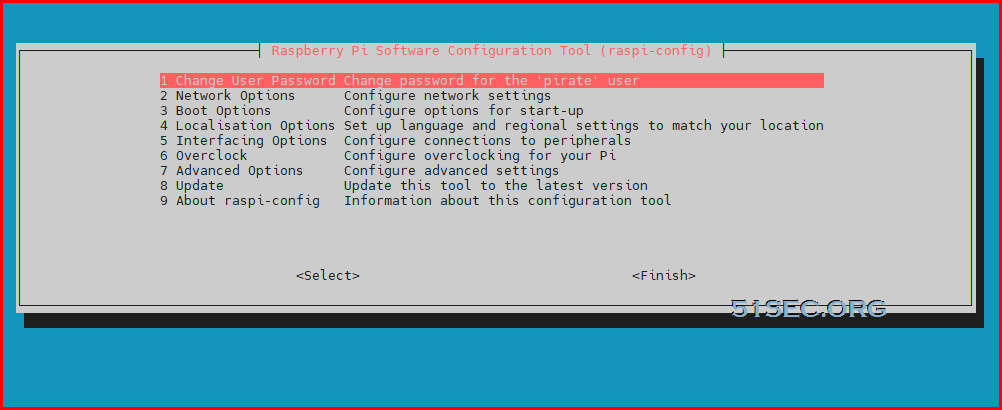
Docker and Docker-Compose has been installed. The default credentials for the image are user pirate with password hypriot.
You always can change it from raspi-config menu.
Check docker version and docker-compose version.
HypriotOS/armv7: root@black-pearl in ~
# docker version
Client: Docker Engine - Community
 Version:           19.03.12
 API version:       1.40
 Go version:        go1.13.10
 Git commit:        48a6621
 Built:             Mon Jun 22 15:53:41 2020
 OS/Arch:           linux/arm
 Experimental:      false

Server: Docker Engine - Community
 Engine:
  Version:          19.03.12
  API version:      1.40 (minimum version 1.12)
  Go version:       go1.13.10
  Git commit:       48a6621
  Built:            Mon Jun 22 15:47:34 2020
  OS/Arch:          linux/arm
  Experimental:     false
 containerd:
  Version:          1.2.13
  GitCommit:        7ad184331fa3e55e52b890ea95e65ba581ae3429
 runc:
  Version:          1.0.0-rc10
  GitCommit:        dc9208a3303feef5b3839f4323d9beb36df0a9dd
 docker-init:
  Version:          0.18.0
  GitCommit:        fec3683
HypriotOS/armv7: root@black-pearl in ~
# docker-compose version
docker-compose version 1.26.1, build 634eb50
docker-py version: 4.2.2
CPython version: 3.7.3
OpenSSL version: OpenSSL 1.1.1d  10 Sep 2019
HypriotOS/armv7: root@black-pearl in ~
#
Installing Portainer
HypriotOS/armv7: root@black-pearl in ~
# docker volume create portainer_data
portainer_data
HypriotOS/armv7: root@black-pearl in ~
# docker run -d -p 9000:9000 --name portainer --restart always -v /var/run/docker.sock:/var/run/docker.sock -v portainer_data:/data portainer/portainer-ce:latest
Unable to find image 'portainer/portainer-ce:latest' locally
latest: Pulling from portainer/portainer-ce
651a8e6e1630: Pull complete
56e38df73332: Pull complete
c559aeebeb38: Pull complete
Digest: sha256:79edf1302c9b4fdb06bc23321cc551e9118c29e6d668e12e23d4e58d993ab830
Status: Downloaded newer image for portainer/portainer-ce:latest
7434238c52b5c1a94d3cce7903c005ac7efe07ff3c250201ae7ccb683be4ee37
HypriotOS/armv7: root@black-pearl in ~
#
Install Hypriot OS on Raspberry Pi
An OS with build-In Docker support in Raspbian release
Blog: https://ift.tt/2fz4pdn
Github: https://ift.tt/3wdniWg
Download: https://ift.tt/36gAWgF
Default Credentials: user pirate with password hypriot.
Flashing tool: Etcher for Windows (x86|x64) (Portable) (https://ift.tt/2RsT4e1)
Install Pi-hole
note: https://ift.tt/32CDlku
- Copy docker-compose.yml.example to docker-compose.yml and update as needed. See example below: Docker-compose example:
nano docker-compose.yml
version: "3"

# More info at https://github.com/pi-hole/docker-pi-hole/ and https://docs.pi-hole.net/
services:
  pihole:
    container_name: pihole
    image: pihole/pihole:latest
    ports:
      - "53:53/tcp"
      - "53:53/udp"
      - "67:67/udp"
      - "80:80/tcp"
    environment:
      TZ: 'America/Toronto'
      WEBPASSWORD: 'Change-it-to-your-own'

    # We'll use host networking simply because it is way easier to setup.
    network_mode: host

    # Volumes store your data between container upgrades
    volumes:
      - './etc-pihole/:/etc/pihole/'
      - './etc-dnsmasq.d/:/etc/dnsmasq.d/'
    # Recommended but not required (DHCP needs NET_ADMIN)
    #   https://github.com/pi-hole/docker-pi-hole#note-on-capabilities
    cap_add:
      - NET_ADMIN
    restart: unless-stopped
- Run
docker-compose up --detachto build and start pi-hole
References
via Blogger https://ift.tt/3xiXCc1
July 05, 2021 at 10:05AM Raspberry Pi

 RSS Feed
