
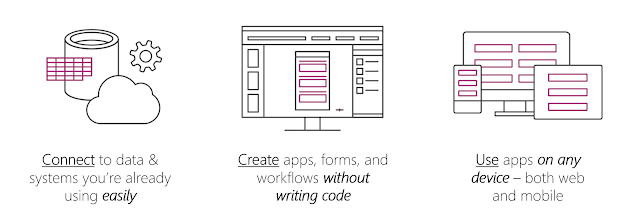
Microsoft Power Apps makes it easy for everyone to build professional-grade, custom business apps. Power Apps empowers everyone, no matter their skillset, to turn bright ideas into brilliant apps.
Power Apps is a suite of apps, services, connectors, and a data platform that provides you with an opportunity to build custom apps for your business needs. By using Power Apps, you can quickly build custom business apps that connect to your business data that is stored either in the underlying data platform (Microsoft Dataverse) or in various online and on-premises data sources (SharePoint, Excel, Office 365, Dynamics 365, SQL Server, and so on).
Website
- Power Apps Home Page - Apps start here, whether you build them from data, a sample app, or a blank screen. https://make.powerapps.com/
- Power Apps Mobile - Run your apps on Microsoft Windows, Apple iOS, and Google Android devices.
- Power Apps Admin Center - Manage Power Apps environments and other components. https://admin.powerplatform.microsoft.com/
Create Your First Excel App
To get started, you can automatically generate an app from one of these sources, among others:
1 Prepare your excel data and save it to your OneDrive for business.
make sure create a table first in your excel file.
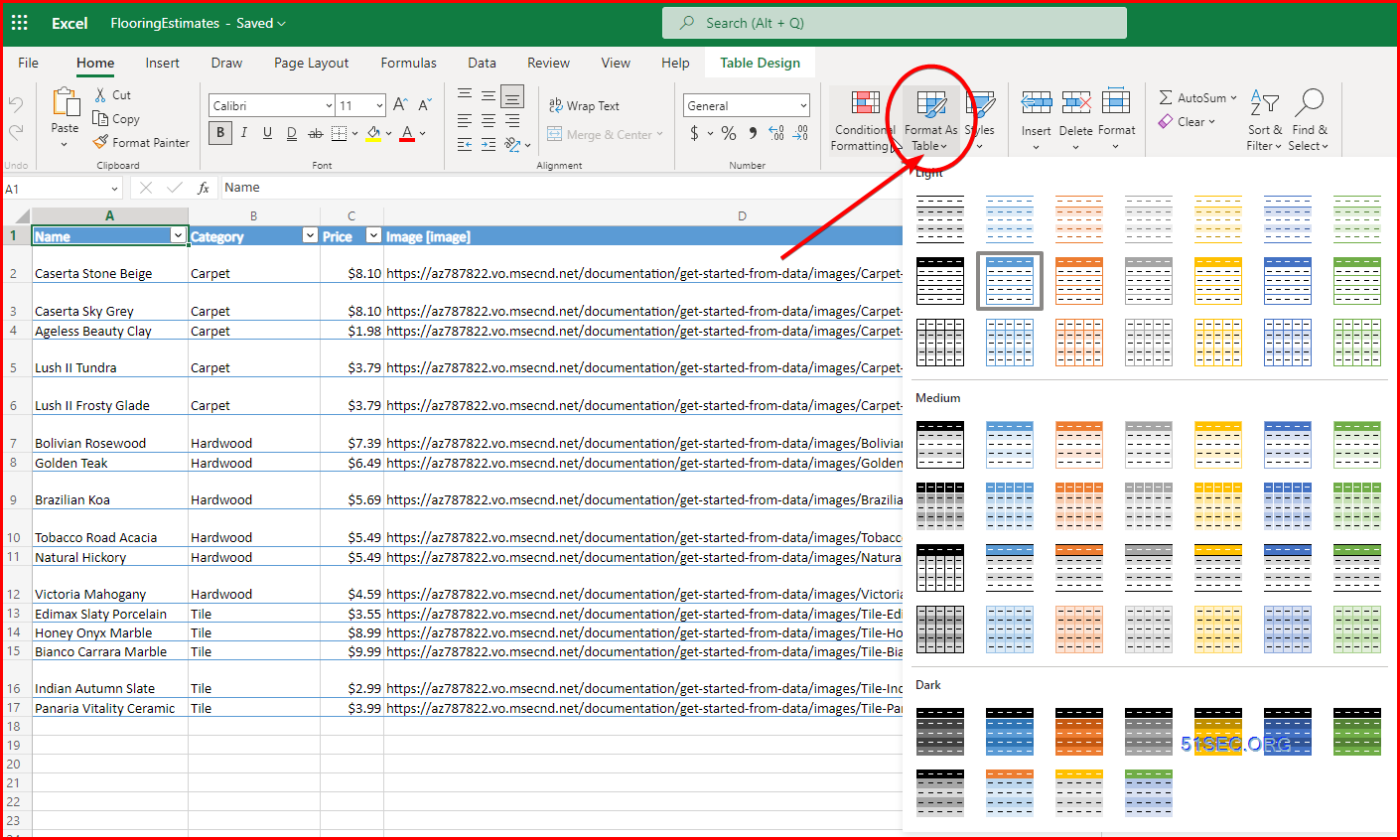
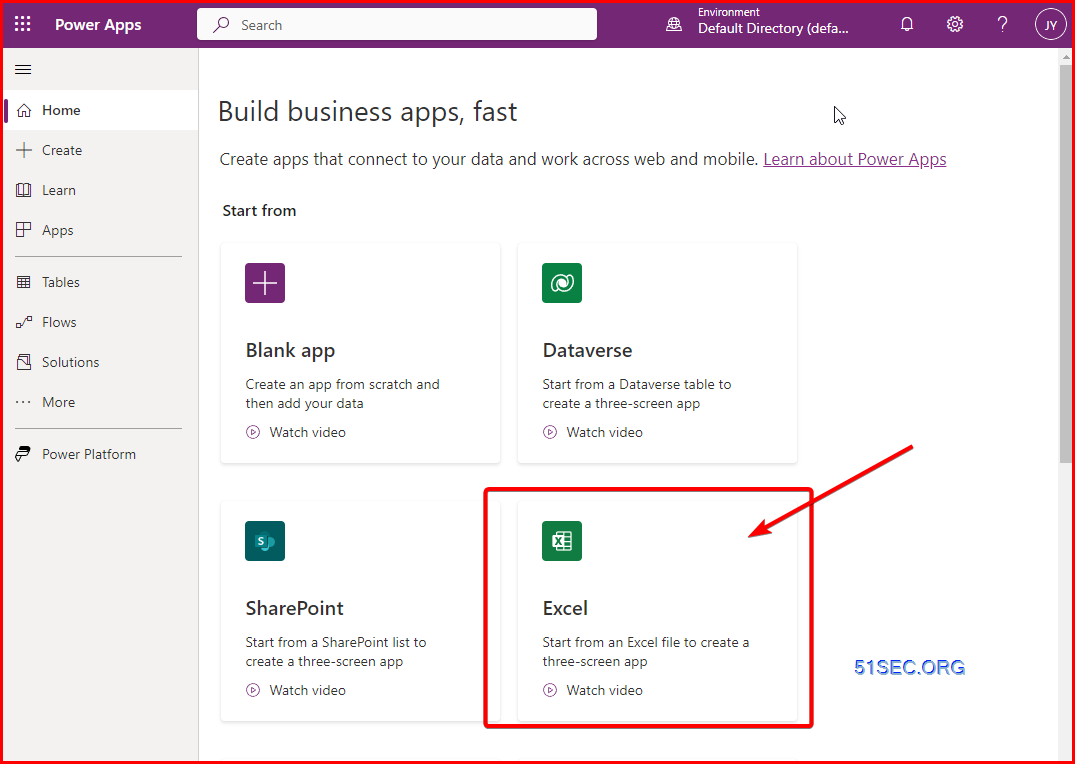
2 Create a new three-screen app , start from a Excel
There are three types of apps you can create:
- Canvas app : start with a blank screen and design your app visually by adding components to it.
- Model-driven app: build an app on top of data that's already stored in Dataverse - a smart, secure and scalable low-code data platform.
- Portal : create a no-code website for internal or external audience.
3 Choose the excel file from your OneDrive folder
- On the Home or Create screen, select Excel. After a few moments, you'll navigate to the Connections screen. If your connection doesn't immediately show, select Refresh.
- After a few moments, you should see your existing connections. Select (or add as a connection) OneDrive for Business.
- Still in your Connections screen, you should now see a list of Excel files under the header Choose an Excel file including the FlooringEstimates.xlsx. Select the FlooringEstimates file.
- Under Choose a table, select the FlooringEstimates table.
4 Power Apps generates the app by inspecting your data and matching it with Power Apps capabilities so that you get a working app as a starting point.
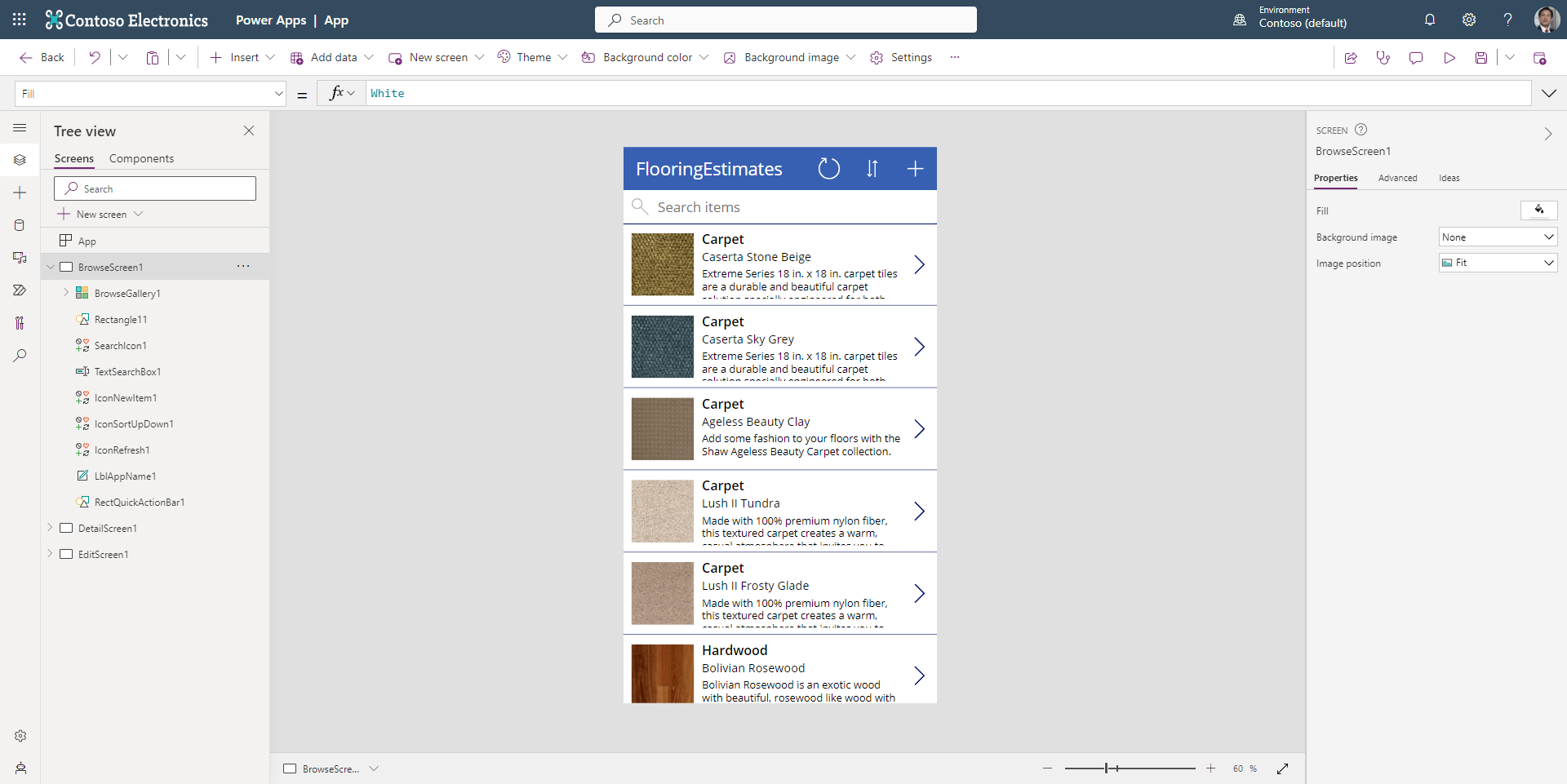
Put your app in Preview (or Play) mode by selecting the "play" button in the upper-right corner of the screen (or by selecting F5) to practice using the app. Notice that your app includes all the data from the table and provides a good default experience.
All apps that are generated from data have the same set of screens that you can view from the Screens pane:
- Browse screen - This screen appears by default. In it, you can browse, sort, filter, and refresh the data from the data source. In the browse screen, you can add items to the data source by selecting the plus sign (+).
- Detail screen - The detail screen shows all information about a single item. In this screen, you can open an item to edit or delete it.
- Edit screen - In this screen, you can edit an existing item or create a new one.
To make your app visible on the phone, it needs to be saved. Select the drop-down to the right of the Save icon at the top right of the screen, and select Save as. Replace the current title "App" with Flooring-estimates app, and then select Save. You can now open the app on your phone.
via Blogger http://blog.51sec.org/2023/04/powerapp-studying-notes.html
April 30, 2023 at 10:31PM Azure

 RSS Feed
