
This post is focusing on how to build a simple Pen test lab with a minimal effort and also it can provides enough practice opportunity.
It will be a series of posts for Pen Test lab since there are some typical Pen Test steps will be discussed and put into this lab as example.
Topology
1. Set Up Environmet
1.1 VMware Workstation
You also can use ESXi / Virtual Box / Hyper-V to set up your virtual lab environment.
1.2 Kali Linux
Download ISO image from https://ift.tt/1xv2Ev9 or download virtual machine from https://ift.tt/2D6en2N
The VM images have a default password of “kali/kali”
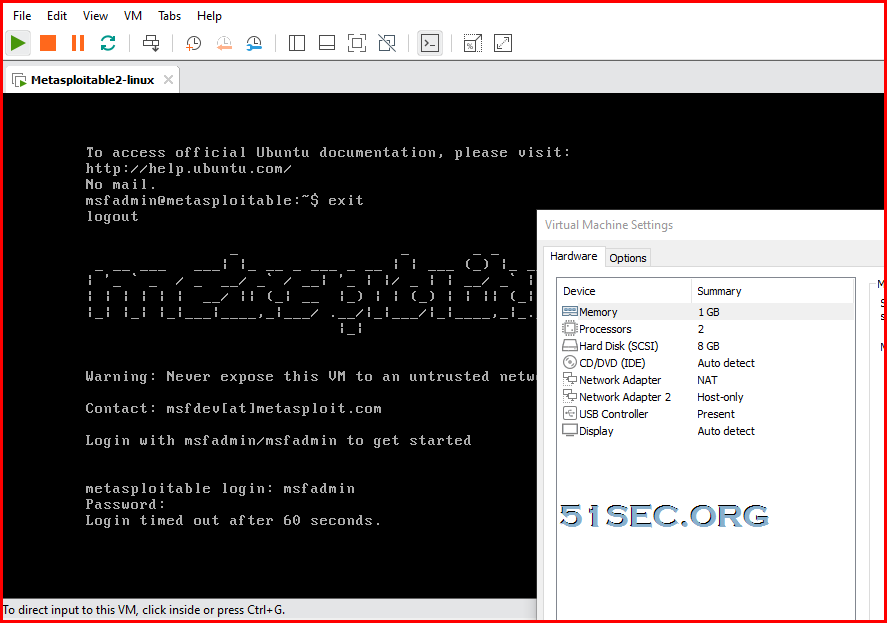
1.3 Metasploitable Linux
Metasploitable is an intentionally vulnerable Linux virtual machine. This VM can be used to conduct security training, test security tools, and practice common penetration testing techniques. Download link: https://ift.tt/2jSrhGH
The default login and password is msfadmin:msfadmin.
2. Basic Configuration Environment
- IP Change
-
- Temporary Change (Immediately Take Into Effect):
- Permanent Change:
-
- DHCP
auto eth0
iface eth0 inet dhcp
- Static
auto eth0
iface eth0 inet static
address 192.168.2.20
netmask 255.255.255.0
gateway 192.168.2.1
- Gateway Change
route add default gw 192.168.2.1
- DNS Change
echo nameserver 8.8.8.8 > /etc/resolv.conf
2.2 Enable Root Account and Enable SSH Remote Access
By default, in Kali version 2020+, root account is not allow to log in to system. Also SSHD service is disabled.
- change root password
sudo passwd root
- change sshd configure file to allow root log in from remote ssh session
PermitRootLogin yes
- Start SSHD service
- Enable SSHD service in boot.
update-rc.d ssh enable
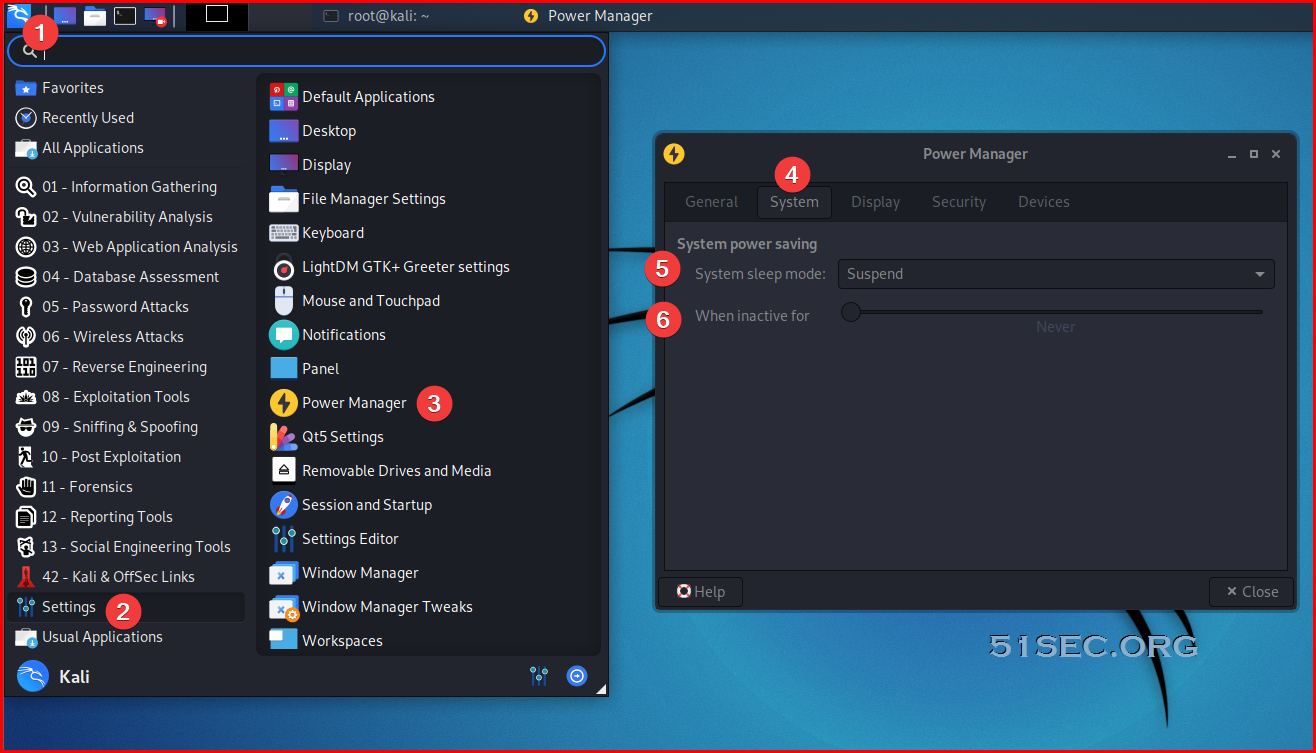
2.3 Disable Screen Lock
System - Power Management
2.4 Update && Upgrade
apt update -y && apt upgrade -y
apt-get upgradewill only upgrade currently-installed packages;apt upgradewill upgrade currently-installed packages and install new packages pulled in by updated dependencies;- the various
dist-upgradeandfull-upgradevariants will upgrade currently-installed packages, install new packages introduced as dependencies, and remove packages which are broken by upgraded packages.
| Command | Upgrade Current | Install New | Remove Broken |
|---|---|---|---|
apt-get upgrade |
Yes | No | No |
apt upgrade |
Yes | Yes | No |
apt-get dist-upgrade, apt full-upgrade etc. |
Yes | Yes | Yes |
If update && upgrade is too slow, you might need to change your apt source to the one close to your location.
cp /etc/apt/sources.list /etc/apt/sources.list.bak
vim /etc/apt/sources.list
Choose from either "中科大kali Apt Source" or "阿里云kali Apt Source"
#中科大kali Apt Source
deb http://mirrors.ustc.edu.cn/kali sana main non-free contrib
deb http://mirrors.ustc.edu.cn/kali-security/ sana/updates main contrib non-free
deb-src http://mirrors.ustc.edu.cn/kali-security/ sana/updates main contrib non-free


#阿里云kali Apt Source
deb http://mirrors.aliyun.com/kali sana main non-free contrib
deb http://mirrors.aliyun.com/kali-security/ sana/updates main contrib non-free
deb-src http://mirrors.aliyun.com/kali-security/ sana/updates main contrib non-free

#kali Default Apt Source:
deb http://security.kali.org/kali-security/ sana/updates main contrib non-free
deb-src http://security.kali.org/kali-security/ sana/updates main contrib non-free
Snapshot your Kali VMware environment
via Blogger https://ift.tt/2RVY0O7
May 16, 2021 at 07:52AM Checkpoint, Threat Hunting

 RSS Feed
