
After received free Microsoft 365 E5 developer program's subscription, there are some special consideration or configuration you might want to think about it. Here are some advanced usage cases I collected.
Renew Subscription
You can check your Microsoft 365 E5 subscription from this link: https://ift.tt/3bFwJoDFor subscription status, check this page: https://admin.microsoft.com/Adminportal/Home?source=applauncher#/subscriptions
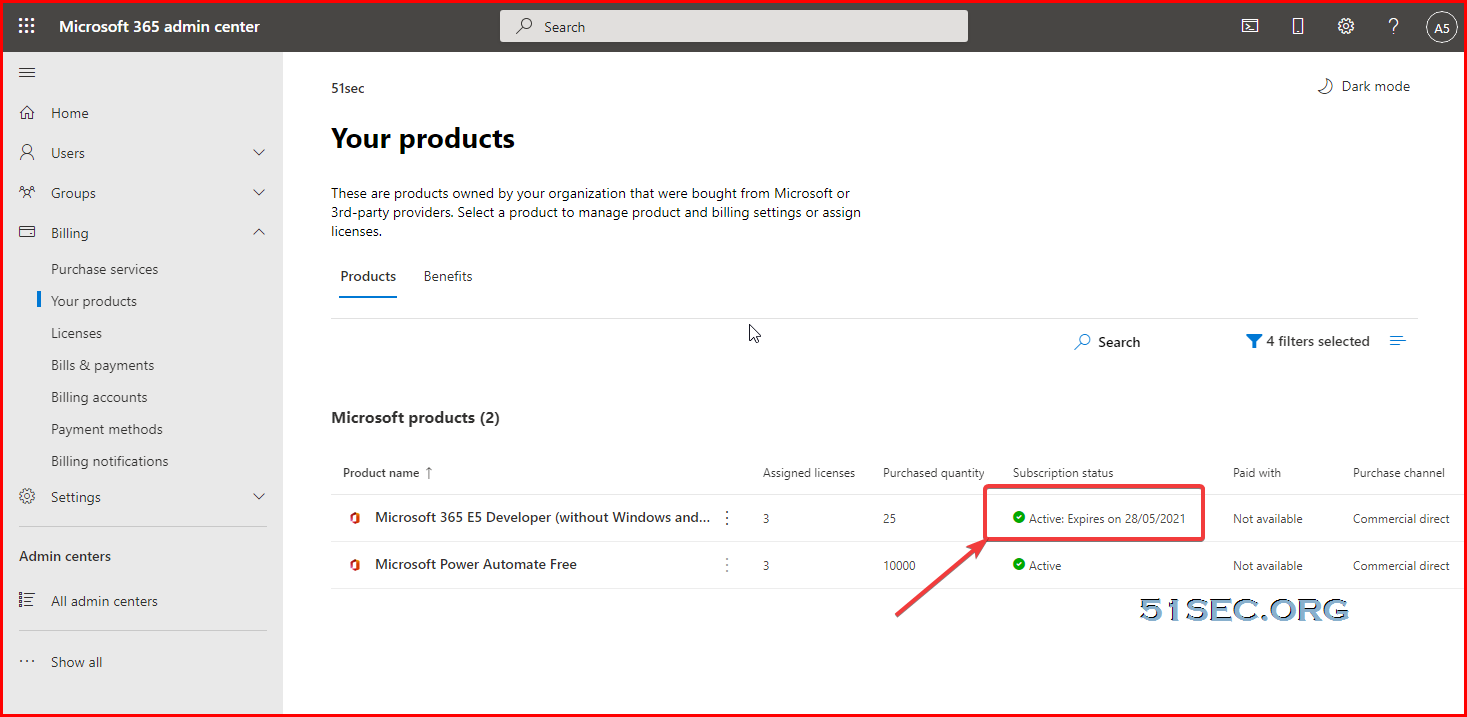
Based on Microsoft 365 Developer Program faq:
And Microsoft use "a set of algorithms and telemetry that we get from your activity in the Microsoft 365 Developer Program and on your Office 365 E3 or Microsoft 365 E5 developer subscription to determine whether you are actively developing".
Basically, Microsoft does not give clear ideas what kind of activities can be defined as actively developing. But lots of people believes as long as you are using API actively, your subscription should be safe.
One example to use API is to set up your OneDrive Index site. Here is my previous post about a serverless OneDrive Index Setup
Here are some posts:
- https://ift.tt/2ItBvYT
- https://ift.tt/2IuEjov
- https://ift.tt/3gwLHil
Docker to run OneIndex: https://ift.tt/3uOiiat
Other suggestions from Reddit:
-
Setup Power Apps based on ready template
-
Deploy Power BI template from galler
Increase OneDrive Space from 1T to 5T or More
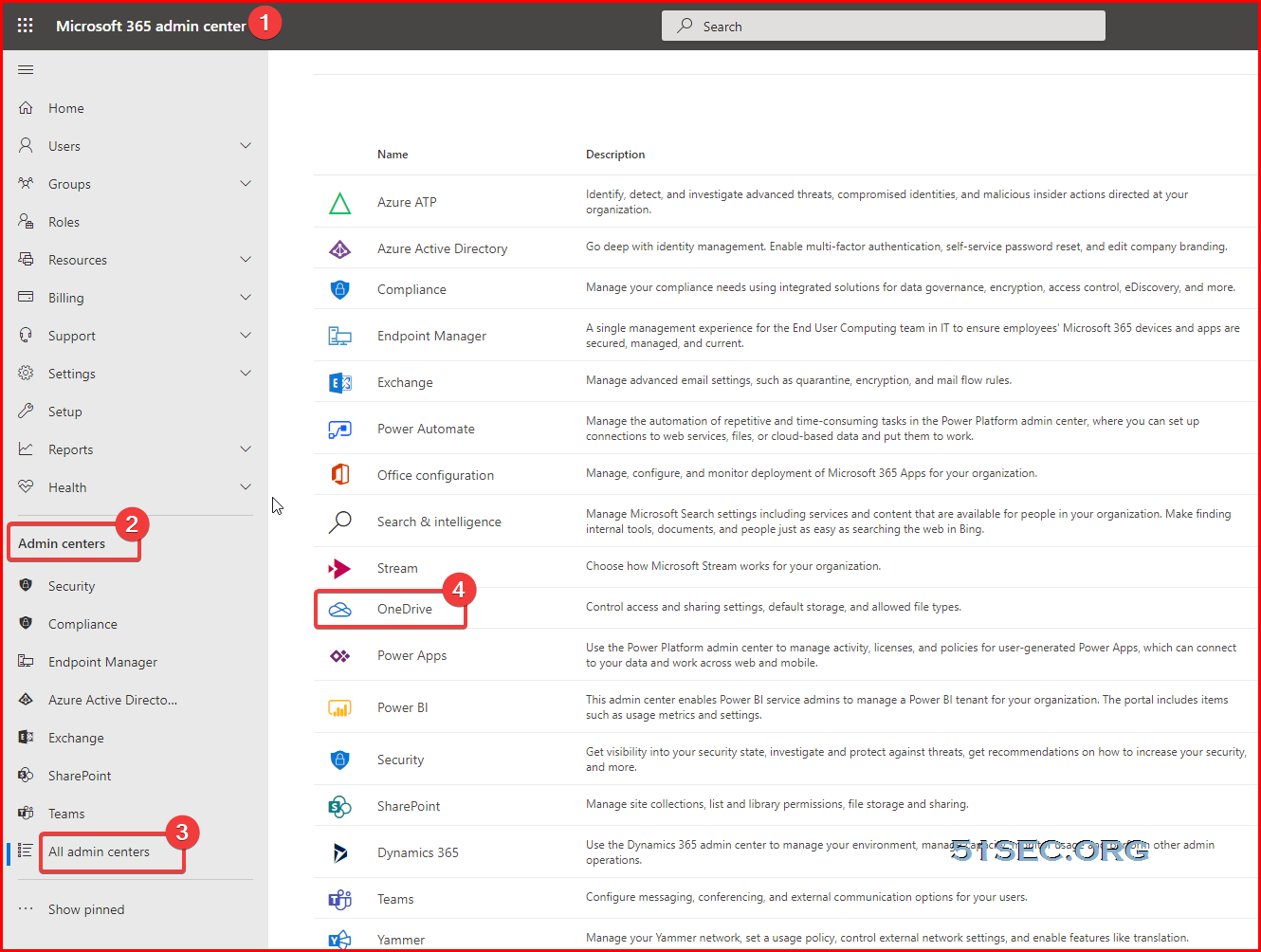
Log into Microsoft 365 admin center using an admin account.
Admin centers ->All admin centers -> OneDrive
Or directly from this link: https://admin.onedrive.com/?v=StorageSettings
Change default (mininum) storage in GB from 1024 to 5120 for 5T space.
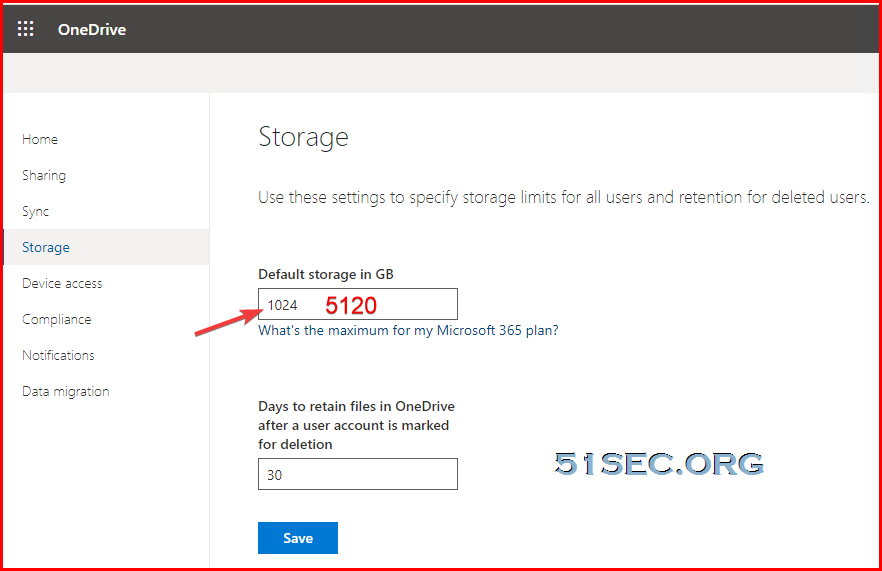
If 5T is still not enough, there are some other ways to upgrade to 25T for your account based on some Internet posts. You can find one post how to do this 25T upgrade from references section.
Use Web GUI, only those user accounts created after this change made will get 5T. Existing account before 5T change made, are still got only 1T.
Here are steps to use Shell tool to modify existing accounts' OneDrive space:
1. InstallSharePoint Online Management Shell ToolDownload Address: https://www.microsoft.com/en-ca/download/details.aspx?id=35588
2. Enter following code from Shell window
Connect-SPOService -Url https://<organization name>.sharepoint.com
You can find out your organization name after you logged into your SharePoint site. For example, my url is https://ift.tt/3mEAaBz
so my organization name is 51sec, then the code would be
Connect-SPOService -Url https://51sec.sharepoint.com
3. After enter the code, you will be prompted Microsoft 365 login window. Using your admin email address and password to log in.
4. Change certain user's (for example: test) OneDrive space size using following code:
Set-SPOSite -Identity https://51sec.sharepoint.com/personal/test mk -StorageQuota 5242880
Now you have successfully increased your existing user test's OneDrive space size from 1T to 5T.
Catch All Emails
1. Change your domain to default domain and make sure accepted domain is Internal relay type.
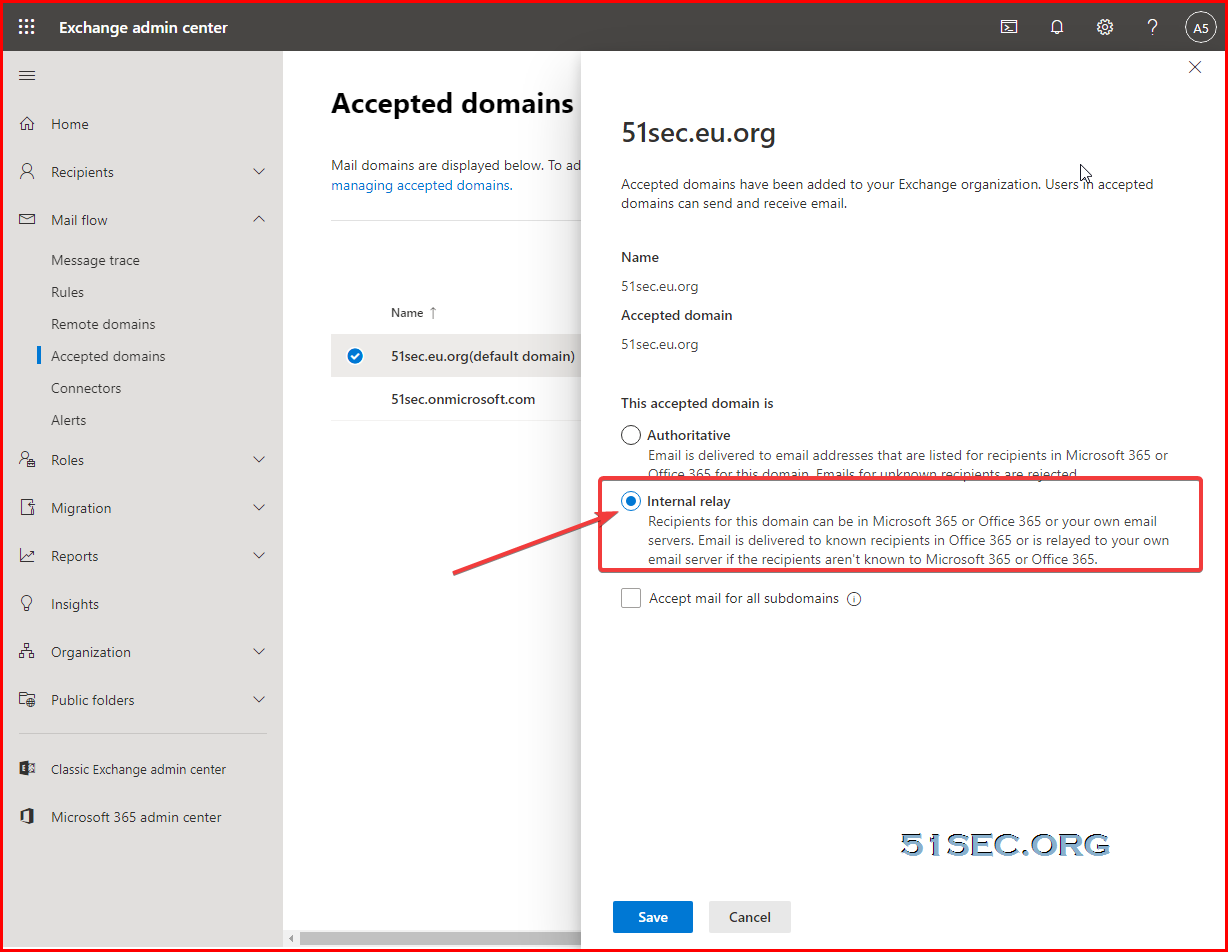
2. Create a rule
Start from admin -> All Admin Centers -> Exchange
or from this url: https://ift.tt/2QhyGRO
Create a new rule:
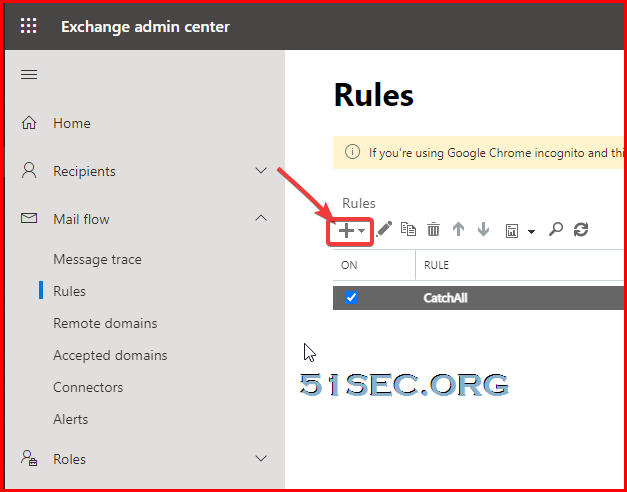

Basically, all external user sent emails will be redirected to netsec and test those two users' email boxes.
References
via Blogger https://ift.tt/3a0cm6g
April 11, 2021 at 05:15PM Cloud

 RSS Feed
