
This post is going to show you how to mount Azure Blob Storage Account into your local windows file system, which can make the management of Blob's files much easier.
It can be much easier to mount Azure Storage File system. You can check some related posts from following list:
- Deploy Azure File Sync on Cloud VM and Mount Azure File Share to Machine Without Port 445
- Mount Azure Cloud VM File Share Folder With Tcp Port 445 Blocked By ISP
- Build Cloud File Download & Manage Site using FileBrowser+Aria2+AriaNg+Rclone+Caddy+Google Drive
- Mount Google Drive into NextCloud Using Rclone
Prerequisites
1 Storage Account Information
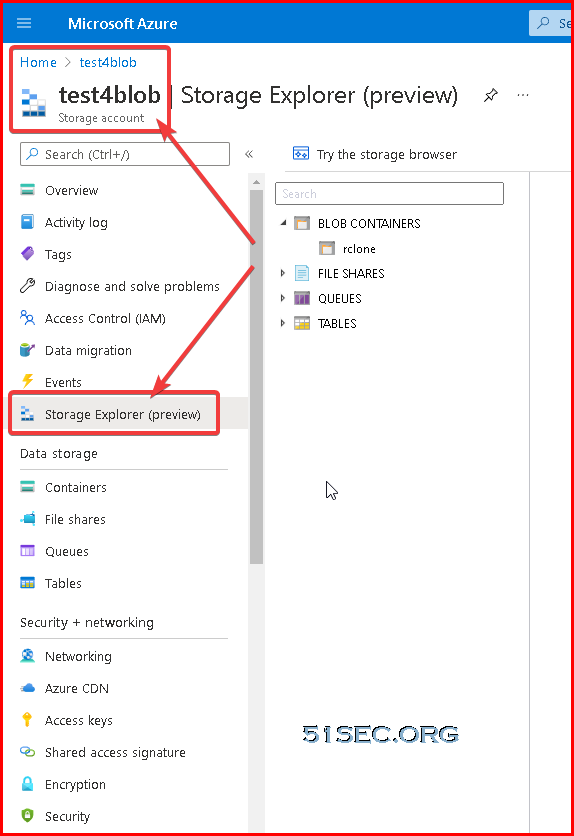
You will need to have your Azure Storage Account created. You should be able to use Storage Explorer to check your files and folder under your Blob Containers.
2 Storage Account Access key
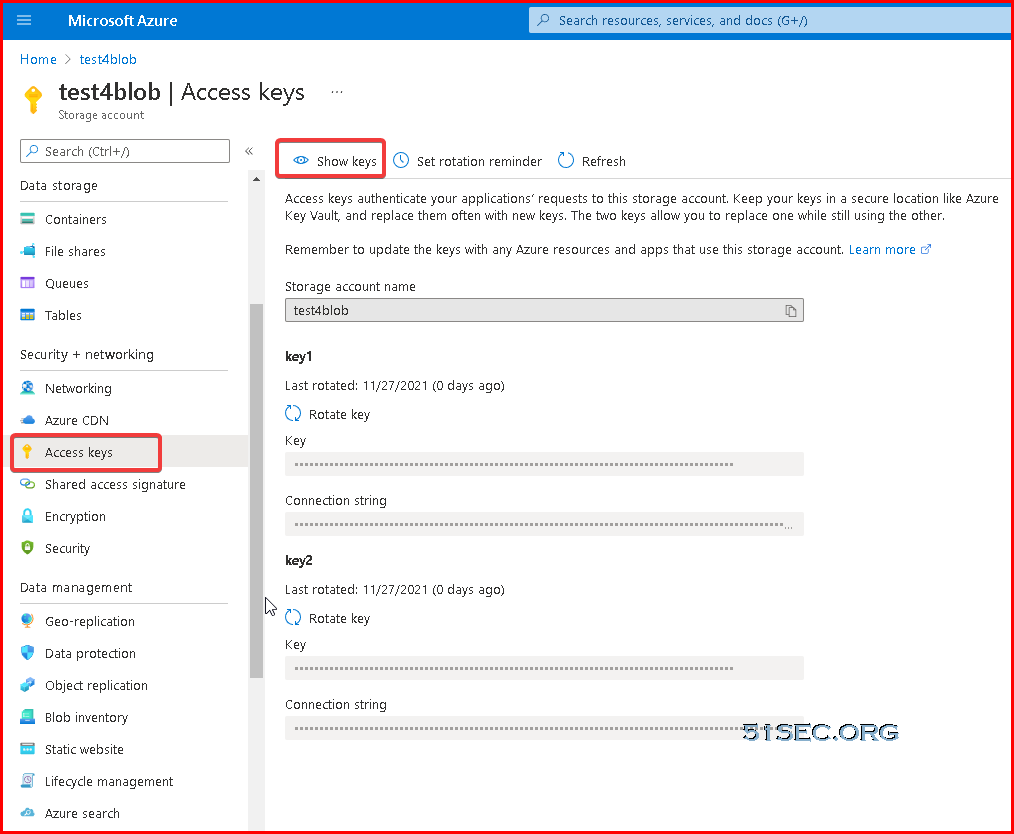
Get your storage account access keys using AZ Cli command in Azure Cloud Shell or directly from Azure Portal.
From Azure Cloud Shell:
PS /home/jon-netsec> az storage account keys list --account-name test4blob --resource-group test-storage --out table
CreationTime                      KeyName    Permissions    Value
--------------------------------  ---------  -------------  ----------------------------------------------------------------------------------------
2021-11-27T18:29:44.581445+00:00  key1       FULL           K3WrYU+MTPY7uUrnY/ou2iXyanSdw6oiKrLBa9WbHUCrKnWu4H4rjDsxMVZBwvHH7/JY7wCXT0OuVpvXOEfg==
2021-11-27T18:29:44.581445+00:00  key2       FULL           SEy3o9+QLXicMe0ysTOn0VhF7Sg1CyimUvmtWRs2sgenx9LHv9eL/fcNYpS7YC0OnM37NYQq1T9S6e36Iqjg==
PS /home/johnyan_ca>
3 Windows preparation
Install following software :
- Install Chocolatey - a software management solution, which makes other packages/software installation much easier
Install Rclone on Windows
There are two ways to install Rclone:
1 Using Chocolatey to install Rclone automatically
C:\tools>choco
Chocolatey v0.11.3
Please run 'choco -?' or 'choco <command> -?' for help menu.

C:\tools>choco install rclone -y
Chocolatey v0.11.3
Installing the following packages:
rclone
By installing, you accept licenses for the packages.
Progress: Downloading rclone.portable 1.57.0... 100%
Progress: Downloading rclone 1.57.0... 100%

rclone.portable v1.57.0 [Approved]
rclone.portable package files install completed. Performing other installation steps.
The package rclone.portable wants to run 'chocolateyInstall.ps1'.
Note: If you don't run this script, the installation will fail.
Note: To confirm automatically next time, use '-y' or consider:
choco feature enable -n allowGlobalConfirmation
Do you want to run the script?([Y]es/[A]ll - yes to all/[N]o/[P]rint):
2 Manual installation
There are many ways to do manual installation. Here is a way to use Powershell:
Make sure you run following command first
PS C:\Windows\system32> Set-ExecutionPolicy AllSigned
$ [Net.ServicePointManager]::SecurityProtocol = [Net.SecurityProtocolType]::Tls12
$ Invoke-WebRequest https://downloads.rclone.org/rclone-current-windows-amd64.zip -Outfile rclone.zip
$ Expand-Archive rclone.zip
$ Move-Item -Path .\rclone\**\rclone.exe -Destination C:\tools\rclone.exe
Configure Rclone to Mount Azure Blob Container
C:\tools>rclone config
Current remotes:

e) Edit existing remote
n) New remote
d) Delete remote
r) Rename remote
c) Copy remote
s) Set configuration password
q) Quit config
e/n/d/r/c/s/q> n
name> test
Option Storage.
Type of storage to configure.
Enter a string value. Press Enter for the default ("").
Choose a number from below, or type in your own value.
 1 / 1Fichier
   \ "fichier"
 2 / Alias for an existing remote
   \ "alias"
 3 / Amazon Drive
   \ "amazon cloud drive"
 4 / Amazon S3 Compliant Storage Providers including AWS, Alibaba, Ceph, Digital Ocean, Dreamhost, IBM COS, Minio, SeaweedFS, and Tencent COS
   \ "s3"
 5 / Backblaze B2
   \ "b2"
 6 / Better checksums for other remotes
   \ "hasher"
 7 / Box
   \ "box"
 8 / Cache a remote
   \ "cache"
 9 / Citrix Sharefile
   \ "sharefile"
10 / Compress a remote
   \ "compress"
11 / Dropbox
   \ "dropbox"
12 / Encrypt/Decrypt a remote
   \ "crypt"
13 / Enterprise File Fabric
   \ "filefabric"
14 / FTP Connection
   \ "ftp"
15 / Google Cloud Storage (this is not Google Drive)
   \ "google cloud storage"
16 / Google Drive
   \ "drive"
17 / Google Photos
   \ "google photos"
18 / Hadoop distributed file system
   \ "hdfs"
19 / Hubic
   \ "hubic"
20 / In memory object storage system.
   \ "memory"
21 / Jottacloud
   \ "jottacloud"
22 / Koofr
   \ "koofr"
23 / Local Disk
   \ "local"
24 / Mail.ru Cloud
   \ "mailru"
25 / Mega
   \ "mega"
26 / Microsoft Azure Blob Storage
   \ "azureblob"
27 / Microsoft OneDrive
   \ "onedrive"
28 / OpenDrive
   \ "opendrive"
29 / OpenStack Swift (Rackspace Cloud Files, Memset Memstore, OVH)
   \ "swift"
30 / Pcloud
   \ "pcloud"
31 / Put.io
   \ "putio"
32 / QingCloud Object Storage
   \ "qingstor"
33 / SSH/SFTP Connection
   \ "sftp"
34 / Sia Decentralized Cloud
   \ "sia"
35 / Sugarsync
   \ "sugarsync"
36 / Tardigrade Decentralized Cloud Storage
   \ "tardigrade"
37 / Transparently chunk/split large files
   \ "chunker"
38 / Union merges the contents of several upstream fs
   \ "union"
39 / Uptobox
   \ "uptobox"
40 / Webdav
   \ "webdav"
41 / Yandex Disk
   \ "yandex"
42 / Zoho
   \ "zoho"
43 / http Connection
   \ "http"
44 / premiumize.me
   \ "premiumizeme"
45 / seafile
   \ "seafile"
Storage> 26
Option account.
Storage Account Name.
Leave blank to use SAS URL or Emulator.
Enter a string value. Press Enter for the default ("").
account> test4blob
Option service_principal_file.
Path to file containing credentials for use with a service principal.
Leave blank normally. Needed only if you want to use a service principal instead of interactive login.
    $ az ad sp create-for-rbac --name "<name>" \
      --role "Storage Blob Data Owner" \
      --scopes "/subscriptions/<subscription>/resourceGroups/<resource-group>/providers/Microsoft.Storage/storageAccounts/<storage-account>/blobServices/default/containers/<container>" \
      > azure-principal.json
See ["Create an Azure service principal"](https://docs.microsoft.com/en-us/cli/azure/create-an-azure-service-principal-azure-cli) and ["Assign an Azure role for access to blob data"](https://docs.microsoft.com/en-us/azure/storage/common/storage-auth-aad-rbac-cli) pages for more details.
Enter a string value. Press Enter for the default ("").
service_principal_file>
Option key.
Storage Account Key.
Leave blank to use SAS URL or Emulator.
Enter a string value. Press Enter for the default ("").
key> SEy3o9+QLXicMe0ysTOn0VhF7Sg1CyimUvmtWRs2sgenx9LHv9eL/fcNYpS7YC0OnM37NYQq1T9S6e36Iqjg==
Option sas_url.
SAS URL for container level access only.
Leave blank if using account/key or Emulator.
Enter a string value. Press Enter for the default ("").
sas_url>
Option use_msi.
Use a managed service identity to authenticate (only works in Azure).
When true, use a [managed service identity](https://docs.microsoft.com/en-us/azure/active-directory/managed-identities-azure-resources/)
to authenticate to Azure Storage instead of a SAS token or account key.
If the VM(SS) on which this program is running has a system-assigned identity, it will
be used by default. If the resource has no system-assigned but exactly one user-assigned identity,
the user-assigned identity will be used by default. If the resource has multiple user-assigned
identities, the identity to use must be explicitly specified using exactly one of the msi_object_id,
msi_client_id, or msi_mi_res_id parameters.
Enter a boolean value (true or false). Press Enter for the default ("false").
use_msi>
Option use_emulator.
Uses local storage emulator if provided as 'true'.
Leave blank if using real azure storage endpoint.
Enter a boolean value (true or false). Press Enter for the default ("false").
use_emulator>
Edit advanced config?
y) Yes
n) No (default)
y/n> n
--------------------
[test]
type = azureblob
account = test1
key = SEy3o9+QLXicMe0ysTOn0VhF7Sg1CyimUvmtWRs2sgenx9LHv9eL/fcNYpS7YC0OnM37NYQq1T9S6e36Iqjg==
--------------------
y) Yes this is OK (default)
e) Edit this remote
d) Delete this remote
y/e/d>y
C:\tools>rclone lsd blob:
          -1 2021-11-27 18:58:52        -1 rclone

C:\tools>
Mount Rclone Remote to Your Local Windows System
The basics of Rclone is now working on your system. If you want to mount it on your local Windows, we will need to install WinFsp which provides a filesystem proxy for Windows much like Fuse for Linux.We will use choco to help installation (Make sure your powershell is running under your administrator account):
PS C:\Windows\system32> choco install winfsp -y
Chocolatey v0.11.3
Installing the following packages:
winfsp
By installing, you accept licenses for the packages.
winfsp v1.9.21096 already installed.
 Use --force to reinstall, specify a version to install, or try upgrade.

Chocolatey installed 0/1 packages.
 See the log for details (C:\ProgramData\chocolatey\logs\chocolatey.log).

Warnings:
 - winfsp - winfsp v1.9.21096 already installed.
 Use --force to reinstall, specify a version to install, or try upgrade.
PS C:\Windows\system32> choco install winfsp -y --force
Chocolatey v0.11.3
Installing the following packages:
winfsp
By installing, you accept licenses for the packages.
winfsp v1.9.21096 already installed. Forcing reinstall of version '1.9.21096'.
 Please use upgrade if you meant to upgrade to a new version.
Progress: Downloading winfsp 1.9.21096... 100%

winfsp v1.9.21096 (forced) [Approved]
winfsp package files install completed. Performing other installation steps.
Uninstalling winfsp...
0
winfsp has been uninstalled.
Installing winfsp...
winfsp has been installed.
 The install of winfsp was successful.
  Software installed as 'msi', install location is likely default.

Chocolatey installed 1/1 packages.
 See the log for details (C:\ProgramData\chocolatey\logs\chocolatey.log).
PS C:\Windows\system32>
Last step is to mount to a local folder:
C:\tools>rclone mount blob:rclone C:\tools\rclone-mount
The service rclone has been started.
Install NSSM (the Non-Sucking Service Manager) Service Manager
PS C:\Windows\system32> choco install nssm -y
Chocolatey v0.11.3
Installing the following packages:
nssm
By installing, you accept licenses for the packages.
Progress: Downloading NSSM 2.24.101.20180116... 100%

NSSM v2.24.101.20180116 [Approved]
nssm package files install completed. Performing other installation steps.
Installing 64 bit version
Extracting C:\ProgramData\chocolatey\lib\NSSM\tools\nssm-2.24-101-g897c7ad.zip to C:\ProgramData\chocolatey\lib\NSSM\tools...
C:\ProgramData\chocolatey\lib\NSSM\tools
 ShimGen has successfully created a shim for nssm.exe
 The install of nssm was successful.
  Software installed to 'C:\ProgramData\chocolatey\lib\NSSM\tools'

Chocolatey installed 1/1 packages.
 See the log for details (C:\ProgramData\chocolatey\logs\chocolatey.log).
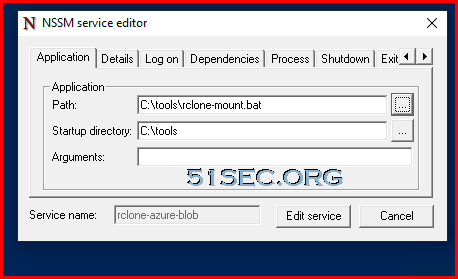
PS C:\Windows\system32> nssm install rclone-azure-blob
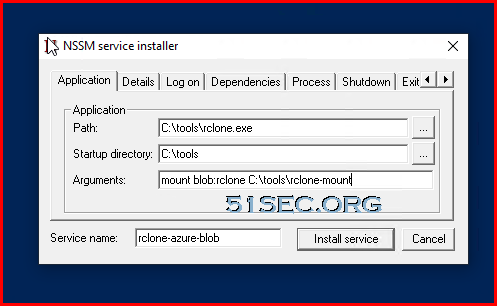
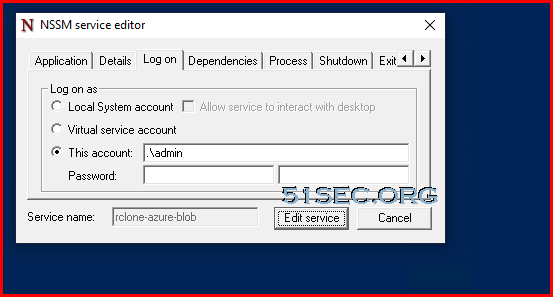


C:\tools\rclone.exe mount blob:rclone C:\tools\rclone-mount --vfs-cache-mode full
via Blogger http://blog.51sec.org/2021/11/mount-azure-blob-storage-into-local.html
November 27, 2021 at 06:18PM Cloud

 RSS Feed
