
JunOS Space is in my environment and starting to replace NSM. I have played with in testing lab which recorded in my previous posts:
1. Review Space Settings
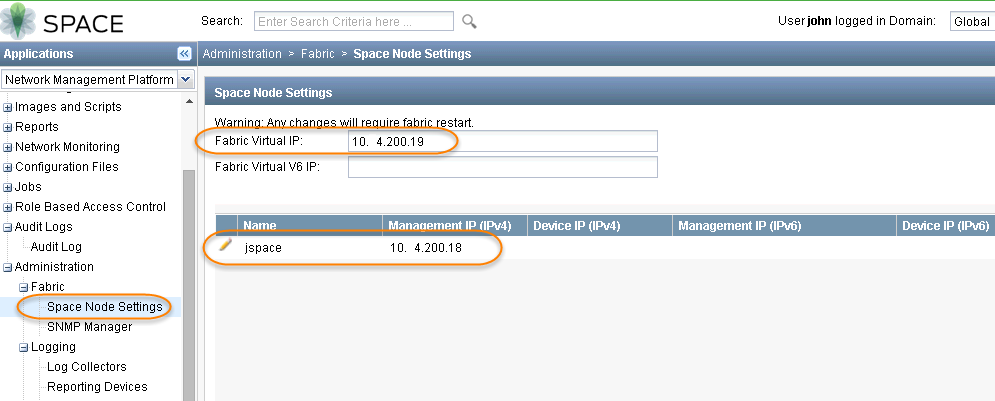
Your JunOS Space is ready and first thing probably is to review the settings, which you will find from Administration -> Fabric -> Space Node Settings
Fabric Virtual IP: 10.4.20.19
Management IP: 10.4.20.18
Also review the applications you installed from Administration ->Applications. You will find out the application version from this page.
2. License
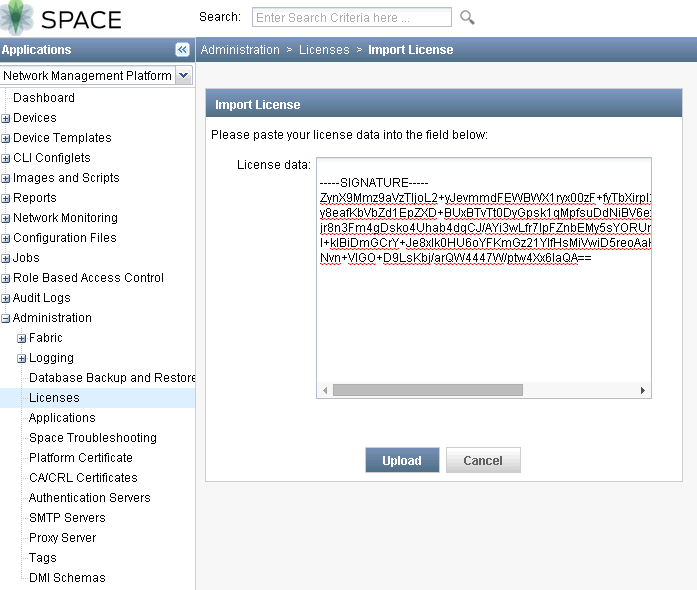
By default, after installed your JunOS Space, it will be on trial license for 60 days. You will need authorization code and serial number purchased from your partner to generate a new license code. Next a couple of screenshots show the license importing procedures.
3. Authentication Server
It will be your Radius / Tacacs+ Server which you will use it to authenticate your user to log into JunOS Space. After entered the server info, you can test the connection.
Once Authentication Server created and connection tested, you can create create a remote profile for AD account. The users under User Accounts of Role Based Access Control are local accounts. The users under Remote Profile of Role Based Access Control are AD accounts, which authenticated by Radius server. My another post records all steps how to integrate with a free Radius server TekRADIUS LT version.
4. SMTP Server
Put your Internal SMTP server in and do test connection.
5. Proxy Server
Add your proxy server in your environment. If authentication information needed, add them in as well.
There are no test connection for Proxy server. Usually you can use DMI Schemas to test your Internet connection through the Proxy server you just configured
6. DMI Schemas
You may find out all kinds of support device families and OS version. But the specific one in your environment may be not in this list.
You will need to download it from DMI Schemas window. Click the green button icon "Update Schema" beside Actions button. In Update Schema window, Choose SVN Repository, then click Configure button to enter SVN Url (https://xml.juniper.net/dmi/repository/trunk/) and your Juniper Support account as shown from next screenshot.
After all SVN configuration saved, you can choose your Device Family to work on, for example in my case it is JunOS-ES, click Connect button. You will see all Schema available for you to download in Schema Availability. It will take a while to get a full list.
7. Create Domain
If you are managing multiple sites devices, you can create domain for each site and assign corresponding administrator to manage those sites. Next screenshot shows a new domain test1 created under the global domain.
1) Configure IP Address
2) Configure Time Zone
3) Configure Name Server Settings
4) Configure NTP Settings
5) Quit
After finished configuration, select Deploy button at the bottom of window to push following configuration to Juniper SRX firewall.
security {
log {
mode stream;
format sd-syslog;
source-address 10.9.20.26;
stream LogCollector {
host {
10.9.20.17;
}
}
}
After deployed this secure logging configuration to devices, your log collector should be able to get logs from your Juniper Devices.
b. [Junos Space] Example - How to perform offline DMI schema update using SVN client on Windows
c. JunOS Space Security Director Logging Reporting Getting Started Guide
- Install JUNOS Space Virtual Appliance at ESXi 5.5
- Installation of Junos Space Security Director and Managing Juniper Firewall
- Juniper vSRX Firewall (Firefly Perimeter) installation in ESXi and Managed by JunOS Space
- Import Existing Juniper SRX Cluster into JunOS Space Security Director
1. Review Space Settings
Your JunOS Space is ready and first thing probably is to review the settings, which you will find from Administration -> Fabric -> Space Node Settings
Fabric Virtual IP: 10.4.20.19
Management IP: 10.4.20.18
|
| Fabric Node Settings |
Also review the applications you installed from Administration ->Applications. You will find out the application version from this page.

|
| Applications |
2. License
By default, after installed your JunOS Space, it will be on trial license for 60 days. You will need authorization code and serial number purchased from your partner to generate a new license code. Next a couple of screenshots show the license importing procedures.

|
| Juniper Support Site to Generate License for JunOS Space |

|
| Authorization Code and Serial Number you got from Partner |
|
| Import License into Space |

|
| License Type Changed from Trial to Commercial |
It will be your Radius / Tacacs+ Server which you will use it to authenticate your user to log into JunOS Space. After entered the server info, you can test the connection.

|
| Radius / Tacacs+ Authentication Server |
Once Authentication Server created and connection tested, you can create create a remote profile for AD account. The users under User Accounts of Role Based Access Control are local accounts. The users under Remote Profile of Role Based Access Control are AD accounts, which authenticated by Radius server. My another post records all steps how to integrate with a free Radius server TekRADIUS LT version.

|
| TekRADIUS |
4. SMTP Server
Put your Internal SMTP server in and do test connection.

|
| SMTP Server |
5. Proxy Server
Add your proxy server in your environment. If authentication information needed, add them in as well.

|
| Proxy Server |
6. DMI Schemas
You may find out all kinds of support device families and OS version. But the specific one in your environment may be not in this list.

|
| DMI Schemas |

|
| SVN Access configuration |
7. Create Domain
If you are managing multiple sites devices, you can create domain for each site and assign corresponding administrator to manage those sites. Next screenshot shows a new domain test1 created under the global domain.

|
| Domain |
8. Logging
By default, the loggine, event, alarm and reporting function will not be enabled until you added your Log Collector node into JunOS Space.8.1 Download Log Collector Image
Download Log Collector OVA Image for VM on ESX Deployment from Junos Space Security Director -Download Software site. Current version is 14.1R2. Size is about 1.3G.8.2 Importing into ESX server.

|
| Log Collector VM Settings |
8.3. Configure Log Collector.
Default password is juniper123 for root user. You will have to change it at your first time log in. There are only 5 options for you to do configuration1) Configure IP Address
2) Configure Time Zone
3) Configure Name Server Settings
4) Configure NTP Settings
5) Quit
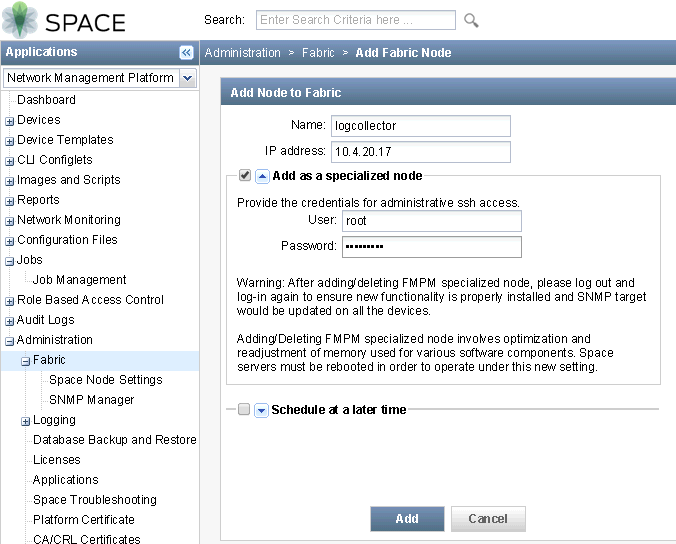
8.4 Add Log Collector Node into Junos Space Fabric
|
| Add node from Administration -> Fabric |

|
| Junos Space nodes (Space node and Log Collector node) |
8.5 Enable Logging on SRX Devices
Go to Security Director -> Devices -> Device Management , right click your device, choose Device Configuration -> Modify Configuration -> Security Logging

|
| Security Logging for SRX Device |
After finished configuration, select Deploy button at the bottom of window to push following configuration to Juniper SRX firewall.
security {
log {
mode stream;
format sd-syslog;
source-address 10.9.20.26;
stream LogCollector {
host {
10.9.20.17;
}
}
}
After deployed this secure logging configuration to devices, your log collector should be able to get logs from your Juniper Devices.
Reference:
a. [Junos Space] Example - How to update the DMI schemab. [Junos Space] Example - How to perform offline DMI schema update using SVN client on Windows
c. JunOS Space Security Director Logging Reporting Getting Started Guide

 RSS Feed
