Info Security Memo
  • Blog
  • Sitemap
    • Categories
  • Contact
  • About
  • Resources
  • Tools
  • 51sec.org

Build Confidence

Focusing on Information Security 

Info Security Notes

Install xRDP with Ubuntu Desktop on Oracle ARM VM

1/23/2022

0 Comments

 
Install xRDP with Ubuntu Desktop on Oracle ARM VM

Remote Desktop Protocol allows users to access remote systems desktop. The XRDP service provides you a graphical login to the remote machines using Microsoft RDP (​Remote Desktop Protocol). The XRDP also supports two-way clipboard transfer (text, bitmap, file), audio redirection, and drive redirection (mount local client drives on the remote machines).

XRDP is an easy-to-install and configurable service for Ubuntu systems. This post is going to show you the steps how you can get your Ubuntu desktop and xRDP installed on Oracle ARM based VM. 



System Update and Add a new user

update system repositories

apt update -y

optional: apt upgrade -y


add a new user netsec which later you can use it to log in

adduser netsec


Enable Password Log In  (Optional)

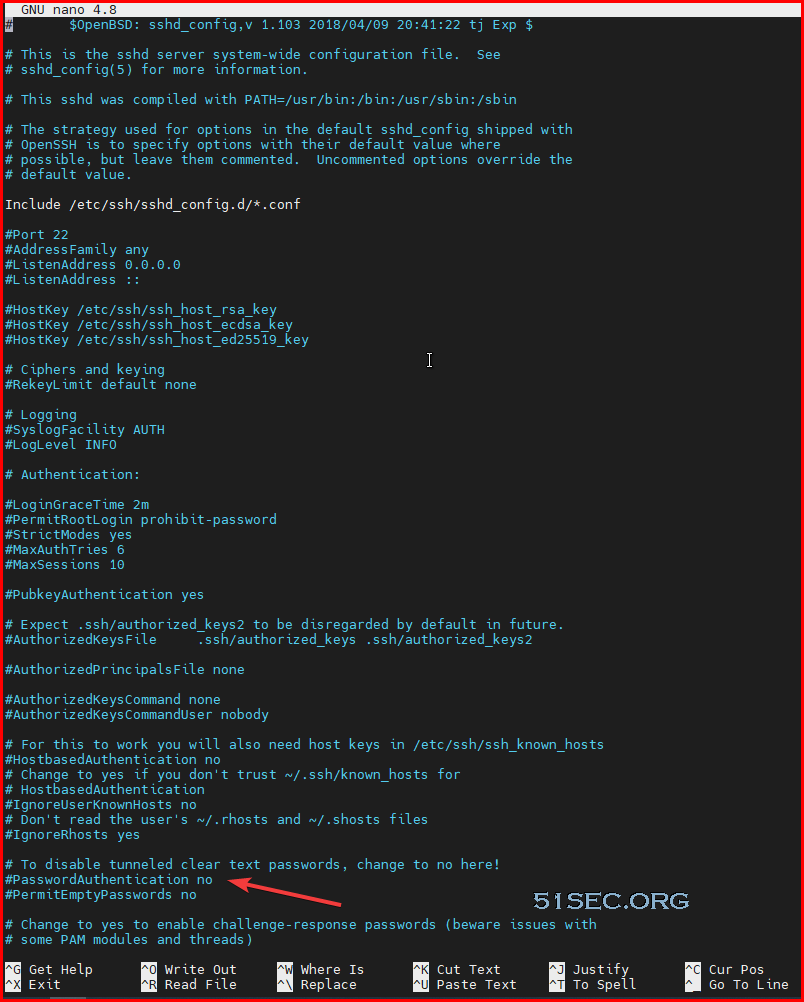
By default, Oracle vm is using certificate to log in and password login has been disabled. 

nano /etc/ssh/sshd_config

comment the line

#PasswordAuthentication no


Install Desktop 

There are various desktop environments available in Ubuntu repositories that you can choose. One option is to install Gnome, which is the default desktop environment in Ubuntu 20.04. Another option is to install Xfce . It is a fast, stable, and lightweight desktop environment, which makes it ideal for usage on a remote server.

Run one of the commands below to install the desktop environment of your choice.

  • Install Gnome:

    sudo apt updatesudo apt install ubuntu-desktop
    
  • Install Xfce:

    sudo apt updatesudo apt install xubuntu-desktop
    

Depending on your system, downloading and installing GUI packages will take some time.


Install and Configure xRDP

Xrdp is incuded in the default Ubuntu repositories. To install it, run:

sudo apt install xrdp 

Once the installation is complete, the Xrdp service will automatically start. You can verify it by typing:

sudo systemctl status xrdp


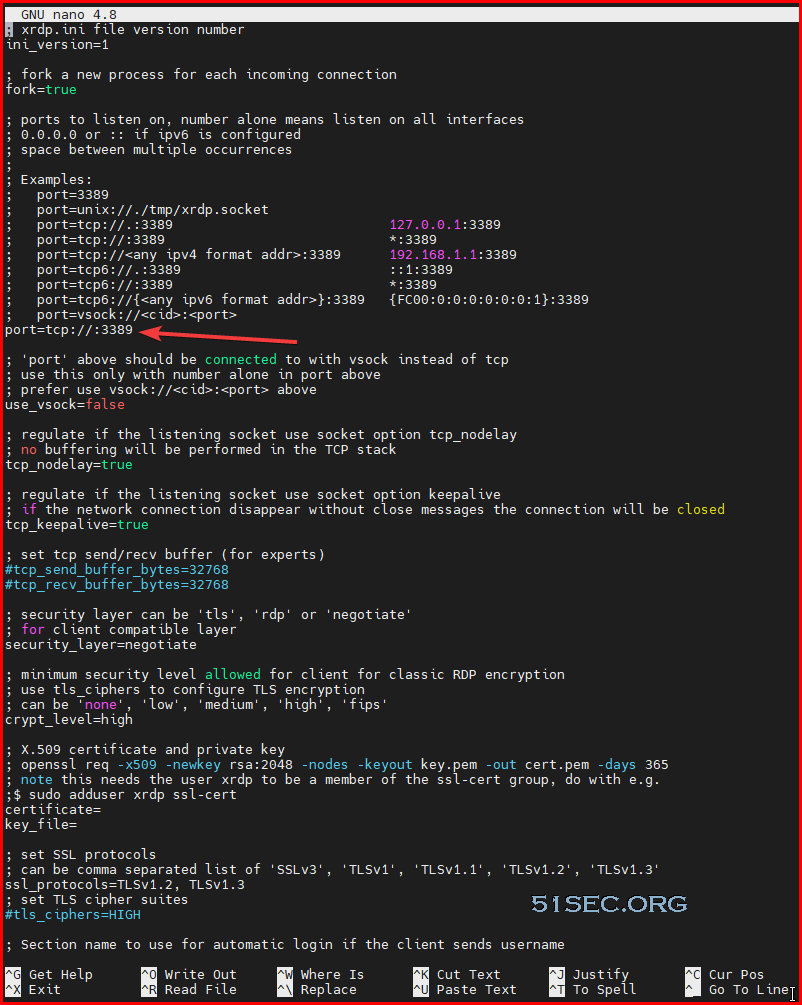
Enable 3389 port on IPv4 interface. By default , port=3389, which will cause 3389 port running on inet6 interface. You can verify port running status from following two commands

  • apt install net-tools
  • netstat -na | grep 3389

To change the configuration, edit xrdp.ini file using following command:
sudo nano /etc/xrdp/xrdp.ini

Reboot the service to take the configuration change into effect. 

  • systemctl restart xrdp 


Disable Built-in Firewall


If you are using Oracle's Ubuntu image, you will have connectivity issue to the port 3389 since built-in iptables will block the external connection. Testing from local will still work, but not from remote. 

Here is command to disable iptables. You might need to install netfilter-persitent using command first : "apt install netfilter-persistent -y"

sudo iptables -F
sudo netfilter-persistent save

Explanation:

  • iptables -F: Flush (remove all) iptables rules
  • netfilter-persistent save Save empty ruleset to disk so it 
Checking iptables rules using iptables -L or iptables --list command.

If the iptables ruleset is empty, it will look like this:

Default output is:

Chain INPUT (policy ACCEPT)
target     prot opt source               destination

Chain FORWARD (policy ACCEPT)
target     prot opt source               destination

Chain OUTPUT (policy ACCEPT)
target     prot opt source               destination


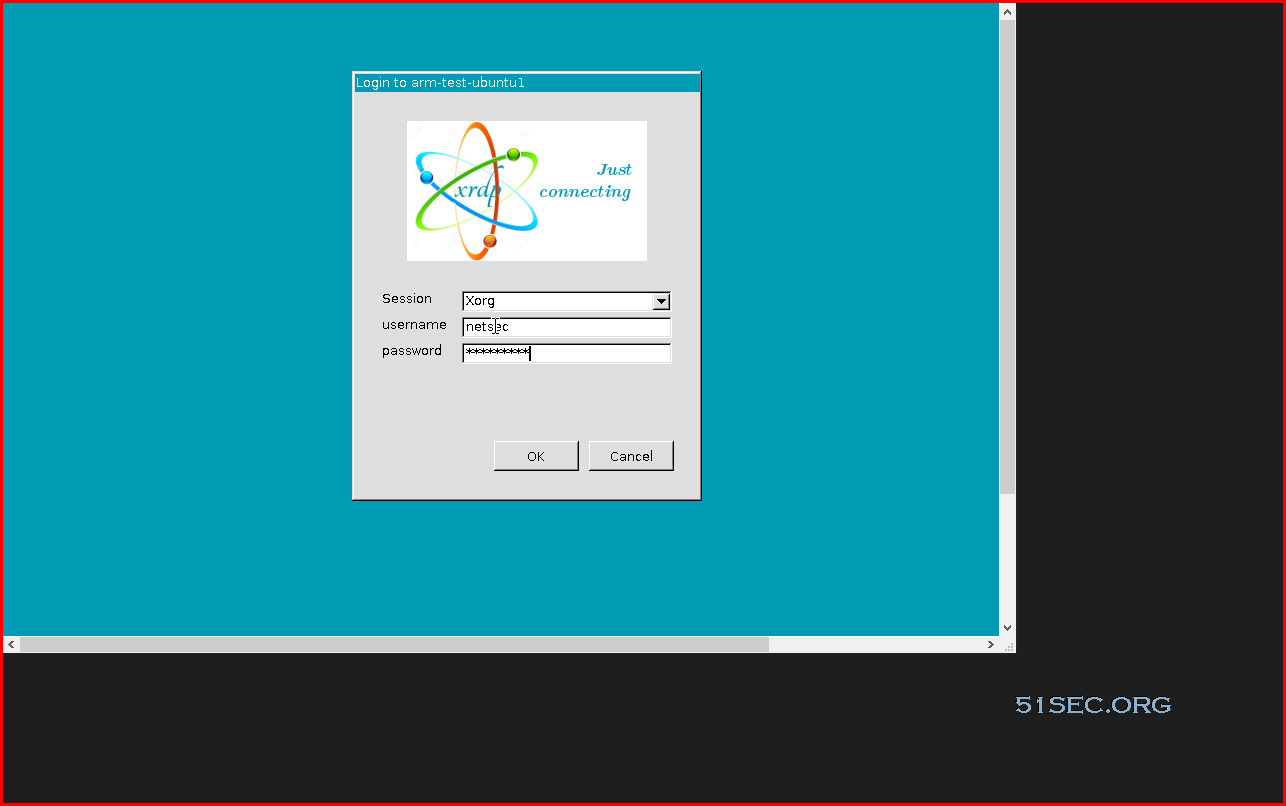
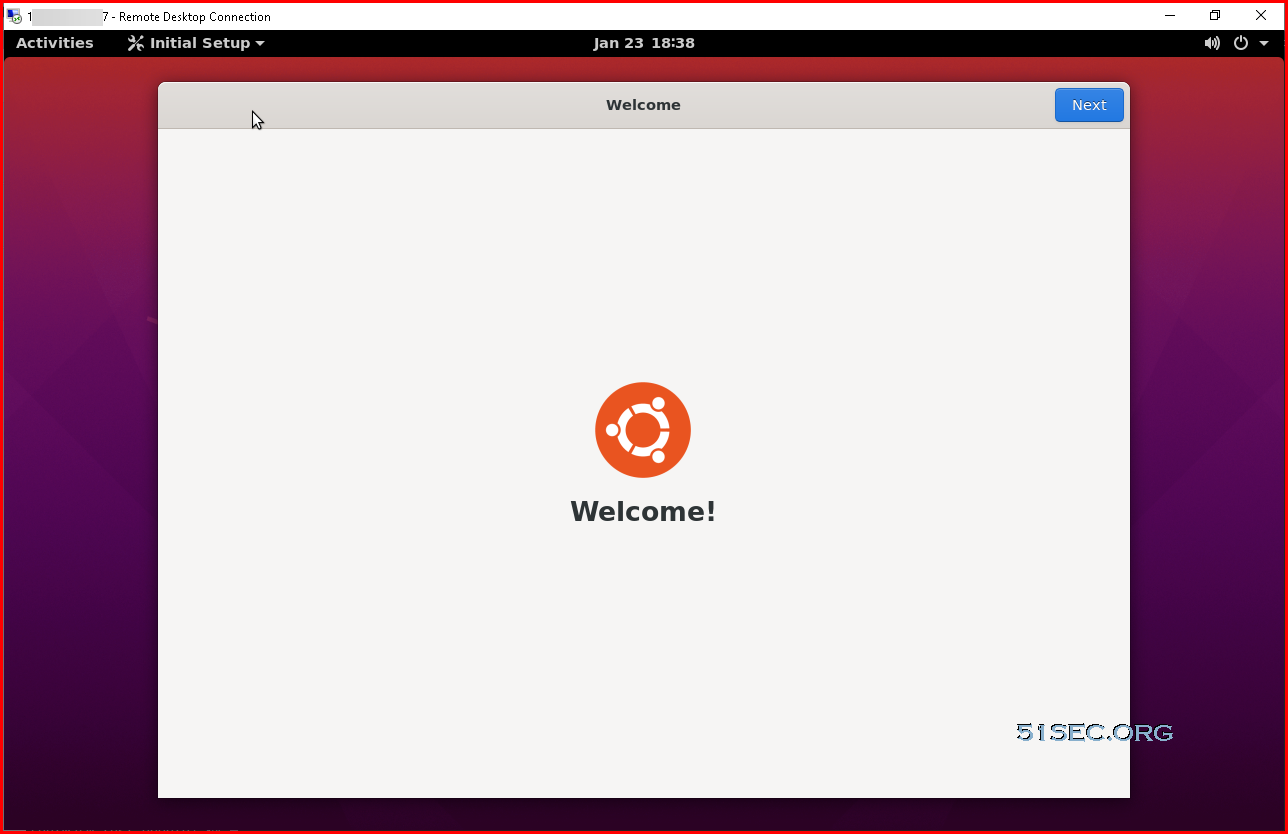
MSTSC (RDP Client) Log in


Issues

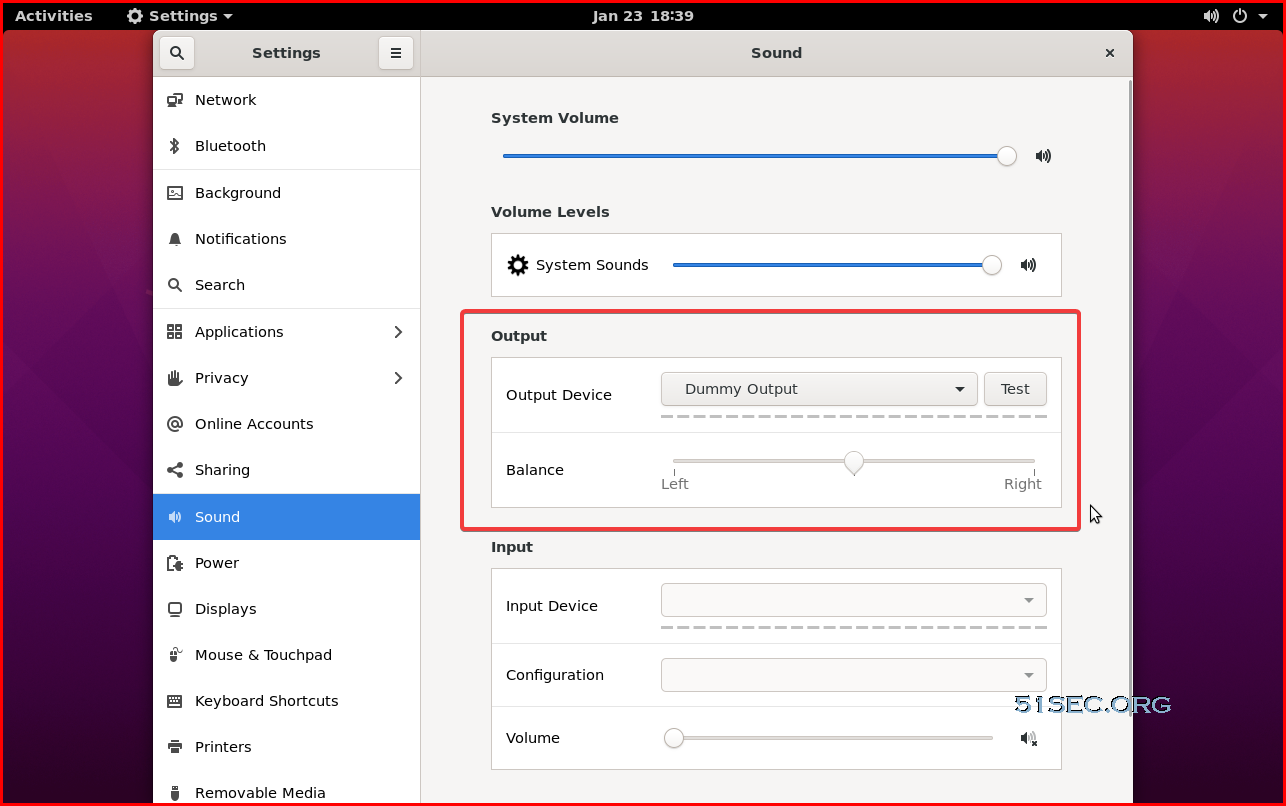
No sound


References

  • DD Original Ubuntu Image to Oracle Cloud ARM VM and Install RDP with Sound Forwarding Support
  • 甲骨文ARM Gnome桌面配置
  • How to disable instance firewall on Ubuntu on Oracle Cloud


via Blogger http://blog.51sec.org/2022/01/install-xrdp-with-ubuntu-desktop-on.html
January 23, 2022 at 04:21PM Cloud
0 Comments


Leave a Reply.

    Categories

    All
    Architecture
    Blog
    Checkpoint
    Cisco
    Cloud
    CyberArk
    F5
    Fortigate
    Guardium
    Juniper
    Linux
    Network
    Others
    Palo Alto
    Qualys
    Raspberry Pi
    Security
    SIEM
    Software
    Vmware
    VPN
    Wireless

    Archives

    March 2024
    February 2024
    January 2024
    December 2023
    November 2023
    October 2023
    September 2023
    August 2023
    July 2023
    June 2023
    May 2023
    April 2023
    March 2023
    February 2023
    January 2023
    December 2022
    November 2022
    October 2022
    September 2022
    August 2022
    July 2022
    June 2022
    May 2022
    April 2022
    March 2022
    February 2022
    January 2022
    December 2021
    November 2021
    October 2021
    September 2021
    August 2021
    July 2021
    June 2021
    May 2021
    April 2021
    March 2021
    February 2021
    January 2021
    December 2020
    November 2020
    October 2020
    September 2020
    August 2020
    July 2020
    October 2019
    September 2019
    June 2019
    July 2018
    May 2018
    December 2017
    August 2017
    April 2017
    March 2017
    January 2017
    December 2016
    November 2016
    October 2016
    September 2016
    August 2016
    July 2016
    June 2016
    May 2016
    April 2016
    March 2016
    February 2016
    January 2016
    December 2015
    November 2015
    October 2015
    September 2015
    August 2015
    July 2015
    June 2015
    May 2015
    April 2015
    March 2015

    Print Page:

    RSS Feed

    Email Subscribe
Powered by Create your own unique website with customizable templates.
  • Blog
  • Sitemap
    • Categories
  • Contact
  • About
  • Resources
  • Tools
  • 51sec.org