
October 2021, Microsoft began testing Android apps on Windows 11 PCs in partnership with Amazon and its app store. However, the feature was only available to beta testers participating in the Windows 11 Insider Program, and was limited to around 50 apps. Starting from Feb 15, 2022, the company is opening access to a broader audience with the arrival of the Amazon Appstore Preview in the Microsoft Store, which will now offer more than 1,000 apps and games.
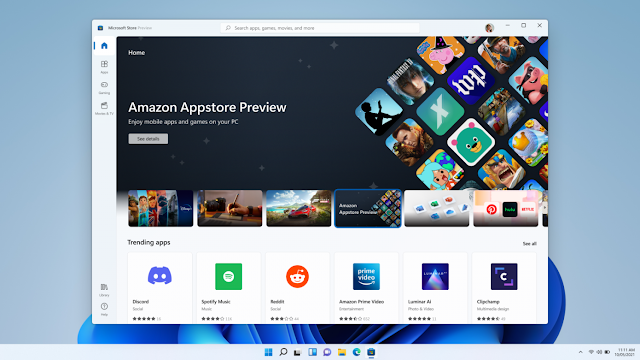
The experience is built on the Android platform via the new Windows Subsystem for Android, powered by Intel’s Bridge Technology. Both AMD and Intel devices are supported, however, given they meet hardware requirements for running Windows 11.
Pre-requisites
Basci requirements
- Memory: 8GB (16GB recommended).
- Processor: Intel Core i3 8th Gen, AMD Ryzen 3000, Qualcomm Snapdragon 8c, or better.
- Storage: Solid-state drive (SSD).
- Microsoft Store app: Version 22110.1402.6.0 or higher.
- Windows 11: Build 22000.526 or higher (stable channel).
Verify and Install Virtual Machine Platform:
1 Open the Task Manager on the CPU tab and check the CPU tab for the Virtualization line. If it is missing, you need to enable it in BIOS.
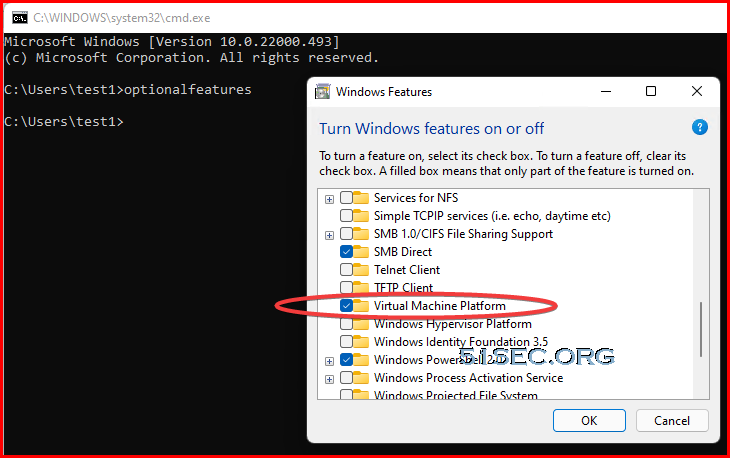
2 Now, press Win + R and type optionalfeatures in the Run dialog
3 Check the Virtual Machine Platform component and click OK to install it. You may need to restart the OS to apply the change.
4 Search Amazon Appstore. But you might not have this in your search result.
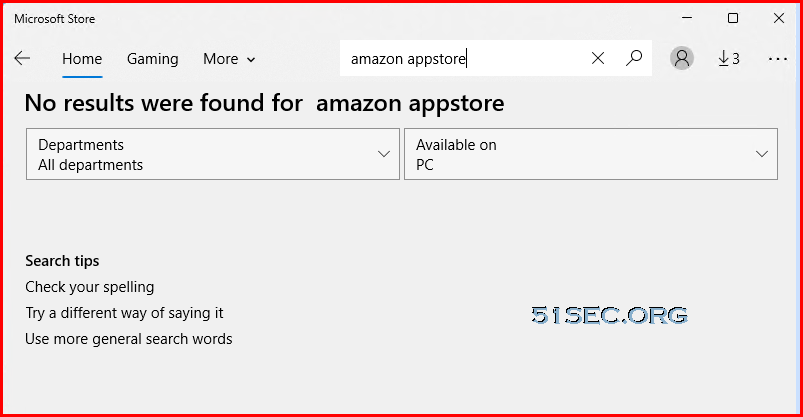
If Amazon Appstore shows in your search result, you might be able to directly install it with all other required components. But if you are having same issue I am facing, here are the steps we can get WSA installed and other Android apps installed.
Download Two Components
Download
Next, open you web browser and point to this Store link generator by rg-adguard (https://store.rg-adguard.net/).
- Type the following url into its search box:
https://www.microsoft.com/store/productId/9P3395VX91NR. - Select the Slow ring and click on the checkmark button to generate the links.
Download the huge file (1.2 GB)
MicrosoftCorporationII.WindowsSubsystemForAndroid_***_.msixbundle, where *** is its version.
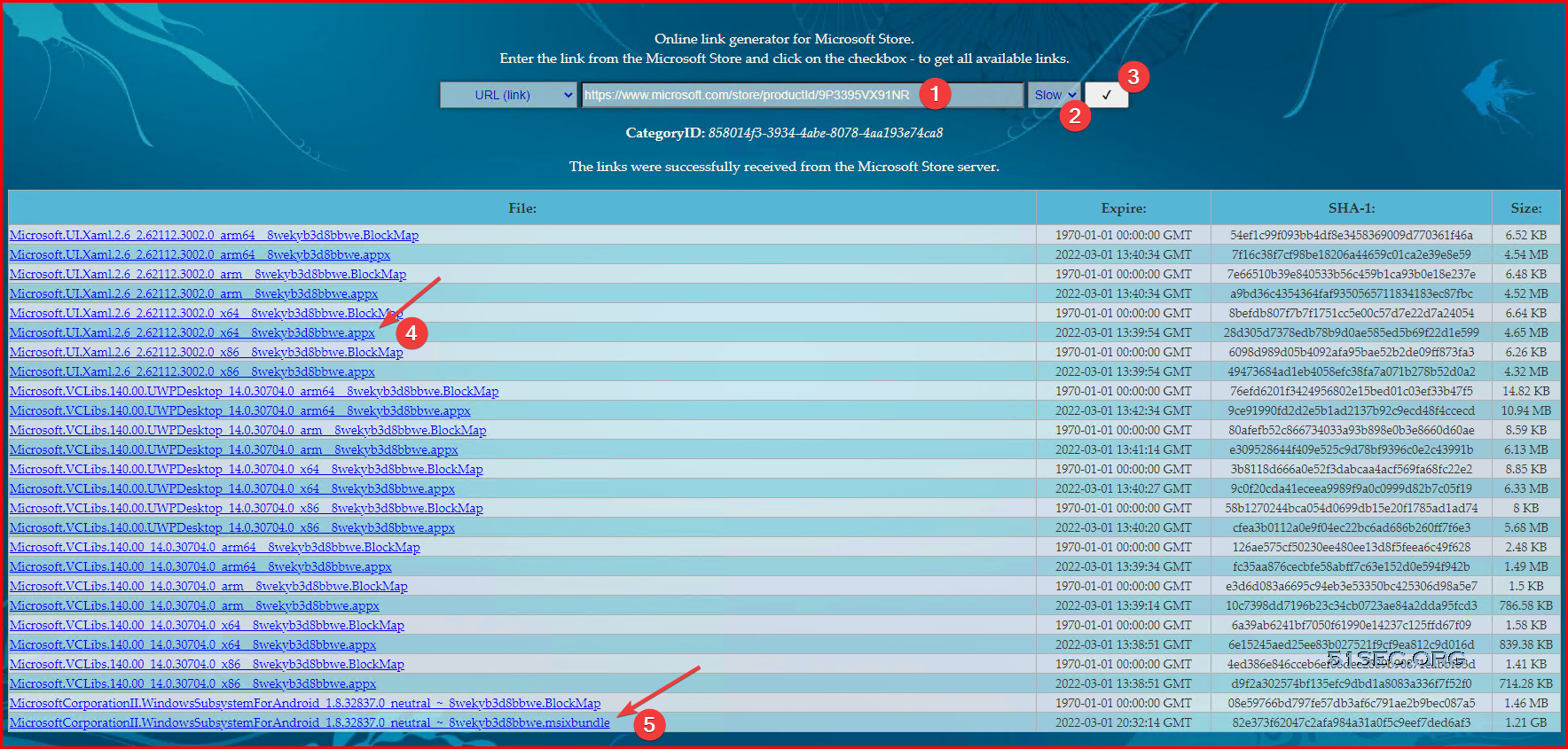
You will also need to download
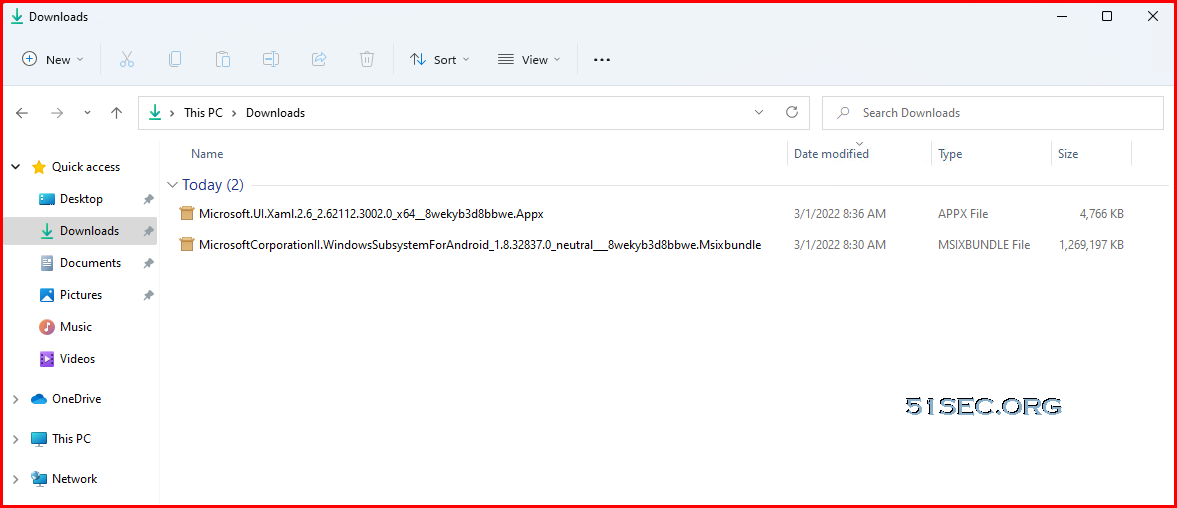
- Microsoft.UI.Xaml.2.6_2.62112.3002.0_x64__8wekyb3d8bbwe.Appx (4.65MB)
Install Components
- Microsoft.UI.Xaml.2.6_2.62112.3002.0_x64__8wekyb3d8bbwe.Appx
- MicrosoftCorporationII.WindowsSubsystemForAndroid_1.8.32837.0_neutral___8wekyb3d8bbwe.Msixbundle
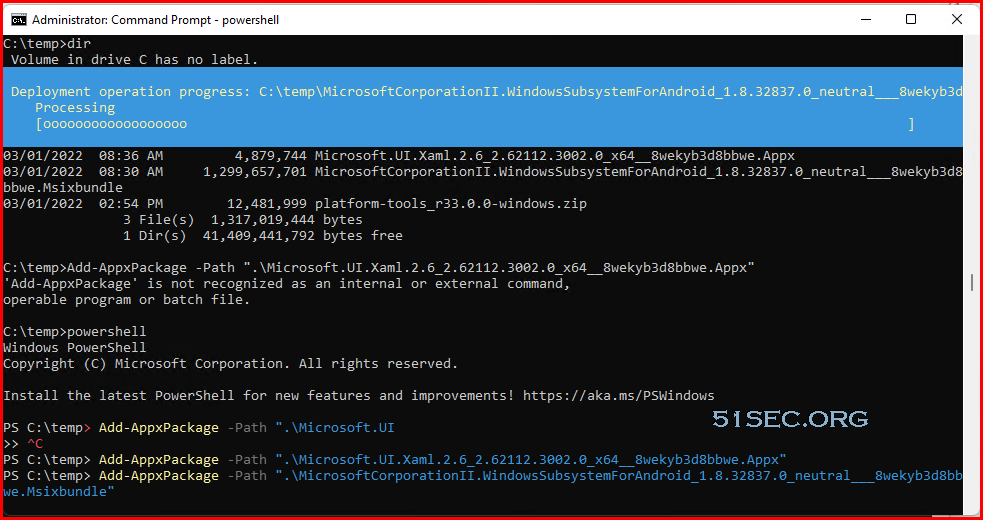
Open Windows Terminal as Administrator with PowerShell to the Downloads folder and type the following command to install Windows Subsystem for Android in Windows 11: Add-AppxPackage -Path "C:\Users\winaero\Downloads\MicrosoftCorporationII.WindowsSubsystemForAndroid_<version>.msixbundle". Correct the package name and its path and hit Enter.
PS C:\users\test1\Downloads> dir
    Directory: C:\users\test1\Downloads

Mode                 LastWriteTime         Length Name
----                 -------------         ------ ----
-a----          3/1/2022   8:36 AM        4879744 Microsoft.UI.Xaml.2.6_2.62112.3002.0_x64__8wekyb3d8bbwe.Appx
-a----          3/1/2022   8:30 AM     1299657701 MicrosoftCorporationII.WindowsSubsystemForAndroid_1.8.32837.0_neutral
                                                  ___8wekyb3d8bbwe.Msixbundle

PS C:\users\test1\Downloads> Add-AppxPackage -Path ".\Microsoft.UI.Xaml.2.6_2.62112.3002.0_x64__8wekyb3d8bbwe.Appx"
PS C:\users\test1\Downloads> Add-AppxPackage -Path ".\MicrosoftCorporationII.WindowsSubsystemForAndroid_1.8.32837.0_neutral___8wekyb3d8bbwe.Msixbundle"
PS C:\users\test1\Downloads>
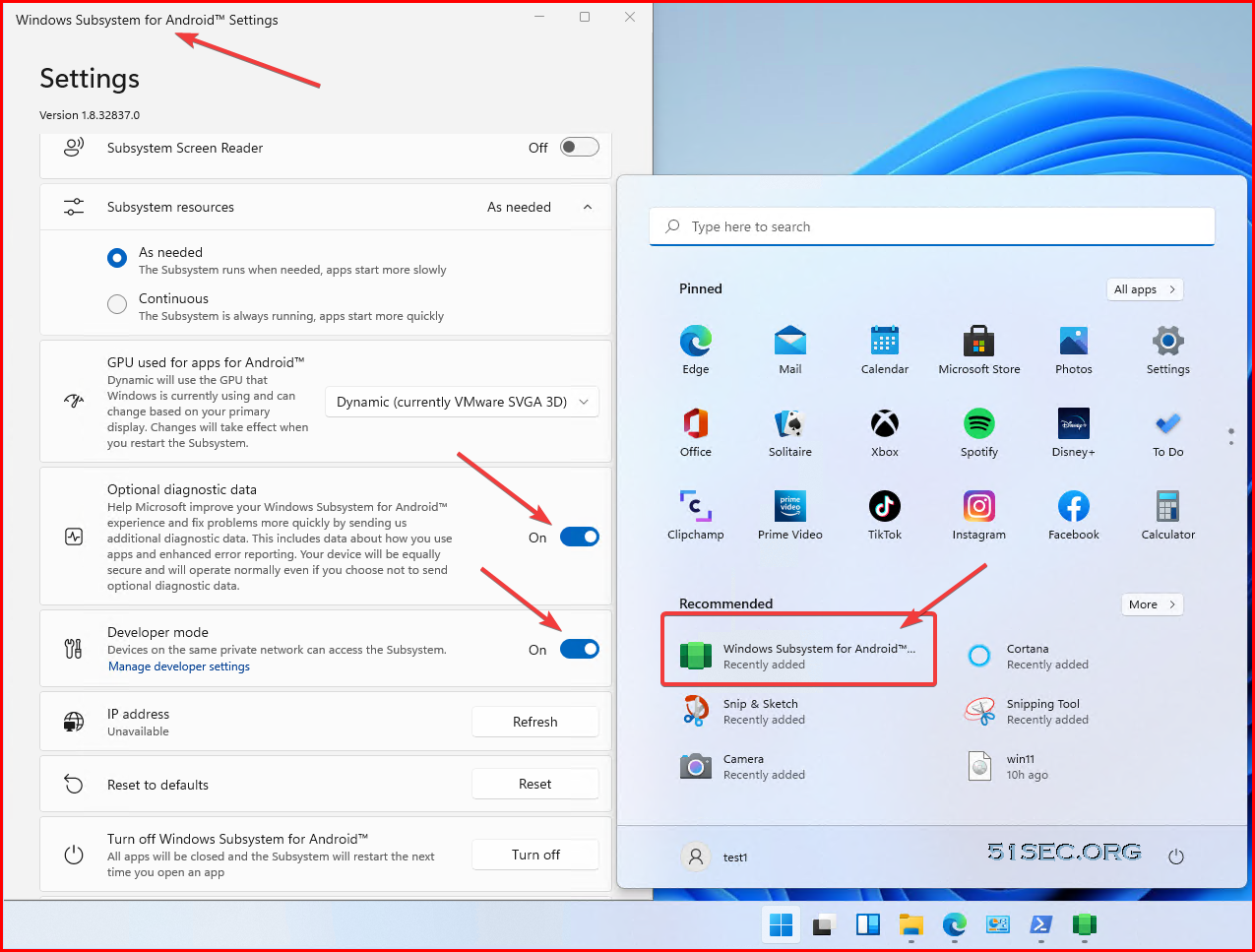
Windows Subsystem for Android is now installed and available from the Start menu along with the Amazon Store.
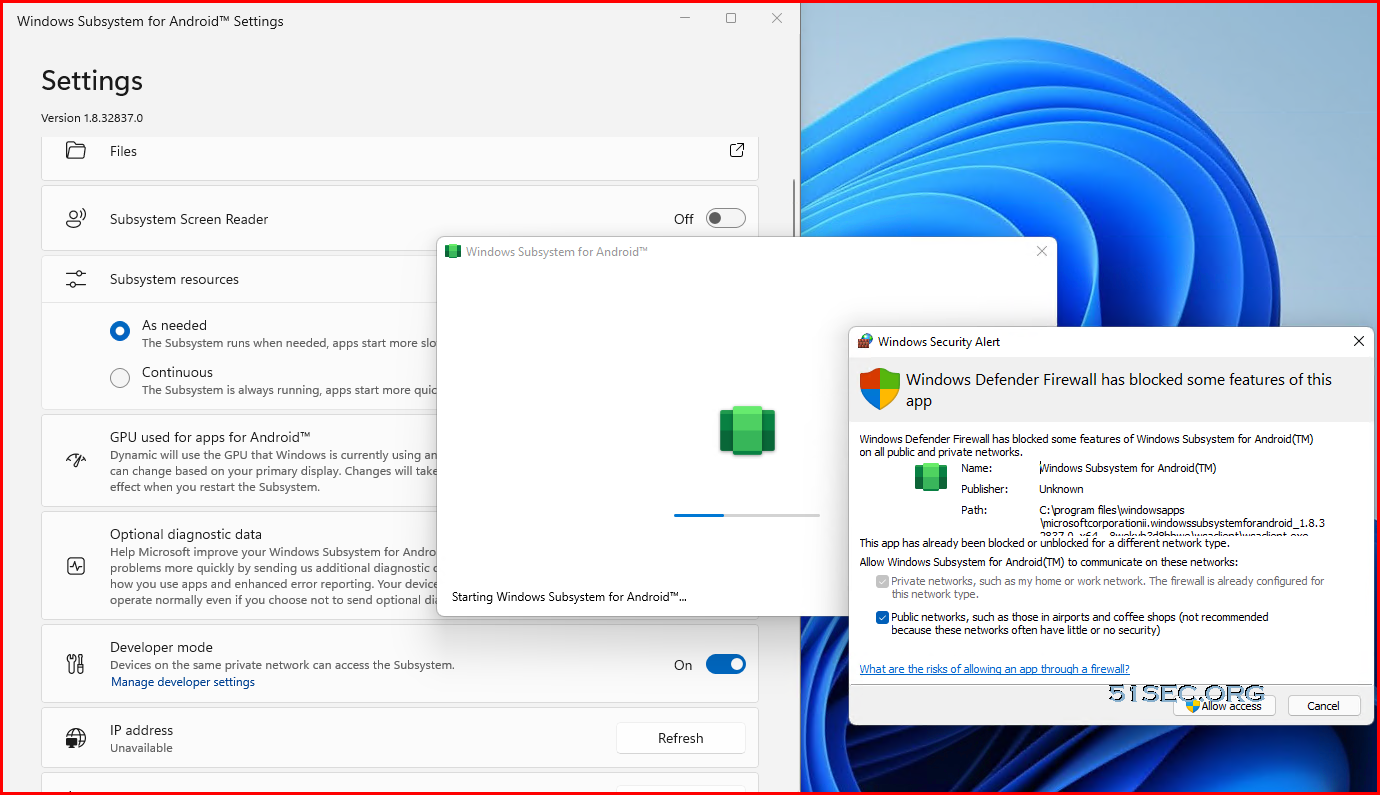
Verify Components

Download Android Debugging Bridge (ADB) tools
To set up the ADB tools, use these steps:
- Open the Android developer website.
-
Under the "Downloads" section, click the Download SDK Platform-Tools for Windows link.
- Check the option to accept the terms.
-
Click the Downloads section, click the Download Android SDK Platform-Tools for Windows button.
- Save the platform-tools zip to the computer.
- Open the recently downloaded zip folder.
-
Click the Extract all button.
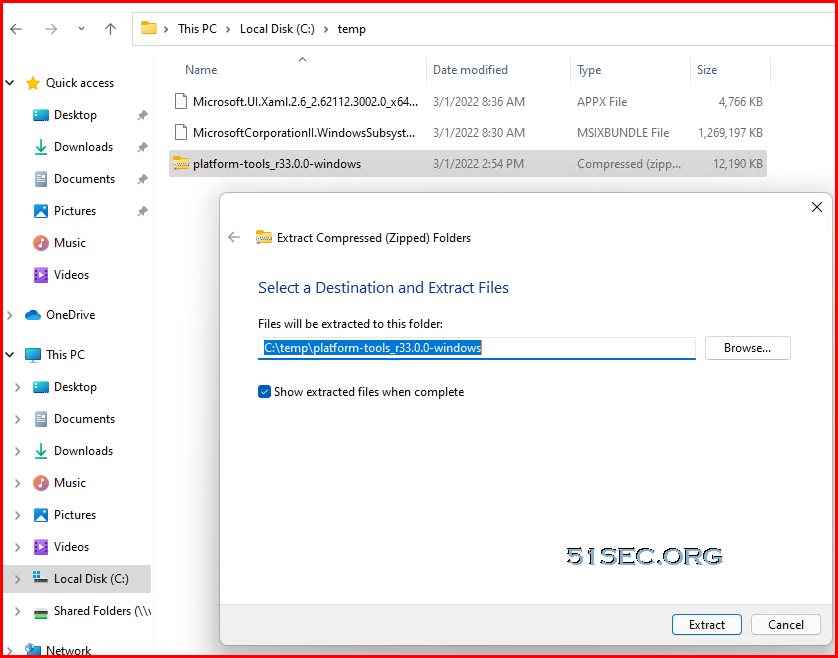
Once you complete the steps, you need to download the Android app file you want to install on Windows 11.
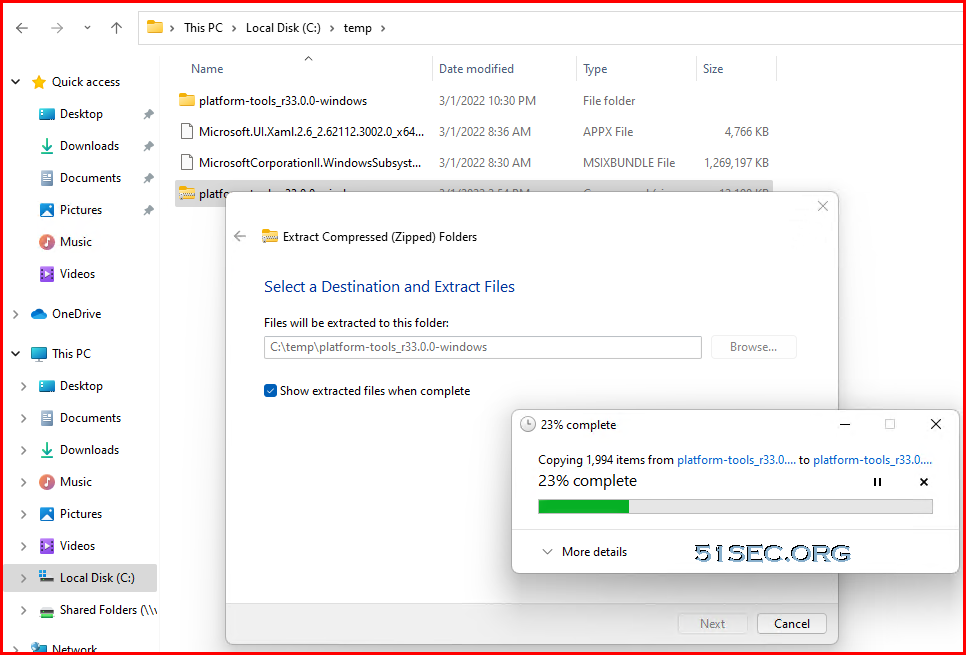
Sideload Android Apps
To install Android apps outside the Amazon Appstore on Windows 11, use these steps:
- Open Start.
- Search for Windows Subsystem for Android and click the top result to open the platform.
-
Turn on the Developer mode toggle switch.
Click the Copy button from the IP address setting.
-
Quick tip: If the address is unknown, click the Manage developer settings option to spin WSA in the Developer mode setting and click the Refresh button in the IP address setting.
- Open Start.
- Search for Command Prompt, right-click the top result, and select the Run as administrator option.
-
Type the following command to navigate to the platform-tools folder and press Enter:
cd C:\PATH\TO\platform-toolsIn the command, change the path of the location where you extracted the files.
For example, this command opens the tool's location inside the "Downloads" folder:
cd C:\Users\yourusername\Downloads\platform-tools_r31.0.3-windows\platform-tools -
Type the following command to connect to the WSA instance and press Enter:
adb connect WSA-IP-ADDRESSIn the command, replace "WSA-IP-ADDRESS" with the actual IP address of the Windows Subsystem for Android.
For example, this command connects using the 172.17.114.137 address:
adb connect 172.17.114.137 -
Type the following command to install the Android app and press Enter:
adb install ANDROID-APK-APPNAMEIn the command, replace "ANDROID-APK-APPNAME" with the actual .apk package name.
For example, this command installs the package called apple-music-app.apk located in the platform-tools folder:
adb install apple-music-app.apk
After you complete the steps, the app will install, and you can then find it and run it from the Start menu like any other native app on Windows.
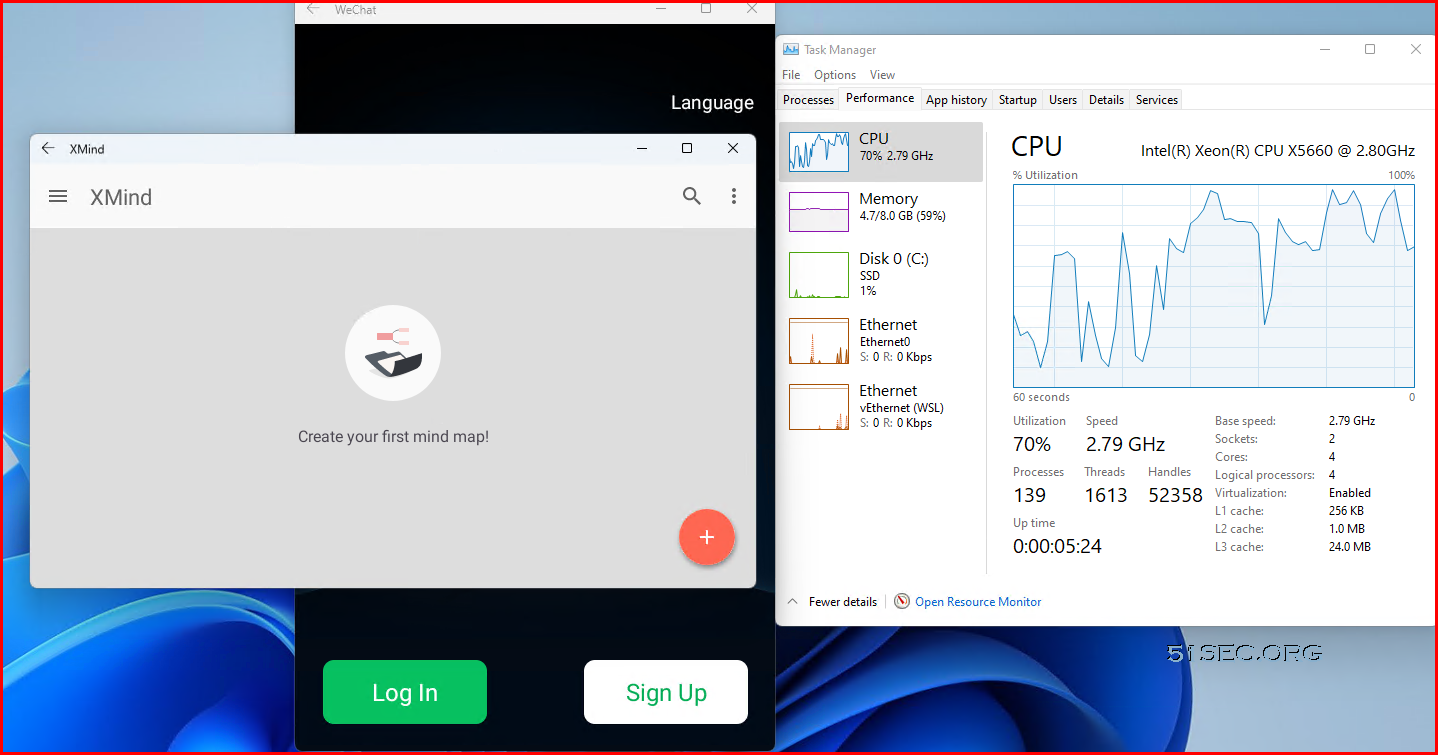
Installed Android Apps can be found from Windows Start menu.
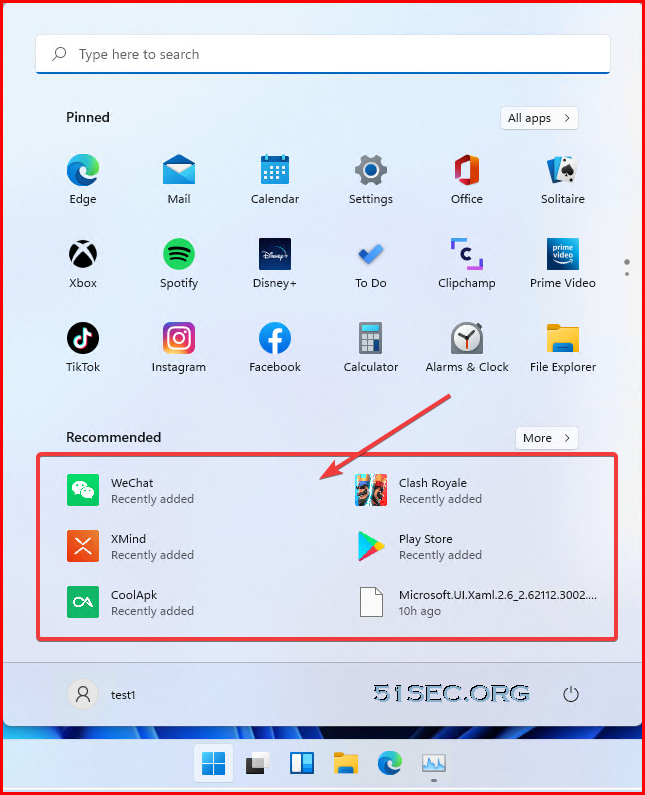
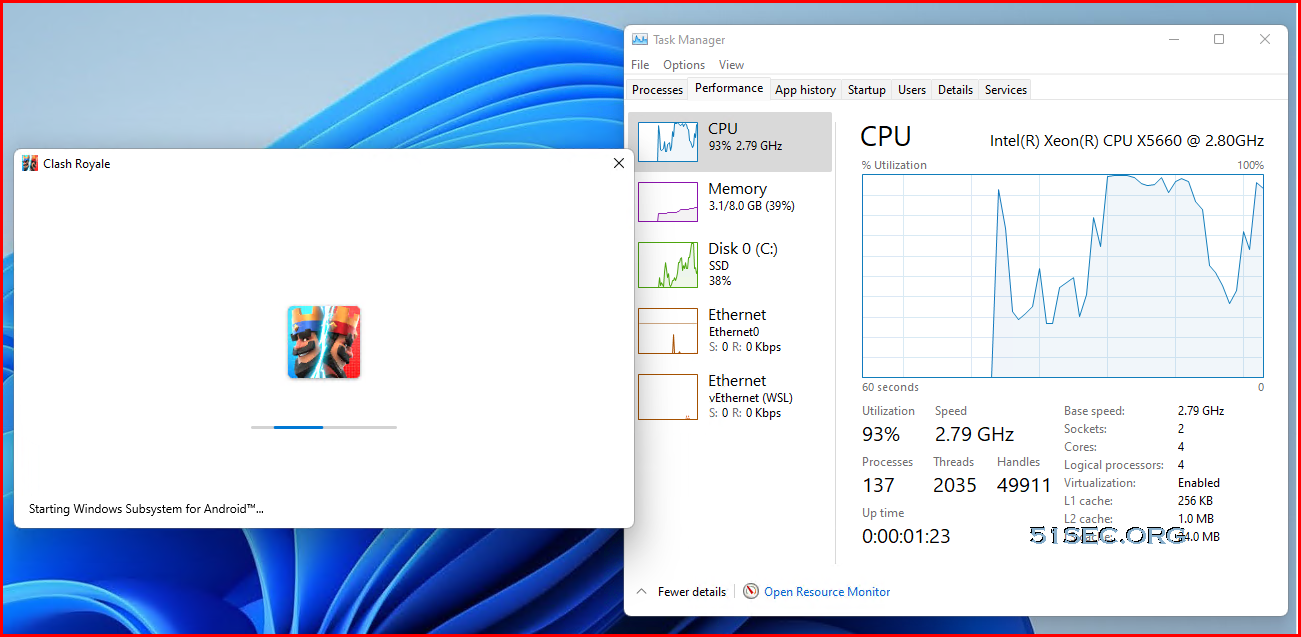
via Blogger http://blog.51sec.org/2022/03/install-android-apps-in-windows-11.html
March 02, 2022 at 12:09PM Windows

 RSS Feed
