
VMware vCenter Server provides centralized visibility, proactive management and extensibility for VMware vSphere from a single console.
The easiest way to deploy vCenter server is to use vCenter server appliance, which is a Linux-based virtual appliance used to manage vSphere. Following steps shows the procedures how this virtual appliacne deployed into ESXi environment.
a. Download .iso file to install vCenter into windows / linux environment.
b. Download .ova virtual appliance to deploy it into virtual environment
c. Download ovf file, vmdk system disk and vmdk data disk to deploy template into virtual environment.
In my lab, I selected single 2g single ova file to download and deploy it into my ESXi 5.5 server.


 Enter my ESXi 5.5 ip address192.168.2.201, root username and password , then next step.


Official way is to get an license for your vSphere. But we will have another easy way to reset ESXi into an evaluation mode for 60 days. You always can reset it again after expired.
cd /etc/vmware
rm-r vmware.lic
rm-r license.cfg
"reboot" or "services.sh restart"
b.For ESXi 5.1 + (used for my machine ESXi 5.5)
rm -r /etc/vmware/license.cfg
cp /etc/vmware/.#license.cfg /etc/vmware/license.cfg
/etc/init.d/vpxa restart
After did above steps reset the machine into evaluation mode, please go to Licence configuration page and put back to Evaluate Mode for 60 new Days


Finally, my vCenter virtual machine is running into ESXi environment. I am able to test vCenter's other features.
b. Adding an ESXi host to vCenter Server fails with the error: Host cannot be added to the vCenter as there are not enough Virtual Center Agent Licenses (1018275)
The easiest way to deploy vCenter server is to use vCenter server appliance, which is a Linux-based virtual appliance used to manage vSphere. Following steps shows the procedures how this virtual appliacne deployed into ESXi environment.
1. Download Software
There are a couple of options you can download.a. Download .iso file to install vCenter into windows / linux environment.
b. Download .ova virtual appliance to deploy it into virtual environment
c. Download ovf file, vmdk system disk and vmdk data disk to deploy template into virtual environment.
In my lab, I selected single 2g single ova file to download and deploy it into my ESXi 5.5 server.

2. Deploy it into ESXi
Deployment procedure for this virtual vCenter appliace is same as other virtual appliances. After imported into ESXi, you can review Vmware vCenter Server Appliance's Virtual Machine Properties again. By default, it uses 8G memory, 2 CPUs, Hard disk 1 is 25G system disk and Hard disk 2 is 100G data disk.
3. Power on Vmware vCenter Server Appliance
After system fully powers on, you will get vSphere Web Client URL. In my this case, it is https://192.168.2.220:5480/
4. Log into Web Client using a browser with default username root and password vmware.


5. Use Vmware vSphere Client to log into vCenter using ip address 192.168.2.220

6. Add ESXi into vCenter


7. Problem to add ESXi
My ESXi has been used for more than 1 year, and evaluation expired. I did get a free license from Vmware website for my personal usage. Unfortunately, vCenter can not allow any expired or non-evaluation ESXi machine to be added.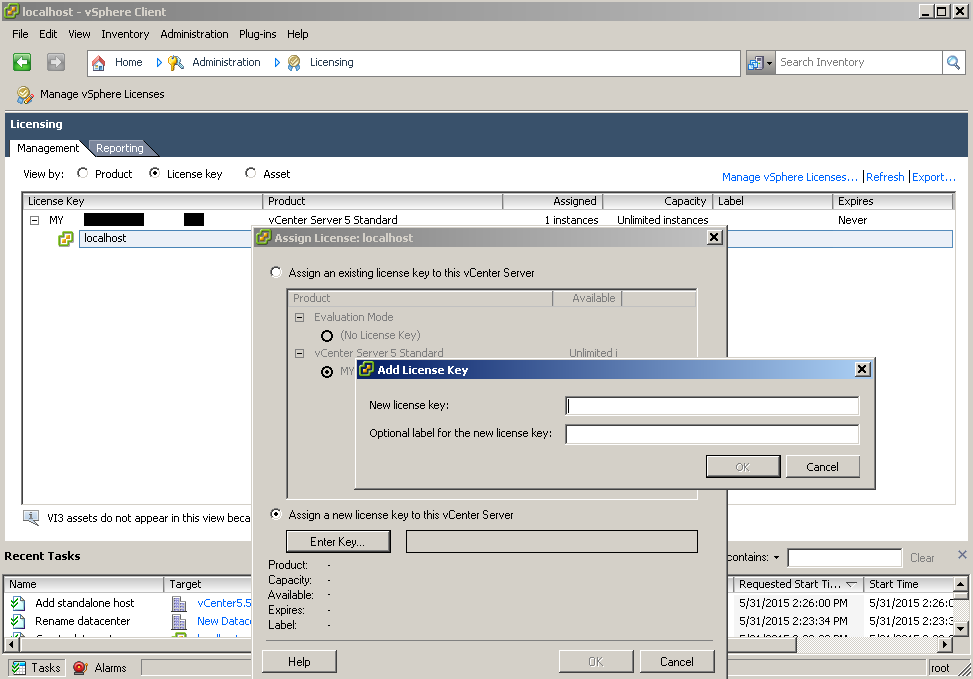
Based on KB1018275,
"
If an ESXi host is licensed with the free version of the license key, you cannot add it to vCenter Server. This license does not contain the VirtualCenter Agent, which is necessary to manage a host with vCenter Server. This feature remains locked as long as the host is licensed with the free version of the license key.
To add ESXi hosts to vCenter Server, you must license the ESXi hosts with:
-
vSphere Essentials
Licensing an ESXi host with vSphere Essentials allows you to manage three ESXi hosts using vCenter Server. For more information on purchasing vSphere Essentials, see VMware vSphere and VMware vCenter Server Pricing.
-
vSphere Standard, Enterprise, or Enterprise Plus
Licensing the ESXi host with one these products unlocks the add-on features that allow you to manage ESXi hosts using vCenter Server. For more information about these products, see Compare vSphere Editions.
"
- For more information on licensing an ESX/ESXi 4.x host, see Licensing ESX 4.x, ESXi 4.x, and vCenter Server 4.x (1010839).
- For more information on licensing an ESXi 5.x host, see Licensing ESXi 5.x and vCenter Server 5.x (2014295).
- For more information on licensing an ESXi 6.x host, see Licensing ESXi 6.x and vCenter Server 6.x (2107538).
Official way is to get an license for your vSphere. But we will have another easy way to reset ESXi into an evaluation mode for 60 days. You always can reset it again after expired.
8. Reset my ESXi to evaluation mode
a. For ESXi 4.1/5.0cd /etc/vmware
rm-r vmware.lic
rm-r license.cfg
"reboot" or "services.sh restart"
b.For ESXi 5.1 + (used for my machine ESXi 5.5)
rm -r /etc/vmware/license.cfg
cp /etc/vmware/.#license.cfg /etc/vmware/license.cfg
/etc/init.d/vpxa restart
After did above steps reset the machine into evaluation mode, please go to Licence configuration page and put back to Evaluate Mode for 60 new Days

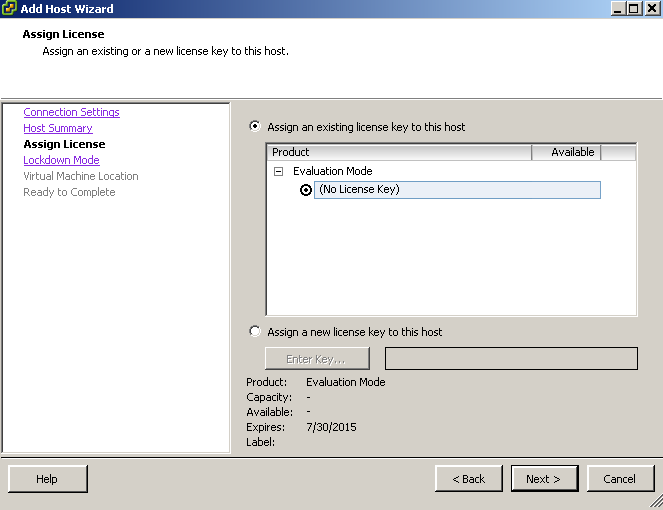
9. Assign License again after reset license in ESXi
This time, vCenter will find your ESXi is in evaluation mode, and allow you go to next steps.

10. Check ESXi 5.5's Settings


Finally, my vCenter virtual machine is running into ESXi environment. I am able to test vCenter's other features.
Reference:
a. vCenter Server 5.5.0b Release Notesb. Adding an ESXi host to vCenter Server fails with the error: Host cannot be added to the vCenter as there are not enough Virtual Center Agent Licenses (1018275)

 RSS Feed
