
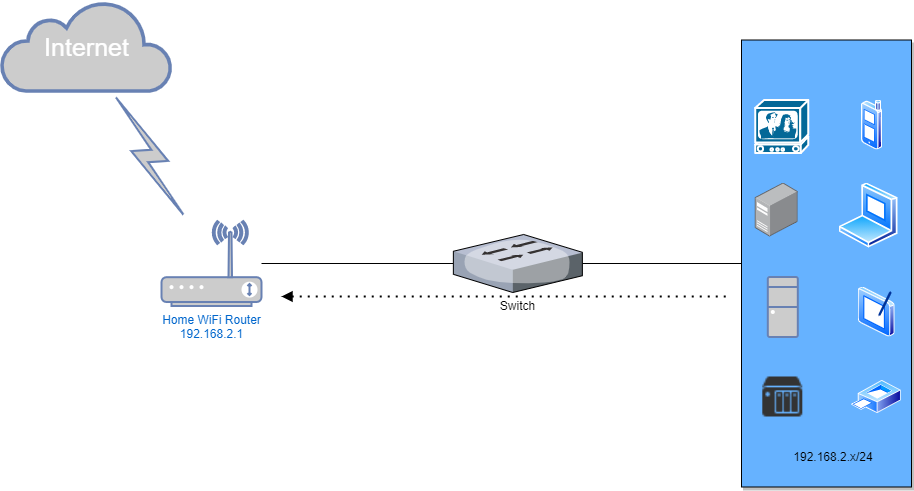
My home network is a flat network, one ISP Wireless Router connecting to a modem for Internet connection. Internally, a switch is connecting to this wireless router to provide more LAN ports for internal devices.
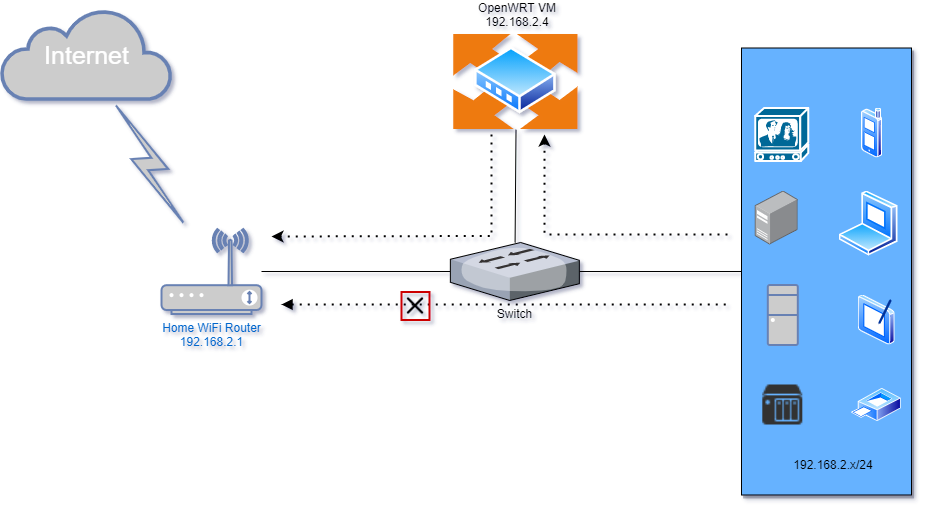
The wireless router was provided by ISP. Performance and coverage is ok for my home. But since it is ISP router, lots of settings have been locked down or customized, I wont be able to do much. Since I am also lazy to make big change to my home network, I found OpenWRT can be used as a single arm router for my home network to make me have better control to the network traffic. Only thing you will need to do is to spin up a virtual machine and install OpenWRT in it. Of course, you might need to change the DHCP settings to let your clients to send traffic to OpenWRT rather than directly to Wireless router.
Topology
Before
After:
Download OpenWRT OVA
You can find out the OVA link from https://ift.tt/3o9nAJU if you do not want to convert it from image.
Here is directly downloading link. The file size is only 18MB.
Installation Steps
Double click the download file (OpenWRT_x86_64_19.07.05.ova) will trigger VMWare Workstation Import Virtual Machine wizard:
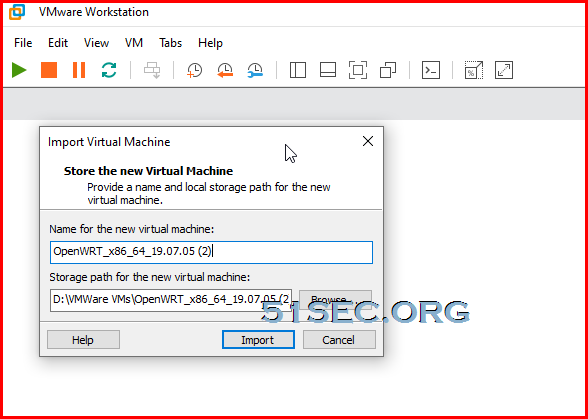
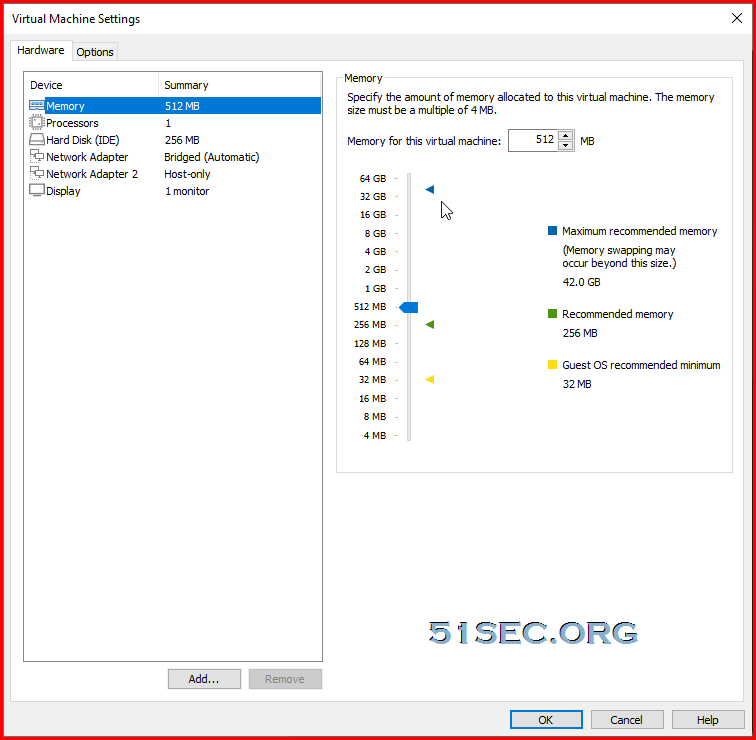
Follow the wizard to get it imported. After imported, you can edit the configuration to change Memory or processors. One thing you wont be able to change is Hard Disk (IDE) size, which is only 256MB. There is only way to DD this 256MB hard drive to another one. But it will be on different post to discuss.
After VM started, that is how it looks like:
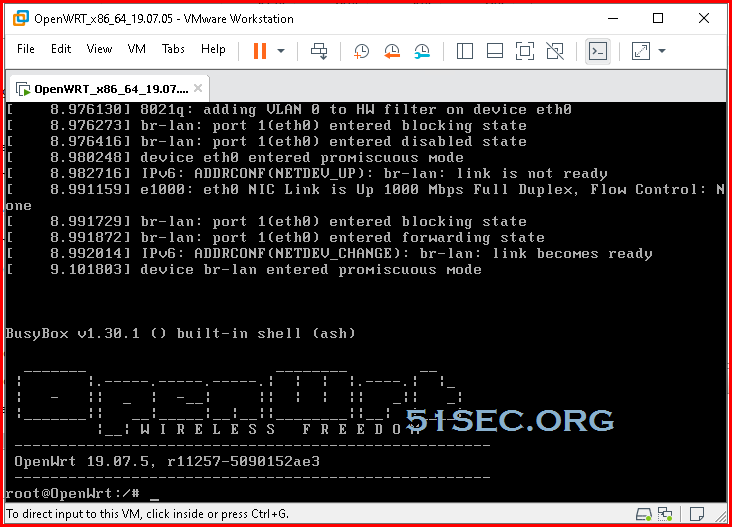
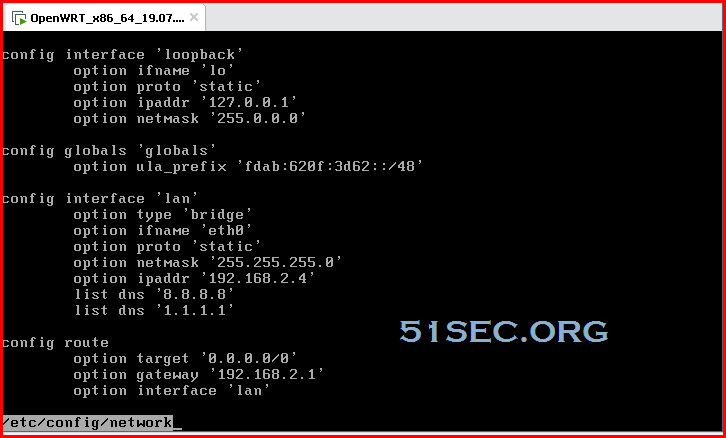
By default, it will use dhcp, but you might want to change it to static ip.
- Login via SSH
- Edit /etc/config/network directly
- Run /etc/init.d/network restart
- Done!
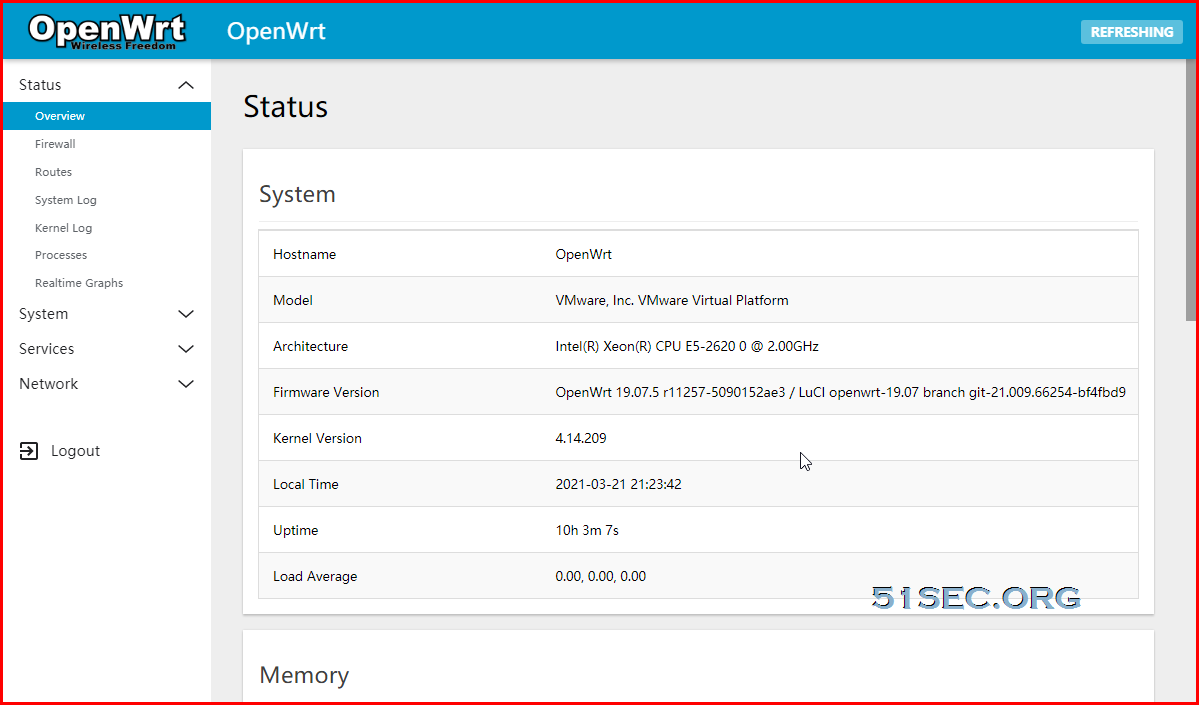
After that, you can use browser to access OpenWRT Luci Web UI:
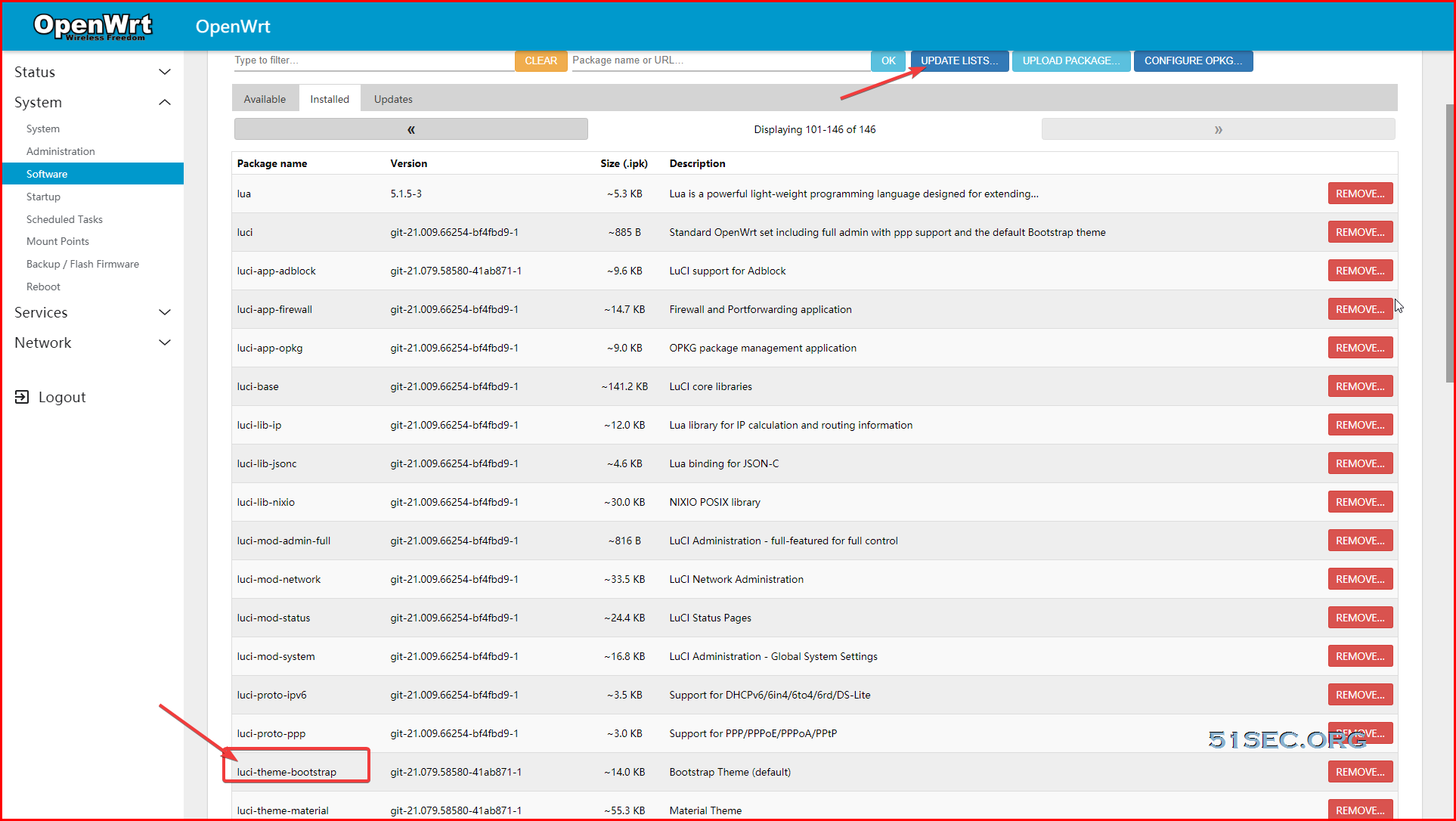
By default it is using Luci bootstrap theme. You might want to try another theme by installing it from software window. I am using luci-theme-material theme here.
Client IPv4 Setting Change
On your client network configuration, you will need to change default gateway and dns to your OpenWRT ip address, which is 192.168.2.4, in my case.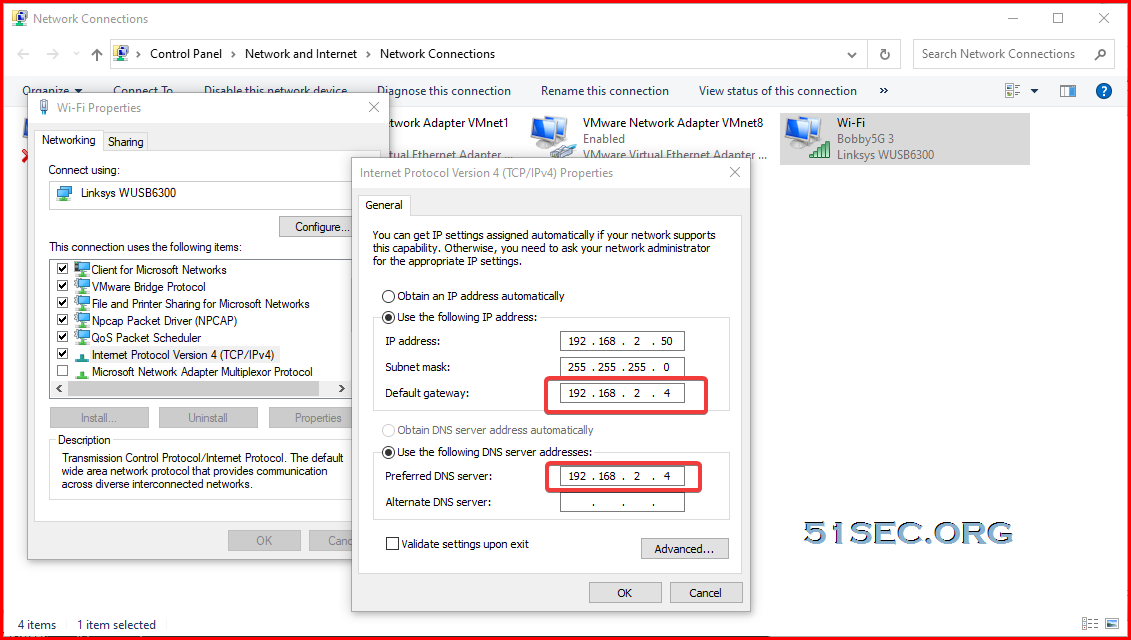
It also can be observed the route change from tracert command. 192.168.2.4 becomes the first hop for the test machine.
C:\Users\test>tracert www.google.ca

Tracing route to www.google.ca [172.217.164.227]
over a maximum of 30 hops:

  1     9 ms     3 ms     7 ms  OpenWrt.lan [192.168.2.4]
  2     6 ms     4 ms     5 ms  PORTAL-FDF4 [192.168.2.1]
  3    20 ms    17 ms    21 ms  160.32.196.33
  4     *       17 ms    17 ms  104.171.62.122
  5  3727 ms     *        *     204.197.190.245
  6    19 ms    18 ms    18 ms  135.0.199.97
  7    22 ms    19 ms    19 ms  72.14.203.42
  8    18 ms    23 ms    18 ms  74.125.244.161
  9    18 ms    17 ms    19 ms  216.239.42.61
 10    24 ms    20 ms    17 ms  yyz12s05-in-f3.1e100.net [172.217.164.227]

Trace complete.
References
via Blogger https://ift.tt/3cYw1nJ
March 21, 2021 at 09:35PM Network

 RSS Feed
