
Info Security Memo
  • Blog
  • Sitemap
    • Categories
  • Contact
  • About
  • Resources
  • Tools
  • 51sec.org

Build Confidence

Focusing on Information Security 

Info Security Notes

Install NextCloud Docker and Integrate with Nginx and LetsEncrypt SSL Certificate

1/23/2021

0 Comments

 
Install NextCloud Docker and Integrate with Nginx and LetsEncrypt SSL Certificate

Previously, I had a couple of posts to present how to install NextCloud and how to configure it with some different storage options. This post is similar as one of them, but it will add two dockers to add SSL certificate for Nginx.

Here are all steps. For Dock Compose file, there are two options , one with MySQL DB, another without DB, which NextCloud will use built-in Sqlite for DB. 


Install Docker and Docker Compose

1  Update Package list and Upgrade Packages for Ubuntu 18.04

Update and Upgrade Ubuntu to latest 

$ sudo apt-get -y update && sudo apt-get -y upgrade

2  Install Docker on Ubuntu

sudo apt install docker.io -y
sudo -i
systemctl start docker
systemctl enable docker
docker version

3  Install Docker Compose on Ubuntu


root@ip-172-31-28-5:~# curl -L "https://github.com/docker/compose/releases/download/1.19.0/docker-compose-$(uname -s)-$(uname -m)" -o /usr/local/bin/docker-compose
  % Total    % Received % Xferd  Average Speed   Time    Time     Time  Current
                                 Dload  Upload   Total   Spent    Left  Speed
100   651  100   651    0     0   7076      0 --:--:-- --:--:-- --:--:--  7076
100 8288k  100 8288k    0     0  4671k      0  0:00:01  0:00:01 --:--:-- 7520k
root@ip-172-31-28-5:~# chmod +x /usr/local/bin/docker-compose

root@ip-172-31-28-5:~# docker-compose version
docker-compose version 1.19.0, build 9e633ef
docker-py version: 2.7.0
CPython version: 2.7.13
OpenSSL version: OpenSSL 1.0.1t  3 May 2016
root@ip-172-31-28-5:~#


Create NextCloud Project Folder and Nginx conf.d Folder

Create a conf.d folder for nginx configure files

mkdir -p /opt/nextcloud/conf.d

Create a nextcloud.conf nginx configuration file 

nano /opt/nextcloud/conf.d/nextcloud.conf


Copy following information into nextcloud.conf file:

upstream php-handler {
    server app:9000;
}

server {
    listen       80;
    listen       443 ssl http2;
    server_name  ${FQDN};
    # Max allowed upload file in web page
    client_max_body_size 20G;
    if ($server_port !~ 443){
        rewrite ^(/.*)$ https://$host$1 permanent;
    }

    # SSL and Support TLSv1.3
    ssl_certificate    /etc/letsencrypt/live/${FQDN}/fullchain.pem;
    ssl_certificate_key    /etc/letsencrypt/live/${FQDN}/privkey.pem;
    ssl_protocols TLSv1 TLSv1.1 TLSv1.2 TLSv1.3;
    ssl_ciphers TLS13-AES-256-GCM-SHA384:TLS13-CHACHA20-POLY1305-SHA256:TLS13-AES-128-GCM-SHA256:TLS13-AES-128-CCM-8-SHA256:TLS13-AES-128-CCM-SHA256:ECDHE-RSA-AES128-GCM-SHA256:HIGH:!aNULL:!MD5:!RC4:!DHE;
    ssl_prefer_server_ciphers on;
    ssl_session_cache shared:SSL:10m;
    ssl_session_timeout 10m;
    error_page 497  https://$host$request_uri;

    # add header information to fix Nextcloud console warning messages
    add_header X-Content-Type-Options nosniff;
    add_header X-XSS-Protection "1; mode=block";
    add_header X-Robots-Tag none;
    add_header X-Download-Options noopen;
    add_header X-Frame-Options "SAMEORIGIN" always;
    add_header X-Permitted-Cross-Domain-Policies none;
    add_header Referrer-Policy no-referrer;
    add_header Strict-Transport-Security "max-age=31536000; includeSubDomains" always;
    fastcgi_hide_header X-Powered-By;

    root /var/www/html;

    location = /robots.txt {
        allow all;
        log_not_found off;
        access_log off;
    }

    location = /.well-known/carddav {
      return 301 $scheme://$host/remote.php/dav;
    }
    location = /.well-known/caldav {
      return 301 $scheme://$host/remote.php/dav;
    }

    # Enable gzip compression
    gzip on;
    gzip_vary on;
    gzip_comp_level 4;
    gzip_min_length 256;
    gzip_proxied expired no-cache no-store private no_last_modified no_etag auth;
    gzip_types application/atom+xml application/javascript application/json application/ld+json application/manifest+json application/rss+xml application/vnd.geo+json application/vnd.ms-fontobject application/x-font-ttf application/x-web-app-manifest+json application/xhtml+xml application/xml font/opentype image/bmp image/svg+xml image/x-icon text/cache-manifest text/css text/plain text/vcard text/vnd.rim.location.xloc text/vtt text/x-component text/x-cross-domain-policy;

    # redirection and disable to access backend sensitive folders and resources
    location / {
        rewrite ^ /index.php$request_uri;
    }

    location ~ ^\/(?:build|tests|config|lib|3rdparty|templates|data)\/ {
        deny all;
    }
    location ~ ^\/(?:\.|autotest|occ|issue|indie|db_|console) {
        deny all;
    }

    # PHP configuration
    location ~ ^\/(?:index|remote|public|cron|core\/ajax\/update|status|ocs\/v[12]|updater\/.+|ocs-provider\/.+)\.php(?:$|\/) {
        fastcgi_split_path_info ^(.+?\.php)(\/.*|)$;
        include fastcgi_params;
        fastcgi_param SCRIPT_FILENAME $document_root$fastcgi_script_name;
        fastcgi_param PATH_INFO $fastcgi_path_info;
        fastcgi_param HTTPS on;
        #Avoid sending the security headers twice
        fastcgi_param modHeadersAvailable true;
        fastcgi_param front_controller_active true;
        fastcgi_pass php-handler;
        fastcgi_intercept_errors on;
        fastcgi_request_buffering off;
    }

    location ~ ^\/(?:updater|ocs-provider)(?:$|\/) {
        try_files $uri/ =404;
        index index.php;
    }

    location ~ \.(?:css|js|woff2?|svg|gif)$ {
        try_files $uri /index.php$request_uri;
        add_header Cache-Control "public, max-age=15778463";
        add_header X-Content-Type-Options nosniff;
        add_header X-XSS-Protection "1; mode=block";
        add_header X-Robots-Tag none;
        add_header X-Download-Options noopen;
        add_header X-Permitted-Cross-Domain-Policies none;
        add_header Referrer-Policy no-referrer;
        access_log off;
    }

    location ~ \.(?:png|html|ttf|ico|jpg|jpeg)$ {
        try_files $uri /index.php$request_uri;
        # Optional: Don't log access to other assets
        access_log off;
    }
}


Create a new nextcloud docker-compose file 


nano /opt/nextcloud/docker-compose.yml

1. Create a new nextcloud docker-compose file without DB

Copy following information into compose file

version: '3'

volumes:
    letsencrypt:
    nextcloud:

services: 
    proxy:
        image: staticfloat/nginx-certbot
        ports:
            - 80:80
            - 443:443
        environment: 
            CERTBOT_EMAIL: example@51sec.com
            ENVSUBST_VARS: FQDN
            FQDN: nextcloud.51sec.org
        volumes:
            - ./conf.d:/etc/nginx/user.conf.d:ro
            - letsencrypt:/etc/letsencrypt
            - nextcloud:/var/www/html
        restart: unless-stopped
   
    app:
        image: nextcloud:fpm
        volumes:
            - nextcloud:/var/www/html
            - ./app/data:/var/www/html/data
            - ./app/config:/var/www/html/config
        restart: unless-stopped

    cron:
        image: rcdailey/nextcloud-cronjob
        environment:
            - NEXTCLOUD_CRON_MINUTE_INTERVAL=15
            - NEXTCLOUD_CONTAINER_NAME=app
            - NEXTCLOUD_PROJECT_NAME=nextcloud
        volumes:
            - /var/run/docker.sock:/var/run/docker.sock:ro
            - /etc/localtime:/etc/localtime:ro
        restart: always


2. Create a new nextcloud docker-compose file with DB

Copy following information into compose file

version: '3'

volumes:
    letsencrypt:
    nextcloud:

services: 
    proxy:
        image: staticfloat/nginx-certbot
        ports:
            - 80:80
            - 443:443
        environment: 
            CERTBOT_EMAIL: example@51sec.com
            ENVSUBST_VARS: FQDN
            FQDN: nextcloud.51sec.org
        volumes:
            - ./conf.d:/etc/nginx/user.conf.d:ro
            - letsencrypt:/etc/letsencrypt
            - nextcloud:/var/www/html
        restart: unless-stopped

    db:
        image: mariadb
        environment:
            - MYSQL_ROOT_PASSWORD=Password1234!@
            - MYSQL_PASSWORD=Password1234!@
            - MYSQL_DATABASE=nextcloud
            - MYSQL_USER=nextcloud
        volumes: 
            - ./mysql:/var/lib/mysql
        restart: unless-stopped
    
    app:
        image: nextcloud:fpm
        volumes:
            - nextcloud:/var/www/html
            - ./app/data:/var/www/html/data
            - ./app/config:/var/www/html/config
        restart: unless-stopped

    cron:
        image: rcdailey/nextcloud-cronjob
        environment:
            - NEXTCLOUD_CRON_MINUTE_INTERVAL=15
            - NEXTCLOUD_CONTAINER_NAME=app
            - NEXTCLOUD_PROJECT_NAME=nextcloud
        volumes:
            - /var/run/docker.sock:/var/run/docker.sock:ro
            - /etc/localtime:/etc/localtime:ro
        restart: always


You might want to change following configuration using your own settings:

            CERTBOT_EMAIL: example@51sec.com
            ENVSUBST_VARS: FQDN
            FQDN: nextcloud.51sec.org
           - MYSQL_ROOT_PASSWORD=Password1234!@
            - MYSQL_PASSWORD=Password1234!@
            - MYSQL_DATABASE=nextcloud
            - MYSQL_USER=nextcloud
Please make sure your dns record has been created for nextcloud.51sec.org, which is pointing to this virtual machine's public ip.

Please make sure your firewall ports 80 and 443 opened on your cloud security group and local virtual machine. By default, Ubuntu18.04 UFW status is inactive. 

After confirmed all configuration has ben set correctly, you can start up your docker using docker-compose command:

cd /opt/nextcloud
docker-compose up -d


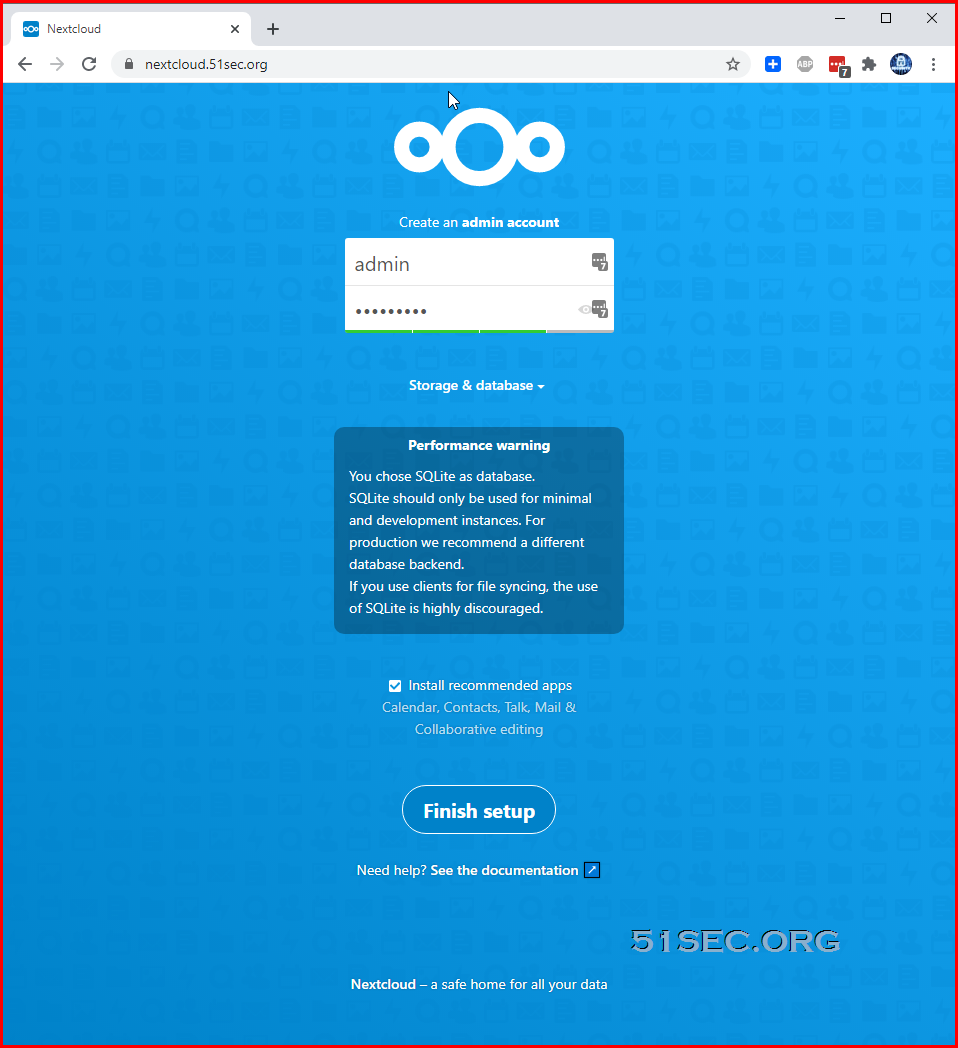
Using your Browser to connect to the domain url, in my case, it is  https://ift.tt/2Y5PHz1


After installation


After installation, There are a couple of things to clean up and to configure further. 

1  Install Dockerwe will have to run following two commands to fix settings warnings:

docker-compose exec -u www-data app php occ db:add-missing-indices
docker-compose exec -u www-data app php occ db:convert-filecache-bigint
2  Adding local file folder under your nextCloud user
For example, if your nextcloud user is admin, you would like to add your local files under this user, you will need to copy all files to following folder.
/opt/nextcloud/app/data/admin/files

After copied all files into this folder, using following command to scan them:

docker-compose exec -u www-data app php occ files:scan --all

3  If you would like to install ffmpeg, following these commands:

docker exec -it nextcloud_app_1 bash
apt -y update
apt -y install ffmpeg


Backup & Restore

Here are some steps to backup and restore your NextCloud system:

1  Stop all dockers running using docker-compose command.
cd /opt/nextcloud
docker-compose stop
2  Pack all files from /opt/nextcloud folder
cd /opt
tar -zcvf nextcloud.tar.gz nextcloud
3  Transfer tar file to new machine
scp nextcloud.tar.gz root@serverip:/opt
4  Install Docker and Docker Compose on new machine
cd /opt
tar -xzvf nextcloud.tar.gz

5  Bring dockers up, which should still keeps all of your files and configuration

cd nextcloud
docker-compose up -d


References


via Blogger https://ift.tt/3sR3lEh
January 23, 2021 at 05:37PM Cloud, Docker
0 Comments


Leave a Reply.

    Categories

    All
    Architecture
    Blog
    Checkpoint
    Cisco
    Cloud
    CyberArk
    F5
    Fortigate
    Guardium
    Juniper
    Linux
    Network
    Others
    Palo Alto
    Qualys
    Raspberry Pi
    Security
    SIEM
    Software
    Vmware
    VPN
    Wireless

    Archives

    March 2024
    February 2024
    January 2024
    December 2023
    November 2023
    October 2023
    September 2023
    August 2023
    July 2023
    June 2023
    May 2023
    April 2023
    March 2023
    February 2023
    January 2023
    December 2022
    November 2022
    October 2022
    September 2022
    August 2022
    July 2022
    June 2022
    May 2022
    April 2022
    March 2022
    February 2022
    January 2022
    December 2021
    November 2021
    October 2021
    September 2021
    August 2021
    July 2021
    June 2021
    May 2021
    April 2021
    March 2021
    February 2021
    January 2021
    December 2020
    November 2020
    October 2020
    September 2020
    August 2020
    July 2020
    October 2019
    September 2019
    June 2019
    July 2018
    May 2018
    December 2017
    August 2017
    April 2017
    March 2017
    January 2017
    December 2016
    November 2016
    October 2016
    September 2016
    August 2016
    July 2016
    June 2016
    May 2016
    April 2016
    March 2016
    February 2016
    January 2016
    December 2015
    November 2015
    October 2015
    September 2015
    August 2015
    July 2015
    June 2015
    May 2015
    April 2015
    March 2015

    Print Page:

    RSS Feed

    Email Subscribe
Powered by Create your own unique website with customizable templates.
  • Blog
  • Sitemap
    • Categories
  • Contact
  • About
  • Resources
  • Tools
  • 51sec.org
