Enter into docker:
docker exec -it neko_1 bash
Install fonts in docker:
apt -y update apt -y install ttf-wqy-zenhei
exit and restart docker using docker-compose:
exit docker-compose restart

|
|
Install Neko (A Self Hosted Virtual Browser Docker) in Low Memory VPS (1GB)
Github project n.eko is a virtual browser based on the docker isolation environment, supports two types of browsers, Chrome and Firefox, and has built-in chat/simple user management functions. The UI design is very beautiful. 
Project address: https://github.com/nurdism/neko The program requires a relatively high configuration, see here for details:https://n.eko.moe/#/quick-start Here are recommended specs:
To run it in a low resource VPS, such as only 1GB RAM, 1vCPU, we will have to change SWAP size to make it more stable. Firewall Ports OpenPlease make sure following two firewall rules created on your cloud VPS's firewall.
1. tcp 8080
2. udp 59000-59100
Change SWAP Size
Command (not support OpenVZ) from root user:
When choose add swap, please enter number for size. Default metric is MB。
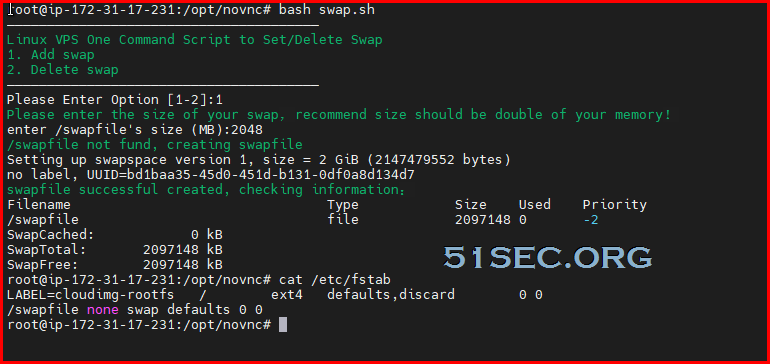
In screenshot, the priority is showing 0. Script in github has set to 100.
Github: https://github.com/51sec/swap
Install Docker and Docker-ComposeInstall docker:apt -y update apt -y install curl curl -sSL https://get.docker.com/ | sh systemctl start docker systemctl enable docker Install docker-compose: curl -L https://github.com/docker/compose/releases/download/1.25.4/docker-compose-`uname -s`-`uname -m` -o /usr/local/bin/docker-compose chmod +x /usr/local/bin/docker-compose Create docker-compose.yml and bring Neko docker upCreate a new docker-compose project directory and edit docker-compose.yml.
cd ~
mkdir neko
cd neko
vi docker-compose.yml
Put following code into docker-compose.yml file based on the browser type.
Chrome Image: version: '3.5' services: neko: image: nurdism/neko:chromium restart: always cap_add: - SYS_ADMIN ports: - "8080:8080" - "59000-59100:59000-59100/udp" environment: DISPLAY: :99.0 SCREEN_WIDTH: 1024 SCREEN_HEIGHT: 576 SCREEN_DEPTH: 24 NEKO_PASSWORD: neko NEKO_ADMIN: admin NEKO_BIND: :8080 Firefox Image: version: '3.5' services: neko: image: nurdism/neko:firefox restart: always shm_size: "1gb" ports: - "8080:8080" - "59000-59100:59000-59100/udp" environment: DISPLAY: :99.0 SCREEN_WIDTH: 1024 SCREEN_HEIGHT: 576 SCREEN_DEPTH: 24 NEKO_PASSWORD: neko NEKO_ADMIN: admin NEKO_BIND: :8080 Notes: SCREEN_DEPTH can be changed to 16 to save some resource usage on your host VPS. docker-compose up -dNow you should be able to browser to your Neko's web interface with this url : http://<public ip>:8080 Fix Chinese Font IssueEnter into docker: docker exec -it neko_1 bash Install fonts in docker: apt -y update apt -y install ttf-wqy-zenhei exit and restart docker using docker-compose: exit docker-compose restart
via Blogger https://ift.tt/3cK3EJD March 17, 2021 at 05:49PM Docker
0 Comments
Leave a Reply. |
|

 RSS Feed
