
This post is to show you a way to install Microsoft Office Suite with other components such as Visio pro, using a free third party tool - Office Tool Plus.
Free Web Microsoft 365 to Use Office
Microsoft has made free to use Word, Excel, PowerPoint and more for free with Office on the web with a Microsoft 365 account.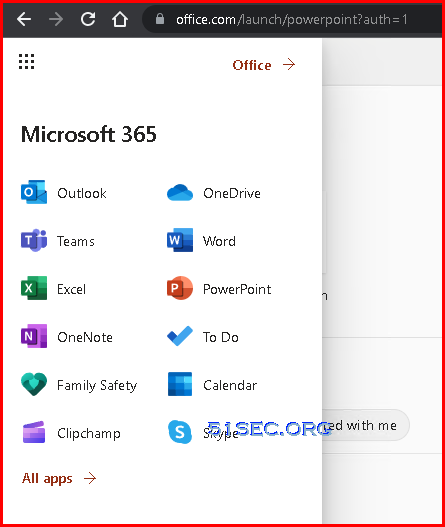
Microsoft Office Web vs Desktop Apps: Missing Features

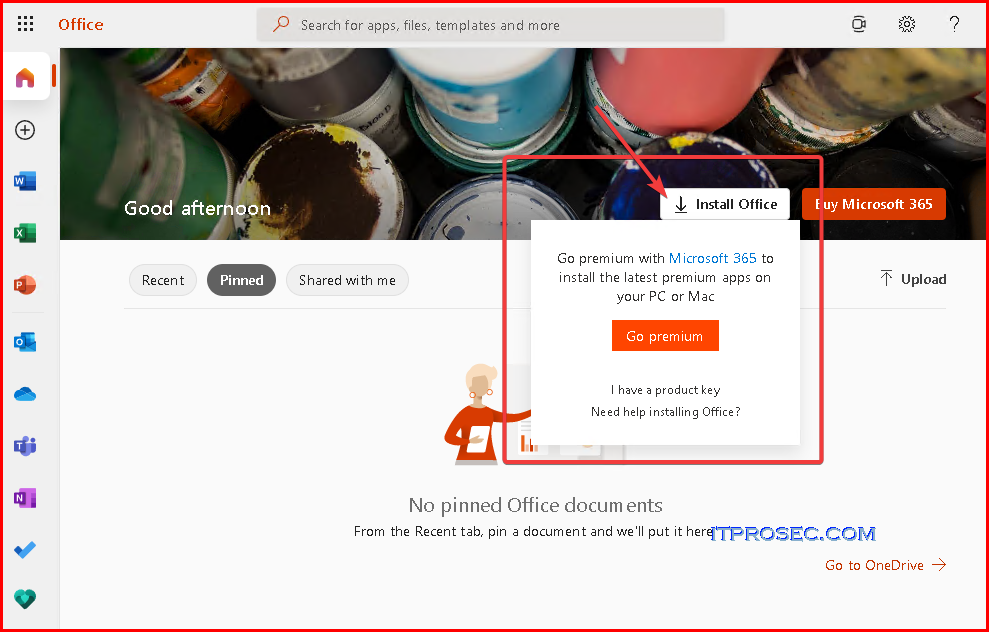
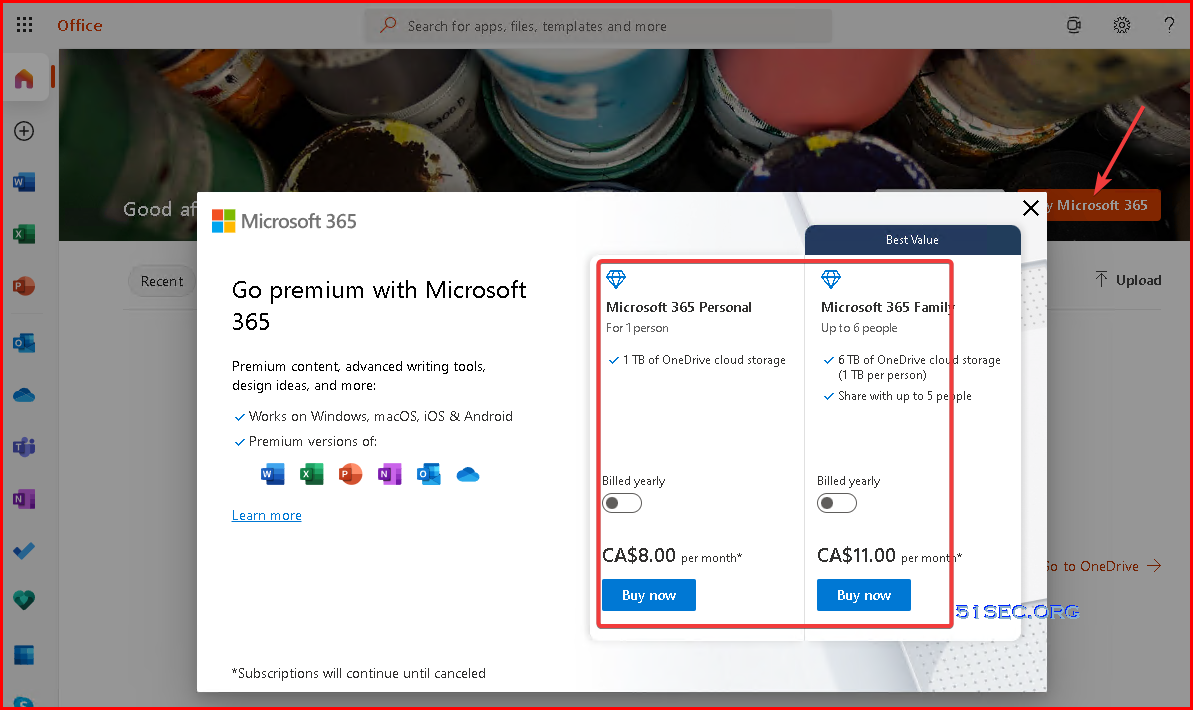
Having said that, bear in mind, just because a tool is not available on the web version does not mean that it can’t render an Office document made with those tools. Basically, you will be able to view those content on the web, but can’t edit them.
1. Microsoft Word
- On the web version of Microsoft Word, you can’t add captions, citations and bibliography.
- There is no support for advanced collaboration such as Track Changes, merge, compare and combine documents.
- No support for advanced page layout tools and advanced printing tools.
- Unlike the desktop version of MS Office, you don’t have a full set of Reference and Researcher tools.
- You can’t insert videos inside a word document
- Watermarks are not supported on the web version of Microsoft Word.
2. Microsoft Excel
- On the web version of Microsoft Excel, you don’t have access to advanced formula tools.
- You can’t create PivotCharts, but can view them on the web. Bear in mind, you can now create, edit and view PivotTables.
- There is not much option for advanced formatting and you don’t get smart formatting recommendations on the web.
- You can’t create external data connections or make external references.
- On the web version of Excel, you can’t create advanced analysis views such as Power View, Power Pivot and Slicers.
- No support for advanced time filtering like Timeline Slicer.
3. Microsoft PowerPoint
- On the web version of Microsoft PowerPoint, you don’t have a larger selection of animations. It only has eight transitions and 37 animations. For custom animations, you will have to use the desktop app of MS PowerPoint.
- You can’t play embedded videos in PowerPoint on the web.
- No rich formatting for texts and shapes. While you can apply styles and add shadow effects, the features are somewhat limited. You don’t have gradients, eyedropper, styles and effects.
- Design tool and ink support is not available on the web version
- No support for headers and footers.
- No integration with Excel for charts.
For a full list of differences between the web version of Microsoft Office in comparison to desktop apps, head over to Microsoft’s Web Service Description.
Office Tool Plus
Office Tool Plus is made based on Office deployment tools and OSPP , and can easily deploy Office. Its built-in Thunderbolt engine can help you download Office faster. Of course, you can also use various built-in gadgets or functions of Office Tool Plus to quickly, Easily activate and manage Office!
The following products are supported:
- Microsoft 365
- Office 2016 - 2021
- Visio Online Plan 2 & 2016 - 2021
- Project Online Desktop Client & 2016 - 2021
Personal homepage: https://officetool.plus/
Official website: https://otp.landian.vip/
Help document: https://otp.landian.vip/help/
GitHub:https://github.com/YerongAI/Office-Tool
Office Tool Plus is a completely legal application. All of its core components are from Microsoft's official website. Based on Office Deployment Tool and OSPP, we provide users with the functions of downloading, installing and activating Office. Whether the Office is genuine or not, Depends on how the user activates Office. Office Tool Plus itself only provides the download and installation of the original version of Office.
Office supports account, key, and KMS activation. The first two are basically genuine authorizations (the keys found online are separate). The genuine and non-genuine versions of KMS are somewhat misunderstood by people, so here is a supplementary explanation.
Generally, KMS servers authorized by Microsoft can only be deployed on Windows Server, and are usually only deployed on the intranet and not open to the outside world.
At present, the KMS server based on vlmcs is basically open on the Internet. It is non-genuine and has no activation restrictions. Anyone can access it.
1 Download latest version. 9.0.3.7, date: 08/10/2022
https://otp.landian.vip/en-us/download.html
File Size is about 70MB.
| Edition (↓ Recommend to download here) | Yuntu | Shandong University | OneDrive | GitHub | Hash |
|---|---|---|---|---|---|
| Includes runtime (ZIP archive) | View | ||||
| Includes runtime (7z SFX archive) | View | ||||
| Includes runtime (7z archive) | View | ||||
| Normal (ZIP archive) | View |
2 Unzip it to a folder
Double click "Office Tool Plus.exe" file from extracted folder "Office Tool".
3 Click Yes to accept Software License Terms and Microsoft Service Agreement to launch main interface
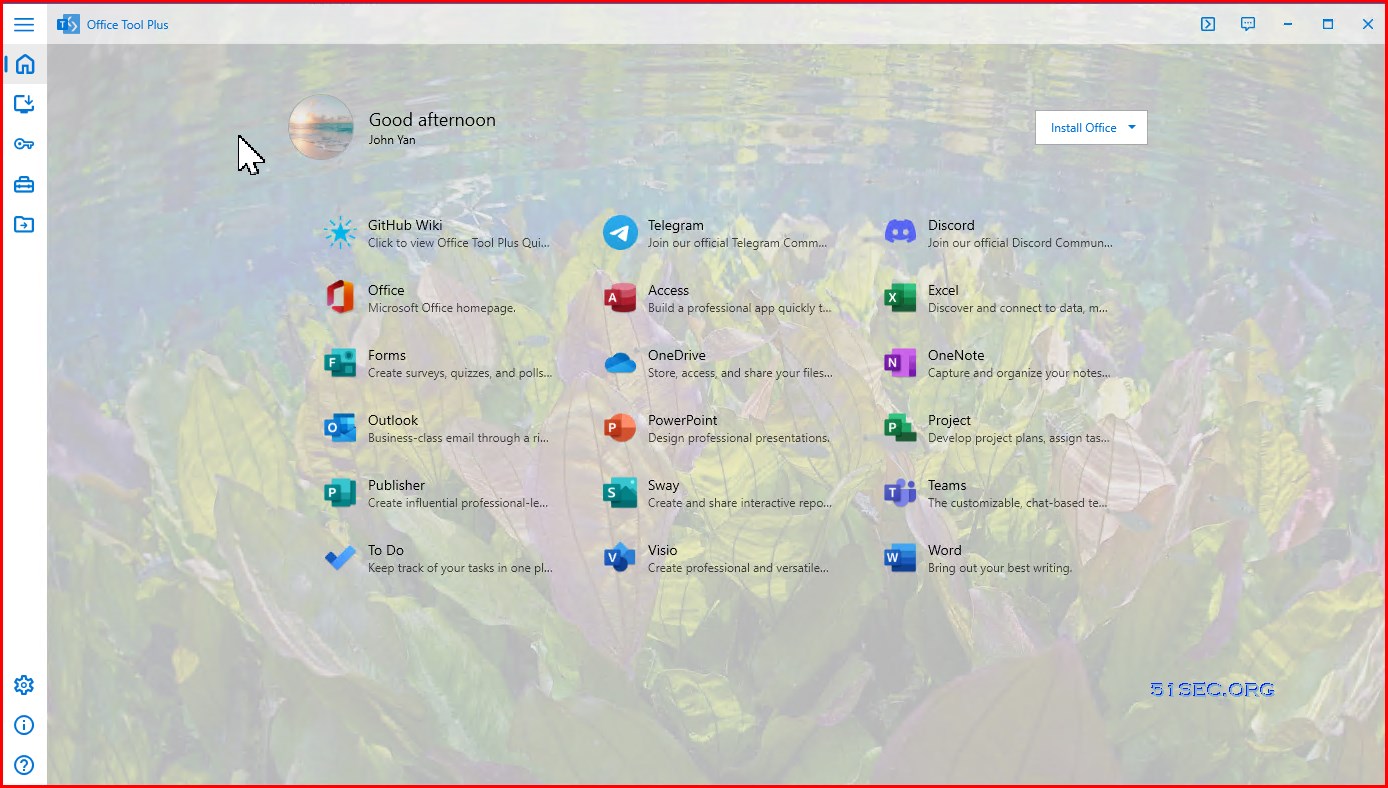
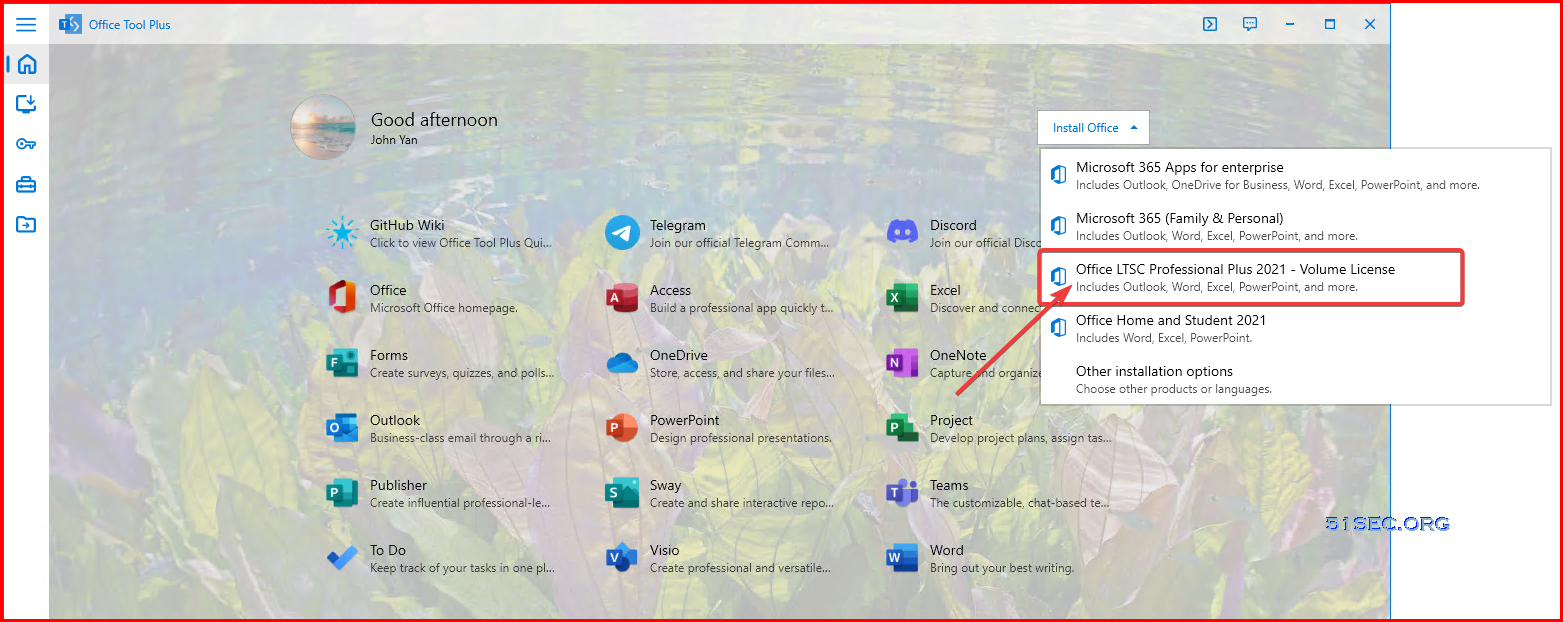
4 click Install Office button and from drop down menu to select "Office LTSC Professional Plus 2021 - Volume License"
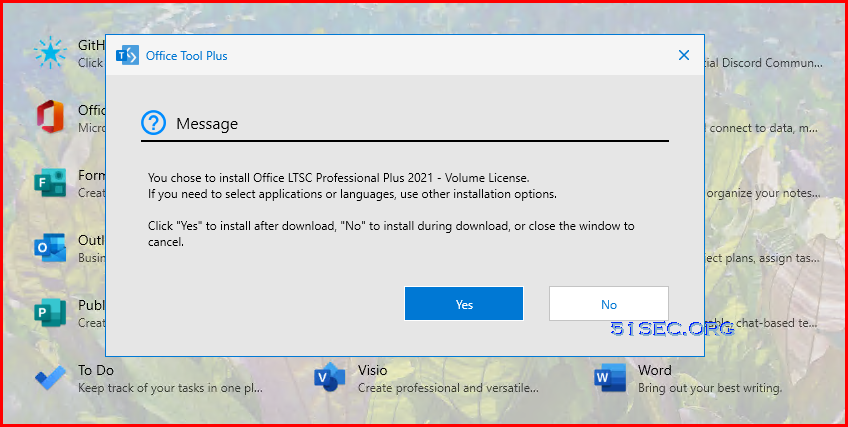
5 Choose Yes to install after download.
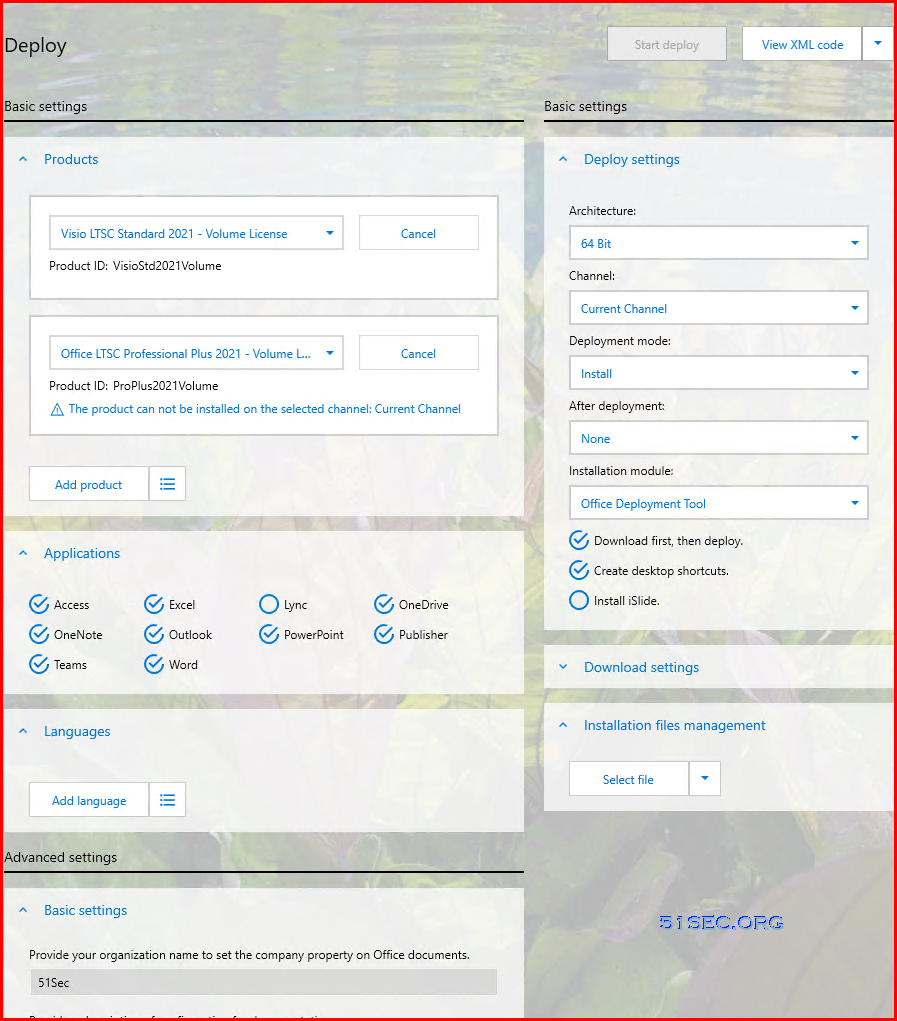
6 Deploy it with default settings.You might need to change channel based on the product you select to install.
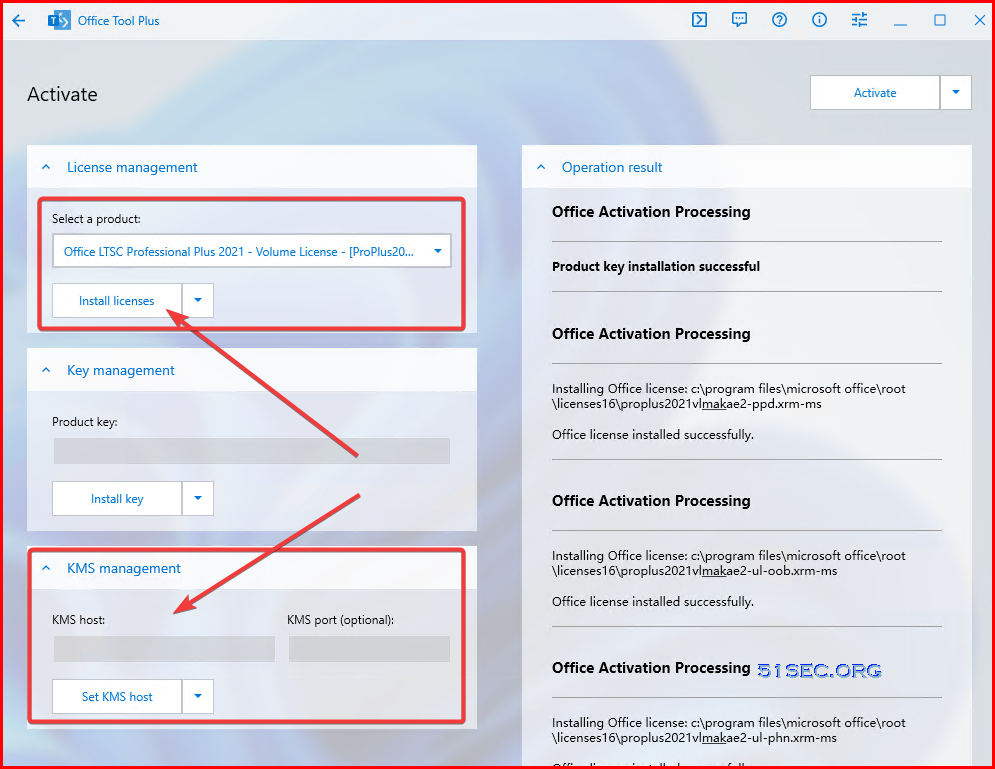
Videos
References
- Personal homepage: https://officetool.plus/
- Official website: https://otp.landian.vip/
- Help document: https://otp.landian.vip/help/
- GitHub:https://github.com/YerongAI/Office-Tool
via Blogger http://blog.51sec.org/2022/08/install-microsoft-office-desktop.html
August 17, 2022 at 05:03PM Software

 RSS Feed
