
Install Certbot on Debian Nginx Docker to Secure Portainer with LetsEncryt Certificate
This post records the steps how to install Certbot into a Debian Docker to secure Nginx and Portainer docker using LetsEncrypt certificate.
Related posts:
You should be able to access portainer website using vps' public ip. http://<public ip>:9000
In this lab, I am using opc2portainer.51sec.org as domain url. Make sure your domain opc2portainer.51sec.org is pointing to your VPS's public ip.
via Blogger https://ift.tt/3bjQOm2
March 06, 2021 at 09:25PM Docker
This post records the steps how to install Certbot into a Debian Docker to secure Nginx and Portainer docker using LetsEncrypt certificate.
Related posts:
- Use Portainer to Install Nginx Docker as Reverse Proxy and Use CertBot Deploy LetsEncrypt Certificate into Nginx
- Install NextCloud Docker and Integrate with Nginx and LetsEncrypt SSL Certificate
- Install Certbot on Debian Docker to Secure Nginx and Portainer with LetsEncryt Certificate
Install Docker & Docker Compose on Linux OS
#For Ubuntu 20.04 version
#Ubuntu 20.04
sudo apt install docker.io
sudo apt install docker-compose
Or Other Linux Versions:
#CentOS 7, Debian, Ubuntu 18.04/16.04
curl -sSL https://get.docker.com/ | sh
systemctl start docker
systemctl enable docker
Install Portainer
root@Linux:/# docker volume create portainer_data
root@Linux:/# docker run -d -p 9000:9000 --name portainer --restart always -v /var/run/docker.sock:/var/run/docker.sock -v portainer_data:/data portainer/portainer-ce:latest
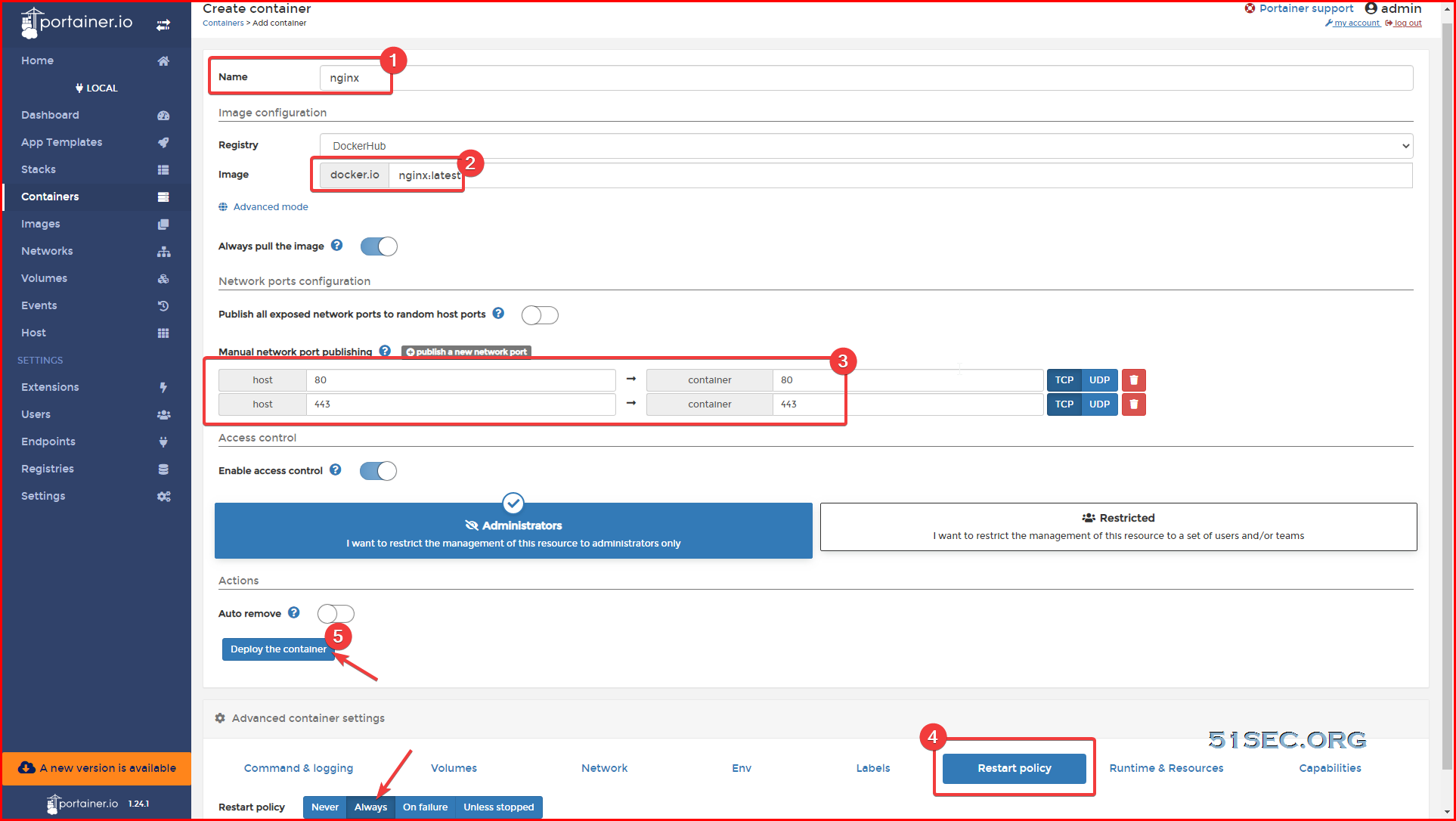
Deploy Nginx Docker Using Portainer
Create a new Container in Portainer:
Note: Both port 80 and 443 will need to map from Docker to Host.
Use Nginx As Reverse Proxy Server for Portainer
In this lab, Nginx will be configured as reverse proxy to redirect all traffic for opc2portainer.51sec.org on port 80 and 443 to proxied docker website Portainer.
apt update && apt install nano
nano /etc/nginx/conf.d/portainer.conf
nano /etc/nginx/conf.d/novnc.conf
server {
    listen       80;
    server_name  opc2portainer.51sec.org;

location / {
    proxy_pass       http://172.31.23.170:6080;
    proxy_http_version         1.1;
    proxy_read_timeout 300;
    proxy_set_header Upgrade $http_upgrade;
    proxy_set_header Connection "upgrade";
    proxy_set_header Host $http_host;
    proxy_set_header X-Real-IP $remote_addr;
    proxy_set_header X-Real-PORT $remote_port;
           }
}
Do not forget to restart nginx serviec to take the changes into effect using following command:
service nginx restart
Once nginx service restarted, the configuration will take effect. We will able to access portainer site using sub domain name on port 80 , http//opc2portainer.51sec.org
Install CertBot
Based on your Nginx docker version, you might use different installation commands. In my this lab, I am using Debian 10 as OS.
root@3a4767f0c009:/# cat /etc/os-release
PRETTY_NAME="Debian GNU/Linux 10 (buster)"
NAME="Debian GNU/Linux"
VERSION_ID="10"
VERSION="10 (buster)"
VERSION_CODENAME=buster
ID=debian
HOME_URL="https://www.debian.org/"
SUPPORT_URL="https://www.debian.org/support"
BUG_REPORT_URL="https://bugs.debian.org/"
root@3a4767f0c009:/# uname -a
Linux 3a4767f0c009 3.10.0-1127.10.1.el7.x86_64 #1 SMP Wed Jun 3 14:28:03 UTC 2020 x86_64 GNU/Linux
root@3a4767f0c009:/#
Log into Nginx docker's command line using either Portainer or VPS command line command : docker exec -it nginx bin/bash
Following three commands can get you install CertBot and configure nginx to use certificate.
apt update
apt install certbot python-certbot-nginx
certbot --nginx
root@3a4767f0c009:/# certbot --nginx
Saving debug log to /var/log/letsencrypt/letsencrypt.log
Plugins selected: Authenticator nginx, Installer nginx
Enter email address (used for urgent renewal and security notices) (Enter 'c' to
cancel): [email protected]

- - - - - - - - - - - - - - - - - - - - - - - - - - - - - - - - - - - - - - - -
Please read the Terms of Service at
https://letsencrypt.org/documents/LE-SA-v1.2-November-15-2017.pdf. You must
agree in order to register with the ACME server at
https://acme-v02.api.letsencrypt.org/directory
- - - - - - - - - - - - - - - - - - - - - - - - - - - - - - - - - - - - - - - -
(A)gree/(C)ancel: A

- - - - - - - - - - - - - - - - - - - - - - - - - - - - - - - - - - - - - - - -
Would you be willing to share your email address with the Electronic Frontier
Foundation, a founding partner of the Let's Encrypt project and the non-profit
organization that develops Certbot? We'd like to send you email about our work
encrypting the web, EFF news, campaigns, and ways to support digital freedom.
- - - - - - - - - - - - - - - - - - - - - - - - - - - - - - - - - - - - - - - -
(Y)es/(N)o: N
Which names would you like to activate HTTPS for?
- - - - - - - - - - - - - - - - - - - - - - - - - - - - - - - - - - - - - - - -
1: opc2portainer.51sec.org
- - - - - - - - - - - - - - - - - - - - - - - - - - - - - - - - - - - - - - - -
Select the appropriate numbers separated by commas and/or spaces, or leave input
blank to select all options shown (Enter 'c' to cancel): 1
Obtaining a new certificate
Performing the following challenges:
http-01 challenge for opc2portainer.51sec.org
2021/03/07 01:57:27 [notice] 3765#3765: signal process started
Waiting for verification...
Cleaning up challenges
2021/03/07 01:57:31 [notice] 3767#3767: signal process started
Deploying Certificate to VirtualHost /etc/nginx/conf.d/portainer.conf
2021/03/07 01:57:34 [notice] 3769#3769: signal process started

Please choose whether or not to redirect HTTP traffic to HTTPS, removing HTTP access.
- - - - - - - - - - - - - - - - - - - - - - - - - - - - - - - - - - - - - - - -
1: No redirect - Make no further changes to the webserver configuration.
2: Redirect - Make all requests redirect to secure HTTPS access. Choose this for
new sites, or if you're confident your site works on HTTPS. You can undo this
change by editing your web server's configuration.
- - - - - - - - - - - - - - - - - - - - - - - - - - - - - - - - - - - - - - - -
Select the appropriate number [1-2] then [enter] (press 'c' to cancel): 1

- - - - - - - - - - - - - - - - - - - - - - - - - - - - - - - - - - - - - - - -
Congratulations! You have successfully enabled https://opc2portainer.51sec.org

You should test your configuration at:
https://www.ssllabs.com/ssltest/analyze.html?d=opc2portainer.51sec.org
- - - - - - - - - - - - - - - - - - - - - - - - - - - - - - - - - - - - - - - -

IMPORTANT NOTES:
 - Congratulations! Your certificate and chain have been saved at:
   /etc/letsencrypt/live/opc2portainer.51sec.org/fullchain.pem
   Your key file has been saved at:
   /etc/letsencrypt/live/opc2portainer.51sec.org/privkey.pem
   Your cert will expire on 2021-06-05. To obtain a new or tweaked
   version of this certificate in the future, simply run certbot again
   with the "certonly" option. To non-interactively renew *all* of
   your certificates, run "certbot renew"
 - Your account credentials have been saved in your Certbot
   configuration directory at /etc/letsencrypt. You should make a
   secure backup of this folder now. This configuration directory will
   also contain certificates and private keys obtained by Certbot so
   making regular backups of this folder is ideal.
 - If you like Certbot, please consider supporting our work by:

   Donating to ISRG / Let's Encrypt:   https://letsencrypt.org/donate
   Donating to EFF:                    https://eff.org/donate-le

 - We were unable to subscribe you the EFF mailing list because your
   e-mail address appears to be invalid. You can try again later by
   visiting https://act.eff.org.

- - - - - - - - - - - - - - - - - - - - - - - - - - - - - - - - - - - - - - - -
Now the Nginx portainer.conf configuration file changed to :
root@3a4767f0c009:/etc/nginx/conf.d# cat portainer.conf
server {
    listen       80;
    server_name  opc2portainer.51sec.org;

location / {
    proxy_pass       http://172.31.23.170:9000;
    proxy_redirect             off;
    proxy_http_version         1.1;
    proxy_set_header Upgrade   $http_upgrade;
    proxy_set_header Connection "upgrade";
    proxy_set_header Host      $host;
    proxy_set_header X-Real-IP $remote_addr;
    proxy_set_header X-Forwarded-For $proxy_add_x_forwarded_for;
    }

    listen 443 ssl; # managed by Certbot
    ssl_certificate /etc/letsencrypt/live/opc2portainer.51sec.org/fullchain.pem; # managed by Certbot
    ssl_certificate_key /etc/letsencrypt/live/opc2portainer.51sec.org/privkey.pem; # managed by Certbot
    include /etc/letsencrypt/options-ssl-nginx.conf; # managed by Certbot
    ssl_dhparam /etc/letsencrypt/ssl-dhparams.pem; # managed by Certbot

}
At this moment, your Portainer url can be accessed from https port 443. Please make sure your VPS firewall opened this https / 443 port to Internet.
via Blogger https://ift.tt/3bjQOm2
March 06, 2021 at 09:25PM Docker

 RSS Feed
