
This piece will guide you. And while you're at it, you can convert several documents (including pictures) at a go.
The best part: you can convert all your documents without any software for FREE. However, there are a few conditions to it.
Want to find out?
Keep reading!
Converting Your Documents To PDF - What You Need
A PDF Editor
While there are several converters, I prefer using PDF Editors to convert my documents. The latter is much more robust.
Plus, I could use the editor to edit the converted PDF.
That said, I'll recommend using an online PDF Editor. They are almost free to use and won't make your devices lag.
Summarily, you will convert your documents and edit PDFs with a free online PDF Editor.
A Browser
Since we'll be using an online PDF editor, you only need a browser to convert your documents. And while you are at it, choose one that is light and easy to use.
Now, we have what we need. Let's convert some documents to PDF!
Converting Your Documents To PDF With An Online PDF Editor In 5 Simple Steps
Note: the steps and pictures below are streamlined for Foxit Online PDF Editor because that's what I prefer.
1. Start your browser, visit Foxit Online PDF Editor at "pdfonline.foxit.com." Register an account and start your 5-day trial.
I'll recommend using existing accounts like Google or Microsoft to register your account. Doing so will help you skip the long registration form.
2. Now, click "Tools" > "Convert to PDF" > "Use Now"

If you can't locate "Convert to PDF" on the landing page, scroll through the options.
3. Next, select the file or files you'd like to convert to PDF. And say what you want as PDF is a copied item; you can use the "From Clipboard" option.
E.g., if you want to convert a screenshotted screen (PrtSc + Ctrl) to PDF, select "From Clipboard" and choose the image.


By now, you should see the selected files will be added to the screen. Scroll through and click "convert."

4. Now, wait for the conversion process to start. And even while some files might be converted, wait till all are ready. Then, click download on the conversion tab at the top right corner.

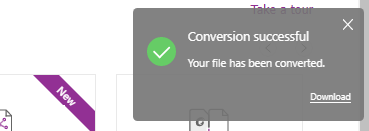
5. Your converted files will be downloaded as a zip file. Go to your file manager to unzip the file. Voila, your documents are now in PDF.

FAQs About Converting PDFs
Can Editor Convert Any File To PDF?
No!
PDF Editors, by design, can't convert music and video files to PDFs. FormatFactory might be a suitable fit. But even FormatFactory can't convert mp3 or mp4 to PDFs.
So, what files are convertible?
. Documents - DOC, XLX, PPTX, TXT. Images - JPEG, PNG
. Webpages
You can convert GIFs to PDFs too. However, the animation might become still.
What Are The Different Ways To Convert Documents To PDFs?
I often use two methods:
. Microsoft Office. PDF Editor
But as earlier stated, converting files to PDF using Microsoft Office is stressful. You can only do one document at a time.
Plus, you might not be able to access webpage conversion.
PDF Editors, on the other hand, are easy to use. You can convert multiple files at the same time. You can even use the tool to create a PDF portfolio.
And that's it: now, you know how to convert your documents to PDFs. You're welcome!

 RSS Feed
