
Recently I had a experience to install firmware from a local TFTP server under console control to reset a FortiGate unit to factory default settings.
It was caused by a failed firmware upgrade. System died after reboot. Power light was green, but not other interfaces.
I recorded the all steps in this post.
1. Physical Connections
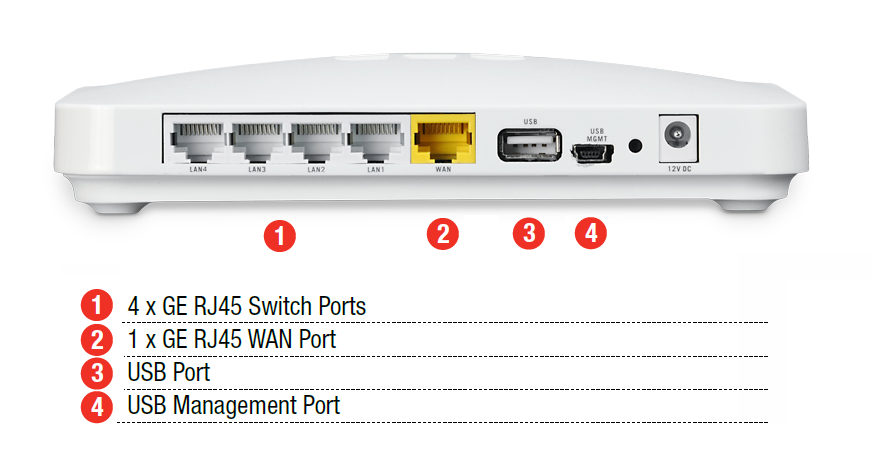
I were using Fortigate 30D to do this firmware TFTP installation. There are four different types of interfaces on the back of Fortigate 30D.
TFTPD32 - Open Source tftp server for windows
3CDaemon V2 - 3com's TFTP server for windows
2.2 Terminal Client Software
Putty Terminal client communication parameters

3. Procedures
3.1 Power Cycle Fortigate 30D
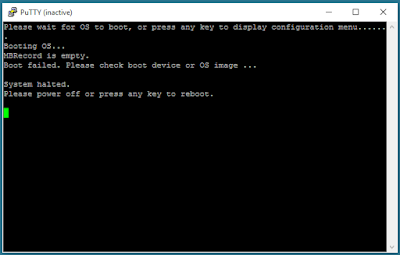
The system told me boot failed. Please check boot device or OS image.
Before that, there were about 6 seconds to wait to interrupt booting process.
3.2 Enter into Configuration mode
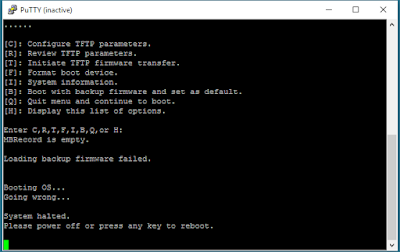
Press any key to interrupt booting process after you power cycle the device, following menu will show on the screen.
[C]: Configure TFTP parameters.
[R]: Review TFTP parameters.
[T]: Initiate TFTP firmware transfer.
[F]: Format boot device.
[I]: System information.
[B]: Boot with backup firmware and set as default.
[Q]: Quit menu and continue to boot.
[H]: Display this list of options.
 3.3 Press C to Configure TFTP parameters
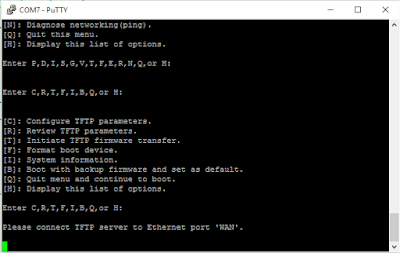
After you have configured all TFTP parameters, such as Fortigate local ip, network mask, gateway, image name, remote server ip etc, you can review those parameters. But for Fortigate local IP and network mask, it will show N/A. Actually you do not need to worry about it, just select T to initiate TFTP firmware transfer. Fortigate 30D will notify you to connect your TFTP server to WAN port, which is completely different from other Fortigate models, such as 60D. Please check following list to see which port your Fortigate should use to do firmware transfer.
FortiGate Model Interface
=============================================================
50, 50A, 100, 200, 300, 500, 800, 800F Internal
50B, all 60 models, 100A, 200A Internal port 1
100A, 200A (If Internal Port1 does not work) Internal port 4
300A, 310A, 400, 400A, 500A, 1000 and higher LAN port 1
1240B port40
Fortigate with a dedicated management port mgmt1
3.4 Initiate TFTP firmware transfer
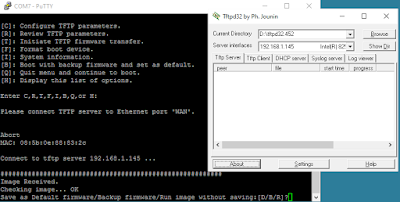
After you initiate TFTP firmware transfer, the Fortigate WAN will be turned on.
You will see Firmware is transferring from TFTP server to Fortigate 30D. Once transferring done, you will be notified how you want to save this image for.
Reference:
Technical Note : Loading FortiGate firmware image using TFTP
It was caused by a failed firmware upgrade. System died after reboot. Power light was green, but not other interfaces.
I recorded the all steps in this post.
1. Physical Connections
I were using Fortigate 30D to do this firmware TFTP installation. There are four different types of interfaces on the back of Fortigate 30D.
Here is the photo how Fortigate connected to my laptop with console connection and WAN interface Ethernet connection.

|
| Fortigate 30D Connecting Console and WAN to Laptop |
2. Software
2.1 TFTP Software
For TFTP software, I am using TFTPD32. 3CDaemon is also a good option.
3CDaemon V2 - 3com's TFTP server for windows
2.2 Terminal Client Software
Putty Terminal client communication parameters
- 8 bits
- no parity
- 1 stop bit
- 9600 baud (the FortiGate-300 uses 115,000 baud)
- Flow Control = None
3. Procedures
3.1 Power Cycle Fortigate 30D
The system told me boot failed. Please check boot device or OS image.
Before that, there were about 6 seconds to wait to interrupt booting process.

3.2 Enter into Configuration mode
Press any key to interrupt booting process after you power cycle the device, following menu will show on the screen.
[C]: Configure TFTP parameters.
[R]: Review TFTP parameters.
[T]: Initiate TFTP firmware transfer.
[F]: Format boot device.
[I]: System information.
[B]: Boot with backup firmware and set as default.
[Q]: Quit menu and continue to boot.
[H]: Display this list of options.


After you have configured all TFTP parameters, such as Fortigate local ip, network mask, gateway, image name, remote server ip etc, you can review those parameters. But for Fortigate local IP and network mask, it will show N/A. Actually you do not need to worry about it, just select T to initiate TFTP firmware transfer. Fortigate 30D will notify you to connect your TFTP server to WAN port, which is completely different from other Fortigate models, such as 60D. Please check following list to see which port your Fortigate should use to do firmware transfer.
FortiGate Model Interface
=============================================================
50, 50A, 100, 200, 300, 500, 800, 800F Internal
50B, all 60 models, 100A, 200A Internal port 1
100A, 200A (If Internal Port1 does not work) Internal port 4
300A, 310A, 400, 400A, 500A, 1000 and higher LAN port 1
1240B port40
Fortigate with a dedicated management port mgmt1
3.4 Initiate TFTP firmware transfer
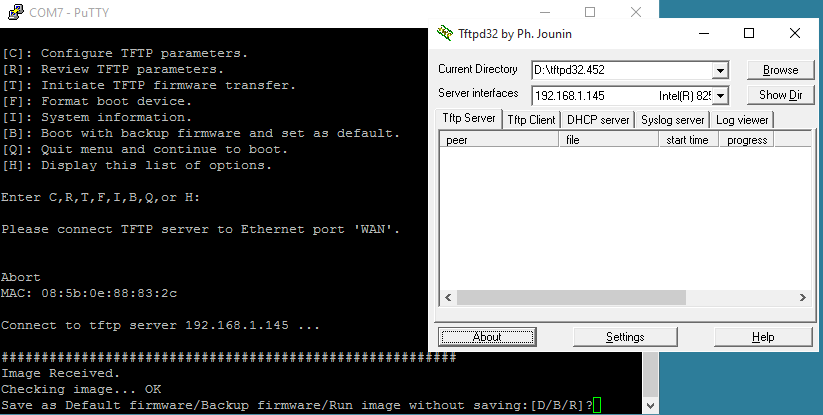
After you initiate TFTP firmware transfer, the Fortigate WAN will be turned on.
You will see Firmware is transferring from TFTP server to Fortigate 30D. Once transferring done, you will be notified how you want to save this image for.
Reference:
Technical Note : Loading FortiGate firmware image using TFTP

 RSS Feed
