
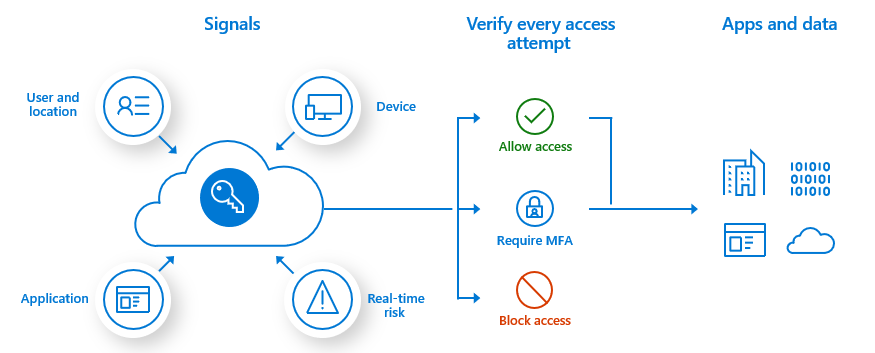
Azure Active Directory (Azure AD) Multi-Factor Authentication helps safeguard access to data and applications, providing another layer of security by using a second form of authentication. Organizations can enable multifactor authentication (MFA) with Conditional Access to make the solution fit their specific needs.
This post is to summarize some key steps to plan and implement an Azure AD Multi-Factor Authentication roll-out.
Prerequisites
| Scenario | Prerequisite |
|---|---|
| Cloud-only identity environment with modern authentication | No prerequisite tasks |
| Hybrid identity scenarios | Deploy Azure AD Connect and synchronize user identities between the on-premises Active Directory Domain Services (AD DS) and Azure AD. |
| On-premises legacy applications published for cloud access | Deploy Azure AD Application Proxy |
Authentication methods for MFA
| Authentication method | Security | Usability | Availability |
|---|---|---|---|
| Windows Hello for Business | High | High | High |
| Microsoft Authenticator app | High | High | High |
| FIDO2 security key | High | High | High |
| Certificate-based authentication (preview) | High | High | High |
| OATH hardware tokens (preview) | Medium | Medium | High |
| OATH software tokens | Medium | Medium | High |
| SMS | Medium | High | Medium |
| Voice | Medium | Medium | Medium |
| Password | Low | High | High |
The following table outlines when an authentication method can be used during a sign-in event:
| Method | Primary authentication | Secondary authentication |
|---|---|---|
| Windows Hello for Business | Yes | MFA* |
| Microsoft Authenticator app | Yes | MFA and SSPR |
| FIDO2 security key | Yes | MFA |
| Certificate-based authentication (preview) | Yes | No |
| OATH hardware tokens (preview) | No | MFA and SSPR |
| OATH software tokens | No | MFA and SSPR |
| SMS | Yes | MFA and SSPR |
| Voice call | No | MFA and SSPR |
| Password | Yes |
The following additional verification methods can be used in certain scenarios:
- App passwords - used for old applications that don't support modern authentication and can be configured for per-user Azure AD Multi-Factor Authentication.
- Security questions - only used for SSPR
- Email address - only used for SSPR
Plan Conditional Access Policies
Azure Active Directory Premium P1
Annual commitment - $92.40 / Licenses / year
Billed monthly - $7.70 / Licenses / month
Common use cases to require Azure AD Multi-Factor Authentication include:
- For administrators
- To specific applications
- For all users
- For Azure management
- From network locations you don't trust
Plan User Session Lifetime
Plan User Registration
Per-User MFA vs Conditional Access Based MFA
In your tenant, you can enable MFA on a per-user basis. In this scenario, your users perform MFA each time they sign in, with some exceptions, such as when they sign in from trusted IP addresses or when the remember MFA on trusted devices feature is turned on.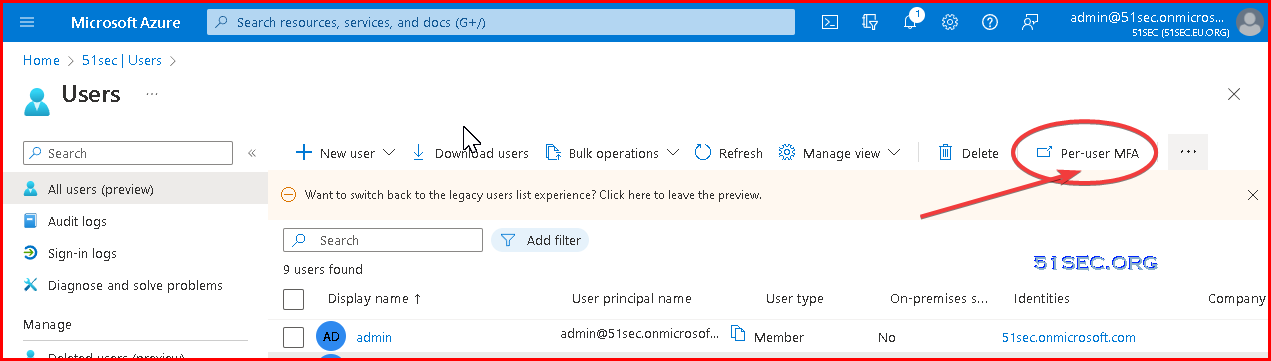
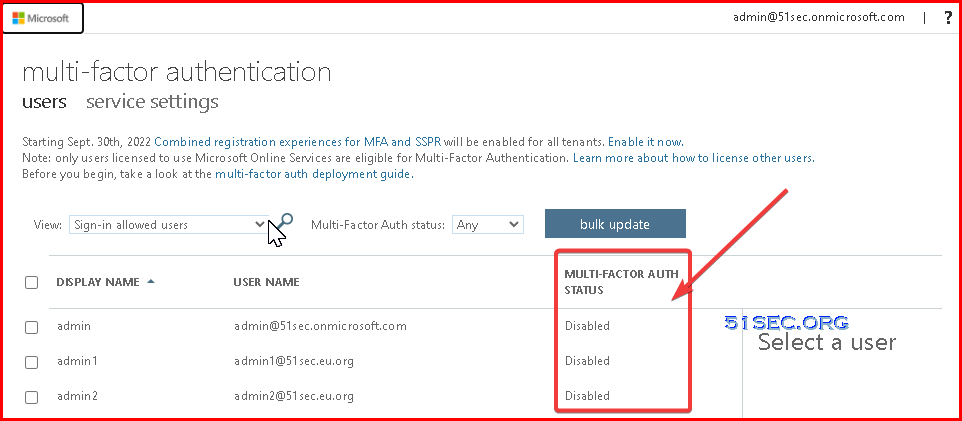
This recommendation shows up if:
- You have per-user MFA configured for at least 5% of your users.
- Conditional Access policies are active for more than 1% of your users (indicating familiarity with CA policies).
Convert per-user MFA enabled and enforced users to disabled
If your users were enabled using per-user enabled and enforced Azure AD Multi-Factor Authentication the following PowerShell can assist you in making the conversion to Conditional Access based Azure AD Multi-Factor Authentication.
Run this PowerShell in an ISE window or save as a .PS1 file to run locally. The operation can only be done by using the MSOnline module.
# Connect to tenant
Connect-MsolService

# Sets the MFA requirement state
function Set-MfaState {
    [CmdletBinding()]
    param(
        [Parameter(ValueFromPipelineByPropertyName=$True)]
        $ObjectId,
        [Parameter(ValueFromPipelineByPropertyName=$True)]
        $UserPrincipalName,
        [ValidateSet("Disabled","Enabled","Enforced")]
        $State
    )
    Process {
        Write-Verbose ("Setting MFA state for user '{0}' to '{1}'." -f $ObjectId, $State)
        $Requirements = @()
        if ($State -ne "Disabled") {
            $Requirement =
                [Microsoft.Online.Administration.StrongAuthenticationRequirement]::new()
            $Requirement.RelyingParty = "*"
            $Requirement.State = $State
            $Requirements += $Requirement
        }
        Set-MsolUser -ObjectId $ObjectId -UserPrincipalName $UserPrincipalName `
                     -StrongAuthenticationRequirements $Requirements
    }
}
# Disable MFA for all users
Get-MsolUser -All | Set-MfaState -State Disabled
Enable Azure AD MFA
Your Azure AD Multi-Factor Authentication rollout plan should include a pilot deployment followed by deployment waves that are within your support capacity. Begin your rollout by applying your Conditional Access policies to a small group of pilot users. After evaluating the effect on the pilot users, process used, and registration behaviors, you can either add more groups to the policy or add more users to the existing groups.
Follow the steps below:
- Meet the necessary prerequisites
- Configure chosen authentication methods
- Configure your Conditional Access policies
- Configure session lifetime settings
- Configure Azure AD MFA registration policies
Operation: Manage Azure AD MFA
Reporting and Monitoring
Azure AD has reports that provide technical and business insights, follow the progress of your deployment and check if your users are successful at sign-in with MFA. Have your business and technical application owners assume ownership of and consume these reports based on your organization's requirements.
You can monitor authentication method registration and usage across your organization using the Authentication Methods Activity dashboard. This helps you understand what methods are being registered and how they're being used.
Sign in report to review MFA events
The Azure AD sign-in reports include authentication details for events when a user is prompted for MFA, and if any Conditional Access policies were in use. You can also use PowerShell for reporting on users registered for Azure AD Multi-Factor Authentication.
NPS extension and AD FS logs for cloud MFA activity are now included in the Sign-in logs, and no longer published to Security > MFA > Activity report.
For more information, and additional Azure AD Multi-Factor Authentication reports, see Review Azure AD Multi-Factor Authentication events.
References
- Plan an Azure Active Directory Multi-Factor Authentication deployment
- Optimize reauthentication prompts and understand session lifetime for Azure AD Multi-Factor Authentication
- Sure, keep me signed in! And don’t prompt for MFA!
- Tutorial: Secure user sign-in events with Azure AD Multi-Factor Authentication
via Blogger http://blog.51sec.org/2022/11/enable-mfa-for-azure-ad-users.html
November 21, 2022 at 10:48PM Cloud

 RSS Feed
