Info Security Memo
  • Blog
  • Sitemap
    • Categories
  • Contact
  • About
  • Resources
  • Tools
  • 51sec.org

Build Confidence

Focusing on Information Security 

Info Security Notes

Deploy Fortigate Firewall with Trial License to Azure Free Tier VM

1/8/2022

0 Comments

 
Deploy Fortigate Firewall with Trial License to Azure Free Tier VM

There are lots of limitation for you to deploy Azure marketplace's Fortigate VM , such as VM size requirement, license requirement, also only for Pay As You Go subscription. For my lab, not for test drive, I might need to deploy a Fortigate firewall into 1vCPU, 1GB Ram B1S size VM, and I will need to use my azure credit or student subscription to play with it. 

That won't be able to happen if you are using Marketplace's product.

This post is going to show you how to download a proper Fortigate VM file and how to load it into Azure to create your own customized VM with minimum VM size and cost.


Download Fortigate VM

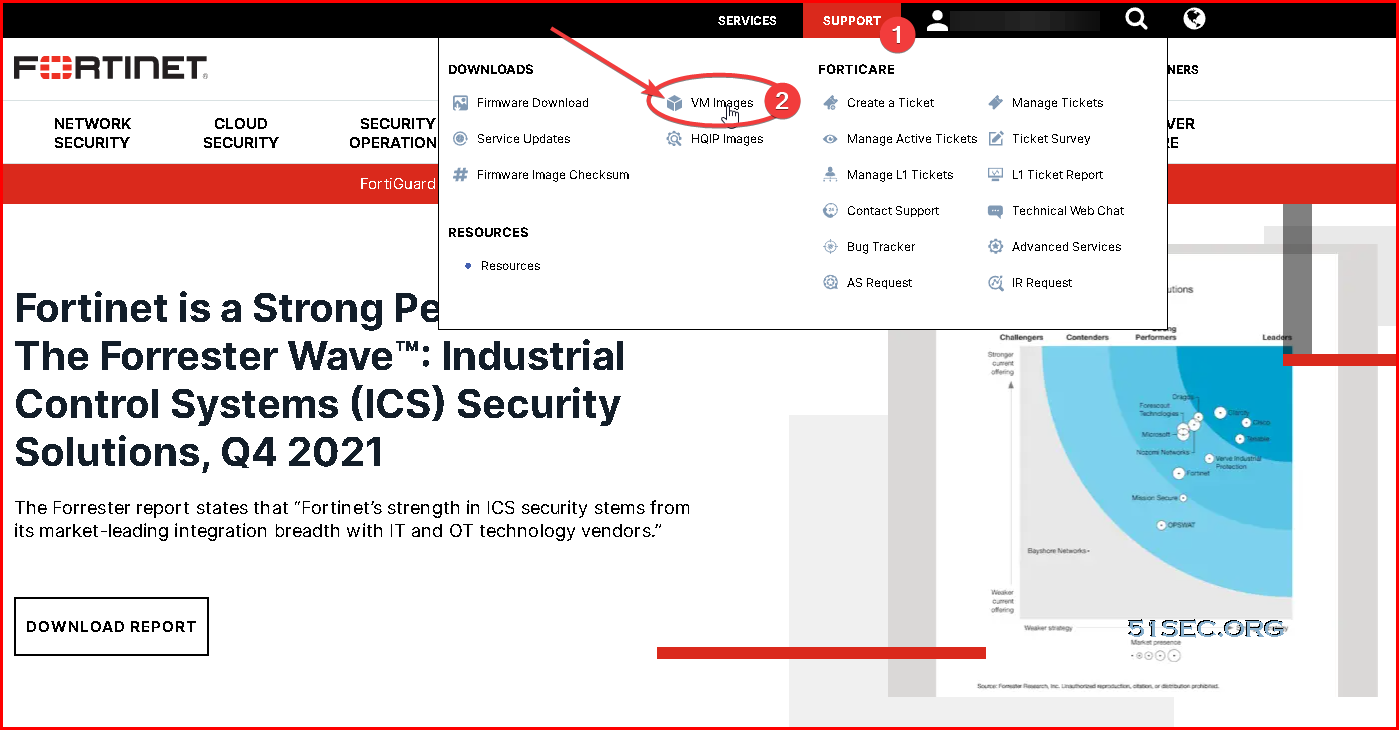
After logged into FortiCloud, you can find out VM Images download link from Support menu.


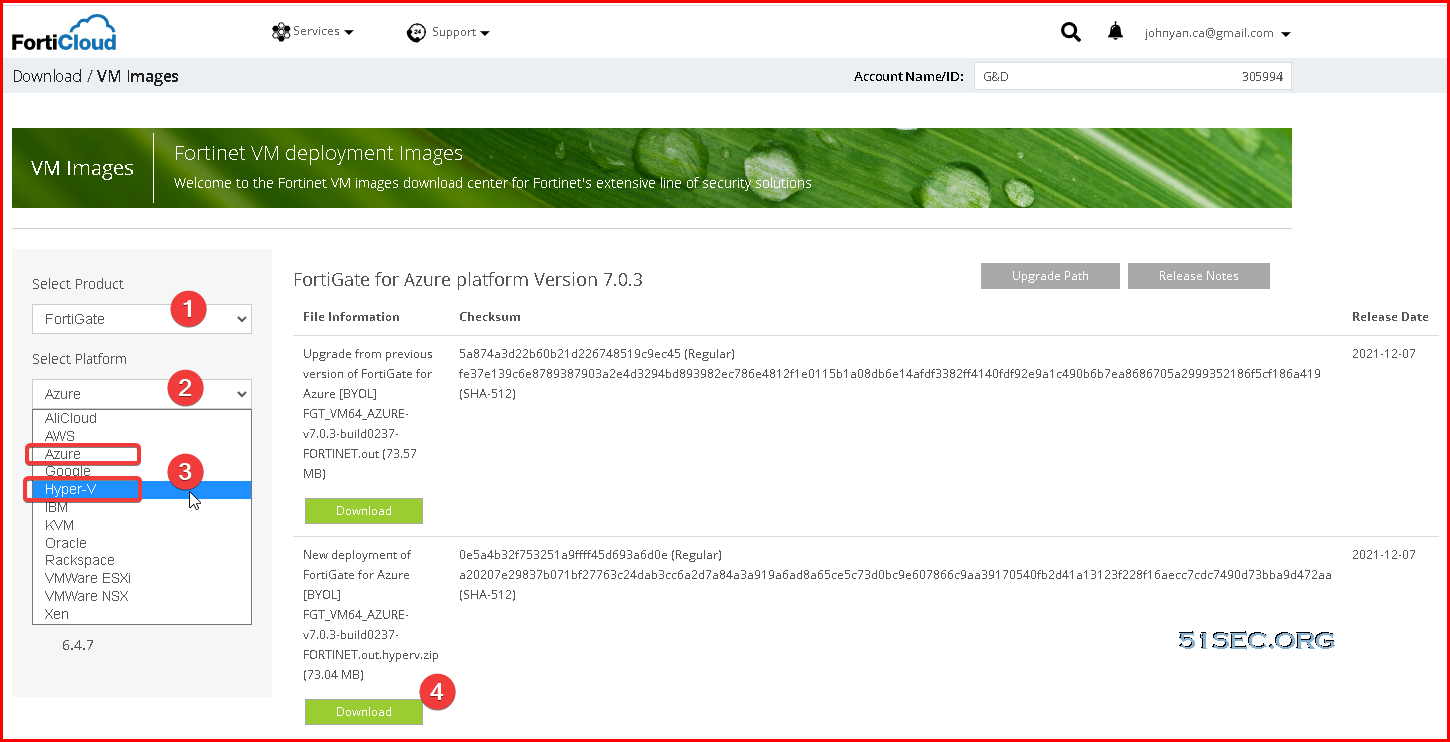
From VM Images page, you can filter download link based on your corresponding product, platform and version :


Based on my testing, you can choose either Azure platform or Hyper-V platform to download. The difference will be, for Azure platform, it does not have trial license and you will be prompted to add your own license. 

For Hyper-V platform vm image, it already has a 15 days trial license in it. As long as you started vm, 15 days trial license will be activated.


Covert Dynamic Disk to Fixed Size Disk

Since the downloaded VM image only has dynamic disks inside it, we will need to convert it to fixed size disk. That can be done by Hyper-V manager.
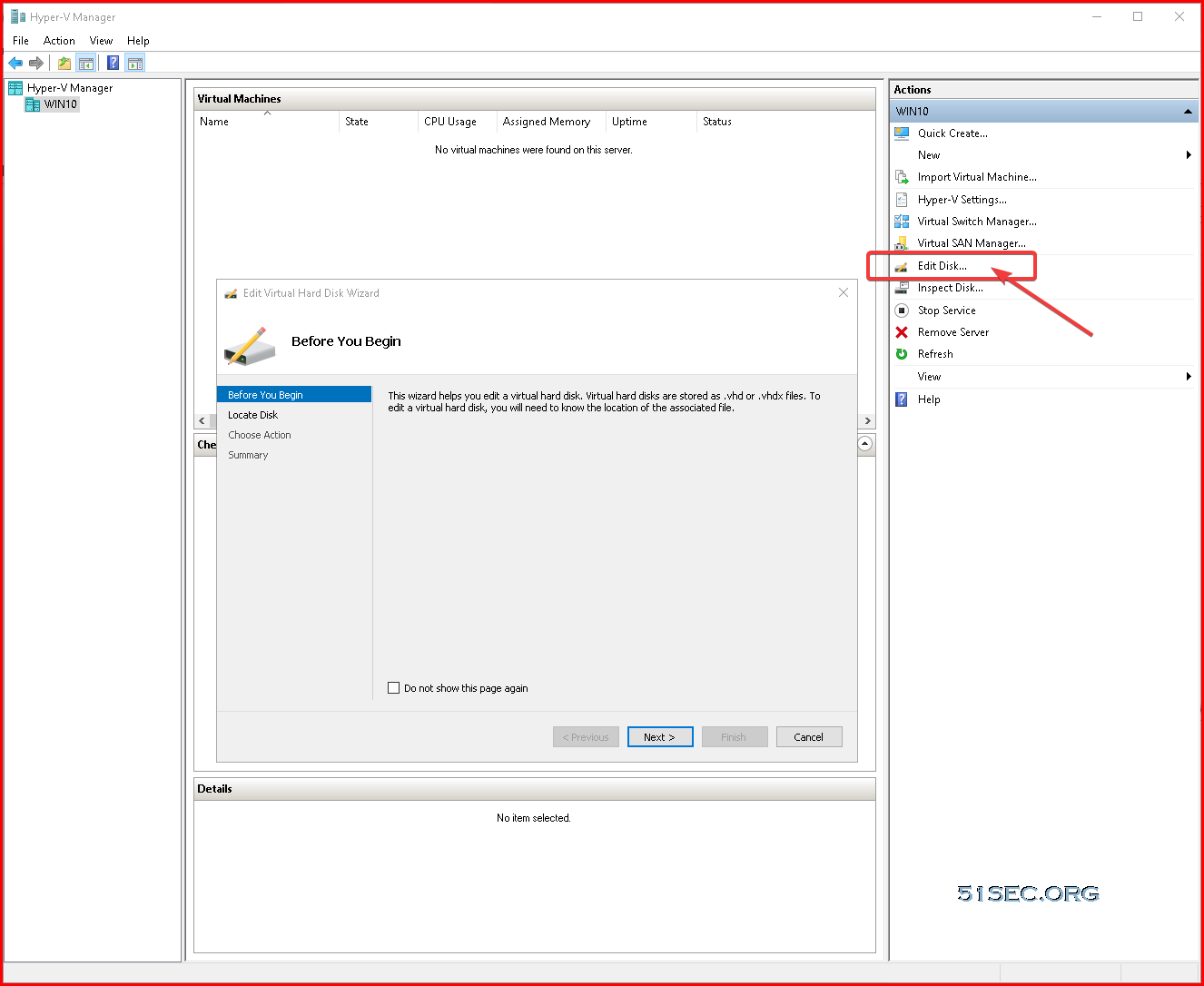
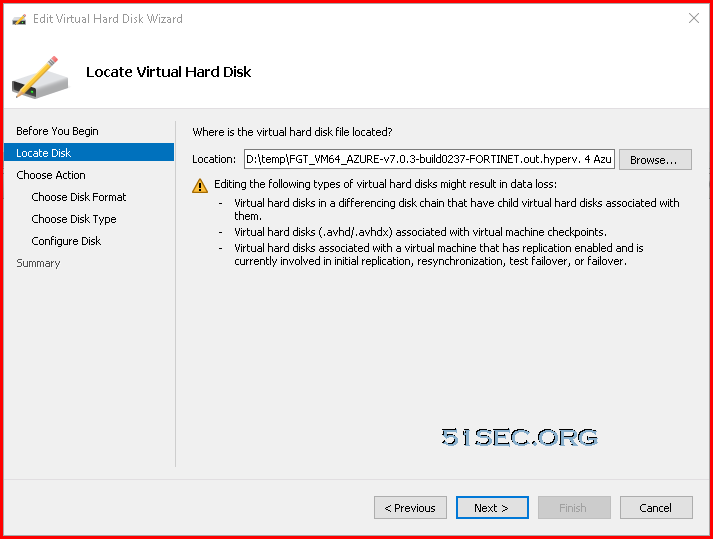
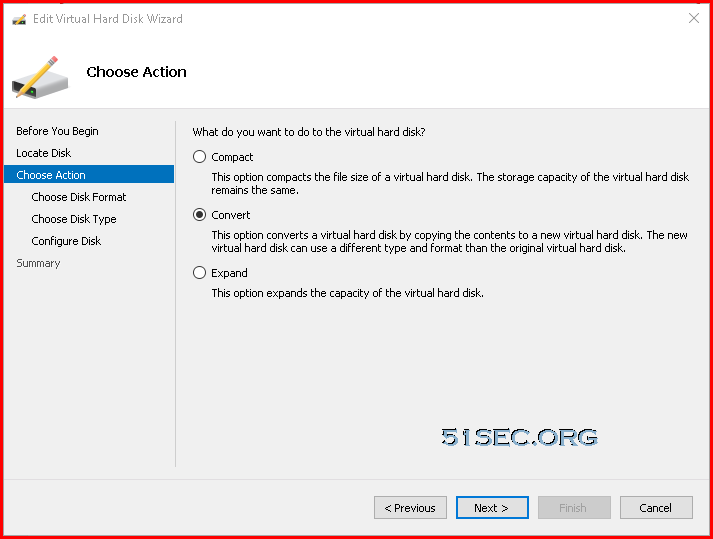
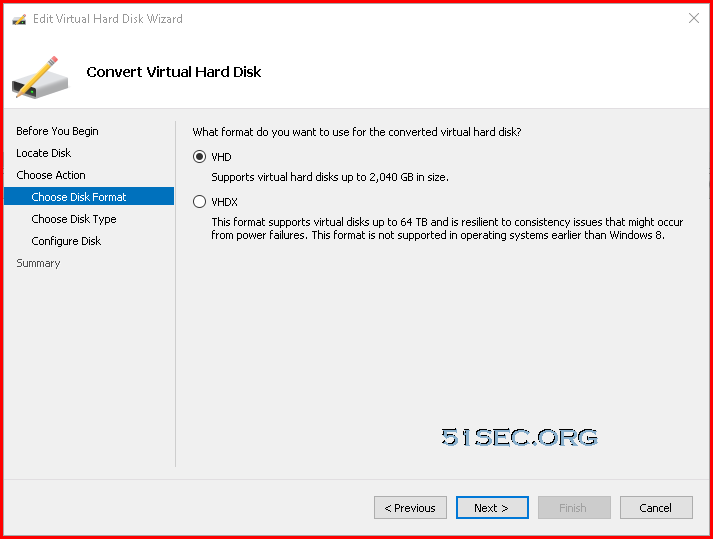
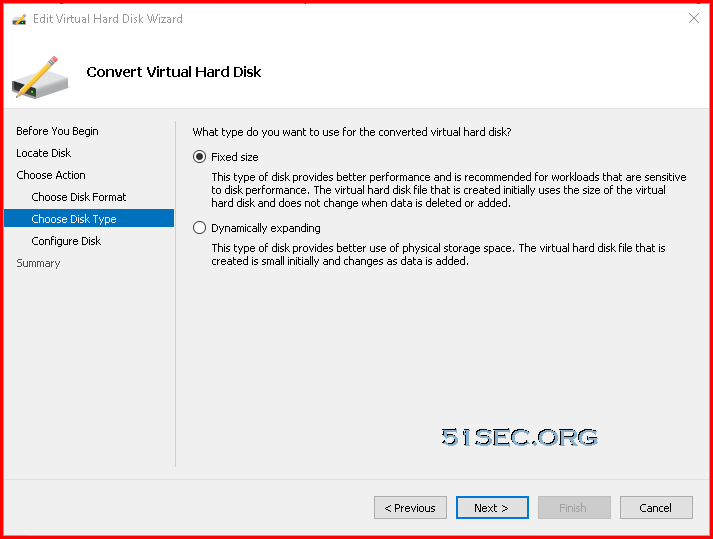
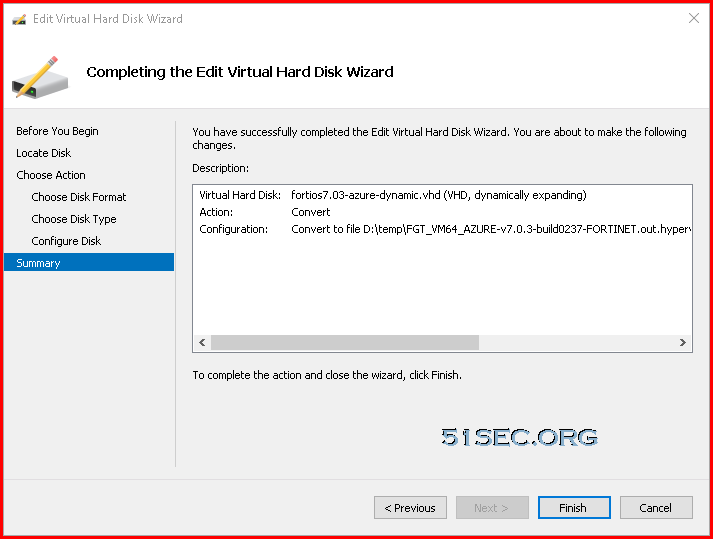
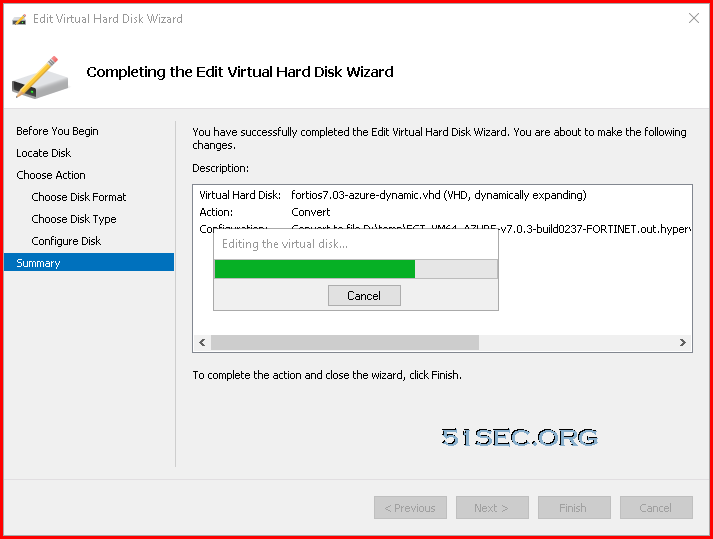


You will get a 2GB VHD file which can be uploaded to Azure blob storage.


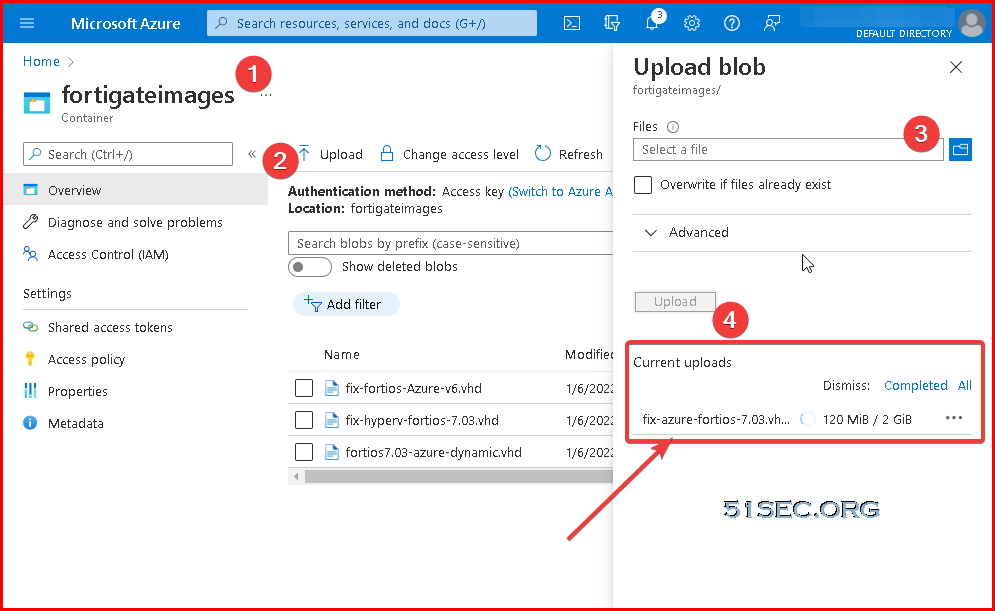
Upload 2GB VHD File to Blob Container


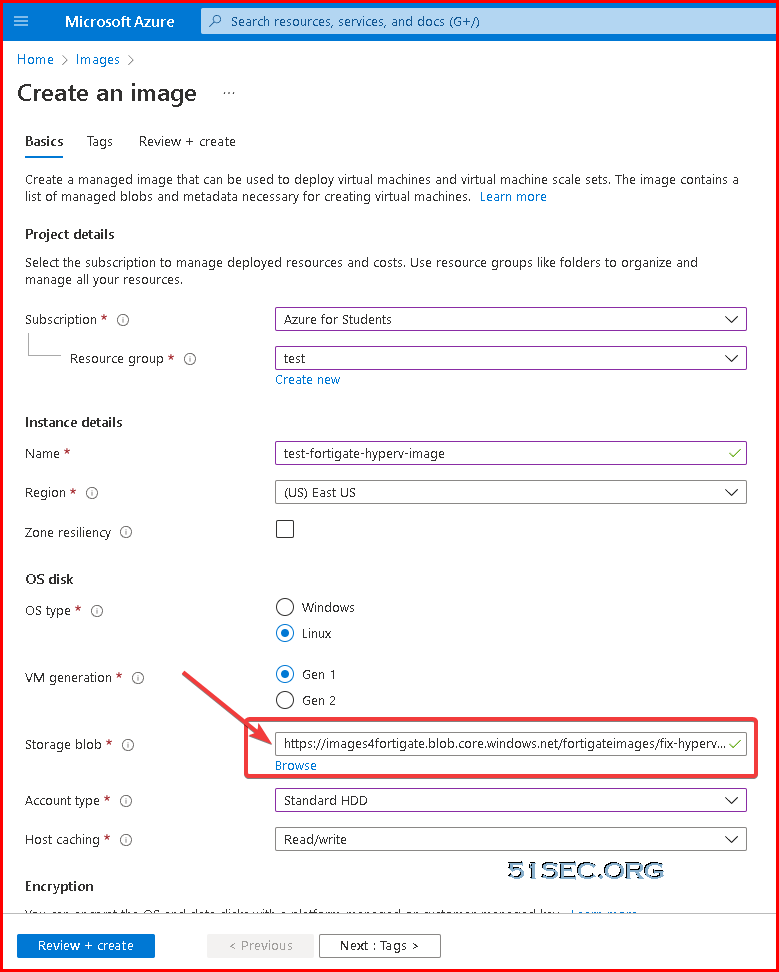
Create Image Based on 2GB VHD

Search Images service and create an image based on the VHD file uploaded to Blob.


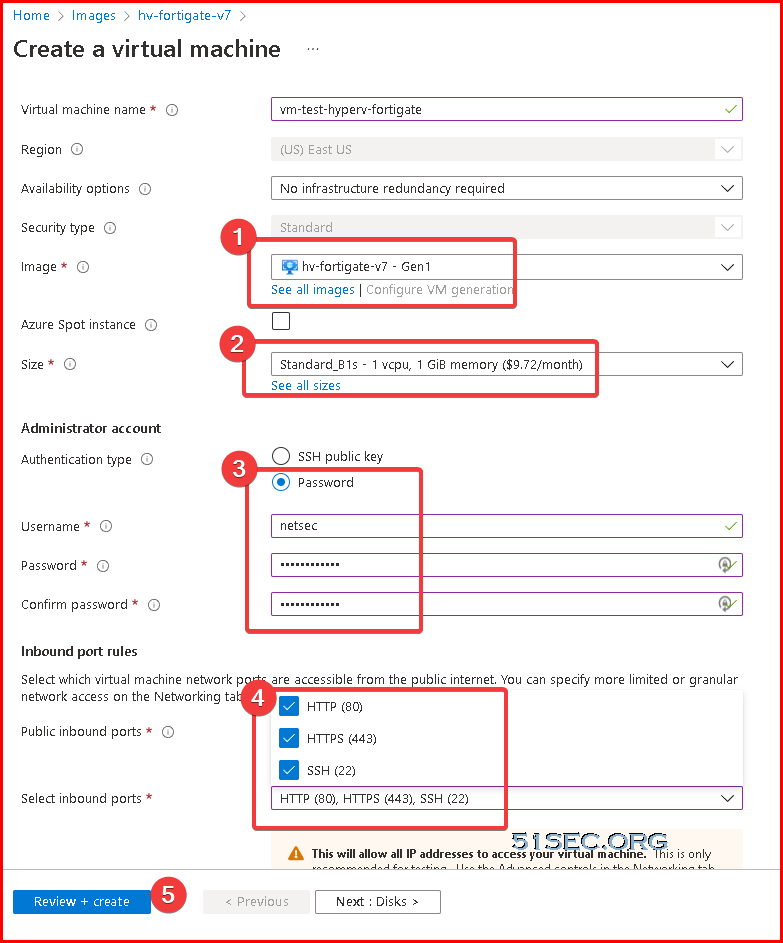
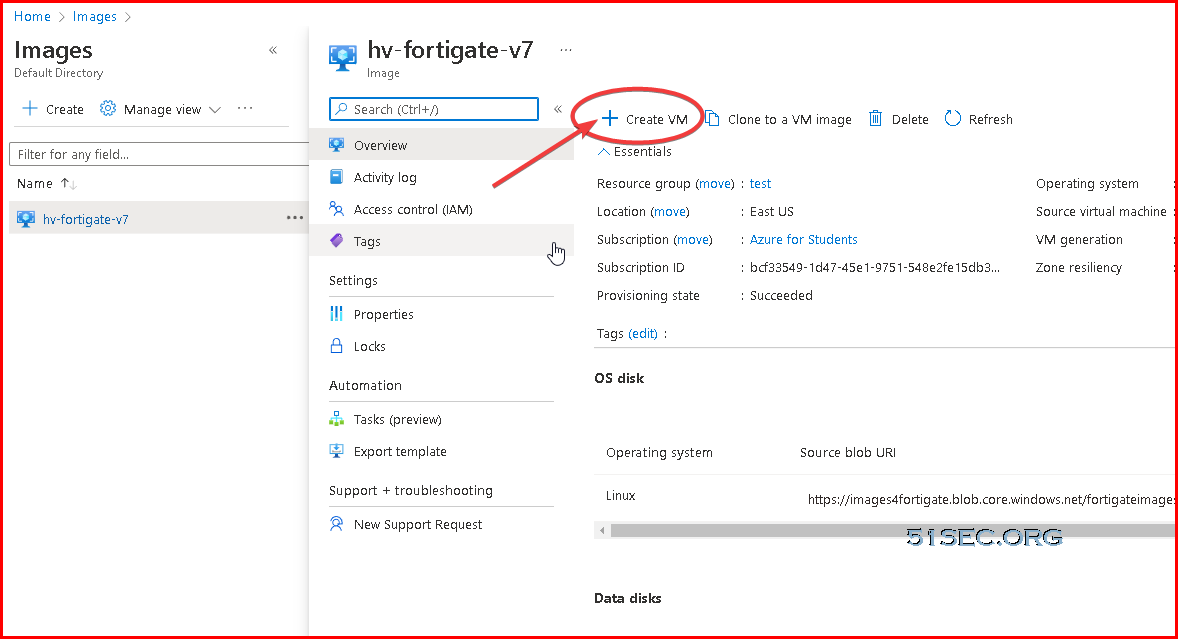
Create VM using new image


Access Fortigate VM


Once VM deployed using the image, you will get a public ip to access your vm. 

If you are using Azure Fortigate VM, you will  have following wo ways to access it, either using browser to open url https://<public ip> or using SSH client to ssh to it.

The username and password is the one you put in during creating VM.

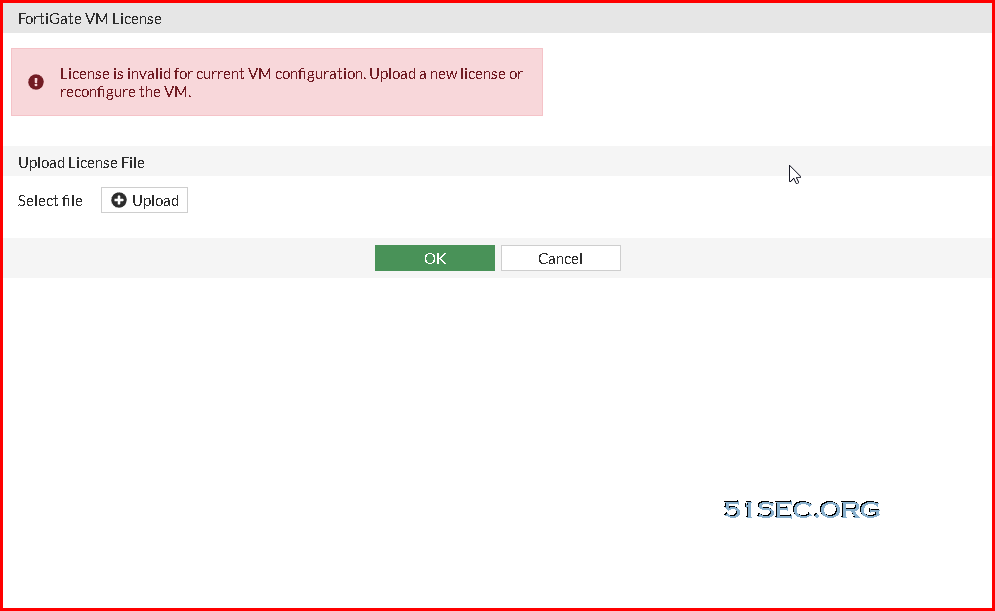
From browser, after you logged in, you will get a license invalid error and it will not allow you continue until you uploaded a valid license. 

I will suggest to use Hyper-VM VHD file to create image , then create VM. In that case, you will have default username and passowrd : admin/null

You will need to open HTTP port to access URL.

SSH will be same to access. 

But you will automatically load with a trial license for 15 days. 


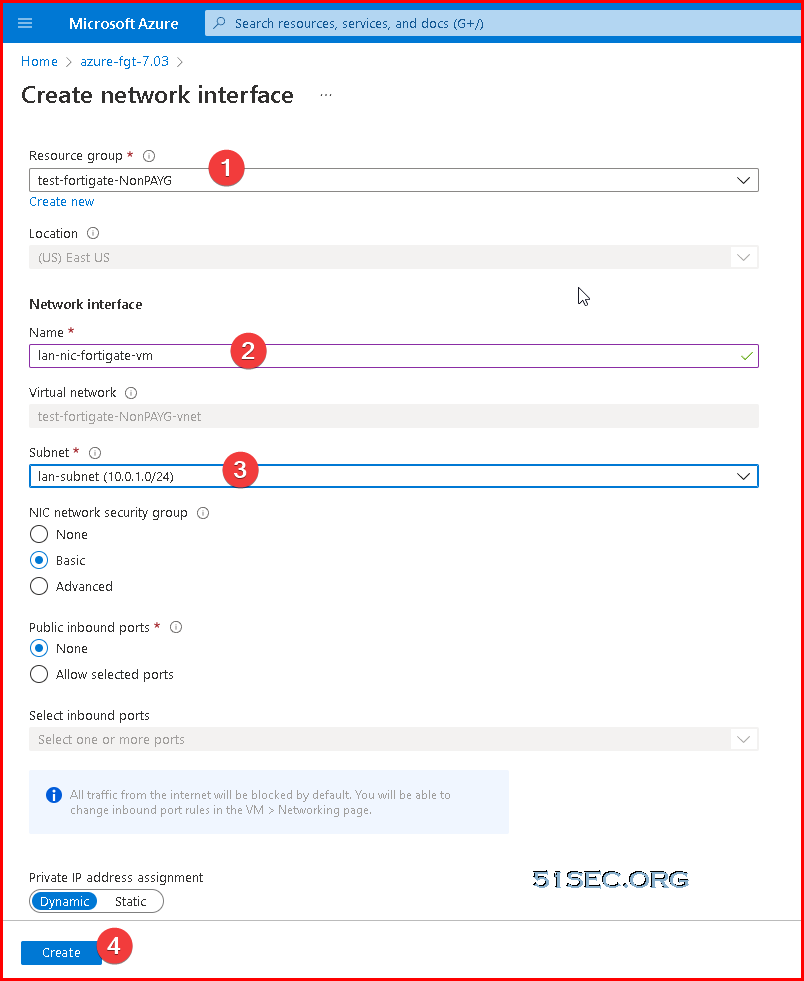
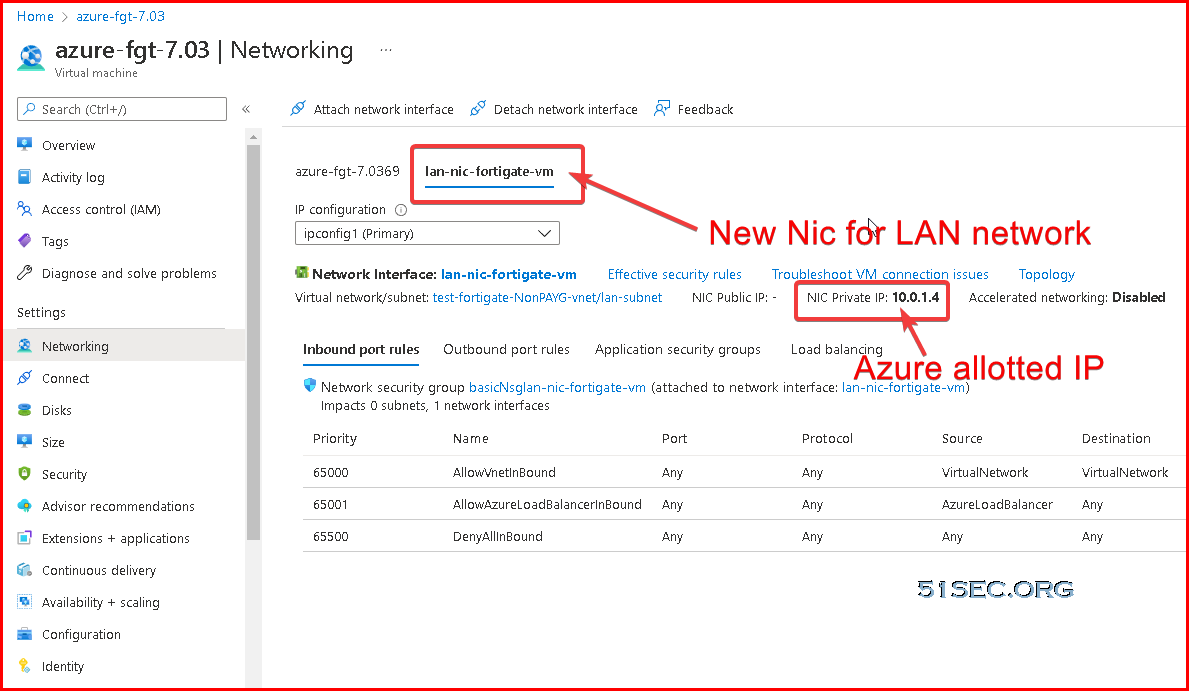
Adding Second NIC on VM

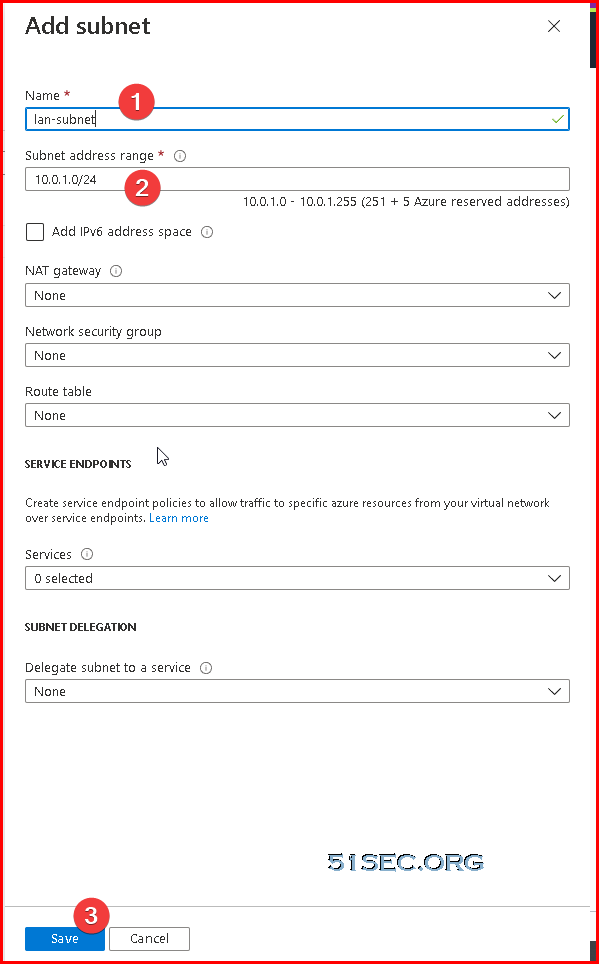
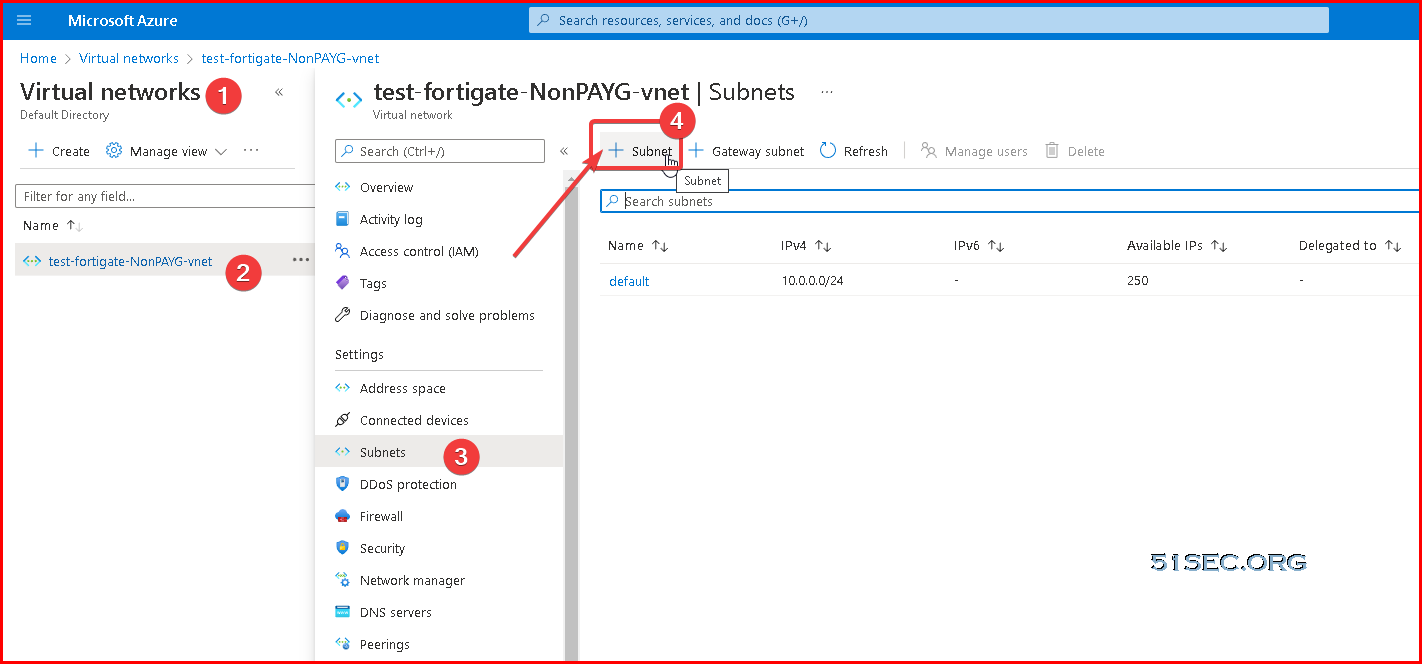
Create a new subnet for your LAN network, which will be used for your new NIC card.


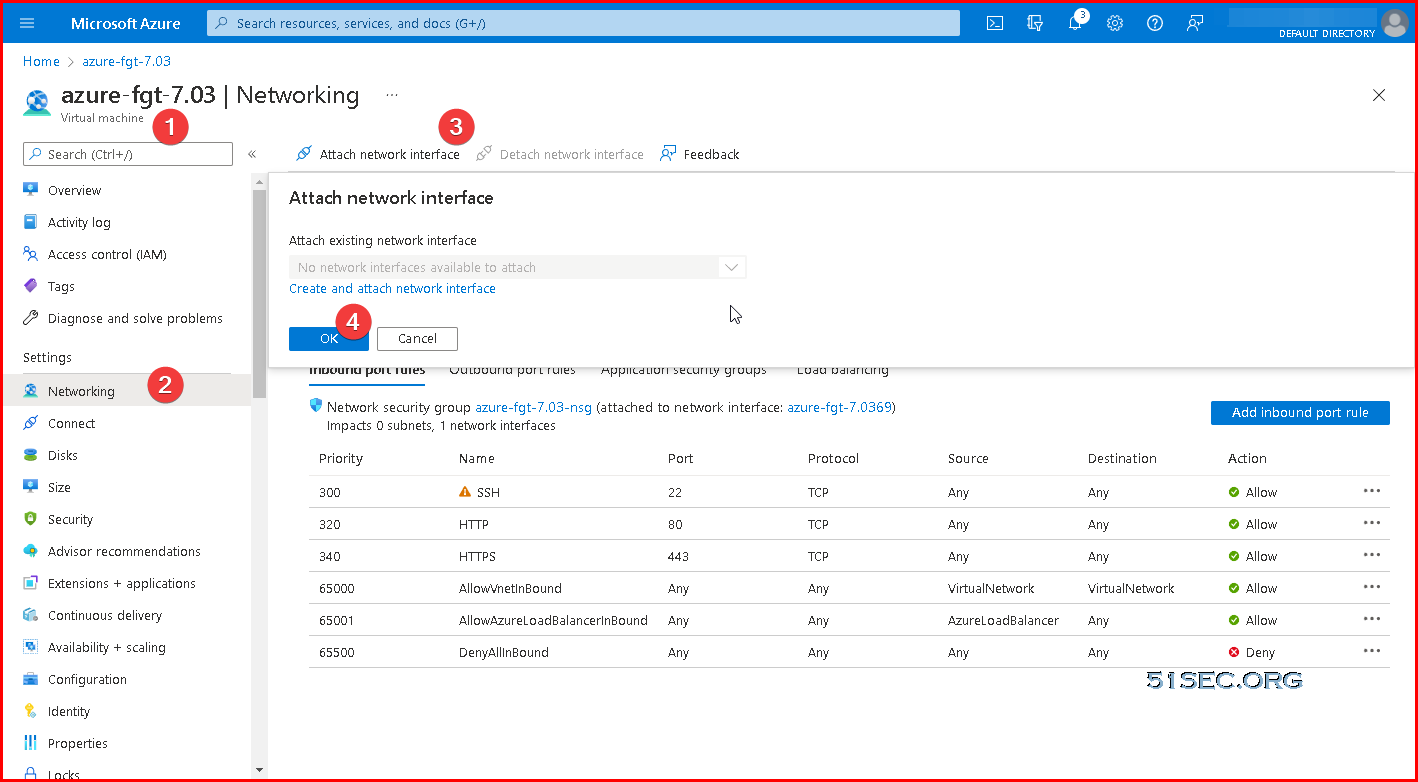
To add a new network card for Fortigate VM, you will need to stop the VM. 


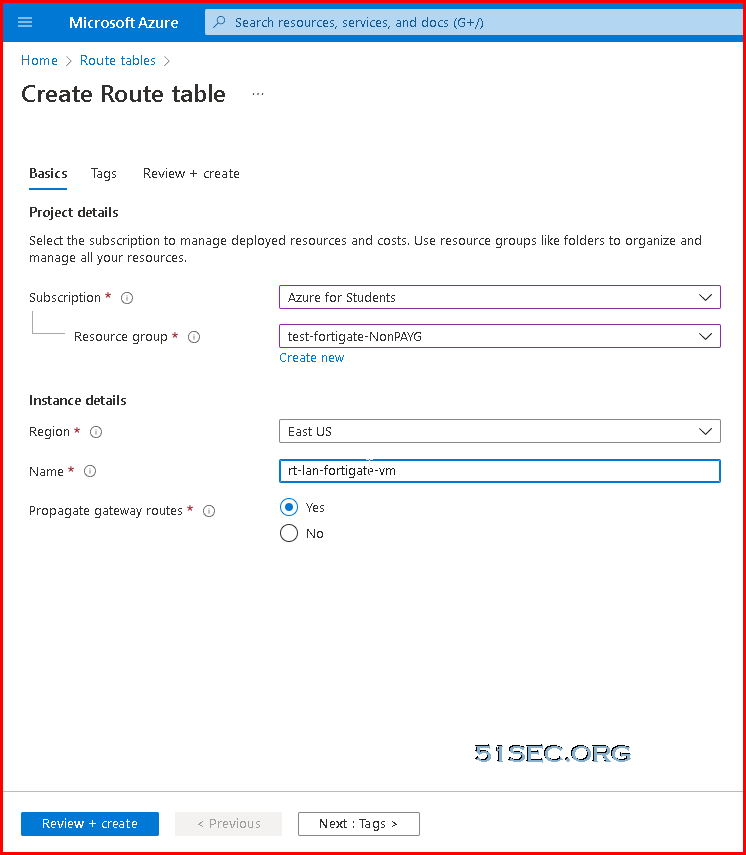
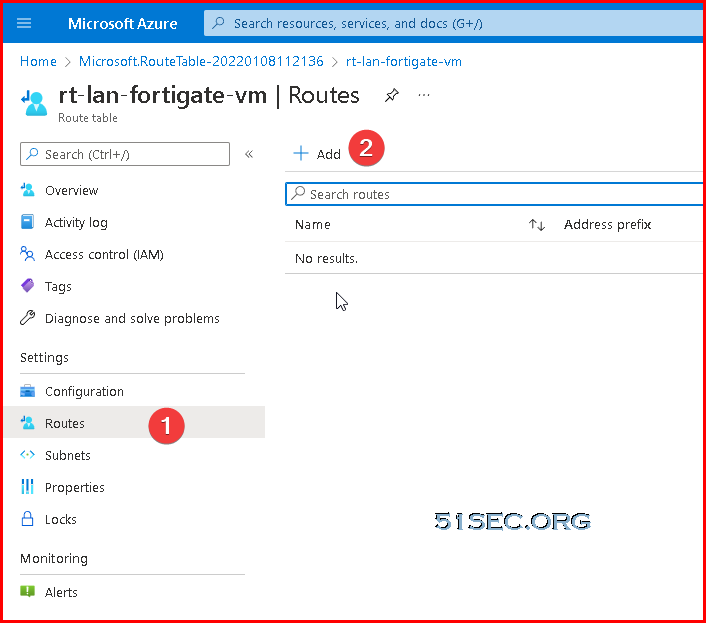
Create a new routing table for LAN network


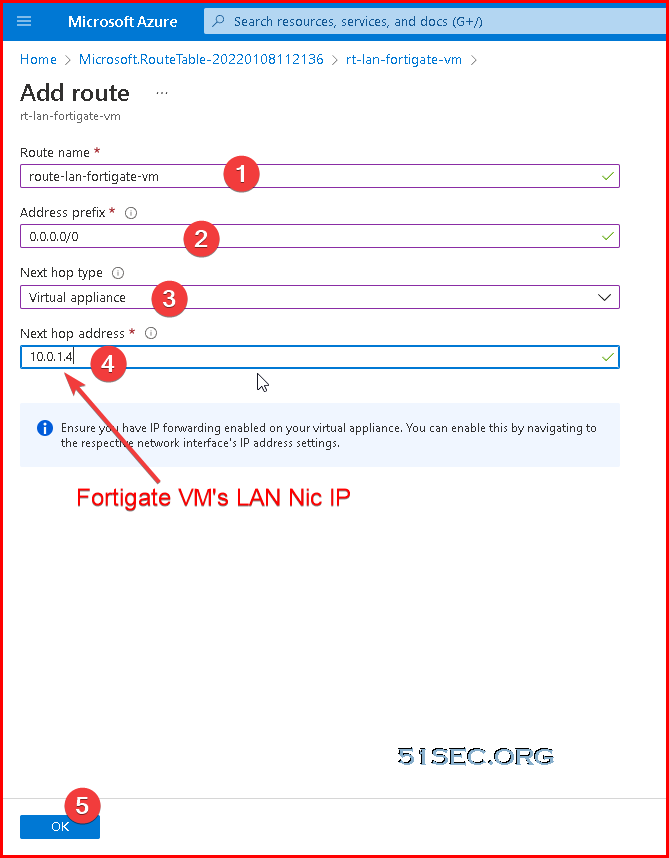
Add a new route:

This new route will route all traffic in associated subnet(s) to Fortigate's LAN NIC IP.

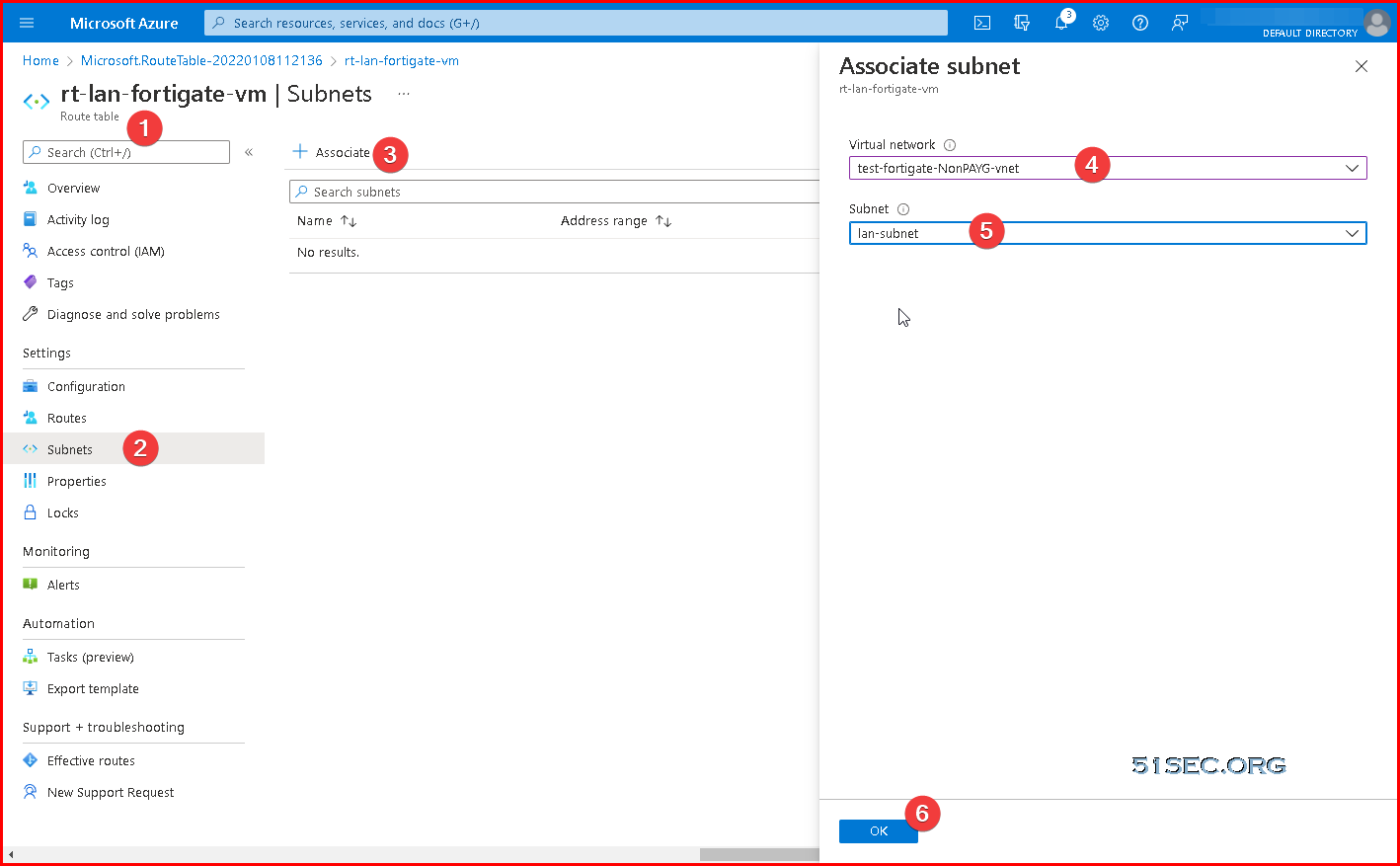
Associate the LAN subnet with this new route.


References


via Blogger http://blog.51sec.org/2022/01/deploy-fortigate-firewall-with-trial.html
January 08, 2022 at 11:29AM Fortigate
0 Comments


Leave a Reply.

    Categories

    All
    Architecture
    Blog
    Checkpoint
    Cisco
    Cloud
    CyberArk
    F5
    Fortigate
    Guardium
    Juniper
    Linux
    Network
    Others
    Palo Alto
    Qualys
    Raspberry Pi
    Security
    SIEM
    Software
    Vmware
    VPN
    Wireless

    Archives

    March 2024
    February 2024
    January 2024
    December 2023
    November 2023
    October 2023
    September 2023
    August 2023
    July 2023
    June 2023
    May 2023
    April 2023
    March 2023
    February 2023
    January 2023
    December 2022
    November 2022
    October 2022
    September 2022
    August 2022
    July 2022
    June 2022
    May 2022
    April 2022
    March 2022
    February 2022
    January 2022
    December 2021
    November 2021
    October 2021
    September 2021
    August 2021
    July 2021
    June 2021
    May 2021
    April 2021
    March 2021
    February 2021
    January 2021
    December 2020
    November 2020
    October 2020
    September 2020
    August 2020
    July 2020
    October 2019
    September 2019
    June 2019
    July 2018
    May 2018
    December 2017
    August 2017
    April 2017
    March 2017
    January 2017
    December 2016
    November 2016
    October 2016
    September 2016
    August 2016
    July 2016
    June 2016
    May 2016
    April 2016
    March 2016
    February 2016
    January 2016
    December 2015
    November 2015
    October 2015
    September 2015
    August 2015
    July 2015
    June 2015
    May 2015
    April 2015
    March 2015

    Print Page:

    RSS Feed

    Email Subscribe
Powered by Create your own unique website with customizable templates.
  • Blog
  • Sitemap
    • Categories
  • Contact
  • About
  • Resources
  • Tools
  • 51sec.org