
This post summarizes some steps to install PVWA (Password Vault Web Access) component.
Diagram

System Requirements
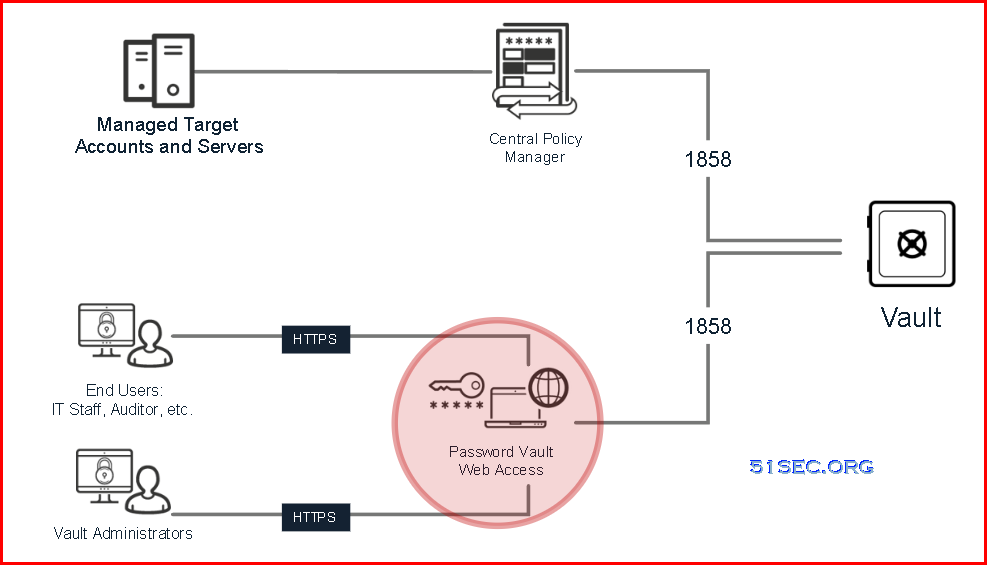
Architecture
Pre-Installation Tasks
-
Copy the PVWA folder from the installation package to the component server, and unzip the folder.
-
In the InstallationAutomation folder, locate the PVWA_Prerequisites.ps1 file.
-
Open the PowerShell window, and run the PVWA_Prerequisites.ps1 file as an administrator.
Installation Steps
The PVWA can be automatically installed and deployed using scripts, or installed by using the Installation wizard. CyberArk recommend that you use the automated scripts.1 In the PVWA\InstallationAutomation\Installation folder, locate and open the InstallationConfig.xml file.
-
In the InstallationConfig.xml file, specify the following parameters
Parameter
Description
Username
The name of the user running the installation.
Valid values: Username
Company
The name of the company running the installation.
Valid values: Company name
PVWAApplicationDirectory
The location of the PVWA IIS web application.
Valid values: Pathname
Default value: C:\inetpub\wwwroot\PasswordVault\
PVWAInstallDirectory
The path where PVWA is installed.
Valid values: Pathname
Default value: C:\CyberArk\Password Vault Web Access\
PVWAApplicationName
The name of the PVWA IIS web application.
Valid values: Application name
Default value: PasswordVault
PVWAAuthenticationList
The authentication types that PVWA supports. Separate multiple values with semicolons (;).
Valid values: CyberArk, Windows, Radius, PKI, LDAP, Oracle SSO, SAML
Default value: CyberArk;
-
Some of the selected authentication types must be installed and configured on the Vault before they can be configured for the PVWA. For more information, see Authenticate to Privileged Access Manager .
-
Make sure that the administrator user for testing can authenticate to the Vault with one of the selected authentication methods so that you will be able to test the installation.
-
To customize third-party authentication servers, see Set up customized authentication modules.
pvwaUrl
The URL of the default PVWA to access.
Valid values: URL
Default value: https://127.0.0.1/PasswordVault
isUpgrade
Indicates whether the registration is for an upgrade or a clean installation.
Default value: False
Valid values: True\False
-
Registration
The registration process connects the PVWA to the Vault.
-
In the PVWA\InstallationAutomation\Registration folder, locate and open the PVWARegisterComponentConfig.xml file.
-
In the PVWARegisterComponentConfig.xml file, specify the following parameters
Parameter
Description
accepteula
Acceptance of the end user License agreement.
Valid values: Yes/No
vaultIP
The IP address or hostname of the Vault server.
When you register PVWA to a DR Vault environment, specify vaultip with <vault ip>,<DR ip>
Valid values: IP address or hostname
vaultport
The Vault’s configured communication port.
Recommended default Vault port: 1858Valid values: Port number
vaultuser
The name of the Vault user performing the installation.
Valid values: Username
We recommend using the Vault administrator user to install PVWA as this user has the appropriate Vault authorizations, and is created in the appropriate location in the Vault hierarchy.
For more information about the required authorizations, see Vault user authorizations.
Whether or not PVWA is installed in POC mode.
Valid values: True/False
authenticationlist
The authentication types that PVWA supports. Separate multiple values with semicolons (;).
Valid values: CyberArk, Windows, Radius, PKI, LDAP, Oracle SSO, SAML
installpackagedir
The full path to the installation package directory (the directory that includes setup.exe).
Edit this parameter only when pocmode is set to true.
Do not edit if pocmode is set to false.
Valid values: Pathname
vaultname
The name of the Vault where the PVWA configuration files will be stored.
Valid values: Vault name
virtualDirectoryPath
The root path of the web application.
Specify the same value as the PVWAApplicationDirectory parameter value in the InstallationConfig.xml file.
Default value: C:\inetpub\wwwroot\PasswordVault
Valid values: Pathname
configFilesPath
The path where the PVWA configuration files are installed.
Specify the same value as the PVWAInstallDirectory value in the InstallationConfig.xml file.
Default value: C:\CyberArk\Password Vault Web Access
Valid values: Pathname
pvwaUrl
The URL of the default PVWA to access.
Valid values: URL
isUpgrade
Indicates whether the registration is for an upgrade or a clean installation.
Default value: False
Valid values: True\False
PVWAApplicationName
The name of the PVWA IIS web application.
Default value: PasswordVault
Valid values: Application name
-
In PowerShell window run the PVWARegisterComponent.ps1 script as Administrator, and provide the Vault password in one of the following ways:
Method
Command
As a secure string (recommended)
CD “<installation package Path>InstallationAutomation\Registration” .\PVWARegisterComponent.ps1 -spwdObj <vaultpassword>
Using a Windows authentication window (recommended for manual runs)
CD “<installation package Path>InstallationAutomation\Registration” .\PVWARegisterComponent.ps1
As clear text (not recommended)
CD “<installation package Path>InstallationAutomation\Registration” .\PVWARegisterComponent.ps1 -pwd <vaultpassword>
Post-Installation
Hardening
- Before you run the hardening script, in the PVWA\InstallationAutomation folder, locate and open the PVWA_Hardening_Config.xml file, and set the IsPSMInstalled parameter to True.
- In a PowerShell window, run the PVWA_Hardening.ps1 script as Administrator.
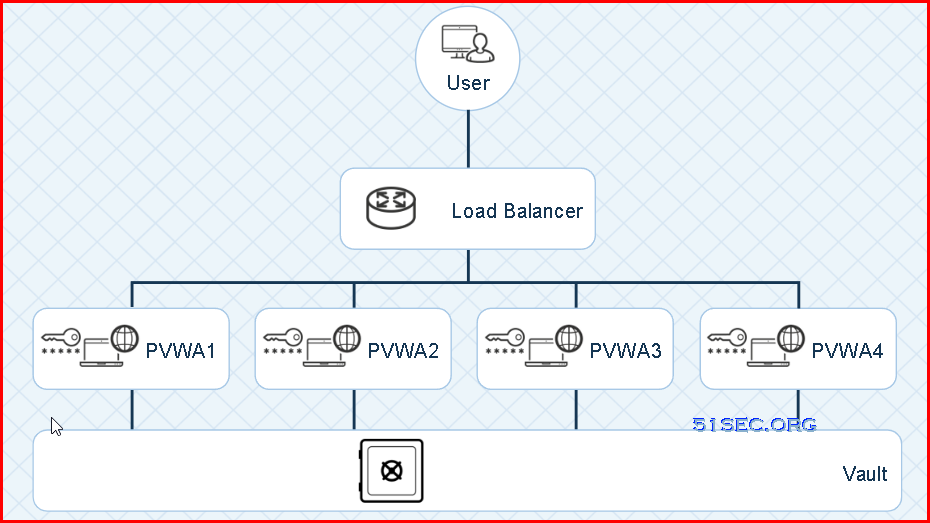
Multiple PVWA installations
Multiple PVWAs in a single Vault environmentLoad balancer requirements
-
The load balancer must not alter page content, or it should include a mechanism to prevent pages from being altered.
-
The load balancer must not alter the application path hierarchy (leave the default application path as it is).
-
The load balancer must support 'sticky sessions'.
Configure the PVWA to work with the load balancer
-
In the web.config file, for the LoadBalancerClientAddressHeader parameter, enter the HTTP Header field name from which the PVWA reads the client IP. For more information, see the LoadBalancerClientAddressHeader parameter in PVWA Parameter File (Web.config).
via Blogger http://blog.51sec.org/2022/06/cyberark-121-lab-4-cpm-installation.html
June 21, 2022 at 11:25AM

 RSS Feed
