
CyberArk 12.1 Lab - 2. Vault Installation


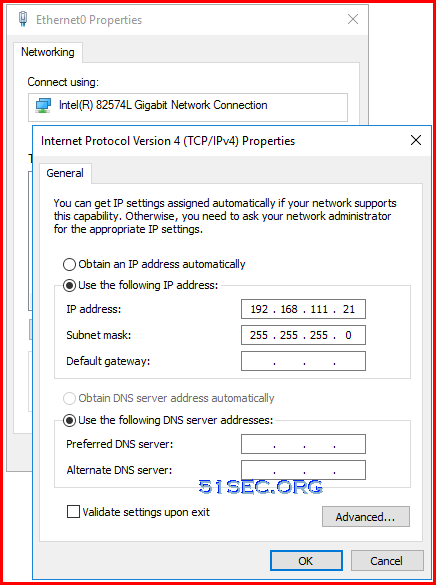
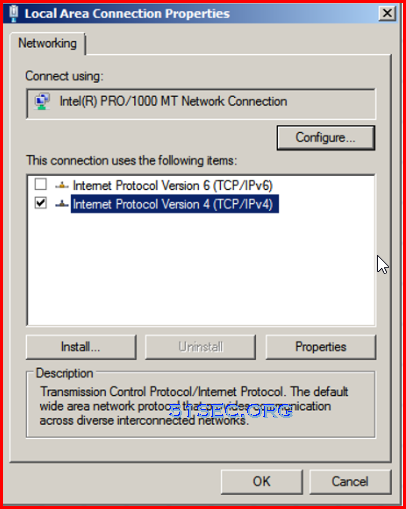 Remove DNS settings to avoid some compromised DNS server attack. Also if there is no outbound traffic from other network, you can take out default gateway configuration. But if you have DR site, you need to have a default gateway filled in. For my basic lab, all machines are in same network.
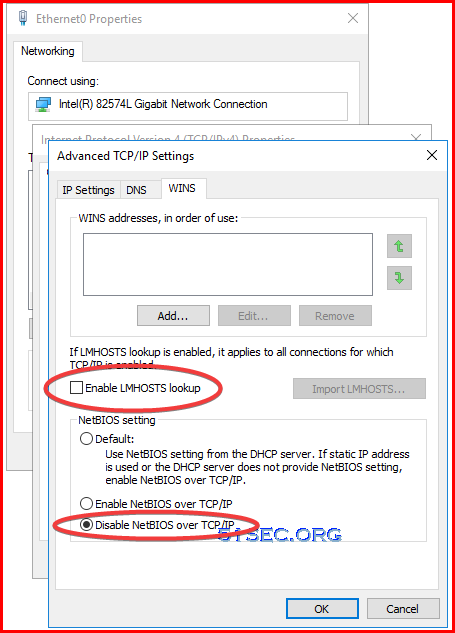
Remove / Disable LMHOSTS lookup and NetBIOS over TCP/IP
via Blogger http://blog.51sec.org/2022/06/cyberark-121-lab-2-vault-installation.html
June 21, 2022 at 11:27AM CyberArk
This post summarizes some steps to install vault.
Diagram
System Requirements
Refer to this doc:
OS: 2019. 2016 (Preferred by installation guide), 2012 (Special requirements)
Application: Multi-language, Certificate, HSM, LDAP, Cipher suites for Syslog, SMTP over SSL
Protocols: RDP
5 2 Operator CD and 2 Master CD, License File
For this lab, copy installation software, Operator CD and Master CD, and license file to vault server.
Architecture
Primary-DR Environment:
Distributed Vaults (Active - Active)
Digital Cluster Vault Server:
Installation Prerequisite
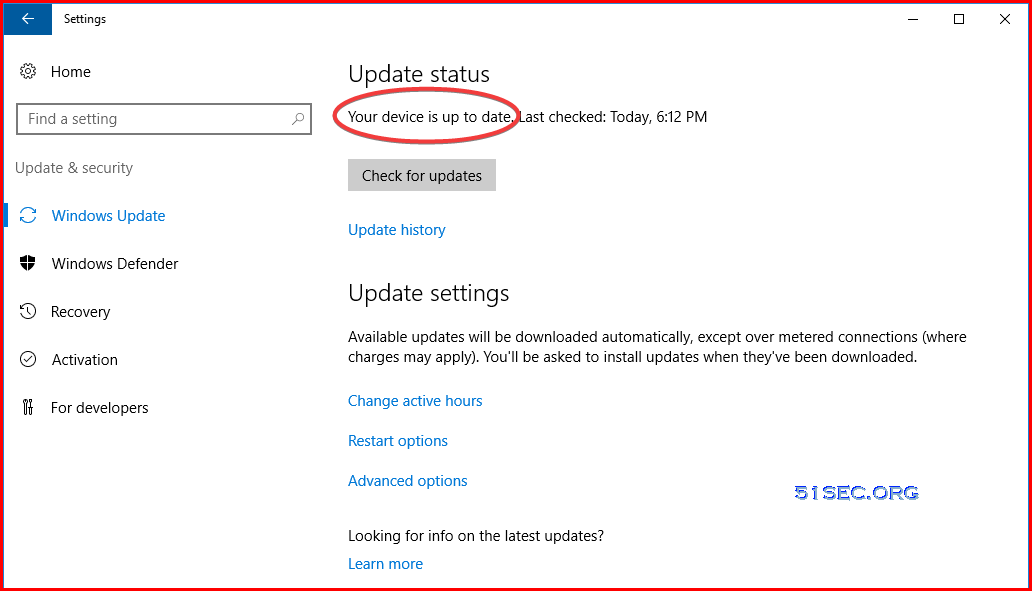
1 Clean installation of Windows 2016 standard. Update windows system to latest with all patches.
2 Remove Unnecessary network components and only Internet Protocol Version 4 (TCP/IPv4) left in Local Area Connection Properties -Networking
3 Installation files
- CyberArk Vault server and Disaster Recovery software packages
- Master folder
- Operator folder
- License file
4 Software requirements
Installation Steps
1 Start installation CyberArk Digital Vault server and client
Further steps can see following post:
Make sure the vault server has same time with other CyberArk servers. You can use your DC as your NTP servers, which is also default NTP server for all your domain joined machine.
| a. | In C:\Program Files\PrivateArk\Server\DBParm.ini, set the following parameter: |
|
Where X.X.X.X, Y.Y.Y.Y, Z.Z.Z.Z and so on are the Time Server IP addresses and port 123 is the Windows Time port.
| b. | Restart the Vault application using the Private-Ark Central Administration Console (the PrivateArk Server icon on the desktop). |
Verification
1 Verify six new services.
After hardening, total running service number has been reduced 31.
2 Verify Vault status using Server Central Administration GUI
3 Check Configuration and log files
Server\Conf
Server\Logs
4 Log into Vault to verify safes
HSM Integration
Contact support for further professional support.
via Blogger http://blog.51sec.org/2022/06/cyberark-121-lab-2-vault-installation.html
June 21, 2022 at 11:27AM CyberArk

 RSS Feed
