
Create Your Own Bookmark Navigation Website Using Docker
This post is to introduce a docker image which can give you a simple and easy way to create your own bookmark navigation website. It is based on XiaoZ blog's onenav. I made a translation for most of web pages and saved into my own docker hub image repository. Still working on but would like to share this excellent Bookmark Management tools to you.
via Blogger https://ift.tt/3vp3QW6
June 13, 2021 at 11:35AM Docker
This post is to introduce a docker image which can give you a simple and easy way to create your own bookmark navigation website. It is based on XiaoZ blog's onenav. I made a translation for most of web pages and saved into my own docker hub image repository. Still working on but would like to share this excellent Bookmark Management tools to you.
Onenav has following features:
Original Github : https://ift.tt/39pPaNr
You can find more information from the Github page. This post will focus on deployment process and how to use Portainer to do that, also how to integrate with own domain which is managed by Cloudflare.
You will need to install Docker and Docker Compose first. Get system update & upgrade it as well. It is also your choice to have portainer installed to manage your Dockers.
Create your own bridge network, and let all of your containers join into it.
Using Portainer to Deploy
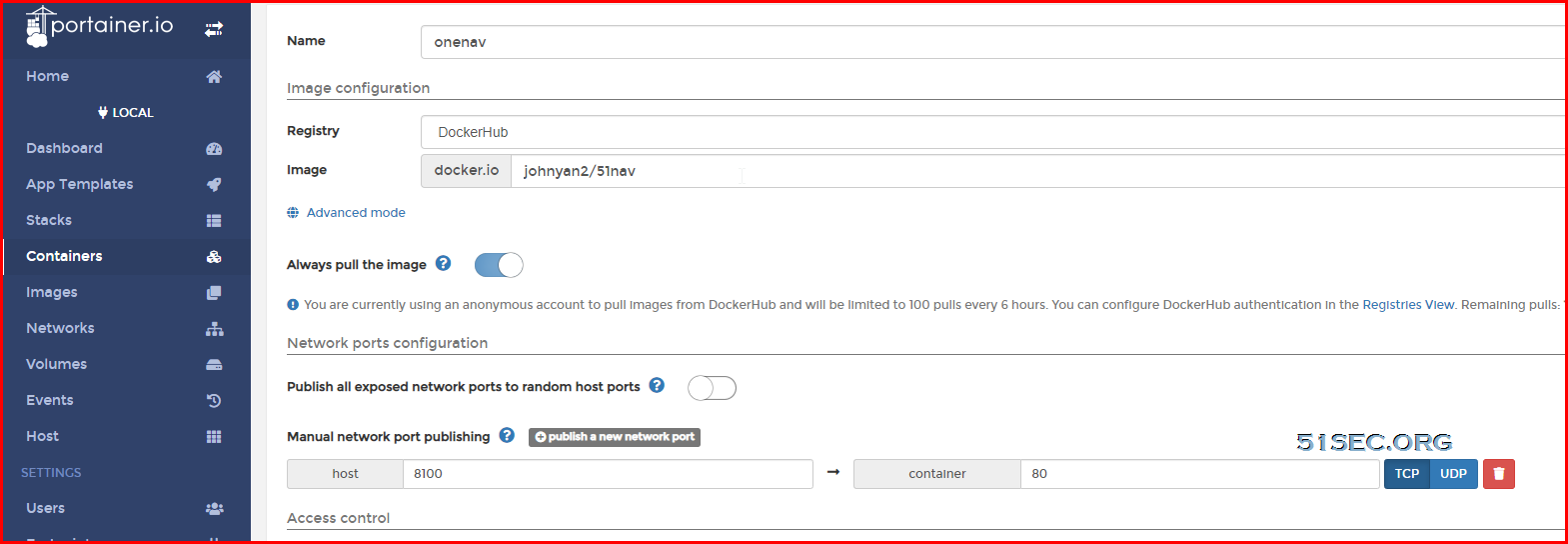
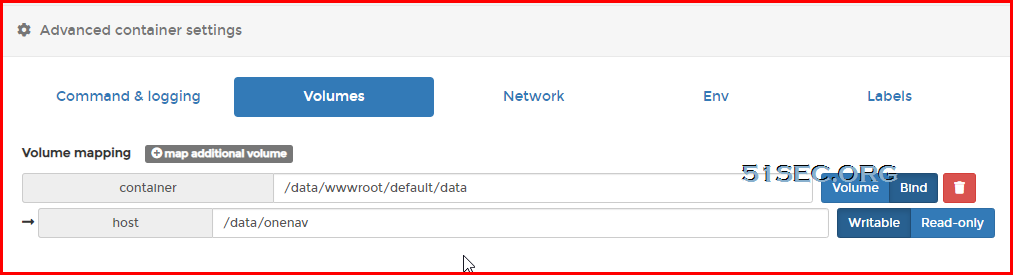


Docker Run Deployment
You also can use Docker Run Command to deploy it from command line. You can use your own port to replace 8100, and use your own username and password to replace those configuration in the command.
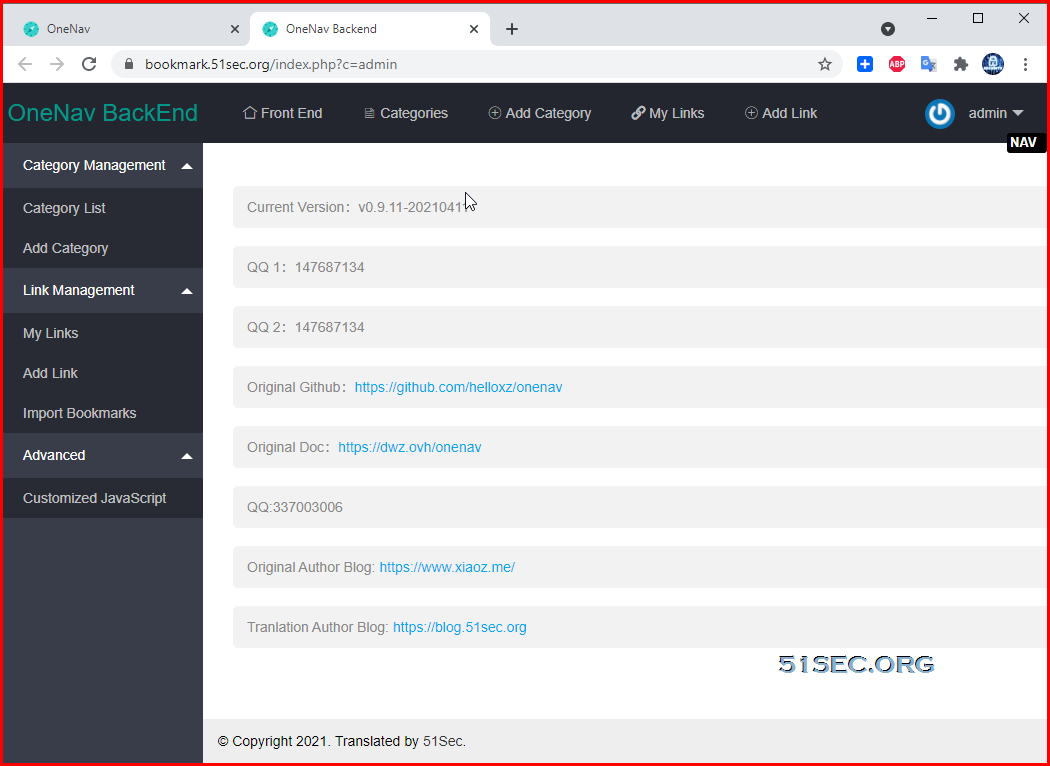
Backend admin page:
- Support background management
- Support private link
- Supports batch import of bookmarks
- Support multiple theme styles (2 sets of templates are built in by default)
- Support automatic identification of link information
- Support API
Original Github : https://ift.tt/39pPaNr
You can find more information from the Github page. This post will focus on deployment process and how to use Portainer to do that, also how to integrate with own domain which is managed by Cloudflare.
Environment Requirements
Please check post: https://blog.51sec.org/2021/05/docker-dockercompose-portainer-nginx.html
Here are some commands we will need to use: (using Ubuntu 20.04 as an example)
Here are some commands we will need to use: (using Ubuntu 20.04 as an example)
Check System Public IP:
[root@OCP1-Ubuntu ~]# curl https://ip.51sec.org/api
132.145.100.226
Update system to latest:
[root@OCP1-Ubuntu ~]# apt upgrade -y && apt update -y
If your host environment memory is less than 1GB, you might also want to add 1024MB swap file size using following command:
wget https://raw.githubusercontent.com/51sec/swap/main/swap.sh && bash swap.sh
Install Docker on Ubuntu 20.04:
#Ubuntu 20.04
sudo apt install docker.io
Install Docker Compose on Ubuntu 20.04:
#Ubuntu 20.04
sudo apt install docker-compose
Make following firewall ports opened on your VPS's firewall: 80, 443, 8100, 9000. Port 8100 and 9000 can be closed after completed deployment.
Deploy it Using Portainer
Portainer Installation
Please make sure your VPS's firewall port 80, 443 and 9000 has been opened. We can close 9000 later.
[root@OCP1-CentOS8-Aria-Rclone-Portainer ~]# docker volume create portainer_data
portainer_data
[root@OCP1-CentOS8-Aria-Rclone-Portainer ~]# docker run -d -p 9000:9000 --name portainer --restart always -v /var/run/docker.sock:/var/run/docker.sock -v portainer_data:/data portainer/portainer-ce:latest
Verify Portainer from Internet by visiting http://<VPS's Public IP>:9000
Using Portainer to Deploy
Docker Run Deployment
docker run -itd --name="onenav" -p 8100:80 \
    -e USER='admin' -e PASSWORD='password' \
    -v /data/onenav:/data/wwwroot/default/data \
    johnyan2/51nav
If you have your own bridge network created before, you can use following command to join your own bridge network:
.
docker run -itd --name="onenav" -p 8100:80 \
    -e USER='admin' -e PASSWORD='password' \
    -v /data/onenav:/data/wwwroot/default/data \
    --network mybridge
    johnyan2/51nav
Dockerhub image is the one I created with WebUI and admin page already translated from Chinese to English : johnyan2/51nav
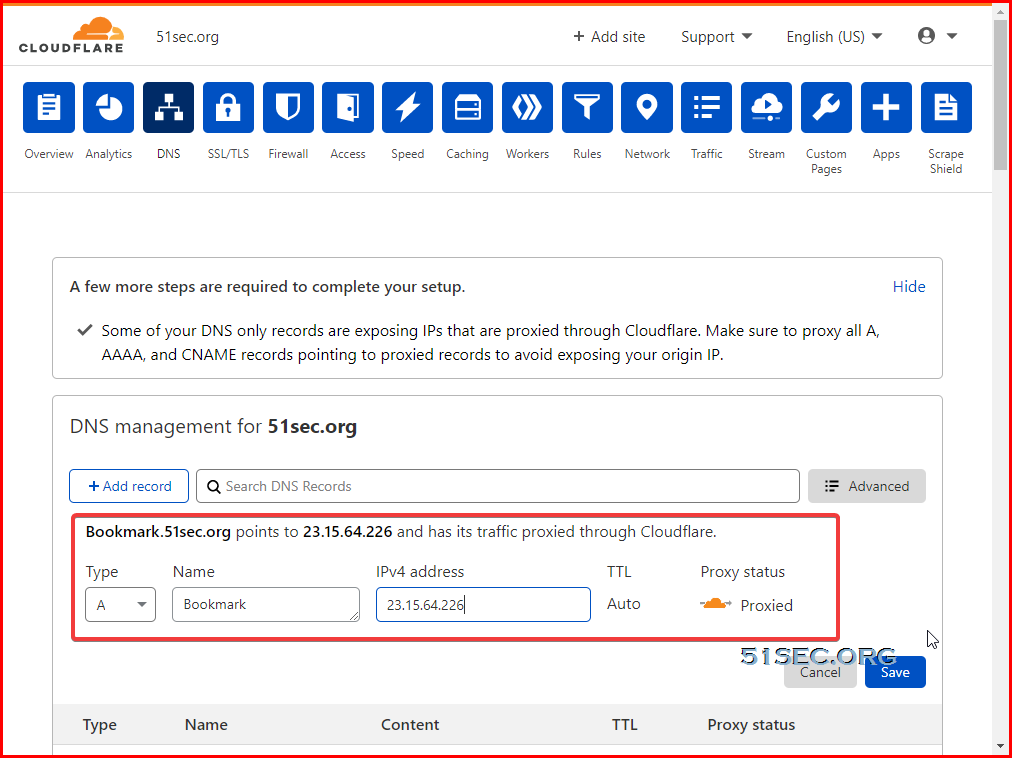
Cloudflare DNS Configuration
From your DNS management platform , add one A record with ip address pointing to your VPS's ip.
Nginx Reverse Proxy Configuration
Use Portainer to install Nginx and make sure Nginx's network joined into the one same as Portainer and other containers, which is not default bridge network.
Configure Nginx as Reverse Proxy
Connect into Nginx console from Portainer portal or command: docker exec -it nginx bin/bash. or docker exec -it nginx sh
root@ba4a30ab7371:/# apt update -y && apt install nano -y
nano /etc/nginx/conf.d/bookmarkconf
server {
    listen       80;
    server_name  bookmark.51sec.eu.org;

location / {
    proxy_pass       http://onenav;
    proxy_http_version         1.1;
    proxy_read_timeout 300;
    proxy_set_header Upgrade $http_upgrade;
    proxy_set_header Connection "upgrade";
    proxy_set_header Host $http_host;
    proxy_set_header X-Real-IP $remote_addr;
    proxy_set_header X-Real-PORT $remote_port;
           }
}
Enable HTTPS
Connect into Nginx console from Portainer portal or command: docker exec -it nginx bin/bash.
apt update
apt install certbot python-certbot-nginx
certbot --nginx
Run Certbot to configure Nginx
root@ba4a30ab7371:/# certbot --nginx
Test
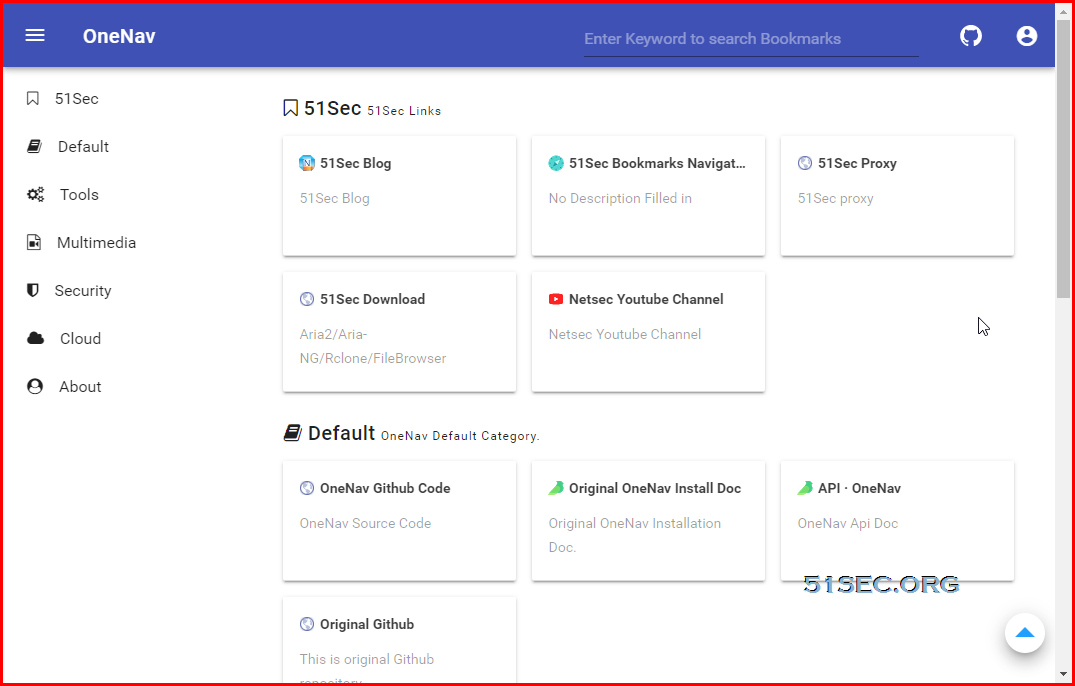
Frontend web GUI:
Backend admin page:
Reference
via Blogger https://ift.tt/3vp3QW6
June 13, 2021 at 11:35AM Docker

 RSS Feed
