
Connect VMs in VMWare Workstation & Hypwe-V to Same Network When Both are on Same Windows Host
 In my lab environment, I am havng a Windows host which enabled Hyper-V, also installed VMWare workstation. It was very confusion when I tried to put both Hyper-V machines and VMWare machines into same network, since the network names are quite different.

You will see External virtual network switch has been bridged to "Intel(R) 82579LM Gigabit Network Connection"

via Blogger http://blog.51sec.org/2022/11/vmware-workstation-hypwe-v-on-same.html
November 20, 2022 at 08:50PM Vmware
In this post, I am going to record all network names in three different places:
- Windows Host Network Connections
- VMware workstation Virtual Network Editor environment
- Hyper-V Virtual Switch Manager
I am also going to show you a correct way to connect both Hyper-V machines and VMware workstation machines into same network.
Physical Interfaces
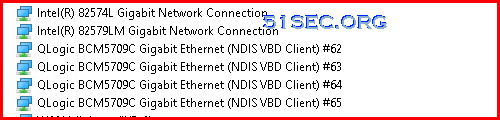
In my host machine, there are six Physical NICs:
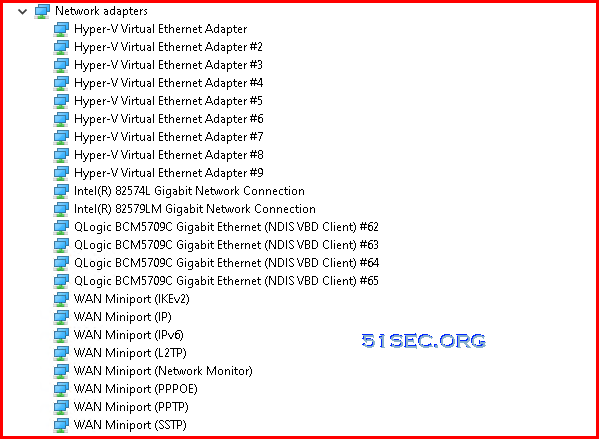
Here is what we can see from host's Device Manager:
VMWare Workstation's Virtual Network Editor
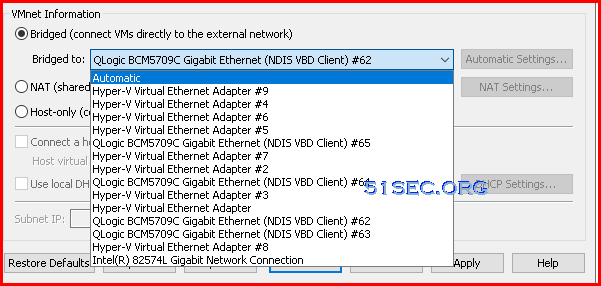
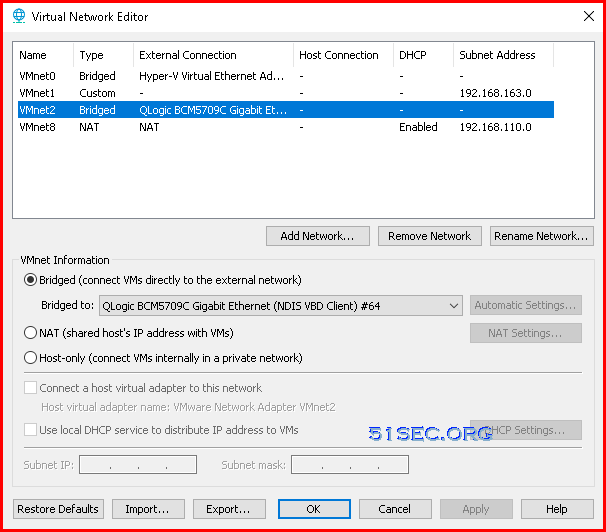
From VMWare workstation's virtual network editor's configuration, we can choose External - Virtual Switch (vEthernet (External) in Windows's network connections) to take a look:
- External network - Intel(R) 82579LM Gigabit Network Connection - 192.168.2.245
All those available networks are shows in our host's device manager. But you will find one strange thing, there is no "Intel(R) 82579LM Gigabit Network Connection", which is using 192.168.2.x ip address behind my home Internet router.
The reason is because "Intel(R) 82579LM Gigabit Network Connection" has been taken by Hyper-V switch. If you want to get VMWare workstation bridge to "Intel(R) 82579LM Gigabit Network Connection", you will have to brige to a network created by Hyper-v which is "Hyper-V Virtual Ethernet Adapter".
Basically, from VMWare workstation, you can't directly bridge to a network device which has been bridged in Hyper-V virtual switch.
Hyper-V Virtual Switch Manager
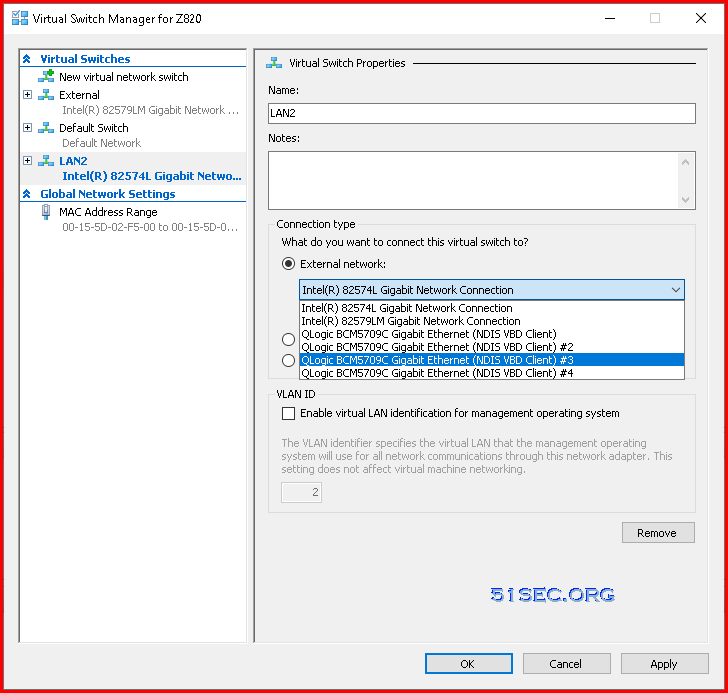
Now, lets take a look Hyper-V environment. When you open your Hyper-V's virtual switch manager, you will see some familiar network devices, but ended with different number.
You will see External virtual network switch has been bridged to "Intel(R) 82579LM Gigabit Network Connection"
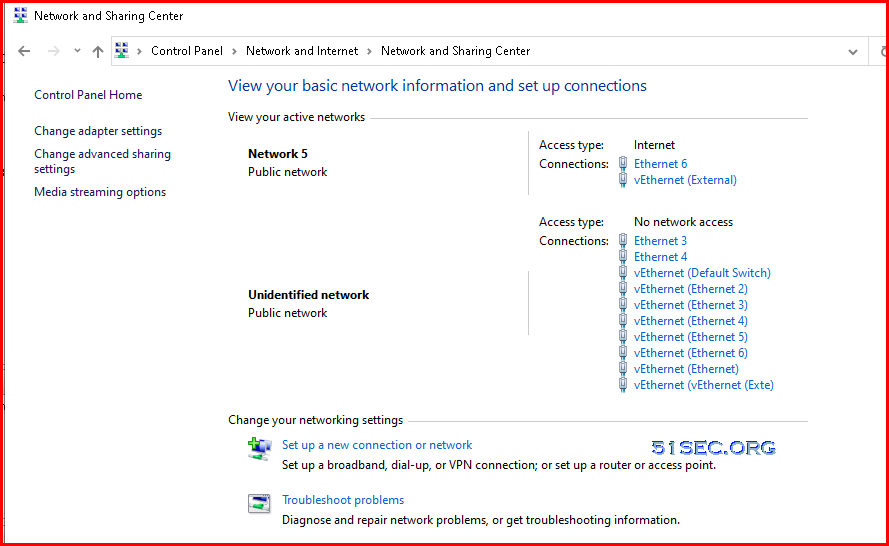
Control Panel - Network and Sharing Center
Ethernet = QLogic BCM5709C Gigabit Ethernet (NDIS VBD Client) #63
Ethernet 2 = QLogic BCM5709C Gigabit Ethernet (NDIS VBD Client) #62
Ethernet 3 = QLogic BCM5709C Gigabit Ethernet (NDIS VBD Client) #64
Ethernet 4 = QLogic BCM5709C Gigabit Ethernet (NDIS VBD Client) #65
Ethernet 5 = Intel(R) 82574L Gigabit Network Connection
Ethernet 6 = Intel(R) 82579LM Gigabit Network Connection - 192.168.2.245
vEthernet (Default Switch) = Hyper-V Virtual Ethernet Adapter #2 - 172.17.128.1
vEthernet (Ethernet 2) = Hyper-V Virtual Ethernet Adapter #4 - 192.168.160.1
vEthernet (Ethernet 3) = Hyper-V Virtual Ethernet Adapter #5 - 172.31.96.1
vEthernet (Ethernet 4) = Hyper-V Virtual Ethernet Adapter #6 - 172.27.80.1
vEthernet (Ethernet 5) = Hyper-V Virtual Ethernet Adapter #7 - 172.22.176.1
vEthernet (Ethernet 6) = Hyper-V Virtual Ethernet Adapter #8 - 172.28.112.1
vEthernet (Ethernet) = Hyper-V Virtual Ethernet Adapter #3 - 172.20.80.1
vEthernet (External) = Hyper-V Virtual Ethernet Adapter ( which was created when you bridge External virtual switch to Intel(R) 82579LM Gigabit Network Connection)
vEthernet (vEthernet (Exte) = Hyper-V Virtual Ethernet Adapter #9 - 172.17.192.1
VMWare Workstation Create A New vNet
VMnet2 - Bridged - QLogic BCM5709C Gigabit Ethernet (NDIS VBD Client) #64 , which is Ethernet 3.
Hyper-V
To map to same network as we did on VMWare Workstation, we will use QLogic BCM5709C Gigabit Ethernet (NDIS VBD Client) #3, which is same as VMWare world's "QLogic BCM5709C Gigabit Ethernet (NDIS VBD Client) #64".
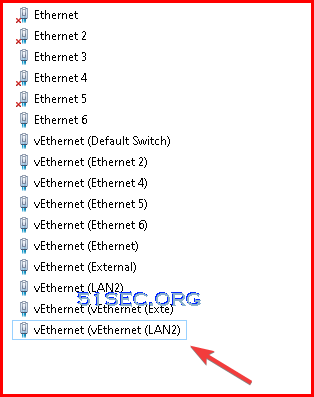
Once you did Hyper-V network new virtual switch configuration to bridge #3 switch, the VMWare VMnet2's bridge configuration will disappear, since that "QLogic BCM5709C Gigabit Ethernet (NDIS VBD Client) #64" has been used by Hyper-V.
But you will find out a new Hyper-V Virtual Ethernet Adapter #10 appears, which is your computer's vEthernet (vEthernet (LAN2).
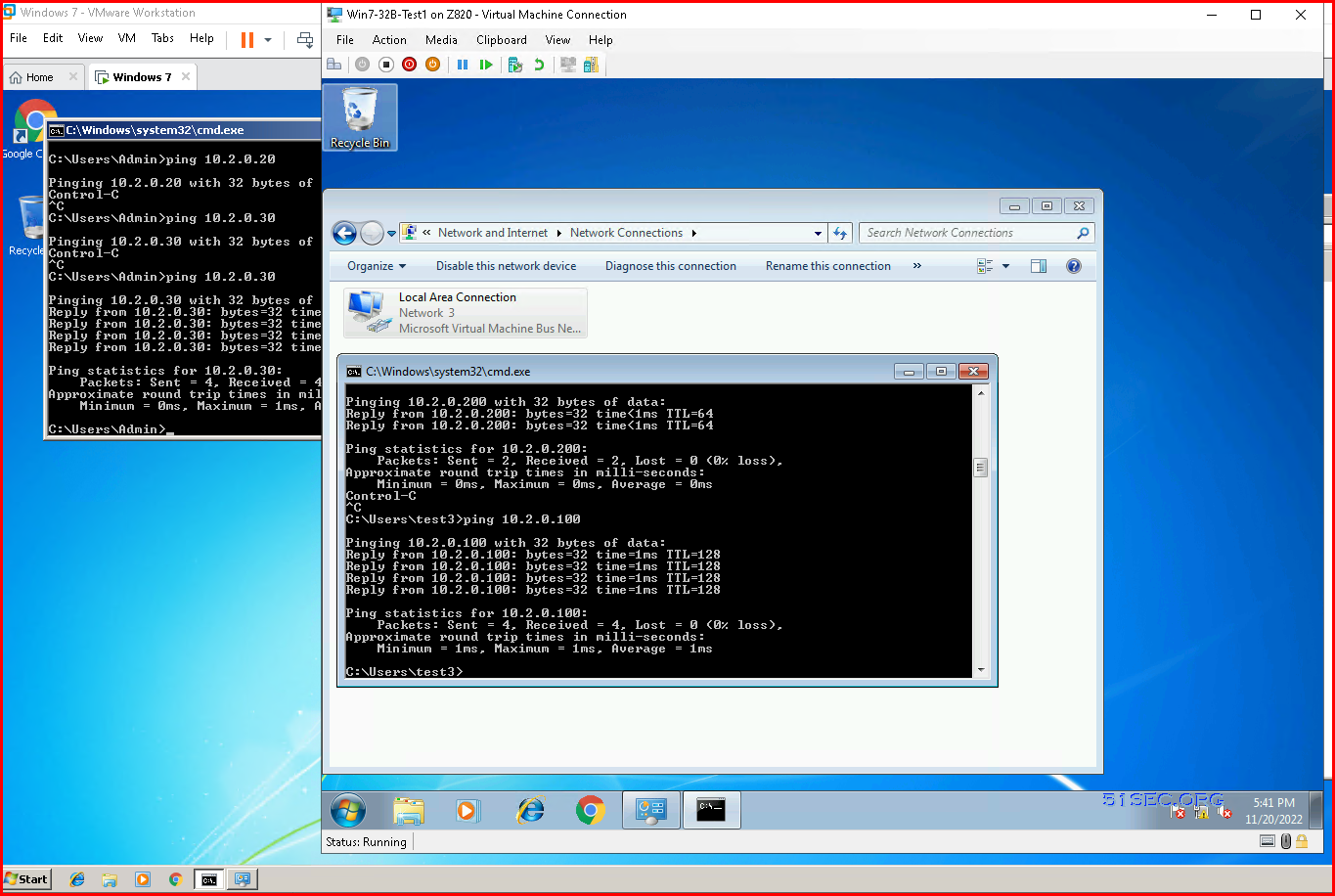
Now, the Windows Machines in Hyper-V and VMware workstation can ping each other.
via Blogger http://blog.51sec.org/2022/11/vmware-workstation-hypwe-v-on-same.html
November 20, 2022 at 08:50PM Vmware

 RSS Feed
