
Check Point finally announced their R80 Security Management from their website and also by email. Here is the email I got on March 2nd.
Through Check Point Early Availability program, we were able to have a test this new exciting Security Management R80. What's new in Check Point R80 Management:
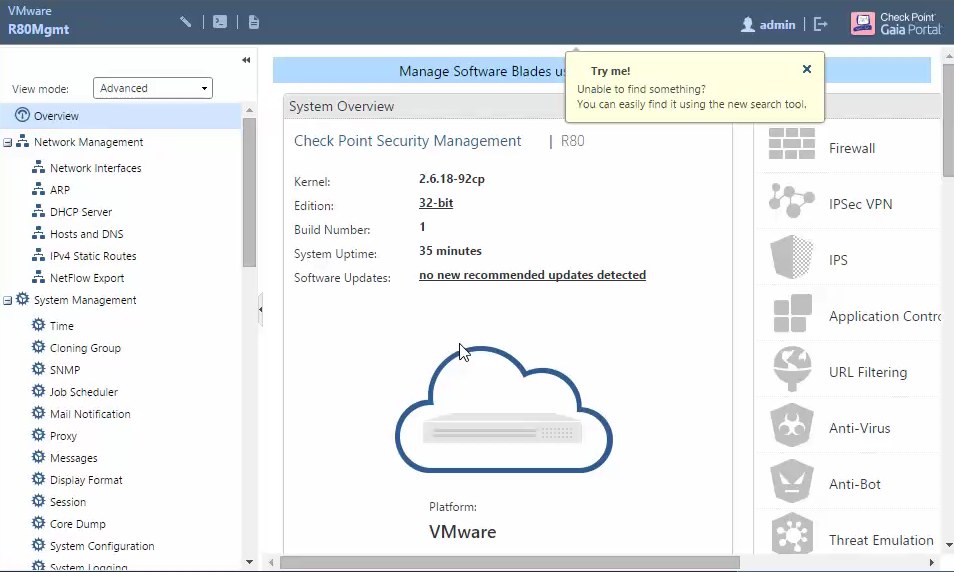
The installation of R80 Security Management is similar as previous version. This post will use Vmware ESXi as platform to present the installation steps again.
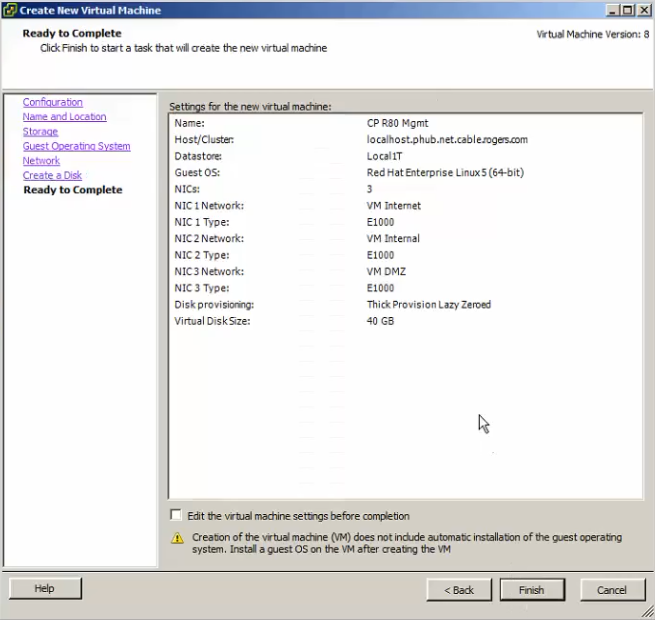
1. Create a new VM
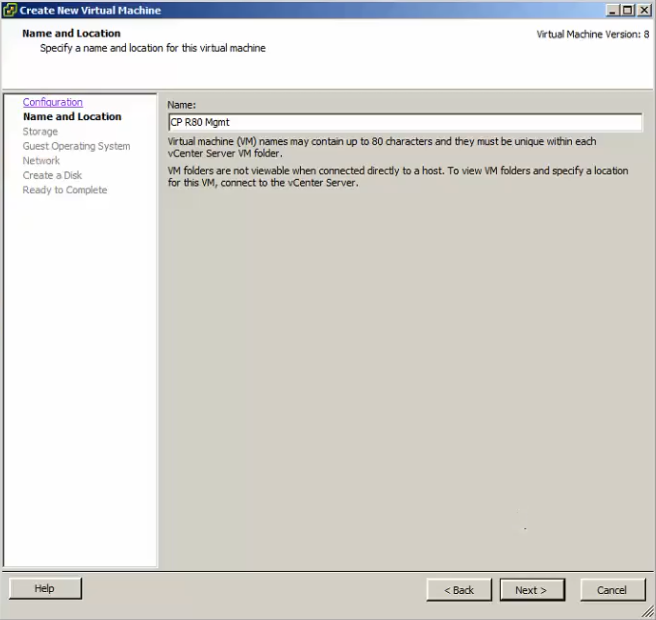
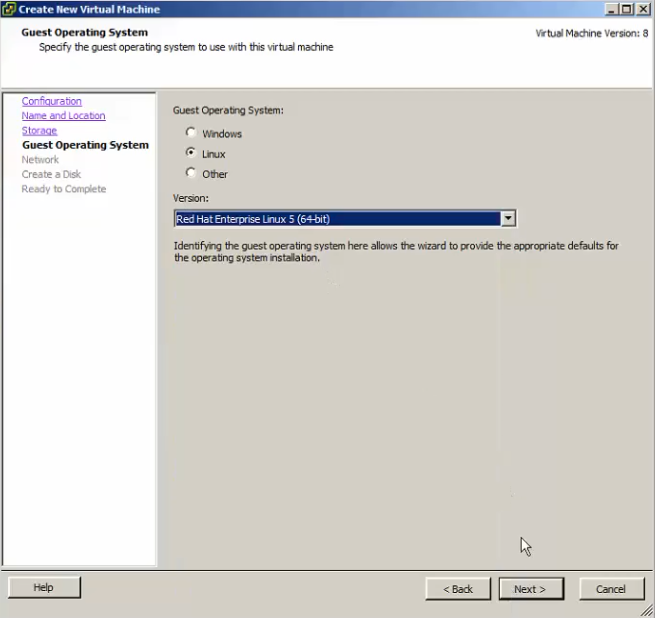
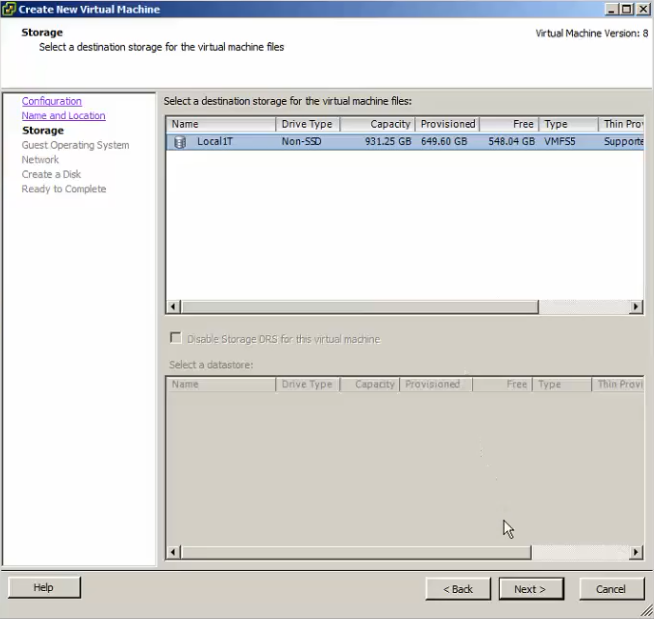
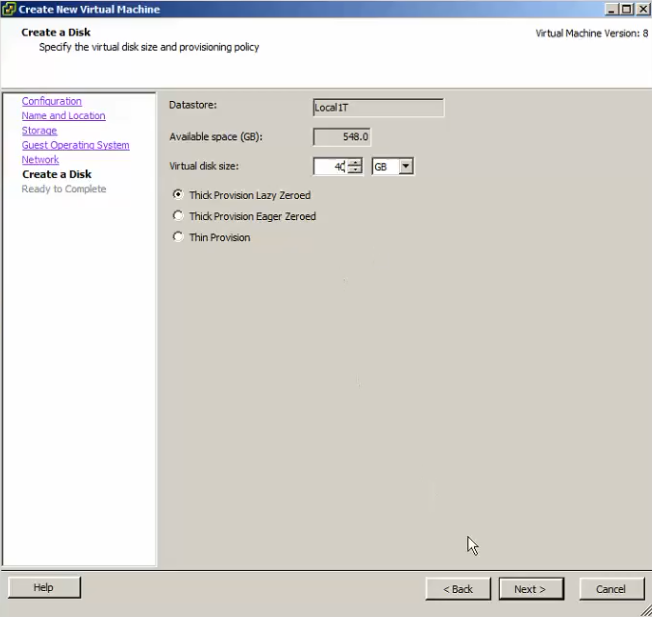
2. Boot VM with Downloaded R80 ISO
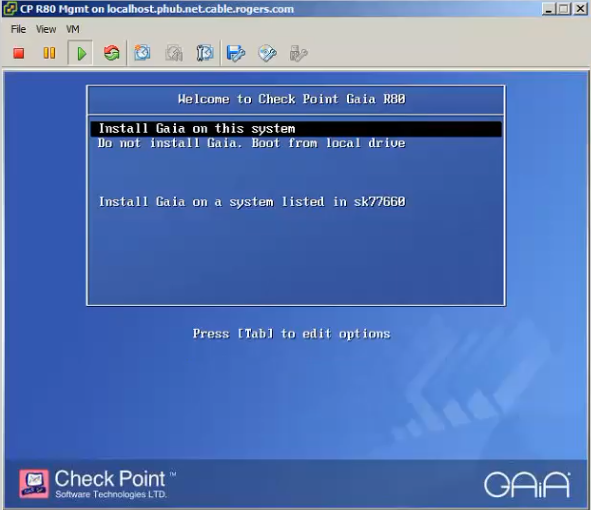
After created the VM, start the installation by booting from mounted ISO file - Check_Point_R80_Gaia_R80_Public_EA_EA3_3.iso, downloaded from Check Point Early Availability Program.
\
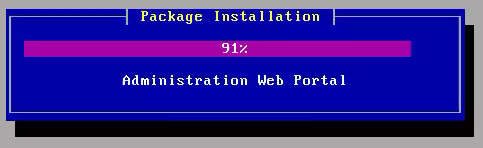
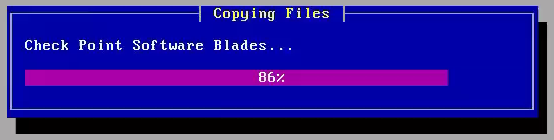
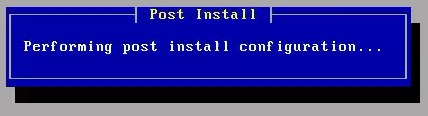
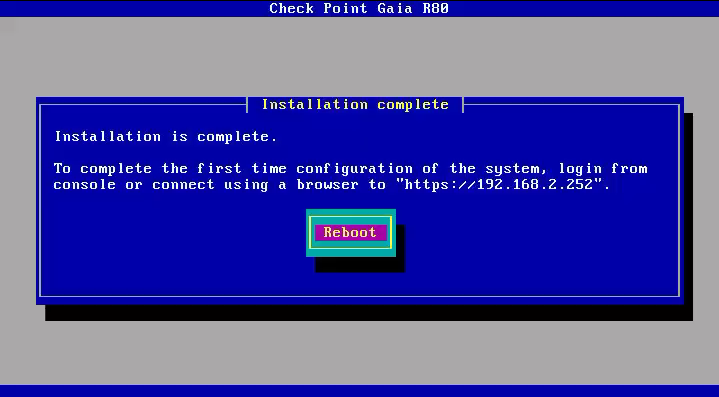
3. First Time Configuration Wizard
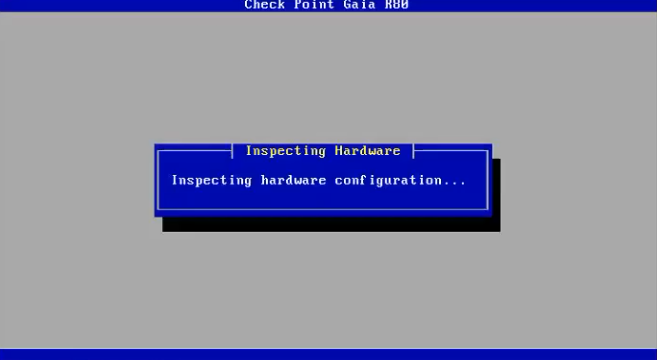
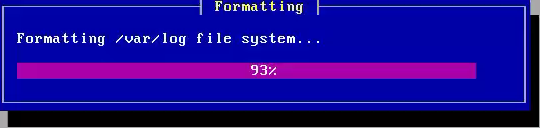
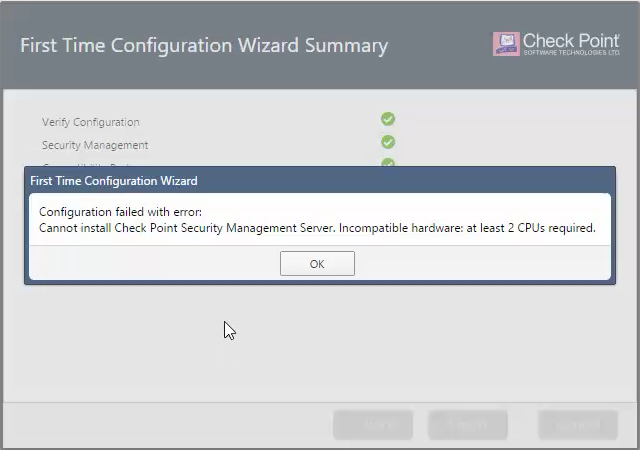
Note: During installation, I got an error which told me Cannot install Check Point Security Management Server. It is because of incompatible hardware at least 2 CPUs required. If you see this message, you will have to re-create your vm with at least 2 CPUs and re-do all steps.
Youtube Video: Check Point R80 Management Installation in Vmware Part 1 - Step by Step
Reference:
|
|||||||
 |
|||||||
|
|||||||
|
|||||||
|
|||||||
Follow Us      ©2016 Check Point Software Technologies Ltd. (Nasdaq: CHKP) All rights reserved. If you no longer wish to receive email from us, please unsubscribe or write: 959 Skyway Rd, Suite 300, San Carlos, CA 94070. Check Point's Privacy Policy ©2016 Check Point Software Technologies Ltd. (Nasdaq: CHKP) All rights reserved. If you no longer wish to receive email from us, please unsubscribe or write: 959 Skyway Rd, Suite 300, San Carlos, CA 94070. Check Point's Privacy Policy
|


- Unified Console
- Concurrent administrators work
- Layered policy approach
- Threat prevention policy
- Policy Apps (for example: logs by rules)
- Next generation SmartLog and SmartEvent
- Web services and APIs
 |
| Early Availability Download Page |
 |
| Check Point R80 Web Page |
1. Create a new VM


|
| Loading Storage Drivers |


|
| 1/6 - Welcome Proceed with the installation |

|
| 2/6 - Keyboard Selection |

|
| 3/6 - Partitions Configuration |

|
| 4/6 - Account Configuration |

|
| 5/6 - Management Port |

|
| 5/6 - Management Interface (eth0) - IP 192.168.2.252 |

|
| 6-6 - Confirmation |


3. First Time Configuration Wizard
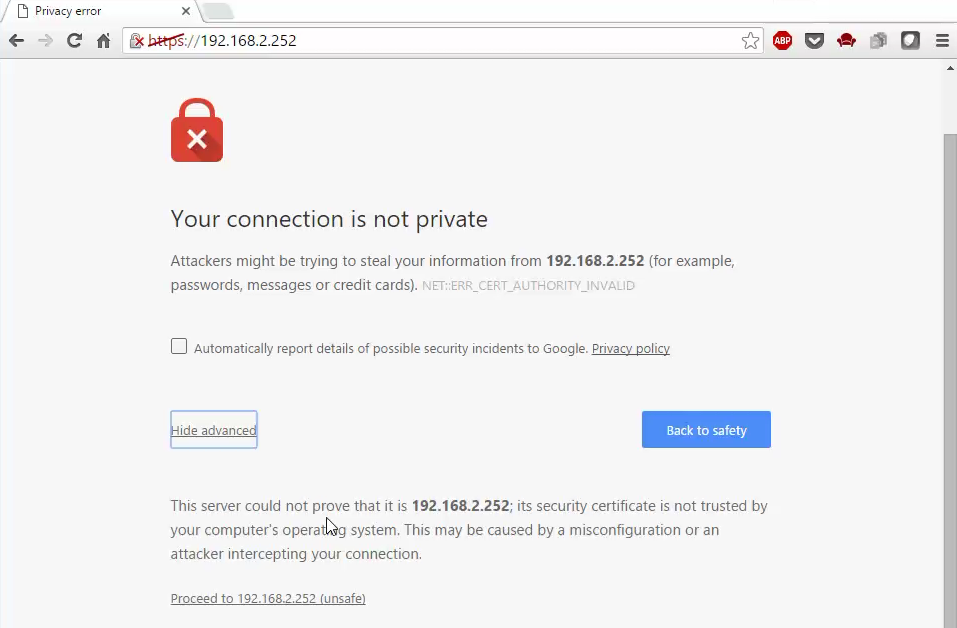
Using browser to open URL https://192.168.2.252, which is the management interface (eth0) ip address we configured in the previous step.


|
| Log in Page |

|
| R80 First Time Configuration |

|
| Deployment Options |

|
| Management Connection |

|
| Internet Connection |

|
| Device Information |

|
| Date and Time Settings |

|
| Installation Type |
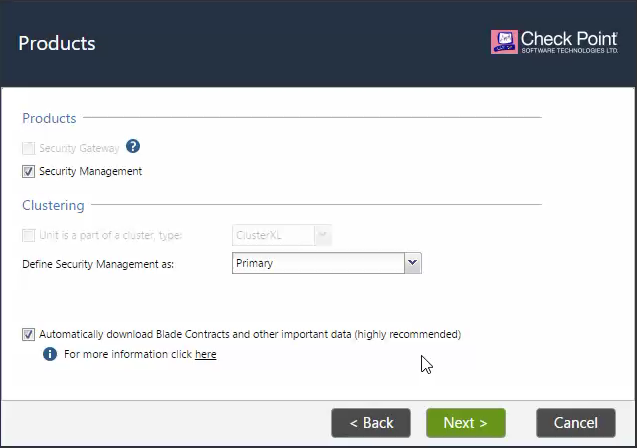 |
| Products |

|
| Security Management Administrator |

|
| Security Management GUI Clients |

|
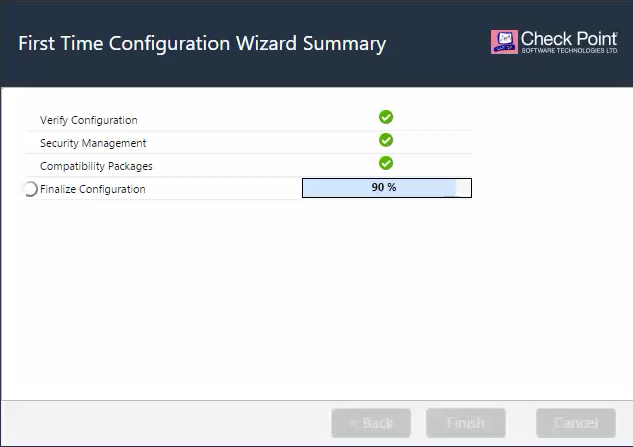
| First Time Configuration Wizard Summary |


Note: During installation, I got an error which told me Cannot install Check Point Security Management Server. It is because of incompatible hardware at least 2 CPUs required. If you see this message, you will have to re-create your vm with at least 2 CPUs and re-do all steps.

Youtube Video: Check Point R80 Management Installation in Vmware Part 1 - Step by Step
Reference:

 RSS Feed
