
Dec 12 2019, Microsoft announced that Azure AD authentication to Windows Virtual Machines (VMs) in Azure is now available in public preview—giving you the ability to manage and control who can access a VM.
Using Azure AD to authenticate to VMs provides the ability to centrally control and enforce policies using tools like Azure Role-Based Access Control (RBAC) and Azure AD Conditional Access to allow you to control who can access a VM.
There are many benefits of using Azure AD authentication to login to Windows VMs in Azure, including:
- Utilizing the same federated or managed Azure AD credentials you normally use.
- No longer having to manage local administrator accounts.
- Using Azure RBAC to grant the appropriate access to VMs based on need and remove it when it is no longer needed.
- Requiring AD Conditional Access to enforce additional requirements such as:
- Multi-factor authentication (MFA)
- Sign-in risk
- Automating and scaling Azure AD join for Azure based Windows VMs.
Using Azure Portal create VM experience to enable Azure AD login
You can enable Azure AD login for Windows Server 2019 Datacenter or Windows 10 1809 and later VM images.
To create a Windows Server 2019 Datacenter VM in Azure with Azure AD login:
- Sign in to the Azure portal, with an account that has access to create VMs, and select + Create a resource.
-
In Search the Marketplace search bar, type Windows Server.
- Click Windows Server and from Select a software plan drop-down, select Windows Server 2019 Datacenter.
- Click Create.
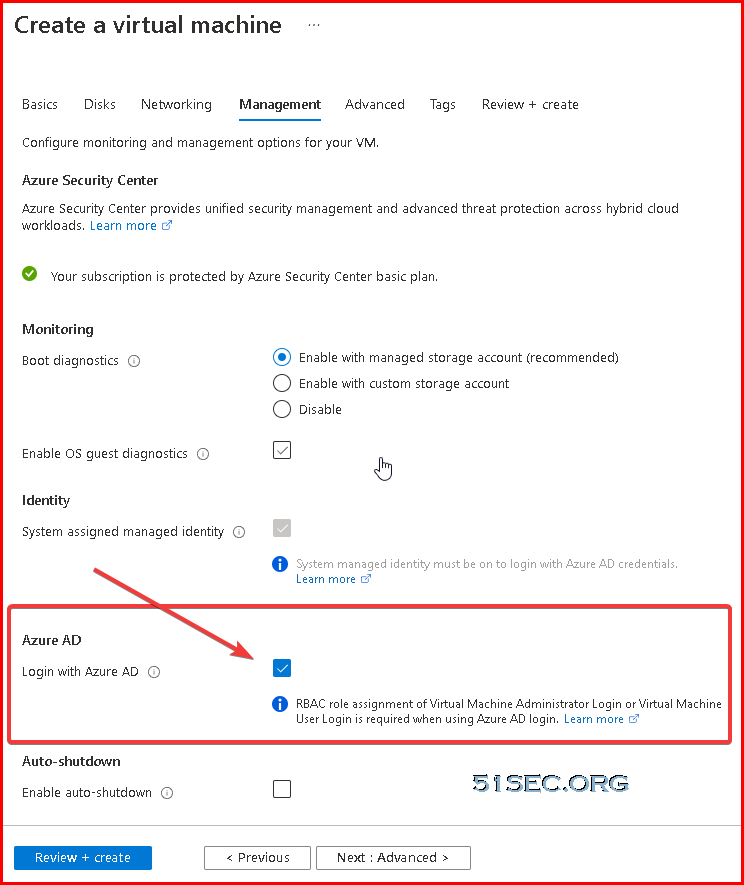
- On the Management tab, under the Azure Active Directory, toggle Login with AAD credentials (Preview) to On.
- Make sure System assigned managed identity under the Identity section is set to On. This action should happen automatically once you enable Login with Azure AD credentials.
Go through the rest of the experience of creating a VM. During this preview, you’ll have to create an administrator username and password for the VM.
Using Azure AD portal experience to configure role assignment for the VM
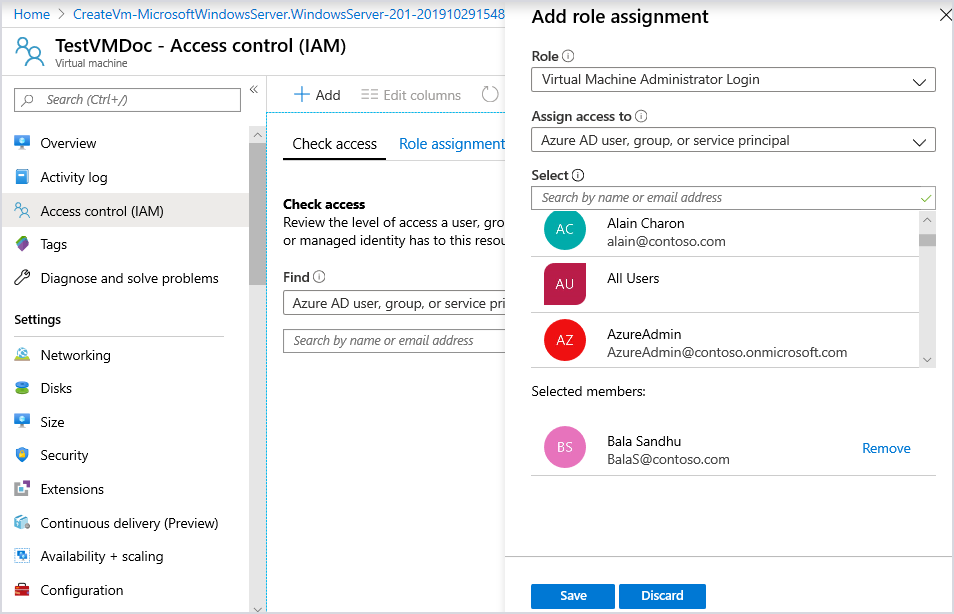
To configure role assignments for your Azure AD enabled Windows Server 2019 Datacenter or Windows 10 1809 and later VM images:
- Navigate to the specific Virtual Machine overview page.
- Select Access control (IAM) from the menu options
- Select Add, Add role assignment to open the Add role assignment pane.
- In the Role drop-down list, select a role such as Virtual Machine Administrator Login or Virtual Machine User Login.
- In the Select field, select a user, group, service principal, or managed identity. If you don't see the security principal in the list, you can type in the Select box to search the directory for display names, email addresses, and object identifiers.
- To assign the role, select Save.
After a few moments, the security principal is assigned the role at the selected scope.
Configure Azure VM for AAD Login
Using the Azure Cloud Shell experience to enable Azure AD login:
PS /home/johnyan_ca> az vm extension set --publisher Microsoft.Azure.ActiveDirectory --name AADLoginForWindows --resource-group test-storage --vm-name vm4adds
{
  "autoUpgradeMinorVersion": true,
  "enableAutomaticUpgrade": null,
  "forceUpdateTag": null,
  "id": "/subscriptions/bcf33549-1d47-45e1-9751-548e2fe15db3/resourceGroups/test-storage/providers/Microsoft.Compute/virtualMachines/vm4adds/extensions/AADLoginForWindows",
  "instanceView": null,
  "location": "eastus",
  "name": "AADLoginForWindows",
  "protectedSettings": null,
  "provisioningState": "Succeeded",
  "publisher": "Microsoft.Azure.ActiveDirectory",
  "resourceGroup": "test-storage",
  "settings": {
    "mdmId": ""
  },
  "suppressFailures": null,
  "tags": null,
  "type": "Microsoft.Compute/virtualMachines/extensions",
  "typeHandlerVersion": "1.0",
  "typePropertiesType": "AADLoginForWindows"
}
PS /home/johnyan_ca>
Now if we look at the output from Azure VM, we can see that the SSO State for AzureADPrt is NO, and the Device State for AzureAdJoined is set to YES.
C:\Users\netsec>dsregcmd /status

+----------------------------------------------------------------------+
| Device State                                                         |
+----------------------------------------------------------------------+

             AzureAdJoined : YES
          EnterpriseJoined : NO
              DomainJoined : NO

+----------------------------------------------------------------------+
| Device Details                                                       |
+----------------------------------------------------------------------+

                  DeviceId : 0fe1ce87-89e4-42ad-aabe-a0858d2e2421
                Thumbprint : 4FB026A152A2C3625DA981F17233703A77FE505D
 DeviceCertificateValidity : [ 2021-11-20 09:55:03.000 UTC -- 2031-11-20 10:25:03.000 UTC ]
            KeyContainerId : 7a61bedc-bb6f-4ed9-bd84-2381a5d7837f
               KeyProvider : Microsoft Software Key Storage Provider
              TpmProtected : NO

+----------------------------------------------------------------------+
| Tenant Details                                                       |
+----------------------------------------------------------------------+

                TenantName :
                  TenantId : 22dbd8e0-9e61-439a-8bd9-fdd502bff1dc
                       Idp : login.windows.net
               AuthCodeUrl : https://login.microsoftonline.com/22dbd8e0-9e61-439a-8bd9-fdd502bff1dc/oauth2/authorize
            AccessTokenUrl : https://login.microsoftonline.com/22dbd8e0-9e61-439a-8bd9-fdd502bff1dc/oauth2/token
                    MdmUrl :
                 MdmTouUrl :
          MdmComplianceUrl :
               SettingsUrl :
            JoinSrvVersion : 1.0
                JoinSrvUrl : https://enterpriseregistration.windows.net/EnrollmentServer/device/
                 JoinSrvId : urn:ms-drs:enterpriseregistration.windows.net
             KeySrvVersion : 1.0
                 KeySrvUrl : https://enterpriseregistration.windows.net/EnrollmentServer/key/
                  KeySrvId : urn:ms-drs:enterpriseregistration.windows.net
        WebAuthNSrvVersion : 1.0
            WebAuthNSrvUrl : https://enterpriseregistration.windows.net/webauthn/22dbd8e0-9e61-439a-8bd9-fdd502bff1dc/
             WebAuthNSrvId : urn:ms-drs:enterpriseregistration.windows.net
    DeviceManagementSrvVer : 1.0
    DeviceManagementSrvUrl : https://enterpriseregistration.windows.net/manage/22dbd8e0-9e61-439a-8bd9-fdd502bff1dc/
     DeviceManagementSrvId : urn:ms-drs:enterpriseregistration.windows.net

+----------------------------------------------------------------------+
| User State                                                           |
+----------------------------------------------------------------------+

                    NgcSet : NO
           WorkplaceJoined : NO
             WamDefaultSet : NO

+----------------------------------------------------------------------+
| SSO State                                                            |
+----------------------------------------------------------------------+

                AzureAdPrt : NO
       AzureAdPrtAuthority :
             EnterprisePrt : NO
    EnterprisePrtAuthority :

+----------------------------------------------------------------------+
| Diagnostic Data                                                      |
+----------------------------------------------------------------------+

         AadRecoveryNeeded : NO
               KeySignTest : PASSED

+----------------------------------------------------------------------+
| Ngc Prerequisite Check                                               |
+----------------------------------------------------------------------+

            IsDeviceJoined : YES
             IsUserAzureAD : NO
             PolicyEnabled : NO
          PostLogonEnabled : YES
            DeviceEligible : YES
        SessionIsNotRemote : NO
            CertEnrollment : none
              PreReqResult : WillNotProvision


C:\Users\netsec>
Join Windows 10 Machine into AAD
Check this post for this step: Setup Hybrid Azure Active Directory Login For Your Client Machines
Here are some basic steps:
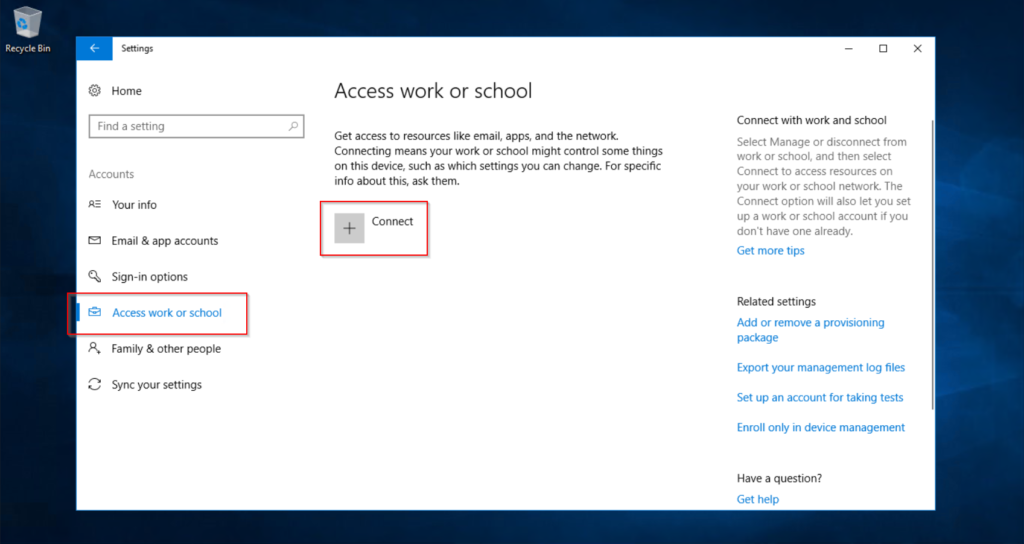
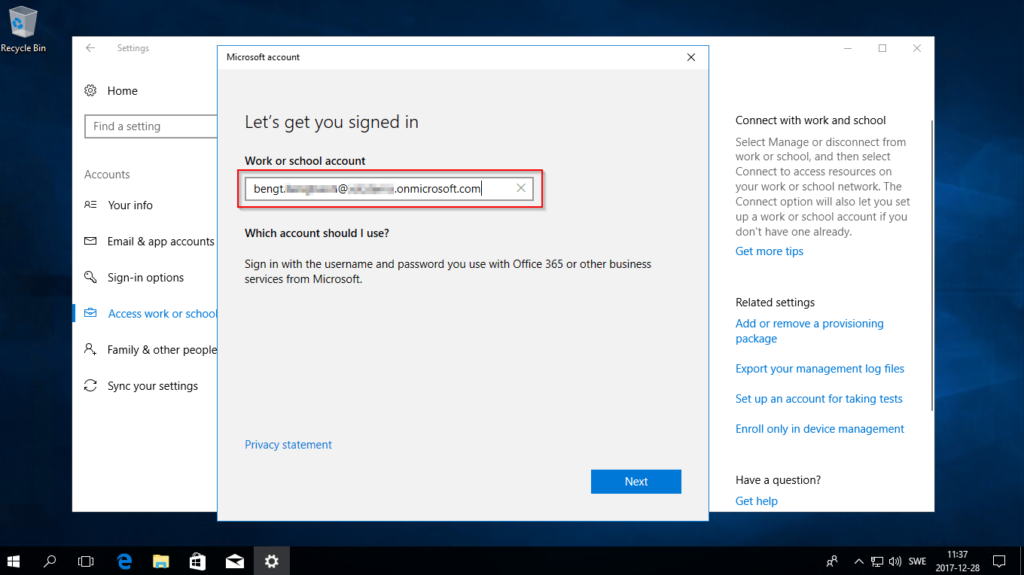
- Open Settings, go to Accounts and Access work or school and press Connect.
- Press Join this device to Azure Active Directory.
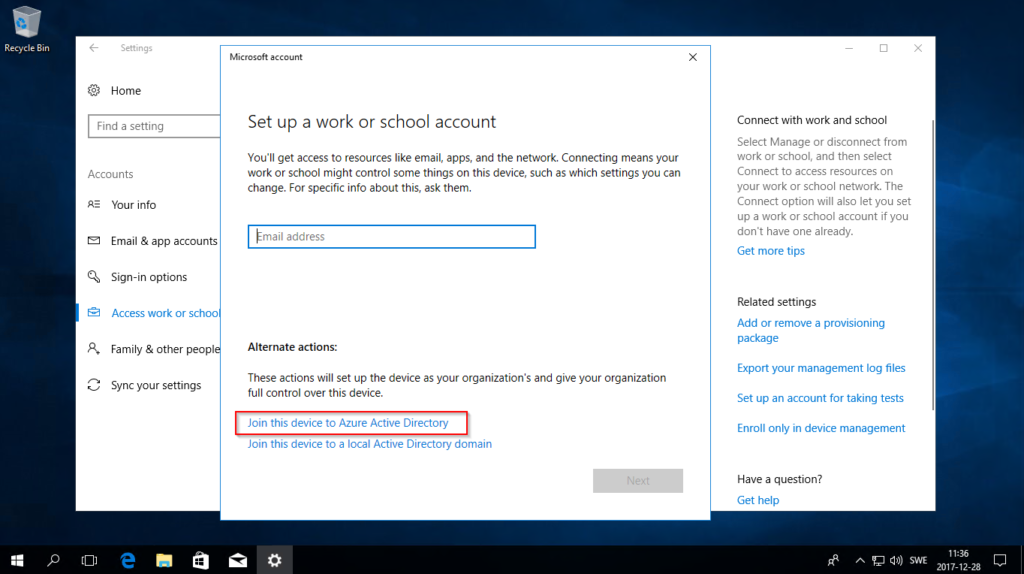
- Enter your mail address and press Next, on next screen you have to enter your password.
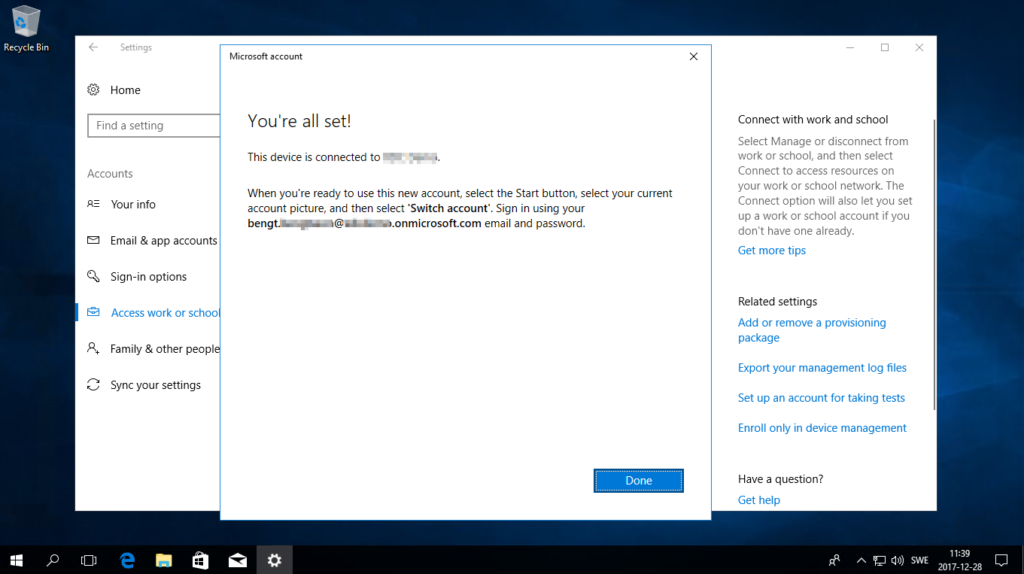
- Once you are done with the wizard you should restart your computer. It should now work to logon with your company credentials.
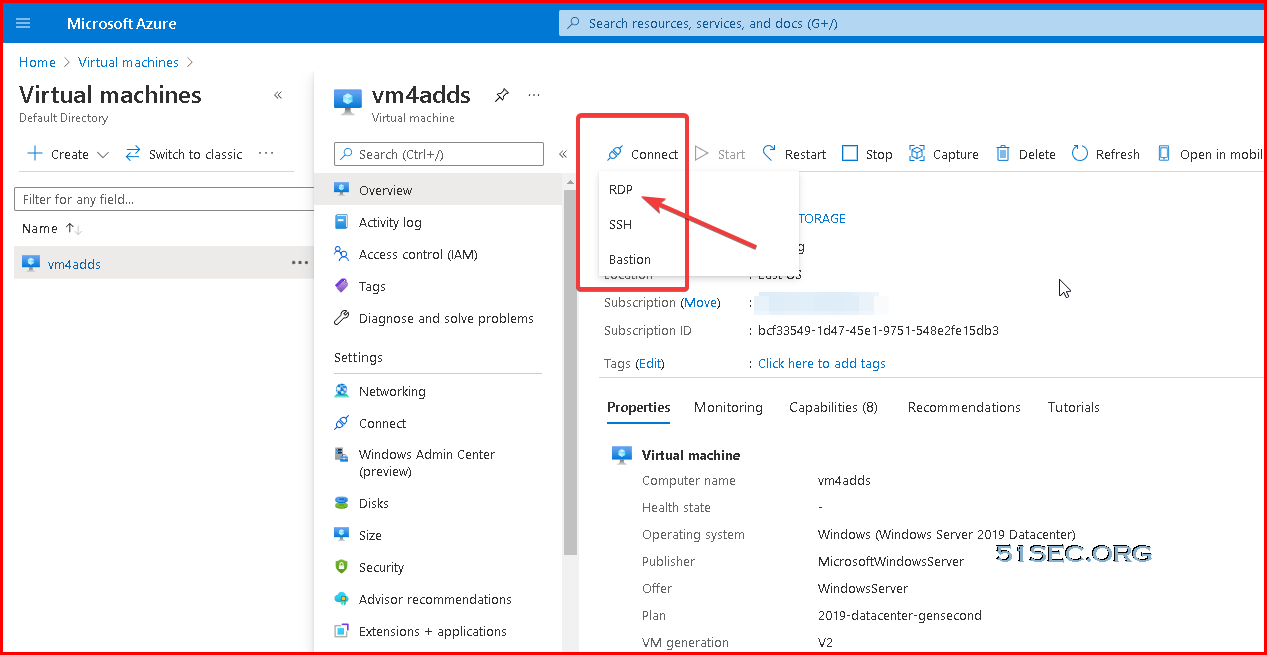
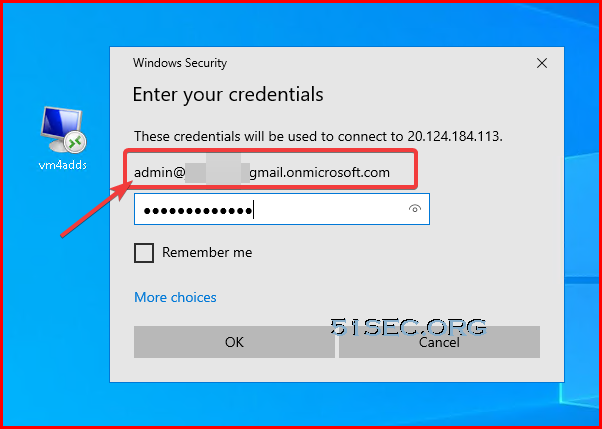
Download RDP file from Azure VM's Connect button and RDP in
References
- Setup Hybrid Azure Active Directory Login For Your Client Machines
- Login to Windows virtual machine in Azure using Azure Active Directory authentication
via Blogger http://blog.51sec.org/2021/11/azure-vm-log-in-using-azure-aad.html
November 20, 2021 at 11:02AM Cloud

 RSS Feed
