
Add FREE 75GB Storage to Your Own VPS (Scaleway S3 Free Storage Bucket)
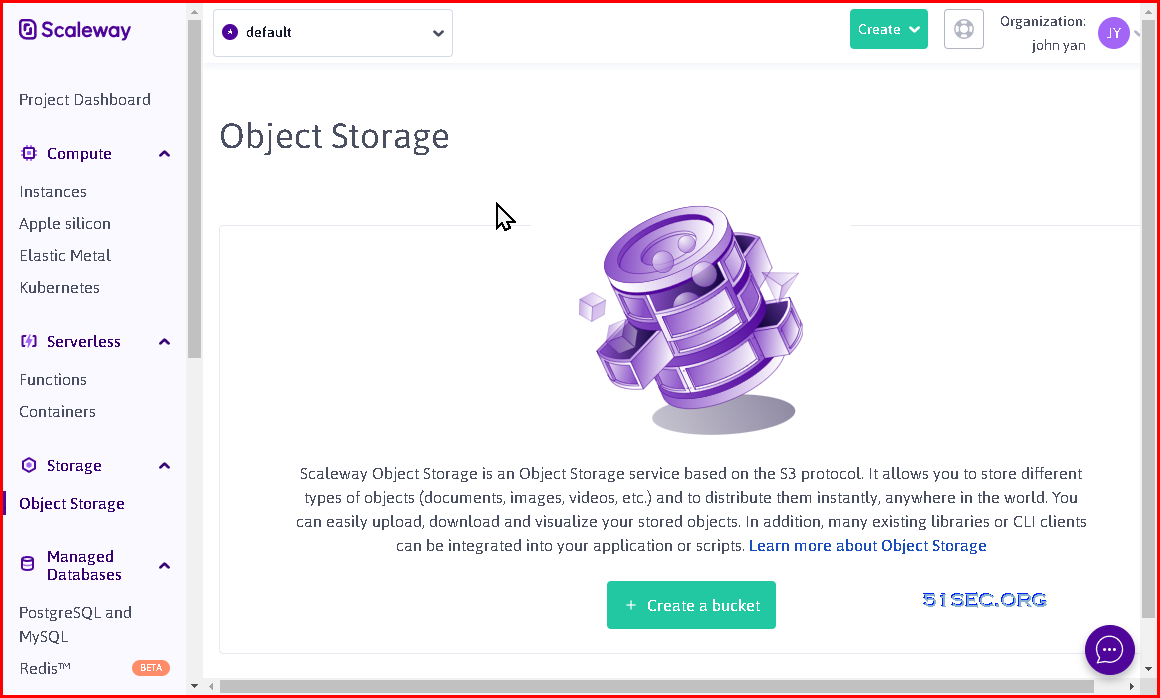
You also can find pricing from Scaleway website for other services provided by them.
4 Create a Bucket in Object Storage and Check Bucket Settings
URL : https://console.scaleway.com/object-storage/buckets/create
via Blogger http://blog.51sec.org/2022/09/add-free-75gb-storage-to-your-own-vps.html
September 10, 2022 at 05:48PM Cloud
Previously I have done this similar integration for Backblaze in following post;
But that was directly using ShareX upload to BackBlaze B2 free tier storage. There are quite a few quota limitations for the traffic and only 10G storage free to use.
With Scaleway's 75G free object storage, we can find a couple of ways to use it with your apps or systems. We can integrate it with NextCloud and ShareX.
In this post, we will directly mount it to our VPS to use it as our storage.
Introduction
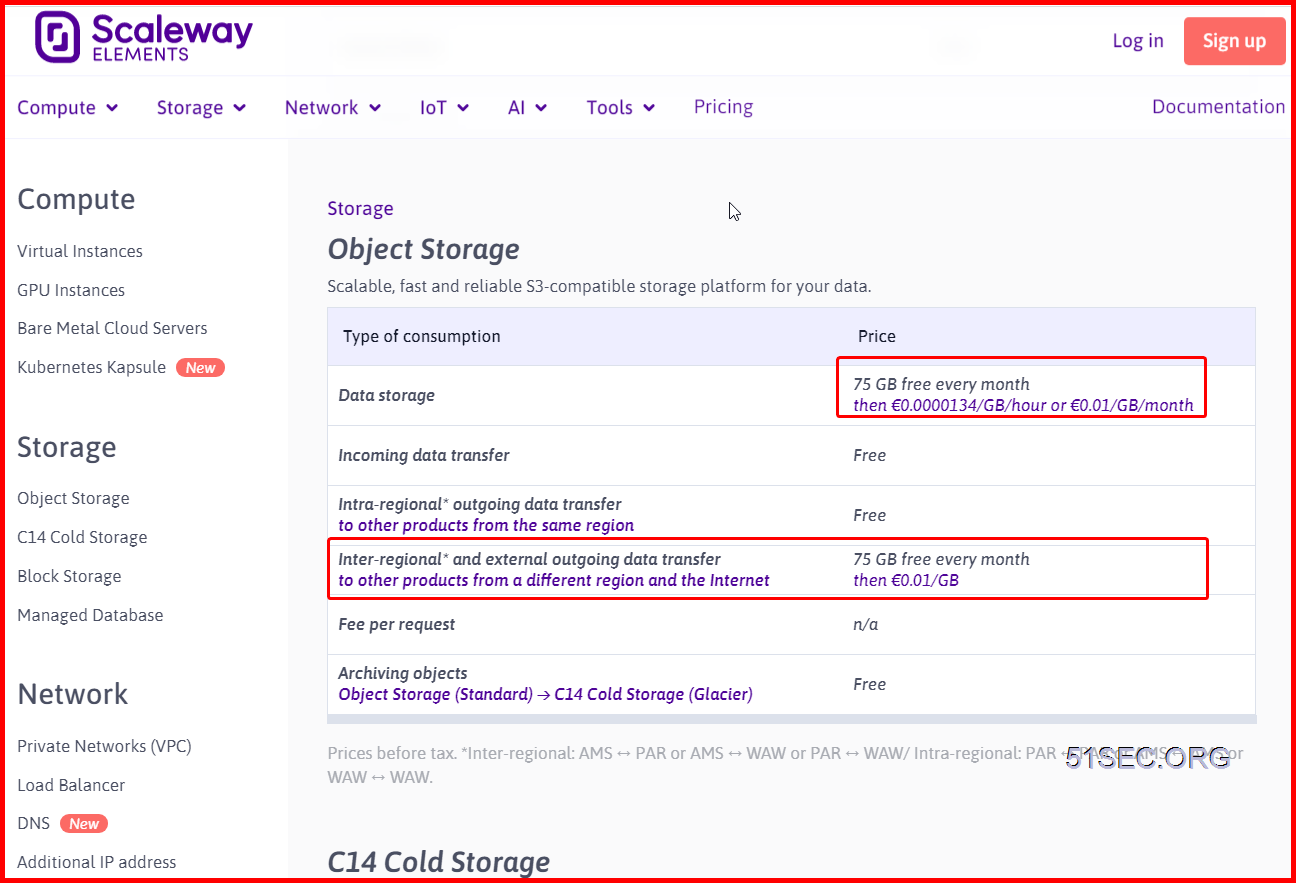
Scaleway does provide more generous free tier solution which has 75GB for free. Lets see what they have in their free tier storage:
Storage Price from Scaleway Object Storage:
Generate A New Scaleway API Key and Create a Bucket
1 Sign Up an Scaleway.com Account.
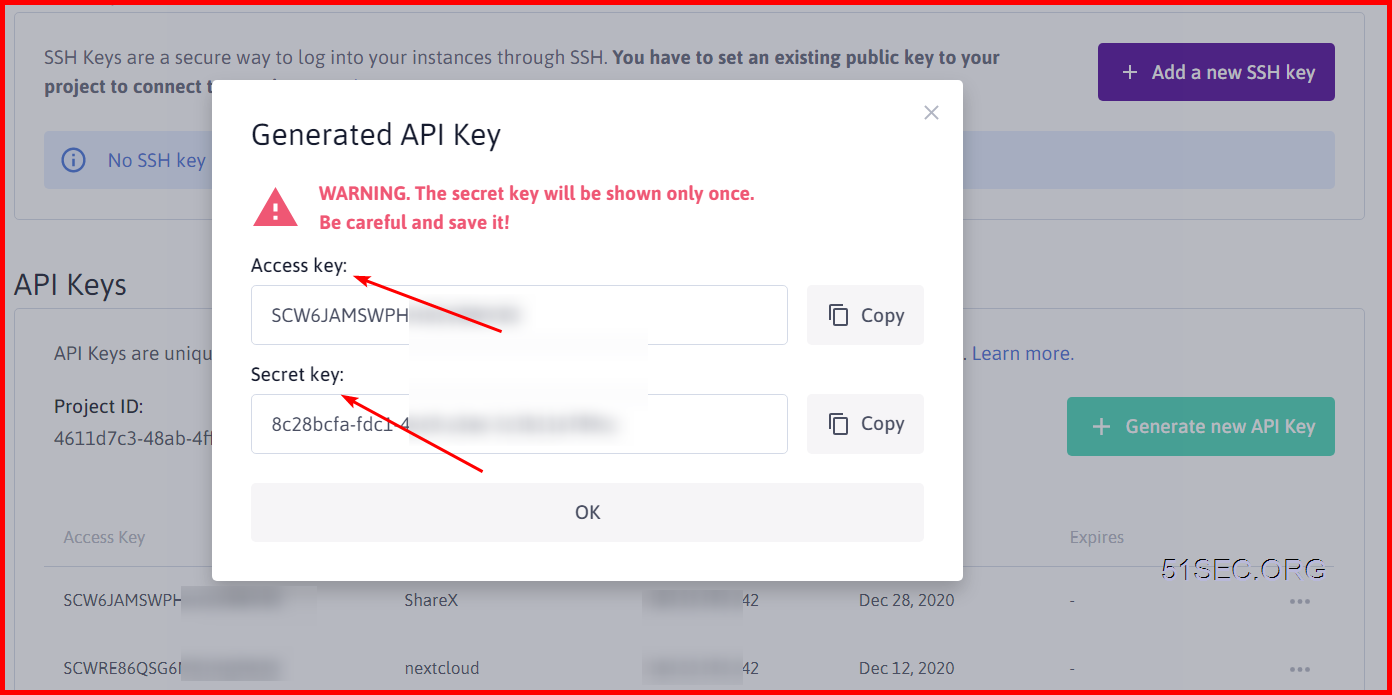
2 Generate a new API Key from Credentials Page 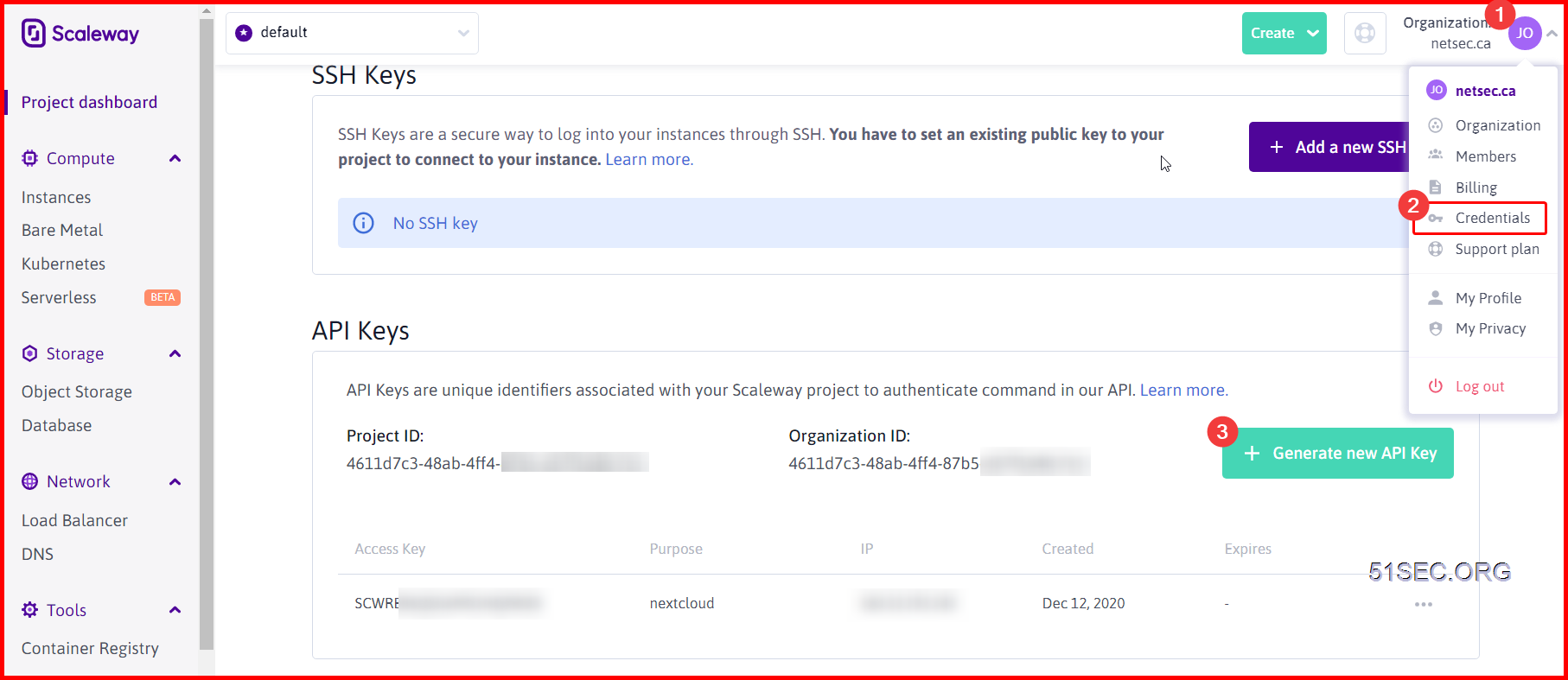
URL : https://console.scaleway.com/object-storage/buckets/create
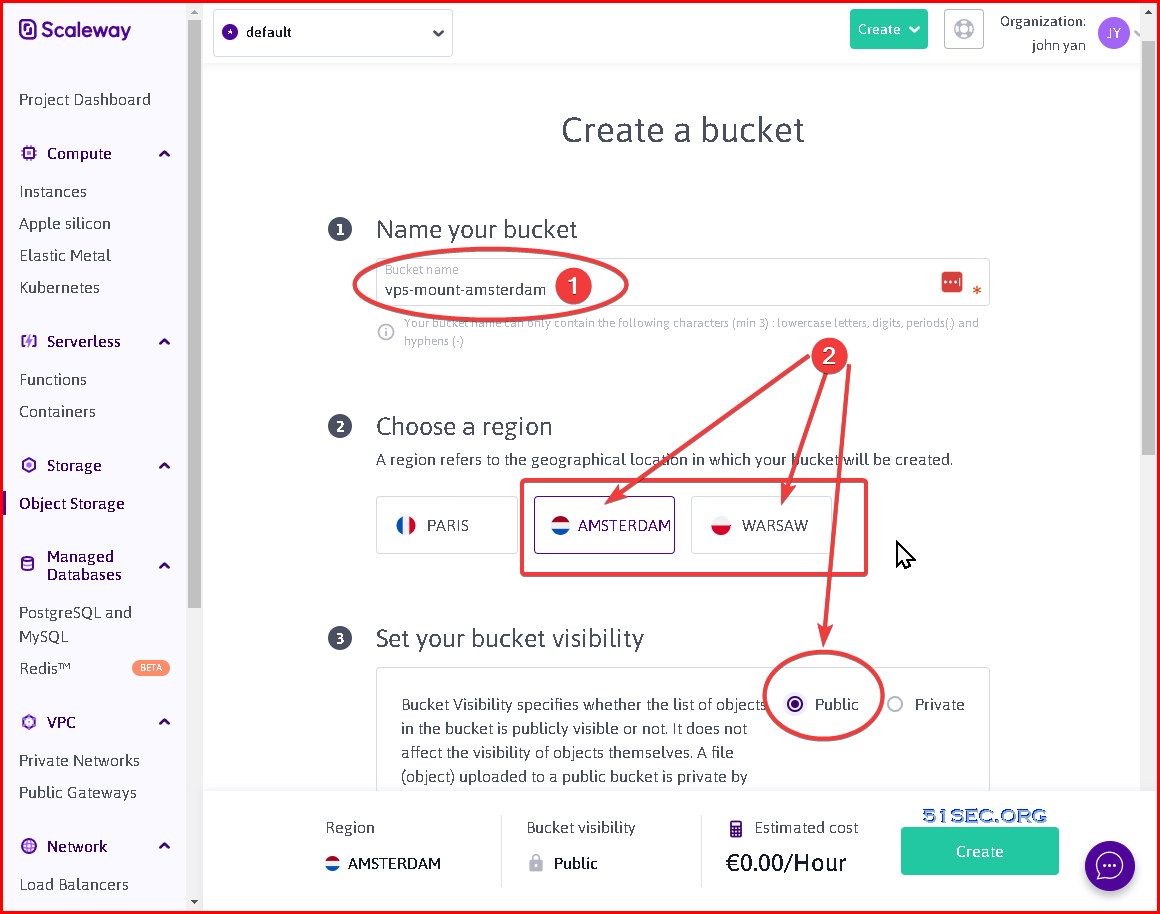
Make share your bucket visibility is Public.
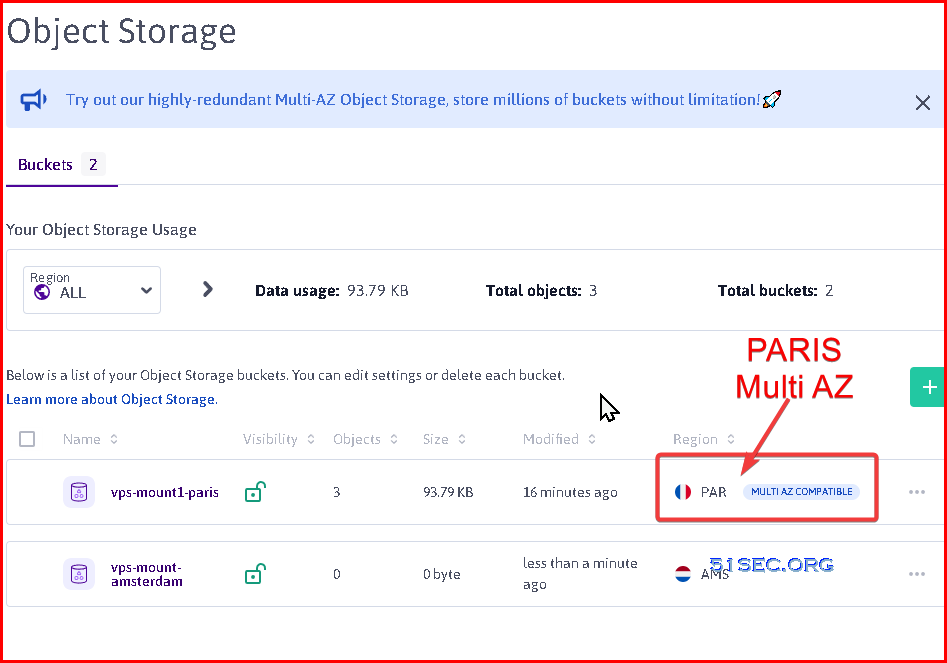
One thing we need to do to avoid the charge is not to select PARIS for your region. By default, RARIS will use Standard - Multi-AZ replication to store your uploaded files. Although it can be changed to One-Zone IA type to store manually from Web or CLI, but with the program s3fs we are going to use to mount this storage, it becomes a problem. So suggestion is to use other two regiions: AMSTERDAM or WARSAW since both regions are not supporting Multi-AZ so by default, they are using One-Zone IA to store your files.
Configure VPS to Mount Scaleway Bucket
1 Log into your VPS
2 Execute following commands to configure environment
Change access_key : secret_key
apt update && apt install -y s3fs
echo "user_allow_other" >>/etc/fuse.conf
mkdir -p /oss
echo ACCESS_KEY:SECRET_KEY > ~/.passwd-s3fs
chmod 600 ~/.passwd-s3fs
3 Mount the bucket
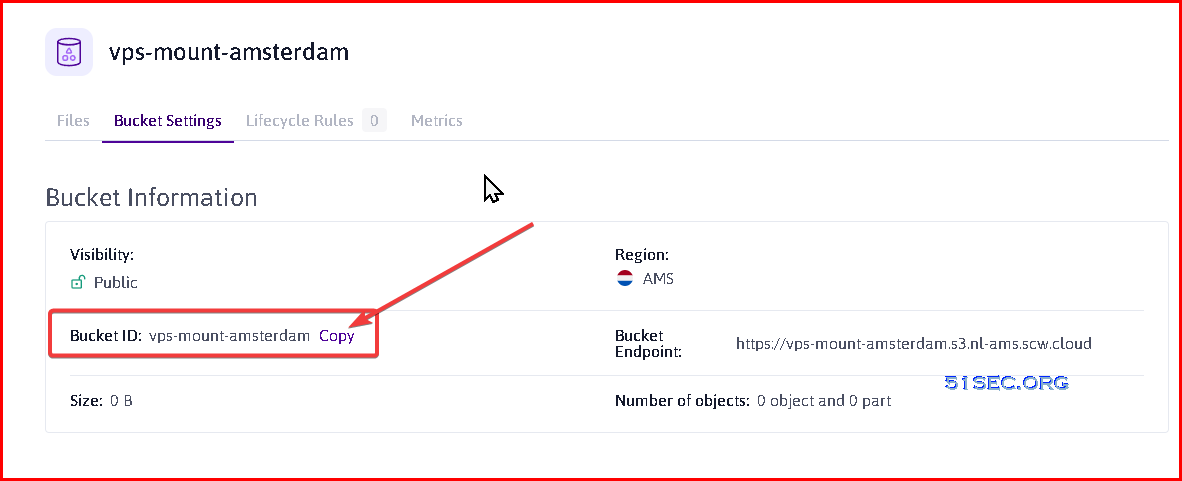
You can get Bucke ID from bucket detail, which is the name of your bucket when you created it.
s3fs BUCKET_ID /oss -o allow_other -o passwd_file=~/.passwd-s3fs -o use_path_request_style -o endpoint=BUCKET_REGION -o parallel_count=15 -o multipart_size=128 -o nocopyapi -o url=https://s3.BUCKET_REGION.scw.cloud
Bucket_region: it is either nl-ams or pl-waw based on the region you selected.
4 Check the mounting result using df -h command.
root@iubuntu-20-1:/# df -h
Filesystem Size Used Avail Use% Mounted on
/dev/root 9.6G 2.4G 7.2G 25% /
devtmpfs 479M 0 479M 0% /dev
tmpfs 483M 0 483M 0% /dev/shm
tmpfs 97M 928K 96M 1% /run
tmpfs 5.0M 0 5.0M 0% /run/lock
tmpfs 483M 0 483M 0% /sys/fs/cgroup
/dev/loop0 56M 56M 0 100% /snap/core18/2538
/dev/loop1 62M 62M 0 100% /snap/core20/1611
/dev/loop2 68M 68M 0 100% /snap/lxd/22753
/dev/loop3 295M 295M 0 100% /snap/google-cloud-cli/64
/dev/loop4 47M 47M 0 100% /snap/snapd/16292
/dev/sda15 105M 5.2M 100M 5% /boot/efi
/dev/loop5 56M 56M 0 100% /snap/core18/2560
/dev/loop6 297M 297M 0 100% /snap/google-cloud-cli/66
/dev/loop7 64M 64M 0 100% /snap/core20/1623
tmpfs 97M 0 97M 0% /run/user/1001
s3fs 256T 0 256T 0% /oss
root@iubuntu-20-1:/#
5 To remove mount, using "umount /oss" or reboot the machine
Auto Mount it Once System Rebooted
We can use Supervisor program to complete this auto mount task once system rebooted.
apt install -y supervisor
systemctl enable supervisor
vi /etc/supervisor/conf.d/s3fs.conf
[program:s3fs]
command=/bin/bash -c "s3fs vps-mount-amsterdam /oss -o allow_other -o passwd_file=~/.passwd-s3fs -o use_path_request_style -o endpoint=Bnl-ams -o parallel_count=15 -o multipart_size=128 -o nocopyapi -o url=https://s3.nl-ams.scw.cloud"
directory=/
autorestart=true
stderr_logfile=/supervisor-err.log
stdout_logfile=/supervisor-out.log
user=root
stopsignal=INT
Reboot system then it should be auto mount this new storage into your OS.
It might be a problem when your other application used this mounted storage folder before system mount it.
for example , you have nginx site created on this folder /oss/nginxsite
Because nginx will auto start when system rebooted , so it might start first before system mount the storage. In this case, we wlll stop nginx auto start then use our supervisor command to start it after we mount the storage.
systemctl disable nginx
Then we edit our s3fs.conf file to start nginx after we mount the storage.
[program:s3fs]
command=/bin/bash -c "s3fs vps-mount-amsterdam /oss -o allow_other -o passwd_file=~/.passwd-s3fs -o use_path_request_style -o endpoint=Bnl-ams -o parallel_count=15 -o multipart_size=128 -o nocopyapi -o url=https://s3.nl-ams.scw.cloud && cd /oss/nginxsite && systemctl start nginx"
directory=/
autorestart=true
stderr_logfile=/supervisor-err.log
stdout_logfile=/supervisor-out.log
user=root
stopsignal=INT
Speed Test
Local HardDrive Performance Test
root@iubuntu-20-1:/# dd if=/dev/zero of=/tmp/output bs=8k count=10k; rm -f /tmp/output
10240+0 records in
10240+0 records out
83886080 bytes (84 MB, 80 MiB) copied, 0.0591406 s, 1.4 GB/s
root@iubuntu-20-1:/# dd if=/dev/zero of=/tmp/output conv=fdatasync bs=384k count=1k; rm -f /tmp/output
1024+0 records in
1024+0 records out
402653184 bytes (403 MB, 384 MiB) copied, 0.345877 s, 1.2 GB/s
root@iubuntu-20-1:/#
Scaleway Object Storage Bucket Performance Test:
root@iubuntu-20-1:/# dd if=/dev/zero of=/oss/output bs=8k count=10k; rm -f /oss/output
10240+0 records in
10240+0 records out
83886080 bytes (84 MB, 80 MiB) copied, 5.91952 s, 14.2 MB/s
root@iubuntu-20-1:/#
root@iubuntu-20-1:/# dd if=/dev/zero of=/oss/output conv=fdatasync bs=384k count=1k; rm -f /oss/output
1024+0 records in
1024+0 records out
402653184 bytes (403 MB, 384 MiB) copied, 15.3656 s, 26.2 MB/s
root@iubuntu-20-1:/#
Videos
via Blogger http://blog.51sec.org/2022/09/add-free-75gb-storage-to-your-own-vps.html
September 10, 2022 at 05:48PM Cloud

 RSS Feed
